
Connecting Channels & Integrations
After signing up and setting up your organization, the essential next step is connecting your communication channels, social media profiles, CRM, and business tools. This unified guide walks you through connecting everything from the Settings menu in WhiteStart.
Overview of Integrations
Section titled “Overview of Integrations”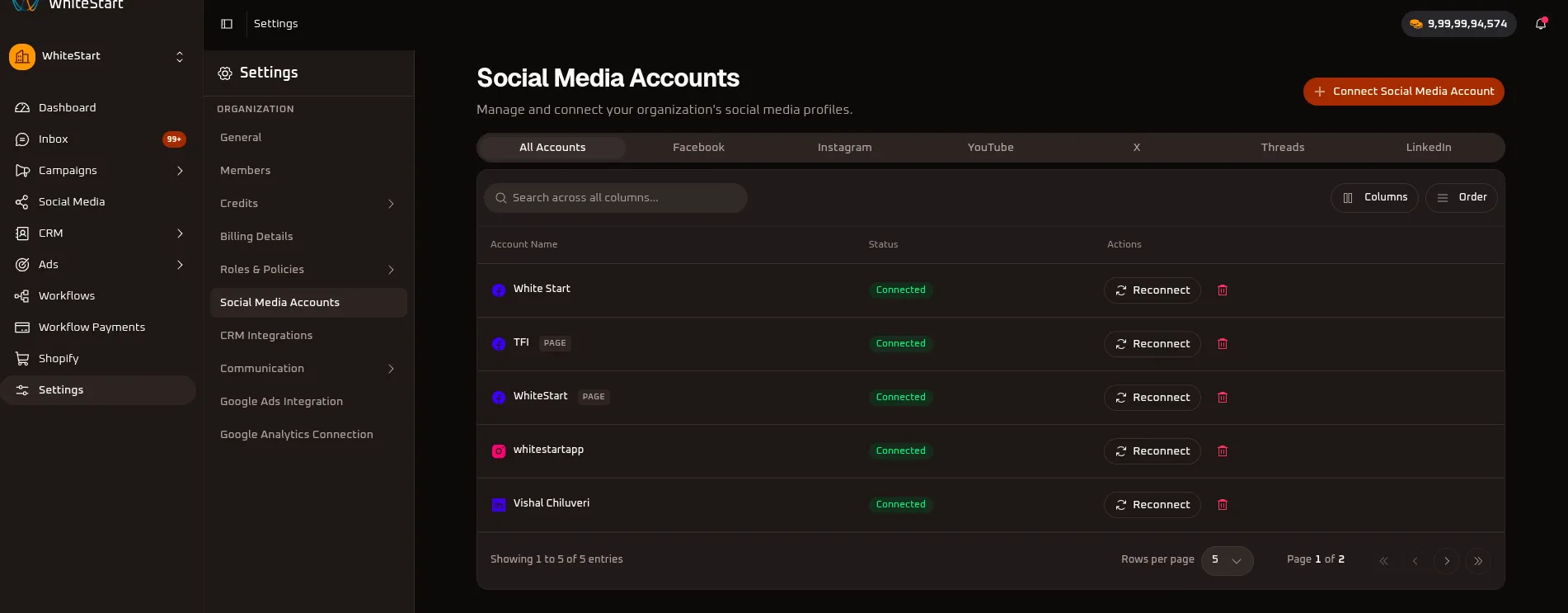
To run multi-channel campaigns, automated workflows, and customer communication, connect the following:
- Social Media Accounts: Facebook, Instagram, LinkedIn, X (Twitter), YouTube, Threads.
- Communication Channels:
- WhatsApp: Official Meta WhatsApp Business API.
- Email: Gmail / Google Workspace / Custom SMTP.
- SMS Providers: Smartping, JIOCX, MSG91.
- RCS Providers: Smartping, Sparc, JIOCX.
- Voice Providers: Smartping, Sparc, JIOCX.
- CRM & Productivity Tools: Google Sheets, Google Calendar & Meet, Zoom, Zoho CRM, HubSpot, Shopify.
1. Connect Social Media Accounts
Section titled “1. Connect Social Media Accounts”Publish content, schedule posts, manage comments, and track engagement across all major networks.
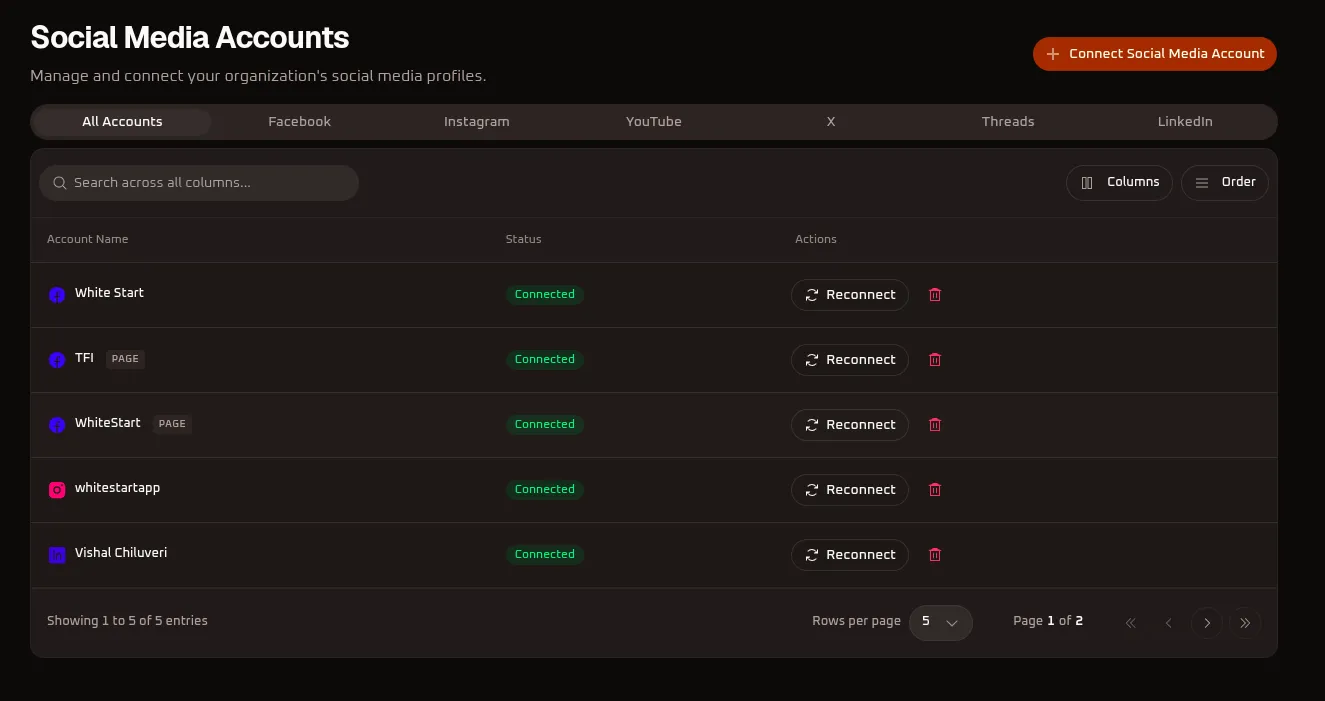
Navigation Path
Section titled “Navigation Path”Settings (⚙️) ➔ Social Media AccountsHow to Connect:
Section titled “How to Connect:”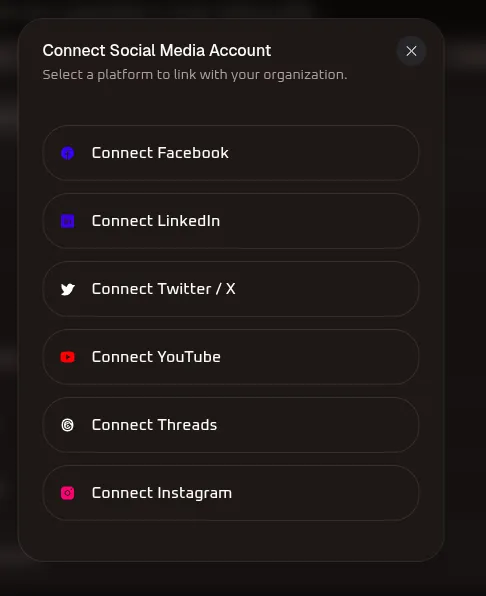
- Click the orange
+ Connect Social Media Accountbutton in the top-right corner. - Select your platform from the popup:
- Facebook (Pages)
- Instagram (Professional / Creator Accounts)
- LinkedIn (Profiles & Company Pages)
- Twitter / X
- YouTube (Channels)
- Threads
- Log in to the platform and grant WhiteStart permission to publish and manage content.
- Once authorized, your account will appear with a green
Connectedbadge.
Detailed Social Media Documentation:
Section titled “Detailed Social Media Documentation:”For comprehensive channel management, post scheduling, and platform-specific formatting rules:
- Social Media Management: Multi-network scheduler, AI captions, post planner, and unified social calendar.
- Social Media Post Editing & Limits: Platform-specific character limits, media aspect ratios, and publishing constraints.
- Social Media Account Settings: Direct management console for connecting and refreshing OAuth tokens.
2. Connect Communication Channels
Section titled “2. Connect Communication Channels”Connect your messaging, email, and telecom gateways to power your broadcasts, transactional alerts, and AI agents.
A. WhatsApp Meta
Section titled “A. WhatsApp Meta”The WhatsApp Meta configuration console allows administrators to link official WhatsApp Business Cloud API accounts, verify sender phone numbers, and configure native in-chat payment gateways.
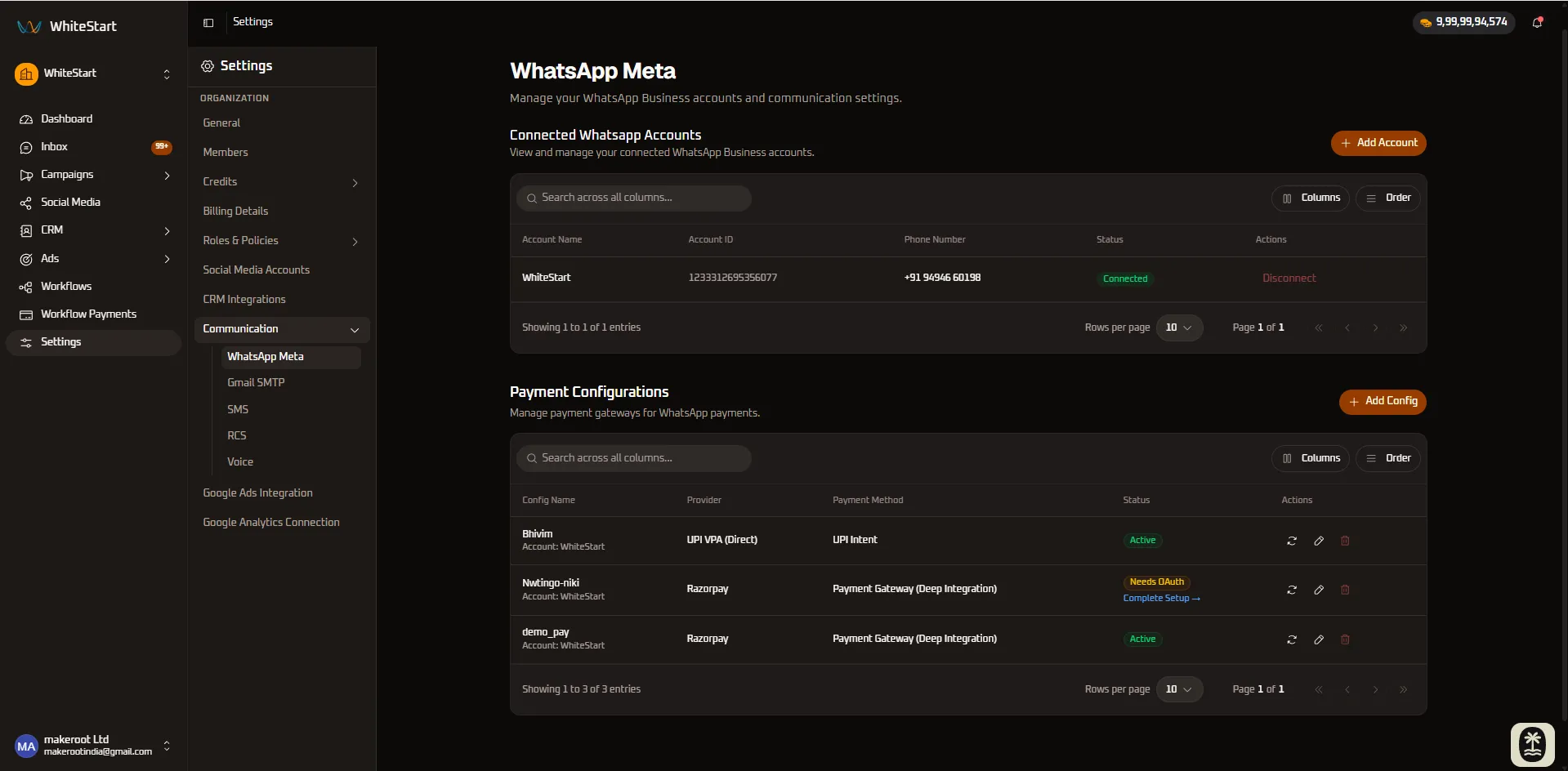
Navigation Path
Section titled “Navigation Path”Settings (⚙️) ➔ Communication ➔ WhatsApp Meta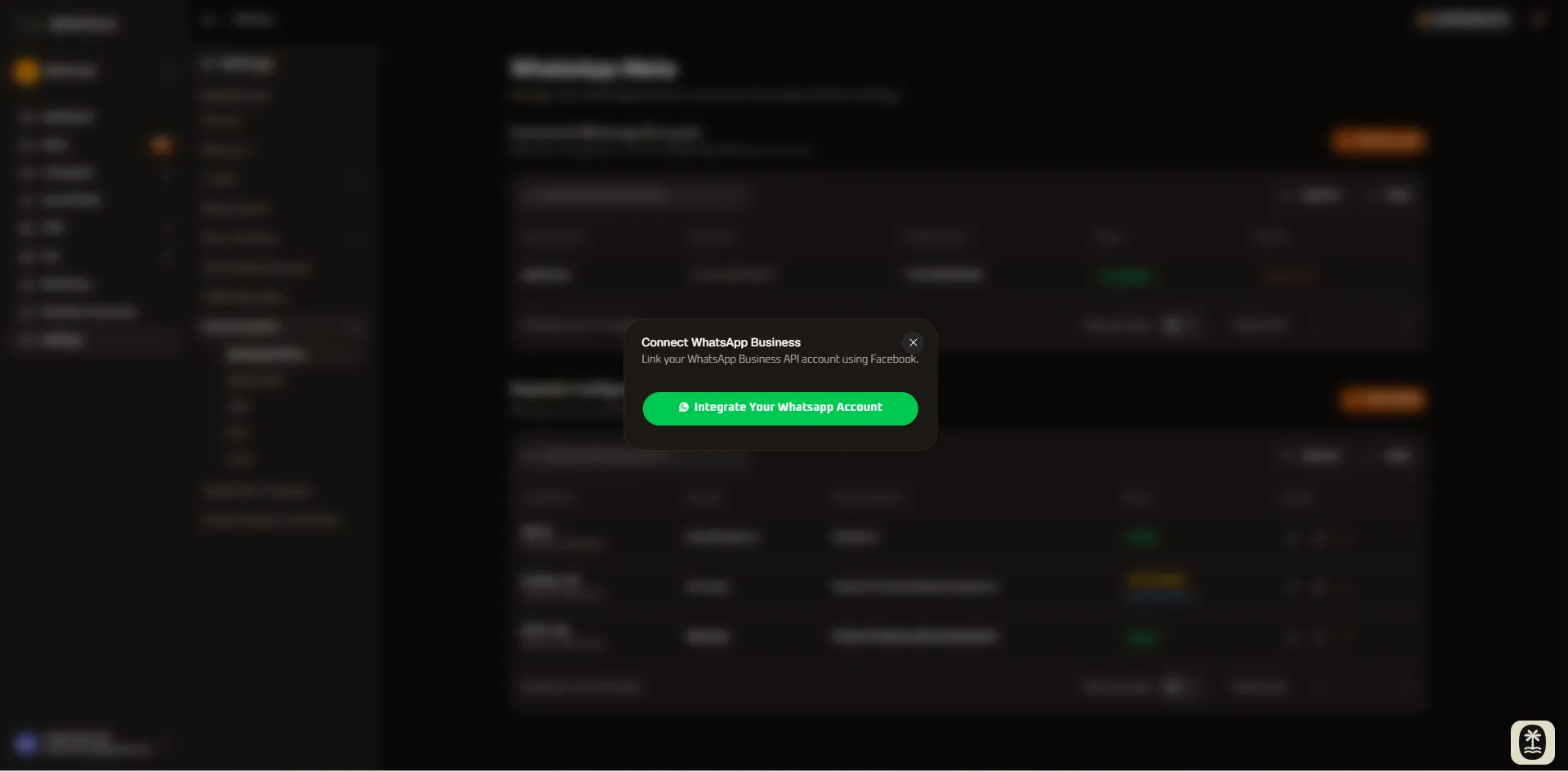
Step-by-Step Connection Procedure:
Section titled “Step-by-Step Connection Procedure:”- Under the Connected WhatsApp Accounts panel, click the orange
+ Add Accountbutton. - In the modal dialog, click the green
Integrate Your Whatsapp Accountbutton. - A secure Meta pop-up window opens to guide you through Meta’s official Embedded Signup:
- Log in to your Facebook profile that administers your Meta Business Manager.
- Select your Meta Business Account and WhatsApp Business Account (WABA).
- Select an existing phone number or register a new business number.
- Verify phone ownership via automated SMS OTP or voice verification call.
- Grant WhiteStart permission to manage templates and dispatch messages.
- Click Finish. Your verified number will appear in the directory table with a green
Connectedstatus badge.
In-Chat Payment Configurations (Optional)
Section titled “In-Chat Payment Configurations (Optional)”WhiteStart enables seamless native in-chat payments so your customers can complete purchases, clear invoices, or pay bills without leaving WhatsApp:
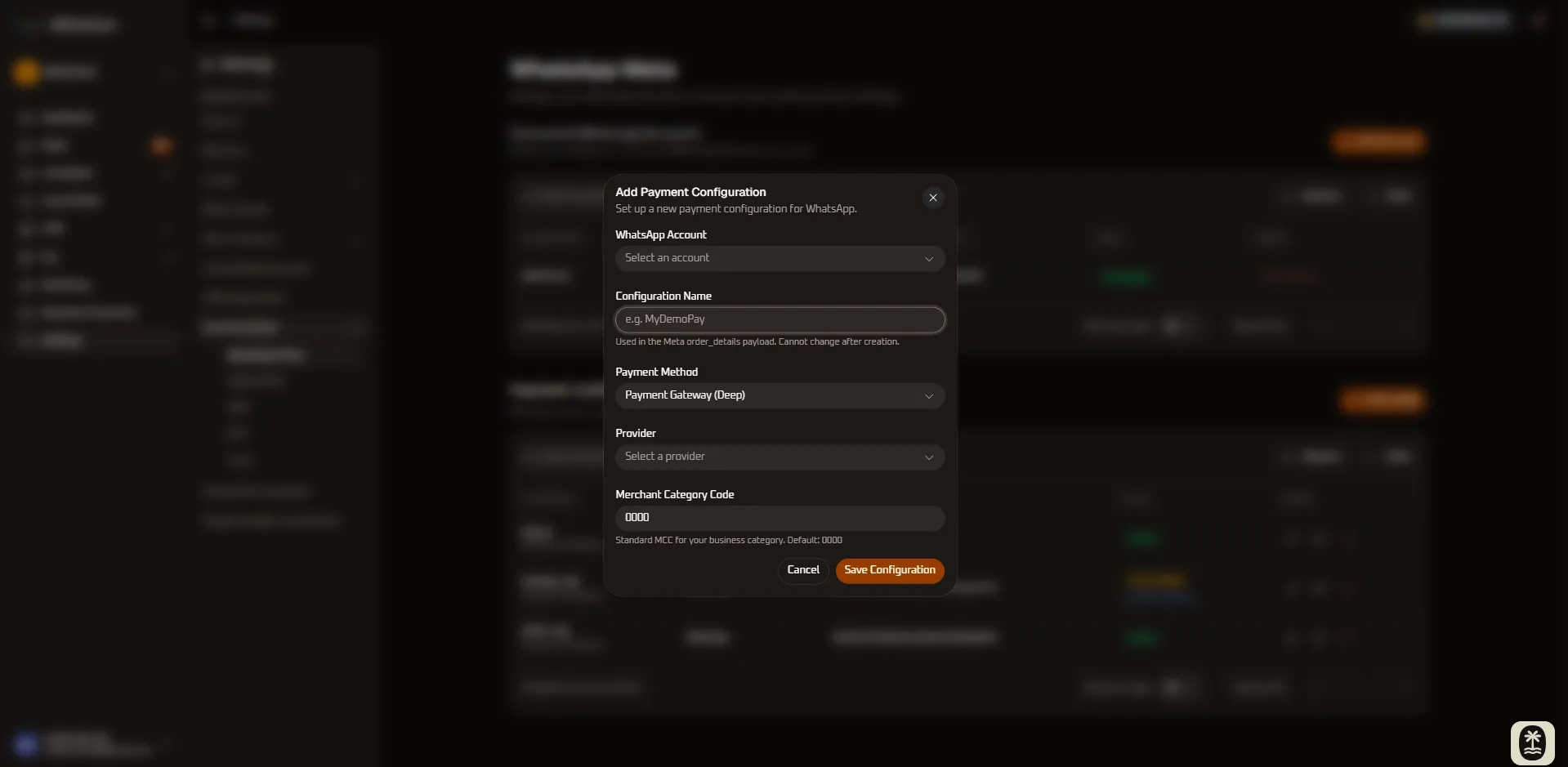
- In the Payment Configurations panel, click the orange
+ Add Configbutton. - Complete the configuration parameters:
- WhatsApp Account: Select the verified WhatsApp phone number that will dispatch payment requests.
- Configuration Name: Enter a unique identifier (e.g.,
MyDemoPay). Note: This identifier cannot be modified after creation. - Payment Method: Choose
UPI IntentorPayment Gateway Deep Integration. - Provider: Select your payment gateway (
UPI VPA Direct,Razorpay, orPayU). - Merchant Category Code (MCC): Provide your 4-digit business sector MCC (default:
0000).
- Click Save Configuration. If your gateway requires OAuth authorization (such as Razorpay), click Complete Setup → to finalize merchant authorization.
Detailed WhatsApp Documentation:
Section titled “Detailed WhatsApp Documentation:”- Communication Settings — WhatsApp Meta: Detailed guide to Meta WABA setup, webhook verification, and native in-chat payment gateways.
- WhatsApp Inbox Management: Triage customer inquiries, assign agents, and deploy automated canned replies.
- WhatsApp Campaigns: Compose, schedule, and dispatch bulk WhatsApp broadcast campaigns.
- WhatsApp Templates Management: Create, submit, and manage Meta-approved message templates.
B. Email (Gmail / Custom SMTP)
Section titled “B. Email (Gmail / Custom SMTP)”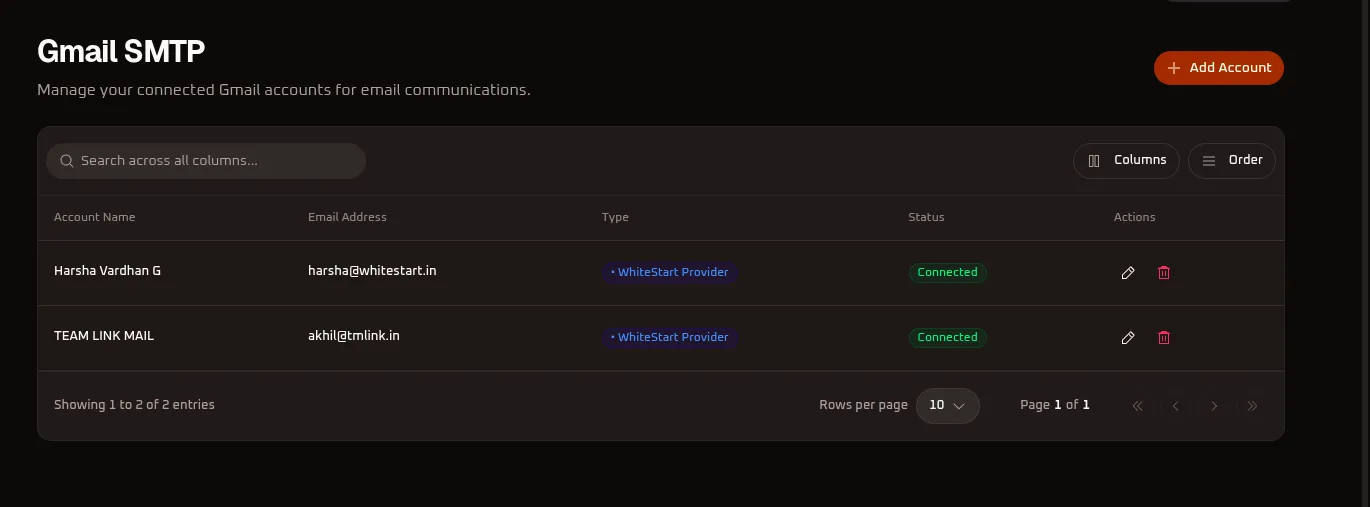
Settings (⚙️) ➔ Communication ➔ Gmail SMTP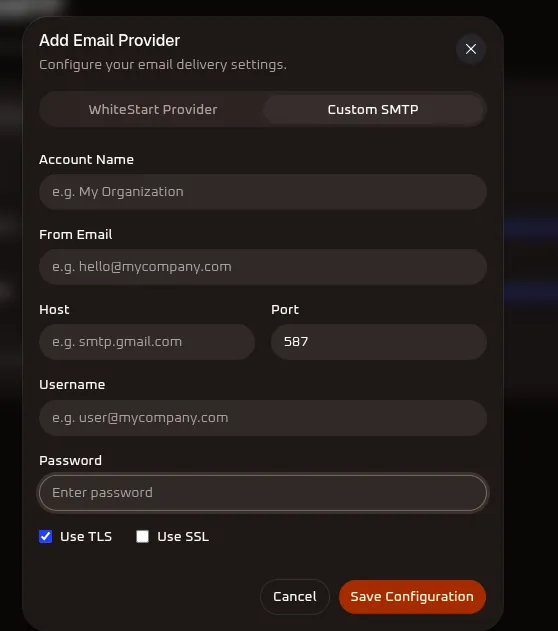
- Click
+ Add Account. - Choose WhiteStart Provider (platform routing) or Custom SMTP (your own domain or Gmail).
- Enter your details:
- Account Name: Internal label (e.g.,
Sales Mail). - From Email: Sender email address (e.g.,
[email protected]). - Host & Port:
smtp.gmail.comwith Port587(TLS) or465(SSL). - Username & Password: Your full email address and account password (or Google App Password).
- Account Name: Internal label (e.g.,
- Select Use TLS and click Save Configuration.
Detailed Email Documentation:
Section titled “Detailed Email Documentation:”- Communication Settings — Email Providers: Configuration details for WhiteStart managed email vs custom domain SMTP.
- Email Campaigns: Build drag-and-drop HTML email broadcasts and sequence workflows.
- Email Templates Management: Design responsive HTML templates and dynamic customer variables.
C. SMS Providers (Smartping, JIOCX, MSG91)
Section titled “C. SMS Providers (Smartping, JIOCX, MSG91)”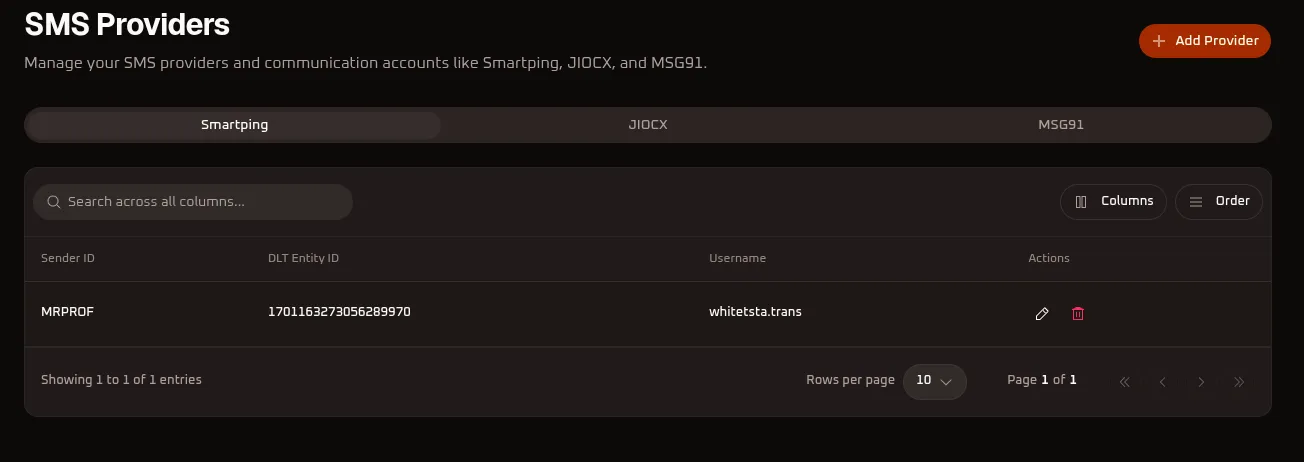
Settings (⚙️) ➔ Communication ➔ SMS Providers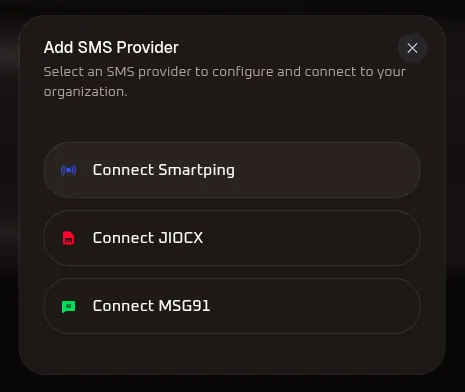
- Click
+ Add Providerand choose your gateway:
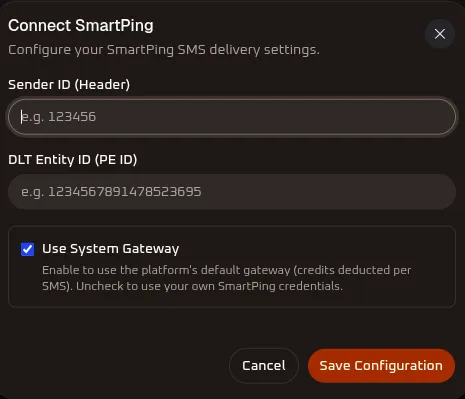
- Smartping / JIOCX: Enter your 6-character Sender ID (Header) and 19-digit DLT Entity ID (PE ID). Keep Use System Gateway checked to use platform credits.
- MSG91: Enter your Default Sender ID and paste your MSG91 Auth Key.
- Click Save Configuration.
Detailed SMS Documentation:
Section titled “Detailed SMS Documentation:”- Communication Settings — SMS Gateways: Detailed setup for DLT Entity IDs, 6-character sender headers, and regulatory compliance.
- SMS Broadcast Campaigns: Launch high-volume transactional OTPs and promotional SMS blasts.
- Dedicated SMS Template Guides:
- JIOCX SMS Templates: Register and configure Jio DLT template variables.
- Smartping SMS Templates: Setup Smartping carrier message formats.
- MSG91 SMS Templates: Connect MSG91 API templates and route IDs.
D. RCS Providers (Smartping, Sparc, JIOCX)
Section titled “D. RCS Providers (Smartping, Sparc, JIOCX)”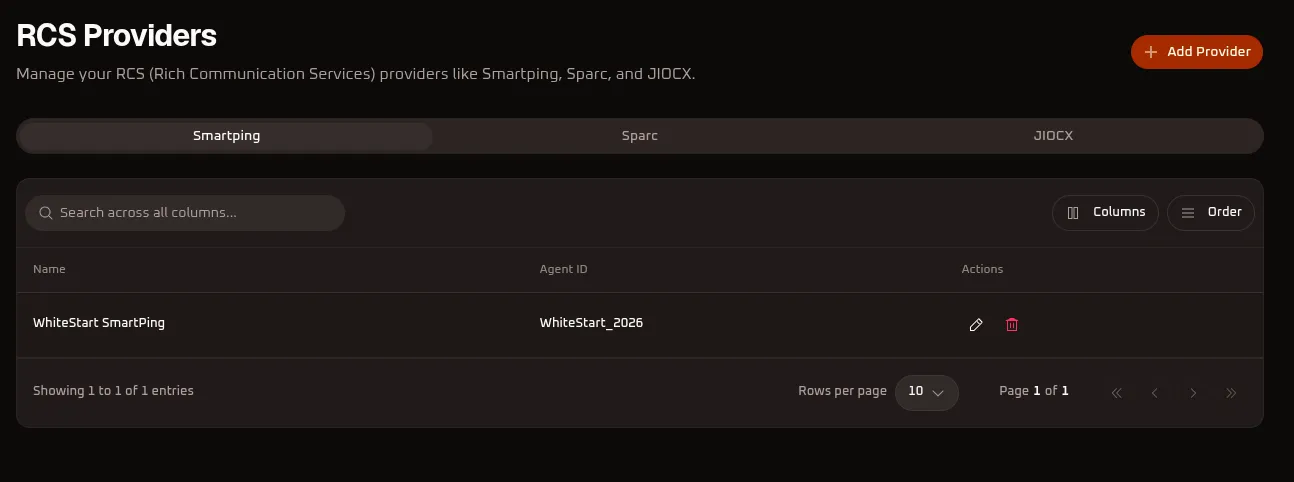
Settings (⚙️) ➔ Communication ➔ RCS Providers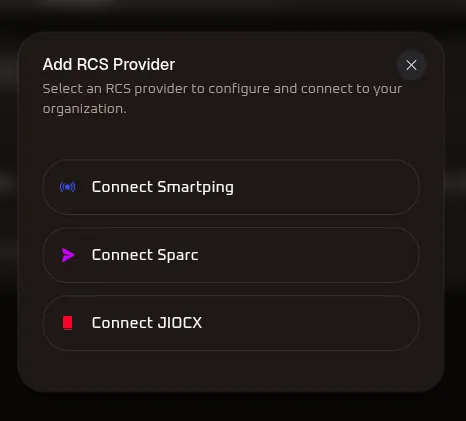
- Click
+ Add Providerand select Smartping, Sparc, or JIOCX.
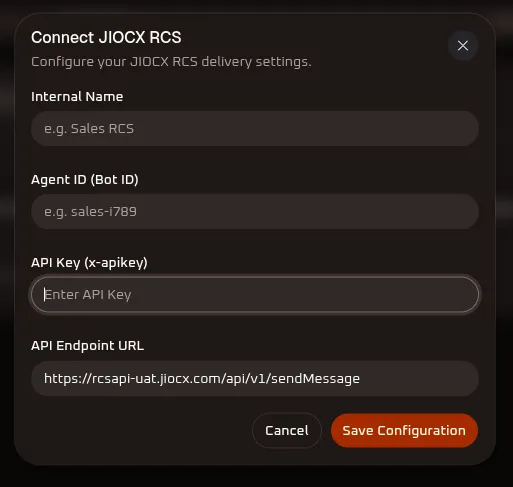
- Fill in:
- Internal Name: Recognizable label (e.g.,
Marketing RCS). - Agent ID (Bot Id): Found in your Google RBM or Jio console.
- API Key (x-apikey): Your provider’s API key.
- Internal Name: Recognizable label (e.g.,
- Click Save Configuration.
Detailed RCS Documentation & Deep-Dive Guides:
Section titled “Detailed RCS Documentation & Deep-Dive Guides:”To explore carrier gateway provisioning, interactive card builders, and multi-card carousel broadcasts in depth:
- Communication Settings — RCS Carrier Gateways: Step-by-step carrier gateway configuration for Google RCS Agent ID verification, brand badges, and webhook URLs.
- RCS Broadcast Campaigns: Comprehensive walkthrough for composing, scheduling, and launching rich card carousels, action chips (Call, URL, Location), and interactive broadcasts.
- Dedicated Interactive RCS Template Guides:
- Smartping RCS Templates: Design rich single cards, carousels, and suggested action chips on Smartping RBM.
- Sparc RCS Templates: 5-step guide to creating verified RCS bot assistants and rich card flows.
- JIOCX RCS Templates: Configure Reliance Jio Cloud RCS rich cards, button actions, and variables.
E. Voice Providers (Smartping, Sparc, JIOCX)
Section titled “E. Voice Providers (Smartping, Sparc, JIOCX)”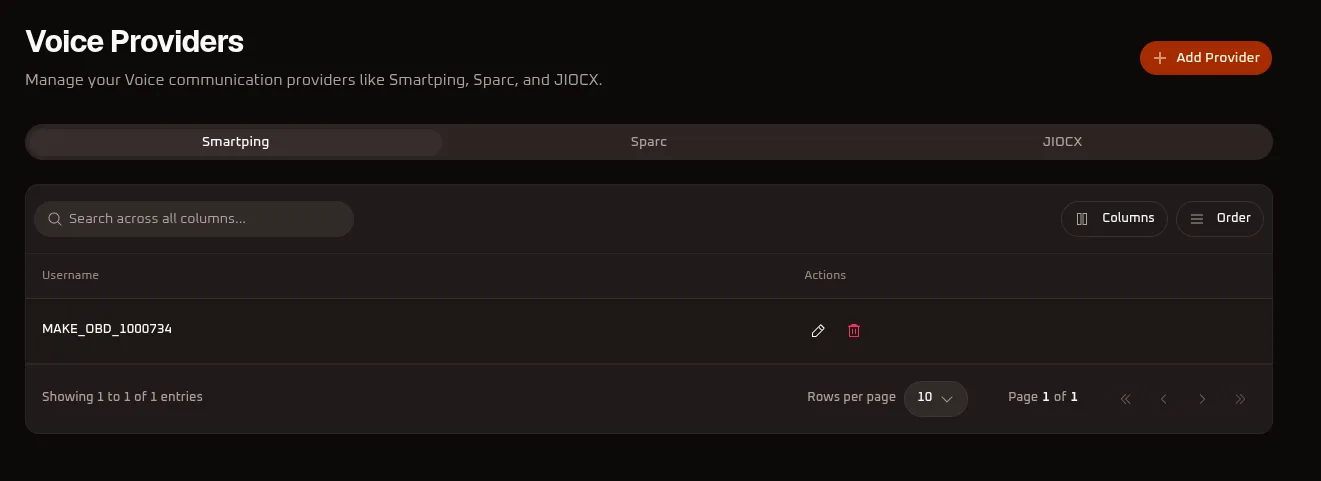
Settings (⚙️) ➔ Communication ➔ Voice Providers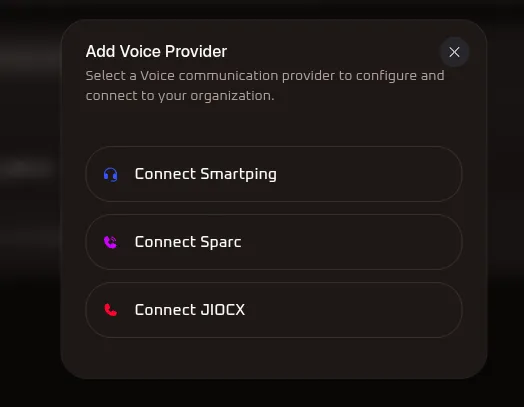
- Click
+ Add Providerand select Smartping, Sparc, or JIOCX. - Enter your credentials:
- Smartping / Sparc: Enter Username and Password.
- JIOCX: Enter Username, Password, Caller ID Number (outbound virtual number), and verified Base URL.
- Click Save Configuration.
Detailed Voice Documentation:
Section titled “Detailed Voice Documentation:”- Communication Settings — Voice Telephony: Outbound voice dialers (OBD), SIP trunks, and virtual caller IDs.
- Voice Campaigns: Schedule automated interactive outbound dialing broadcasts.
- Voice Templates Management: Upload and manage pre-recorded IVR audio files.
3. Connect CRM & Business Tools
Section titled “3. Connect CRM & Business Tools”Sync customer records, automate calendar bookings, and connect e-commerce stores.
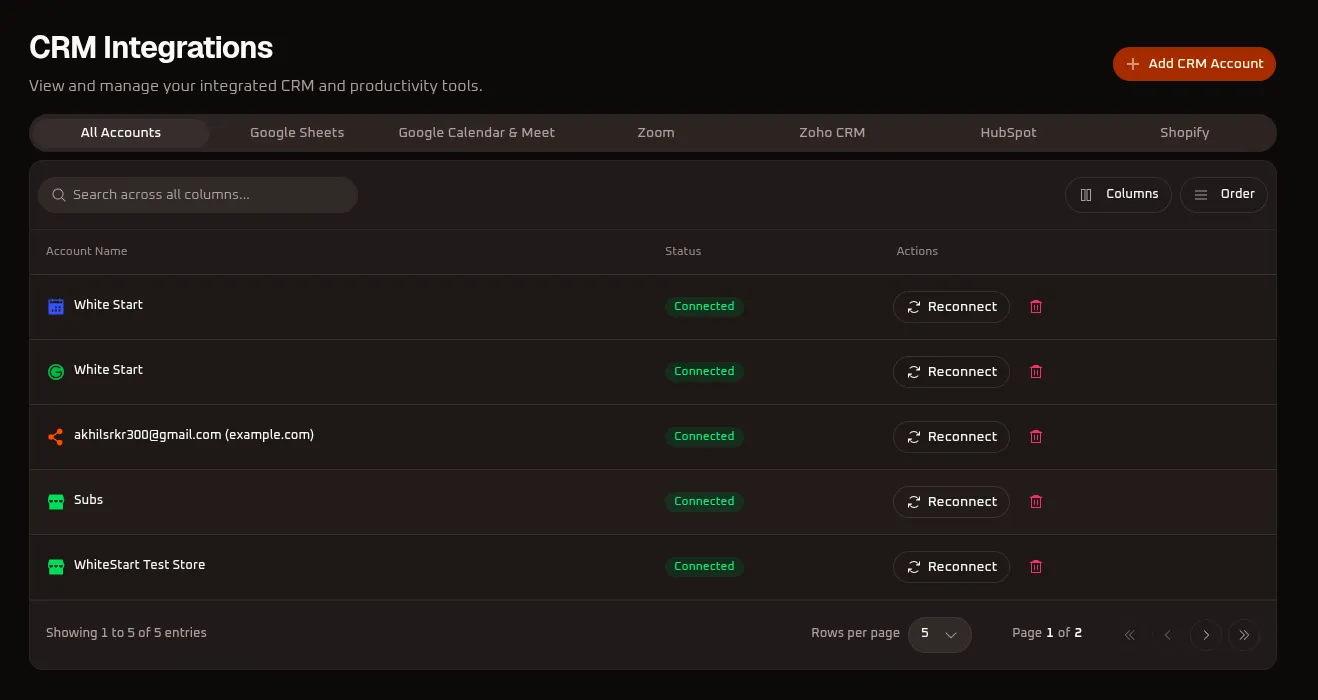
Navigation Path
Section titled “Navigation Path”Settings (⚙️) ➔ CRM IntegrationsHow to Connect:
Section titled “How to Connect:”- Click the orange
+ Add CRM Accountbutton in the top-right corner.
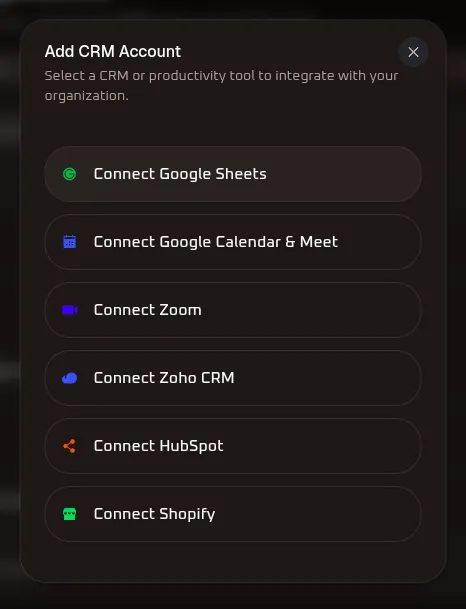
- Select the tool you want to integrate:
- Google Sheets: Sync leads automatically to and from spreadsheets.
- Google Calendar & Meet: Book meetings and insert Google Meet links in automated notifications.
- Zoom: Generate and send video consultation links automatically.
- Zoho CRM: Two-way sync for Leads, Contacts, Accounts, and Deals.
- HubSpot: Sync contacts, lifecycle stages, and trigger automated follow-ups.
- Shopify: Sync customers and order events to trigger abandoned cart recovery and order updates.
- Log in to the respective service, authorize WhiteStart, and confirm permissions.
- Your account will appear in the table with a green
Connectedbadge.
Detailed CRM & Integrations Documentation:
Section titled “Detailed CRM & Integrations Documentation:”To manage lead pipelines, custom customer attributes, data tables, and e-commerce catalogs in depth:
- Settings — CRM Integrations: Deep-dive instructions for authenticating and mapping data with Google Sheets, Google Calendar & Meet, Zoom, Zoho CRM, HubSpot, and Shopify.
- CRM Lead Intake Forms: Design custom responsive embeddable web forms to capture leads directly into WhiteStart.
- CRM Data Tables: Configure custom database tables, relational schemas, and data structures.
- Customer Master Tables: Manage customer profiles, lifecycle stages, and multi-filter segmentation.
- CRM Custom Fields: Create and organize custom text, numeric, date, and dropdown fields.
- Meta Catalogs: Sync product catalogs with Meta Business Manager for in-chat commerce.
- WhatsApp Bot Data: Capture and organize conversational bot variables into CRM tables.
Summary Checklist
Section titled “Summary Checklist”| Category | Channel / Tool | Navigation Path | Key Requirements |
|---|---|---|---|
| Social Media | Facebook, Instagram, LinkedIn, X, YouTube, Threads | Settings ➔ Social Media Accounts |
Admin login & account permissions |
| Messaging | WhatsApp Meta | Settings ➔ Communication ➔ WhatsApp Meta |
Facebook login, Meta Business & WABA access |
| Gmail / Custom SMTP | Settings ➔ Communication ➔ Gmail SMTP |
SMTP Host, Port, Username, App Password | |
| Telecom | SMS (Smartping, JIOCX, MSG91) | Settings ➔ Communication ➔ SMS Providers |
DLT Sender ID, Entity ID, or Auth Key |
| Telecom | RCS (Smartping, Sparc, JIOCX) | Settings ➔ Communication ➔ RCS Providers |
Agent/Bot ID, API Key |
| Telephony | Voice (Smartping, Sparc, JIOCX) | Settings ➔ Communication ➔ Voice Providers |
Gateway Username, Password, Caller ID |
| Productivity | Google Sheets, Calendar & Meet, Zoom | Settings ➔ CRM Integrations |
Account OAuth login & access permissions |
| CRM | Zoho CRM, HubSpot | Settings ➔ CRM Integrations |
CRM Admin login & sync authorization |
| E-Commerce | Shopify | Settings ➔ CRM Integrations |
Shopify Store login & App approval |
What to Do Next
Section titled “What to Do Next”With your accounts and channels connected, you can now:
- Import Leads: Upload contact lists under CRM ➔ Contacts.
- Launch Broadcasts: Send WhatsApp, Email, or SMS blasts under Campaigns.
- Create Workflows: Build automated lead capture, follow-up, and nurturing journeys under Workflows.
Next Steps & Related Documentation
Section titled “Next Steps & Related Documentation”- Communication Gateways & Channels: Configure WhatsApp Cloud API, SMS DLT headers, RCS Bot verification, and Voice telephony.
- RCS Broadcast Campaigns: Learn how to send interactive RCS rich cards and carousels.
- Settings — CRM Integrations: Setup two-way sync for Zoho CRM, HubSpot, Google Sheets, and Shopify.
- CRM Forms & Pipelines: Design web forms and embed intake pipelines.
- Social Media Management: Manage multi-network scheduling and social publishing.
- Dashboard Overview: Monitor incoming conversations and campaign metrics across connected channels.
- Setup Wizard & Channel Configuration: Revisit initial organization onboarding and setup wizard milestones.
- Account Setup of Organization: Configure workspace preferences and organization settings.
- How WhiteStart Works: Explore how automated workflows route customer messages across channels.
- WhiteStart Introduction: Return to the Get Started index.