
Meta Catalogs
The Meta Catalogs module in WhiteStart bridges your enterprise product inventory from Meta Commerce Manager (Facebook & Instagram) directly into the WhatsApp Business ecosystem. By centralizing catalog governance within WhiteStart, marketing and sales teams can seamlessly connect e-commerce product inventories, launch interactive multi-product WhatsApp campaigns, power automated conversational storefront bots, and streamline conversational checkout flows.
Overview
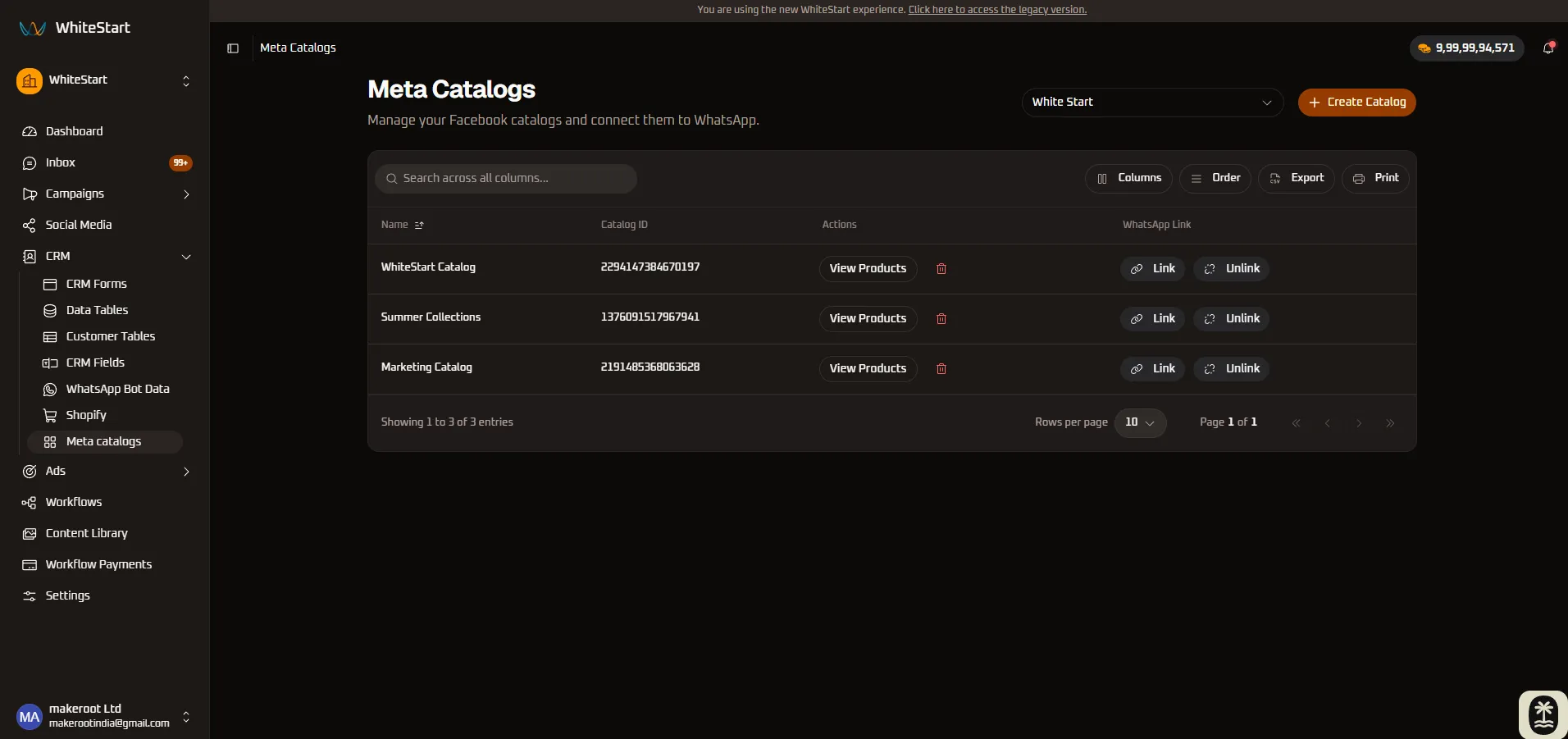
Section titled “Overview”Modern conversational commerce relies on real-time inventory visibility. Rather than forcing prospects out of WhatsApp onto third-party web storefronts, Meta Catalogs allow businesses to present native, interactive product cards, collections, and multi-item shopping carts directly within chat threads.
WhiteStart’s Meta Catalogs console provides a centralized operational cockpit to review catalog status, provision new product catalogs directly against your authenticated Meta Business portfolios, link or unlink inventory to active WhatsApp Business Accounts (WABAs), and customize table views for high-density catalog governance.
Key Capabilities
Section titled “Key Capabilities”- Direct Meta Commerce Synchronization: Access and manage product catalogs directly synchronized from your connected Facebook Accounts and Meta Business portfolios.
- 1-Click WhatsApp Account Linking (
WhatsApp Link): Connect catalogs to your WhatsApp Business phone numbers with a single click (🔗 Link) to activate native WhatsApp product messages, or decouple them (⛓️💥 Unlink) on demand. - Streamlined Catalog Provisioning (
+ Create Catalog): Create new Meta product catalogs directly from the WhiteStart interface without needing to navigate through Meta Business Manager. - In-Depth Product Inspection (
View Products): Open detailed product inventories to verify items, SKU variants, prices, descriptions, and stock statuses. - Advanced Grid & Column Controls: Reorder columns dynamically via drag-and-drop (
[ Order ]), toggle visibility ([ Columns ]), freeze key identifiers (Pin Left/Pin Right), and sort ascending or descending. - Omni-Column Live Search & Multi-Format Exports: Search instantaneously across all catalog attributes and export filtered records via formatted CSV or print-ready views.
Accessing Meta Catalogs
Section titled “Accessing Meta Catalogs”Navigate to the Meta Catalogs directory using the primary left-hand navigation sidebar:
Main Sidebar ➔ CRM ➔ Meta catalogs- Click on CRM in the main sidebar to expand the CRM navigation group.
- Select Meta catalogs (located directly beneath Shopify).
- The master catalog console displays your total registered catalogs, associated Catalog IDs, direct product links, and WhatsApp connection statuses.
Console Layout & Toolbar Architecture
Section titled “Console Layout & Toolbar Architecture”The Meta Catalogs interface is organized for high visibility, quick catalog creation, and fast table manipulation:
+─────────────────────────────────────────────────────────────────────────────────────────────+| Meta Catalogs [ White Start v ] [+ Create]|| Manage your Facebook catalogs and connect them to WhatsApp. |+─────────────────────────────────────────────────────────────────────────────────────────────+| [Q Search across all columns... ] [|| Columns] [= Order] [CSV Export] [Pr]|+─────────────────────────────────────────────────────────────────────────────────────────────+| Name Catalog ID Actions WhatsApp Link |+──────────────────────┼───────────────────────┼───────────────────┼──────────────────────────+| WhiteStart Catalog | 2294147384670197 | [ View Products ] | [🔗 Link] [⛓️💥 Unlink] || Summer Collections | 1376091517967941 | [ View Products ] | [🔗 Link] [⛓️💥 Unlink] || Marketing Catalog | 2191485368063628 | [ View Products ] | [🔗 Link] [⛓️💥 Unlink] |+──────────────────────┴───────────────────────┴───────────────────┴──────────────────────────+| Showing 1 to 3 of 3 entries Rows per page: [ 10 v ] Page 1 of 1 |+─────────────────────────────────────────────────────────────────────────────────────────────+Primary Toolbar Controls
Section titled “Primary Toolbar Controls”- Business Portfolio Selector (
White Start v): Switch between multiple connected Meta Business accounts or client brands to isolate and manage brand-specific catalogs. + Create CatalogButton: Primary call-to-action that opens the catalog creation wizard.- Global Search Bar (
Search across all columns...): Instant search field that filters across catalog names and unique numerical Meta Catalog IDs in real time. [ Columns ]: Dropdown checklist allowing users to show or hide individual table columns.[ Order ]: Reorder tool allowing users to drag and rearrange the sequence of columns.[ Export ]: One-click CSV exporter that downloads the current catalog table view.[ Print ]: Formats and prints the catalog directory view for physical audits or executive reporting.
Creating a New Meta Catalog
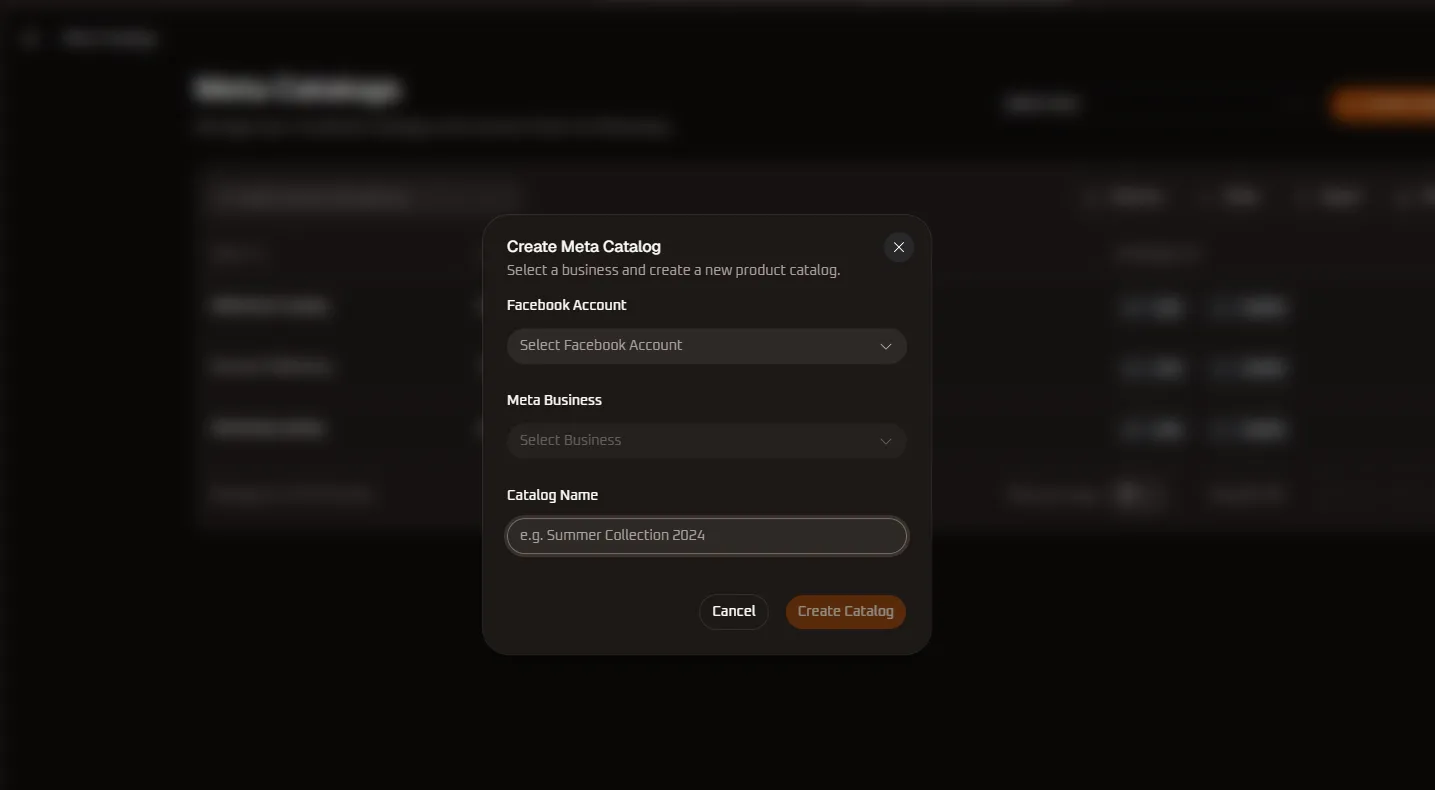
Section titled “Creating a New Meta Catalog”WhiteStart enables teams to provision official Meta product catalogs directly without accessing Meta Commerce Manager:
Step-by-Step Creation Workflow
Section titled “Step-by-Step Creation Workflow”- From the top-right toolbar, click the orange
+ Create Catalogbutton. - The Create Meta Catalog modal appears over the console backdrop.
- Configure the required parameters:
| Field | Input Type | Description & Configuration Guidelines |
|---|---|---|
| Facebook Account | Single-Select Dropdown | Choose the authenticated Facebook profile with administrator permissions over the target business assets. |
| Meta Business | Single-Select Dropdown | Select the target Meta Business portfolio (Business Manager account) under which the catalog should reside. |
| Catalog Name | Text Input | Enter a clear, descriptive title for the catalog (e.g., Summer Collection 2024, B2B Wholesale Catalog, Flash Sale Products). |
- Click Create Catalog to finalize creation. WhiteStart communicates with the Meta Graph API to generate the catalog and instantly renders the new record in your active table with its unique system-assigned Catalog ID.
Catalog Data Dictionary & Column Specifications
Section titled “Catalog Data Dictionary & Column Specifications”The master table organizes your catalog assets across four primary operational columns:
| Column | Header Controls | Data Format | Operational Value & Description |
|---|---|---|---|
| Name | Sort, Filter, Pin, Hide | Text String | The user-defined business name for the catalog (e.g., WhiteStart Catalog, Summer Collections, Marketing Catalog). |
| Catalog ID | Sort, Filter, Pin, Hide | 16-Digit Numeric ID | The unique Meta Catalog identifier generated by Meta Commerce Manager (e.g., 2294147384670197). Required for API webhooks and developer integrations. |
| Actions | Pin, Hide | Action Buttons | View Products: Launches the SKU product viewer to inspect item details. Delete ( 🗑️): Permanently removes the catalog association from WhiteStart. |
| WhatsApp Link | Pin, Hide | Dual Action Buttons | 🔗 Link: Associates this catalog with your active WhatsApp Business Account for in-chat commerce.⛓️💥 Unlink: Disconnects the catalog from WhatsApp without deleting the underlying products. |
Linking Catalogs to WhatsApp Business (WhatsApp Link)
Section titled “Linking Catalogs to WhatsApp Business (WhatsApp Link)”To use product cards, Single Product Messages (SPM), Multi-Product Messages (MPM), or WhatsApp automated checkout bots, the catalog must be officially bound to your WhatsApp Business Account (WABA).
┌────────────────────────────────┐ ┌────────────────────────────────┐│ Meta Product Catalog │ │ WhatsApp Business Account ││ (SKUs, Images, Prices, Stock) │ │ (Phone Number & Bots) │└───────────────┬────────────────┘ └────────────────┬───────────────┘ │ │ └───────────────────────┬───────────────────────────┘ ▼ [ 🔗 Link WhatsApp Action ] │ ▼ ┌─────────────────────────────────────────────────────┐ │ WhatsApp Native Conversational Commerce │ │ * Interactive In-Chat Product Carousels │ │ * Native WhatsApp Storefront ("View Shop") │ │ * Automated Bot Recommendation & Cart Flows │ └─────────────────────────────────────────────────────┘Linking Actions Explained
Section titled “Linking Actions Explained”🔗 Link(Connect to WhatsApp):- Associates the catalog with your active WhatsApp Business phone number.
- Enables the WhatsApp storefront icon in customer chat windows.
- Unlocks product template messaging and conversational catalog browsing inside bot flows.
⛓️💥 Unlink(Disconnect from WhatsApp):- Safely decouples the catalog from the WhatsApp phone number.
- Retains all product items and SKU data intact in Meta Commerce Manager.
- Useful when rotating seasonal product lines (e.g., switching from Summer Collections to Festival Sale).
Column-Level Operations (Sorting, Pinning & Hiding)
Section titled “Column-Level Operations (Sorting, Pinning & Hiding)”Every column header includes an interactive context menu accessible via the column header control, empowering team members to customize their view for operational efficiency.
1. Name Column Controls
Section titled “1. Name Column Controls”Sort your catalog roster alphabetically or pin the catalog name to the screen boundaries while reviewing wide datasets:
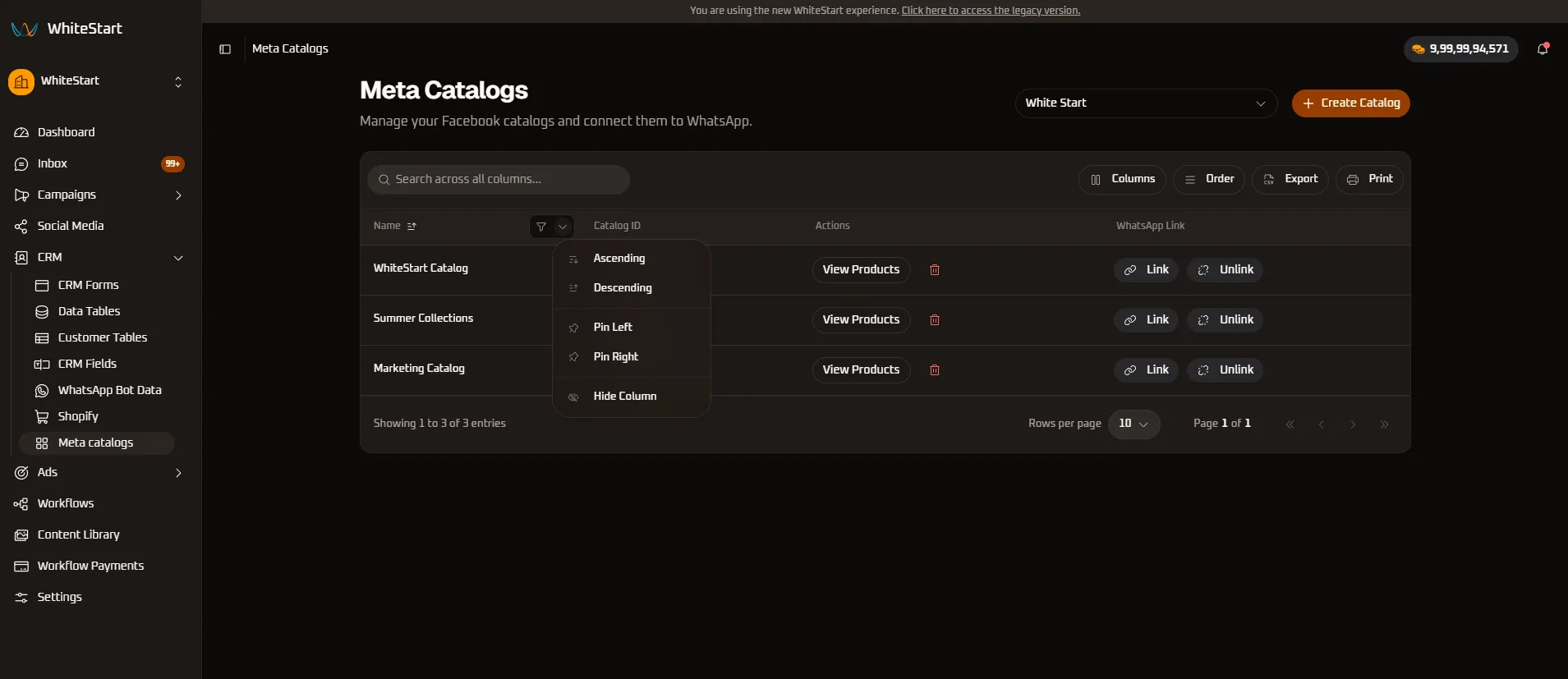
⇋ Ascending/⇌ Descending: Sort catalog names in A–Z or Z–A order.📌 Pin Left: Freezes theNamecolumn to the far left of the table.📌 Pin Right: Freezes theNamecolumn to the far right.👁️ Hide Column: Temporarily removes theNamecolumn from the active display.
2. Catalog ID Column Controls
Section titled “2. Catalog ID Column Controls”Organize catalogs chronologically by numerical identifier or pin the ID column for fast copy-pasting during API webhook configuration:
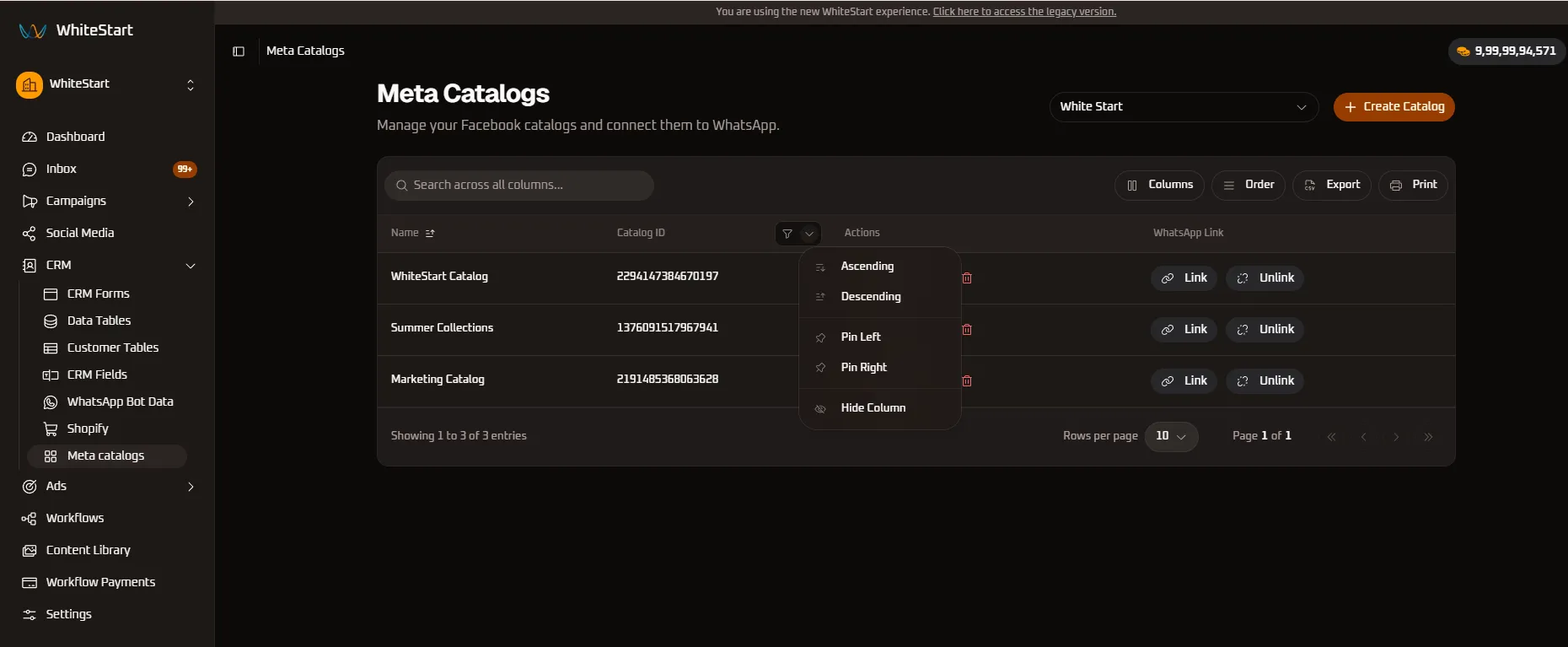
⇋ Ascending/⇌ Descending: Sort numerically by the 16-digit Meta Catalog ID.📌 Pin Left/📌 Pin Right: Anchor the ID column to either table edge.👁️ Hide Column: Suppress technical IDs when non-technical staff are managing links.
3. WhatsApp Link Column Controls
Section titled “3. WhatsApp Link Column Controls”Pin quick-action connection triggers to the right edge of the table to ensure instant access across all device screens:
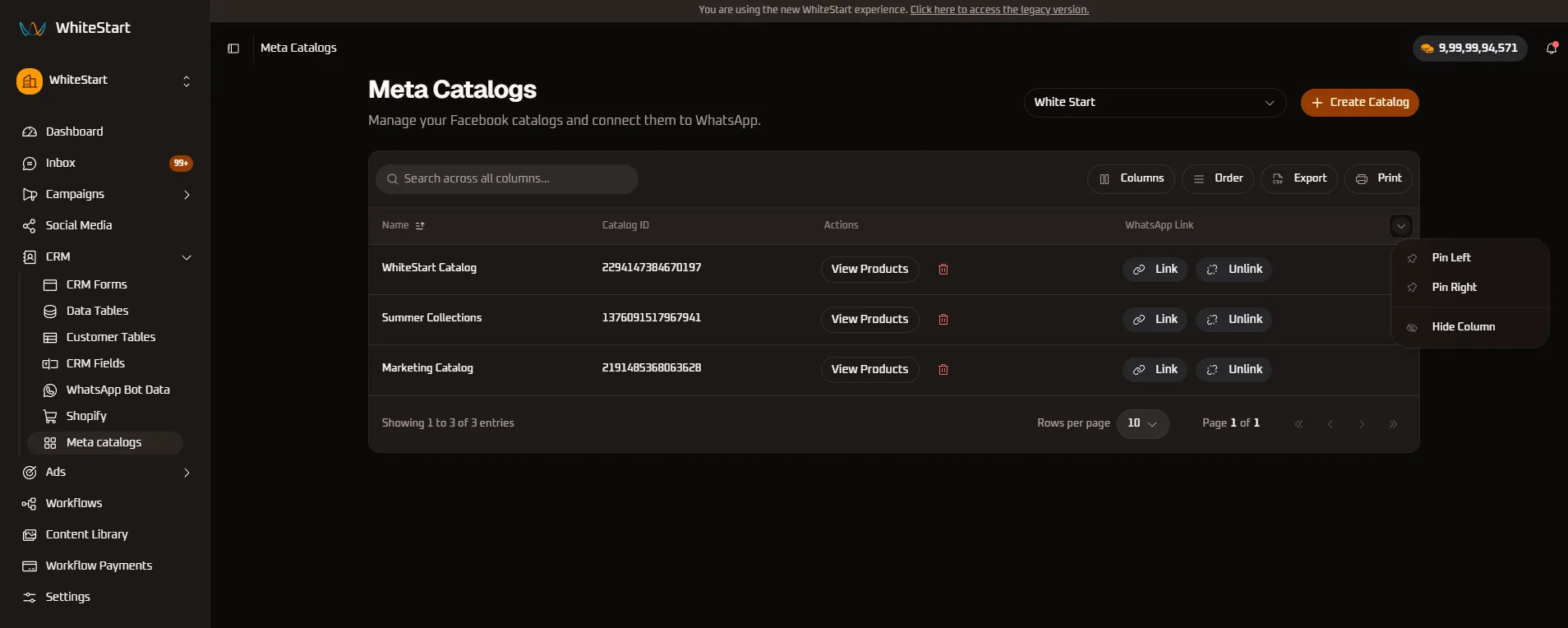
📌 Pin Left/📌 Pin Right: Freeze the link/unlink action controls to either boundary.👁️ Hide Column: Temporarily hide WhatsApp connection buttons if catalog management is strictly for audit.
Customizing Table Views: Visibility & Reordering
Section titled “Customizing Table Views: Visibility & Reordering”WhiteStart provides dedicated toolbar utilities to customize your working environment:
Column Visibility Management ([ Columns ])
Section titled “Column Visibility Management ([ Columns ])”Clicking the [ Columns ] button opens an interactive checklist of all registered columns:
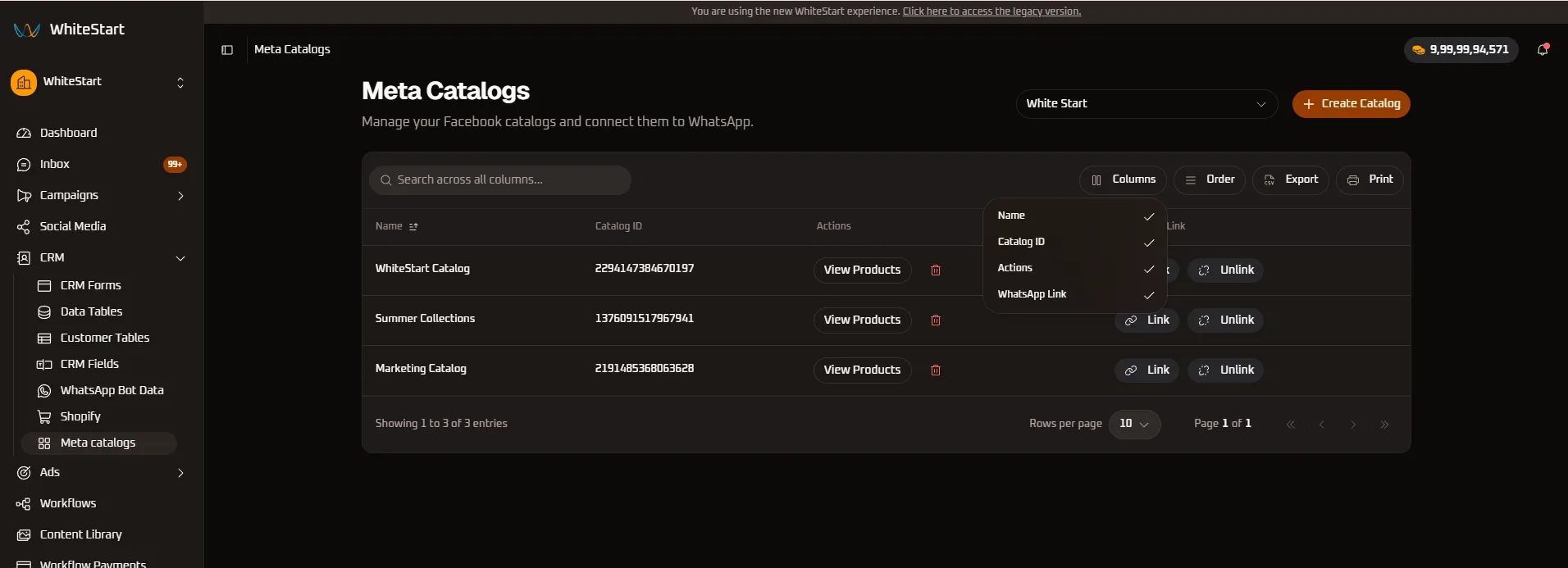
- Check / Uncheck Attributes: Select or clear checkboxes for
Name,Catalog ID,Actions, andWhatsApp Linkto selectively hide or display attributes. - Decluttering Your Workspace: Teams focusing purely on catalog health can hide ID columns and focus exclusively on catalog names and active connection statuses.
Dynamic Column Reordering ([ Order ])
Section titled “Dynamic Column Reordering ([ Order ])”Clicking the [ Order ] button launches the column sequence organizer:
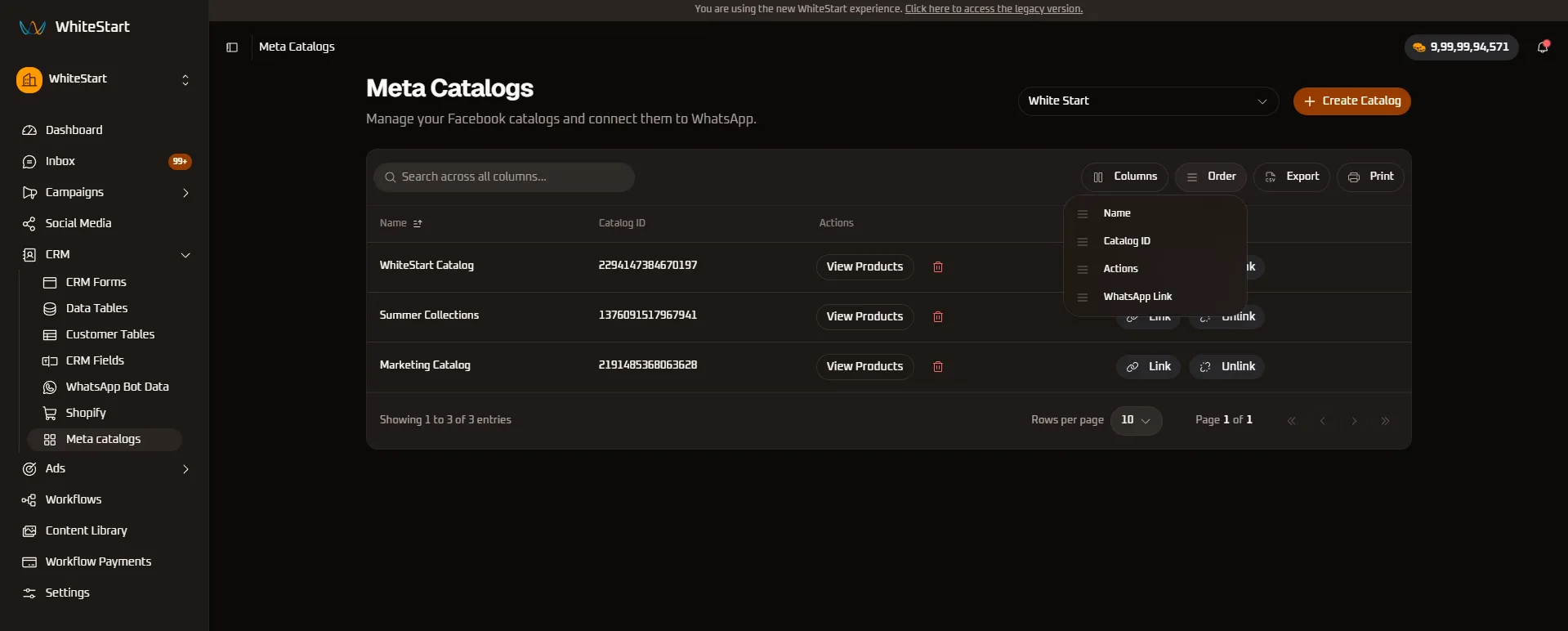
- Drag-and-Drop Sequencing (
≡): Click and drag any column handle (≡ Name,≡ Catalog ID,≡ Actions,≡ WhatsApp Link) up or down to change its display order across the table grid. - Priority Alignment: Place
WhatsApp Linkdirectly next toNamefor rapid account status reviews without intermediary technical columns.
Global Search & Real-Time Querying
Section titled “Global Search & Real-Time Querying”The toolbar search input provides instant, cross-column filtering across all catalog records:
+─────────────────────────────────────────────────────────────────────────────────────────────+| [Q Summer ✕ ] [|| Columns] [= Order] [CSV Export] [Pr]|+─────────────────────────────────────────────────────────────────────────────────────────────+| Name Catalog ID Actions WhatsApp Link |+──────────────────────┼───────────────────────┼───────────────────┼──────────────────────────+| Summer Collections | 1376091517967941 | [ View Products ] | [🔗 Link] [⛓️💥 Unlink] |+──────────────────────┴───────────────────────┴───────────────────┴──────────────────────────+| Showing 1 to 1 of 1 entries (filtered from 3) Page 1 of 1 |+─────────────────────────────────────────────────────────────────────────────────────────────+- Instant Dynamic Filtering: The grid updates live with every keystroke with zero page refreshes.
- Omni-Field Matching: Search by partial catalog name (
Summer,WhiteStart,Market) or by specific numeric digits from theCatalog ID. - Quick Reset (
✕): Clear the search input to instantly restore the entire catalog inventory table.
Product Inventory Inspection (View Products)
Section titled “Product Inventory Inspection (View Products)”Clicking the View Products button within any catalog row opens the integrated product inventory drawer:
- SKU & Variant Inspection: Verify product titles, SKU identifiers, descriptions, and variant options (size, color, material).
- Pricing & Currency Verification: Confirm that consumer pricing, promotional discount rates, and regional currencies match your active store pricing.
- Availability & Stock Checks: Ensure in-stock items are flagged as
in stockso automated WhatsApp bot responses do not advertise out-of-stock items. - Image & Asset Audit: Preview 1:1 product thumbnails to guarantee compliance with WhatsApp’s mobile catalog display guidelines.
Exporting & Printing Catalog Records
Section titled “Exporting & Printing Catalog Records”The top toolbar offers one-click documentation and compliance tools:
1. CSV Data Export ([ Export ])
Section titled “1. CSV Data Export ([ Export ])”Click [ Export ] to download the visible catalog dataset as a structured CSV file (meta_catalogs_export.csv):
- Column-Selective Output: Respects your active
[ Columns ]visibility settings—hidden columns are cleanly excluded from the export. - Audit & Archival: Maintain historical backups of active catalog IDs and business manager associations.
2. Print-Ready Reports ([ Print ])
Section titled “2. Print-Ready Reports ([ Print ])”Click [ Print ] to render a clean, high-contrast tabular document optimized for physical printers or PDF export, ideal for compliance reviews and IT architecture handoffs.