
CRM Fields
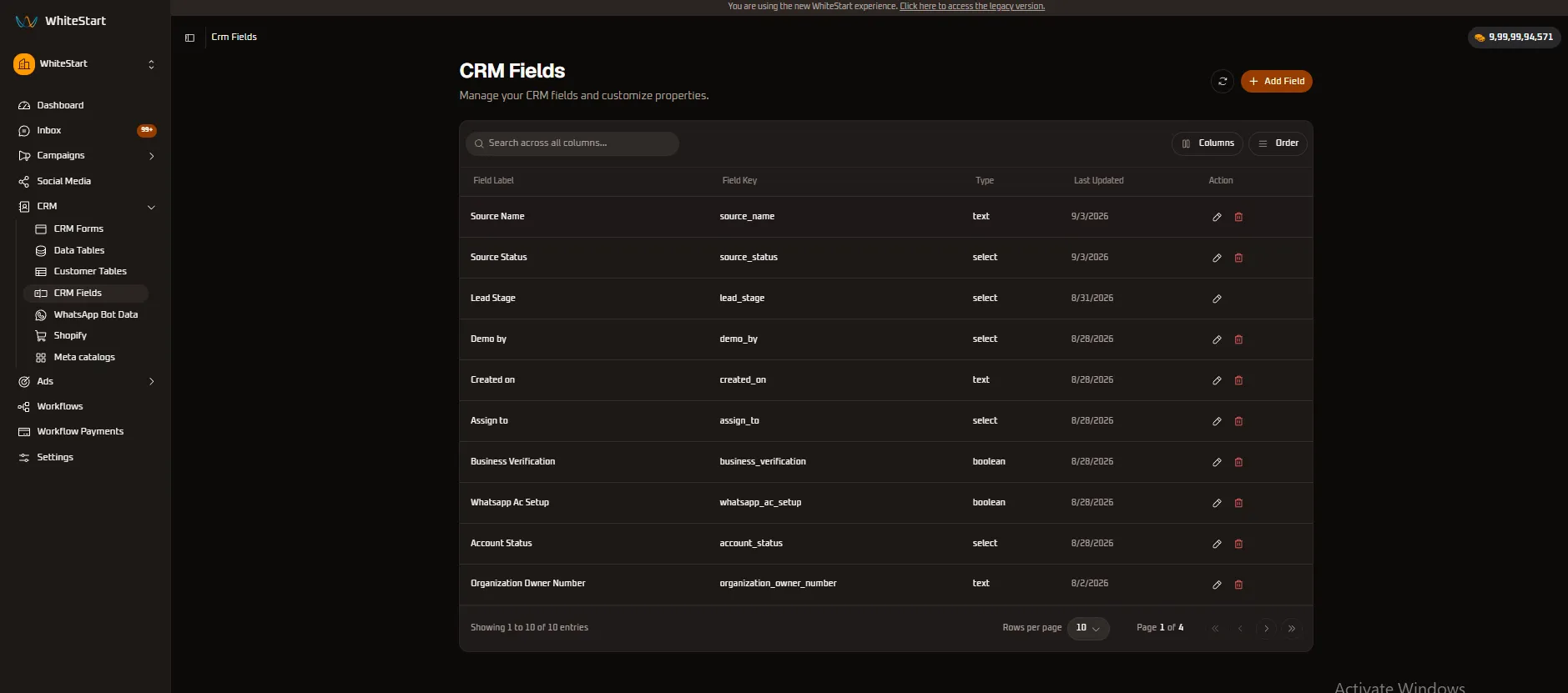
The CRM Fields module in WhiteStart serves as the centralized data dictionary and attribute schema manager for your entire workspace. Every property defined here acts as a standardized, reusable field across CRM Forms, Data Tables, Customer Tables, automated WhatsApp bot flows, and API integrations.
Overview
Section titled “Overview”Rather than redefining inputs for every separate campaign, table, or intake form, WhiteStart utilizes a unified field registry. Creating an attribute in CRM Fields instantly registers it workspace-wide, making it immediately selectable inside conversational bot workflows, form builders, and client profile drawers.
Key Capabilities
Section titled “Key Capabilities”- Global Schema Reusability: Define an attribute once (e.g.,
Business Verification,Demo by,Source Status) and deploy it across multiple forms, campaigns, and customer tables. - Programmatic Field Keys (
snake_case): Every property is paired with an immutable system identifier formatted in standardsnake_case, ensuring reliable API, webhook, and workflow mapping. - Multi-Type Support: Native support for alphanumeric text strings, standardized single-choice dropdowns (
select), and binary verification flags (boolean). - Interactive Column Controls: Customize your workspace view with column pinning (
Pin Left/Pin Right), column hiding, dynamic visibility management ([ Columns ]), and drag-and-drop reordering ([ Order ]). - System Protection & Data Governance: Core operational attributes (such as
lead_stage) are protected against accidental deletion to preserve platform analytics and pipeline integrity.
Accessing CRM Fields
Section titled “Accessing CRM Fields”Navigate to the CRM Fields directory using the primary left-hand navigation sidebar:
Main Sidebar ➔ CRM ➔ CRM Fields- Click on CRM in the left sidebar to expand the CRM navigation menu.
- Select CRM Fields.
- The master schema directory displays all active custom and system fields, showing their labels, programmatic keys, data types, last updated dates, and action controls.
Dashboard Architecture & Layout
Section titled “Dashboard Architecture & Layout”The CRM Fields console provides a clean, responsive data grid designed for schema inspection and fast customization:
+─────────────────────────────────────────────────────────────────────────────+| CRM Fields [ ⟳ ] [ + Add Field ]| Manage your CRM fields and customize properties. |+─────────────────────────────────────────────────────────────────────────────+| [Q Search across all columns... ] [ Columns ] [ Order ] |+─────────────────────────────────────────────────────────────────────────────+| Field Label Field Key Type Updated Action |+────────────────────────┼─────────────────────────┼────────┼──────────┼──────+| Source Name | source_name | text | 9/3/2026 | ✏️ 🗑️ || Source Status | source_status | select | 9/3/2026 | ✏️ 🗑️ || Lead Stage | lead_stage | select | 8/31/2026| ✏️ || Demo by | demo_by | select | 8/28/2026| ✏️ 🗑️ || Created on | created_on | text | 8/28/2026| ✏️ 🗑️ || Assign to | assign_to | select | 8/28/2026| ✏️ 🗑️ || Business Verification | business_verification | boolean| 8/28/2026| ✏️ 🗑️ || Whatsapp Ac Setup | whatsapp_ac_setup | boolean| 8/28/2026| ✏️ 🗑️ || Account Status | account_status | select | 8/28/2026| ✏️ 🗑️ || Organization Owner No | organization_owner_num..| text | 8/2/2026 | ✏️ 🗑️ |+────────────────────────┴─────────────────────────┴────────┴──────────┴──────+| Showing 1 to 10 of 10 entries Rows per page: [ 10 v ] Page 1 of 4|+─────────────────────────────────────────────────────────────────────────────+Primary Toolbar Controls
Section titled “Primary Toolbar Controls”- Global Search Bar (
Search across all columns...): Instant search field that filters across field labels, programmatic keys, and data types with live keystroke filtering. [ Columns ]Visibility Selector: Dropdown checklist allowing users to show or hide specific table columns.[ Order ]Column Sequence Organizer: Drag-and-drop tool to arrange the sequence of table columns according to team preference.- Refresh Button (
⟳): Reloads schema records directly from the database. + Add FieldButton: Primary creation action that opens the field creation modal.
Column-Level Operations (Sorting, Pinning & Hiding)
Section titled “Column-Level Operations (Sorting, Pinning & Hiding)”Every column header in the CRM Fields table features an interactive context menu (accessible via the ≡ or dropdown trigger). This enables administrators and developers to adapt their workspace layout without modifying underlying database schemas.
1. Field Label Column Controls
Section titled “1. Field Label Column Controls”The Field Label column displays the user-facing title of each attribute. Use the context menu to freeze the label to the screen boundary or temporarily hide it:
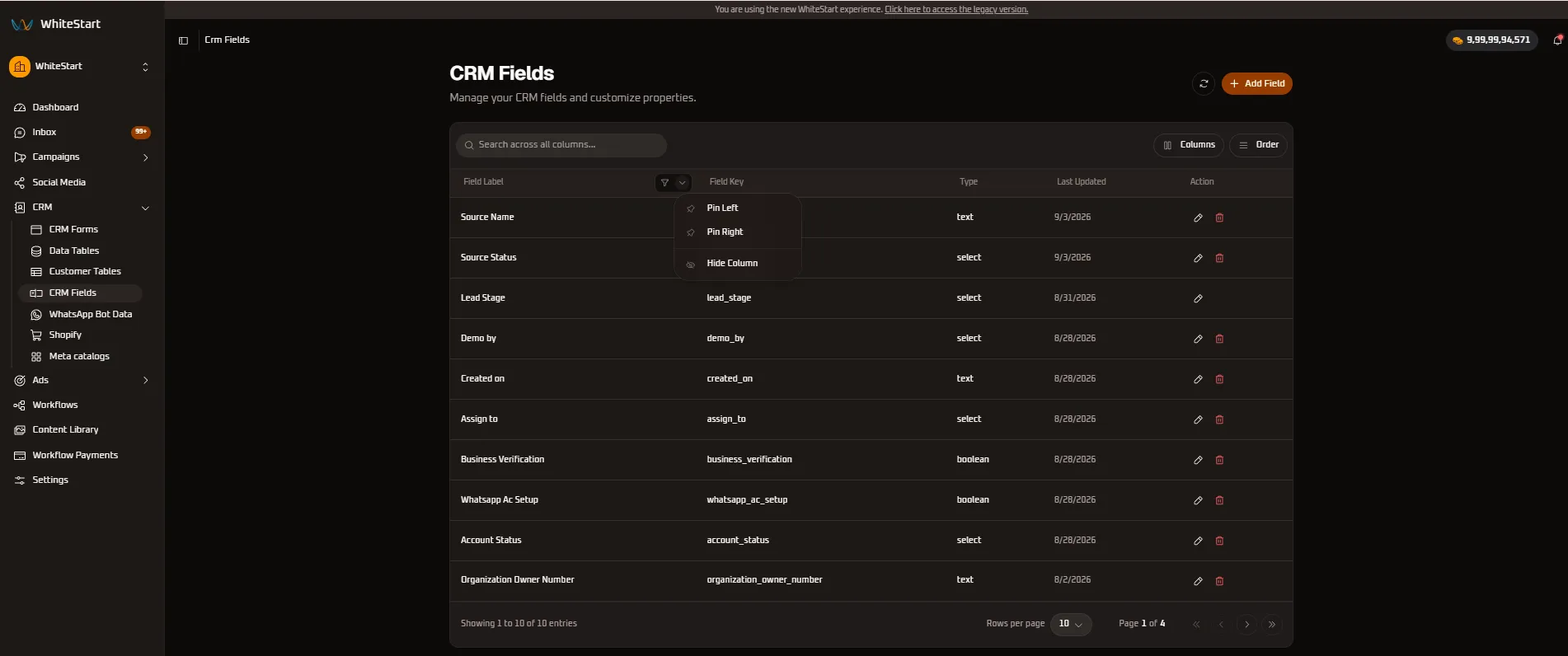
📌 Pin Left: Freezes theField Labelcolumn to the far-left boundary so it remains stationary while reviewing wide schemas.📌 Pin Right: Freezes the column to the far-right edge.👁️ Hide Column: Temporarily suppresses the label column from the active table display.
2. Field Key Column Controls
Section titled “2. Field Key Column Controls”The Field Key column holds the programmatic snake_case identifier used for API integrations, webhooks, and automation bots:
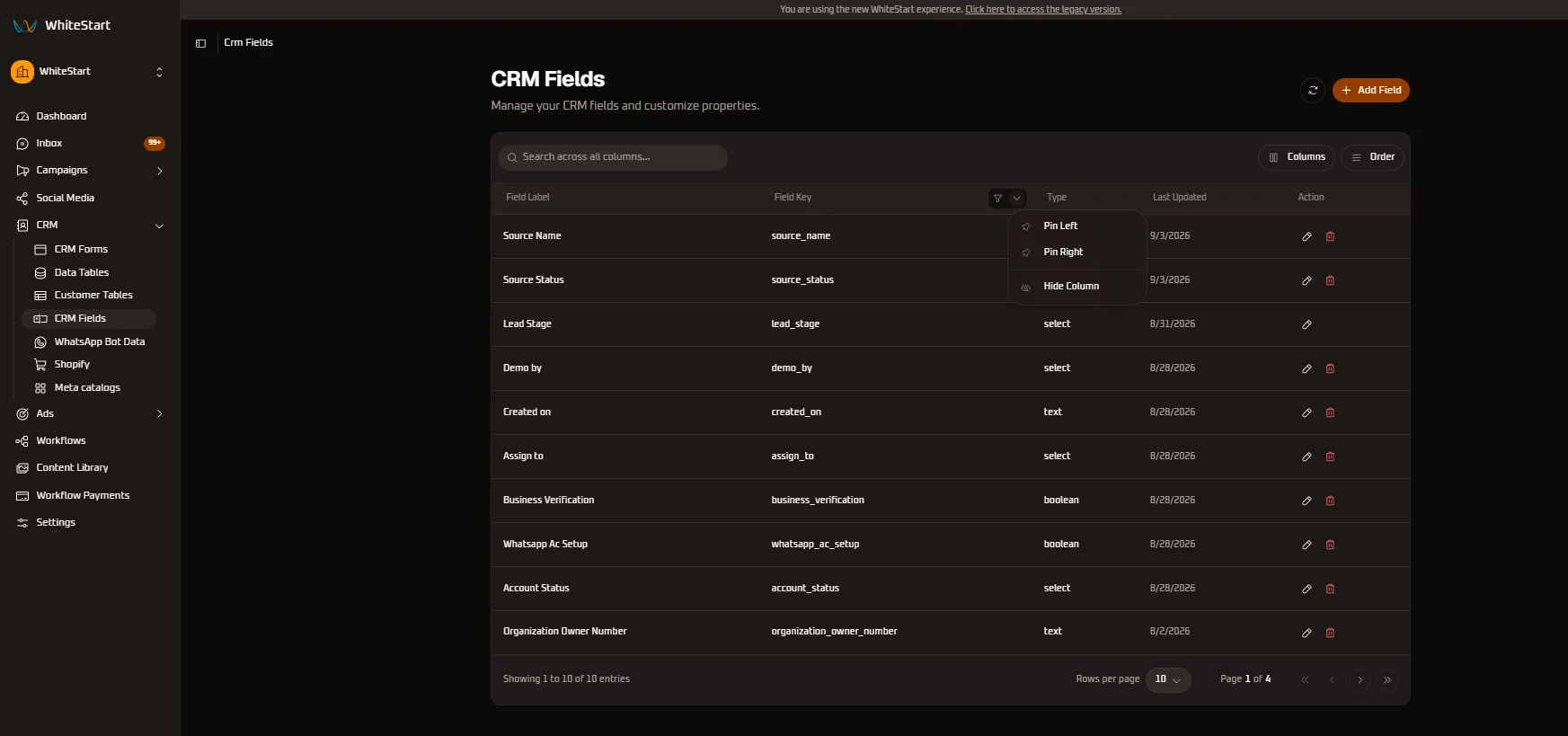
📌 Pin Left/📌 Pin Right: Freeze the programmatic key adjacent to field labels for fast API verification.👁️ Hide Column: Hide technical keys when non-technical team members are managing field labels and choices.
3. Type Column Controls
Section titled “3. Type Column Controls”The Type column indicates whether an attribute stores free-form strings, structured options, or binary flags:
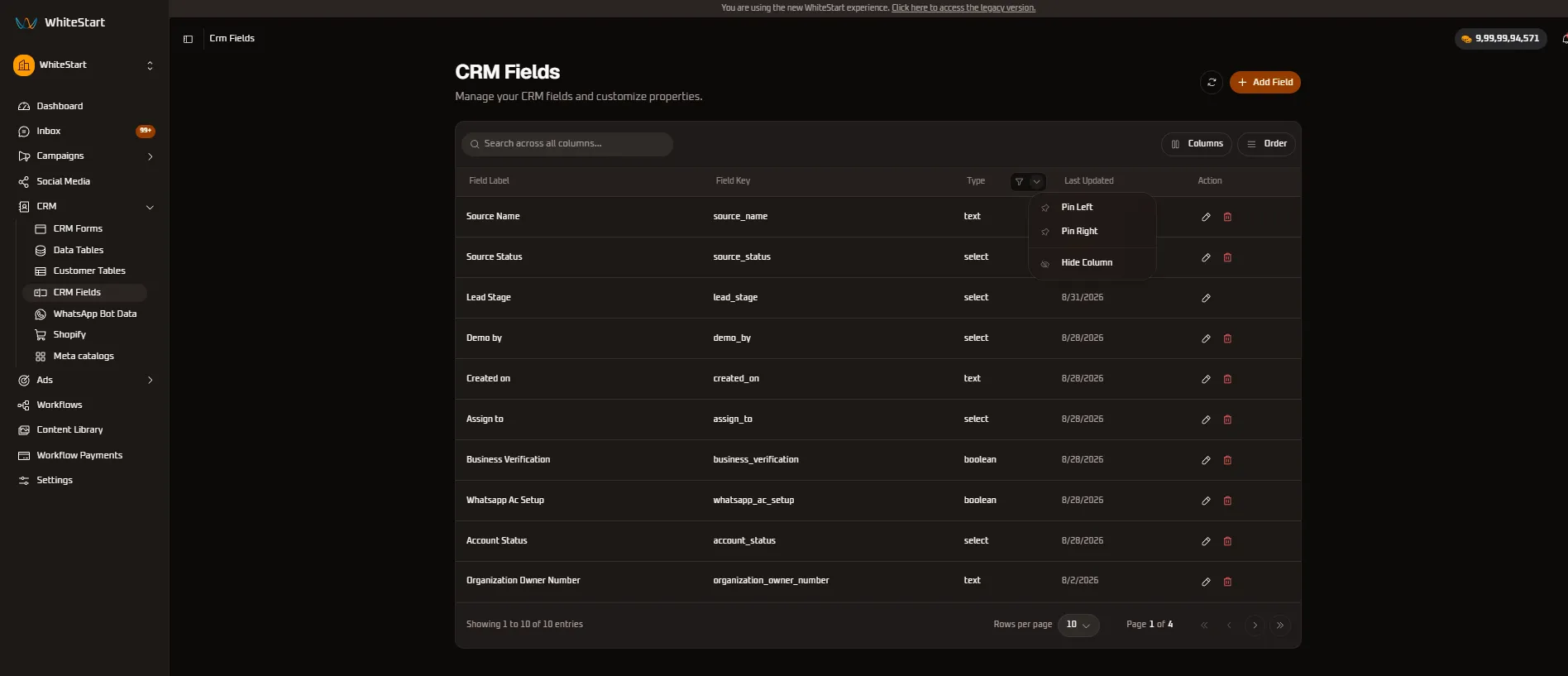
📌 Pin Left/📌 Pin Right: Anchor the data type indicator to screen edges for quick attribute auditing.👁️ Hide Column: Conceal type badges to maximize space for longer field labels.
4. Last Updated Column Controls
Section titled “4. Last Updated Column Controls”The Last Updated column tracks the chronological modification timestamp for each property:
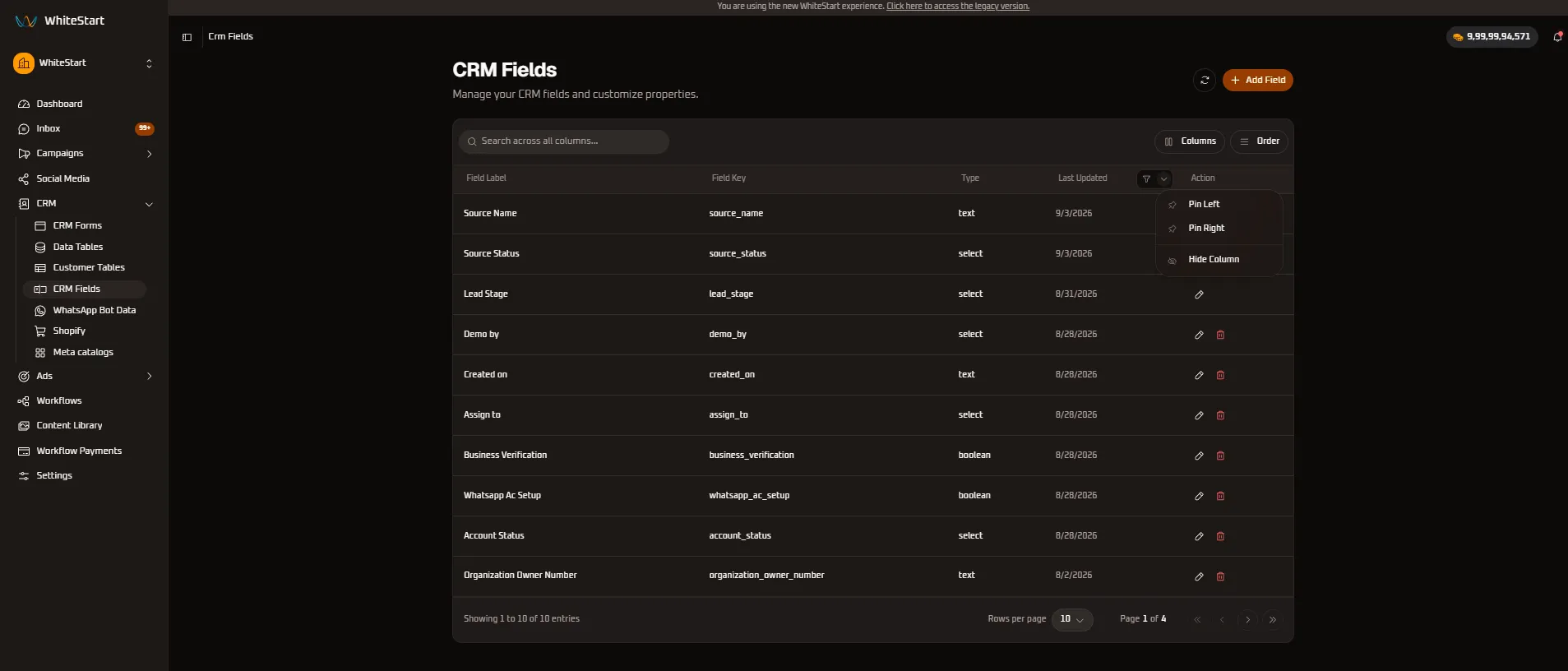
📌 Pin Left/📌 Pin Right: Freeze timestamps for audit logging and schema change tracking.👁️ Hide Column: Hide modification dates during day-to-day form configuration.
5. Action Column Controls
Section titled “5. Action Column Controls”The Action column provides quick access to field modification (✏️) and deletion (🗑️):
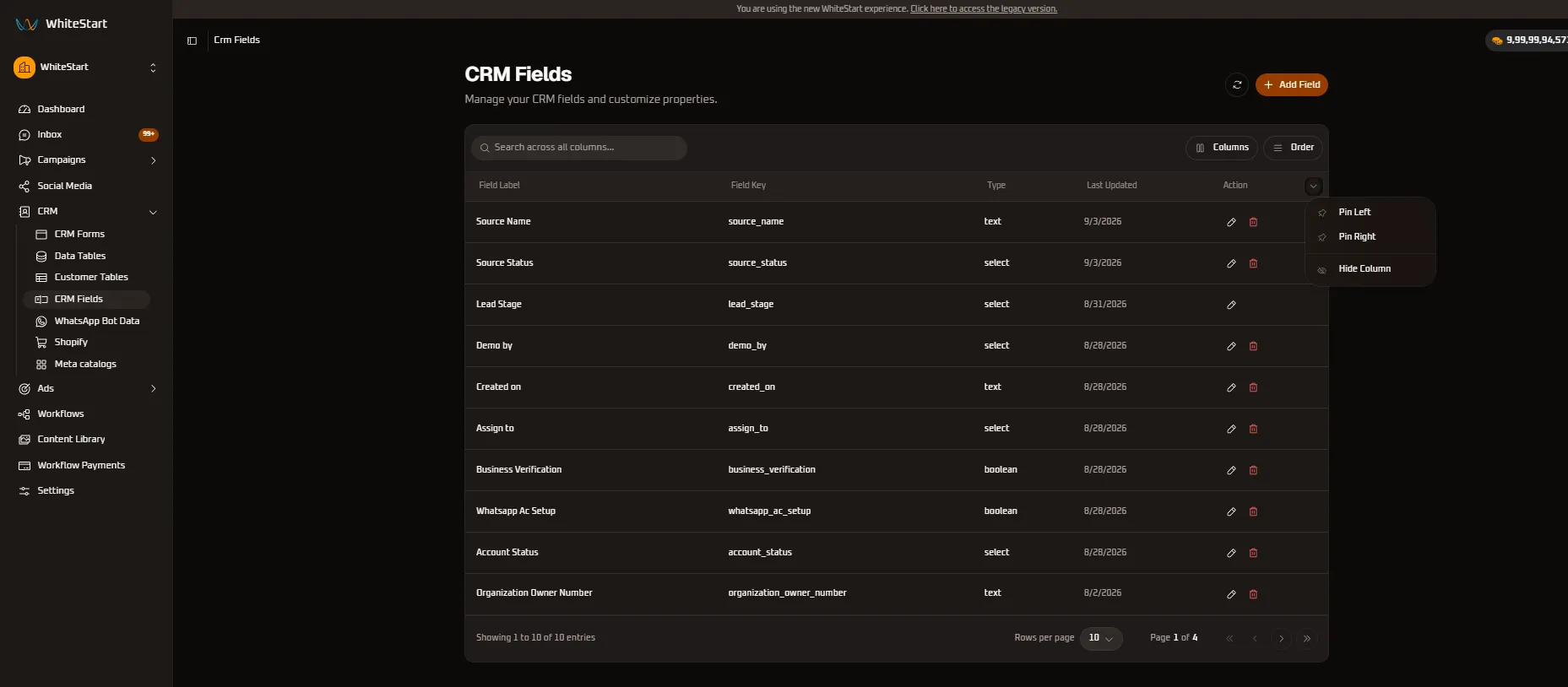
📌 Pin Left: Position action triggers to the beginning of the row.📌 Pin Right(Recommended): Freeze action buttons to the far-right edge so editing and deletion triggers are always within reach regardless of horizontal scrolling.👁️ Hide Column: Suppress management actions during read-only review sessions.
Customizing Table Views: Visibility & Reordering
Section titled “Customizing Table Views: Visibility & Reordering”WhiteStart provides dedicated toolbar utilities to customize your working environment:
Column Visibility Management ([ Columns ])
Section titled “Column Visibility Management ([ Columns ])”Clicking the [ Columns ] button opens an interactive checklist of all five table columns:
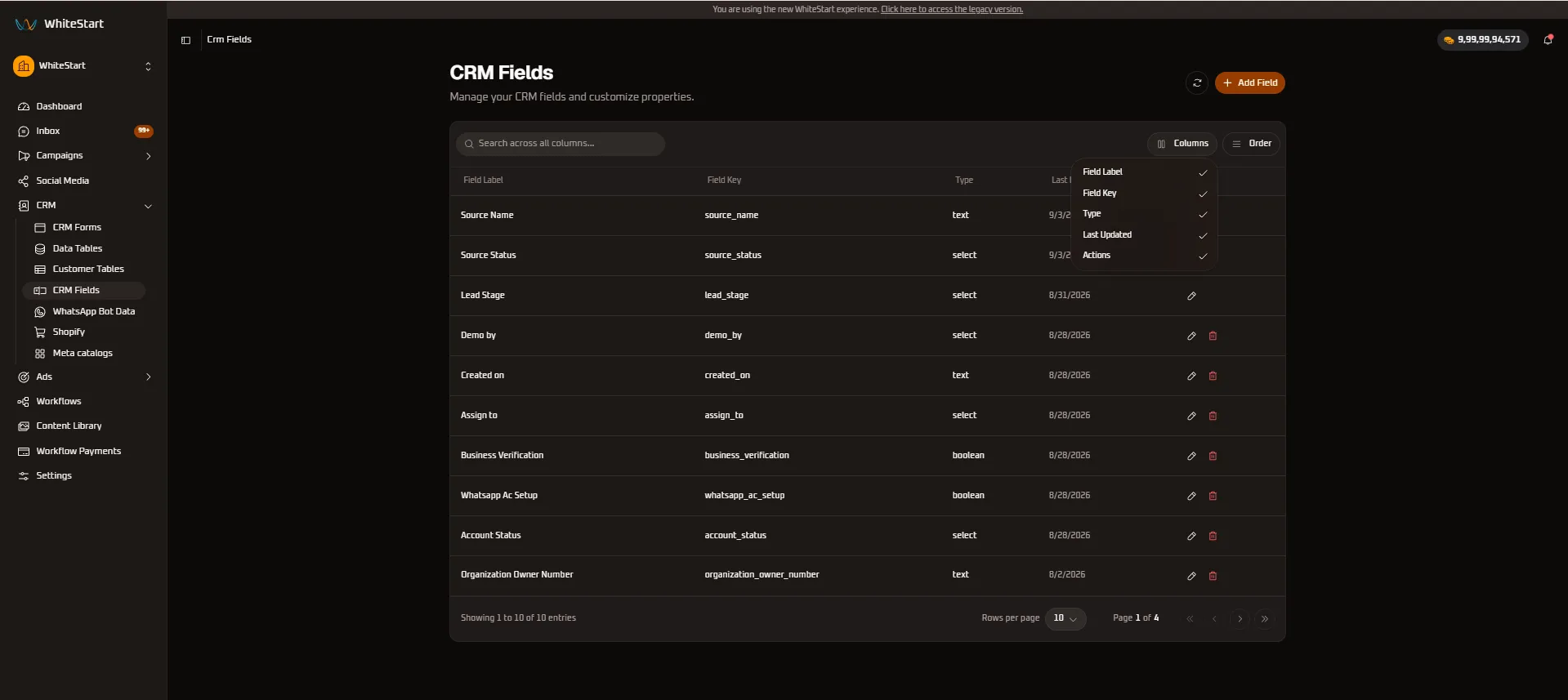
- Toggle Checkboxes: Select or clear checkboxes for
Field Label,Field Key,Type,Last Updated, andActionsto customize the visible display. - Workspace Optimization: Non-technical managers can hide developer keys and timestamps to maintain a clutter-free view focused purely on field labels and edit actions.
Dynamic Column Reordering ([ Order ])
Section titled “Dynamic Column Reordering ([ Order ])”Clicking the [ Order ] button launches the drag-and-drop column sequence organizer:
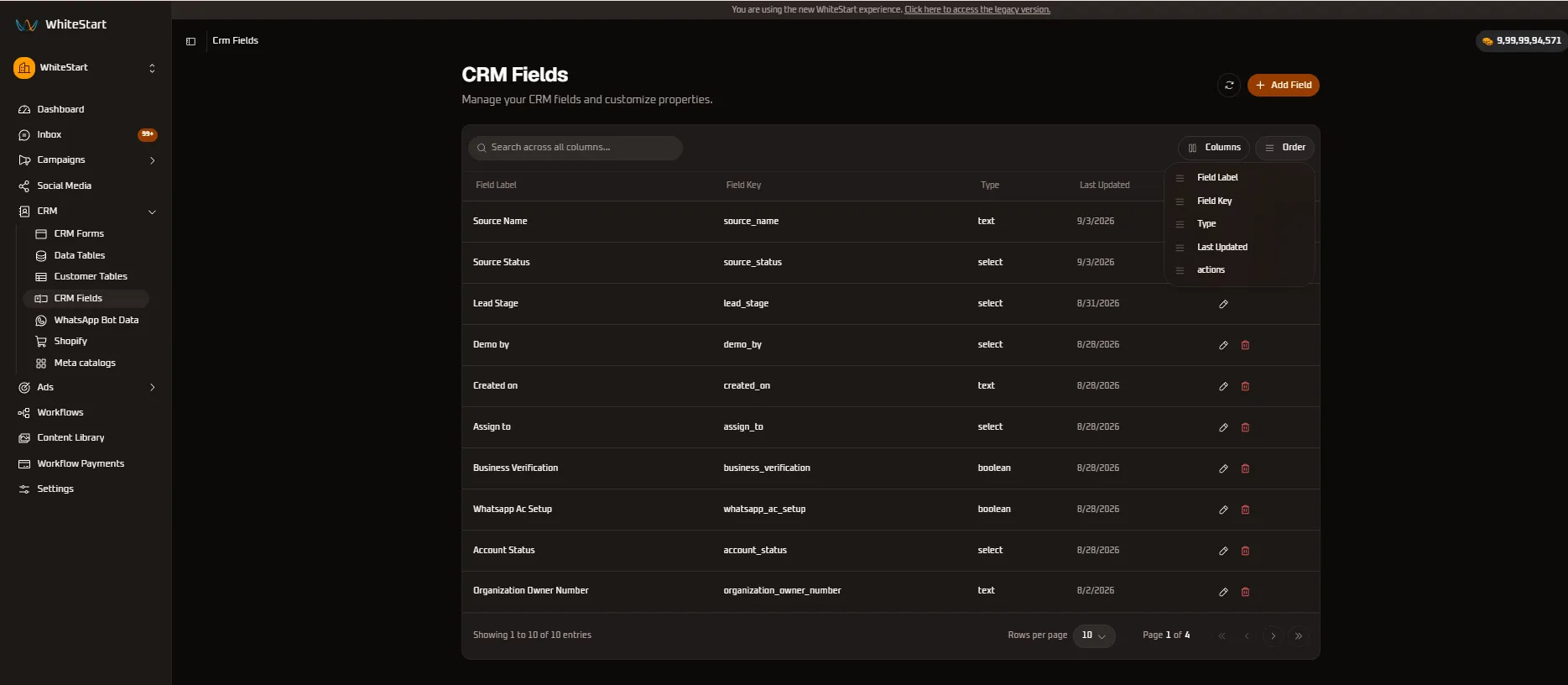
- Drag-and-Drop Sequencing (
≡): Click and drag the handle next to any column name (≡ Field Label,≡ Field Key,≡ Type,≡ Last Updated,≡ actions) up or down to change its position across the table grid. - Workflow Alignment: Move
Typenext toField Labelfor instant visual distinction between dropdown choices and text inputs.
Registry Columns & Attribute Specifications
Section titled “Registry Columns & Attribute Specifications”The master schema directory organizes all workspace data points across the following columns:
| Column | Header Controls | Data Type | Description & Operational Value |
|---|---|---|---|
| Field Label | Filter, Pin, Hide | Text String | The human-readable title displayed in form builders, customer profile drawers, and table headers (e.g., Source Name, Business Verification). |
| Field Key | Filter, Pin, Hide | Alphanumeric (snake_case) |
The immutable programmatic identifier used by API endpoints, Webhooks, WhatsApp Bot variables, and automated triggers (e.g., source_name, business_verification). |
| Type | Filter, Pin, Hide | Type Badge | The structural data format: text, select, or boolean. |
| Last Updated | Filter, Pin, Hide | Date Stamp | The exact date when the field label, key, or option set was last edited. |
| Action | Pin, Hide | Action Icons | Quick management actions: Edit (✏️) to modify labels and choice lists, and Delete (🗑️) to remove custom fields. |
Supported Data Types
Section titled “Supported Data Types”WhiteStart supports three core data formats to guarantee consistent data entry and reporting:
| Data Type | UI Badge | Description & Behavior | Real-World Use Cases |
|---|---|---|---|
| Text | text |
Free-form alphanumeric input supporting names, notes, addresses, and external identifiers. | Source Name, Created on, Organization Owner Number |
| Select | select |
Standardized single-choice dropdown menu enforcing predefined option sets. | Source Status, Lead Stage, Demo by, Assign to, Account Status |
| Boolean | boolean |
Binary true/false or yes/no verification flag. | Business Verification, Whatsapp Ac Setup |
System Protected vs. Custom Fields
Section titled “System Protected vs. Custom Fields”To protect reporting pipelines and core automation workflows from data corruption, WhiteStart implements role-based field protections:
┌───────────────────────────────┐ │ Field Schema Entity │ └───────────────┬───────────────┘ │ ┌───────────────┴───────────────┐ ▼ ▼ ┌─────────────────────────────┐ ┌─────────────────────────────┐ │ System Protected Field │ │ Custom Workspace Field │ │ (e.g., `lead_stage`) │ │(e.g., `business_verif...`) │ ├─────────────────────────────┤ ├─────────────────────────────┤ │ * Core CRM dependency │ │ * User-defined attribute │ │ * Edit Label & Options: ✅ │ │ * Edit Label & Options: ✅ │ │ * Delete Allowed: ❌ (No 🗑️)│ │ * Delete Allowed: ✅ (🗑️) │ └─────────────────────────────┘ └─────────────────────────────┘1. System Protected Fields
Section titled “1. System Protected Fields”- Example:
Lead Stage(lead_stage). - Behavior: Core to pipeline analytics and automated stage advancement. Notice that protected fields only display the Edit (
✏️) icon; the delete action (🗑️) is intentionally withheld to prevent orphaned records and broken metrics. - Customization: You can adjust the visible display label and manage internal dropdown stage options, but the schema key and existence remain permanently safeguarded.
2. Custom Organizational Fields
Section titled “2. Custom Organizational Fields”- Examples:
Business Verification,Whatsapp Ac Setup,Demo by,Organization Owner Number. - Behavior: Fully customizable and deletable (
🗑️) by administrators when campaign requirements evolve.
Creating a New CRM Field
Section titled “Creating a New CRM Field”To introduce a new attribute into your workspace schema, click the orange + Add Field button in the top-right corner of the console:
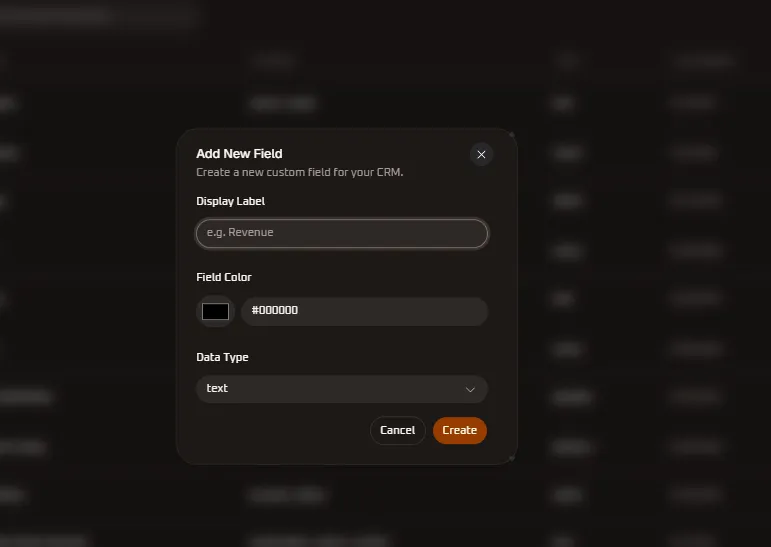
Add New Field Interface Architecture
Section titled “Add New Field Interface Architecture”+───────────────────────────────────────────────+| Add New Field [✕] || Create a new custom field for your CRM. |+───────────────────────────────────────────────+| Display Label || [ e.g. Revenue ] || || Field Color || [ ⬛ ] [ #000000 ] || || Data Type || [ text v ]+───────────────────────────────────────────────+| [ Cancel ] [ Create ]+───────────────────────────────────────────────+Step-by-Step Field Configuration
Section titled “Step-by-Step Field Configuration”-
Display Label:
- Enter the human-readable name of the attribute (e.g.,
Revenue,Industry Vertical,GST Number). - This title appears on table headers in Data Tables, input labels in CRM Forms, and profile drawers in Customer Tables.
- WhiteStart automatically derives a standardized
snake_caseField Key (e.g.,Display Label: Revenue➔Field Key: revenue) for developer and API workflows.
- Enter the human-readable name of the attribute (e.g.,
-
Field Color:
- Select a visual color accent using the color swatch preview box or by typing a 6-character hexadecimal code (default:
#000000). - Color tags provide quick visual recognition across Data Tables column badges, Customer Table tags, and CRM Form field chips.
- Select a visual color accent using the color swatch preview box or by typing a 6-character hexadecimal code (default:
-
Data Type Selection:
- Open the Data Type dropdown and pick the appropriate format:
text: Single or multi-line alphanumeric text (e.g.,revenue,source_name,organization_owner_number).select: Standardized choice menu with predefined option sets (e.g.,lead_stage,account_status).boolean: Binary true/false or yes/no verification toggles (e.g.,business_verification,whatsapp_ac_setup).
- Open the Data Type dropdown and pick the appropriate format:
-
Saving & Global Propagation:
- Click
Createto finalize. The field is immediately added to the master table and becomes available in the CRM Forms Available Fields library for 1-click addition to any form template. - Click
Cancelor✕to discard input without saving.
- Click
How CRM Fields Power the WhiteStart Ecosystem
Section titled “How CRM Fields Power the WhiteStart Ecosystem” ┌────────────────────────┐ │ CRM Fields Registry │ │ (Labels, Keys, Types) │ └───────────┬────────────┘ │ ┌─────────────────┼─────────────────┐ ▼ ▼ ▼ ┌───────────────┐ ┌───────────────┐ ┌───────────────┐ │ CRM Forms │ │ Data Tables │ │Customer Tables│ │ (Form Schema) │ │(Table Headers)│ │ (Profile Data)│ └───────────────┘ └───────────────┘ └───────────────┘- CRM Forms: When creating custom intake forms, all fields registered here populate the Available Fields repository for 1-click addition.
- Data Tables: Custom fields become dynamic column headers in submission views, maintaining type-specific filters and sorting.
- Customer Tables: Fields integrate into both the master table and the Add New Customer wizard under pipeline-specific data.
- WhatsApp Chatbots & Workflows: Chatbot nodes use field keys (e.g.,
{{lead_stage}},{{business_verification}}) to dynamically store conversational user answers during automated lead qualification.