
Password Reset & Account Recovery Guide
The WhiteStart Password Reset & Account Recovery guide provides step-by-step instructions to recover and update your account password if you are locked out or have forgotten your login credentials. WhiteStart supports dual-channel account verification, allowing users to recover their profiles via Email Reset Link or SMS One-Time Password (OTP).
1. Initiating Password Recovery from Login
Section titled “1. Initiating Password Recovery from Login”Navigate to the WhiteStart authentication screen:
https://app.whitestart.in/login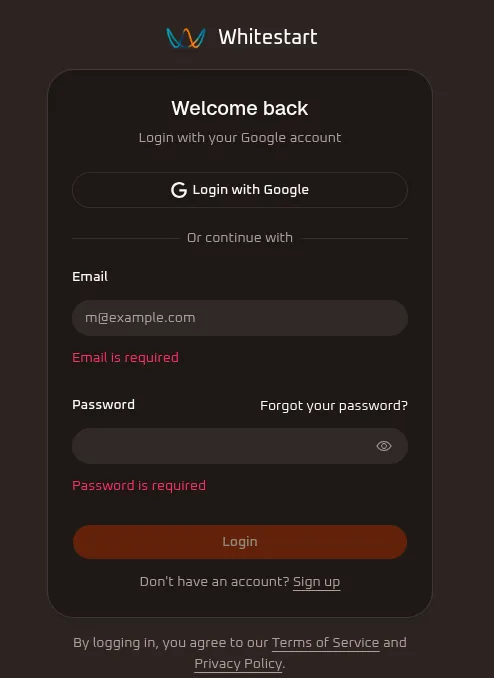
- On the Welcome back login card, locate the Password input field.
- Click the
Forgot your password?link located on the top right above the password input box. - The application redirects you to the Reset Your Password recovery workflow.
2. Choosing Your Recovery Method
Section titled “2. Choosing Your Recovery Method”WhiteStart provides two recovery channels to regain access to your account:
┌───────────────────────────────────────────────────┬───────────────────────────────────────────────────┐│ METHOD A: EMAIL ADDRESS │ METHOD B: PHONE NUMBER │├───────────────────────────────────────────────────┼───────────────────────────────────────────────────┤│ • Dispatches a secure reset link to your inbox. │ • Sends a 6-digit numeric OTP via SMS. ││ • Single-click token verification. │ • Direct inline verification and password change. ││ • Ideal for desktop and corporate email users. │ • Fast mobile-first recovery flow. │└───────────────────────────────────────────────────┴───────────────────────────────────────────────────┘3. Recovery Method A: Reset via Email Address
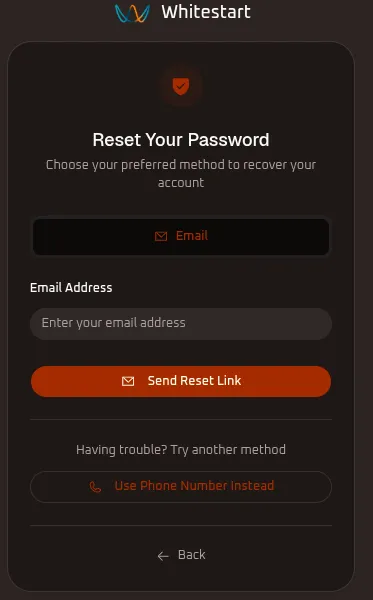
Section titled “3. Recovery Method A: Reset via Email Address”The default recovery method dispatches a password reset link to your registered email address.
Field Breakdown & Action Steps
Section titled “Field Breakdown & Action Steps”- Header Indicator: A shielded check badge confirms you are within a secure recovery session.
- Recovery Mode Badge: Marked with the
✉ Emailicon. - Email Address Field (*):
- Placeholder:
Enter your email address - Enter the primary email associated with your WhiteStart account (e.g.,
[email protected]).
- Placeholder:
- Send Reset Link Button: Click the orange
✉ Send Reset Linkbutton.- If the email exists in the WhiteStart directory, an authenticated password reset link is delivered to your inbox within seconds.
- Alternative Recovery Switcher: If you do not have access to your email account, click the
📞 Use Phone Number Insteadbutton under Having trouble? Try another method. - Back Trigger (
← Back): Returns you to the main login portal.
4. Recovery Method B: Reset via Phone Number & OTP
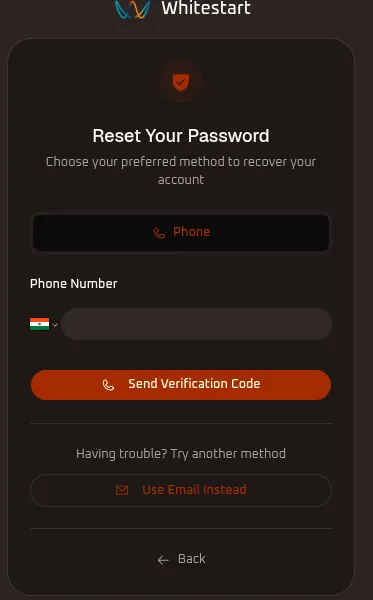
Section titled “4. Recovery Method B: Reset via Phone Number & OTP”If you prefer recovering your account via SMS or do not have access to your inbox, switch to phone verification.
Step 1: Requesting the Verification Code
Section titled “Step 1: Requesting the Verification Code”- Click
📞 Use Phone Number Insteadfrom the email recovery screen. - The card updates to Phone recovery mode with the telephone badge (
📞 Phone). - Country Flag & Code Selector: Select your country dial code from the flag dropdown (e.g.,
🇮🇳 +91). - Phone Number Field (*): Enter your 10-digit mobile number registered with your profile (e.g.,
8179988228). - Click the orange
📞 Send Verification Codebutton.
Step 2: Entering Verification Code & Setting New Password
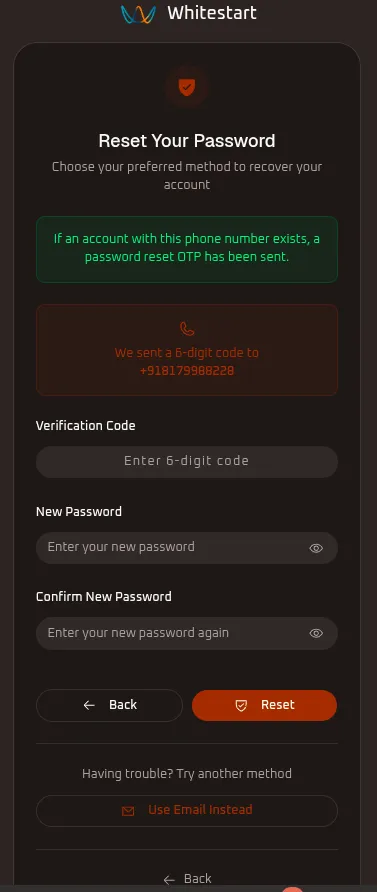
Section titled “Step 2: Entering Verification Code & Setting New Password”Once submitted, WhiteStart dispatches a 6-digit one-time passcode (OTP) via SMS to your handset and directs you to the reset confirmation screen:
Screen Indicators & Notice Banners
Section titled “Screen Indicators & Notice Banners”- Status Banner (Green): “If an account with this phone number exists, a password reset OTP has been sent.”
- Delivery Confirmation (Card): Confirms the destination phone number where the message was sent (e.g., “We sent a 6-digit code to +918179988228”).
Form Fields Breakdown
Section titled “Form Fields Breakdown”- Verification Code (*):
- Placeholder:
Enter 6-digit code - Enter the 6-digit numeric OTP received on your mobile device via SMS.
- Placeholder:
- New Password (*):
- Placeholder:
Enter your new password - Enter your new secure password. Click the eye icon (
👁) to inspect or conceal the entered characters.
- Placeholder:
- Confirm New Password (*):
- Placeholder:
Enter your new password again - Re-enter the exact new password to ensure there are no unintended typographical errors.
- Placeholder:
- Reset Button: Click the orange
🛡 Resetbutton to finalize your credentials. - Back Button (
← Back): Allows you to return to the phone number entry screen if you mistyped your mobile digits. - Alternative Fallback: Click
✉ Use Email Insteadif you experience telecom carrier delays with SMS delivery.
5. Post-Reset Confirmation & Login
Section titled “5. Post-Reset Confirmation & Login”- Upon clicking Reset, WhiteStart authenticates the 6-digit OTP and updates your encrypted account password.
- You receive a success notification confirming that your credentials have been updated.
- You are redirected back to
app.whitestart.in/login, where you can immediately sign in using your updated password.
Next Steps & Related Documentation
Section titled “Next Steps & Related Documentation”- Account Details & Profile Settings: Manage your active session, update your email, and enable Two-Factor Authentication (2FA).
- Setup Wizard & Channel Configuration: Learn about connecting communication channels, social media, and CRM tools.
- Dashboard Overview: Return to the organization overview and metrics dashboard.
- WhiteStart Introduction: Return to the Get Started index.