
CRM Integrations
Connecting CRM and Productivity Integrations
Section titled “Connecting CRM and Productivity Integrations”The CRM Integrations module allows organizations to seamlessly bridge WhiteStart with external CRM databases, spreadsheets, calendar scheduling systems, video conferencing tools, and e-commerce storefronts. Centralized integration enables unified lead capture, automated meeting bookings, real-time spreadsheet synchronization, and bi-directional workflow automation across all customer touchpoints.
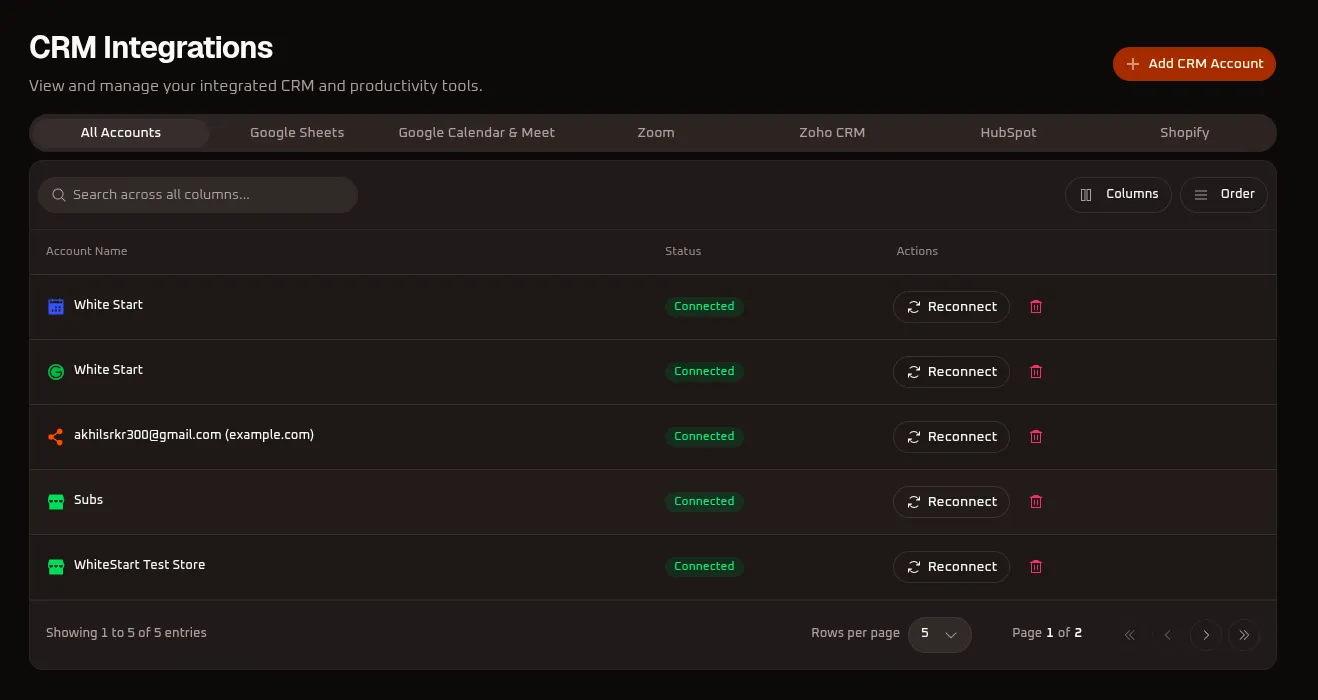
1. Accessing CRM Integrations
Section titled “1. Accessing CRM Integrations”Main Sidebar ➔ Settings (⚙️) ➔ ORGANIZATION ➔ CRM Integrations- In the primary left-hand navigation sidebar, click on Settings (
⚙️) located near the bottom. - In the secondary settings navigation menu under the ORGANIZATION section, click CRM Integrations.
- The dashboard will load the master CRM Integrations directory with real-time connection status badges, category filter tabs, and management tools.
2. Dashboard Layout & Management Interface
Section titled “2. Dashboard Layout & Management Interface”The dashboard organizes connected productivity tools into an interactive table view with category-specific network tabs:
+─────────────────────────────────────────────────────────────────────────────+| CRM Integrations [ + Add CRM Account ]|| View and manage your integrated CRM and productivity tools. |+─────────────────────────────────────────────────────────────────────────────+| [ All Accounts ] [ Google Sheets ] [ Google Calendar & Meet ] [ Zoom ] [ Zoho CRM ] [ HubSpot ] [ Shopify ] |+─────────────────────────────────────────────────────────────────────────────+| [Q Search across all columns... ] [ Columns ] [ Order ] |+─────────────────────────────────────────────────────────────────────────────+| Account Name Status Actions |+────────────────────────────────────┬────────────────────┬───────────────────+| (G) White Start [ Connected ] [ Reconnect ] [D] || (Cal) White Start [ Connected ] [ Reconnect ] [D] || (Hub) [email protected] [ Connected ] [ Reconnect ] [D] || (Shop) Subs [ Connected ] [ Reconnect ] [D] || (Shop) WhiteStart Test Store [ Connected ] [ Reconnect ] [D] |+────────────────────────────────────┴────────────────────┴───────────────────+| Showing 1 to 5 of 5 entries Rows per page: [ 5 v ] Page 1 of 2|+─────────────────────────────────────────────────────────────────────────────+Key UI Controls & Elements:
Section titled “Key UI Controls & Elements:”- Category Tabs: Filter integrations by platform: All Accounts, Google Sheets, Google Calendar & Meet, Zoom, Zoho CRM, HubSpot, and Shopify.
- Primary Action (
+ Add CRM Account): Opens the provider selection modal to authenticate a new integration. - Global Search (
Search across all columns...): Instant search filter that matches against account names, integration IDs, and connection statuses in real time. - View Customization: Use Columns to toggle visible table attributes and Order to sort accounts by name, connection date, or status.
- Table Columns:
- Account Name: Displays the provider glyph, authenticated account title, or connected email address.
- Status: Visual indicator confirming an active connection (
Connectedin green badge). - Actions:
🔄 Reconnectto refresh OAuth credentials and🗑️ Deleteto unlink the account.
- Pagination Controls: Set page limits (Rows per page: 5, 10, 25, 50) and navigate through multi-page directories.
3. Supported Integrations & Platform Specifications
Section titled “3. Supported Integrations & Platform Specifications”1. Google Sheets (CRM Spreadsheet Sync)
Section titled “1. Google Sheets (CRM Spreadsheet Sync)”The Google Sheets integration connects WhiteStart CRM contact profiles and omnichannel campaign interactions directly with live Google Sheets spreadsheets. This enables automated bidirectional contact synchronization, real-time lead ingestion from external sources, and spreadsheet-driven workflow automations.
How to Connect Google Sheets
Section titled “How to Connect Google Sheets”- Navigate to Settings ➔ CRM Integrations.
- Click the orange + Add CRM Account button at the top right.
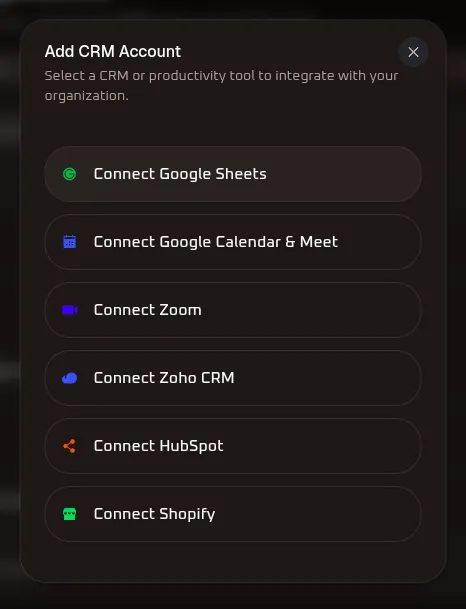
- In the selection modal, click Connect Google Sheets:
- A secure Google Identity authentication window opens prompting you to select your Google Account:
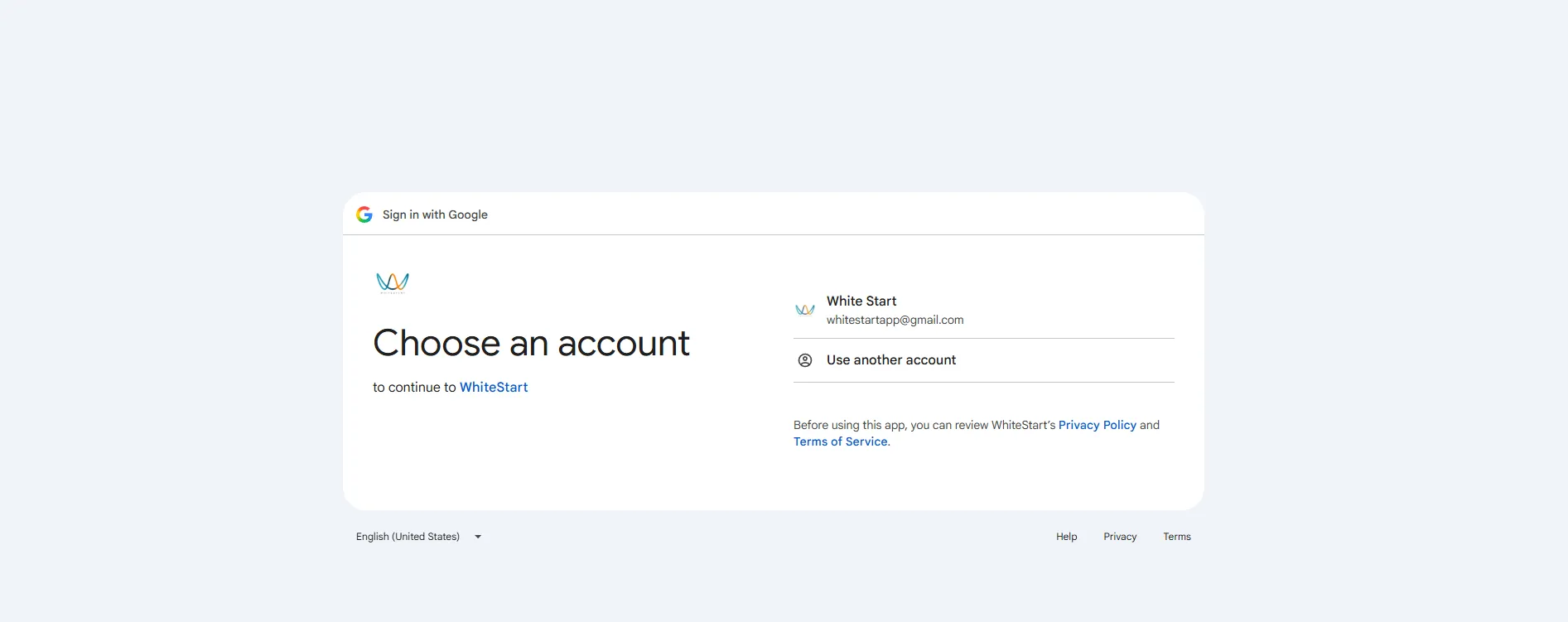
- Choose the official Google Account that owns or manages your organization’s spreadsheets (e.g.,
[email protected]), or select Use another account. - Review and grant the requested Google Drive and Google Sheets API permissions:
- View and manage spreadsheets: Allows WhiteStart to read rows, append new lead entries, and update cell values.
- Read-only access to drive files: Authorizes locating and selecting spreadsheet workbooks within your Google Drive.
- Review WhiteStart’s Privacy Policy and Terms of Service, then click Continue / Allow.
- The window closes automatically, and the authenticated Google account is registered with your WhiteStart workspace.
Connected Google Sheets View & Account Management
Section titled “Connected Google Sheets View & Account Management”Once authorized, open the Google Sheets tab to review your active connection:
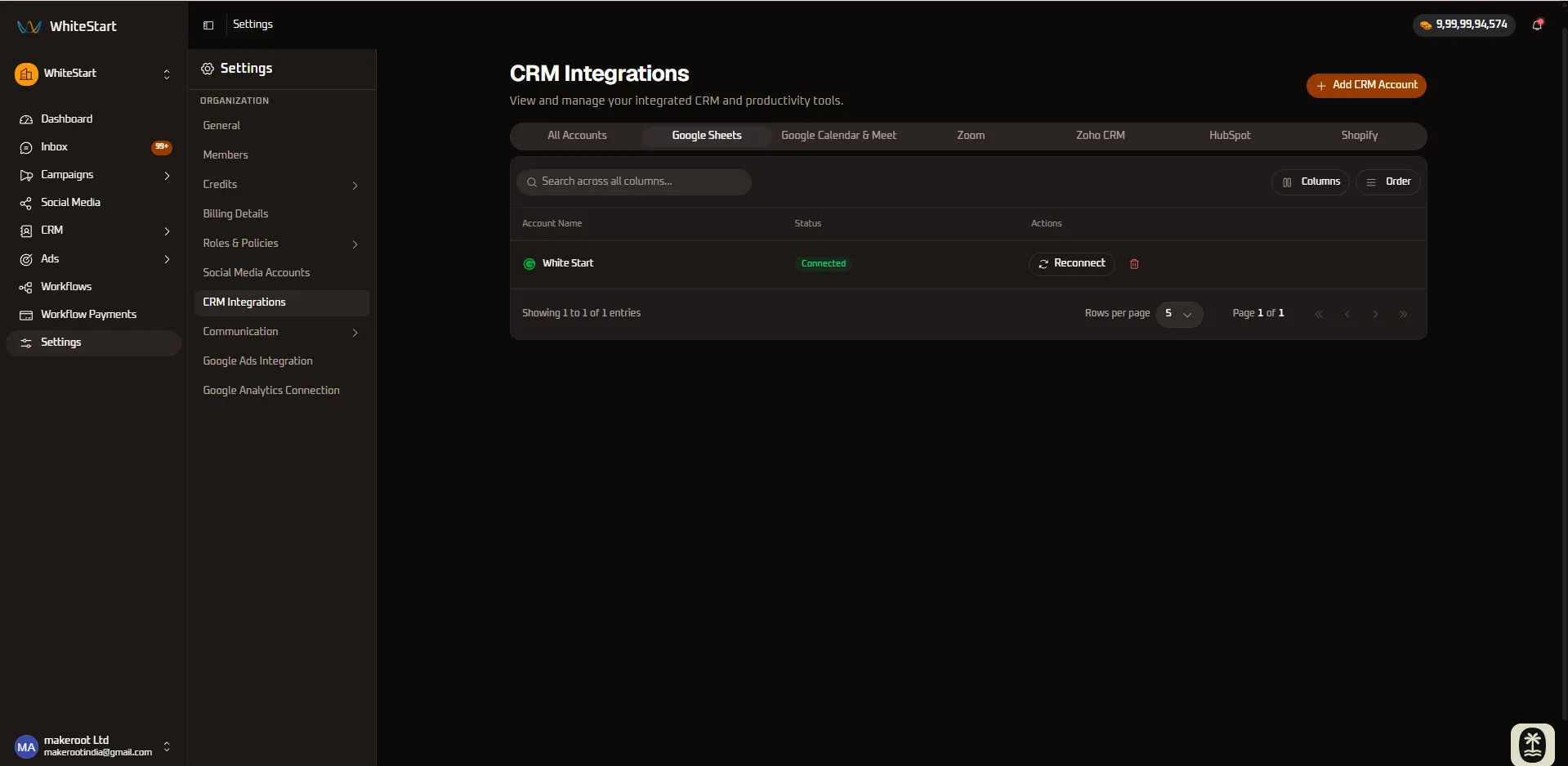
- Account Name: Displays the authenticated account title (e.g.,
White Start) alongside the official Google Sheets glyph. - Status Badge: Confirms an active
Connectedstate (green badge). - Actions Available:
🔄 Reconnect: Refreshes expired Google OAuth 2.0 access and refresh tokens without disrupting active spreadsheet mappings or workflow pipelines.🗑️ Delete: Unlinks the Google Sheets connection and pauses all automated sync hooks.
Comprehensive Capabilities of CRM Google Sheets
Section titled “Comprehensive Capabilities of CRM Google Sheets”The Google Sheets integration provides five core operational capabilities:
A. Bidirectional Contact & Lead Synchronization
Section titled “A. Bidirectional Contact & Lead Synchronization”WhiteStart bridges your central CRM database directly with Google Sheets. Whenever new customers, leads, or inquiry contacts are created or modified in WhiteStart (via Live Inbox, conversational chatbots, WhatsApp Flows, or ad campaigns), their profile data is synchronized in real time to your designated spreadsheet rows.
B. Dynamic Column-to-Attribute Mapping
Section titled “B. Dynamic Column-to-Attribute Mapping”You can map specific spreadsheet columns to WhiteStart contact properties:
| WhiteStart CRM Attribute | Example Google Sheet Column | Synchronization Direction |
|---|---|---|
| First Name / Last Name | Column A (First Name), Column B (Last Name) |
Bi-directional |
| Phone Number (E.164 format) | Column C (Mobile Number) |
Primary Identifier / Upsert Key |
| Email Address | Column D (Email) |
Bi-directional |
| Lifecycle Stage | Column E (Lead Stage: Lead / Opportunity / Customer) |
Bi-directional |
| Lead Source | Column F (Source: Meta Ads / Website / Chatbot) |
Ingest into WhiteStart |
| Custom Field Definitions | Column G+ (Company Size, Budget, Requirements) |
Custom Schema Mapping |
C. Real-Time Lead Ingestion from External Sources
Section titled “C. Real-Time Lead Ingestion from External Sources”If your organization captures leads using Google Forms, external landing pages, or third-party webhooks that append rows to Google Sheets, WhiteStart automatically polls and ingests those new rows:
- Automatically performs contact deduplication using phone numbers or email addresses.
- Triggers instant notification alerts to assigned sales reps or support agents.
- Enrolls new leads into automated onboarding and nurture sequences.
D. Spreadsheet-Driven Workflow Triggers
Section titled “D. Spreadsheet-Driven Workflow Triggers”Using WhiteStart’s Work Flows visual engine, spreadsheet row updates can initiate multi-channel broadcast and alert campaigns:
- New Row Added: Immediately dispatch an automated WhatsApp welcome message or SMS verification code.
- Status Cell Updated: Changing a cell value from
PendingtoApprovedcan trigger an automated email with contract attachments or an automated voice call confirmation. - Tag Appended: Adding a specific tag in a column automatically updates the customer’s CRM profile tags.
E. Reporting & Stakeholder Visibility
Section titled “E. Reporting & Stakeholder Visibility”For team members, executives, or external agency partners who do not have direct access to the WhiteStart admin panel, Google Sheets provides a transparent, exportable window into campaign performance, contact acquisition rates, and lead intake logs.
2. Google Calendar & Meet
Section titled “2. Google Calendar & Meet”The Google Calendar & Meet integration bridges WhiteStart’s conversational bots, CRM booking widgets, and appointment schedulers directly with your organization’s Google Workspace calendars, eliminating manual scheduling overhead and automatically attaching instant video conferencing links.
How to Connect Google Calendar & Meet
Section titled “How to Connect Google Calendar & Meet”- In the Add CRM Account modal, select Connect Google Calendar & Meet.
- The secure Google Identity OAuth screen opens:
- Select your organization’s official Google Account (e.g.,
[email protected]). - Review and approve the requested Google Calendar permissions:
- View and edit calendar events: Allows WhiteStart to schedule consultations, read real-time availability to prevent double-booking, and update appointments.
- Create Google Meet links: Authorizes generating unique video meeting links for confirmed bookings.
- Click Continue / Allow to complete authorization.
Connected Google Calendar & Meet View & Account Management
Section titled “Connected Google Calendar & Meet View & Account Management”Once authorized, open the Google Calendar & Meet tab to monitor your connection:
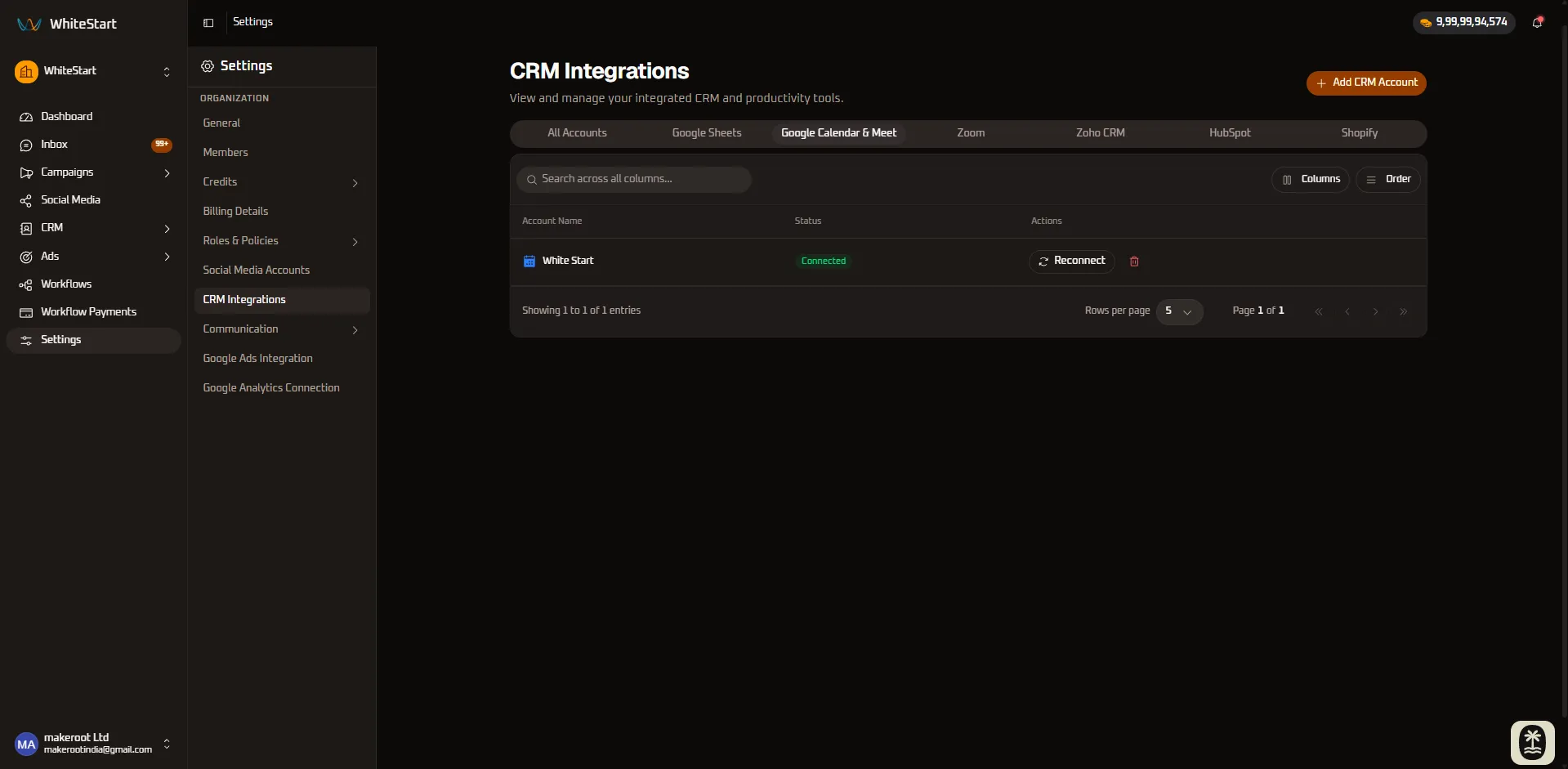
- Account Identifier: Displays the linked calendar account title (e.g.,
White Start) with the Google Calendar icon. - Status Badge: Confirms an active
Connectedstate. - Operational Capabilities Enabled:
- Automated Meeting Booking: Enable leads and clients to schedule discovery calls and demos directly within WhatsApp, Instagram DMs, web forms, or live chat.
- Instant Google Meet Links: Automatically create and insert unique Google Meet video links into calendar event invites and confirmation notifications.
- Bi-Directional Availability Checking: Read real-time team availability across Google Workspace to prevent scheduling conflicts.
- Automated Meeting Reminders: Dispatch automated reminder alerts containing video links via WhatsApp or SMS prior to scheduled calls.
- Actions: Use
🔄 Reconnectto refresh Google OAuth credentials, or🗑️ Deleteto unlink the calendar integration.
3. Zoom (Video Conferencing & Automated Meetings)
Section titled “3. Zoom (Video Conferencing & Automated Meetings)”The Zoom integration connects WhiteStart’s appointment scheduling, customer consultation bots, and visual workflow automations directly with your organization’s Zoom video infrastructure. This enables instant meeting generation, automated passcode assignment, dynamic attendee link distribution across omnichannel messaging channels (WhatsApp, SMS, Email, RCS), and automated reminder sequences.
How to Connect Zoom
Section titled “How to Connect Zoom”- Navigate to Settings ➔ CRM Integrations.
- Click the orange + Add CRM Account button in the top right corner.
- In the selection modal, click Connect Zoom.
- A secure Zoom OAuth authorization window opens:
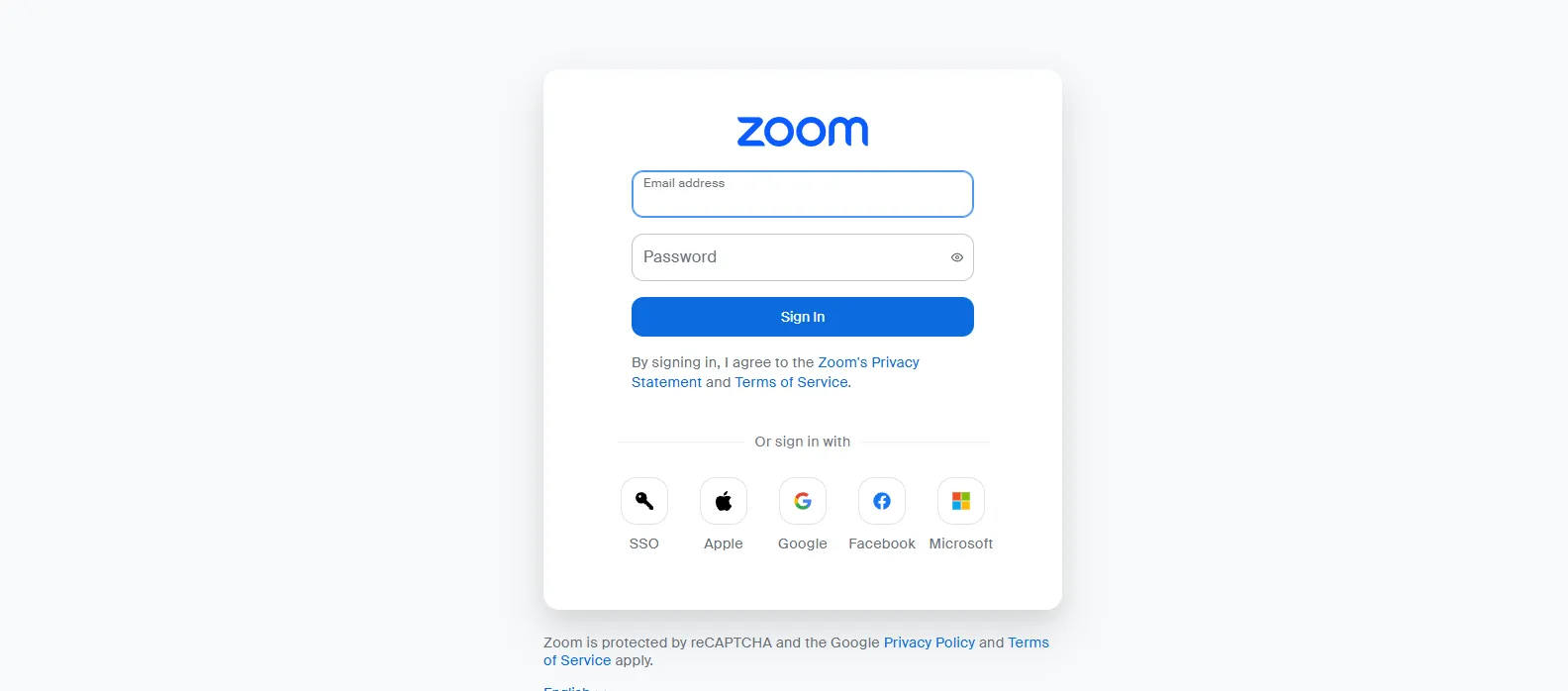
- Authenticate using your organization’s Zoom credentials:
- Direct Credentials: Enter your licensed Zoom Email address and Password, then click Sign In.
- Single Sign-On (SSO): Click the SSO key icon to authenticate via your corporate identity provider (Okta, Azure AD, Ping, etc.).
- Social / Enterprise Federation: Alternatively, sign in using Apple, Google, Facebook, or Microsoft credentials.
- When prompted, review and authorize WhiteStart’s requested Zoom permissions:
- Meeting Management (
meeting:write): Create dynamic meeting rooms, configure passwords, and adjust waiting room policies. - User Profile Access (
user:read): Retrieve meeting host IDs, personal meeting links (PMI), and host licensing tiers.
- Meeting Management (
- Click Authorize / Allow. The authorization window closes, and WhiteStart completes the secure OAuth token exchange.
Connected Zoom View & Account Management
Section titled “Connected Zoom View & Account Management”Once authorized, switch to the Zoom tab to inspect and manage your active connection:
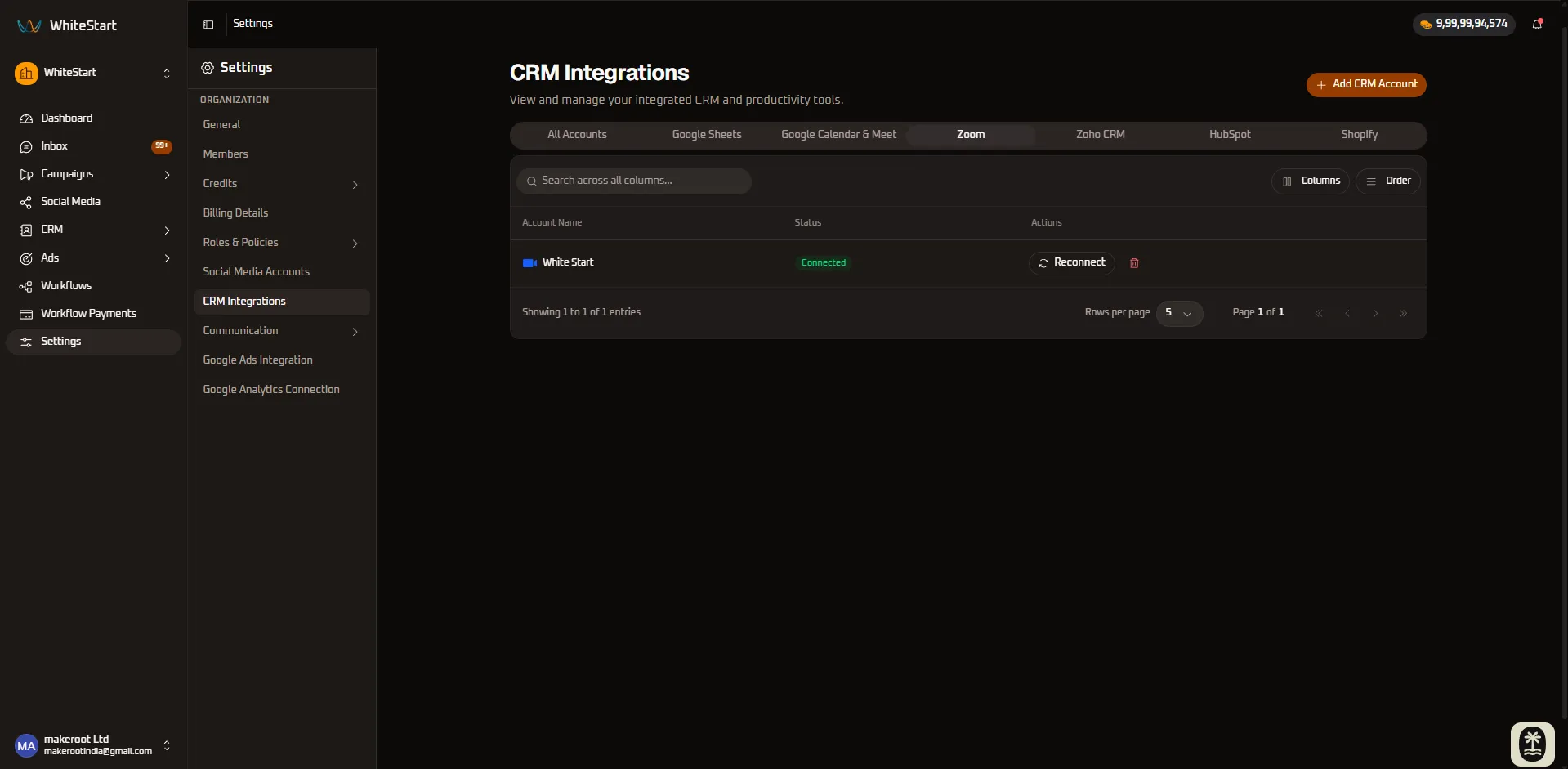
- Account Name: Displays the connected account identifier (e.g.,
White Start) with the official Zoom blue camera icon. - Status Badge: Confirms an active
Connectedstate (green badge). - Actions Available:
🔄 Reconnect: Re-authenticates the Zoom OAuth application, refreshing expired access tokens or updating permissions after account tier upgrades without affecting existing scheduled meetings.🗑️ Delete: Revokes the integration, de-registers Zoom webhooks, and unlinks the account from WhiteStart.
Core Capabilities of Zoom Integration
Section titled “Core Capabilities of Zoom Integration”The Zoom integration delivers five enterprise-grade capabilities:
A. Dynamic Meeting Room Generation
Section titled “A. Dynamic Meeting Room Generation”Whenever a prospect or client books a consultation via a WhiteStart WhatsApp chatbot, website booking widget, or conversational workflow, WhiteStart instantly calls the Zoom REST API to generate a unique meeting ID, private meeting URL, dial-in numbers, and secure alphanumeric passcode.
B. Omnichannel Meeting Confirmation & Links
Section titled “B. Omnichannel Meeting Confirmation & Links”WhiteStart automatically dispatches booking confirmation messages containing clickable meeting URLs, dial-in instructions, and calendar invite attachments directly through:
- WhatsApp: Interactive messages with “Join Meeting” quick reply buttons.
- SMS & RCS: Instant alerts with shortened secure meeting links.
- Email: Rich HTML-formatted appointment confirmations with one-click join links.
C. Automated Attendance Reminders
Section titled “C. Automated Attendance Reminders”Reduce no-show rates by setting up automated reminder workflows:
- 24 Hours Before: Automated WhatsApp or email notification confirming time and agenda.
- 1 Hour Before: High-priority WhatsApp or SMS alert containing the direct Zoom join link.
- 10 Minutes Before: Final push notification reminding the participant to enter the waiting room.
D. Host Allocation & Multi-Host Routing
Section titled “D. Host Allocation & Multi-Host Routing”Route customer appointments dynamically to available sales reps or support specialists by associating licensed Zoom hosts within your workspace.
E. Post-Meeting Automation & Follow-Up
Section titled “E. Post-Meeting Automation & Follow-Up”Using WhiteStart’s Work Flows, trigger automated satisfaction surveys, follow-up collateral, or CRM deal stage updates once a scheduled Zoom meeting concludes.
4. Zoho CRM (Sales Pipeline & Enterprise Customer Management)
Section titled “4. Zoho CRM (Sales Pipeline & Enterprise Customer Management)”The Zoho CRM integration bridges WhiteStart’s omnichannel engagement channels (WhatsApp, RCS, SMS, Live Chat, and Social Media) directly with your Zoho CRM environment. This facilitates real-time bidirectional lead ingestion, contact enrichment, automated deal stage transitions, custom field mapping, and multi-rep lead distribution across your sales organization.
How to Connect Zoho CRM
Section titled “How to Connect Zoho CRM”- Navigate to Settings ➔ CRM Integrations.
- Click the orange + Add CRM Account button in the top right corner.
- In the selection modal, select Connect Zoho CRM.
- The official Zoho Identity sign-in window appears:
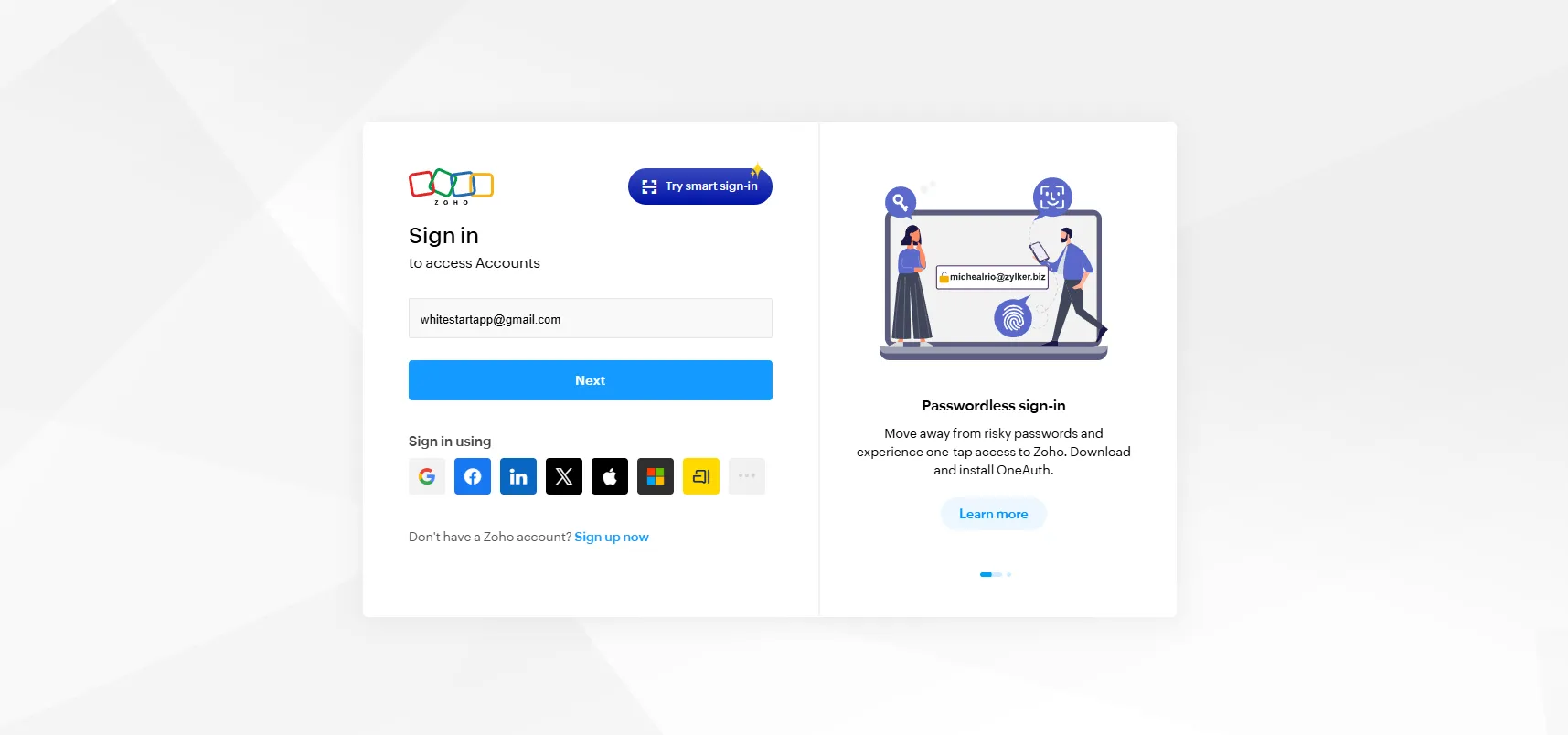
- Authenticate into your Zoho account using one of the supported enterprise sign-in methods:
- Direct Account Email: Enter your registered administrative email address (e.g.,
[email protected]) and click Next to enter your password. - Smart Sign-In & OneAuth: Click ✨ Try smart sign-in or use Zoho OneAuth for passwordless biometric authentication (fingerprint / face scan).
- Enterprise SSO & Federated Identity: Authenticate using your corporate identity through Google, Facebook, LinkedIn, X, Apple, or Microsoft.
- Direct Account Email: Enter your registered administrative email address (e.g.,
- Review the requested WhiteStart OAuth authorization permissions:
- Module Read/Write (
ZohoCRM.modules.ALL): Allows WhiteStart to create and update Leads, Contacts, Accounts, and Deals. - Settings Schema Access (
ZohoCRM.settings.ALL): Enables WhiteStart to query standard layouts and custom field definitions for attribute mapping. - User Directory Access (
ZohoCRM.users.READ): Authorizes retrieving Zoho CRM sales reps for automated lead routing and task assignment.
- Module Read/Write (
- Select your Zoho data center domain if prompted (e.g.,
.com,.in,.eu,.com.au), and click Accept / Authorize. - The pop-up window closes automatically, establishing an authorized OAuth 2.0 connection.
Connected Zoho CRM View & Account Management
Section titled “Connected Zoho CRM View & Account Management”Once authenticated, select the Zoho CRM tab to view your connected organization:
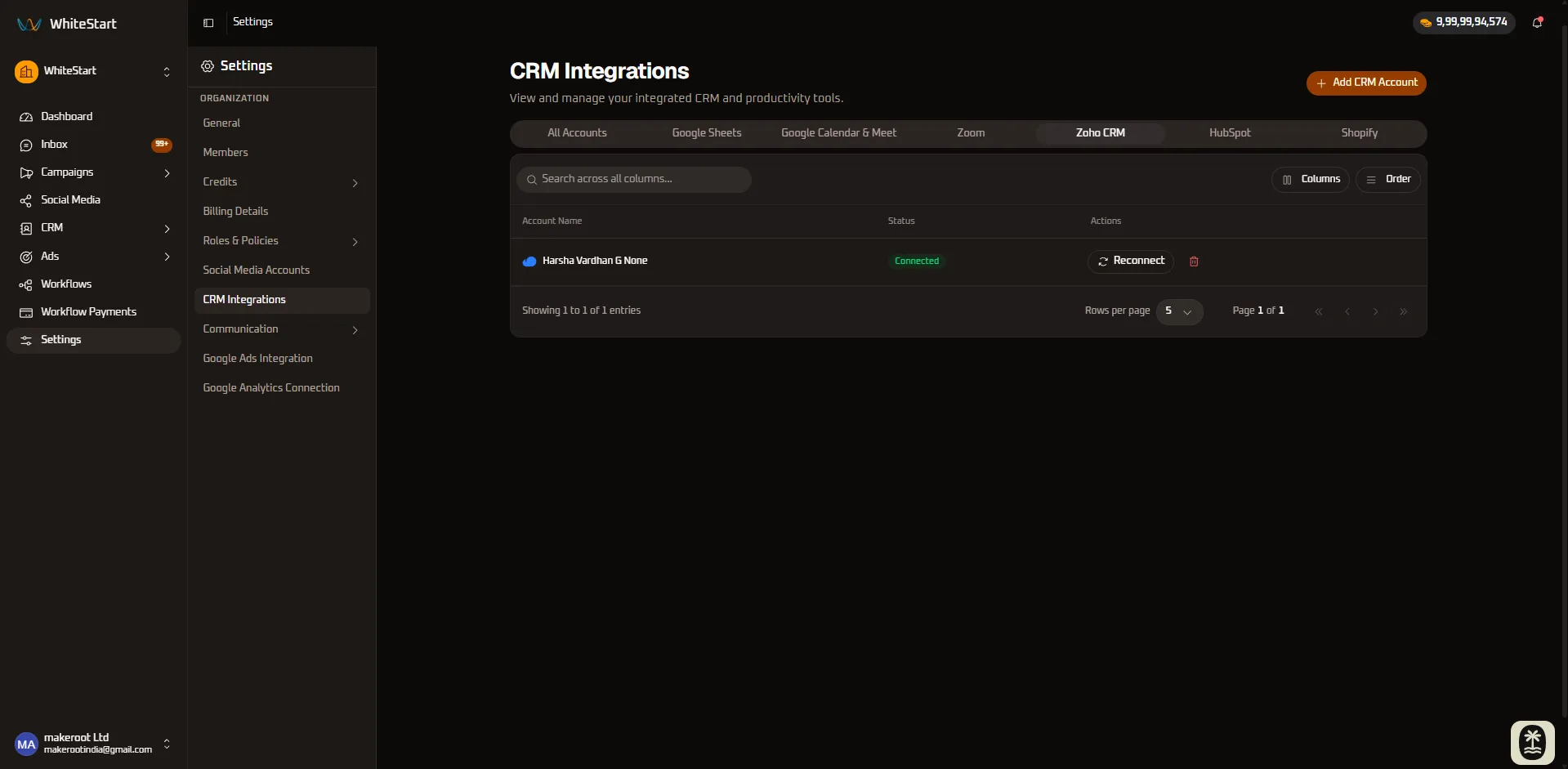
- Account Name: Displays the authenticated Zoho user profile (e.g.,
Harsha Vardhan G None) with the official Zoho cloud icon. - Status Badge: Shows a verified
Connectedstatus indicator (green badge). - Actions Available:
🔄 Reconnect: Refreshes OAuth 2.0 access and refresh tokens without interrupting existing lead capture workflows or field mapping schemas (essential after password updates or Zoho security policy changes).🗑️ Delete: Unlinks the Zoho CRM account, revokes API tokens, and halts automated lead syncing to Zoho.
Comprehensive Operational Capabilities of Zoho CRM
Section titled “Comprehensive Operational Capabilities of Zoho CRM”The Zoho CRM integration equips enterprise teams with five core capabilities:
A. Real-Time Bi-Directional Lead & Contact Sync
Section titled “A. Real-Time Bi-Directional Lead & Contact Sync”Capture customer inquiries from any channel (WhatsApp, Instagram DMs, RCS, SMS, or web chatbots) and immediately upsert them as new Leads or Contacts in Zoho CRM. When contact details (phone, email, lifecycle stage) are updated in Zoho, WhiteStart reflects the changes synchronously.
B. Dynamic Pipeline & Deal Stage Progression
Section titled “B. Dynamic Pipeline & Deal Stage Progression”Trigger automated pipeline advancement in Zoho CRM based on customer interactions in WhiteStart:
- When a customer books a consultation, automatically advance the deal stage to Appointment Scheduled.
- When a customer confirms an order or completes a payment via WhiteStart’s workflow payment links, advance the deal stage to Closed Won.
C. Custom Field & Schema Mapping
Section titled “C. Custom Field & Schema Mapping”Map customer responses from conversational intake bots, surveys, or campaign flows directly into standard or custom fields within Zoho CRM:
- Map customer budget ranges, requirements, and company size to custom Zoho Lead fields.
- Maintain complete data consistency across your marketing, sales, and support stacks.
D. Automated Activity Logging & Omnichannel History
Section titled “D. Automated Activity Logging & Omnichannel History”Every conversation transcript, scheduled meeting, automated SMS delivery, and WhatsApp message status can be logged as an Activity / Note on the corresponding Zoho CRM Lead or Contact record, providing sales reps with full omnichannel context.
E. Intelligent Lead Assignment & Owner Routing
Section titled “E. Intelligent Lead Assignment & Owner Routing”Automatically route newly captured leads to the appropriate Zoho CRM sales agent or account manager based on geography, lead source, product interest, or round-robin distribution rules.
5. HubSpot (Inbound Marketing, CRM & Sales Hub)
Section titled “5. HubSpot (Inbound Marketing, CRM & Sales Hub)”The HubSpot integration unites WhiteStart’s conversational customer engagement suite (WhatsApp, SMS, Email, RCS, Live Chat, and Social Media) with your HubSpot CRM, Marketing Hub, and Sales Hub. This enables bidirectional contact and list synchronization, automated deal creation, lifecycle stage updates, timeline activity logging, and trigger-based workflow enrollment across marketing and sales pipelines.
How to Connect HubSpot
Section titled “How to Connect HubSpot”- Navigate to Settings ➔ CRM Integrations.
- Click the orange + Add CRM Account button in the top right corner.
- In the selection modal, select Connect HubSpot.
- The official WhiteStart-App HubSpot connection portal opens:
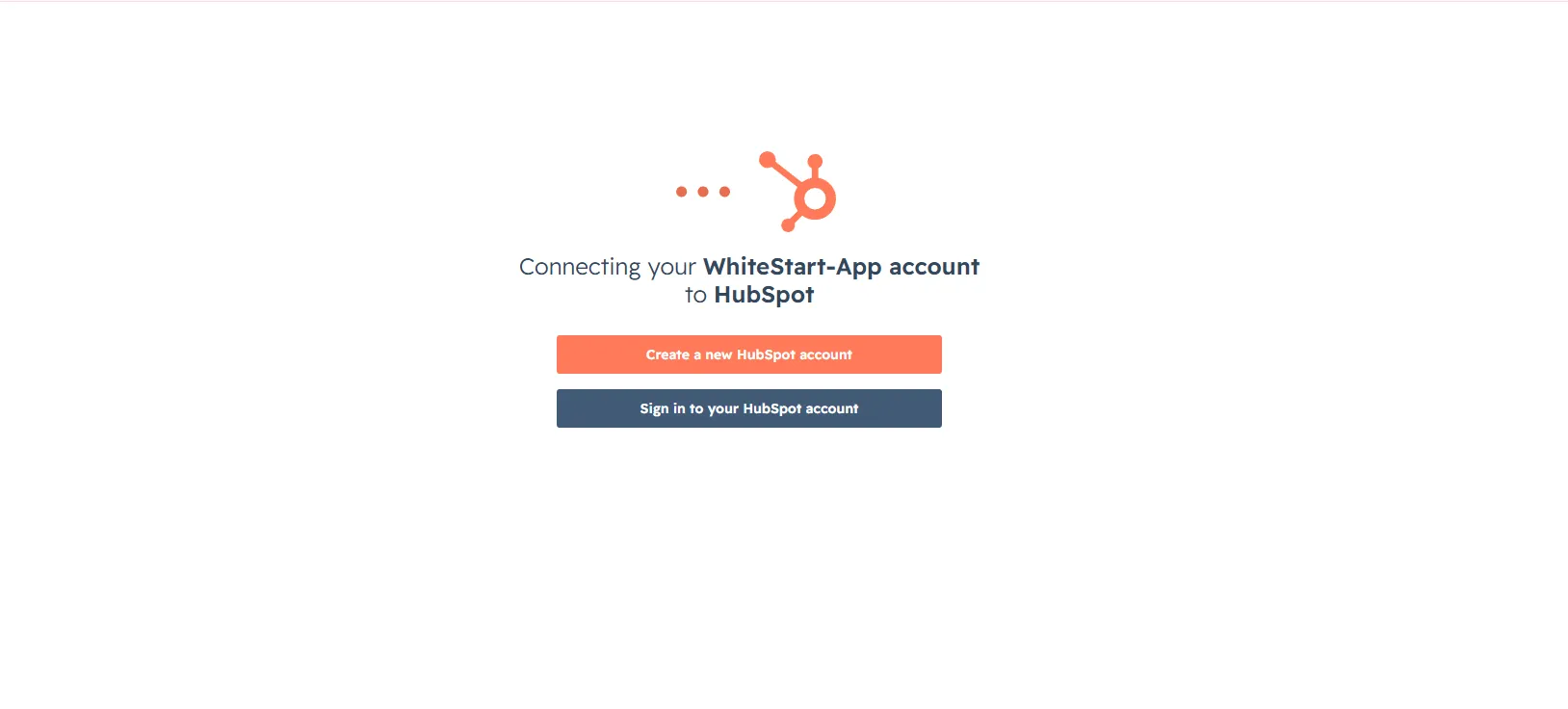
- Choose your account status:
- Existing HubSpot Customer: Click Sign in to your HubSpot account to log in using your administrative credentials.
- New HubSpot User: Click Create a new HubSpot account to set up a new portal with HubSpot.
- If your user profile has access to multiple HubSpot accounts or client portals, select the target Hub ID / Account Name (e.g.,
example.com). - Review and grant WhiteStart the necessary OAuth 2.0 app permissions:
- Contacts & Lists (
crm.objects.contacts.read,crm.objects.contacts.write): Create and update customer records, enrich contact properties, and sync active static/smart lists. - Deals & Pipelines (
crm.objects.deals.read,crm.objects.deals.write): Create new deal records from qualified conversational interactions and update pipeline deal stages. - Timeline & Engagements (
timeline): Log messaging interactions, WhatsApp chat transcripts, and appointment bookings directly into customer timeline activities. - Workflows & Webhooks (
automation): Trigger WhiteStart omnichannel outbound broadcasts from automated HubSpot workflows.
- Contacts & Lists (
- Click Connect app / Authorize. The window closes, and WhiteStart finalizes the token handshake.
Connected HubSpot View & Account Management
Section titled “Connected HubSpot View & Account Management”Once authorized, click on the HubSpot tab in the directory to inspect your connection:
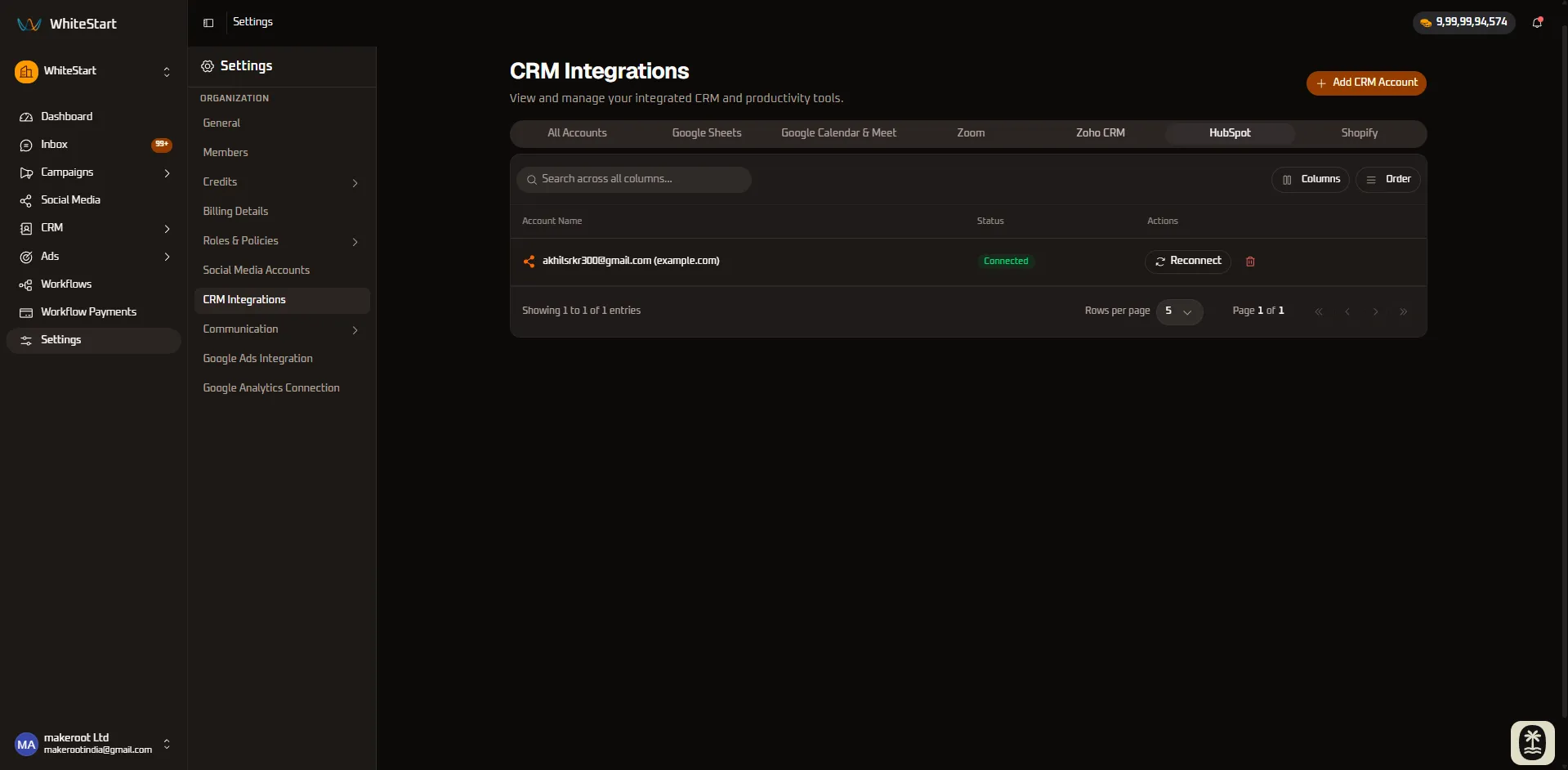
- Account Identifier: Displays the linked HubSpot administrator email and connected portal domain (e.g.,
[email protected] (example.com)) with the signature HubSpot sprocket icon. - Status Badge: Shows a verified
Connectedstatus indicator (green badge). - Actions Available:
🔄 Reconnect: Refreshes OAuth bearer tokens, re-authorizes permissions after portal plan upgrades, or switches the linked HubSpot portal without interrupting existing active contact syncs or automated webhook triggers.🗑️ Delete: Unlinks the HubSpot portal, revokes OAuth access, and stops webhook data synchronization.
Comprehensive Operational Capabilities of HubSpot Integration
Section titled “Comprehensive Operational Capabilities of HubSpot Integration”The HubSpot integration delivers five enterprise capabilities:
A. Bi-Directional Contact & List Synchronization
Section titled “A. Bi-Directional Contact & List Synchronization”Automatically synchronize contact profiles between HubSpot CRM and WhiteStart:
- New inbound leads captured through WhatsApp campaigns, lead gen forms, or Instagram DMs are instantly created as HubSpot contacts with accurate email, phone, and lead source attribution.
- Segmented smart lists or static marketing lists in HubSpot can be synchronized directly into WhiteStart customer groups for targeted omnichannel broadcasts.
B. Automated Lifecycle Stage & Deal Progression
Section titled “B. Automated Lifecycle Stage & Deal Progression”Align your marketing and sales funnel by triggering real-time status transitions:
- Advance a contact’s lifecycle stage from
LeadtoMarketing Qualified Lead (MQL)orSales Qualified Lead (SQL)when they engage with interactive bot flows. - Automatically generate a Deal in your designated HubSpot sales pipeline when a prospect requests a custom quote or books a consultation via WhiteStart.
C. Custom Property & Attribute Mapping
Section titled “C. Custom Property & Attribute Mapping”Seamlessly map custom fields captured during conversational messaging (such as company size, annual budget, preferred communication channel, or product interests) directly to HubSpot custom contact and deal properties.
D. Unified Omnichannel Activity Timelines
Section titled “D. Unified Omnichannel Activity Timelines”Provide your sales and success teams with complete context:
- Log WhatsApp conversation histories, inbound inquiries, outbound broadcast deliveries, and SMS responses directly onto the contact’s HubSpot CRM Activity Timeline.
- Record customer satisfaction (CSAT) ratings and bot interaction summaries as notes.
E. HubSpot Workflow-Driven Omnichannel Messaging
Section titled “E. HubSpot Workflow-Driven Omnichannel Messaging”Harness the power of HubSpot Workflows to trigger WhiteStart messaging actions via webhooks:
- When a HubSpot contact reaches a specific milestone (e.g. form submission, abandoned consultation, deal stage change), trigger an instant automated WhatsApp notification, SMS alert, or RCS message through WhiteStart.
6. Shopify
Section titled “6. Shopify”Connect your e-commerce storefronts to power transactional customer notifications:
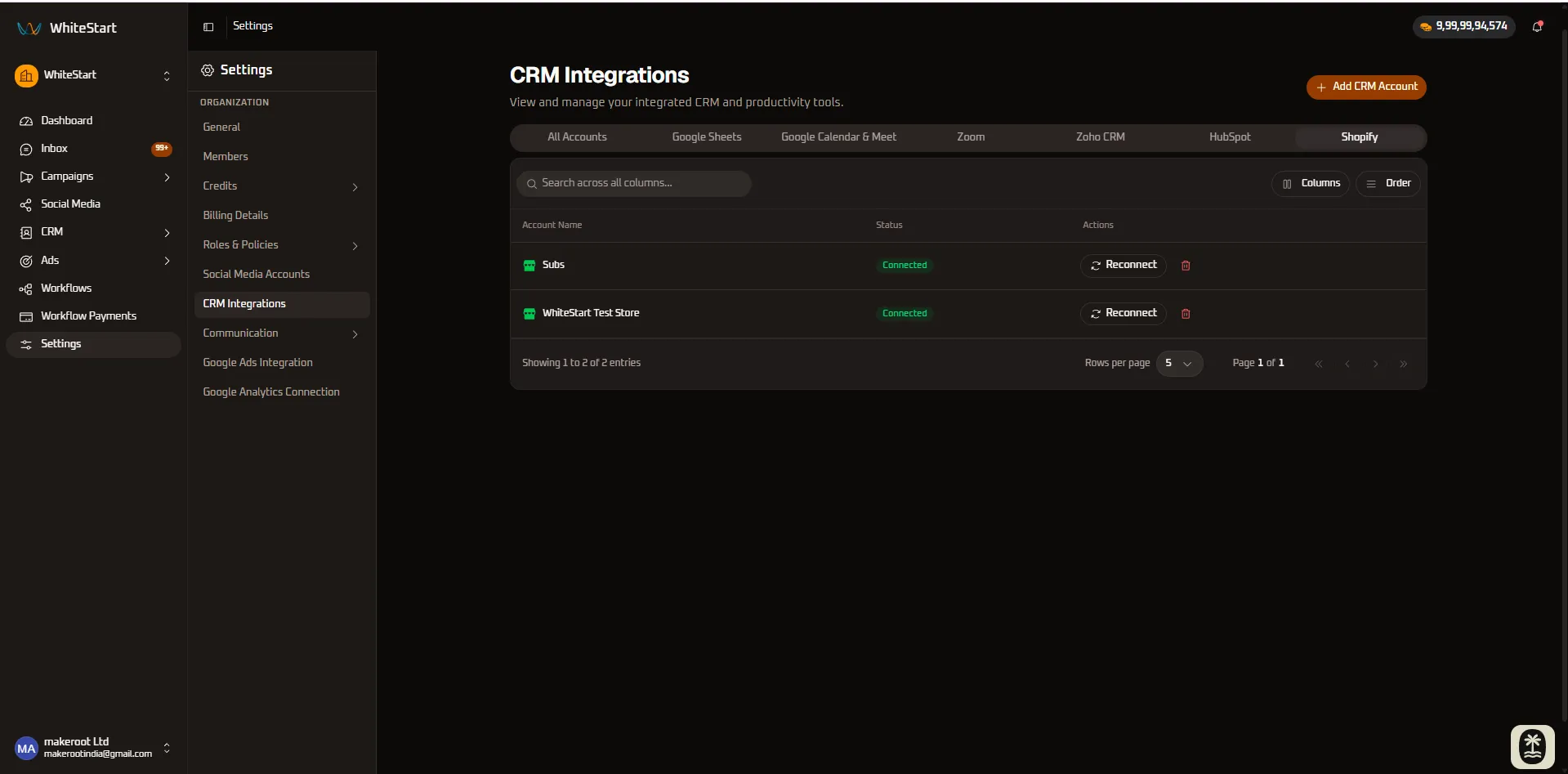
- Multi-Store Management: Connect and manage multiple Shopify store instances (e.g., regional stores, staging environments) within a single account.
- Order Notifications: Send automated transactional alerts via WhatsApp and SMS for order confirmations, fulfillment updates, and deliveries.
- Abandoned Cart Recovery: Automatically re-engage shoppers who left items in their cart with personalized recovery messages and promotional incentives.
4. Quick Reference Summary
Section titled “4. Quick Reference Summary”| Platform | Category | Authentication Standard | Primary Operational Capabilities | Token Lifecycle |
|---|---|---|---|---|
| Google Sheets | Spreadsheets & Data Sync | Google OAuth 2.0 | Bidirectional CRM contact sync, column mapping, lead ingestion, workflow triggers | 6 Months / Offline Refresh |
| Google Calendar | Scheduling & Video | Google OAuth 2.0 | Automated appointment booking, real-time availability, instant Google Meet links | 6 Months / Offline Refresh |
| Zoom | Video Conferencing | Zoom OAuth 2.0 | Dynamic video room creation, automated passcodes, meeting reminder alerts | Rolling Refresh |
| Zoho CRM | CRM & Sales Pipelines | Zoho OAuth 2.0 | Bi-directional lead syncing, deal stage progression, and custom field schemas | Explicit Refresh |
| HubSpot | Inbound CRM & Marketing | HubSpot OAuth 2.0 | Contact lifecycle syncing, webhook enrolment, and timeline event logging | Rolling Refresh |
| Shopify | E-Commerce Storefronts | Shopify App Auth | Order confirmations, fulfillment dispatches, delivery alerts, cart recovery | Persistent App Token |
5. Step-by-Step Instructions: Connecting a New Integration
Section titled “5. Step-by-Step Instructions: Connecting a New Integration”How to Connect a Google Sheets Spreadsheet Integration
Section titled “How to Connect a Google Sheets Spreadsheet Integration”- Navigate to Settings ➔ CRM Integrations.
- Click the orange + Add CRM Account button in the top right corner.
- In the modal dialog, select Connect Google Sheets.
- In the Google Identity pop-up, select the Google Account that contains your target spreadsheets (e.g.,
[email protected]). - Grant WhiteStart permission to access and manage Google Sheets files.
- Confirm authorization. The account will appear under the Google Sheets tab with a green
Connectedstatus badge. - Navigate to your customer directory or workflow builder to select specific workbooks and configure column mappings.
How to Connect Other CRM & Productivity Tools
Section titled “How to Connect Other CRM & Productivity Tools”- Navigate to Settings ➔ CRM Integrations.
- Click + Add CRM Account.
- Select your provider:
- Connect Google Calendar & Meet: Sign in with Google, grant calendar access, and link team scheduling.
- Connect Zoom: Sign in to Zoom App Marketplace, authorize the WhiteStart app, and set default meeting rooms.
- Connect Zoho CRM: Log in to Zoho, select your organization domain, and grant CRM lead write access.
- Connect HubSpot: Select your HubSpot Hub ID, grant read/write access to CRM contacts, and authorize.
- Connect Shopify: Enter your
.myshopify.comstore domain, authenticate via Shopify admin, and install the WhiteStart integration app.
- Verify that the integration appears in its corresponding tab with a
Connectedstatus badge.
6. Managing Connected Accounts & Token Maintenance
Section titled “6. Managing Connected Accounts & Token Maintenance”Re-Authorizing Tokens (🔄 Reconnect)
Section titled “Re-Authorizing Tokens (🔄 Reconnect)”If an external service rotates API credentials, changes administrator passwords, or invalidates OAuth bearer tokens:
- Locate the affected account row in the table.
- Click
🔄 Reconnectin the Actions column. - Complete the quick provider login confirmation.
- The security token is refreshed instantly. All active spreadsheet mappings, scheduled appointments, and CRM sync pipelines remain completely intact.
Removing an Integration (🗑️ Delete)
Section titled “Removing an Integration (🗑️ Delete)”To revoke WhiteStart’s access to an external CRM, spreadsheet, or storefront:
- Locate the target account in the directory.
- Click the red Delete (trash icon
🗑️) in the Actions column. - Confirm the disconnection prompt.
- The account is removed immediately, and background event webhooks are decommissioned.
7. Role-Based Access Control (RBAC) Permissions
Section titled “7. Role-Based Access Control (RBAC) Permissions”Access to manage CRM integrations and Google Sheet sync mappings is governed by WhiteStart’s Roles & Policies:
| Desired Capability | Required Permission | Entity Group |
|---|---|---|
| View Connected CRM Integrations | Can view customer |
Customer and Organization |
| Set Up Google Sheet Sync Mapping | Can add Google Sheet Sync Mapping |
Customer and Organization |
| Modify Column Mappings & Polling | Can change Google Sheet Sync Mapping |
Customer and Organization |
| Remove Google Sheet Sync Connections | Can delete Google Sheet Sync Mapping |
Customer and Organization |
| View Active Sync Health & Rows | Can view Google Sheet Sync Mapping |
Customer and Organization |
| Trigger Workflows via Spreadsheets | Can change Work Flow |
Work Flows |
Ensure that team members responsible for spreadsheet synchronization and CRM workflows hold a role containing these permissions in Roles & Policies.