
Organization Notification Center
The WhiteStart Notification Center provides team members with a consolidated, real-time activity stream of customer communications, campaign statuses, billing alerts, and system notifications across all integrated channels.
Accessible directly from the persistent top navigation bar, the notification drawer allows agents and managers to respond instantly to incoming inquiries without leaving their active workflow.
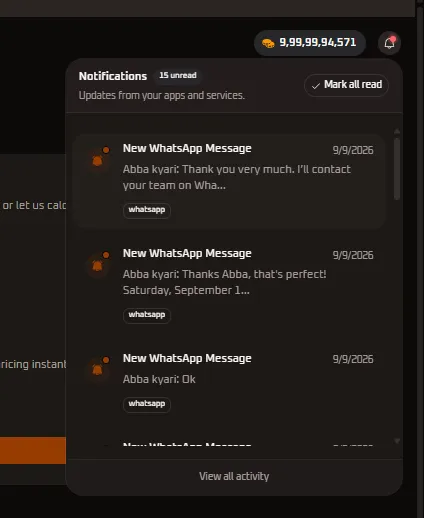
Notification Center Overview
Section titled “Notification Center Overview”WhiteStart aggregates critical operational events from multiple pipelines—including WhatsApp Business API, Facebook Messenger, Instagram Direct, SMS, RCS, and CRM triggers—into an interactive slide-out notification drawer.
Header Notification Bell
Section titled “Header Notification Bell”- Real-Time Badge Indicator: The bell icon in the top navigation bar displays an active red indicator dot whenever new, unread events occur.
- Flyout Drawer Trigger: Clicking the notification bell opens the floating notification panel with instant access to the latest customer messages and operational updates.
Notification Drawer Anatomy & Controls
Section titled “Notification Drawer Anatomy & Controls”The notification drawer provides clear operational controls and structured event cards:
Drawer Header Controls
Section titled “Drawer Header Controls”- Title & Counter Badge: Displays the section header (
Notifications) alongside an unread counter pill (for example,15 unread). - Mark All Read Button: A quick action control located in the upper-right corner that clears all active unread indicators across the entire workspace in a single click.
- Context Subtitle: Descriptive guide text (
Updates from your apps and services.) defining the scope of alerts.
Notification Item Data Structure
Section titled “Notification Item Data Structure”Each alert card contains comprehensive context allowing team members to triage customer needs immediately:
| Component | Example from Interface | Operational Function |
|---|---|---|
| Status Indicator | Orange unread indicator dot | Visually highlights unread notifications requiring attention. The dot clears once clicked. |
| Event Category | New WhatsApp Message |
Specifies the type of notification (e.g., inbound message, broadcast completion, billing alert). |
| Timestamp | 9/9/2026 |
Date or relative time when the event occurred in the system. |
| Message Snippet | Abba kyari: Thank you very much. I'll contact your team on Wha... |
Displays the sender identity and a contextual excerpt of the customer’s response. |
| Channel Badge | whatsapp |
High-contrast pill tag designating the communication provider or platform. |
Footer Action
Section titled “Footer Action”- View All Activity: A persistent footer link that navigates to the centralized system activity log, comprehensive message audit trail, and inbound webhook timeline.
Multi-Channel Event Types
Section titled “Multi-Channel Event Types”The Notification Center tracks events across multiple enterprise domains:
1. Inbound Customer Messages
Section titled “1. Inbound Customer Messages”When a customer sends a message to any connected communication channel, an instant alert triggers in the notification drawer:
- WhatsApp: Inbound customer replies to marketing campaigns or automated bot conversations.
- Social Media: Direct messages and comments received on Facebook, Instagram, and connected channels.
- SMS & RCS: Two-way customer responses from interactive campaigns.
Clicking an inbound message notification immediately opens the conversation thread in the Inbox, allowing support agents to claim conversations, assign tags, or respond directly.
2. Campaign Execution Milestones
Section titled “2. Campaign Execution Milestones”- Notifications are generated when bulk dispatches in Campaigns complete.
- Alerts warn administrators if carrier failure rates exceed normal thresholds or if carrier balance issues occur.
3. Credit & Wallet Warnings
Section titled “3. Credit & Wallet Warnings”- System alerts notify administrators when the organizational credit wallet falls below configured safety reserves.
- Top-up payment confirmations and newly generated tax invoices appear immediately upon checkout completion.
4. Team & Organization Updates
Section titled “4. Team & Organization Updates”- Notifications for newly invited team members accepting organization workspace invitations.
- Role and permission policy adjustments executed by workspace administrators.
Notification Workflow & Best Practices
Section titled “Notification Workflow & Best Practices”Triage and Quick Navigation
Section titled “Triage and Quick Navigation”- Click the Notification Bell in the top navigation bar when the red indicator appears.
- Review incoming customer messages and timestamps.
- Click any message card to jump directly to the customer profile and active conversation thread in the Inbox.
- To clear pending counters after review, click Mark all read.
Managing Global Activity
Section titled “Managing Global Activity”To review historical logs, filter events by date range, or audit team member actions, click the View all activity link at the bottom of the drawer.
Next Steps & Related Resources
Section titled “Next Steps & Related Resources”- Inbox - WhatsApp Conversations: Triage customer inquiries, assign agents, and deploy automated canned replies.
- Credit Balances & Quota Management: Monitor real-time channel consumption rates and available message quotas.
- Organizations & Workspaces: Manage workspace tenant memberships and switch organizational contexts.