
Organization Switcher & Context Switching
In WhiteStart’s multi-tenant ecosystem, operators managing multiple clients, agency portfolios, brand franchises, or sandbox environments require immediate, frictionless navigation between tenants.
The Organization Switcher is a persistent control embedded at the top of the main sidebar navigation. It enables instant context transitions, dedicated keyboard shortcuts, and direct shortcuts to workspace provisioning without terminating the user’s active session.
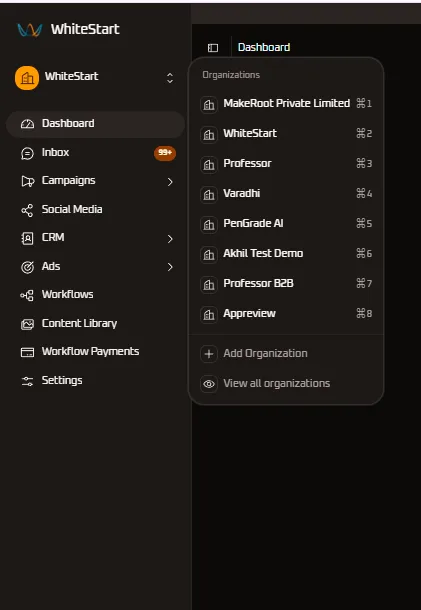
Sidebar Organization Switcher Overview
Section titled “Sidebar Organization Switcher Overview”The organization switcher eliminates the need to return to the centralized landing dashboard when moving between different business accounts.
Interface Placement & Trigger
Section titled “Interface Placement & Trigger”- Primary Sidebar Trigger: Located directly beneath the WhiteStart logo in the left navigation rail.
- Visual Identity: Displays the active organization icon, company name (for example,
WhiteStart), and an interactive up/down chevron selector. - Dropdown Activation: Clicking the trigger expands the floating Organizations menu displaying your assigned workspace tenants and rapid keyboard navigation shortcuts.
Quick Switcher Menu Anatomy
Section titled “Quick Switcher Menu Anatomy”The floating dropdown menu is organized into dedicated functional zones:
1. Header & Tenant Directory
Section titled “1. Header & Tenant Directory”The top section lists all active organization memberships associated with your authenticated profile. Each entry shows the registered company name and a hardware-accelerated keyboard accelerator:
| Organization Name | Assigned Keyboard Shortcut | Operational Context |
|---|---|---|
| MakeRoot Private Limited | ⌘1 (Mac) / Ctrl+1 (Windows/Linux) |
Primary enterprise workspace or holding entity. |
| WhiteStart | ⌘2 (Mac) / Ctrl+2 (Windows/Linux) |
Default parent platform workspace. |
| Professor | ⌘3 (Mac) / Ctrl+3 (Windows/Linux) |
Education and course distribution workspace. |
| Varadhi | ⌘4 (Mac) / Ctrl+4 (Windows/Linux) |
Regional business or subsidiary tenant. |
| PenGrade AI | ⌘5 (Mac) / Ctrl+5 (Windows/Linux) |
AI product development and automated workflows. |
| Akhil Test Demo | ⌘6 (Mac) / Ctrl+6 (Windows/Linux) |
Sandbox testing environment for template verification. |
| Professor B2B | ⌘7 (Mac) / Ctrl+7 (Windows/Linux) |
B2B enterprise outreach and dedicated pipelines. |
| Appreview | ⌘8 (Mac) / Ctrl+8 (Windows/Linux) |
Mobile application reviews and customer feedback. |
2. Global Actions & Shortcuts
Section titled “2. Global Actions & Shortcuts”Beneath the organization directory list, a horizontal divider separates quick management actions:
- + Add Organization: Instantly launches the Setup Wizard to provision an entirely new tenant partition, configure branding, and connect messaging channels.
- View all organizations: Direct navigation link routing to the full My Organizations Directory, providing search filtering, member counters, and role audit cards.
Keyboard Shortcut Navigation
Section titled “Keyboard Shortcut Navigation”To maximize productivity for high-volume support agents and multi-account account managers, WhiteStart maps the first eight organizations to direct numeric shortcuts:
Mac OS: Command (⌘) + [1 - 8]Windows: Control (Ctrl) + [1 - 8]Operational Behavior of Shortcuts
Section titled “Operational Behavior of Shortcuts”- Global Availability: Keyboard shortcuts trigger instantly from any active page—including Dashboard, Inbox conversations, CRM tables, or Campaign editors.
- Instant State Preservation: In-flight draft messages and unsaved form edits generate a confirmation prompt before switching context, preventing accidental data loss.
- Deterministic Indexing: Organization slots 1 through 8 maintain fixed indexing matching your most frequently accessed or pinned workspace list.
Workspace Context Transition Lifecycle
Section titled “Workspace Context Transition Lifecycle”When switching organizations via either clicking a tenant in the dropdown or executing a keyboard shortcut, WhiteStart performs an automated context transition:
1. Session Token Validation
Section titled “1. Session Token Validation”The authentication engine verifies that your active session token holds valid membership credentials and authorization policies for the target organization.
2. Tenant Context Re-Scoping
Section titled “2. Tenant Context Re-Scoping”- Database Isolation: All internal API endpoints immediately re-scope requests to the target organization’s UUID tenant header (
X-Tenant-ID). - Sidebar Menu Re-Hydration: Modules in the left sidebar update dynamically:
- Inbox: Re-subscribes WebSocket listeners to the target organization’s customer chat threads and updates badge counters (for example, displaying
99+unread messages). - Campaigns & Workflows: Loads campaigns, scheduled dispatches, and trigger automations belonging exclusively to the selected workspace.
- Settings & Roles: Re-evaluates your role permissions (e.g., transitioning from an
Adminin WhiteStart to aSupport Agentin Varadhi).
- Inbox: Re-subscribes WebSocket listeners to the target organization’s customer chat threads and updates badge counters (for example, displaying
3. Unified Wallet Re-Binding
Section titled “3. Unified Wallet Re-Binding”The top navigation bar dynamically re-binds to the target organization’s Credit Balances, displaying available units, rates, and notification badges corresponding to that specific account.
Multi-Tenant Best Practices
Section titled “Multi-Tenant Best Practices”Avoiding Context Mismatches
Section titled “Avoiding Context Mismatches”Always check the active organization name in the upper-left sidebar before launching bulk marketing campaigns or modifying global CRM fields.
Using Sandboxes for Testing
Section titled “Using Sandboxes for Testing”Utilize designated testing workspaces (such as Akhil Test Demo) to experiment with new RCS templates, webhook integrations, or automated workflow sequences before deploying changes to production client accounts.
Quick Creation of Client Workspaces
Section titled “Quick Creation of Client Workspaces”Agency partners onboarding new clients should use the + Add Organization option in the switcher dropdown to quickly initiate tenant provisioning without leaving their administrative dashboard.
Related Documentation
Section titled “Related Documentation”- Organizations & Workspaces Directory: Overview of all tenant memberships, role permissions, and full-screen workspace directory.
- Setup Wizard & Channel Configuration: Step-by-step onboarding walkthrough for newly created organizations.
- Credit Balances & Rates: Multi-channel credit wallet and quota calculations per organization.
- Notification Center: Multi-channel activity streams and message alerts.