
Setup Wizard & Channel Configuration
The Setup Wizard guides new organization administrators through configuring core communication pipelines, social media channels, CRM integrations, messaging gateways, and customer database onboarding.
Following initial account creation, the interactive wizard establishes the complete technical infrastructure necessary to broadcast campaigns, manage customer conversations, and automate omnichannel workflows.
Setup Wizard Architecture & Navigation
Section titled “Setup Wizard Architecture & Navigation”The Setup Wizard is designed with a non-blocking, multi-step progression:
- Progress Bar: Positioned at the top of the modal, visually tracking completion progress across configuration stages.
- Contextual Subtitles: Displays active organization context (e.g.,
Setting up demo) and procedural instructions for each step. - Non-Blocking Skipping: Every integration step includes a Skip button, allowing teams to complete initial setup immediately and configure specialized channels later in Settings.
- Bi-Directional Navigation: Use the Back and Next Step controls to review or modify previously entered parameters.
Step 0: Organization Workspace Setup
Section titled “Step 0: Organization Workspace Setup”Before connecting messaging channels, the wizard launches by configuring your core organization workspace:
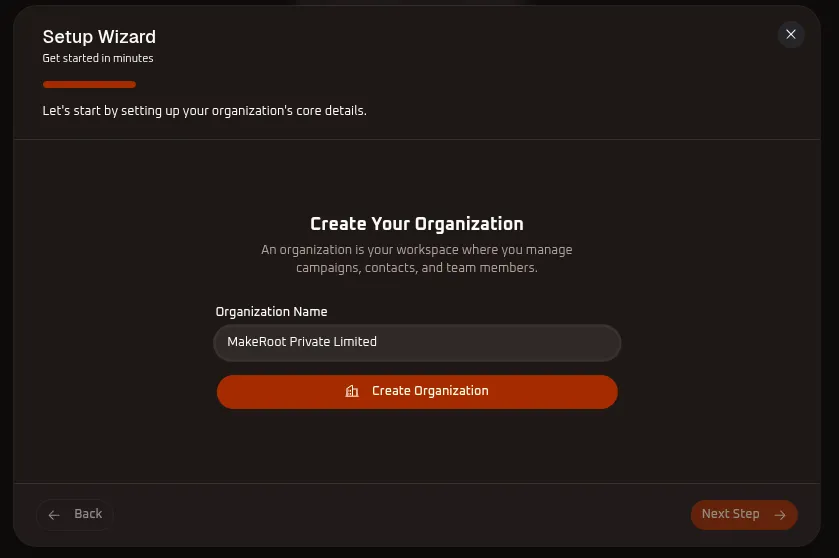
- Organization Name (*): Enter your registered company, brand, or agency client title (e.g.,
MakeRoot Private Limitedordemo).An organization represents your multi-tenant workspace partition where campaigns, customer databases, credit balances, and team member permissions reside.
- Click the orange
Create Organizationbutton. - Once initialized, click
Next Step ➔to enter the communication channel configuration stages.
Step 1: Connect WhatsApp Business
Section titled “Step 1: Connect WhatsApp Business”WhatsApp Business API powers high-engagement conversational marketing, automated customer support bots, and transactional notification broadcasts.
Connection Workflow
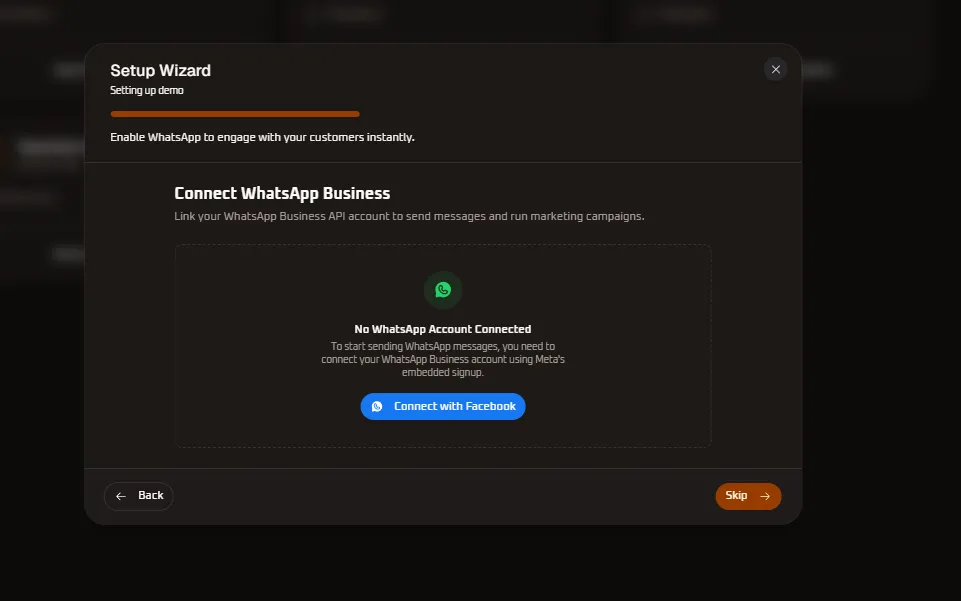
Section titled “Connection Workflow”- In the Connect WhatsApp Business step, review the channel status (
No WhatsApp Account Connected). - Click the blue Connect with Facebook button.
- A secure Meta pop-up window opens, initiating Meta’s official Embedded Signup workflow:
- Log in to your Meta (Facebook) business account.
- Select your Meta Business Manager portfolio.
- Choose an existing WhatsApp Business Account (WABA) or create a new one.
- Verify your business phone number via SMS or voice call OTP.
- Grant WhiteStart permission to manage templates and conversational messaging.
- Upon authorization, WhiteStart automatically synchronizes your WABA ID, Phone Number ID, and webhook subscriptions.
- Click
Next Step ➔(or clickSkip ➔to configure later).
Dedicated WhatsApp Configuration & Campaign Guides
Section titled “Dedicated WhatsApp Configuration & Campaign Guides”- WhatsApp Gateway Settings: Communication Settings - WhatsApp Meta — Complete guide to WABA numbers, webhook verification, and native in-chat UPI payments.
- WhatsApp Broadcast Campaigns: WhatsApp Campaigns Documentation — Setting up targeted promotional and transactional WhatsApp broadcasts.
- WhatsApp Message Templates: WhatsApp Templates Guide — Creating and submitting Meta-approved template messages.
Step 2: Connect Social Media Accounts
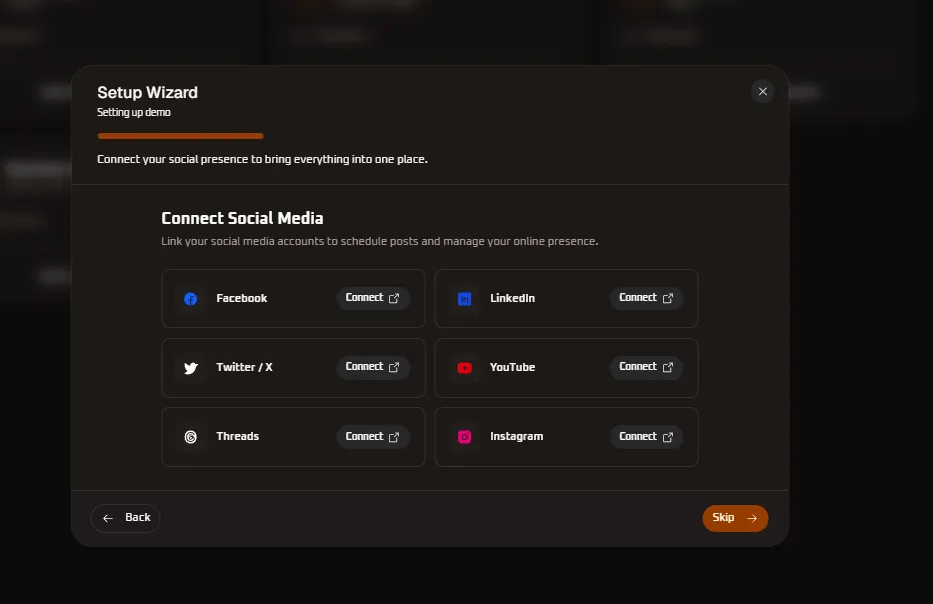
Section titled “Step 2: Connect Social Media Accounts”WhiteStart unifies social publishing, brand monitoring, and inbound direct messaging across major social networks from a single hub.
Supported Social Networks
Section titled “Supported Social Networks”| Platform | Authentication Method | Capabilities Unlocked |
|---|---|---|
| Meta Graph OAuth | Page publishing, feed monitoring, lead ads sync, Messenger inbox | |
| LinkedIn OAuth 2.0 | Company page posts, article scheduling, lead generation forms | |
| Twitter / X | Twitter OAuth 2.0 | Post scheduling, tweet monitoring, direct message replies |
| YouTube | Google OAuth 2.0 | Video metadata publishing, community posts, comment tracking |
| Threads | Meta Graph OAuth | Feed posts, carousel sharing, audience engagement monitoring |
| Meta Business OAuth | Instagram Business publishing, Story replies, Direct Messages (DM) |
To connect a network, click Connect next to the desired platform and authorize WhiteStart in the provider popup window.
Dedicated Social Media Guides
Section titled “Dedicated Social Media Guides”- Social Accounts Configuration: Social Media Accounts Settings — Managing connected Facebook, Instagram, LinkedIn, Twitter/X, Threads, and YouTube channels, monitoring account health, and token re-authorization.
Step 3: Connect CRM & Productivity Tools
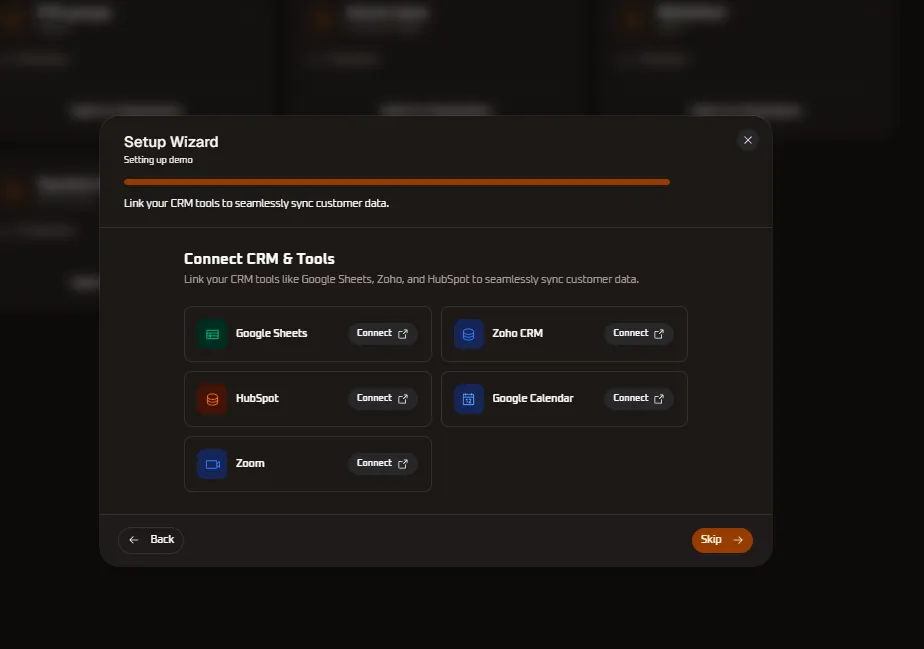
Section titled “Step 3: Connect CRM & Productivity Tools”Sync customer profiles, pipeline stages, appointment bookings, and video meetings by linking your existing enterprise software stack.
Integration Directory
Section titled “Integration Directory”- Google Sheets (
Connect ↗): Connect Google Workspaces to stream form leads directly into spreadsheets or import bulk recipient lists for broadcasts. - Zoho CRM (
Connect ↗): Bi-directional sync of Leads, Contacts, and Deals between WhiteStart conversation events and Zoho modules. - HubSpot (
Connect ↗): Synchronize contact lifecycle stages, timeline activity events, and custom CRM properties. - Google Calendar (
Connect ↗): Enable automated appointment scheduling during bot conversations and sales rep booking links. - Zoom (
Connect ↗): Automatically generate and dispatch unique meeting links when customers book demonstrations or consultations.
Dedicated CRM & Integration Guides
Section titled “Dedicated CRM & Integration Guides”- CRM Integrations Console: CRM Integrations Settings — Comprehensive setup instructions for Zoho CRM, HubSpot, Google Sheets synchronization, Google Calendar, and Zoom automation.
Step 4: Connect Email Provider
Section titled “Step 4: Connect Email Provider”WhiteStart provides dual options for outbound transactional and promotional email campaigns:
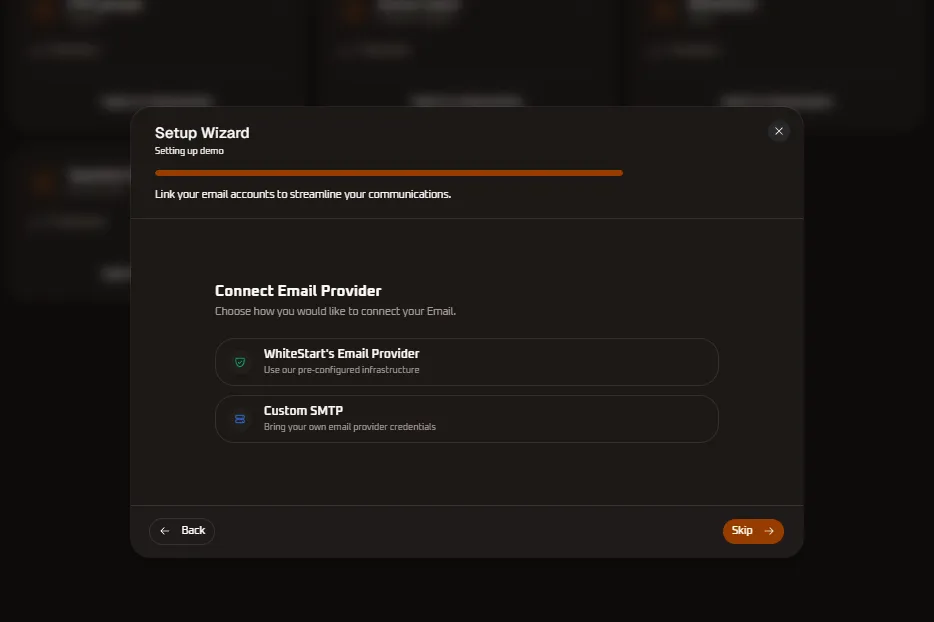
Option A: WhiteStart Managed Email Provider
Section titled “Option A: WhiteStart Managed Email Provider”Utilize WhiteStart’s pre-configured, high-deliverability cloud email infrastructure without managing external DNS servers.
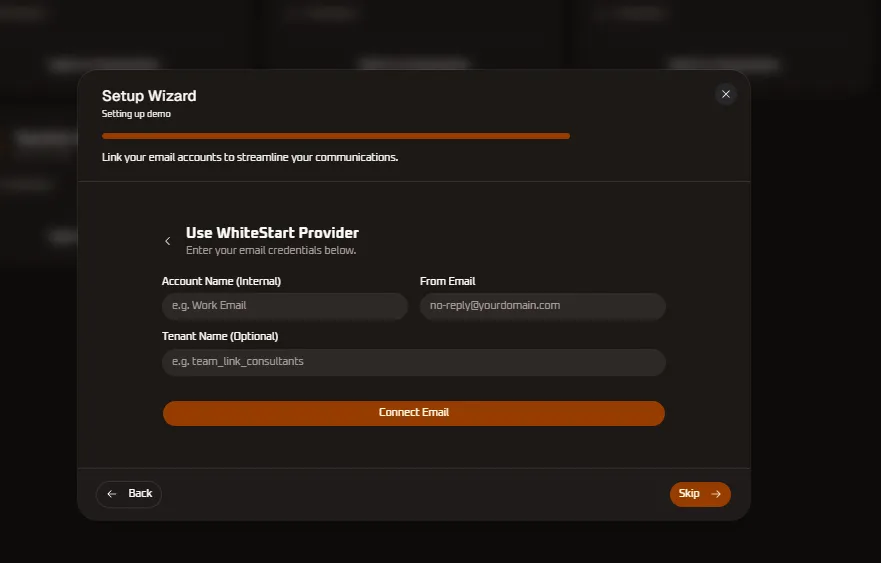
- Account Name (Internal): Friendly identifier (e.g.,
Work Email). - From Email: Official sender address (e.g.,
[email protected]). - Tenant Name (Optional): Sub-tenant or branch routing identifier (e.g.,
team_link_consultants). - Click Connect Email to activate.
Option B: Custom SMTP
Section titled “Option B: Custom SMTP”Bring your own enterprise mail server or transactional email service (such as Google Workspace, Microsoft 365, AWS SES, or SendGrid).
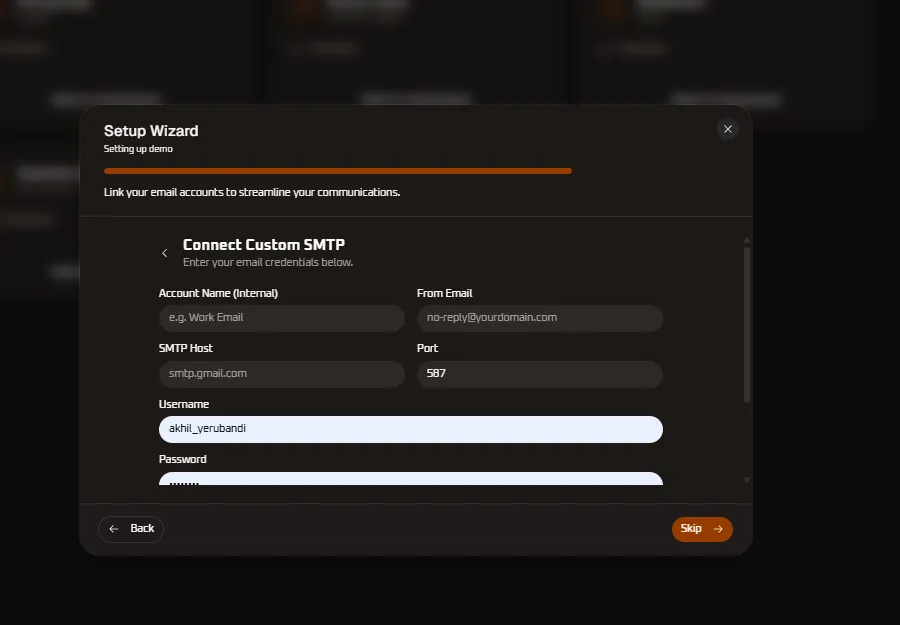
- Account Name (Internal): Descriptive title for internal reference.
- From Email: Authenticated sender address displayed in recipient inboxes.
- SMTP Host: Mail server hostname (e.g.,
smtp.gmail.com,smtp.office365.com). - Port: Transmission port (
587for STARTTLS,465for SSL/TLS). - Username & Password: Mailbox authentication credentials or app-specific passwords.
Dedicated Email Configuration & Campaign Guides
Section titled “Dedicated Email Configuration & Campaign Guides”- Email Gateway Settings: Communication Settings - Email Gateways — Detailed comparison of Managed WhiteStart email relays vs. Custom SMTP authentication.
- Email Broadcast Campaigns: Email Campaigns Documentation — Designing responsive newsletters, scheduling broadcasts, and analyzing delivery logs.
- Email Templates: Email Templates Guide — Building HTML marketing emails and transactional templates.
Step 5: Connect SMS Providers
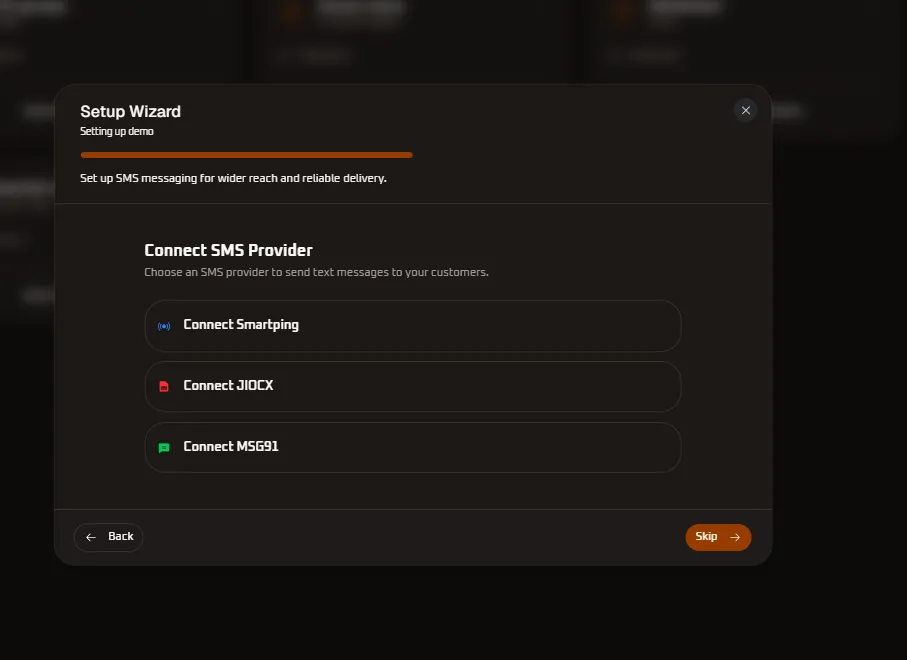
Section titled “Step 5: Connect SMS Providers”Configure enterprise SMS aggregators for multi-channel failover, OTP authentication, and regulatory DLT compliance in regional markets.
Connected SMS Documentation Files
Section titled “Connected SMS Documentation Files”WhiteStart provides dedicated guides for configuring each telecom provider and running compliant SMS operations:
- Primary Setup Guide: Communication Settings - SMS Telecom Providers — Complete walkthrough of Principal Entity (PE) registration, header binding, and carrier routes.
- Broadcast Campaigns: SMS Campaigns Documentation — Step-by-step instructions for creating, audience targeting, and scheduling bulk SMS broadcasts.
Supported SMS Gateways
Section titled “Supported SMS Gateways”1. Smartping SMS
Section titled “1. Smartping SMS”Connect via Smartping’s carrier-grade delivery network:
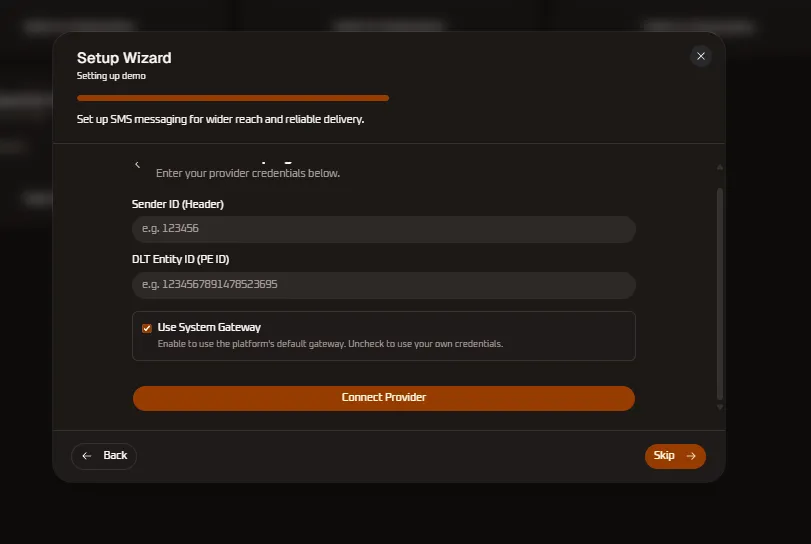
- Sender ID (Header): 6-character registered DLT header (e.g.,
123456). - DLT Entity ID (PE ID): Principal Entity registration code (e.g.,
1234567891478523695). - Use System Gateway: Checkbox to route through WhiteStart default gateway pools, or uncheck to utilize dedicated customer accounts.
- Dedicated Gateway Guide: Read the full step-by-step setup in SmartPing Gateway Configuration.
- DLT Template Guide: Learn how to format and register templates in Smartping SMS Templates.
2. JIOCX SMS
Section titled “2. JIOCX SMS”Connect enterprise accounts provisioned through Reliance JioCX:
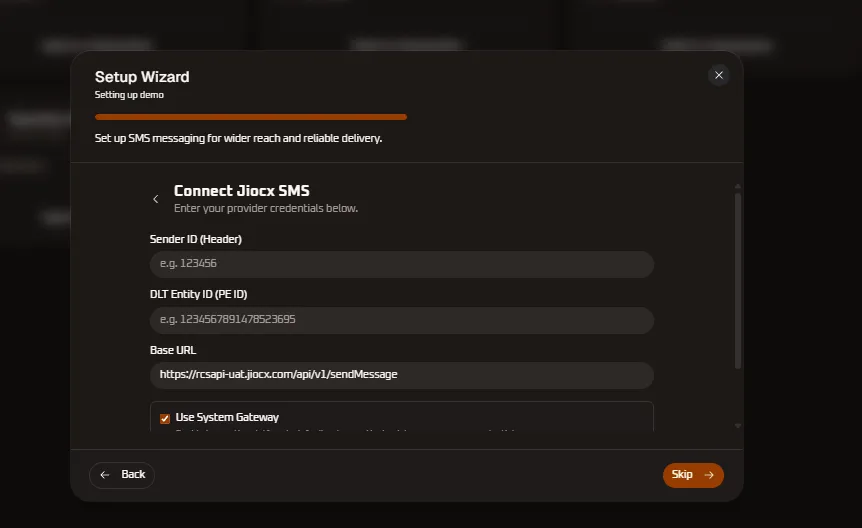
- Sender ID (Header): Registered alpha header.
- DLT Entity ID (PE ID): Telecommunications Principal Entity identifier.
- Base URL: API gateway endpoint (
https://rcsapi-uat.jiocx.com/api/v1/sendMessage). - Use System Gateway: Toggle between shared and dedicated routes.
- Dedicated Gateway Guide: Read the full step-by-step setup in JIOCX Telecom Configuration.
- DLT Template Guide: Learn how to format and register templates in JioCX SMS Templates.
3. MSG91 SMS
Section titled “3. MSG91 SMS”Connect international and domestic routes via MSG91:
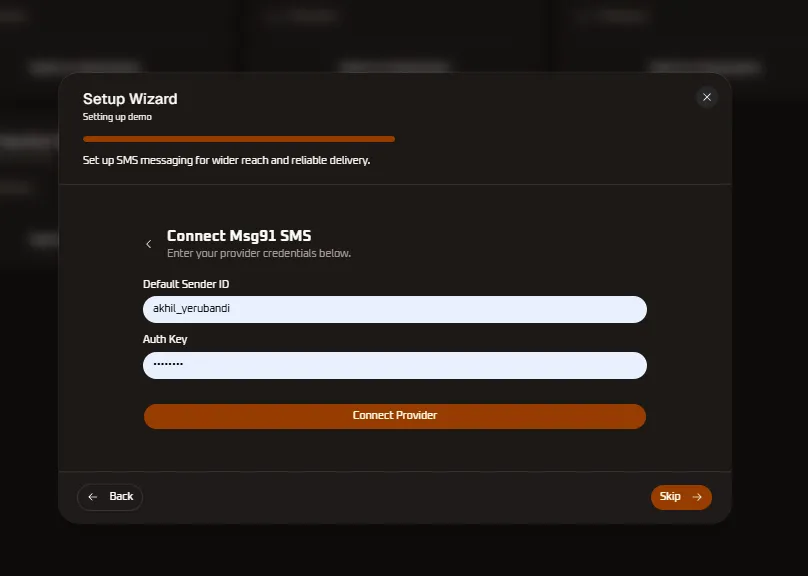
- Default Sender ID: Approved sender header (e.g.,
akhil_yerubandi). - Auth Key: Secure API token generated within the MSG91 developer console.
- Dedicated Gateway Guide: Read the full step-by-step setup in MSG91 Gateway Configuration.
- DLT Template Guide: Learn how to format and register templates in MSG91 SMS Templates.
Step 6: Connect RCS Providers
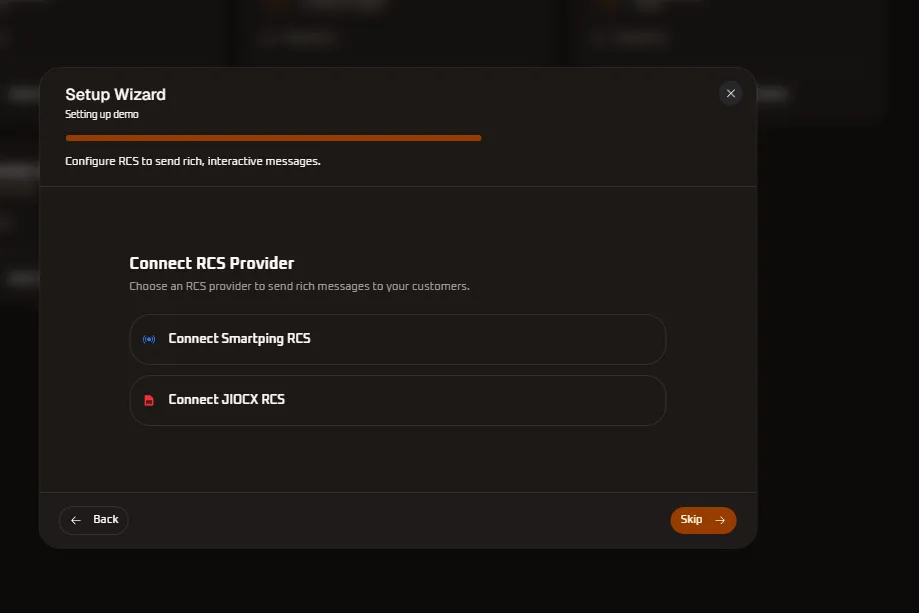
Section titled “Step 6: Connect RCS Providers”Rich Communication Services (RCS) upgrades traditional SMS into branded, interactive mobile experiences featuring carousels, action chips, and verified checkmarks directly inside Google Messages on Android devices.
Connected RCS Documentation Files
Section titled “Connected RCS Documentation Files”WhiteStart provides comprehensive documentation covering Google RCS Business Messaging (RBM) carrier setup, verified branding, interactive templates, and broadcast campaigns:
- Primary Setup Guide: Communication Settings - RCS Gateways — Detailed guide to Google RCS Agent ID verification, branding assets, and webhook configuration.
- Broadcast Campaigns: RCS Campaigns Documentation — Complete walkthrough for launching rich card carousels and call-to-action broadcast campaigns.
Supported RCS Gateways
Section titled “Supported RCS Gateways”1. Smartping RCS
Section titled “1. Smartping RCS”SmartPing connects directly to enterprise carrier RBM infrastructure for rapid transactional card delivery:
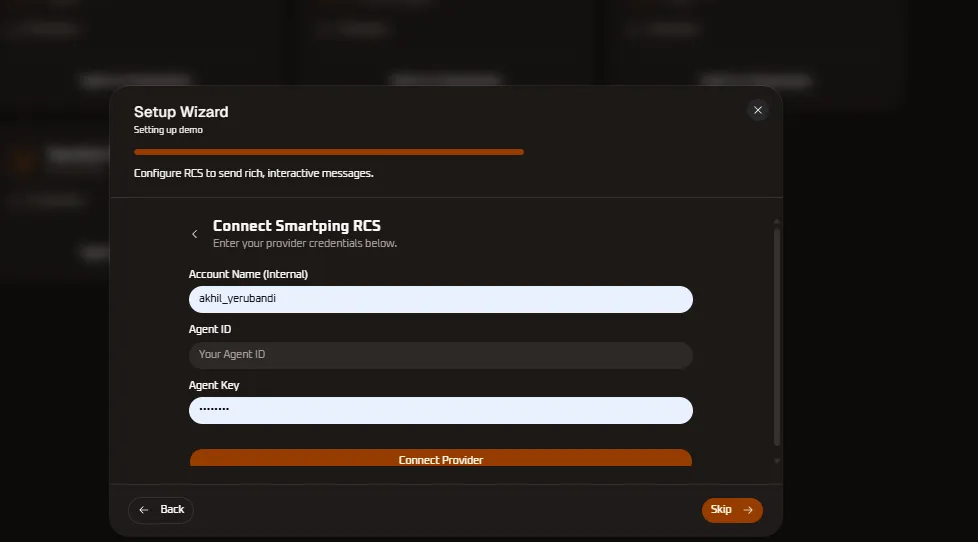
- Select Connect Smartping RCS from the provider options.
- In the configuration card, provide:
- Account Name (Internal): Internal reference (e.g.,
akhil_yerubandi). - Agent ID: Official Google RCS Agent ID assigned during bot verification.
- Agent Key: Cryptographic secret key authorized to dispatch RCS payloads.
- Account Name (Internal): Internal reference (e.g.,
- Click Connect Provider to establish the gateway connection.
- Dedicated Gateway Guide: Read the full step-by-step setup in SmartPing RCS Gateway Configuration.
- Interactive Template Guide: Configure rich cards and action chips in Smartping RCS Templates.
2. JIOCX RCS
Section titled “2. JIOCX RCS”Connect directly to Reliance Jio’s enterprise cloud RCS infrastructure:
- Dedicated Gateway Guide: Read the full setup instructions in JIOCX RCS Gateway Configuration.
- Base URL Endpoint: Dispatch interactive messaging payloads via Jio’s carrier endpoints.
3. Sparc RCS Business Assistant
Section titled “3. Sparc RCS Business Assistant”For businesses deploying verified enterprise assistants with brand logos, cover banners, and custom action chips:
- Dedicated Assistant Creation Wizard: Follow the complete 5-step visual setup in Sparc RCS Business Assistant Creation Wizard.
- Interactive Template Guide: Learn how to design verified carousels in Sparc RCS Templates.
Step 7: Customer Data Import & Completion
Section titled “Step 7: Customer Data Import & Completion”The final onboarding stage gives teams the opportunity to ingest existing customer databases to immediately power campaigns and automated workflows.
Data Ingestion Methods
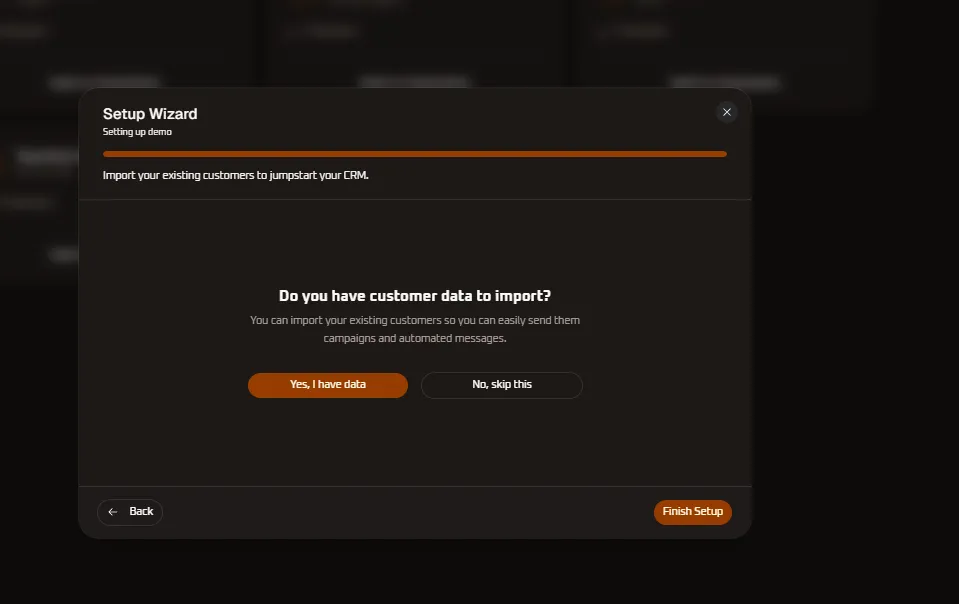
Section titled “Data Ingestion Methods”When prompted: “Do you have customer data to import? You can import your existing customers so you can easily send them campaigns and automated messages.”
- 📄 CSV File Upload (
📄 CSV File):- Upload a
.csvor.xlsxspreadsheet directly from your local machine. - Map columns for phone numbers (including country codes), email addresses, names, and custom CRM attributes.
- WhiteStart automatically validates contact syntax, discards duplicates, and indexes records into your audience database.
- Upload a
- 📊 Google Sheets Synchronization (
📊 Google Sheets):- Authorize your Google account to sync contacts directly from a cloud spreadsheet.
- Keeps contact segments continually synchronized as new rows are added in Google Sheets.
- No, skip this: Bypasses bulk data ingestion, allowing teams to build contact records organically through incoming chat inquiries and web forms.
- Finish Setup: Click the orange
Finish Setupbutton to complete the wizard, mark the workspace tenant as fully provisioned, and open your WhiteStart Dashboard.
Dedicated CRM Data & Table Guides
Section titled “Dedicated CRM Data & Table Guides”- CRM Forms: CRM Forms Documentation — Dynamic schema creation, custom fields, and automated lead capture pipelines.
- Customer Tables: Customer Tables Documentation — Inspecting 360-degree customer profile drawers, multi-agent assignments, and advanced column filtering.
- Data Tables: Data Tables Documentation — Managing tabular views, CSV volume exports, and real-time search filtering.
Post-Onboarding Workspace Guides
Section titled “Post-Onboarding Workspace Guides”- Organization Switcher & Shortcuts: Organization Switcher & Context Switching — Instant tenant transitions, keyboard shortcuts (
⌘1-⌘8), and multi-account workspace management. - Credit Balances & Rates: Credit Balances & Quota Management — Monitor multi-channel credit consumption rates, calculate available message quotas, and execute wallet top-ups.
- Notification Center: Organization Notification Center — Real-time notification drawer, inbound customer message alerts, and team activity streams.