
Sparc RCS Templates
The RCS Sparc Templates module allows businesses using Sparc’s RCS Business Messaging (RBM) infrastructure to build, preview, and deploy interactive, verified message templates. Support verified brand agent profiles, high-resolution media banners with custom orientation, dynamic personalization variables, one-tap action chips, and horizontal product carousels directly inside Android native messaging apps.
1. Navigating to Sparc RCS Templates
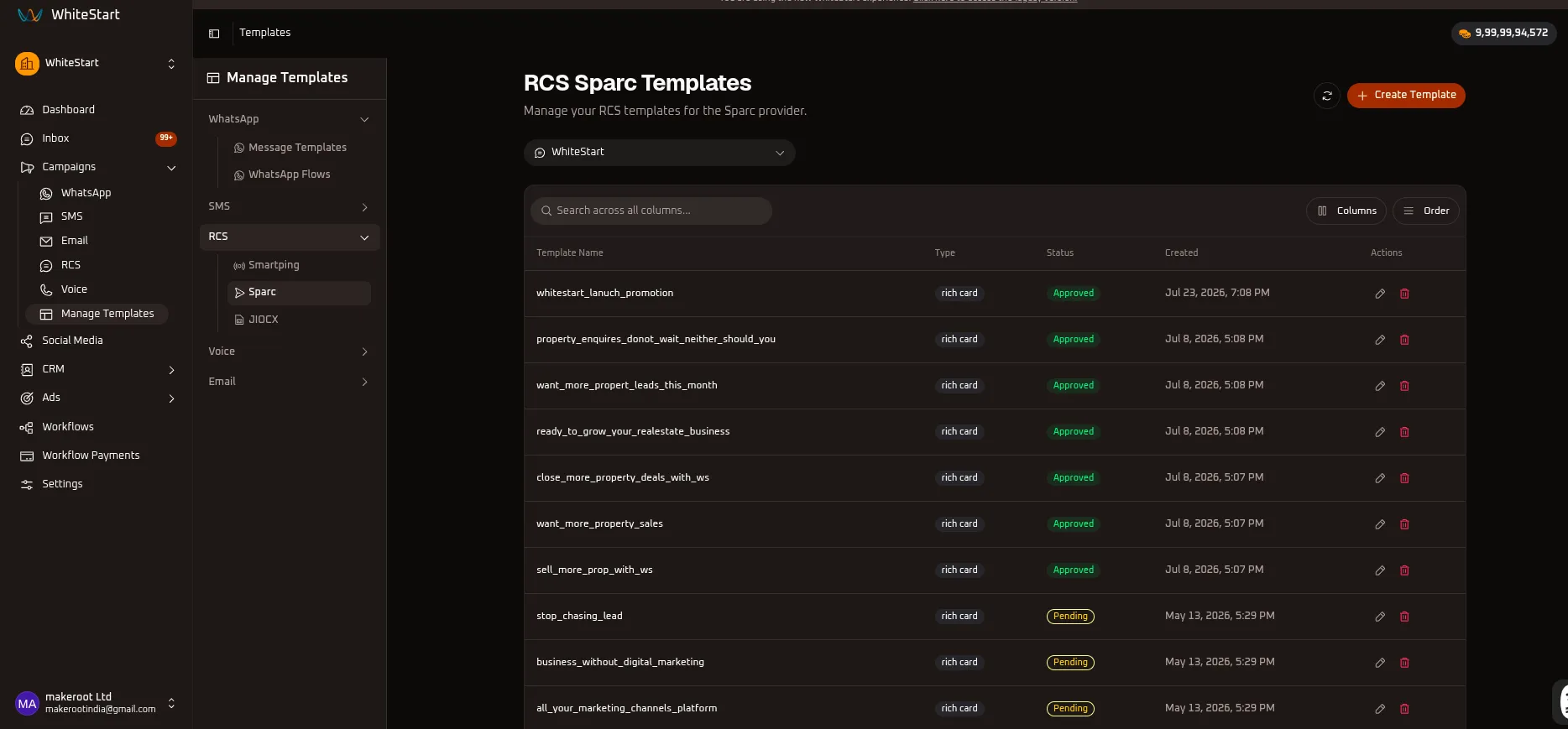
Section titled “1. Navigating to Sparc RCS Templates”Main Sidebar ➔ Campaigns ➔ Manage Templates ➔ RCS ➔ Sparc- In the main navigation sidebar on the left, click Campaigns to expand the menu.
- Select Manage Templates.
- In the sub-navigation drawer, expand the RCS accordion and select Sparc.
- The RCS Sparc Templates dashboard opens, listing all existing templates, layout types, carrier approval statuses, and creation timestamps.
2. Managing the Sparc RCS Templates Table
Section titled “2. Managing the Sparc RCS Templates Table”The main templates table provides complete visibility over all RCS templates configured under your Sparc integration.
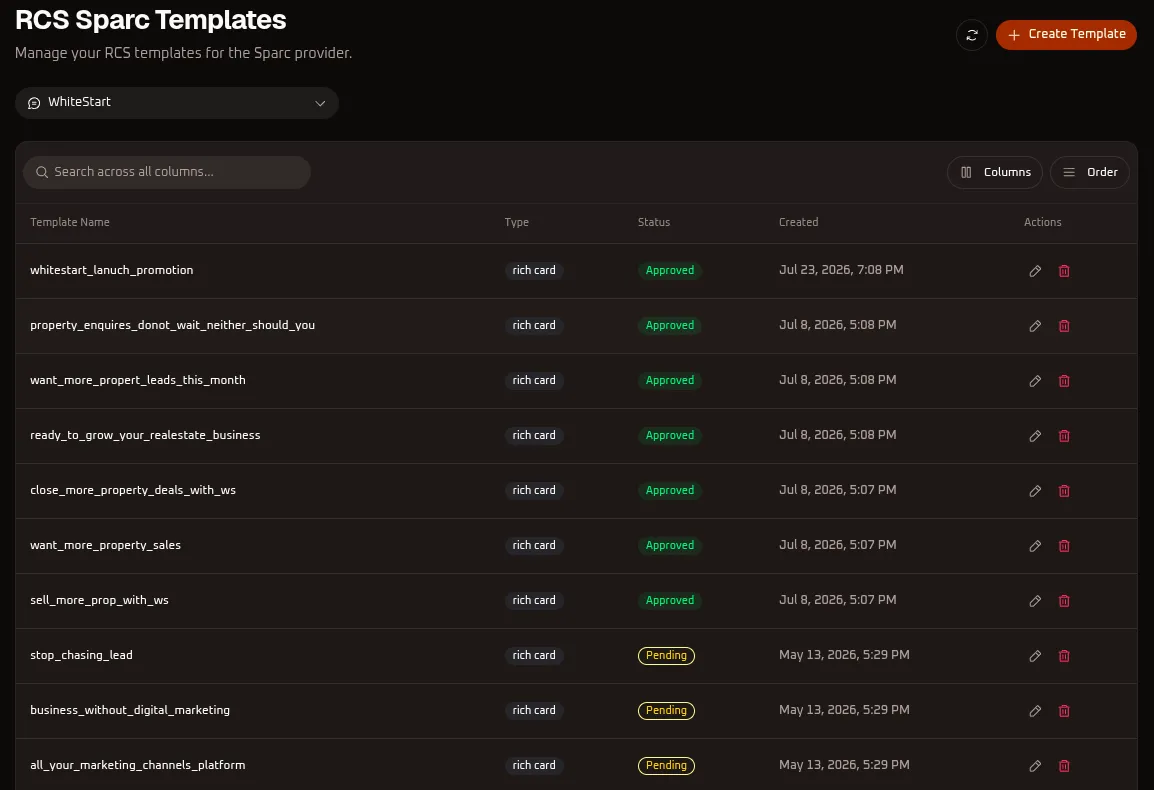
Table Controls & Toolbar Options
Section titled “Table Controls & Toolbar Options”- Sparc Account Selector: Switch between connected Sparc accounts or brand agents (e.g.,
WhiteStart). - Search Input (
Search across all columns...): Quickly filter templates by name, layout type, or verification status. - Refresh Button (
🔄): Synchronizes and reloads the template status list in real time without refreshing your browser. - Columns Menu (
Columns): Toggle the visibility of specific data columns in the table (Template Name,Type,Status,Created,Actions). - Order Menu (
Order): Rearrange the sequence of table columns or adjust sorting priority using drag-and-drop handles. - Create Template (
+ Create Template): Opens the template builder wizard.
Table Columns Reference
Section titled “Table Columns Reference”| Column Header | Description | Example / Values |
|---|---|---|
| Template Name | The internal lowercase identifier assigned to this template in WhiteStart. | whitestart_lanuch_promotion, property_enquires_donot_wait_neither_should_you |
| Type | Layout architecture format of the RCS template. | rich card, rich text, plain text, rich card carousel |
| Status | WhiteStart synchronization and carrier approval status. | Approved (green badge), Pending (yellow badge) |
| Created | Timestamp when the template was created. | Jul 23, 2026, 7:08 PM, Jul 8, 2026, 5:08 PM |
| Actions | Record management triggers to edit (✏️) or delete (🗑️) the template. |
Click ✏️ to edit or 🗑️ to delete a template record. |
3. Sparc RCS Template Types & Architecture
Section titled “3. Sparc RCS Template Types & Architecture”Sparc provides four distinct Template Types designed for different communication needs:
| Template Type | Structural Layout | Character & Media Limits | Typical Use Cases |
|---|---|---|---|
| Plain Text | Compact text message bubble without rich formatting. | • Message Text: Max 70 characters • Up to 3 Action Buttons |
Critical short alerts, one-time passcodes (OTPs), immediate two-factor prompts, and quick transaction confirmations. |
| Rich Text | Expanded conversational message body supporting dynamic variables. | • Message Text: Up to 2,000 characters • Dynamic variable injection ( + Add Variable)• Up to 3 Action Buttons |
Long-form customer onboarding, policy updates, detailed announcements, terms advisories, and narrative notifications. |
| Rich Card | Single visual card featuring a media banner, title, description, and interactive action buttons. | • Card Title: Up to 150 characters (40 recommended) • Card Message: Up to 2,000 characters (112 recommended) • Orientation: Vertical or Horizontal • Media Height: Short (112px) or Medium (160px) • Up to 4 Action Buttons |
Product launches, single-property highlights, webinar promotions, seasonal discounts, and brand awareness outreach. |
| Rich Card Carousel | Horizontally scrollable multi-card gallery (up to 10 cards). | • Up to 10 Rich Cards • Individual Image per card • Individual Title (150 chars) & Message (2,000 chars) • Up to 4 Action Buttons per card |
E-commerce product catalogs, real estate property listings, course curriculums, event schedules, and multi-tier plans. |
4. Creating a Sparc RCS Template
Section titled “4. Creating a Sparc RCS Template”Click the orange + Create Template button at the top right of the dashboard to open the Create Sparc RCS Template designer.
Common Basic Settings
Section titled “Common Basic Settings”- Sparc Account (*): Select your connected Sparc business profile (e.g.,
WhiteStart). - Template Name (*): Enter a unique identifier.
- Requirement: Must be lowercase letters and numbers only with underscores (e.g.,
signup,launch_plan). Spaces are not allowed.
- Requirement: Must be lowercase letters and numbers only with underscores (e.g.,
- Template Type (*): Choose between Plain Text, Rich Text, Rich Card, or Rich Card Carousel.
Type 1: Plain Text Template
Section titled “Type 1: Plain Text Template”The Plain Text format provides a focused, short SMS-like experience with rich action buttons.
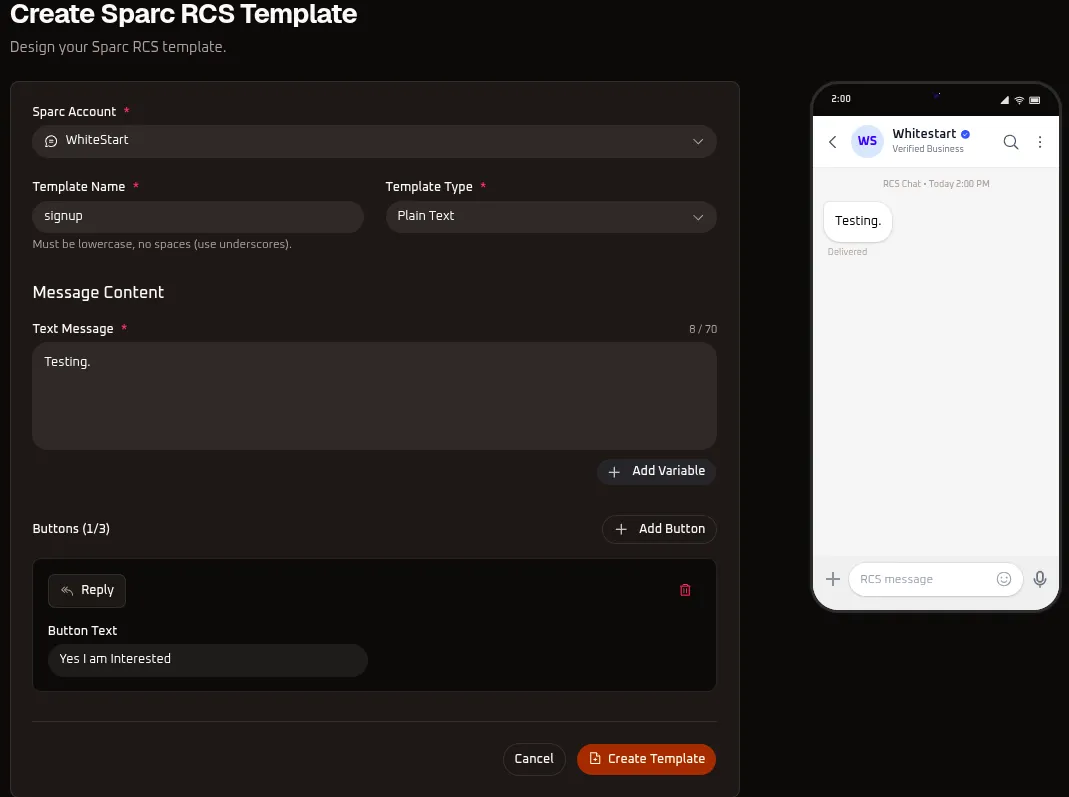
- Set Template Type to Plain Text.
- Text Message (*): Enter your brief notification (character counter displays progress out of 70 characters, e.g.,
Testing.). - Click
+ Add Variableif dynamic values need to be injected into the text. - Buttons (1/3): Click
+ Add Buttonto configure up to 3 action chips (e.g.,Replywith button text “Yes I am Interested”). - Inspect the simulated Android message bubble in the Mobile Preview pane.
Type 2: Rich Text Template
Section titled “Type 2: Rich Text Template”The Rich Text format provides ample room for detailed copy while maintaining the native look of verified RCS bubbles.
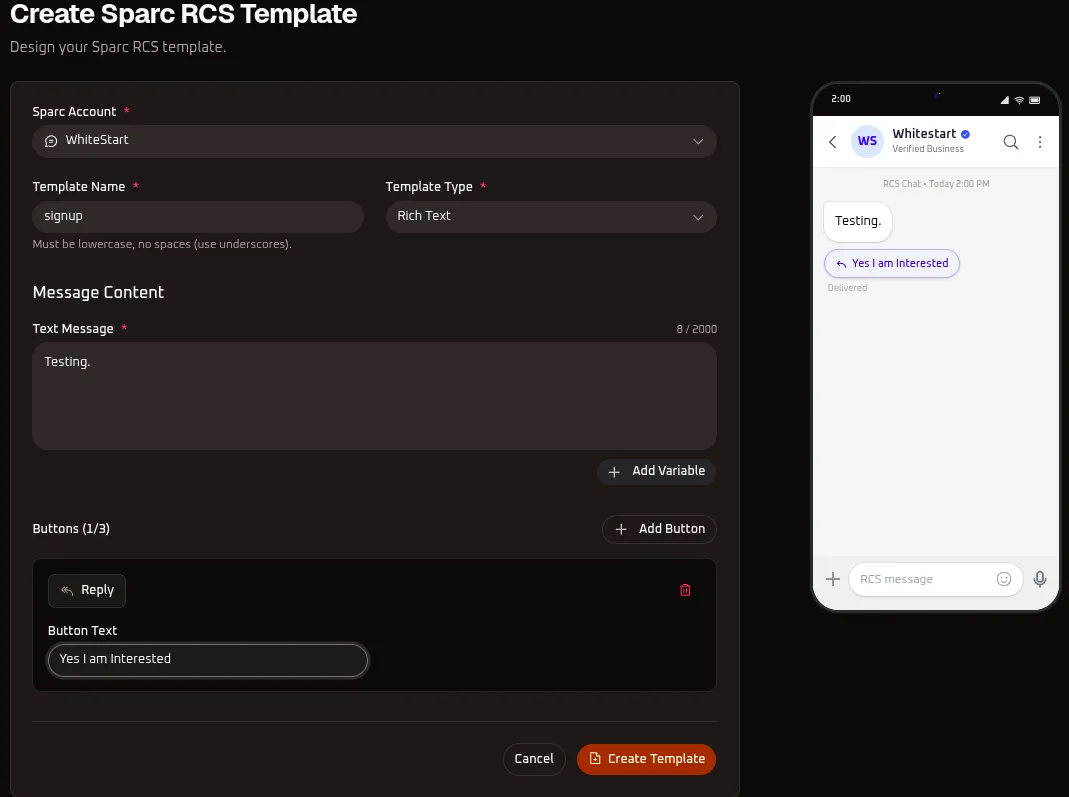
- Set Template Type to Rich Text.
- Text Message (*): Enter your comprehensive message body (supports up to 2,000 characters).
- Click
+ Add Variableto insert dynamic placeholders for recipient names, account details, or dates. - Buttons (1/3): Add up to 3 action buttons below the text bubble.
- Review the rendered layout in the real-time mobile simulator on the right.
Type 3: Rich Card Template
Section titled “Type 3: Rich Card Template”The Rich Card format features a branded image banner, title, description, and action buttons.
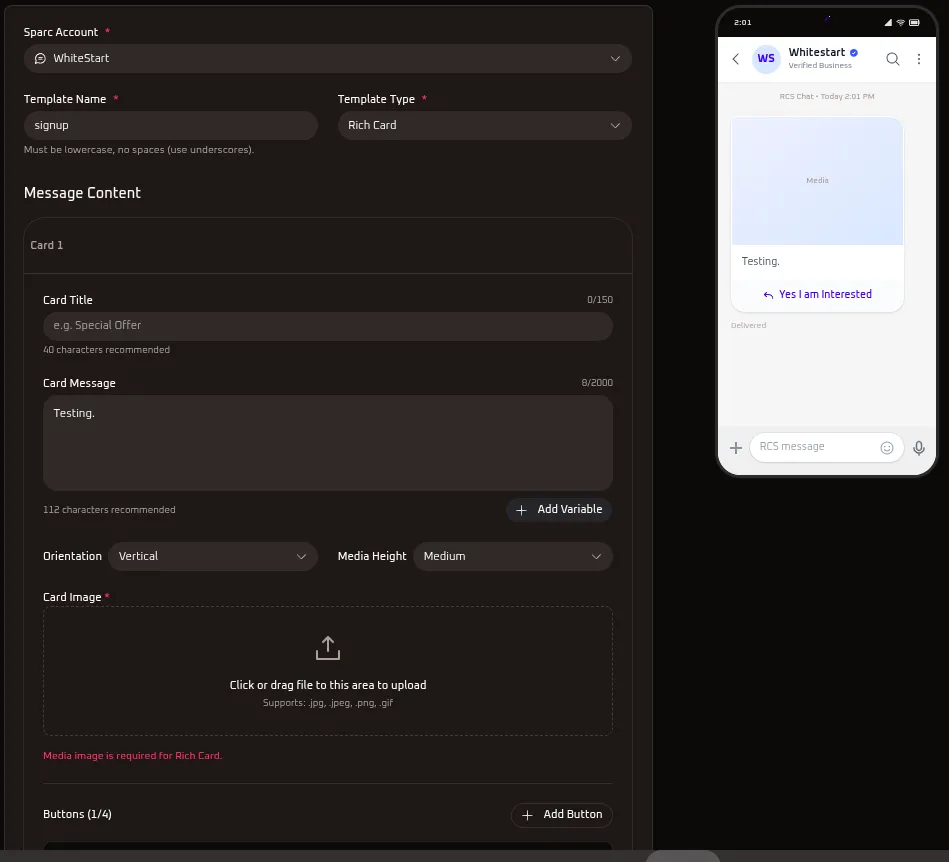
- Set Template Type to Rich Card.
- Card Title: Enter your promotional headline (up to 150 characters; 40 recommended, e.g.,
Special Offer). - Card Message: Enter your promotional description (up to 2,000 characters; 112 recommended, e.g.,
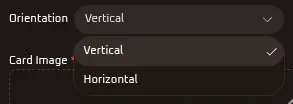
Testing.). Click+ Add Variableto personalize. - Orientation: Choose the visual layout of your card:
- Vertical: Media header sits on top of the text block (standard card layout).
- Horizontal: Media sits side-by-side with the text block.
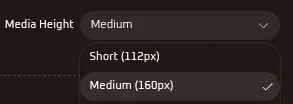
- Media Height: Select the display aspect of your image banner:
- Short (112px): Compact thumbnail height.
- Medium (160px): Standard balanced presentation height.
- Card Image (*): Click or drag and drop your creative image asset (supports
.jpg,.jpeg,.png,.gif).- Note: Uploading a card media image is mandatory for Rich Card templates.
- Buttons (1/4): Add up to 4 action buttons below the card.
Type 4: Rich Card Carousel Template
Section titled “Type 4: Rich Card Carousel Template”The Rich Card Carousel format enables horizontal swiping across multiple rich cards within a single RCS bubble.
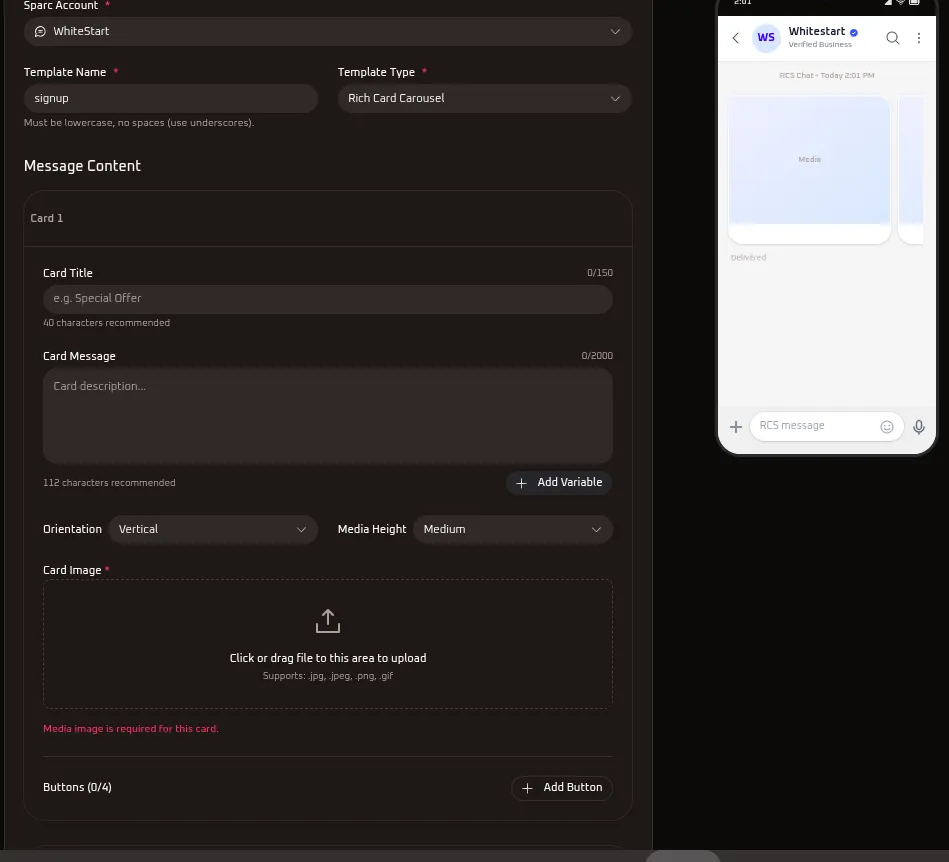
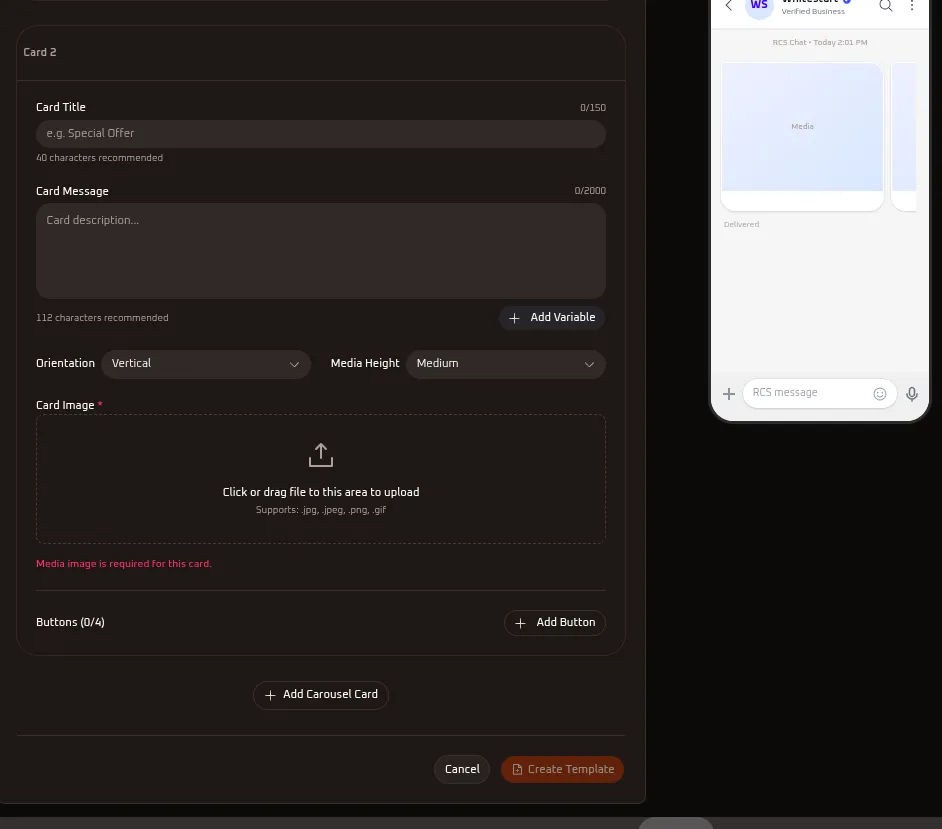
- Set Template Type to Rich Card Carousel.
- Configure Card 1:
- Enter Card Title (up to 150 characters).
- Enter Card Message (up to 2,000 characters) and insert dynamic variables if required.
- Select Orientation (
VerticalorHorizontal). - Select Media Height (
Short (112px)orMedium (160px)). - Upload the Card Image asset.
- Configure up to 4 card-specific action buttons.
- Add Additional Cards:
- Click the
+ Add Carousel Cardbutton at the bottom of the card container. - Configure Card 2, Card 3, etc., with unique images, headings, and buttons.
- Remove any card by clicking the red trash can icon (
🗑️) on its header bar.
- Click the
- Mobile Preview: Swipe through the simulated Android device on the right side to inspect the multi-card layout.
5. Action Button Types & Differences
Section titled “5. Action Button Types & Differences”Sparc RCS templates support three action button mechanisms:
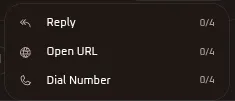
Click + Add Button to select an action type:
| Action Button Type | Limit | Configuration Fields | Mechanism & How It Works |
|---|---|---|---|
| Reply | Up to 4 (Rich Card / Carousel) / Up to 3 (Plain / Rich Text) | Button Text (e.g., Yes I am Interested, Opt Out) |
Dispatches an instant customer text reply back into your Live Inbox. Ideal for two-way conversations, survey responses, and automated bot routing. |
| Open URL | Up to 4 (Rich Card / Carousel) / Up to 3 (Plain / Rich Text) | Button Text (e.g., Visit Website, Book Demo) & URL |
Opens the recipient’s mobile browser directly to your external landing page, checkout screen, or web resource. |
| Dial Number | Up to 4 (Rich Card / Carousel) / Up to 3 (Plain / Rich Text) | Button Text (e.g., Call Sales, Helpline) & Phone Number |
Launches the recipient’s native phone dialer with your pre-configured phone number ready for one-tap calling. |
6. Saving & Submitting Sparc Templates
Section titled “6. Saving & Submitting Sparc Templates”- Verify message wording, image scaling, and button actions inside the Mobile Preview pane.
- Click the orange
Create Templatebutton at the bottom of the editor. - The template is registered under your Sparc provider account and submitted for carrier provisioning.
- Once verified by the carrier network, the status switches from Pending to Approved and becomes immediately selectable in the Campaigns ➔ RCS module for bulk sending.