
JIOCX SMS Templates
The JIOCX Templates module allows organizations that use Reliance JioCX as their enterprise SMS service provider to map, link, and manage their TRAI DLT-approved message templates directly inside WhiteStart. By registering your official DLT Template IDs, approved sender headers, and regulatory categories under your connected JioCX account profile, your team can dispatch compliant transactional, service, and promotional SMS broadcasts at scale.
1. Navigating to JIOCX SMS Templates
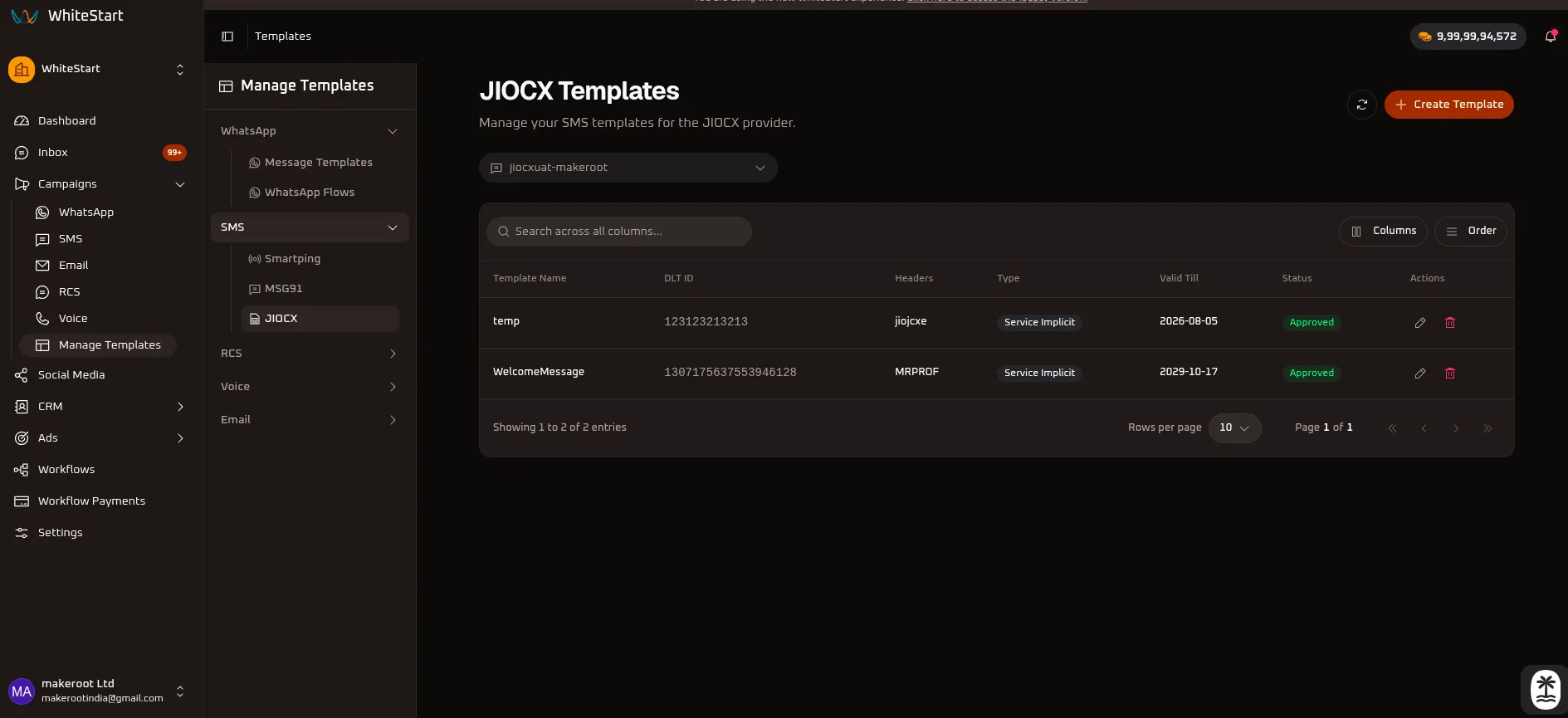
Section titled “1. Navigating to JIOCX SMS Templates”Main Sidebar ➔ Campaigns ➔ Manage Templates ➔ SMS ➔ JIOCX- In the primary navigation sidebar on the left, click Campaigns to expand the menu options.
- Select Manage Templates.
- In the sub-navigation drawer, expand the SMS accordion and select JIOCX.
- The JIOCX Templates dashboard opens, displaying all registered DLT templates, linked account profiles, approved headers, template types, validity dates, and review statuses.
2. Managing the JIOCX Templates Table
Section titled “2. Managing the JIOCX Templates Table”The main templates table provides complete visibility over all SMS templates mapped to your JioCX provider integration.
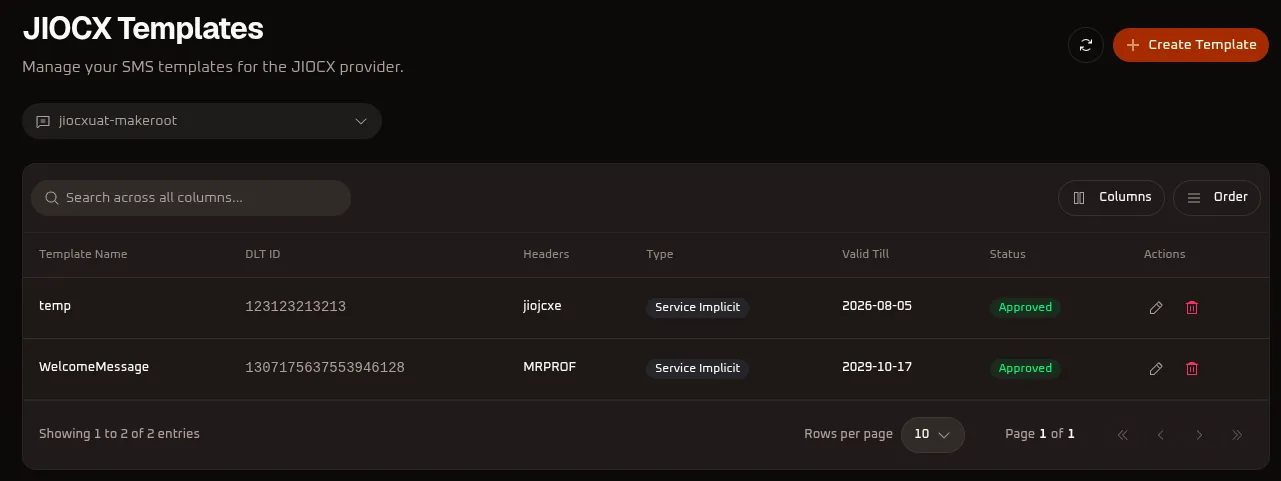
Table Controls & Toolbar Options
Section titled “Table Controls & Toolbar Options”- Sender Account Selector: Switch between connected JioCX accounts or workspace environments (e.g.,
jiocxuat-makeroot). - Search Input (
Search across all columns...): Search any template by name, DLT ID, approved sender header, or regulatory category. - Refresh Button (
🔄): Synchronizes and reloads the template status list in real time without refreshing your browser. - Columns Menu (
Columns): Toggle the visibility of specific data columns in the table (Template Name,DLT ID,Headers,Type,Valid Till,Status,Actions). - Order Menu (
Order): Rearrange the sequence of table columns or adjust sorting priority using drag-and-drop handles. - Create Template (
+ Create Template): Opens the registration modal to add and map a new JioCX SMS template.
Table Columns Reference
Section titled “Table Columns Reference”| Column Header | Description | Example / Values |
|---|---|---|
| Template Name | The internal identifier assigned to this template in WhiteStart. | Signup Message, WelcomeMessage, temp |
| DLT ID | The unique 14 to 19 digit numerical identifier approved by TRAI on the Jio DLT portal. | 1307175637553946128, 123123213213, 131313 |
| Headers | The approved 6-character sender ID(s) associated with this message. | MRPROF, jiojcxe |
| Type | Regulatory classification approved for this specific message. | Service Implicit, Service Explicit, Transactional, Promotional |
| Valid Till | Expiration date registered on the telecom regulatory portal. | 2029-10-17, 2026-08-05 |
| Status | Verification and readiness status badge in WhiteStart. | Approved (green badge) |
| Actions | Record management triggers to edit (✏️) or delete (🗑️) the template mapping. |
Click ✏️ to edit or 🗑️ to delete a template record. |
3. Adding an Approved DLT Template to JioCX
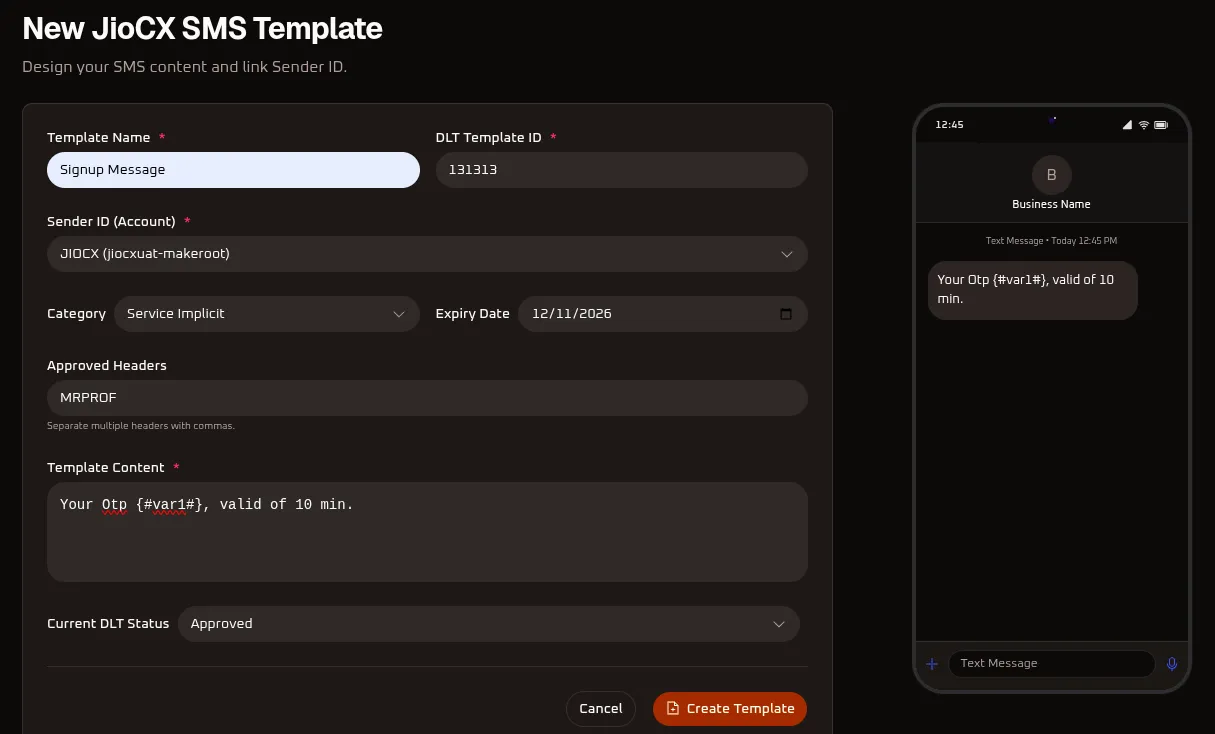
Section titled “3. Adding an Approved DLT Template to JioCX”Click the orange + Create Template button at the top right of the dashboard to open the New JioCX SMS Template registration modal.
Step-by-Step Configuration
Section titled “Step-by-Step Configuration”- Template Name (*): Enter a clear, descriptive internal name for your template (e.g.,
Signup Message). - DLT Template ID (*): Enter the exact numerical Template ID approved by TRAI on the Jio DLT portal (e.g.,
131313or1307175637553946128). - Sender ID (Account) (*): Select your connected JioCX account profile from the dropdown (e.g.,
JIOCX (jiocxuat-makeroot)). - Category: Select the regulatory category matching your DLT approval certificate (e.g.,
Service Implicit,Service Explicit,Transactional, orPromotional). - Expiry Date: Set the template validity expiration date matching your DLT certificate (e.g.,
12/11/2026). - Approved Headers: Enter the exact 6-character registered sender header(s) approved for this template on DLT (e.g.,
MRPROF). If you have multiple headers approved for the same template, separate them with commas. - Template Content (*): Enter the exact message body approved by telecom operators:
- Example:
Your Otp {#var1#}, valid of 10 min. - Critical Rule: The message body must match the DLT-approved text character for character, including variable placeholders (
{#var1#}).
- Example:
- Current DLT Status: Select the current verification state (e.g.,
Approved). - Live Mobile Preview: Verify message readability, sender branding (
Business Name), and variable formatting in the smartphone preview pane on the right side of the screen. - Click the orange
Create Templatebutton to save and register the template.
4. Understanding DLT Categories for JioCX
Section titled “4. Understanding DLT Categories for JioCX”All SMS traffic dispatched via JioCX must adhere to TRAI’s DLT guidelines:
| Category | Typical Use Cases | Delivery & DND Guidelines |
|---|---|---|
| Service Implicit | Account OTPs, login verification codes, order confirmations, and service alerts. | Delivered 24/7 to all mobile numbers, bypassing DND restrictions. |
| Service Explicit | Account recommendations, feature alerts, and updates to registered customers. | Requires verifiable customer consent. Only delivered between 10:00 AM and 9:00 PM if recipient is on DND. |
| Transactional | Strictly reserved for banking and financial institutions to transmit OTPs and real-time transaction updates. | Available exclusively to regulated financial entities using reserved alphanumeric headers. |
| Promotional | Marketing campaigns, special launch discounts, and commercial solicitations. | Strictly delivered between 10:00 AM and 9:00 PM. Automatically scrubbed and blocked on DND numbers. |
5. Using Linked JioCX Templates in Bulk Campaigns
Section titled “5. Using Linked JioCX Templates in Bulk Campaigns”Once mapped and approved in this module, your JioCX templates become immediately accessible for outbound SMS broadcasting:
- Navigate to Campaigns ➔ SMS.
- Click
+ Create New Campaign. - Under Sender Account, select JIOCX with your connected account (e.g.,
JIOCX (jiocxuat-makeroot)). - Under the Message Template dropdown, choose your newly created JioCX template (e.g.,
Signup MessageorWelcomeMessage). - Upload your target audience via CSV or select a CRM Segment, and proceed to schedule or launch the campaign immediately.