
Smartping SMS Templates
The Smartping Templates module allows organizations that already use the Smartping SMS gateway to link and manage their TRAI-compliant Distributed Ledger Technology (DLT) approved message templates directly inside WhiteStart. By registering your existing DLT template identifiers and content headers, you can send compliant transactional and promotional SMS broadcasts through WhiteStart using your own Smartping service credentials.
1. Navigating to Smartping SMS Templates
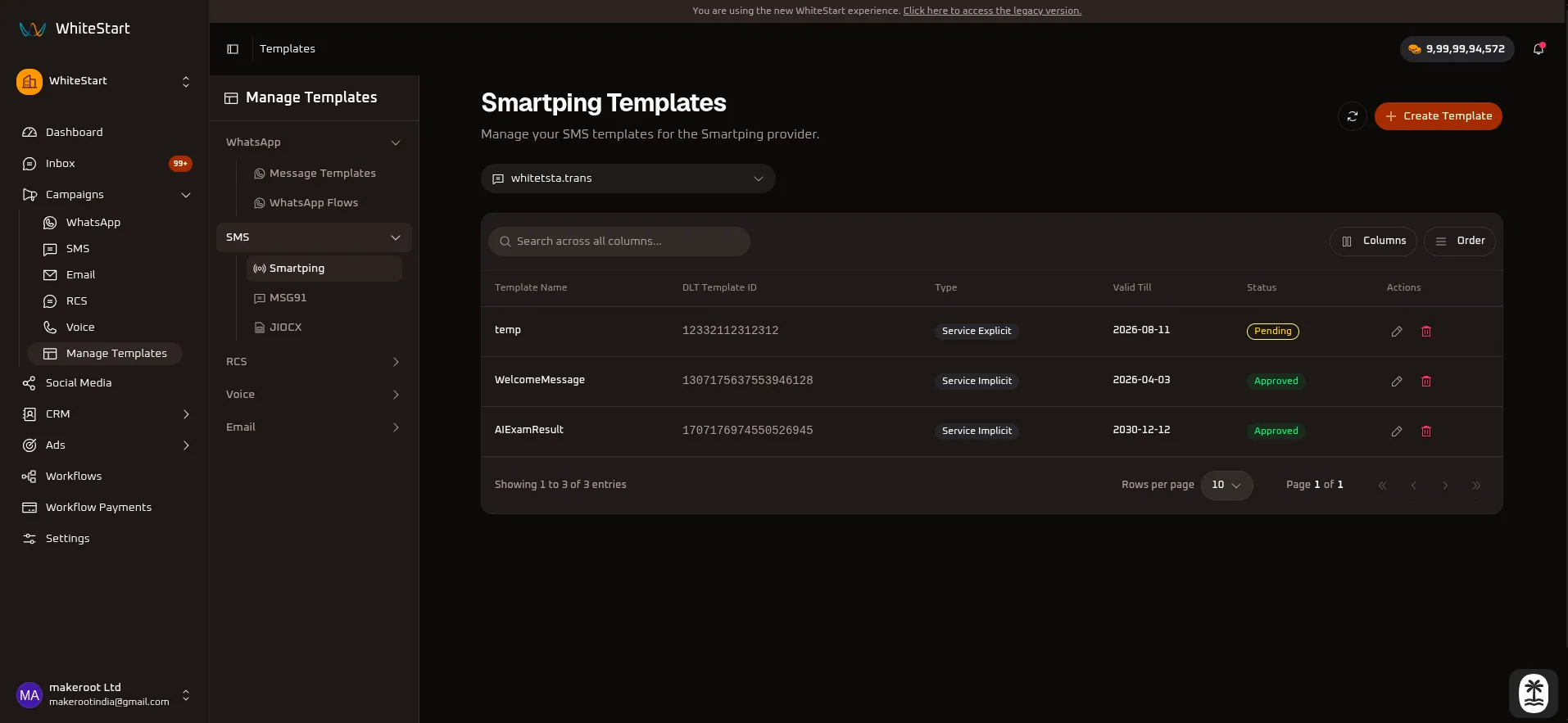
Section titled “1. Navigating to Smartping SMS Templates”Main Sidebar ➔ Campaigns ➔ Manage Templates ➔ SMS ➔ Smartping- In the main navigation sidebar on the left, click Campaigns to expand the menu options.
- Select Manage Templates.
- In the sub-navigation drawer, expand the SMS accordion and select Smartping.
- The Smartping Templates dashboard opens, listing all registered DLT templates, linked account profiles, template types, validity dates, and review statuses.
2. Managing the Smartping Templates Table
Section titled “2. Managing the Smartping Templates Table”The templates dashboard provides full visibility over DLT templates mapped to your Smartping sender accounts.
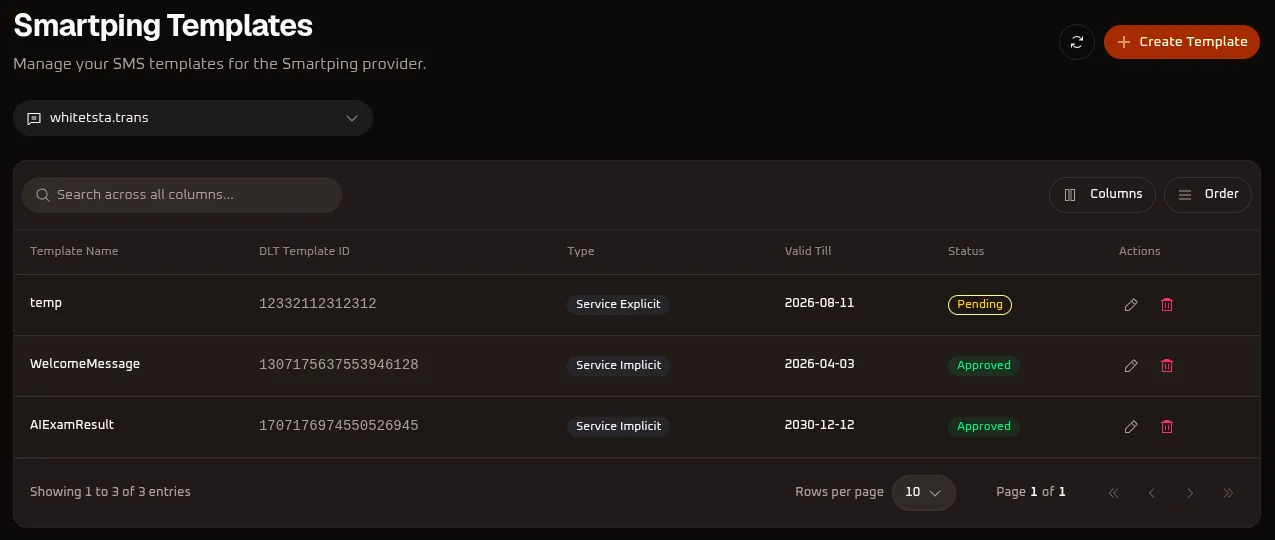
Table Controls & Toolbar Options
Section titled “Table Controls & Toolbar Options”- Smartping Account Selector: Switch between connected Smartping accounts or headers (e.g.,
whitetsta.trans). - Search Input (
Search across all columns...): Search any template by name, DLT Template ID, category type, or validity date. - Refresh Button (
🔄): Manually syncs and refreshes the template list without reloading your browser window. - Columns Menu (
Columns): Toggle the visibility of specific data columns in the table (Template Name,DLT Template ID,Type,Valid Till,Status,Actions). - Order Menu (
Order): Rearrange the sequence of table columns or adjust sorting priority. - Create Template (
+ Create Template): Opens the template creation modal to map an approved DLT template.
Table Columns Reference
Section titled “Table Columns Reference”| Column Header | Description | Example / Values |
|---|---|---|
| Template Name | The internal identifier assigned to this template in WhiteStart. | Signup Message, WelcomeMessage, AIExamResult, temp |
| DLT Template ID | The unique 14 to 19 digit numerical identifier approved by TRAI on the telecom DLT portal. | 1307175637553946128, 1707176974550526945, 12332112312312 |
| Type | Regulatory classification approved for this specific message. | Service Implicit, Service Explicit, Transactional, Promotional |
| Valid Till | Expiration timestamp registered on the telecom regulatory portal. | 2026-08-11, 2026-04-03, 2030-12-12 |
| Status | WhiteStart synchronization and approval state. | Approved (green badge), Pending (yellow badge) |
| Actions | Record management triggers to modify (✏️) or delete (🗑️) the template mapping. |
Click ✏️ to edit or 🗑️ to delete a template record. |
3. Adding an Approved DLT Template to Smartping
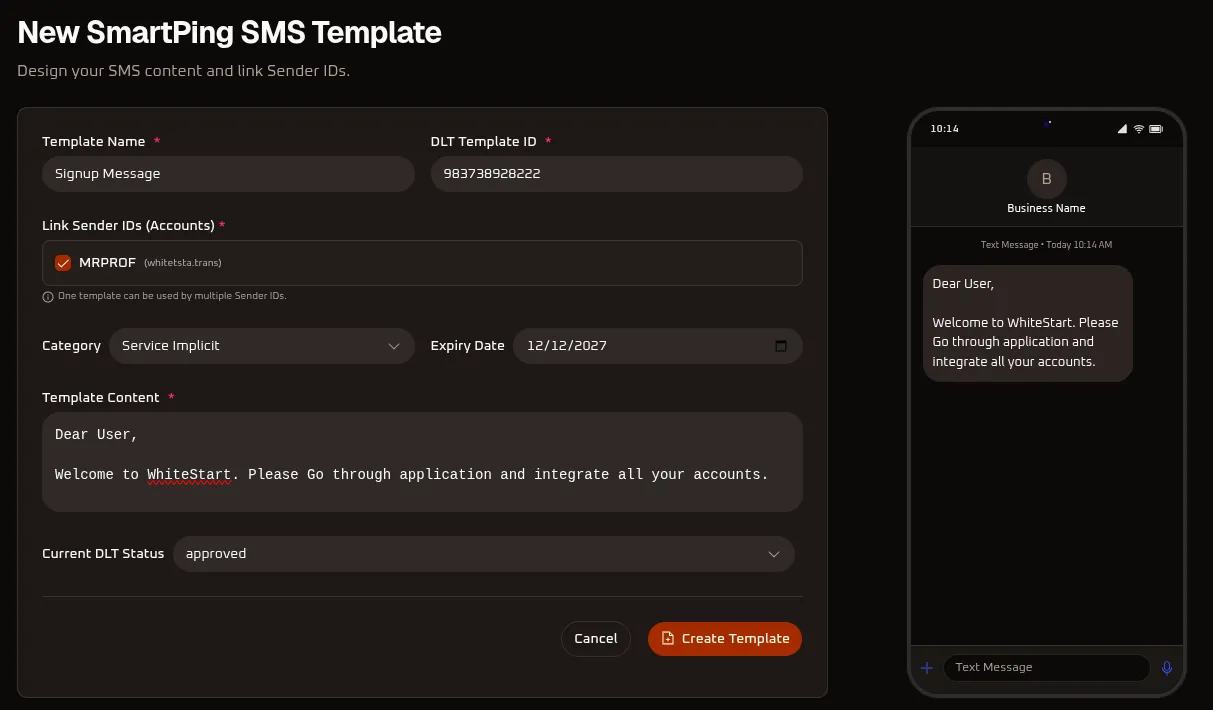
Section titled “3. Adding an Approved DLT Template to Smartping”Click the orange + Create Template button at the top right of the dashboard to open the New SmartPing SMS Template registration modal.
Step-by-Step Configuration
Section titled “Step-by-Step Configuration”- Template Name (*): Enter a clear, descriptive internal name for your template (e.g.,
Signup Message,WelcomeMessage). - DLT Template ID (*): Paste the exact numerical Template ID provided by your DLT telecommunication portal (e.g., Jio, Airtel, Vodafone Idea, or BSNL DLT) upon approval (e.g.,
983738928222). - Link Sender IDs (Accounts) (*): Check the box next to your approved sender header (e.g.,
MRPROF (whitetsta.trans)). One template can be linked to multiple Sender IDs if approved under the same entity. - Category: Choose the category that matches your DLT approval certificate (see Section 4 for details).
- Expiry Date: Set the DLT expiration date matching your telecom certificate (e.g.,
12/12/2027). - Template Content (*): Paste the exact approved wording from the DLT portal into the text area.
- Critical Rule: The message body must match the DLT-approved text character for character, including punctuation and dynamic variables.
- Current DLT Status: Select the current status verified by the regulator (e.g.,
approved). - Live Mobile Preview: Inspect the simulated SMS on the mobile device pane to verify message readability.
- Click
Create Templateto save and link the template.
4. DLT SMS Category Classifications
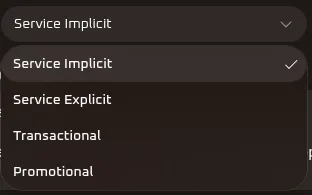
Section titled “4. DLT SMS Category Classifications”TRAI mandates that all SMS traffic dispatched through Indian telecom networks be categorized under one of four distinct regulatory types:
| Category Type | Purpose & Typical Use Cases | Regulatory Guidelines |
|---|---|---|
| Service Implicit | Critical transactional communications arising from existing customer relationships (e.g., account activation, OTPs, welcome alerts, purchase receipts). | Delivered to all recipients, including numbers registered on the National Do Not Disturb (DND) registry. 24/7 delivery allowed. |
| Service Explicit | Service-related updates that require explicit customer opt-in consent (e.g., upsell notifications to existing users, loyalty program updates, non-critical account suggestions). | Requires verifiable customer consent. Only delivered between 10:00 AM and 9:00 PM if the recipient is on DND. |
| Transactional | Strictly reserved for banking, financial institutions, and government alerts containing OTPs and real-time account debits/credits. | Available exclusively to regulated financial entities using reserved alphanumeric 6-character sender headers. |
| Promotional | Marketing offers, seasonal discounts, promotional announcements, and commercial solicitations. | Dialing and delivery strictly restricted between 10:00 AM and 9:00 PM. Automatically blocked on all DND-registered mobile numbers. |
5. Using Linked Smartping Templates in Bulk Campaigns
Section titled “5. Using Linked Smartping Templates in Bulk Campaigns”Once you add your approved Smartping templates in this module, they immediately become available across WhiteStart for outbound broadcasting:
- Navigate to Campaigns ➔ SMS.
- Click
+ Create New Campaign. - Under Sender Account, select your connected Smartping gateway (e.g.,
MRPROF (whitetsta.trans)). - Under the Message Template dropdown, select your newly registered template (e.g.,
WelcomeMessageorSignup Message). - Choose your target audience (CSV Upload or CRM Segment) and launch or schedule your campaign.