
WhatsApp Bot Data
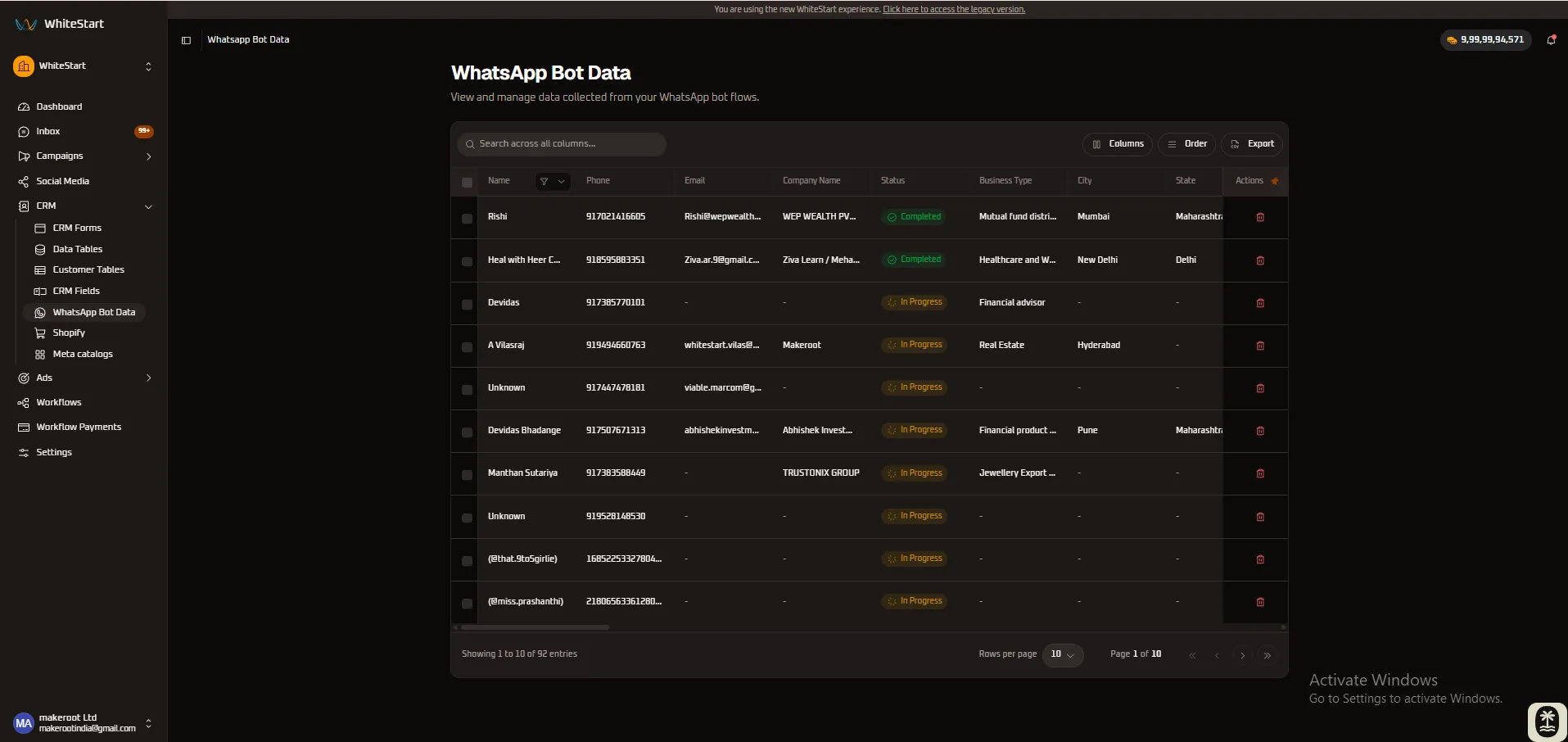
The WhatsApp Bot Data module in WhiteStart serves as the real-time operational repository for all contact responses, qualification answers, and profile data captured through your automated WhatsApp chatbot workflows. Every time an inbound prospect or existing customer engages with an interactive WhatsApp bot sequence, their responses are automatically mapped, structured, and synchronized directly into this centralized management console.
Overview
Section titled “Overview”Unlike traditional static web forms where leads must navigate away from their preferred messaging channel, WhiteStart’s conversational AI bots engage leads directly inside WhatsApp. The WhatsApp Bot Data table provides sales development representatives (SDRs), campaign managers, and customer support leads with an interactive, live-updating workspace to monitor bot completion statuses, review collected profile attributes, and export qualified opportunities.
Key Capabilities
Section titled “Key Capabilities”- Real-Time Conversational Ingestion: Incoming answers from active WhatsApp chats are immediately appended to the table with zero manual data entry.
- Interactive Bot Lifecycle Tracking (
Status): Differentiate between prospects who finished the full questionnaire (Completed) and those actively chatting or stalled midway (In Progress). - Multi-Column Pinning & Freezing: Freeze essential identifier columns (
Name,Phone,Company) to the left or right edges of the table to maintain context while scrolling through wide response datasets. - Column-Level Sorting & Visibility Controls: Sort ascending/descending, apply column filters, or hide irrelevant attributes on the fly.
- One-Click CSV Export: Export filtered or complete datasets (
[ Export ]) for reporting, pipeline forecasting, or importing into external marketing automation engines. - Instant Record Governance: Remove test submissions, spam, or invalid phone numbers with single-click row deletion (
🗑️).
Accessing WhatsApp Bot Data
Section titled “Accessing WhatsApp Bot Data”Navigate to the WhatsApp Bot Data directory using the primary left-hand navigation sidebar:
Main Sidebar ➔ CRM ➔ WhatsApp Bot Data- Click on CRM in the left sidebar to expand the CRM navigation group.
- Select WhatsApp Bot Data.
- The dashboard loads the master conversational records directory, displaying total entry counts (e.g., 92 entries across 10 pages), real-time qualification statuses, and demographic properties.
Dashboard Architecture & Layout
Section titled “Dashboard Architecture & Layout”The WhatsApp Bot Data interface is built around high-density data review, fast multi-column controls, and seamless search filtering:
Global Search Bar & Real-Time Highlighting
Section titled “Global Search Bar & Real-Time Highlighting”The Global Search Bar (Search across all columns...) sits in the primary table toolbar, providing instant omni-column querying across all WhatsApp bot submissions with zero latency and no manual page reloading:
+───────────────────────────────────────────────────────────────────────────────────────+| [Q Mumbai ✕ ] [ Columns ] [ Order ] [ Export]|+───────────────────────────────────────────────────────────────────────────────────────+| [ ] Name Phone Email Company Name Status City |+─────┼───────────────┼──────────────┼─────────────┼─────────────┼──────────┼───────────+| [ ] | Rishi | 917021416605 | rishi@wep.. | WEP WEALTH | Completed| [Mumbai] || [ ] | Devidas Bhada.| 917507671313 | abhishek.. | Abhishek In.| In Prog..| [Mumbai] |+─────┴───────────────┴──────────────┴─────────────┴─────────────┴──────────┴───────────+| Showing 1 to 2 of 2 entries (filtered from 92) Rows: [ 10 v ] Page 1 of 1|+───────────────────────────────────────────────────────────────────────────────────────+Search Capabilities & Query Patterns
Section titled “Search Capabilities & Query Patterns”- Phone Number & Country Code Lookup: Enter full MSISDN values or local prefixes (e.g.,
91702,91859) to isolate specific customer phone numbers immediately. - Corporate & Domain Ingestion Filtering: Search by company name (e.g.,
WEP WEALTH,TRUSTONIX) or specific email domains (@gmail.com,@whitestart.in) to group enterprise leads. - Industry Vertical Segmentation: Type business types (e.g.,
Mutual fund,Healthcare,Real Estate) to surface niche prospects for specialized account executives.
Data Dictionary & Column Specifications
Section titled “Data Dictionary & Column Specifications”The table organizes raw conversational inputs into structured data attributes:
| Column | Header Control | Data Format | Description & Operational Value |
|---|---|---|---|
Select ([ ]) |
Global Checkbox | Checkbox | Multi-select toggle enabling batch operations (bulk status assignment, bulk deletion). |
| Name | Sort & Filter Menu | Text | The contact’s full name or WhatsApp profile handle (e.g., Rishi, A Vilasraj, (@that.9to5girlie)). |
| Phone | Sort & Filter Menu | International MSISDN | The primary WhatsApp-registered mobile phone number including country code (e.g., 917021416605). |
| Sort & Filter Menu | Email String | The business or personal email address submitted by the user during the chat intake sequence. | |
| Company Name | Sort & Filter Menu | Text | The legal enterprise name or brand entity provided by the user (e.g., WEP WEALTH PVT, Makeroot, TRUSTONIX GROUP). |
| Status | Filter & Sort Menu | Status Badge | The real-time qualification lifecycle state: Completed (green badge) or In Progress (amber badge). |
| Business Type | Sort & Filter Menu | Industry Tag | The business vertical or operational category selected by the lead (e.g., Mutual fund distributor, Healthcare and Wellness, Real Estate). |
| City | Sort & Filter Menu | Geographic Text | The prospect’s primary city of operation (e.g., Mumbai, New Delhi, Hyderabad, Pune). |
| State | Sort & Filter Menu | Geographic Text | The prospect’s state or administrative region (e.g., Maharashtra, Delhi, Andhra Pradesh). |
| Actions | Fixed Action | Icon Button | Administrative quick actions: Delete (🗑️) to purge unverified or spam numbers from the database. |
Interactive Column Operations
Section titled “Interactive Column Operations”Every column header in the WhatsApp Bot Data console includes an integrated action menu (accessible via the ≡ or sort/filter trigger). This menu empowers users to customize their working view without altering the underlying database schema.
Core Column Operations Menu
Section titled “Core Column Operations Menu”+────────────────────+| ⇋ Ascending | ➔ Sort alphabetical / numerical ascending| ⇌ Descending | ➔ Sort alphabetical / numerical descending+────────────────────+| 📌 Pin Left | ➔ Freeze column to the left edge of table| 📌 Pin Right | ➔ Freeze column to the right edge of table+────────────────────+| 👁️ Hide Column | ➔ Temporarily hide this attribute from view+────────────────────+Column Menu Visual Walkthrough
Section titled “Column Menu Visual Walkthrough”The menu adapts dynamically across any column in the dataset:
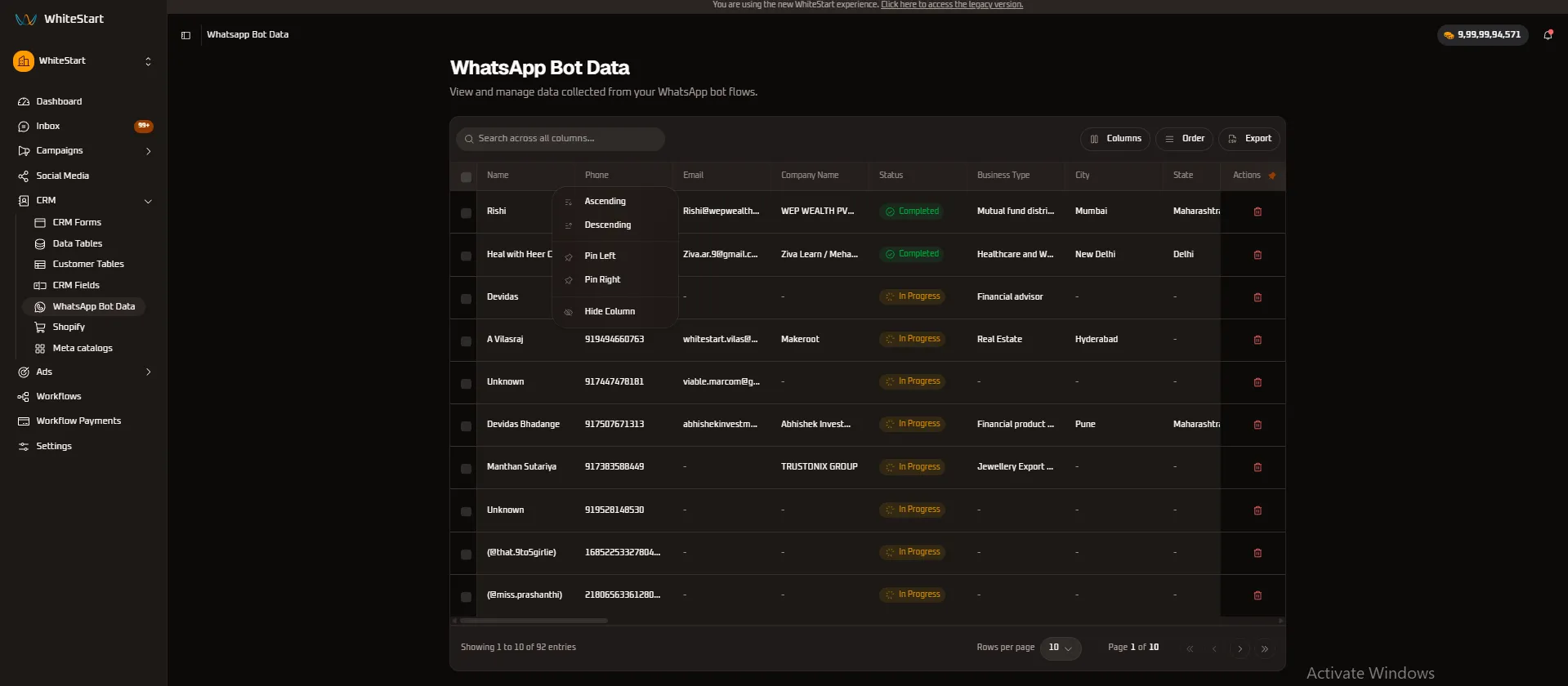
1. Name Column Menu
Section titled “1. Name Column Menu”Sort leads alphabetically by lead name or pin the contact identity while scanning extended answer columns:
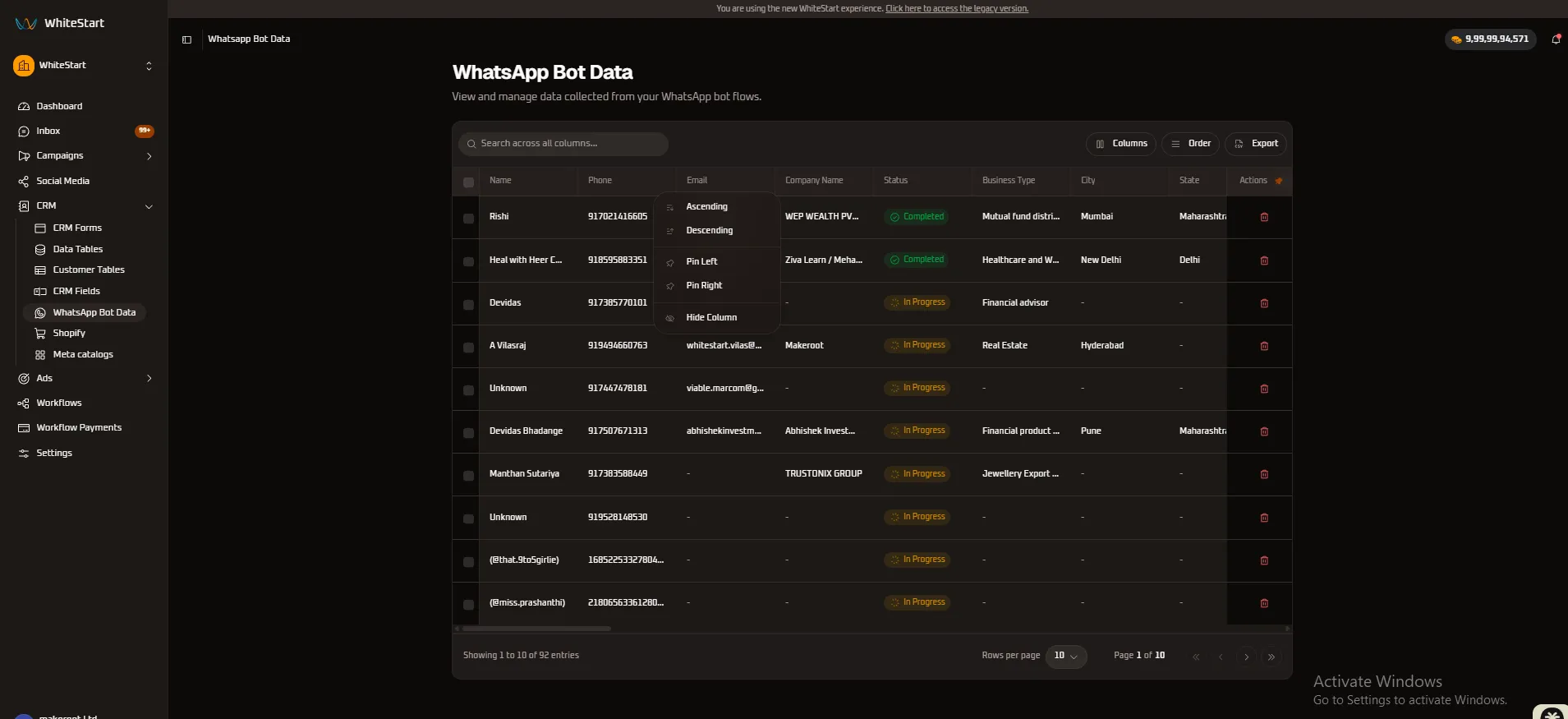
2. Phone Column Menu
Section titled “2. Phone Column Menu”Organize records by country codes, area prefixes, or mobile provider segments:
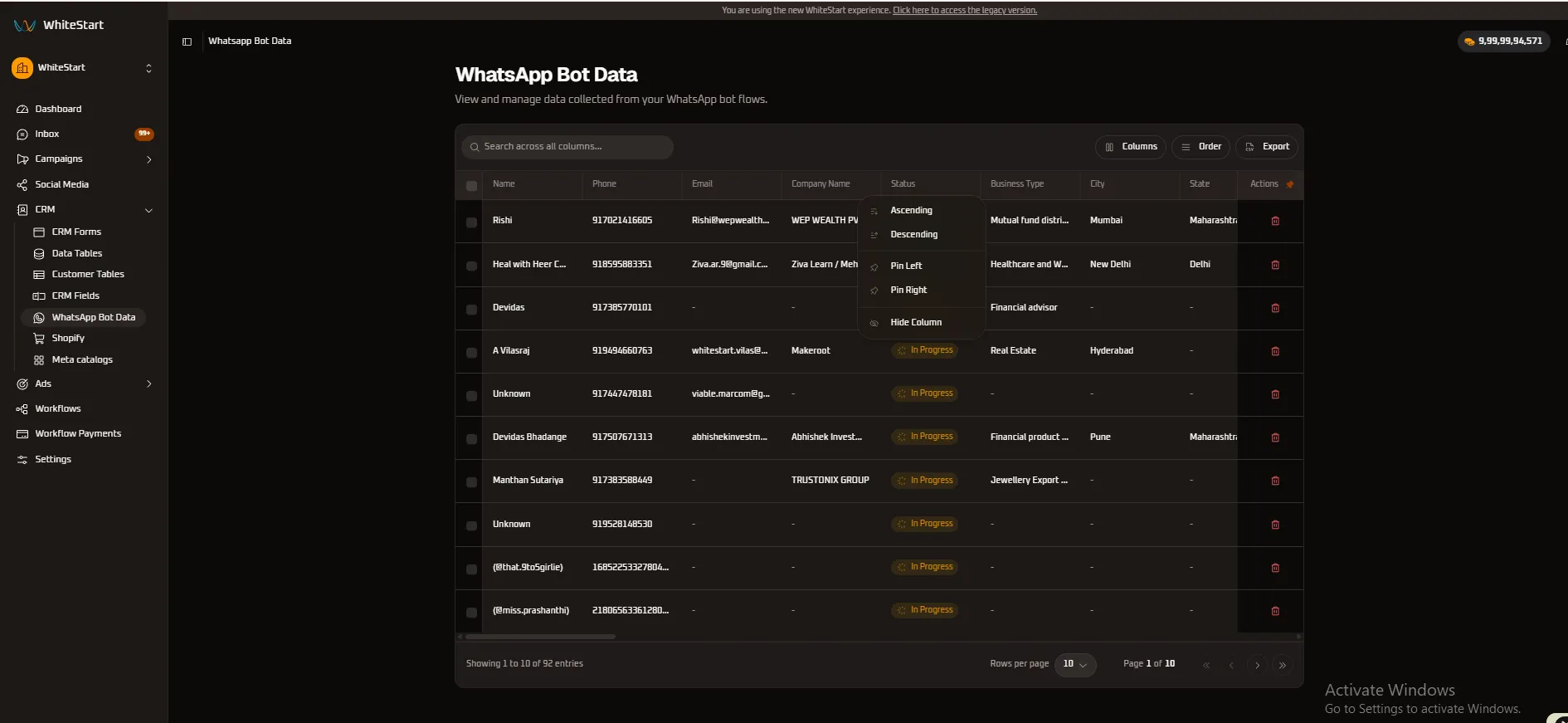
3. Company Name Column Menu
Section titled “3. Company Name Column Menu”Group B2B opportunities alphabetically to quickly identify multi-stakeholder inbound enquiries from the same organization:
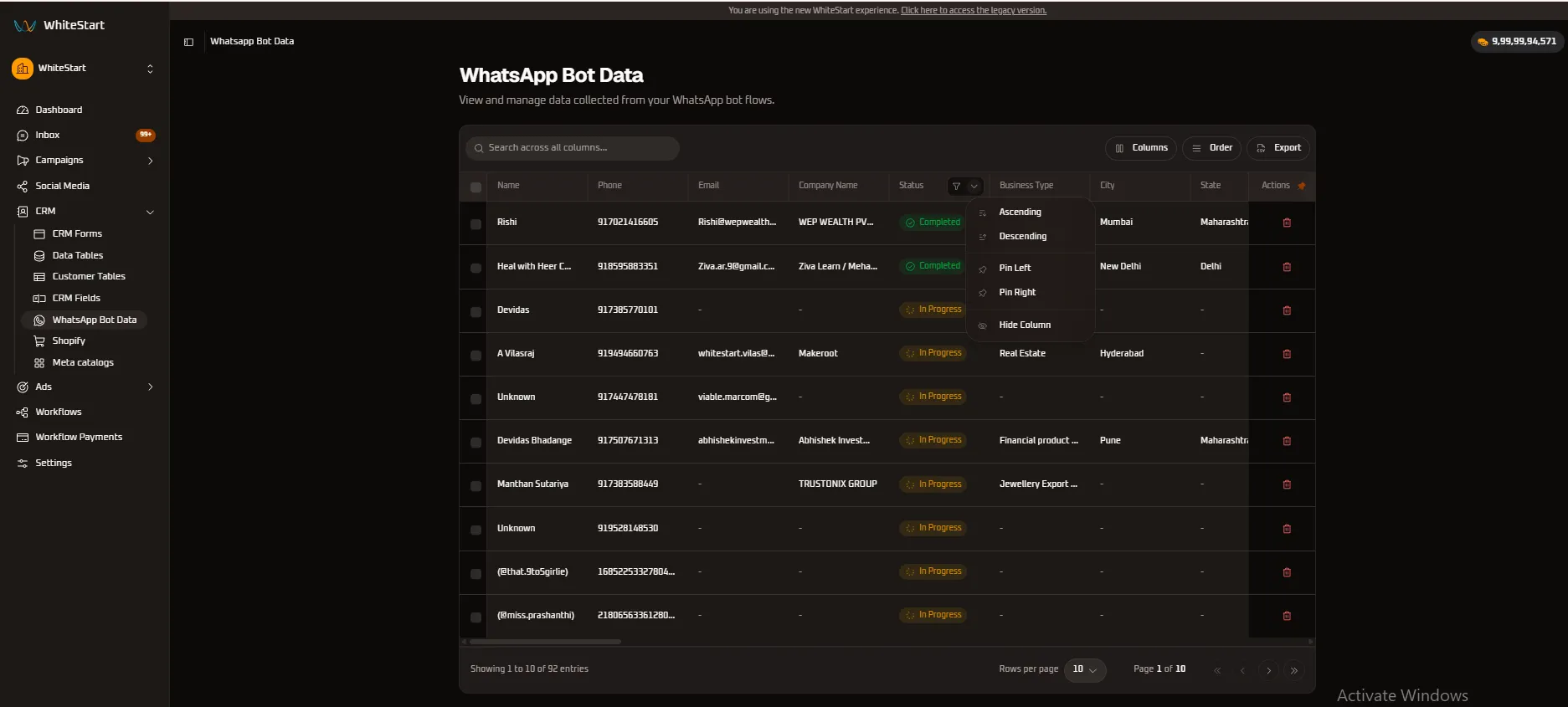
4. Status Column Menu & Filtering
Section titled “4. Status Column Menu & Filtering”Filter and isolate leads who successfully finished all chatbot steps versus those currently undergoing qualification:
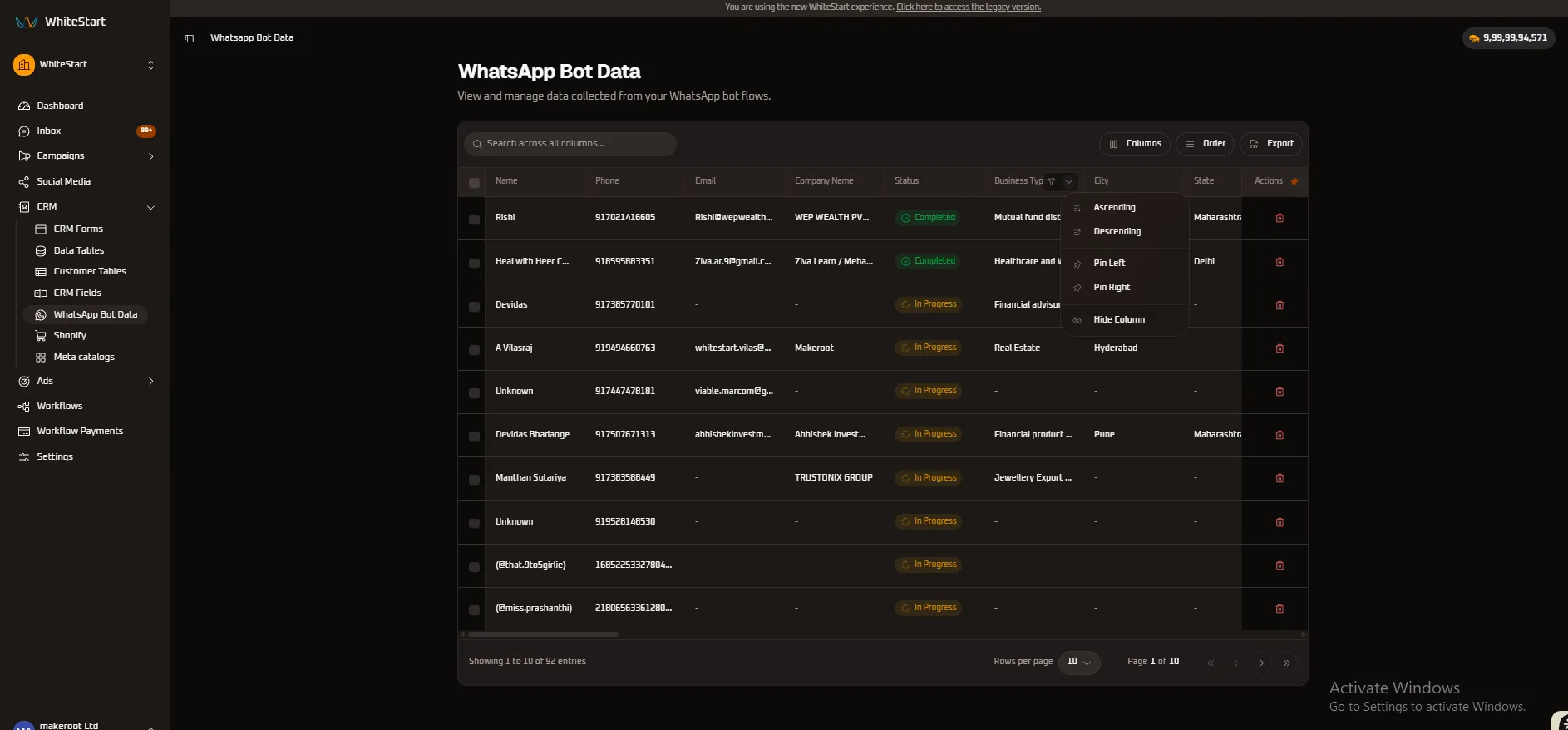
5. Business Type Column Menu
Section titled “5. Business Type Column Menu”Segment your leads by industry niche (e.g., Real Estate, Healthcare, Financial Services, Jewellery) to route them to specialized sales units:
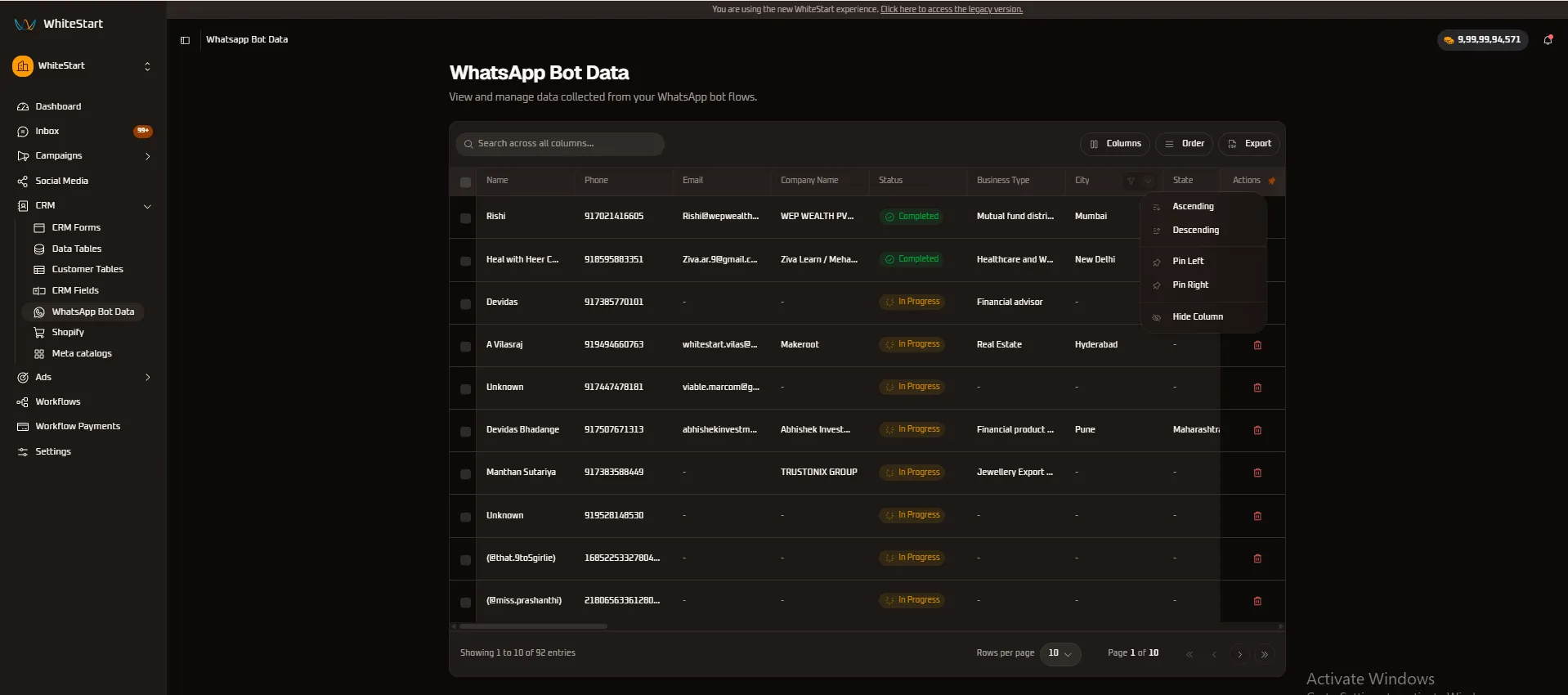
6. City Column Menu
Section titled “6. City Column Menu”Sort and filter regional inquiries to support geo-targeted sales campaigns and localized consultation reps:
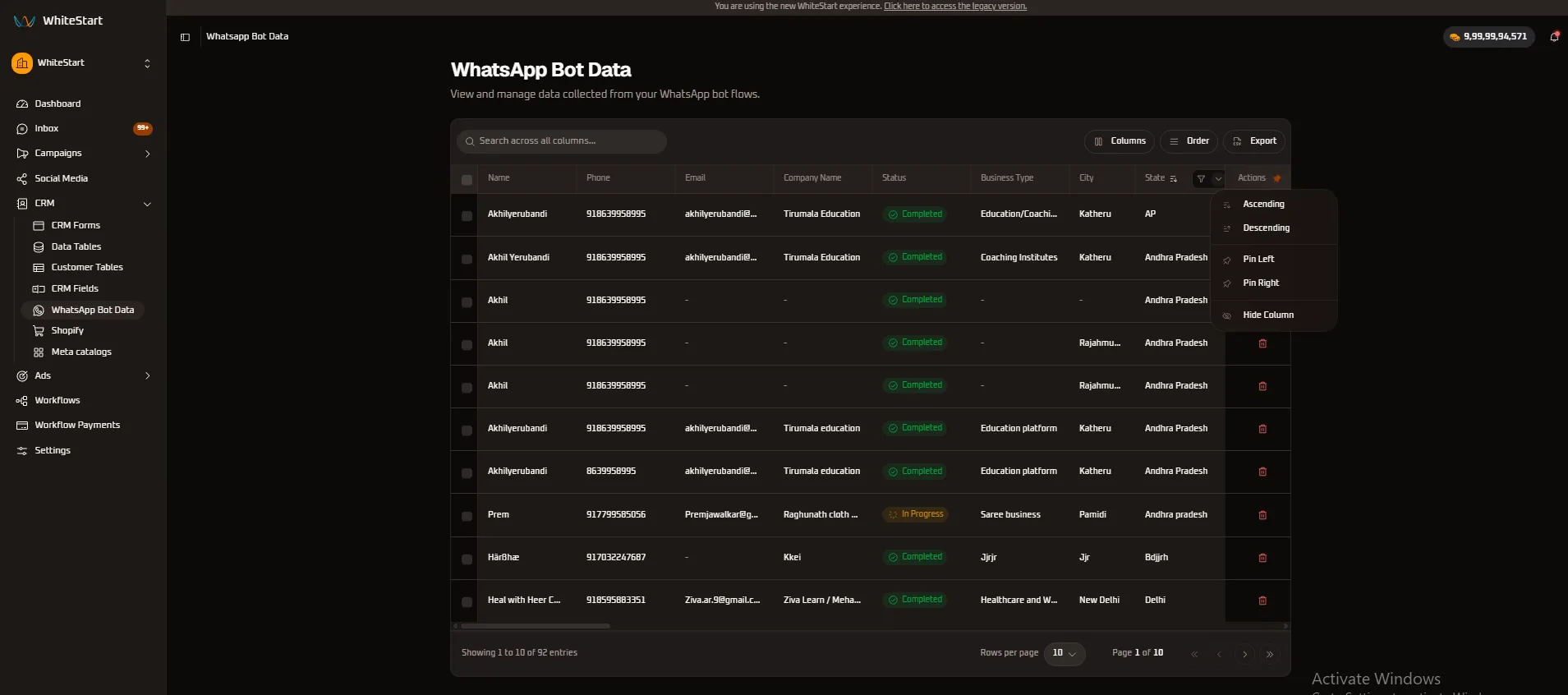
Geographic Lead Sorting & Regional Analysis
Section titled “Geographic Lead Sorting & Regional Analysis”In large-scale WhatsApp campaigns, leads frequently originate across diverse states and metropolitan regions. By utilizing the Sort and Filter capabilities on the State column, teams can cluster leads by operational territory.
Regional Clustering Highlights
Section titled “Regional Clustering Highlights”- Automated Geographic Standardization: Capture regional identifiers (e.g.,
AP,Andhra Pradesh,Maharashtra,Delhi) directly from chatbot location inquiries or postal lookup nodes. - Territory Sales Routing: Sales managers can quickly sort the table by state to assign clusters of regional prospects (e.g., Katheru, Rajahmundry, Pamidi) to dedicated field reps.
- Localized Campaign Performance: Identify which regional advertising campaigns on Instagram, Facebook, and Google are driving the highest conversational volume on WhatsApp.
Column Pinning, Freezing & Unpinning
Section titled “Column Pinning, Freezing & Unpinning”When managing extensive conversational bot flows that capture dozens of data points (e.g., annual revenue, team size, current software, purchase timeline), horizontal scrolling can cause users to lose sight of the lead’s identity.
WhiteStart solves this with Multi-Column Pinning:
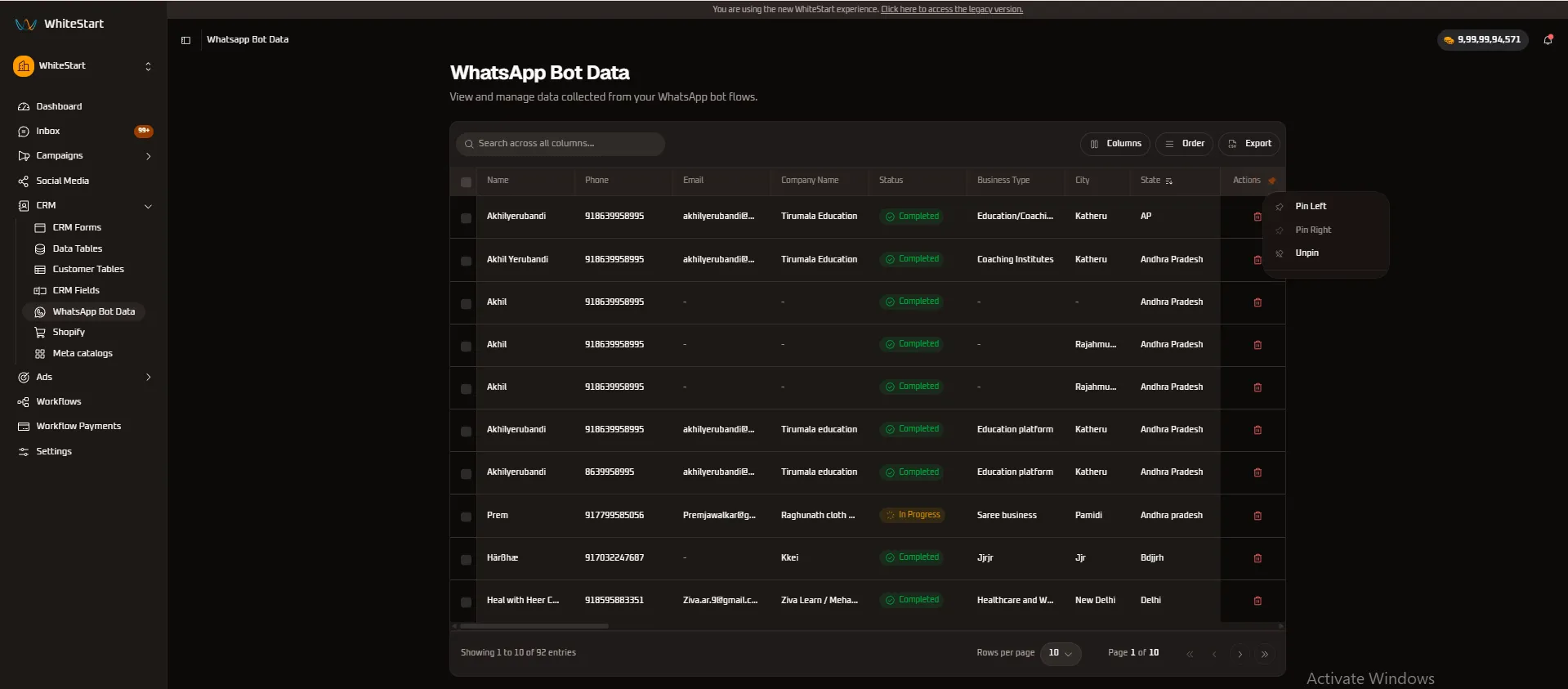
Pinning Behaviors
Section titled “Pinning Behaviors”- Pin Left: Freezes the selected column to the far-left boundary of the table grid. As you scroll right to inspect deeper bot answers, the pinned column remains stationary.
- Pin Right: Freezes the column to the far-right boundary (commonly used for
StatusorActions). - Unpin: Releases the column from its frozen anchor, returning it to standard horizontal scrolling position
Pinned Columns (Frozen) Scrollable Conversational Responses+───────────────┬───────────────+ ~ +───────────────────┬───────────────────+| Name | Phone | ~ | Purchase Budget | Go-Live Timeline |+───────────────┼───────────────+ ~ +───────────────────┼───────────────────+| Rishi | 917021416605 | ~ | ₹10,00,000+ | Immediate (< 7 d) || A Vilasraj | 919494660763 | ~ | ₹2,50,000 | Within 30 days |+───────────────┴───────────────+ ~ +───────────────────┴───────────────────+ ▲ ▲ [FROZEN LEFT] [FROZEN LEFT] [SCROLLS FREELY WITH HORIZONTAL DRAG]Lead Qualification Lifecycle (Completed vs In Progress)
Section titled “Lead Qualification Lifecycle (Completed vs In Progress)”Every record in the WhatsApp Bot Data directory carries a dynamic lifecycle badge:
┌───────────────────────────────┐ │ Inbound WhatsApp Trigger │ │ (User messages bot number) │ └───────────────┬───────────────┘ │ ▼ ┌───────────────────────────────┐ │ In Progress State │ ⏳ (Amber Badge) │ (User answering questions) │ └───────┬───────────────┬───────┘ │ │ Finished Flow │ │ Abandoned / Timed Out ▼ ▼ ┌─────────────────────────┐ ┌─────────────────────────┐ │ Completed State │ │ Drop-Off Re-engagement│ │ (Ready for SDR Call) │ │ (Automated Follow-up) │ │ ✅ (Green Badge) │ └─────────────────────────┘ └─────────────────────────┘1. Completed (Green Badge)
Section titled “1. Completed (Green Badge)”- Definition: The user responded to every mandatory prompt in the conversational bot sequence (e.g., Name, Email, Company, Business Type, City).
- Operational Next Step: The contact is fully qualified and automatically pushed to Customer Tables or assigned to an available sales rep for outbound consultation scheduling.
2. In Progress (Amber Badge)
Section titled “2. In Progress (Amber Badge)”- Definition: The prospect initiated the chatbot conversation but has not yet concluded the intake sequence. This may indicate an active ongoing conversation or an incomplete drop-off.
- Operational Next Step: WhiteStart’s workflow automation engine can trigger scheduled nudges (e.g., “Hi Rishi, did you want to finish your demo registration?”) after 15 minutes of inactivity to recover drop-offs.
Column Customization & Volume Data Export ([ Columns ] & [ Export ])
Section titled “Column Customization & Volume Data Export ([ Columns ] & [ Export ])”The WhatsApp Bot Data console gives teams full control over column visibility and dataset extraction through the [ Columns ] manager and the [ Export ] engine in the top toolbar:
+───────────────────────────────────────────────────────────────────────────────────────+| [Q Search across all columns... ] [ Columns ] [ Order ] [ Export]|+───────────────────────────────────────────────────────────────────────────────────────+ │ │ ┌────────────────────────────┘ │ ▼ ▼ [ Columns Modal ] [ CSV Export ] ┌────────────────────────┐ ┌───────────────────┐ | [x] Name | | Downloads: | | [x] Phone | | whatsapp_bot_ | | [x] Email | | data_export.csv | | [ ] Business Type | | | | [x] Status | | (Exports visible | | [ ] City | | columns only) | | [ ] State | └───────────────────┘ └────────────────────────┘1. Column Visibility Management ([ Columns ])
Section titled “1. Column Visibility Management ([ Columns ])”Clicking the [ Columns ] button launches the field visibility selector:
- Selective Column Display: Toggle checkboxes on or off to show or hide specific conversational attributes. For instance, hide location fields (
City,State) when running a phone-first outreach sprint. - Bulk Selection Controls: Quickly enable all columns (
Select All) or isolate only specific attributes to maintain high visual focus. - Workspace Optimization: Minimizes horizontal scrolling across wide datasets with many bot question inputs.
2. Volume & Column-Selective CSV Export ([ Export ])
Section titled “2. Volume & Column-Selective CSV Export ([ Export ])”Clicking the [ Export ] button generates a clean, structured CSV file respecting your exact workspace filters:
Header Bar ➔ [ Export ] ➔ Downloads whatsapp_bot_data_export.csv- Selective Column Export: The export engine strictly adheres to your active
[ Columns ]selection. Columns that have been hidden from the view are automatically excluded from the CSV download, producing ready-to-use sheets without manual column deletion. - Full Volume vs. Scoped Subset Export:
- Full Volume Export: When no search query or filters are active, clicking
[ Export ]downloads the entire volume of conversational records across all pages (e.g., all 92+ records). - Filtered / Search-Scoped Export: When an active search term (e.g.,
Mumbai) or status filter (e.g.,Completed) is applied, the export captures only the matching volume of records.
- Full Volume Export: When no search query or filters are active, clicking
- Downstream Systems & Workflows:
- CRM Synchronization: Directly upload exported datasets into Salesforce, HubSpot, or Zoho CRM for automated lead assignment.
- Outbound Calling Campaigns: Hand clean CSV files containing only
Name,Phone, and qualification answers to tele-calling and SDR teams. - Audience Retargeting: Ingest verified mobile numbers and emails into Meta Ads Manager or Google Customer Match for high-conversion retargeting flows.