
Communication Channels
Configuring Multi-Channel Communication Gateways
Section titled “Configuring Multi-Channel Communication Gateways”WhiteStart provides an enterprise-grade multi-channel communication infrastructure, allowing organizations to connect and orchestrate customer interactions across WhatsApp Meta, Email (Gmail SMTP), SMS, RCS (Rich Communication Services), and Voice Telephony.
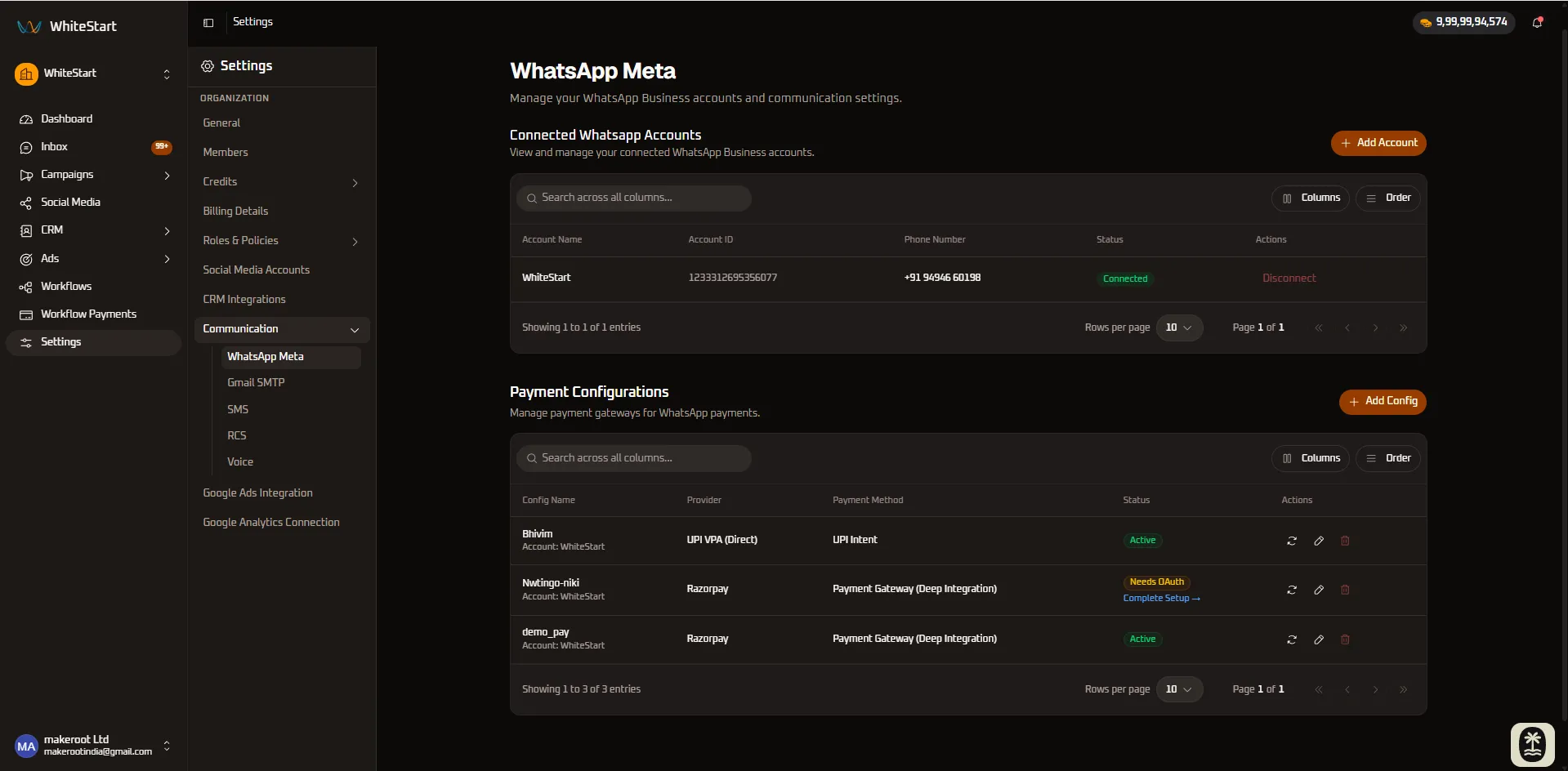
1. Accessing Communication Settings
Section titled “1. Accessing Communication Settings”Main Sidebar ➔ Settings (⚙️) ➔ Communication ➔ [Channel]- In the primary left-hand navigation sidebar, click on Settings (
⚙️) located near the bottom. - In the secondary settings navigation menu, click Communication to expand the channel options:
- WhatsApp Meta: Link official WhatsApp Business Cloud API phone numbers and configure native in-chat payment gateways.
- Gmail SMTP: Configure transactional and marketing email delivery via managed WhiteStart Provider or Custom SMTP.
- SMS: Connect certified telecom gateways (Smartping, JIOCX, MSG91) with DLT registration compliance.
- RCS: Connect verified Google RCS Rich Communication Services carrier gateways for interactive Android messaging.
- Voice: Configure outbound voice dialers (OBD), IVR flows, and carrier telephony SIP endpoints.
- Click your target communication channel to load its management console.
2. Layout Structure & Channel Sections
Section titled “2. Layout Structure & Channel Sections”The Communication workspace is organized into five dedicated transport channels:
+─────────────────────────────────────────────────────────────────────────────+| Settings ➔ Communication || ├── WhatsApp Meta • Cloud API Numbers & In-Chat UPI/Razorpay/PayU || ├── Gmail SMTP • Managed WhiteStart Provider & Custom SMTP Relays || ├── SMS • Smartping / JIOCX / MSG91 (DLT Compliance) || ├── RCS • Google Verified RCS Agents & Interactive Cards || └── Voice • OBD Outbound Audio Broadcasts & Carrier SIP |+─────────────────────────────────────────────────────────────────────────────+3. Section 1: WhatsApp Meta & Native Payments
Section titled “3. Section 1: WhatsApp Meta & Native Payments”The WhatsApp Meta configuration console allows administrators to link official WhatsApp Business accounts and configure in-chat payment gateways to accept customer payments directly inside chat threads.
Connected WhatsApp Accounts
Section titled “Connected WhatsApp Accounts”The directory displays all authorized WhatsApp Business Cloud API accounts:
- Account Name: Verified brand name associated with the profile.
- Account ID: Official Meta WhatsApp Business Account (WABA) ID.
- Phone Number: Verified international phone number registered with WhatsApp Cloud API (e.g.,
+1 (555) 019-2834). - Status: Live indicator confirming whether webhook delivery and API health checks pass.
- Actions: Use Disconnect to safely unlink a phone number from your organization.
Connecting a WhatsApp Business Number
Section titled “Connecting a WhatsApp Business Number”To add a new official phone number:
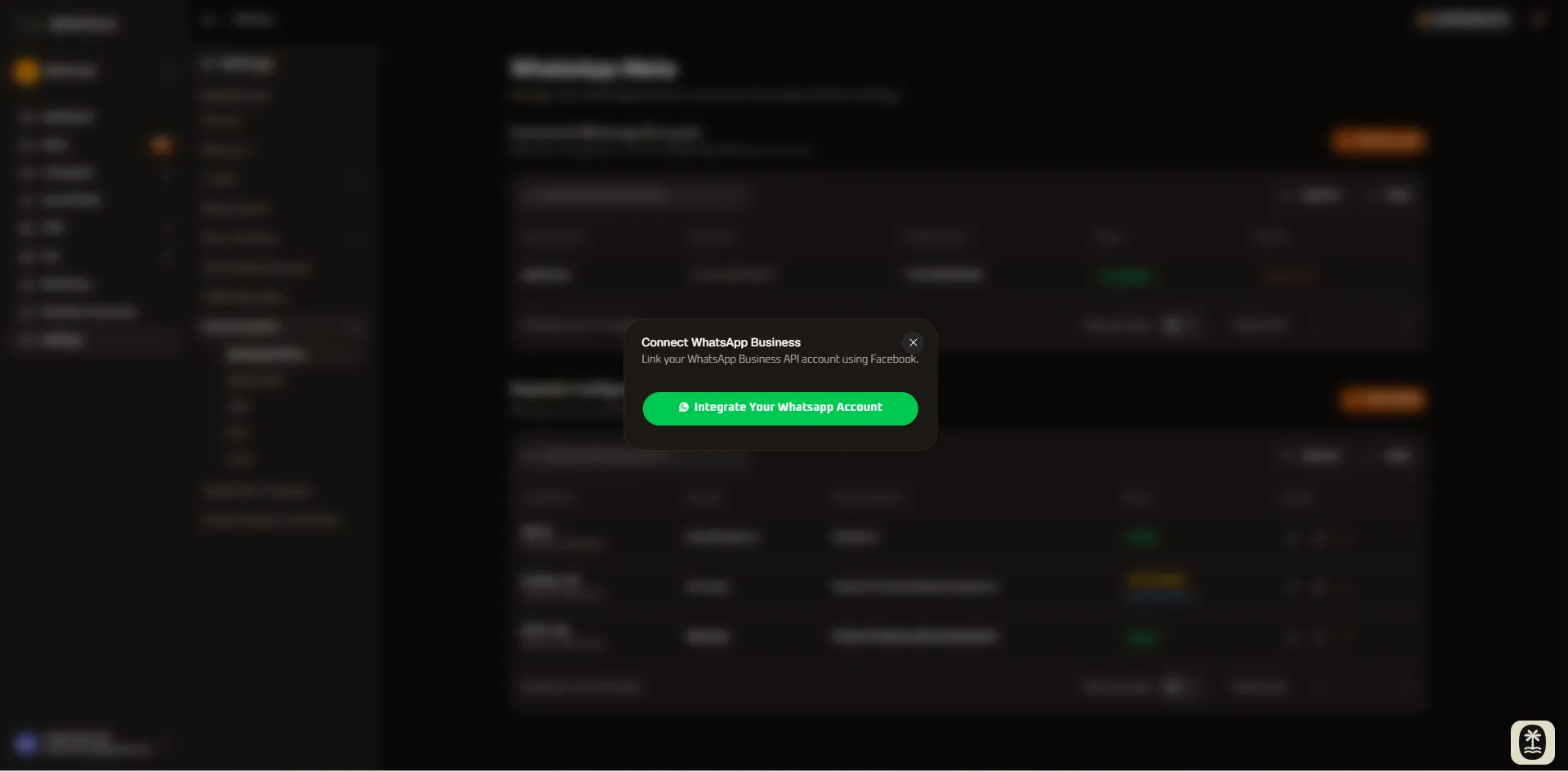
- Click the orange + Add Account button on the top-right of the Connected WhatsApp Accounts section.
- In the modal dialog, click Integrate Your Whatsapp Account.
- A secure Meta Facebook login pop-up window will launch.
- Select your Meta Business Manager, choose or register your WhatsApp Business Profile, and verify your number via OTP.
- Grant WhiteStart permission to manage messages and templates to complete provisioning.
In-Chat Payment Configurations
Section titled “In-Chat Payment Configurations”WhiteStart enables seamless in-chat payments so your customers can complete purchases, clear invoices, or pay bills without exiting WhatsApp:
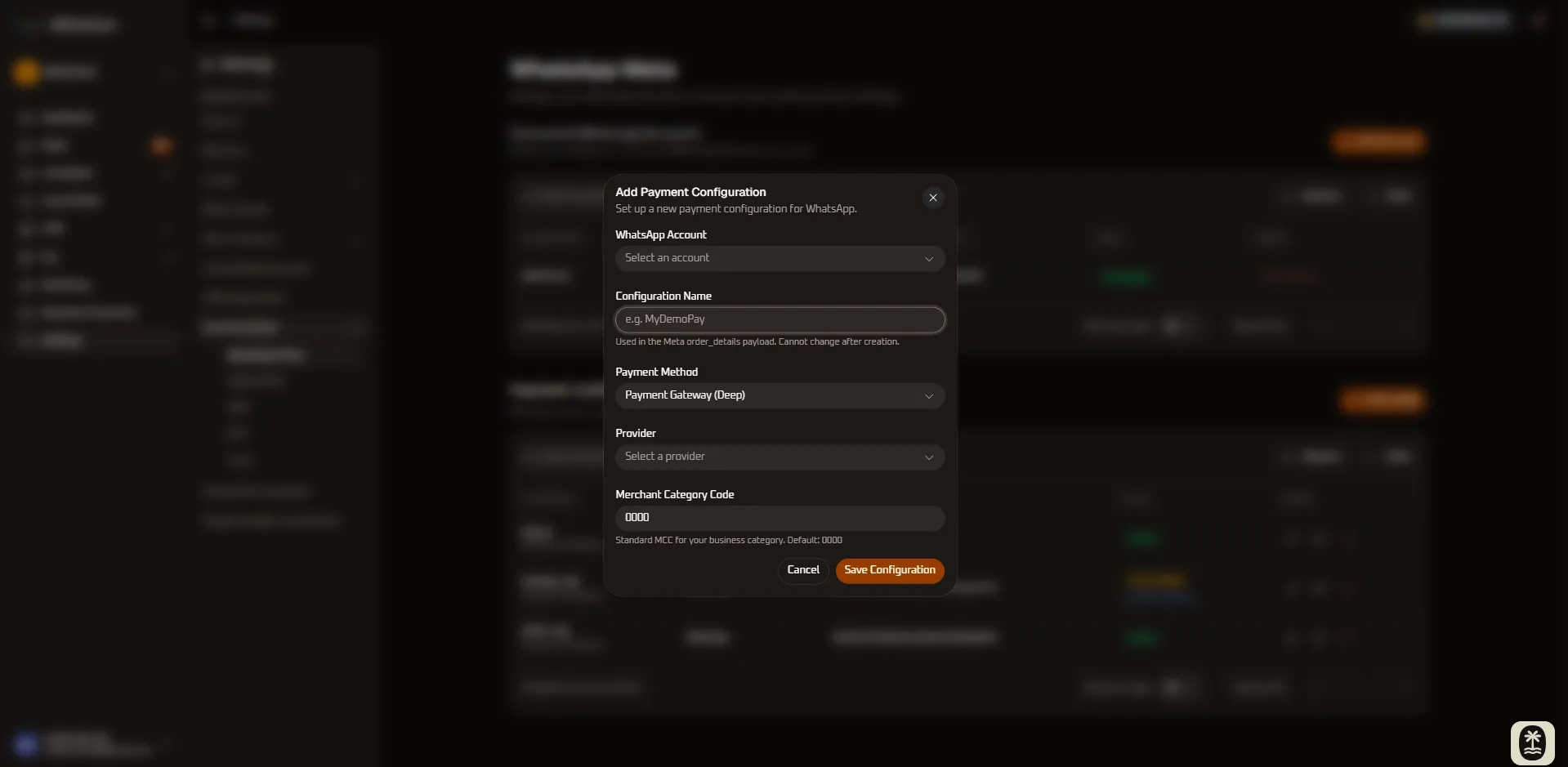
Configuring a Payment Gateway:
Section titled “Configuring a Payment Gateway:”- Click + Add Config in the Payment Configurations panel.
- Complete the required configuration fields:
- WhatsApp Account: Select the registered WhatsApp phone number that will dispatch payment requests.
- Configuration Name: Enter a unique identifier (e.g.,
MyDemoPay). Note: This identifier is embedded into Meta’s payment payload and cannot be modified after creation. - Payment Method: Choose your checkout type (UPI Intent or Payment Gateway Deep Integration).
- Provider: Select your payment processor (UPI VPA Direct, Razorpay, or PayU).
- Merchant Category Code (MCC): Provide your 4-digit business sector MCC (default:
0000).
- Click Save Configuration.
- If your gateway requires OAuth authorization (such as Razorpay), the badge will display Needs OAuth. Click Complete Setup → to finalize merchant authorization.
4. Section 2: Gmail & Corporate Email (Gmail SMTP)
Section titled “4. Section 2: Gmail & Corporate Email (Gmail SMTP)”The Gmail SMTP module serves as WhiteStart’s central outbound email delivery engine. Organizations can dispatch automated transactional alerts, booking confirmations, workflow notifications, e-invoices, password resets, and multi-step marketing email sequences through two high-deliverability routing architectures: WhiteStart Provider (fully managed cloud mail relay) or Custom SMTP (direct connection to Google Workspace, Gmail SMTP, Microsoft 365, Amazon SES, SendGrid, or private corporate mail servers).
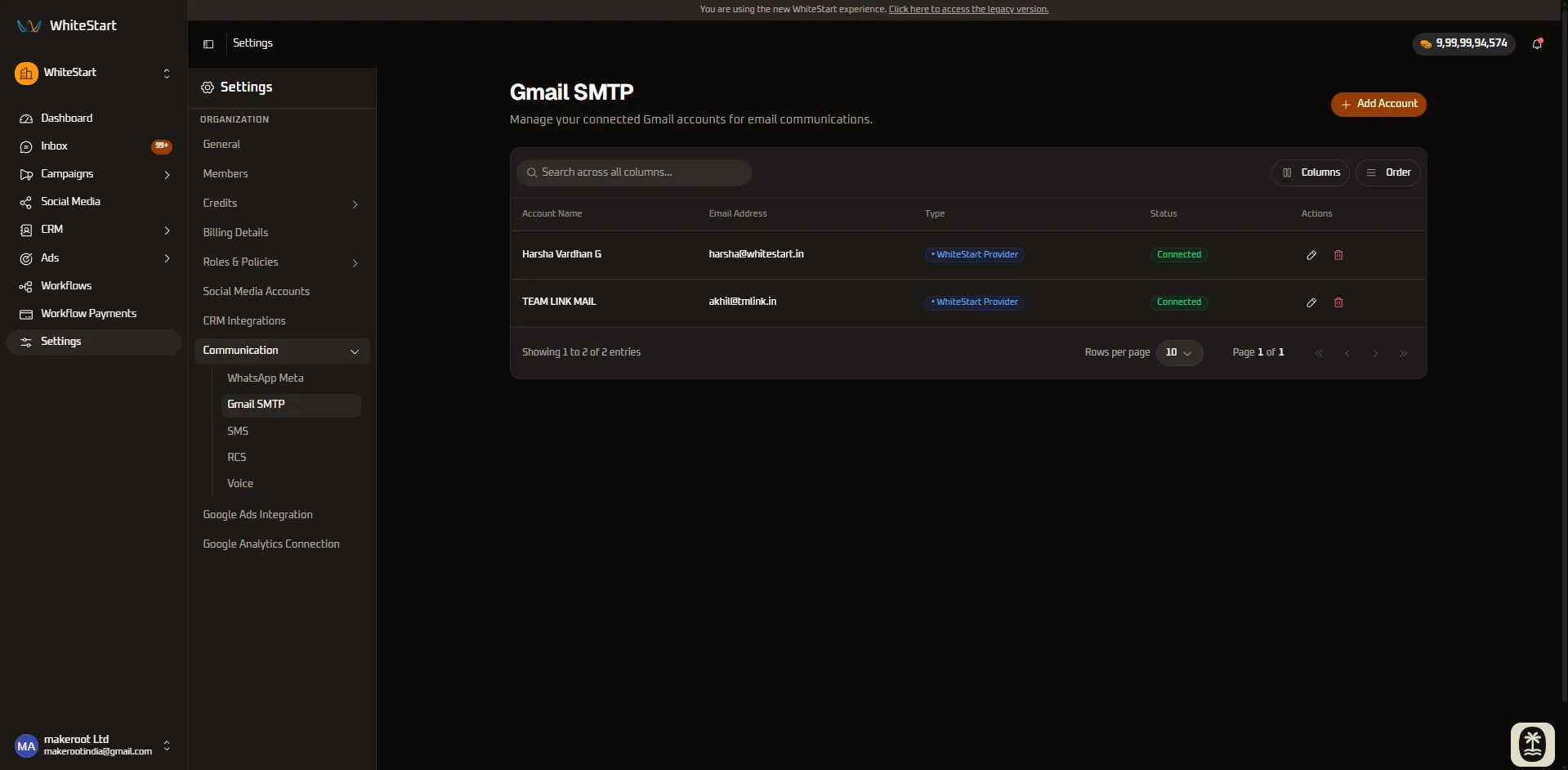
Connected Email Accounts Directory
Section titled “Connected Email Accounts Directory”The directory table provides real-time visibility and control across all provisioned mailboxes:
- Account Name: The friendly organization or sender profile identifier (e.g.,
Harsha Vardhan G,TEAM LINK MAIL). - Email Address: The authenticated sender address that recipients will see in the email
From:header (e.g.,[email protected],[email protected]). - Type: Indicates the transport delivery infrastructure:
• WhiteStart Provider(blue pill badge) — Managed relay requiring zero external server configuration.• Custom SMTP— Routed through external corporate SMTP server or third-party email provider.
- Status: Operational health indicator confirming active connection (
Connectedgreen badge). - Actions:
✏️ Edit(Pencil Icon): Update mailbox display name, sender address, or refresh SMTP credentials/passwords.🗑️ Delete(Trash Icon): Remove the email provider configuration and unlink the sender address from automated campaigns.
Adding an Email Provider
Section titled “Adding an Email Provider”To configure a new sender account:
- In the sidebar under Communication, select Gmail SMTP.
- Click the orange + Add Account button in the top right corner.
- The Add Email Provider configuration modal opens. Choose your preferred delivery method:
Option A: WhiteStart Provider (Managed Cloud Relay)
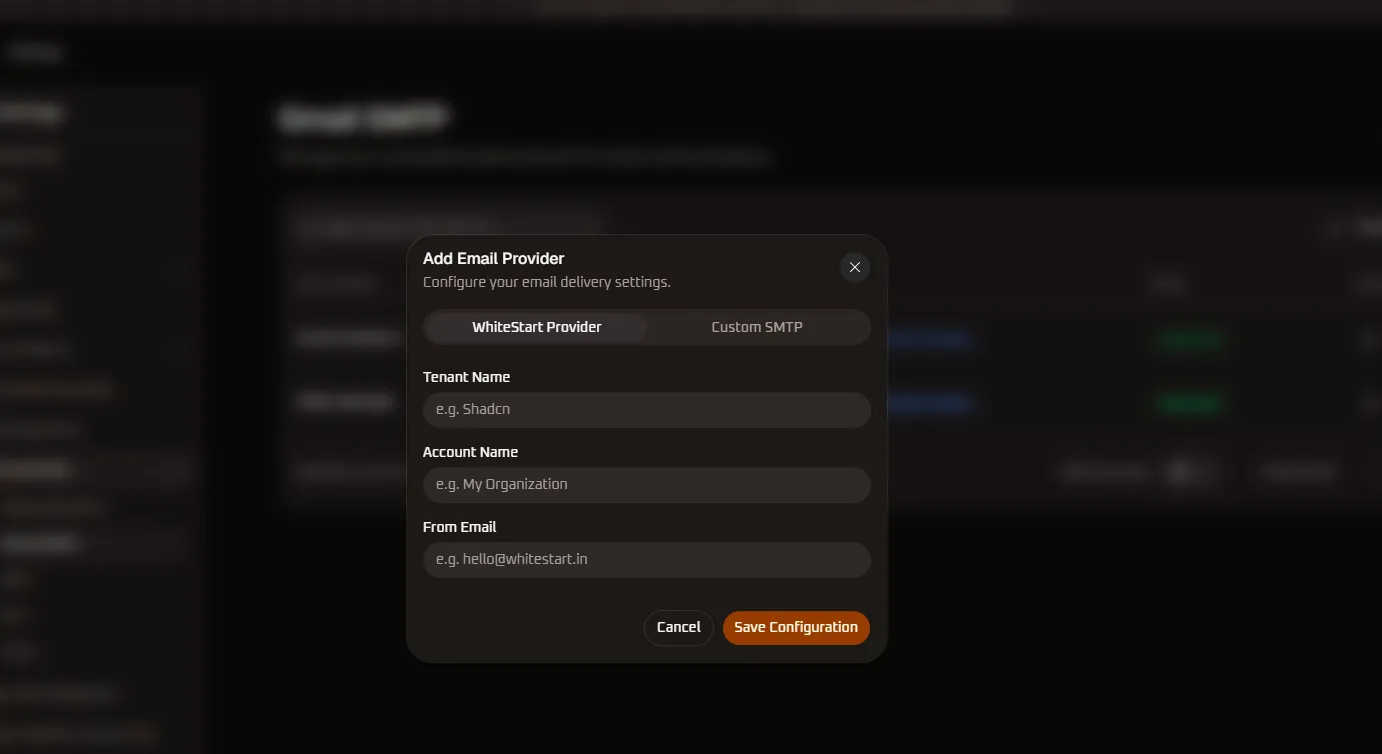
Section titled “Option A: WhiteStart Provider (Managed Cloud Relay)”For organizations that want instant, high-deliverability email dispatches without managing external mail servers or handling manual SMTP handshake protocols:
Step-by-Step Configuration:
Section titled “Step-by-Step Configuration:”- In the modal, select the WhiteStart Provider tab.
- Complete the required profile parameters:
- Tenant Name: Enter your workspace tenant identifier (e.g.,
Shadcn). This namespaces your email relay within WhiteStart’s multi-tenant delivery cluster. - Account Name: Enter a recognizable sender identifier for internal reference (e.g.,
My Organization,Billing Department). - From Email: Specify the default sender email address (e.g.,
[email protected]).
- Tenant Name: Enter your workspace tenant identifier (e.g.,
- Click Save Configuration.
- The system validates the tenant parameters and registers the account with an active
Connectedstatus badge.
Option B: Custom SMTP (Google Workspace / Gmail / Corporate Mail Server)
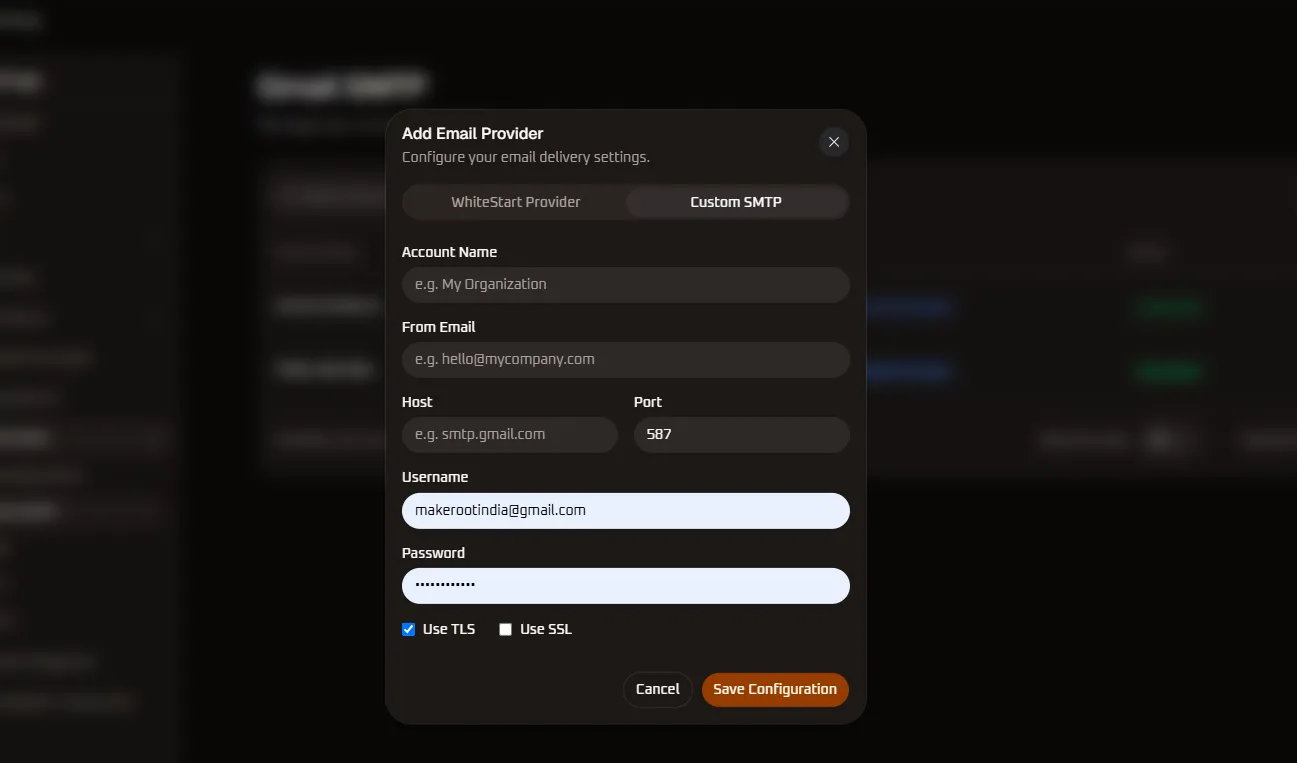
Section titled “Option B: Custom SMTP (Google Workspace / Gmail / Corporate Mail Server)”For businesses requiring outbound mail to originate directly from their own company domain (Google Workspace, Gmail, Microsoft 365, Amazon SES, SendGrid, Mailgun, or on-premise SMTP server):
Step-by-Step Configuration:
Section titled “Step-by-Step Configuration:”- In the modal, select the Custom SMTP tab.
- Fill in the email server credentials and security bindings:
- Account Name: Enter a descriptive internal name (e.g.,
My Organization,Customer Support Desk). - From Email: Enter the corporate sender email address (e.g.,
[email protected]). - Host: Enter your outbound SMTP relay server domain:
- Gmail / Google Workspace:
smtp.gmail.com - Microsoft 365 / Outlook:
smtp.office365.com - Amazon SES:
email-smtp.<region>.amazonaws.com - SendGrid:
smtp.sendgrid.net
- Gmail / Google Workspace:
- Port: Enter the network communication port:
587— Standard submission port with STARTTLS encryption (recommended).465— SSL/TLS encrypted connection.25— Traditional unencrypted SMTP port (often blocked by cloud providers).
- Username: Enter your authenticated SMTP user ID or email address (e.g.,
[email protected]). - Password: Enter the SMTP password or service token:
- Google Workspace / Personal Gmail: Generate and use a dedicated 16-character Google App Password (requires 2-Step Verification enabled under Google Account Security).
- Third-Party Relays (SES, SendGrid): Use your generated SMTP API key or password credentials.
- Encryption Protocols:
[x] Use TLS— Recommended. Check this box when using port 587 for modern STARTTLS handshake negotiation.[ ] Use SSL— Check this box when connecting via port 465 for legacy implicit SSL wrapping.
- Account Name: Enter a descriptive internal name (e.g.,
- Click Save Configuration.
- WhiteStart performs an immediate SMTP handshake test:
- Connects to the host server on the specified port.
- Negotiates TLS encryption.
- Authenticates with user credentials.
- Upon successful verification, the account appears in the directory with a green
Connectedbadge.
Core Operational Capabilities of Email SMTP
Section titled “Core Operational Capabilities of Email SMTP”Connecting an email provider enables five core enterprise workflows:
1. Omnichannel Fallback & Escalation
Section titled “1. Omnichannel Fallback & Escalation”When customers do not open WhatsApp messages or time-sensitive SMS alerts, WhiteStart visual workflows can automatically fall back to email dispatches, guaranteeing reliable communication delivery.
2. Automated Invoicing & PDF Receipts
Section titled “2. Automated Invoicing & PDF Receipts”Dispatch professional HTML receipts, payment confirmation links, and PDF invoices directly to customer email inboxes upon completed transactions.
3. Calendar Invitations & Meeting Reminders
Section titled “3. Calendar Invitations & Meeting Reminders”Deliver .ics calendar invites and video conferencing links (Zoom, Google Meet) directly to attendees after scheduling appointments via WhiteStart chat widgets.
4. Drip Marketing & Lead Nurturing Campaigns
Section titled “4. Drip Marketing & Lead Nurturing Campaigns”Schedule automated multi-step onboarding sequences, follow-up emails, and educational drip campaigns triggered by customer lifecycle stages.
5. System Notifications & Agent Alerts
Section titled “5. System Notifications & Agent Alerts”Trigger instant internal notifications to designated account owners or support agents when high-priority leads submit inquiries or request live escalation.
Email Deliverability & DNS Best Practices
Section titled “Email Deliverability & DNS Best Practices”To ensure that outgoing emails land in customer primary inboxes rather than spam folders, configure the following DNS records on your sending domain:
| Record Type | Purpose | Recommendation |
|---|---|---|
| SPF (Sender Policy Framework) | Authorizes WhiteStart or your SMTP relay to send emails on behalf of your domain. | Add include:_spf.google.com (or provider equivalent) to your root TXT record. |
| DKIM (DomainKeys Identified Mail) | Cryptographically signs outgoing emails to verify sender authenticity and prevent tampering. | Publish 2048-bit DKIM public key TXT records in your DNS manager. |
| DMARC (Domain-based Message Authentication) | Instructs receiving mailboxes how to handle unauthenticated emails. | Implement at least v=DMARC1; p=quarantine; for domain spoofing protection. |
| Custom Tracking Domain | White-labels click and open tracking URLs with your own branded subdomain. | Configure a CNAME record (e.g., email.yourbrand.com). |
Role-Based Access Control (RBAC) Permissions
Section titled “Role-Based Access Control (RBAC) Permissions”Managing email accounts is governed by permissions under the Messaging: Email entity group in Roles & Policies:
| Privilege Level | Permission Name | Operational Scope |
|---|---|---|
| Add Mailbox | Can add email provider |
Create and provision new WhiteStart Provider or Custom SMTP configurations. |
| Modify Mailbox | Can change email provider |
Update SMTP host, port, security certificates, or mailbox credentials. |
| Remove Mailbox | Can delete email provider |
Delete email configurations and unlink sender mailboxes. |
| View Mailbox | Can view email provider |
Access the Gmail SMTP tab and view active mailboxes and health metrics. |
5. Section 3: SMS Telecom Providers
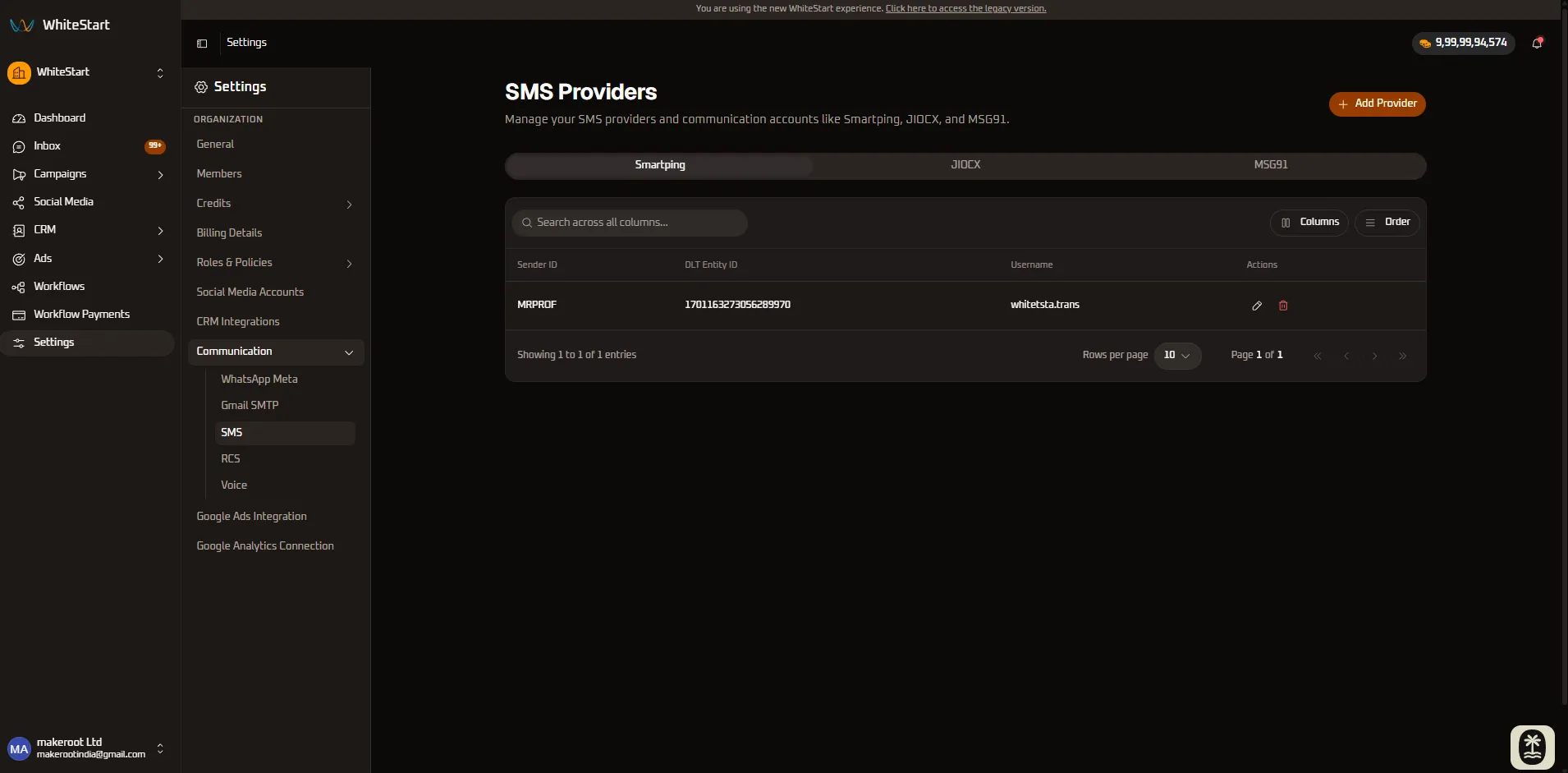
Section titled “5. Section 3: SMS Telecom Providers”WhiteStart integrates directly with certified telecommunications aggregators to dispatch time-sensitive One-Time Passwords (OTPs), critical transaction alerts, appointment confirmations, and regulatory-compliant promotional broadcasts. Outbound SMS dispatches support full integration with telecom Distributed Ledger Technology (DLT) governance standards.
Connected SMS Providers Directory
Section titled “Connected SMS Providers Directory”The SMS management console is segmented by aggregator tabs (Smartping, JIOCX, MSG91):
- Sender ID: The registered 6-character alphanumeric header approved by telecom authorities (e.g.,
MRPROF). - DLT Entity ID: The official 19-digit Principal Entity (PE) identifier assigned under national telecom regulations (e.g.,
1701163273056289970). - Username / Endpoint: The authenticated telecom account username or API endpoint (e.g.,
whitetsta.trans). - Actions:
✏️ Edit(Pencil Icon): Update header bindings, refresh authentication tokens, or adjust gateway routing rules.🗑️ Delete(Trash Icon): De-provision the SMS gateway connection.
Connecting an SMS Provider
Section titled “Connecting an SMS Provider”To link a new telecommunications gateway:
- In the sidebar under Communication, select SMS.
- Click the orange + Add Provider button in the top right corner.
- The provider selector modal appears:
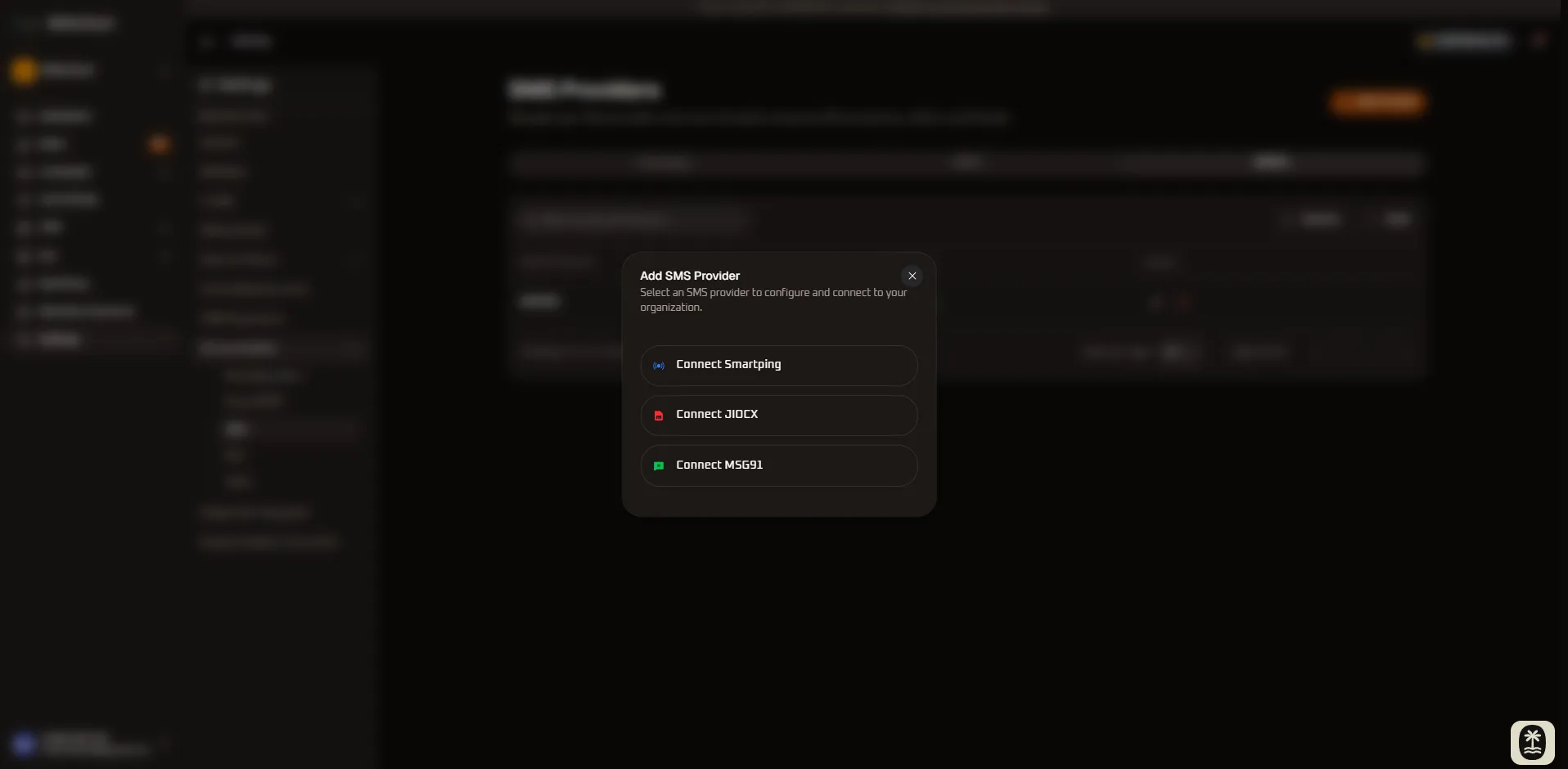
- Choose your telecom provider:
- Connect Smartping
- Connect JIOCX
- Connect MSG91
1. SmartPing Gateway Configuration
Section titled “1. SmartPing Gateway Configuration”SmartPing provides high-throughput telecom routing optimized for enterprise OTPs and transactional notifications:
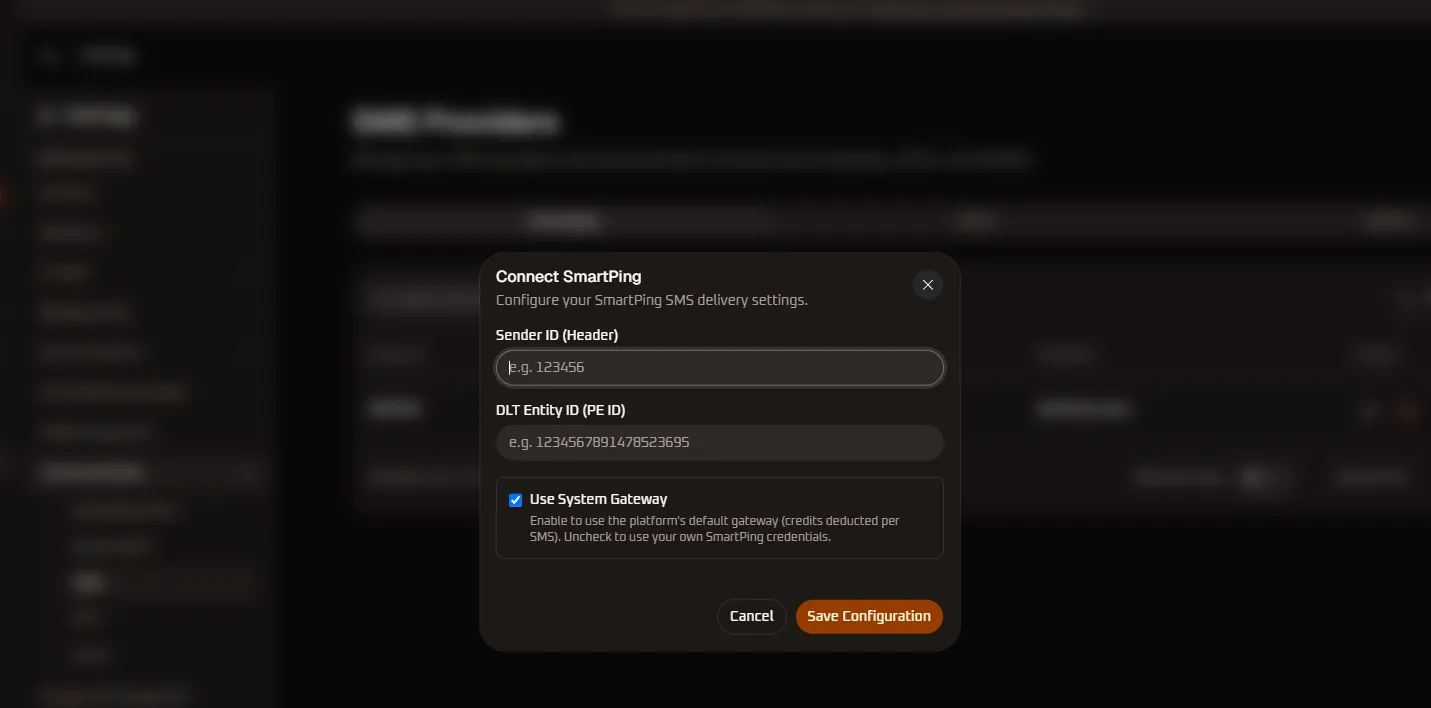
Step-by-Step Setup:
Section titled “Step-by-Step Setup:”- Click Connect Smartping in the provider modal.
- Configure the required regulatory parameters:
- Sender ID (Header): Enter your 6-character approved sender header (e.g.,
123456orMRPROF). - DLT Entity ID (PE ID): Input your 19-digit Principal Entity registration ID (e.g.,
1701163273056289970). - Use System Gateway:
[x] Checked (Default):Routes dispatches through WhiteStart’s optimized carrier infrastructure. Messages are charged directly against your workspace SMS wallet credits without requiring separate telecom contracts.[ ] Unchecked:Allows your organization to bind custom contractual SmartPing API credentials and private carrier rate cards.
- Sender ID (Header): Enter your 6-character approved sender header (e.g.,
- Click Save Configuration to register the gateway.
2. JIOCX Telecom Configuration
Section titled “2. JIOCX Telecom Configuration”JIOCX connects directly into Jio’s enterprise cloud telecommunications network for carrier-grade SMS delivery:
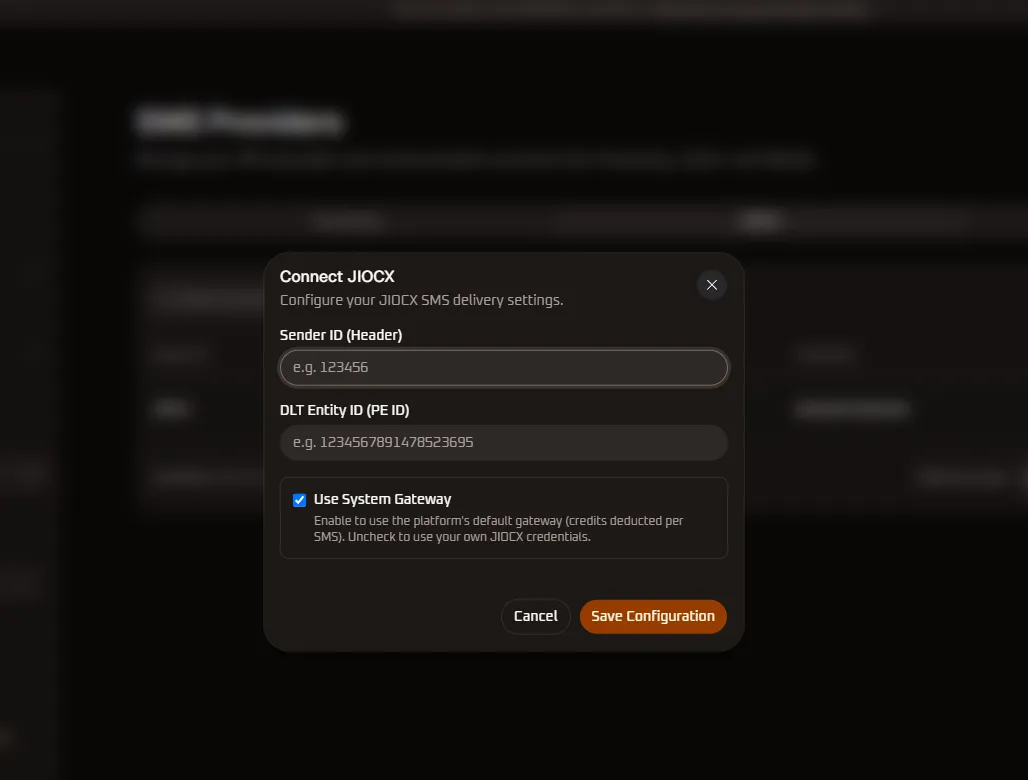
Step-by-Step Setup:
Section titled “Step-by-Step Setup:”- Click Connect JIOCX in the provider modal.
- Complete the carrier identification fields:
- Sender ID (Header): Enter your approved DLT header (e.g.,
123456). - DLT Entity ID (PE ID): Enter your verified Jio DLT Principal Entity ID.
- Use System Gateway:
[x] Checked:Leverage WhiteStart’s pre-authenticated carrier pipeline with per-SMS credit deduction.[ ] Unchecked:Input private enterprise JIOCX account credentials.
- Sender ID (Header): Enter your approved DLT header (e.g.,
- Click Save Configuration to activate the connection.
3. MSG91 Gateway Configuration
Section titled “3. MSG91 Gateway Configuration”MSG91 provides global and domestic SMS delivery with simplified API key authentication:
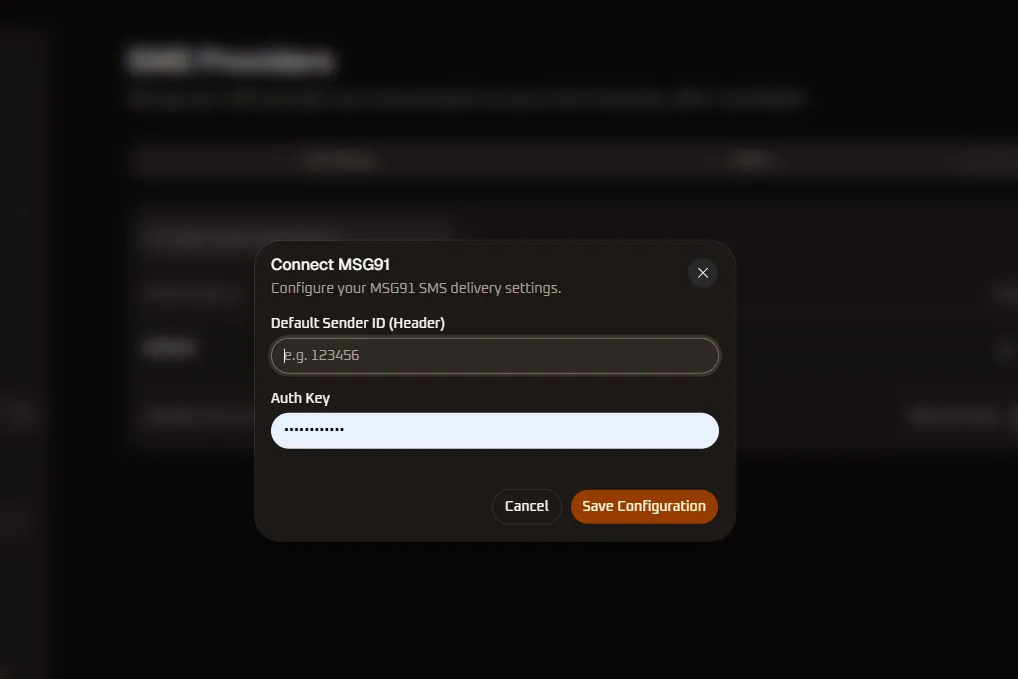
Step-by-Step Setup:
Section titled “Step-by-Step Setup:”- Click Connect MSG91 in the provider modal.
- Enter your API authentication parameters:
- Default Sender ID (Header): Enter your approved 6-character brand header (e.g.,
123456). - Auth Key: Paste your private alphanumeric MSG91 authentication API key.
- Default Sender ID (Header): Enter your approved 6-character brand header (e.g.,
- Click Save Configuration to verify authentication and enable dispatch routing.
DLT Compliance & Regulatory Requirements
Section titled “DLT Compliance & Regulatory Requirements”Core Operational Capabilities of SMS Providers
Section titled “Core Operational Capabilities of SMS Providers”Integrating SMS gateways empowers your organization with four essential capabilities:
1. High-Speed OTP & 2FA Dispatch
Section titled “1. High-Speed OTP & 2FA Dispatch”Achieve sub-5-second delivery latencies for time-critical authentication PINs, login verifications, and financial authorization tokens.
2. Omnichannel Fallback Routing
Section titled “2. Omnichannel Fallback Routing”When interactive WhatsApp messages or mobile push notifications fail to deliver or remain unread after a set period, WhiteStart workflows automatically fall back to SMS to ensure 100% receipt of critical notices.
3. Emergency & Service Disruption Alerts
Section titled “3. Emergency & Service Disruption Alerts”Broadcast high-priority service outage notices, flight/booking updates, and security alerts to large contact segments with high carrier throughput.
4. Transactional Receipts & Booking Summaries
Section titled “4. Transactional Receipts & Booking Summaries”Deliver concise, clickable SMS confirmations containing shortened URLs for invoice payments, order tracking, and consultation appointments.
Role-Based Access Control (RBAC) Permissions
Section titled “Role-Based Access Control (RBAC) Permissions”Managing SMS gateways is governed by permissions under the Messaging: SMS entity group in Roles & Policies:
| Privilege Level | Permission Name | Operational Scope |
|---|---|---|
| Add Gateway | Can add SMS configuration |
Provision new Smartping, JIOCX, or MSG91 SMS gateway connections. |
| Modify Gateway | Can change SMS configuration |
Update DLT headers, PE IDs, auth keys, or toggle system gateway routing. |
| Remove Gateway | Can delete SMS configuration |
Remove connected SMS aggregators and decommission carrier routes. |
| View Gateway | Can view SMS configuration |
Access the SMS tab, inspect registered headers, and check delivery status. |
6. Section 4: RCS (Rich Communication Services)
Section titled “6. Section 4: RCS (Rich Communication Services)”Rich Communication Services (RCS) upgrades standard SMS text messaging into an interactive, branded, app-like experience directly inside the default Google Messages application on Android devices. WhiteStart enables businesses to deploy verified enterprise sender profiles with verified checkmark badges, custom brand themes, cover banners, interactive carousels, action chips (Call, Visit Website, View Location), and conversational chatbots without requiring end-users to install third-party applications.
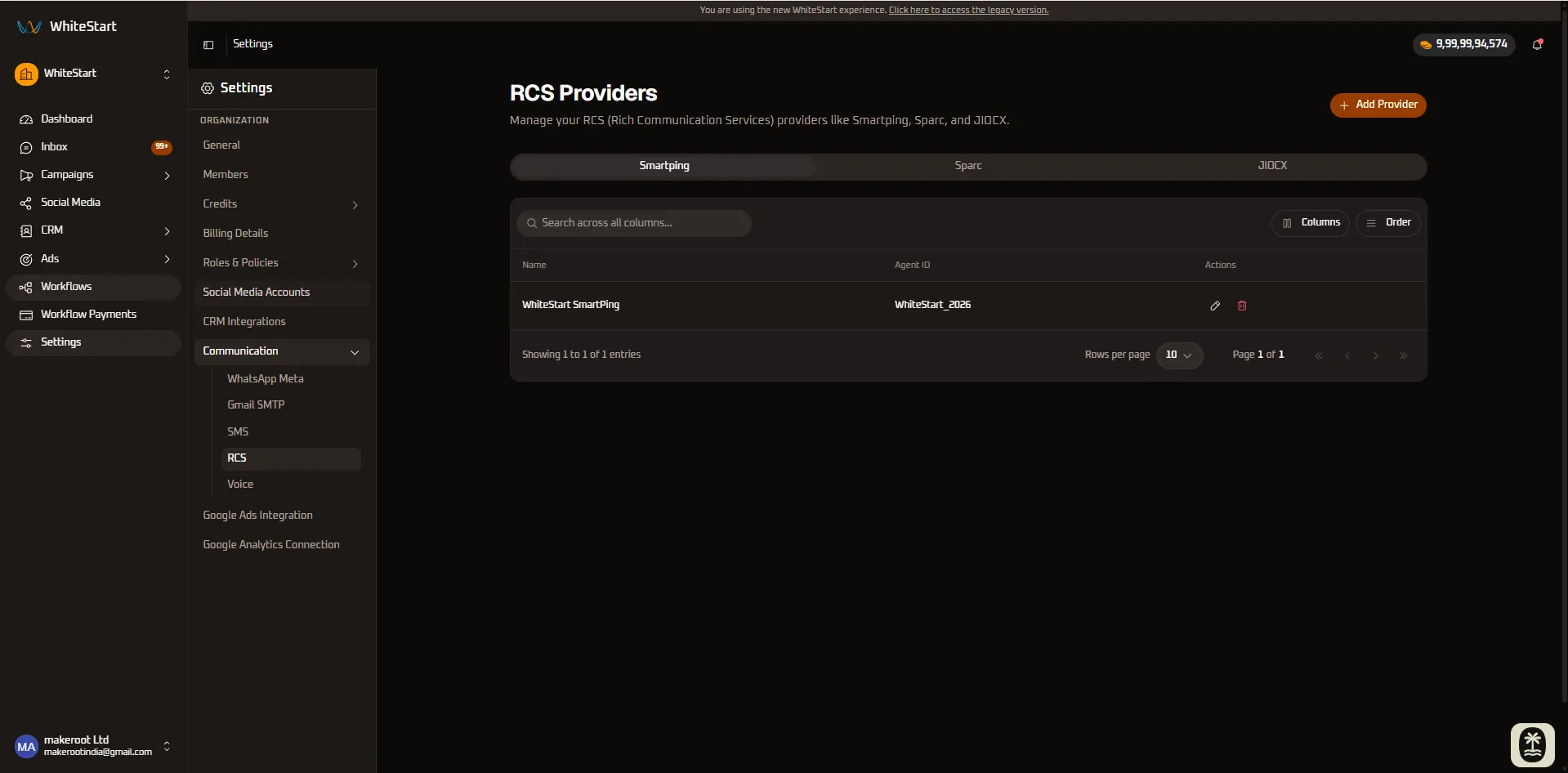
Connected RCS Providers Directory
Section titled “Connected RCS Providers Directory”The RCS console organizes authorized carrier gateways by aggregator tabs (Smartping, Sparc, JIOCX):
- Name: The internal friendly identifier assigned to the RCS bot (e.g.,
WhiteStart SmartPing). - Agent ID: The official Google RBM (RCS Business Messaging) or carrier agent identifier (e.g.,
WhiteStart_2026). - Actions:
✏️ Edit(Pencil Icon): Update agent credentials, API keys, brand colors, cover assets, or endpoint URLs.🗑️ Delete(Trash Icon): Remove the RCS carrier gateway and decommission bot routing.
Connecting an RCS Carrier Gateway
Section titled “Connecting an RCS Carrier Gateway”To provision a new RCS bot or gateway:
- In the sidebar under Communication, select RCS.
- Click the orange + Add Provider button in the top right corner.
- The provider selector modal opens:
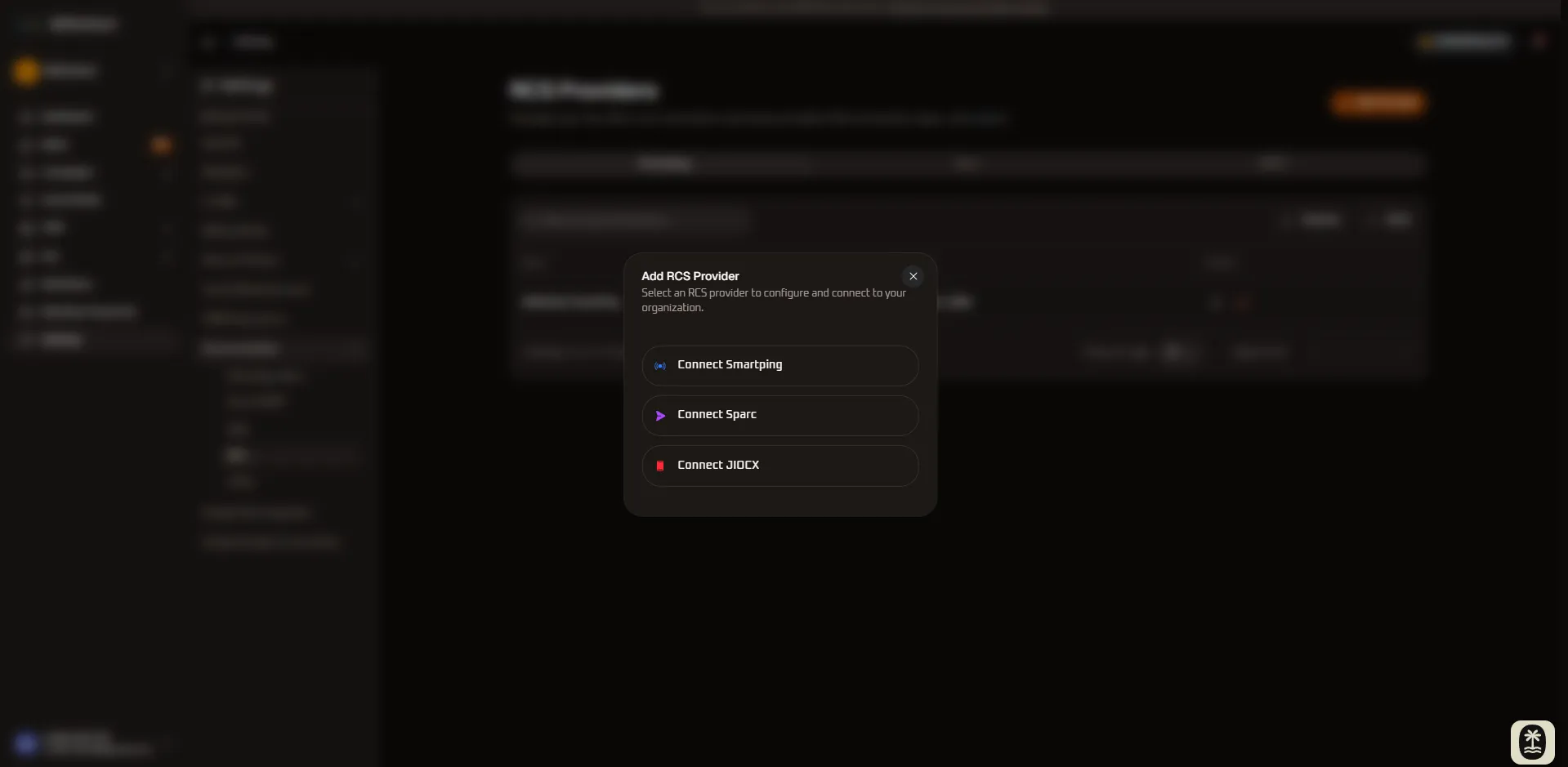
- Select your preferred RCS carrier partner:
- Connect Smartping
- Connect Sparc
- Connect JIOCX
1. SmartPing RCS Gateway Configuration
Section titled “1. SmartPing RCS Gateway Configuration”SmartPing connects directly to enterprise carrier RBM infrastructure for rapid transactional card delivery:
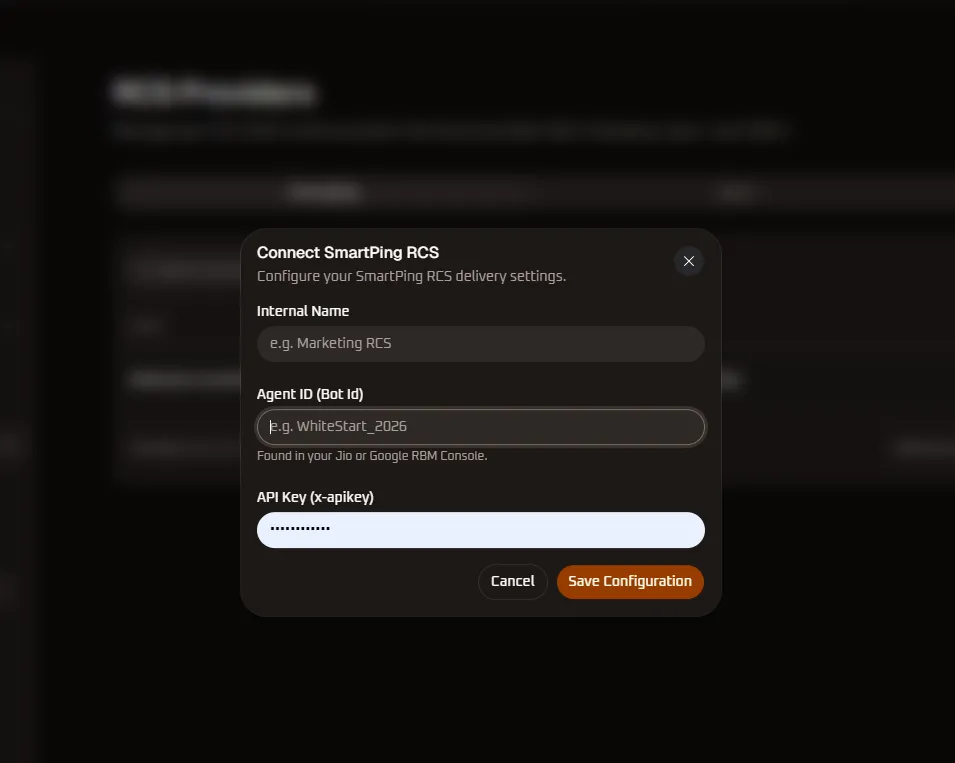
Step-by-Step Setup:
Section titled “Step-by-Step Setup:”- Click Connect Smartping in the provider selector modal.
- Complete the carrier identification parameters:
- Internal Name: Enter a recognizable name for internal tracking (e.g.,
Marketing RCS,Support Bot). - Agent ID (Bot Id): Enter your verified Bot ID registered in the Jio or Google RBM Console (e.g.,
WhiteStart_2026). - API Key (x-apikey): Provide your private carrier authentication key (
x-apikey).
- Internal Name: Enter a recognizable name for internal tracking (e.g.,
- Click Save Configuration to register the gateway.
2. Sparc RCS Business Assistant Creation Wizard
Section titled “2. Sparc RCS Business Assistant Creation Wizard”Sparc provides an end-to-end 5-step visual onboarding wizard with a real-time interactive Android phone mockup that renders your brand assets dynamically:
Step 1: Basic Assistant Details
Section titled “Step 1: Basic Assistant Details”Configure the core operational category and billing structure for the assistant:
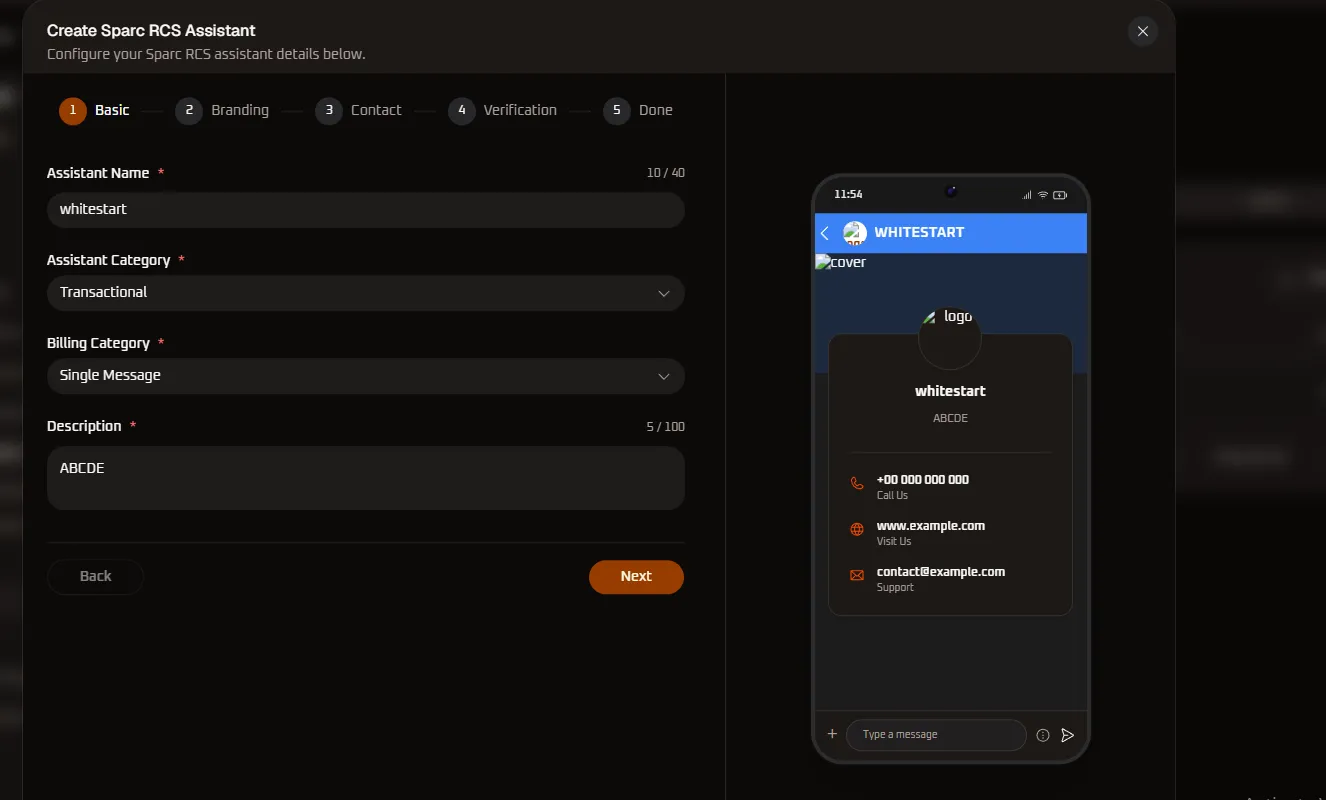
- Assistant Name * (Max 40 characters): Enter the public brand name displayed in the Google Messages top bar (e.g.,
whitestart). - Assistant Category *: Select your primary messaging intent (Transactional, Customer Care, or Promotional).
- Billing Category *: Select your carrier billing tier (Single Message or Conversational Session).
- Description * (Max 100 characters): Provide a concise summary of your business displayed in the verified profile card.
- Click Next →.
Step 2: Branding & Visual Customization
Section titled “Step 2: Branding & Visual Customization”Customize the look and feel of your verified RCS profile:
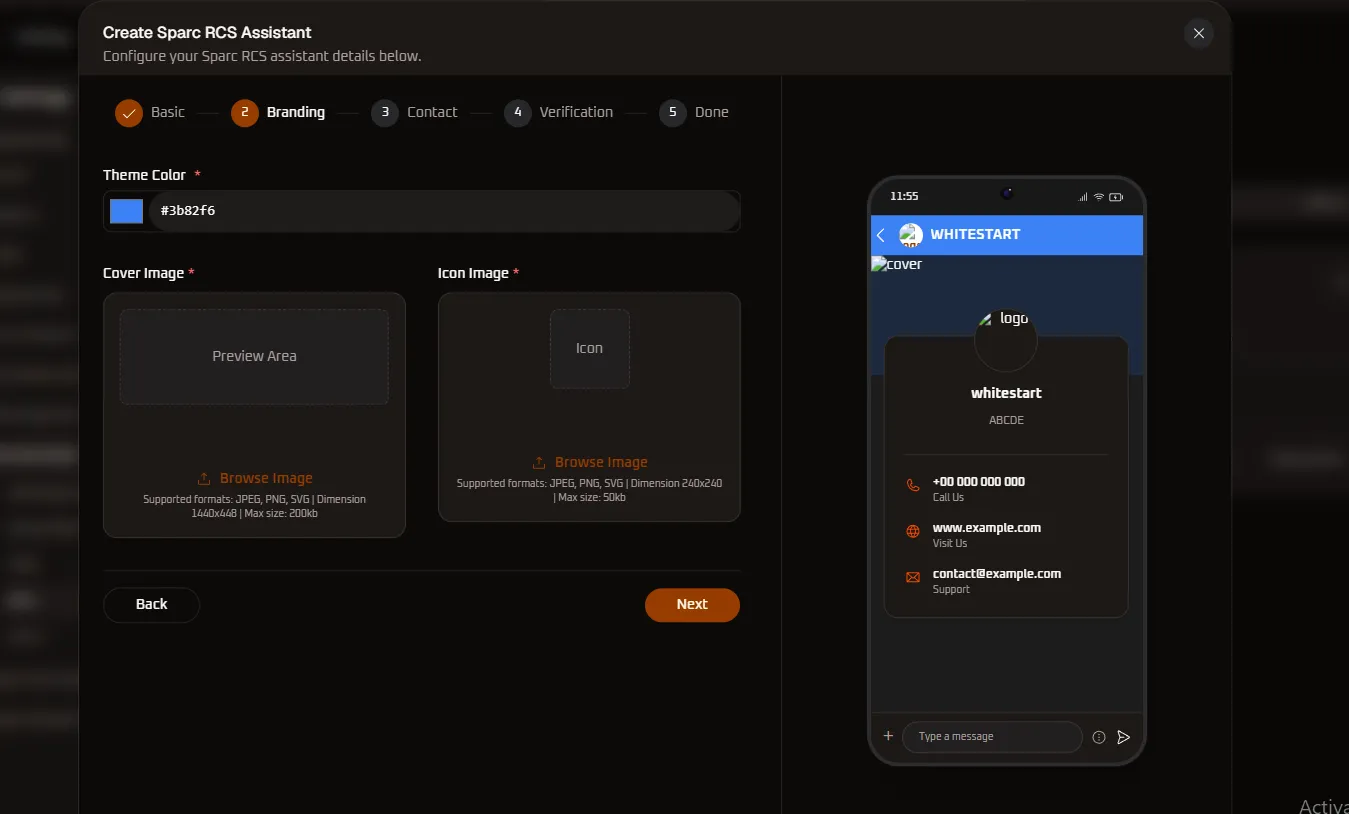
- Theme Color *: Select or enter a hex color code (e.g.,
#3b82f6). This color brands the Google Messages chat header, quick reply chips, action buttons, and conversation accent elements. - Cover Image *: Upload your brand’s hero banner displayed at the top of the agent details card:
- Supported Formats:
JPEG,PNG,SVG - Required Dimensions:
1440 × 448 px - Maximum File Size:
200 KB
- Supported Formats:
- Icon Image *: Upload your official circular brand avatar / logo:
- Supported Formats:
JPEG,PNG,SVG - Required Dimensions:
240 × 240 px - Maximum File Size:
50 KB
- Supported Formats:
- The live Android device mockup on the right instantly reflects the uploaded visual assets.
- Click Next →.
Step 3: Contact & Legal Verification Details
Section titled “Step 3: Contact & Legal Verification Details”Provide verifiable organization details required by telecom operators and Google RBM:
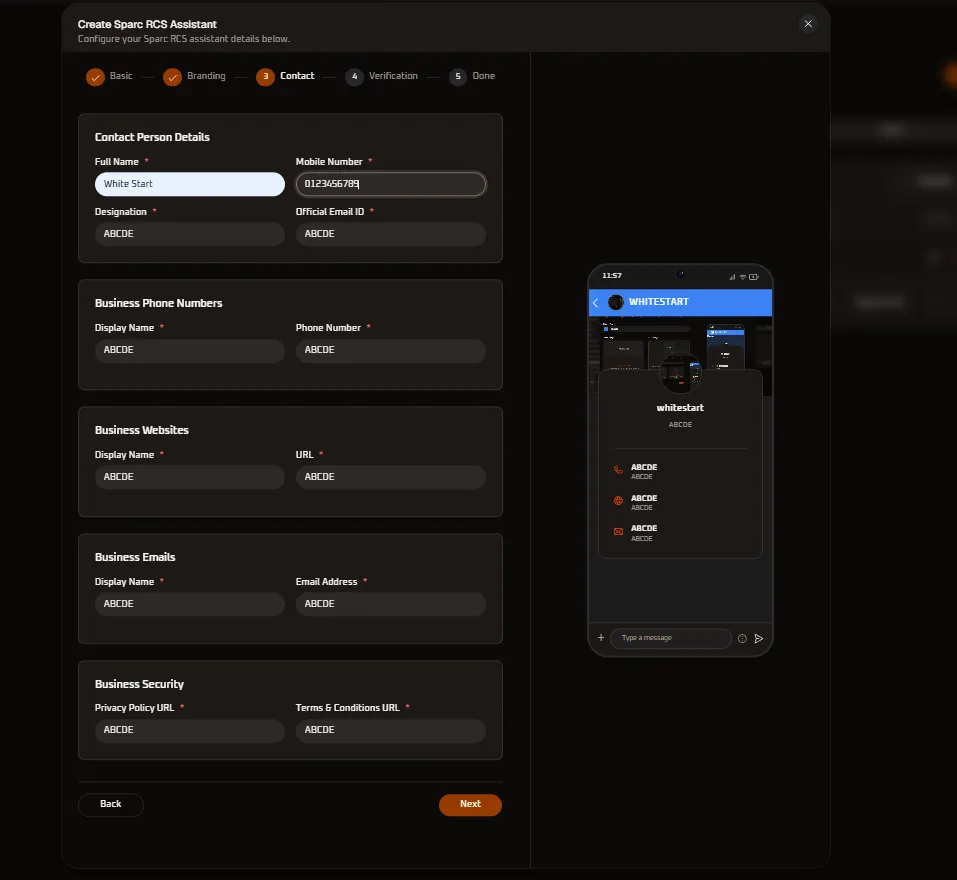
- Contact Person Details:
- Full Name *: Authorized corporate representative (e.g.,
White Start). - Mobile Number *: Direct verification phone number.
- Designation *: Corporate role or title.
- Official Email ID *: Company domain email address.
- Full Name *: Authorized corporate representative (e.g.,
- Business Phone Numbers: Add customer support numbers that automatically render as clickable “Call Us” buttons on Android devices.
- Business Websites: Enter your primary website URL that renders as a “Visit Us” quick action button.
- Business Emails: Enter customer support mailboxes that render as a direct “Support” action button.
- Business Security: Provide public links to your organization’s mandatory Privacy Policy URL and Terms & Conditions URL for regulatory compliance.
- Click Next →.
Step 4: Verification & Regulatory Opt-In Consent
Section titled “Step 4: Verification & Regulatory Opt-In Consent”Carrier compliance and Google RBM guidelines require explicit opt-in proof and user consent mechanisms:
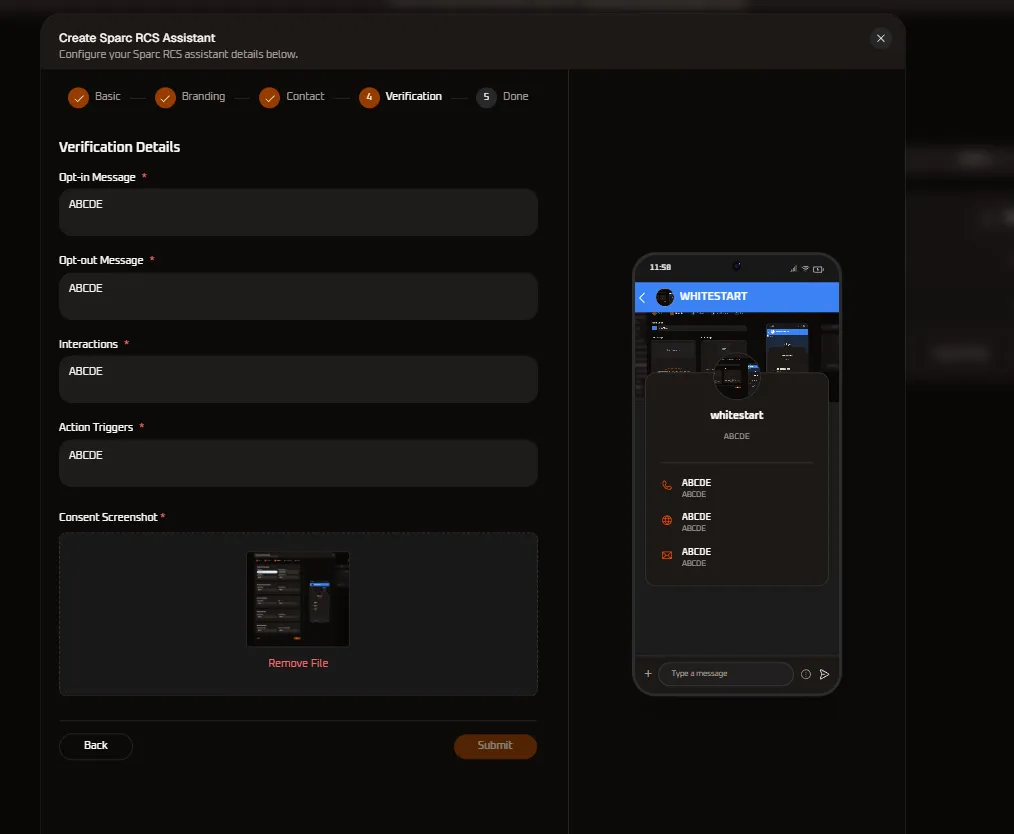
- Opt-in Message *: Define the mandatory opt-in notification presented to users before rich messaging begins.
- Opt-out Message *: Specify the mandatory unsubscribe instruction (e.g., “Reply STOP to unsubscribe”).
- Interactions *: Describe typical conversational journeys, menu button trees, and expected bot responses.
- Action Triggers *: Define triggers, webhook events, or campaign keywords that initiate assistant dispatches.
- Consent Screenshot *: Upload visual proof (e.g., web checkout checkbox, landing page form, or physical agreement) demonstrating where users provide verifiable consent to receive RCS communications.
- Click Submit to dispatch the application for carrier approval.
Step 5: Carrier Verification & Live Activation (Done)
Section titled “Step 5: Carrier Verification & Live Activation (Done)”- Carrier Review Pipeline: Sparc routes the assistant application through Google RBM and designated telecommunication operator networks (Jio, Airtel, Vodafone Idea).
- Live Deployment: Upon validation (typically 24–48 business hours), the agent is provisioned with a verified Google blue checkmark badge and is automatically enabled across WhiteStart’s visual workflow builder and broadcast engines.
3. JIOCX RCS Gateway Configuration
Section titled “3. JIOCX RCS Gateway Configuration”Connect directly to Reliance Jio’s native enterprise cloud telecommunications infrastructure:
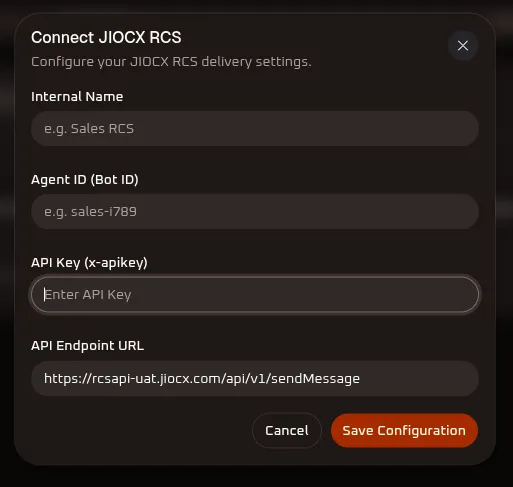
Step-by-Step Setup:
Section titled “Step-by-Step Setup:”- Click Connect JIOCX in the provider selector modal.
- Enter the carrier API parameters:
- Internal Name: Descriptive name for internal routing (e.g.,
Sales RCS). - Agent ID (Bot ID): Verified Jio RCS agent identifier (e.g.,
sales-i789). - API Key (x-apikey): Your private JIOCX authentication header key.
- API Endpoint URL: Carrier dispatch endpoint (e.g.,
https://rcsapi-uat.jiocx.com/api/v1/sendMessage).
- Internal Name: Descriptive name for internal routing (e.g.,
- Click Save Configuration to activate the gateway.
Core Operational Capabilities of Verified RCS
Section titled “Core Operational Capabilities of Verified RCS”1. Verified Sender Branding & Fraud Protection
Section titled “1. Verified Sender Branding & Fraud Protection”RCS replaces raw phone numbers with verified corporate brand names, high-resolution logos, and verified checkmark badges, eliminating phishing risks and boosting message open rates by over 40%.
2. Interactive Rich Media Carousels
Section titled “2. Interactive Rich Media Carousels”Deliver horizontal scrollable cards with high-resolution hero images, formatted markdown titles, descriptions, and up to four interactive action buttons per card.
3. One-Tap Suggested Actions & Quick Replies
Section titled “3. One-Tap Suggested Actions & Quick Replies”Enable recipients to interact with a single tap:
- Open URL: Direct users to specific landing pages, tracking links, or payment checkout portals.
- Dial Phone Number: Launch the native phone dialer with pre-populated phone numbers.
- View Location: Display interactive map coordinates for physical store locations.
- Create Calendar Event: Add webinar or appointment invites directly to Google Calendar.
4. Read Receipts & Typing Indicators
Section titled “4. Read Receipts & Typing Indicators”Gain complete transparency into customer engagement with real-time delivery confirmations, read receipts, and typing indicators identical to modern instant messaging apps.
Role-Based Access Control (RBAC) Permissions
Section titled “Role-Based Access Control (RBAC) Permissions”Managing RCS gateways is governed by permissions under the Messaging: RCS entity group in Roles & Policies:
| Privilege Level | Permission Name | Operational Scope |
|---|---|---|
| Add RCS Gateway | Can add RCS configuration |
Provision new Smartping, Sparc, or JIOCX RCS carrier gateways and launch new assistants. |
| Modify RCS Gateway | Can change RCS configuration |
Update bot IDs, brand colors, cover assets, interactive action chips, or endpoint URLs. |
| Remove RCS Gateway | Can delete RCS configuration |
Decommission verified RCS agents or unlink carrier aggregators. |
| View RCS Gateway | Can view RCS configuration |
Access the RCS tab, inspect verified assistants, carrier status, and delivery metrics. |
7. Section 5: Voice & IVR Telephony Providers
Section titled “7. Section 5: Voice & IVR Telephony Providers”WhiteStart’s Voice & IVR telephony subsystem orchestrates automated high-throughput outbound calling (OBD), multi-level Interactive Voice Response (IVR) phone menus, automated call routing, speech synthesis alerts, and agent-lead call bridging across major enterprise telecommunication carriers (Smartping, Sparc, and JIOCX).
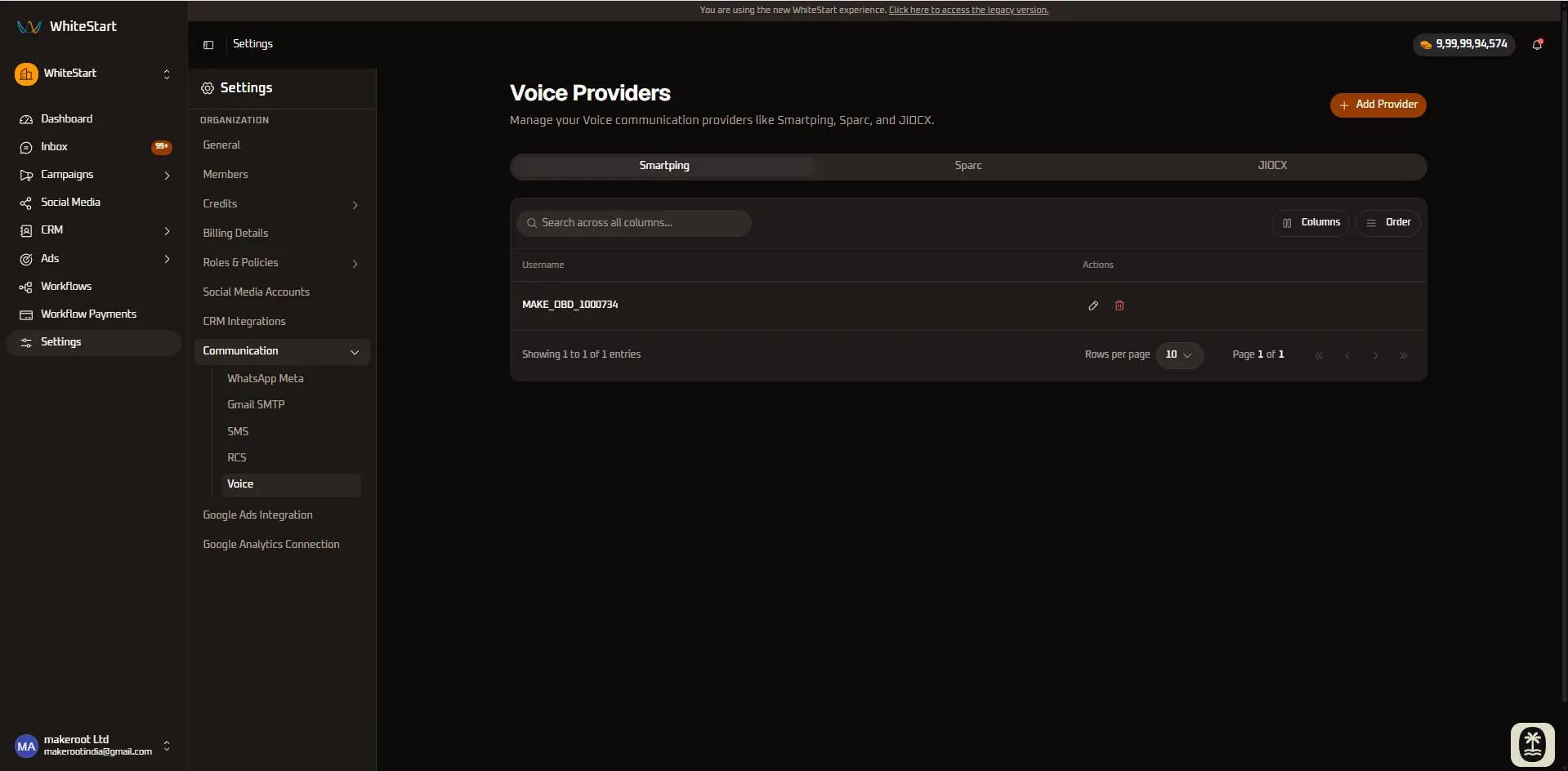
Connected Voice Providers Directory
Section titled “Connected Voice Providers Directory”The Voice management directory organizes provisioned telephony lines and trunks across carrier tabs (Smartping, Sparc, JIOCX):
- Username: The authenticated SIP username, trunk identifier, or OBD account handle (e.g.,
MAKE_OBD_1000734). - Actions:
✏️ Edit(Pencil Icon): Update telephony authentication credentials, SIP credentials, or caller ID routing.🗑️ Delete(Trash Icon): Disconnect the telephony trunk and remove carrier routing.
Connecting a Voice / IVR Provider
Section titled “Connecting a Voice / IVR Provider”To link an outbound dialer or IVR voice trunk:
- In the sidebar under Communication, select Voice.
- Click the orange + Add Provider button in the top right corner.
- The provider selector modal appears:
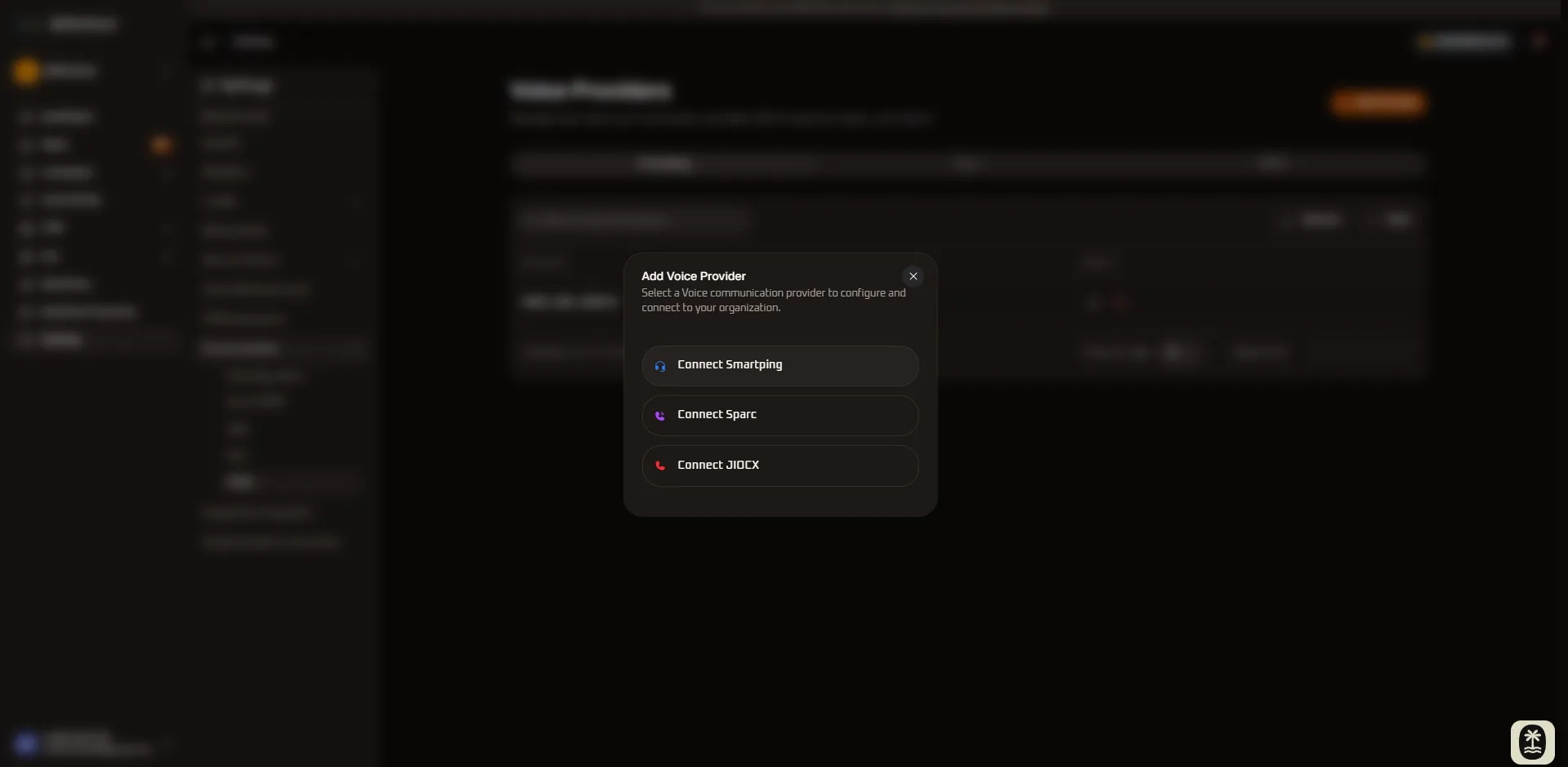
- Choose your voice telephony partner:
- Connect Smartping
- Connect Sparc
- Connect JIOCX
1. SmartPing Voice (OBD & IVR) Configuration
Section titled “1. SmartPing Voice (OBD & IVR) Configuration”SmartPing provides automated dialer routes optimized for high-volume voice broadcasts and automated reminder calls:
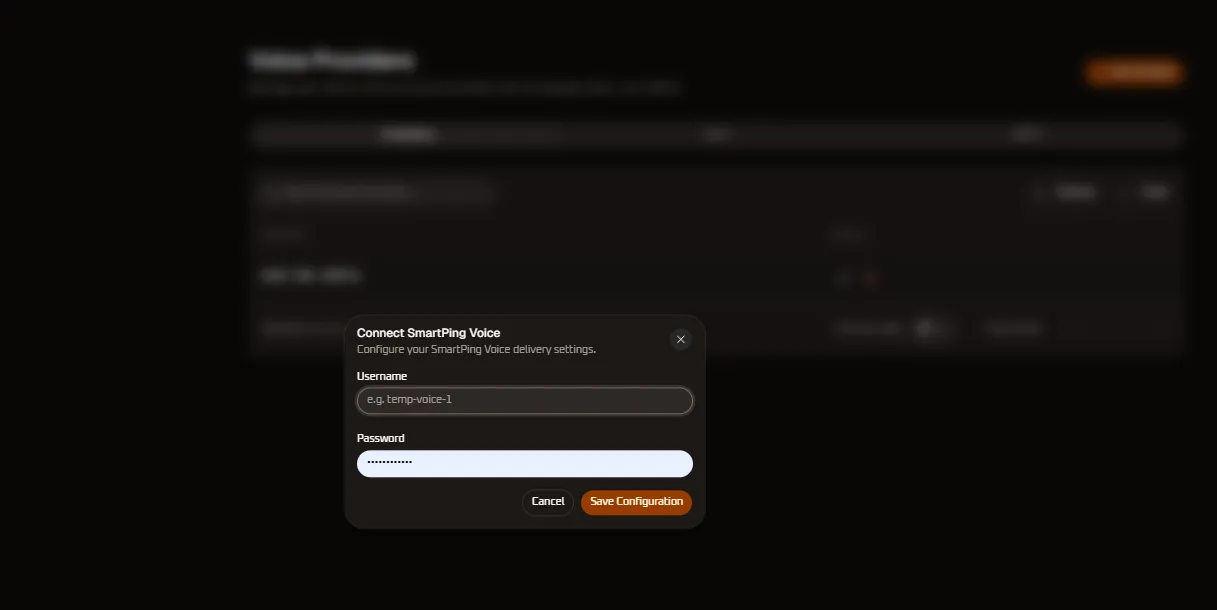
Step-by-Step Setup:
Section titled “Step-by-Step Setup:”- Click Connect Smartping in the provider selector modal.
- Complete the carrier credentials:
- Username: Enter your assigned SmartPing voice account or trunk handle (e.g.,
temp-voice-1orMAKE_OBD_1000734). - Password: Enter your secure telephony service password or API secret.
- Username: Enter your assigned SmartPing voice account or trunk handle (e.g.,
- Click Save Configuration to verify SIP/HTTP bindings and activate voice trunking.
2. Sparc Voice (Enterprise Telephony) Configuration
Section titled “2. Sparc Voice (Enterprise Telephony) Configuration”Sparc delivers interactive multi-level IVR telephony infrastructure with dynamic call bridging and DTMF response collection:
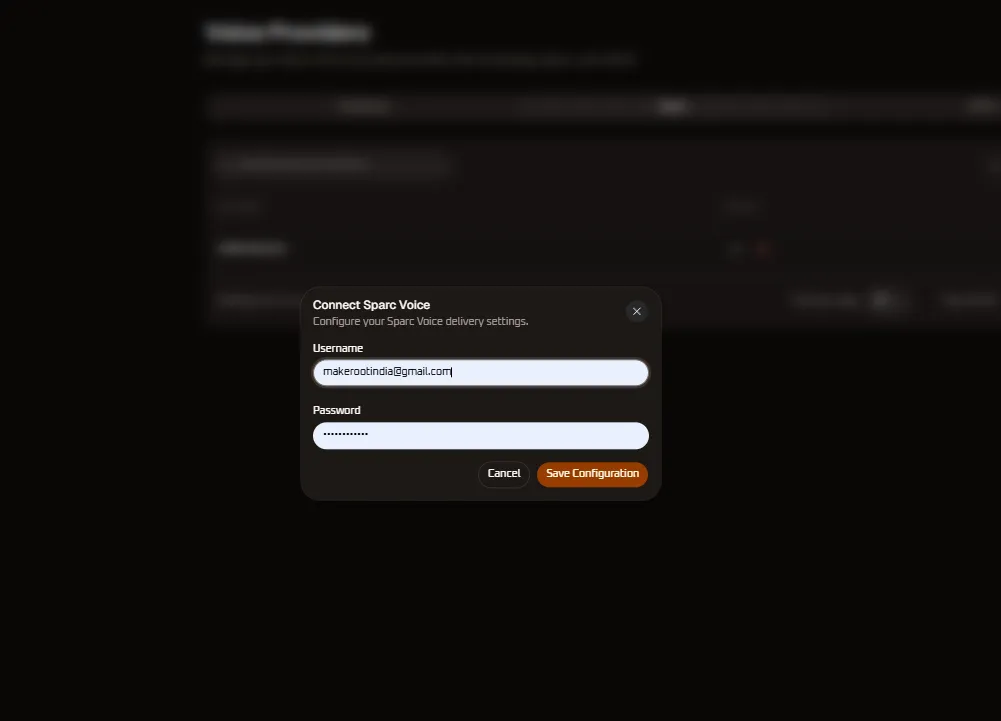
Step-by-Step Setup:
Section titled “Step-by-Step Setup:”- Click Connect Sparc in the provider selector modal.
- Complete the carrier credentials:
- Username: Enter your Sparc administrative voice account email or trunk ID (e.g.,
[email protected]). - Password: Enter your Sparc telephony API token or password.
- Username: Enter your Sparc administrative voice account email or trunk ID (e.g.,
- Click Save Configuration to register the telephony gateway.
3. JIOCX Voice Gateway Configuration
Section titled “3. JIOCX Voice Gateway Configuration”JIOCX provides carrier-native voice termination across Reliance Jio’s pan-national telecommunications grid for high-concurrency automated dialer campaigns:
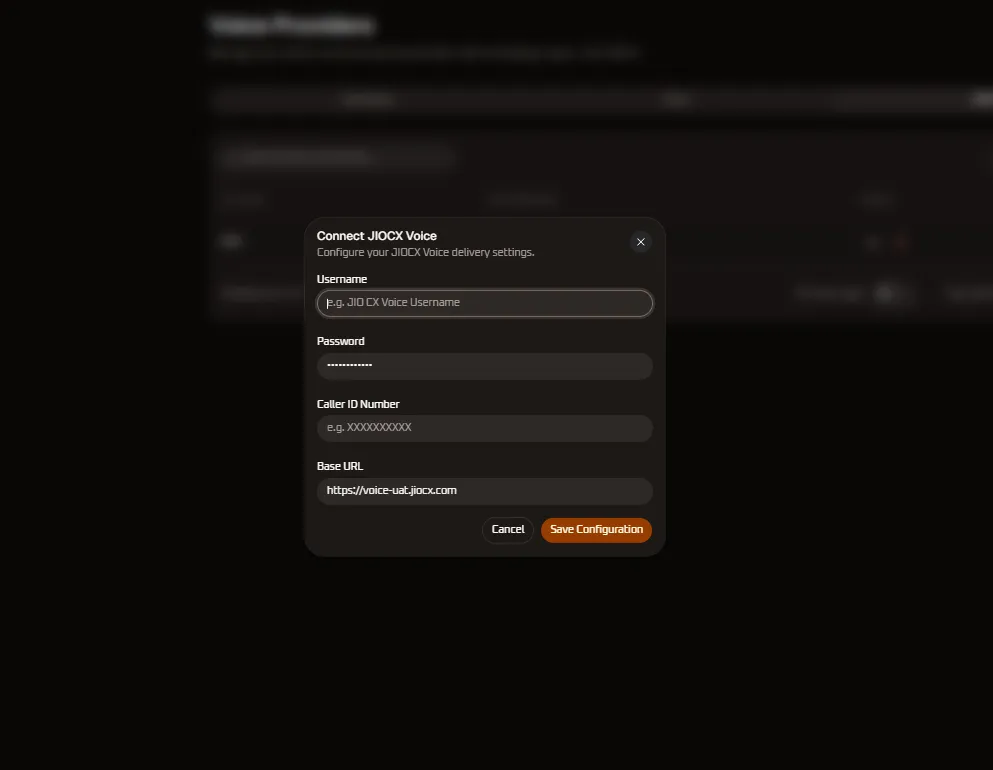
Step-by-Step Setup:
Section titled “Step-by-Step Setup:”- Click Connect JIOCX in the provider selector modal.
- Complete the carrier telephony parameters:
- Username: Enter your assigned JIO CX enterprise voice account username (e.g.,
JIO CX Voice Username). - Password: Enter your secure telephony service password.
- Caller ID Number: Enter the dedicated virtual caller ID / pilot number (e.g.,
XXXXXXXXXX) that will display on recipient phone screens during outbound calls. - Base URL: Enter the carrier API dispatch endpoint (default:
https://voice-uat.jiocx.com).
- Username: Enter your assigned JIO CX enterprise voice account username (e.g.,
- Click Save Configuration to verify connection handshake and activate carrier routing.
Core Operational Capabilities of Voice & IVR
Section titled “Core Operational Capabilities of Voice & IVR”1. Outbound Automated Dialer (OBD) Campaigns
Section titled “1. Outbound Automated Dialer (OBD) Campaigns”Broadcast pre-recorded audio messages, synthetic Text-to-Speech (TTS) announcements, and urgent payment reminders to thousands of contacts simultaneously with automated retry logic on busy or unanswered calls.
2. Interactive Multi-Level IVR Menus
Section titled “2. Interactive Multi-Level IVR Menus”Design visual IVR phone trees where callers navigate menus using keypad DTMF tones (e.g., “Press 1 for Sales, Press 2 to track an order, Press 0 to speak with an agent”).
3. Real-Time Agent-Lead Call Bridging
Section titled “3. Real-Time Agent-Lead Call Bridging”When a high-value lead requests an immediate callback through WhatsApp or website live chat, WhiteStart triggers an instant dual-leg call: first ringing the available sales rep, then bridging the prospective client seamlessly.
4. Call Recording, Transcripts & Analytics
Section titled “4. Call Recording, Transcripts & Analytics”Maintain compliance and quality assurance with automated cloud call recording, duration tracking, DTMF response analytics, and automated CRM logging.
Role-Based Access Control (RBAC) Permissions
Section titled “Role-Based Access Control (RBAC) Permissions”Managing voice and IVR telephony gateways is governed by permissions under the Messaging: Voice and IVR entity group in Roles & Policies:
| Privilege Level | Permission Name | Operational Scope |
|---|---|---|
| Add Voice Trunk | Can add IVR configuration |
Connect new telephony aggregators (Smartping, Sparc, JIOCX) and provision OBD gateways. |
| Modify Voice Trunk | Can change IVR configuration |
Update telephony usernames, passwords, caller ID routes, or speech synthesis settings. |
| Remove Voice Trunk | Can delete IVR configuration |
Unlink telephony providers and decommission voice trunks. |
| View Voice Trunk | Can view IVR configuration |
Access the Voice tab, view active lines, line health, and check call throughput metrics. |
8. Quick Reference Summary
Section titled “8. Quick Reference Summary”| Channel | Supported Providers | Authentication / Identifier | Primary Use Case |
|---|---|---|---|
| WhatsApp Meta | Meta Cloud API | WABA ID & Phone Number | Conversational messaging, customer support, and in-chat payments. |
| Gmail SMTP | WhiteStart Mail / Custom SMTP | OAuth 2.0 / SMTP Credentials | Transactional email alerts, lead confirmations, and drip sequences. |
| SMS | Smartping, JIOCX, MSG91 | DLT Entity ID & Sender Header | OTP dispatches, time-sensitive alerts, and bulk text marketing. |
| RCS | Smartping, Sparc, JIOCX | Google Verified Agent ID | Interactive rich cards, carousels, and suggested actions on Android. |
| Voice / OBD | Smartping, Sparc, JIOCX | Carrier SIP / HTTP Credentials | Automated appointment reminder calls, IVR menus, and audio broadcasts. |