
Data Tables
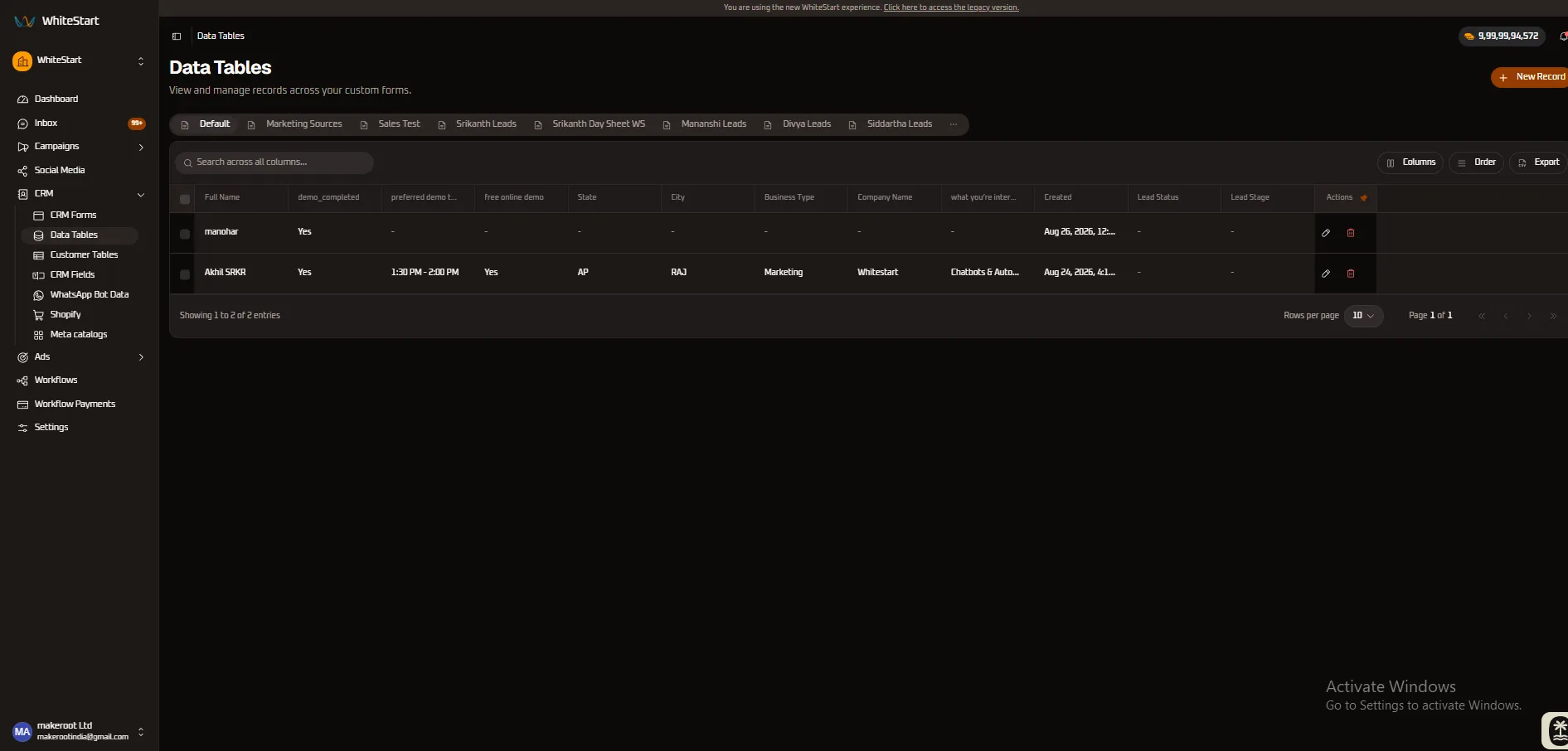
The Data Tables module in WhiteStart provides a unified records console where teams can inspect, filter, modify, export, and manually create customer submissions captured across all form templates. Whether responses are collected via automated WhatsApp bots, digital marketing campaigns, web forms, or agent intake, Data Tables consolidates every lead into structured, tabbed views.
Overview
Section titled “Overview”Every form template created in the CRM Forms module automatically generates a corresponding tab in Data Tables. As customer data enters WhiteStart, records are mapped to the active schema of that specific form, ensuring consistent column definitions, field validations, and lead tracking.
Key Capabilities
Section titled “Key Capabilities”- Dynamic Schema-Driven Tabs: Seamlessly switch between different lead pipelines and custom form views (e.g., Default, Marketing Sources, Sales Test, Regional Leads).
- Granular Viewport Customization: Toggle individual column visibility via
[ Columns ]and customize column display sequences using drag-and-drop reordering via[ Order ]. - Column-Level Header Controls: Apply multi-field sorting (
Ascending/Descending), boundary freezing (Pin Left/Pin Right/Unpin), and selective column hiding. - Manual Record Entry (
+ New Record): Empower agents to directly add walk-in, inbound call, or offline customer inquiries with schema-adaptive input modals. - Standardized Dropdowns: Leverage built-in dropdowns for Lead Sources, Service Interests, and Lead Stages to eliminate free-text errors and ensure clean reporting.
- One-Click CSV Export: Export filtered or full dataset tables directly to CSV for external reporting and spreadsheet analysis.
Accessing Data Tables
Section titled “Accessing Data Tables”Access the Data Tables console via the primary left-hand navigation sidebar:
Main Sidebar ➔ CRM ➔ Data Tables- Click on CRM in the left sidebar to expand the CRM navigation group.
- Select Data Tables.
- The dashboard loads the default form tab along with all custom form tabs configured in your workspace.
Alternatively, clicking the orange View button in the Data column of any form in CRM Forms routes you directly to that form’s tab inside Data Tables.
Dashboard Layout & Controls
Section titled “Dashboard Layout & Controls”The Data Tables console features a tabbed header, advanced table toolbar, and dynamic data grid:
+─────────────────────────────────────────────────────────────────────────────────────────────+| Data Tables [ + New Record ] || View and manage records across your custom forms. |+─────────────────────────────────────────────────────────────────────────────────────────────+| [ Default ] [ Marketing Sources ] [ Sales Test ] [ Srikanth Leads ] ... |+─────────────────────────────────────────────────────────────────────────────────────────────+| [Q Search across all columns... ] [|| Columns] [= Order] [CSV Export] |+─────────────────────────────────────────────────────────────────────────────────────────────+| [ ] Full Name demo_completed State City Company what you're interested in? Actions 📌|+─────┼───────────┼───────────────┼──────┼─────┼────────┼───────────────────────────┼─────────+| [ ] | manohar | Yes | - | - | - | - | ✏️ 🗑️ || [ ] | Akhil SRKR| Yes | AP | RAJ | White..| Chatbots & Automation | ✏️ 🗑️ |+─────┴───────────┴───────────────┴──────┴─────┴────────┴───────────────────────────┴─────────+| Showing 1 to 2 of 2 entries Rows per page: [ 10 v ] Page 1 of 1 |+─────────────────────────────────────────────────────────────────────────────────────────────+Primary Toolbar Controls
Section titled “Primary Toolbar Controls”- Global Search Bar (
Search across all columns...): Instant omni-column query field that filters records live on each keystroke without reloading the page. [ Columns ]Visibility Selector: Dropdown checklist allowing users to show or hide specific table columns.[ Order ]Column Sequence Organizer: Drag-and-drop tool to arrange the sequence of table columns according to team preference.[ Export ]: One-click CSV exporter that downloads the visible dataset respecting active filters.+ New RecordButton: Primary action that launches the schema-adaptive manual record creation modal.
Dynamic Column Visibility & Sequence Ordering
Section titled “Dynamic Column Visibility & Sequence Ordering”WhiteStart gives teams complete control over their table presentation through dedicated toolbar controls:
Column Visibility Management ([ Columns ])
Section titled “Column Visibility Management ([ Columns ])”Clicking the [ Columns ] button launches the field visibility selector:
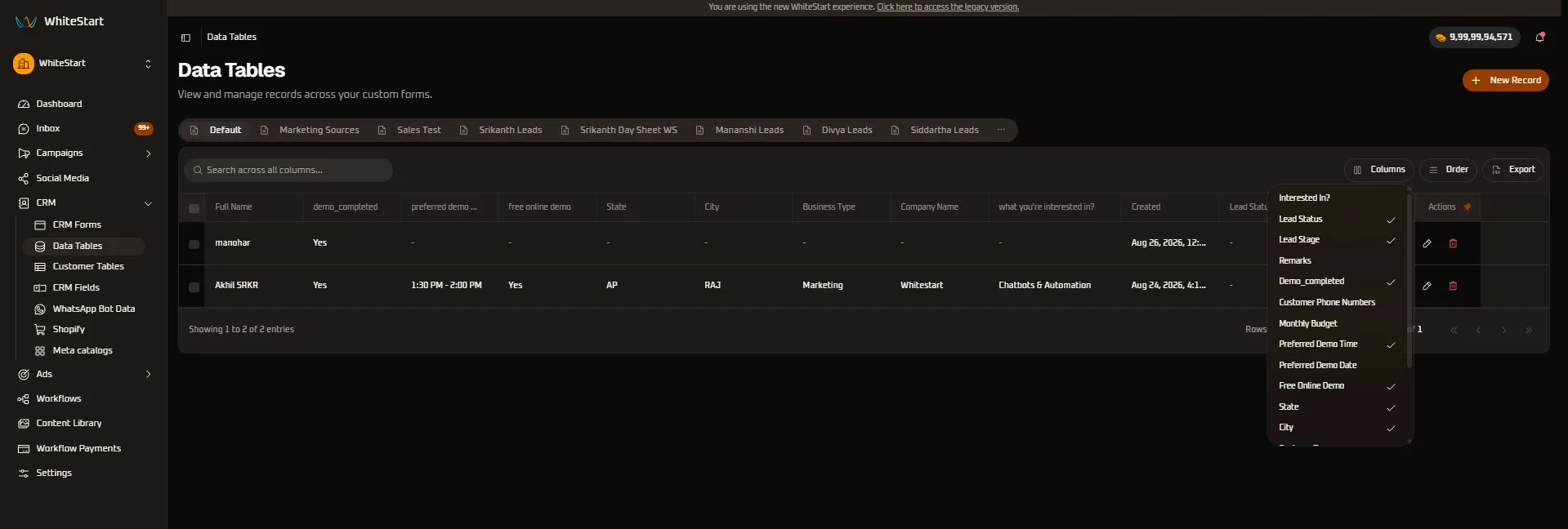
- Selective Attribute Display: Toggle checkboxes on or off for fields such as
Interested In?,Lead Status,Lead Stage,Remarks,Demo_completed,Customer Phone Numbers,Monthly Budget,Preferred Demo Time,Free Online Demo,State, andCity. - Workspace Optimization: Non-technical sales reps can hide secondary technical fields to maintain a focused view centered on prospect names, demo times, and contact numbers.
Dynamic Column Sequence Ordering ([ Order ])
Section titled “Dynamic Column Sequence Ordering ([ Order ])”Clicking the [ Order ] button opens the drag-and-drop sequence organizer:
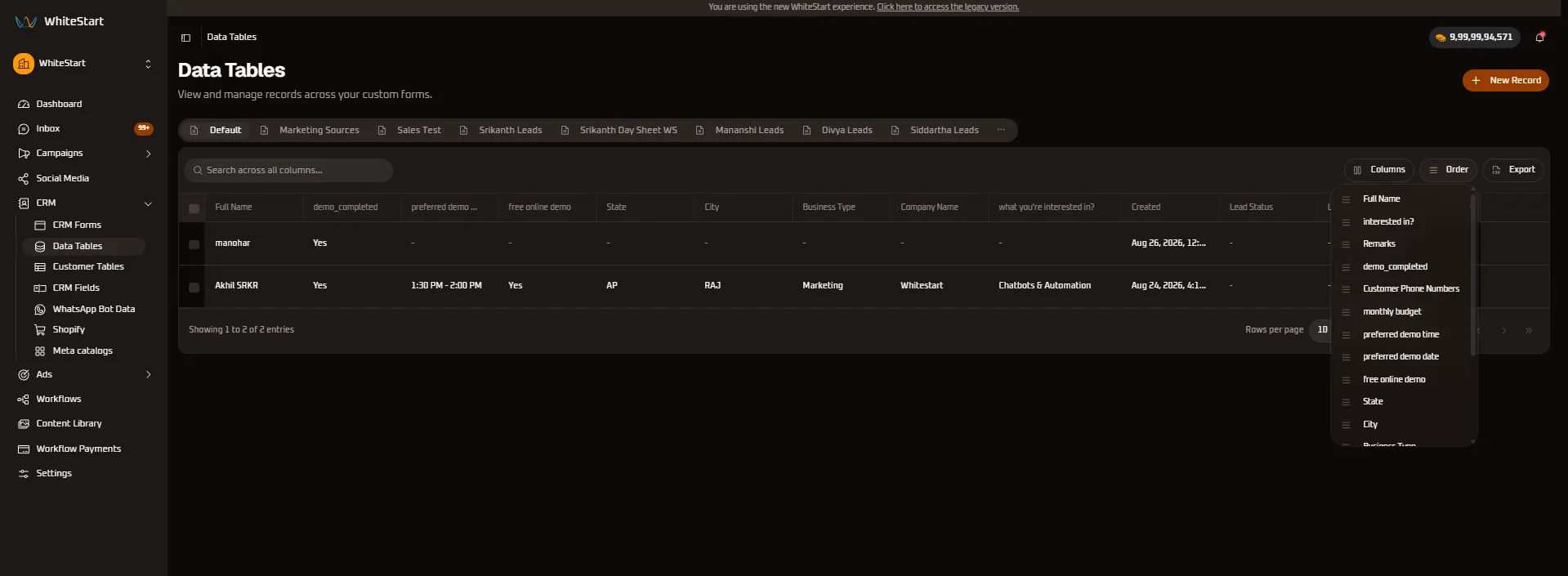
- Drag-and-Drop Sequencing (
≡): Click and drag the handle next to any column name (≡ Full Name,≡ interested in?,≡ Remarks,≡ demo_completed,≡ Customer Phone Numbers,≡ monthly budget,≡ preferred demo time,≡ State,≡ City) up or down. - Custom Priority Layout: Move high-priority attributes (such as
preferred demo timeorLead Status) directly next toFull Namefor rapid lead triage without excessive horizontal scrolling.
Interactive Column Header Operations (Sorting, Pinning & Hiding)
Section titled “Interactive Column Header Operations (Sorting, Pinning & Hiding)”Every column header features an integrated action menu (accessible via the ≡ or dropdown trigger) empowering users to customize their working grid.
1. Contact Identity & Demographics Columns
Section titled “1. Contact Identity & Demographics Columns”Freeze identifiers to maintain context while scrolling through multi-column submission datasets:
- Full Name Column Controls: Sort leads alphabetically (
Ascending/Descending), freeze lead identity (Pin Left/Pin Right), or suppress the column.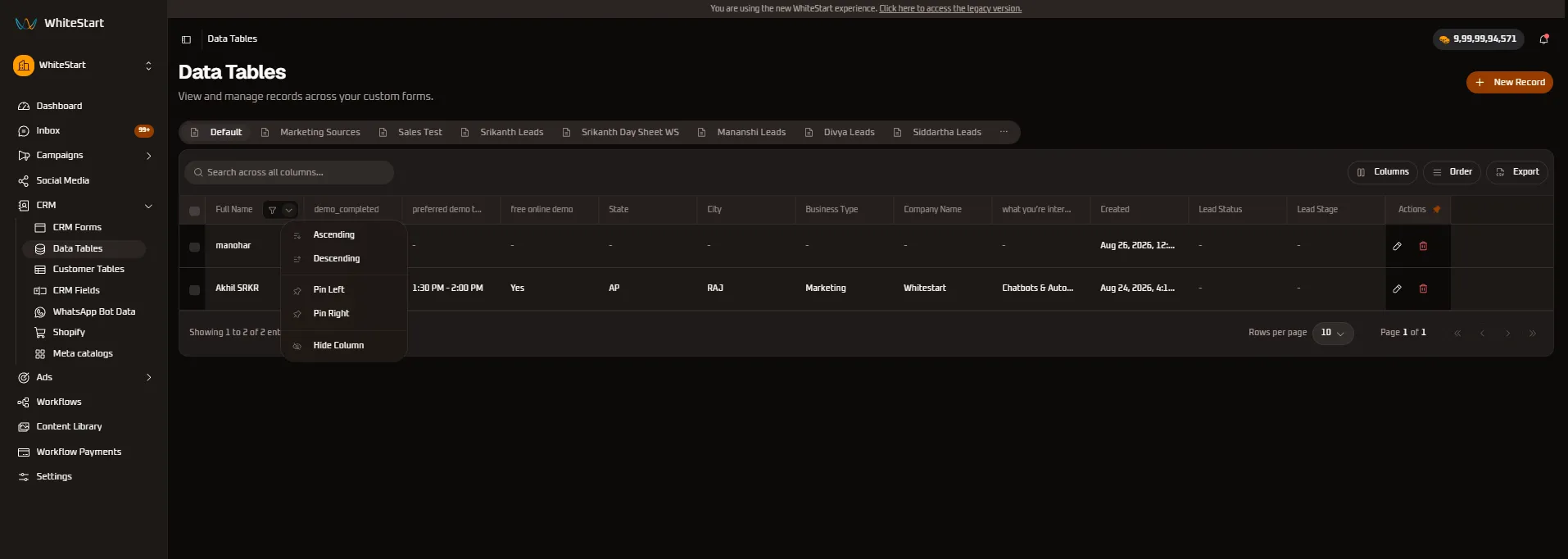
- Company Name Column Controls: Group B2B prospects by enterprise brand or freeze the company column for organizational clarity.
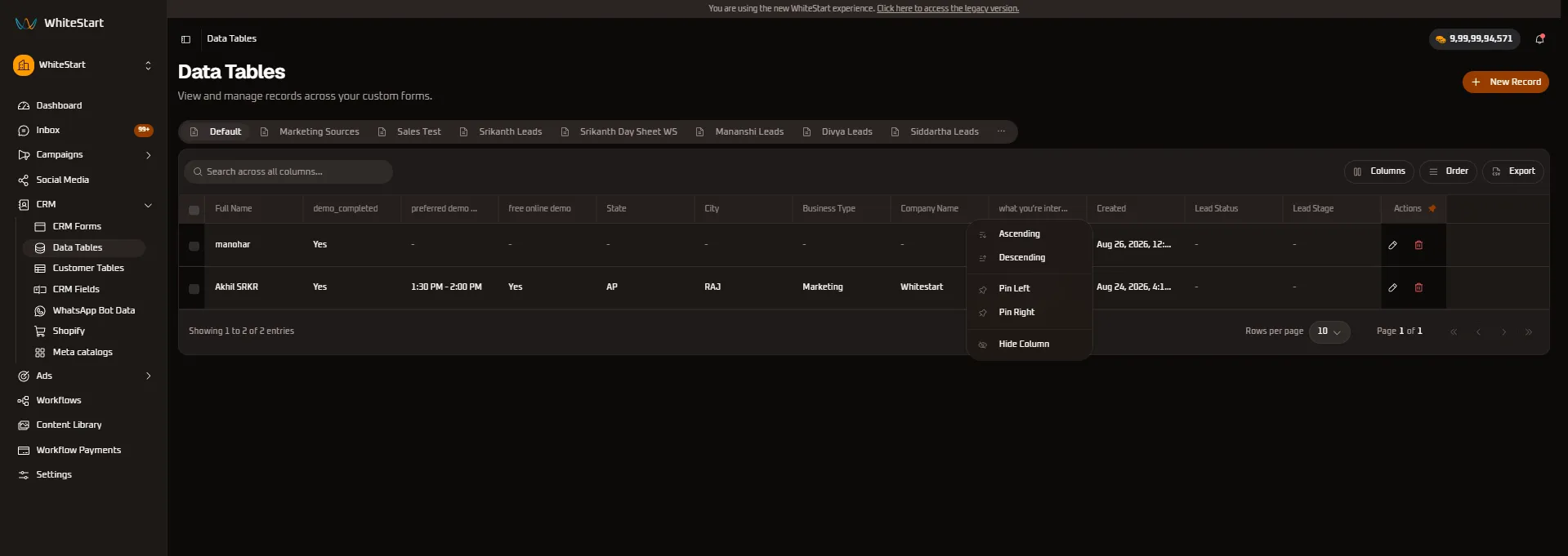
- Business Type Column Controls: Sort and filter records by industry vertical (e.g., Real Estate, Healthcare, Marketing).
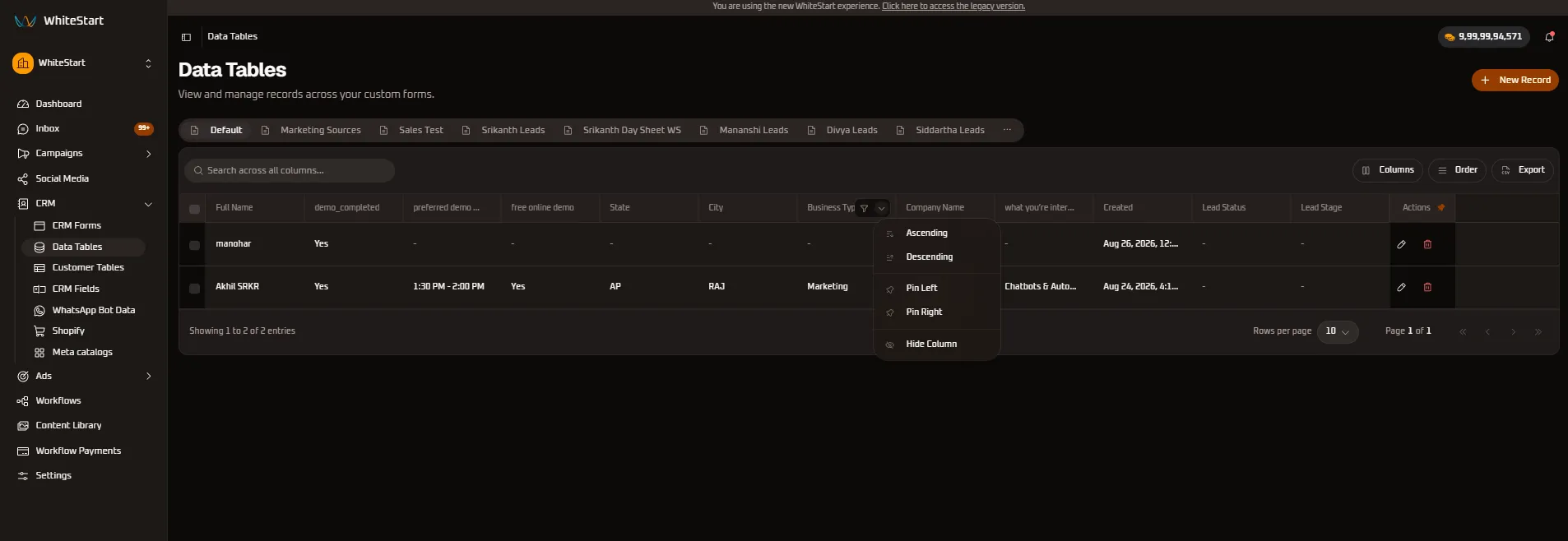
2. Geographic Territory Columns
Section titled “2. Geographic Territory Columns”Segment incoming form captures across metropolitan and regional jurisdictions:
- State Column Controls: Cluster leads geographically by state (e.g.,
AP,Maharashtra,Telangana,Delhi) for regional territory routing.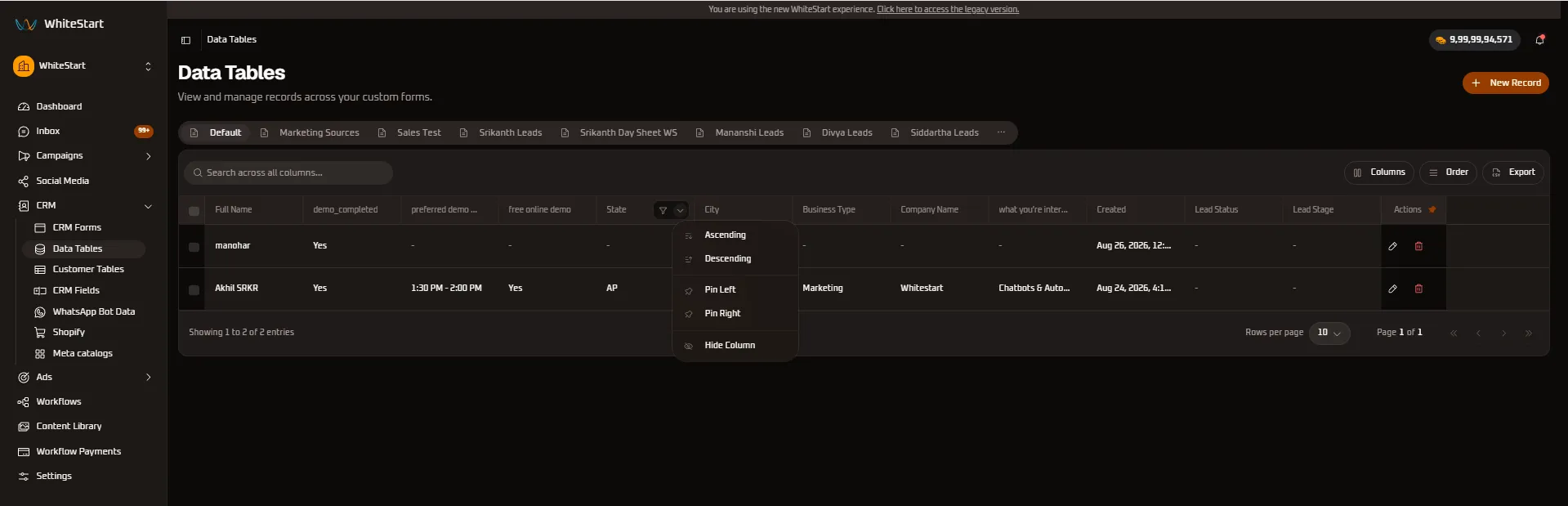
- City Column Controls: Sort regional inquiries by municipality (e.g.,
RAJ,Mumbai,Hyderabad,Pune) to distribute leads to field sales teams.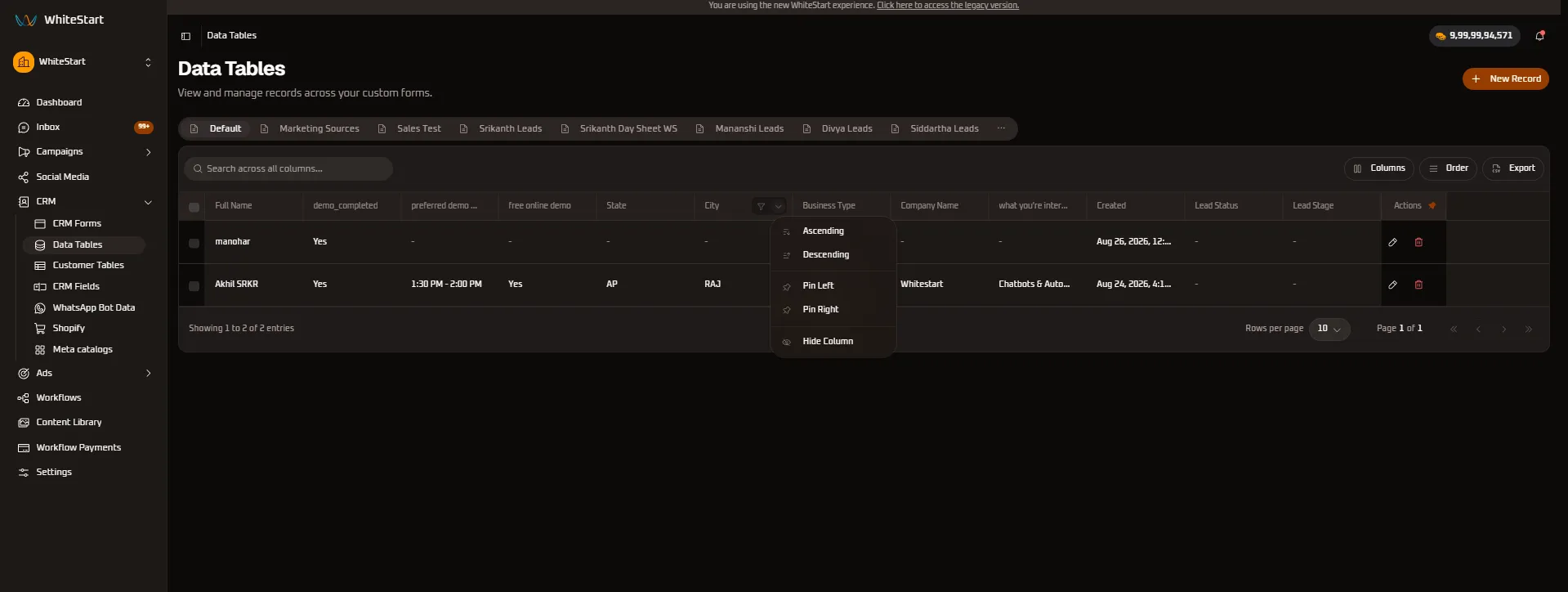
3. Consultation & Demo Scheduling Columns
Section titled “3. Consultation & Demo Scheduling Columns”Monitor prospect qualification and scheduled appointment timelines:
- Demo Completed Column Controls: Isolate leads who have finished their product demonstration (
Yes) versus those pending qualification (-/No).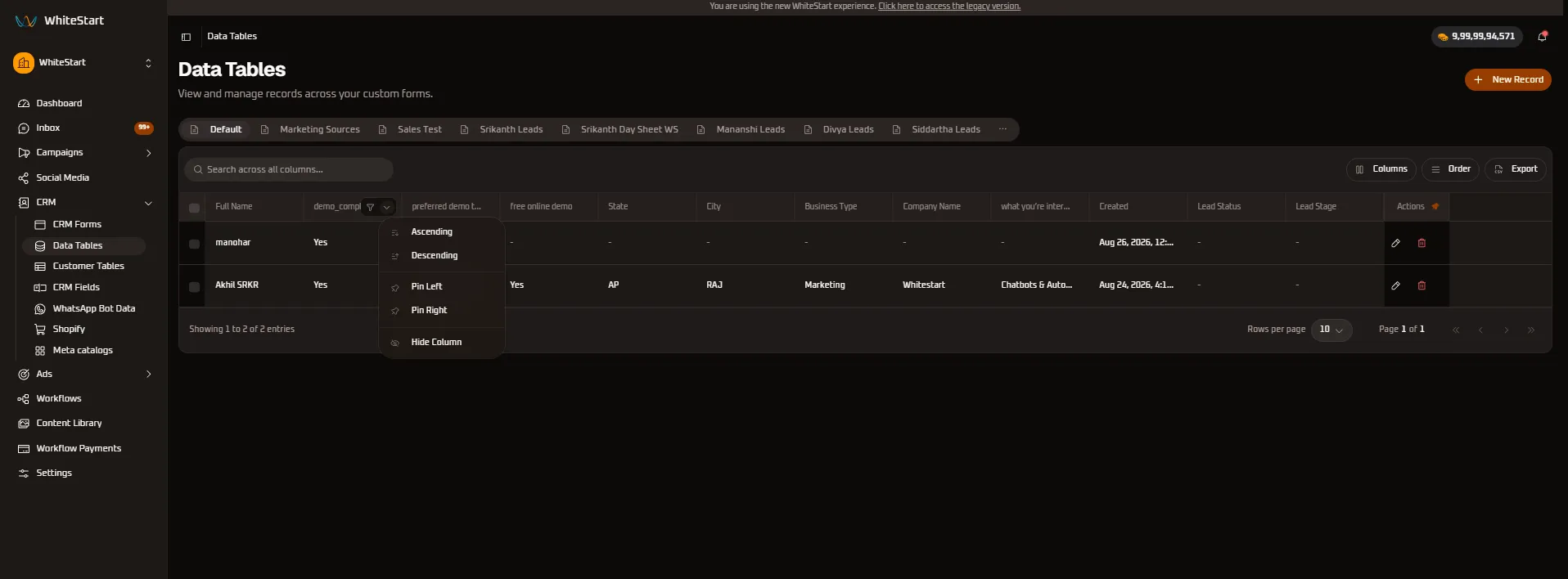
- Preferred Demo Time Column Controls: Sort appointments chronologically by scheduled consultation slot (e.g.,
1:30 PM - 2:00 PM).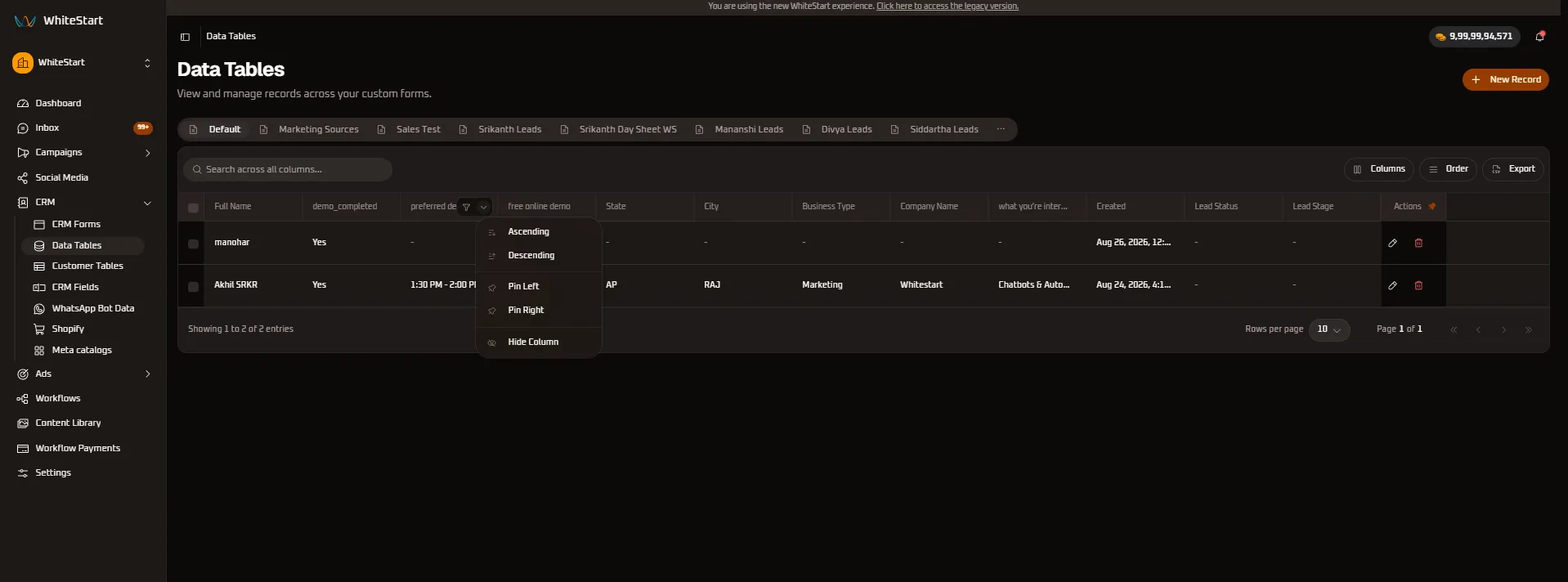
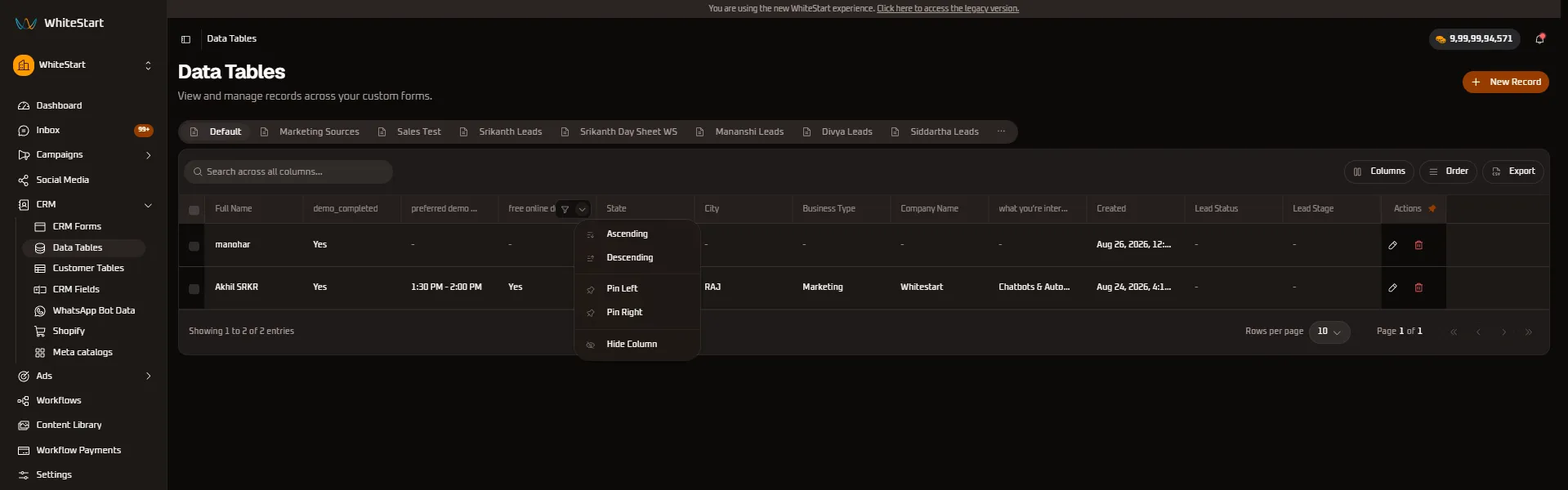
- Free Online Demo Column Controls: Track whether prospects opted in for complimentary virtual software walkthroughs.
4. Qualification, Interest & Lifecycle Columns
Section titled “4. Qualification, Interest & Lifecycle Columns”Evaluate customer interest and audit ingestion timestamps:
- Service Interest (
what you're interested in?) Controls: Filter inquiries by platform module (e.g.,Chatbots & Automation,Social Media Management).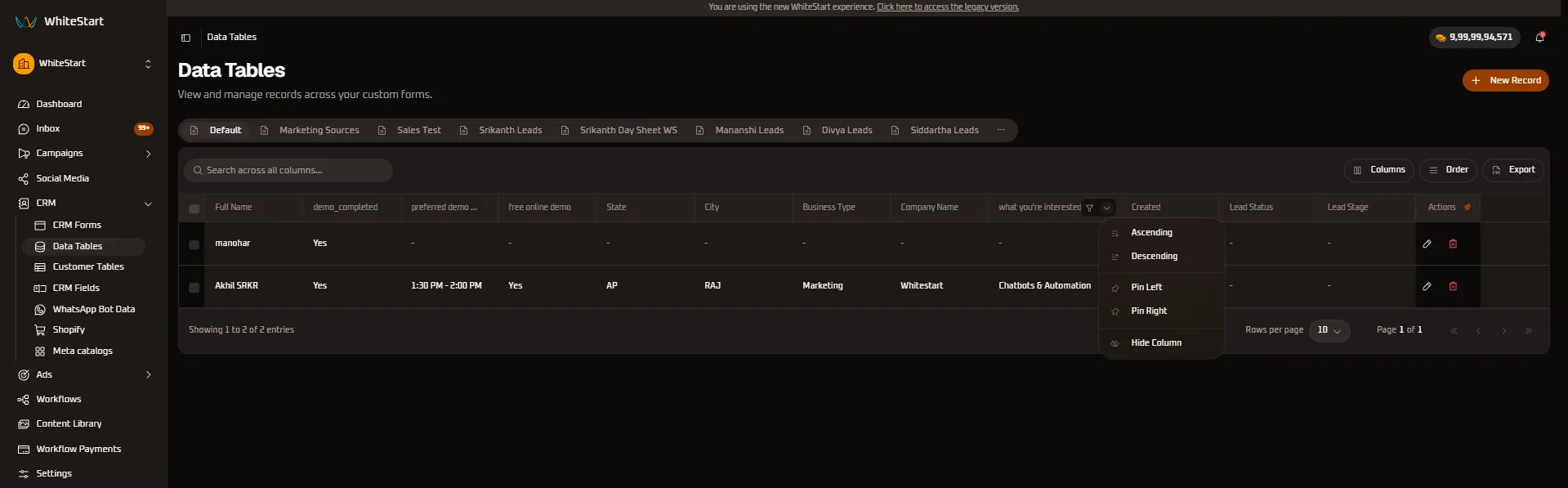
- Lead Stage Column Controls: Organize records according to sales pipeline progression milestones.
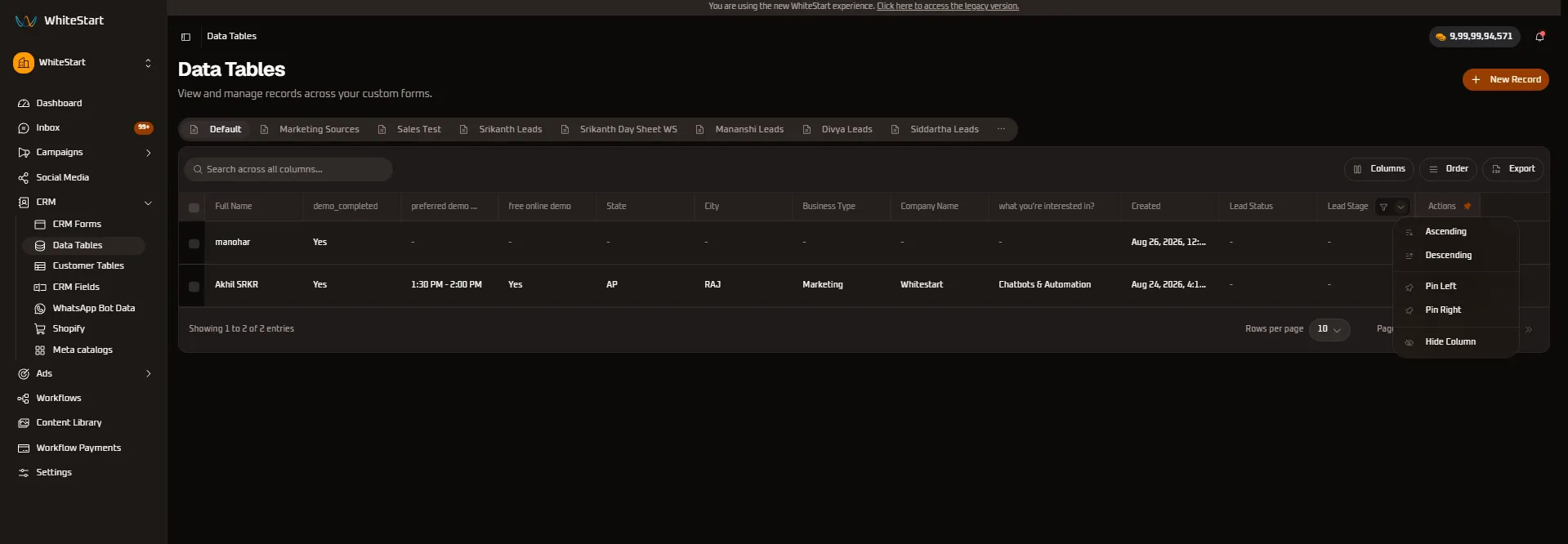
- Lead Status Column Controls: Filter by immediate operational status (e.g.,
Onboarded,processing,Exploring).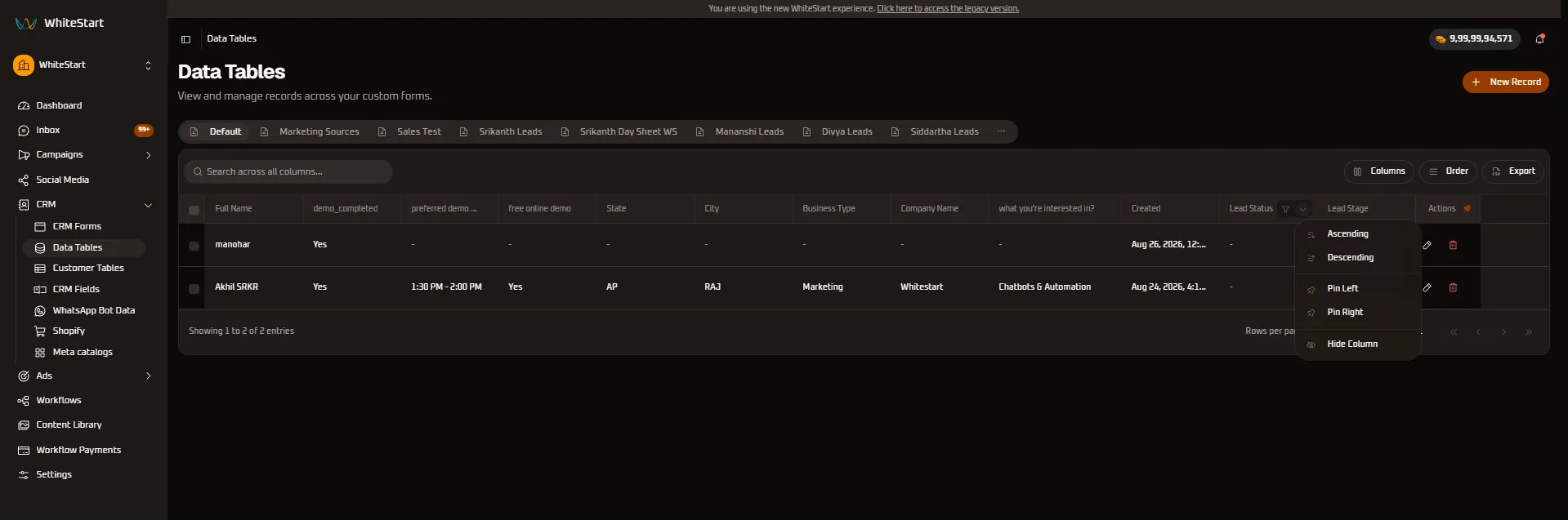
- Created Timestamp Controls: Chronological sorting (
Ascending/Descending) to evaluate recency and lead arrival pace.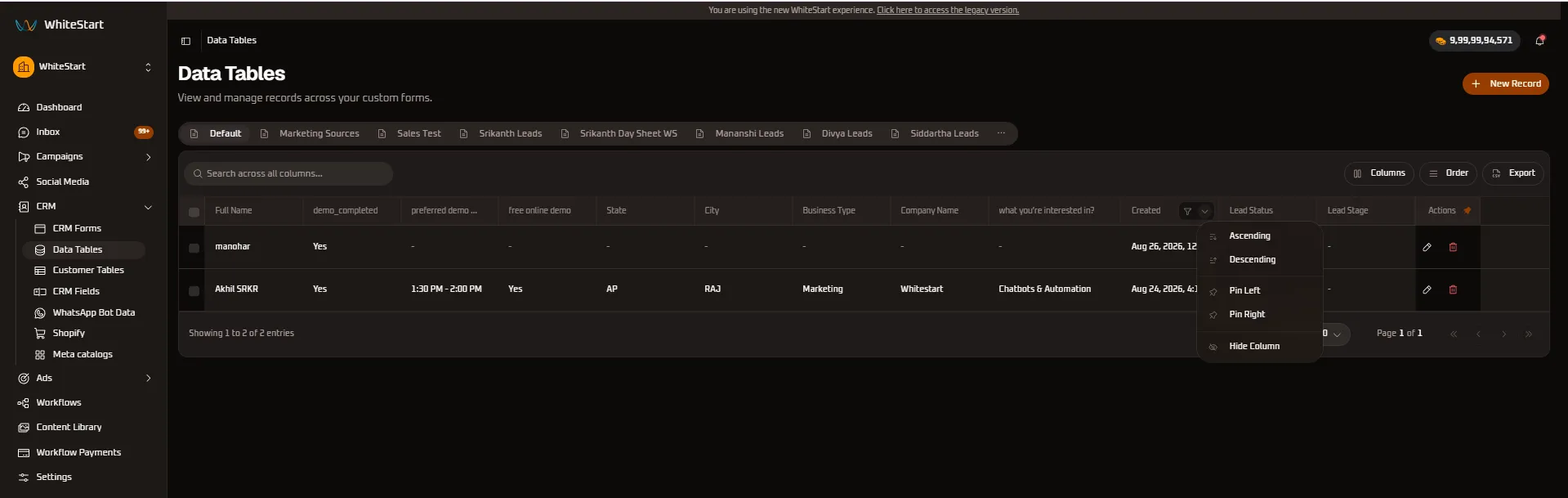
5. Pinned Action Column (Actions 📌)
Section titled “5. Pinned Action Column (Actions 📌)”The Actions column features an orange pin icon (📌) indicating that row management triggers are anchored to the table edge:
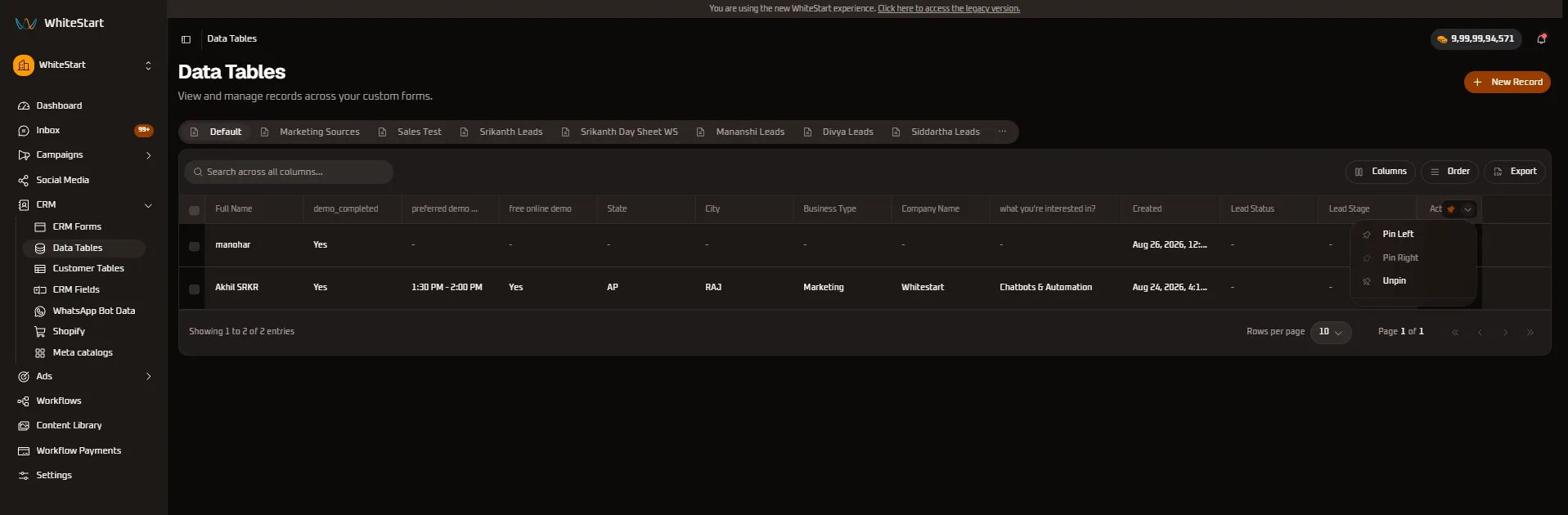
📌 Pin Left: Move action triggers to the beginning of each row.📌 Pin Right(Default): Anchor action buttons (✏️,🗑️) to the far-right edge so editing and deletion triggers are permanently accessible regardless of horizontal scrolling.📌 Unpin: Releases the action column from its boundary anchor, allowing it to scroll freely with the rest of the grid.
Form Tab Gallery & Schema Variants
Section titled “Form Tab Gallery & Schema Variants”Each custom form template defined in CRM Forms creates an isolated view tailored to specific sales processes:
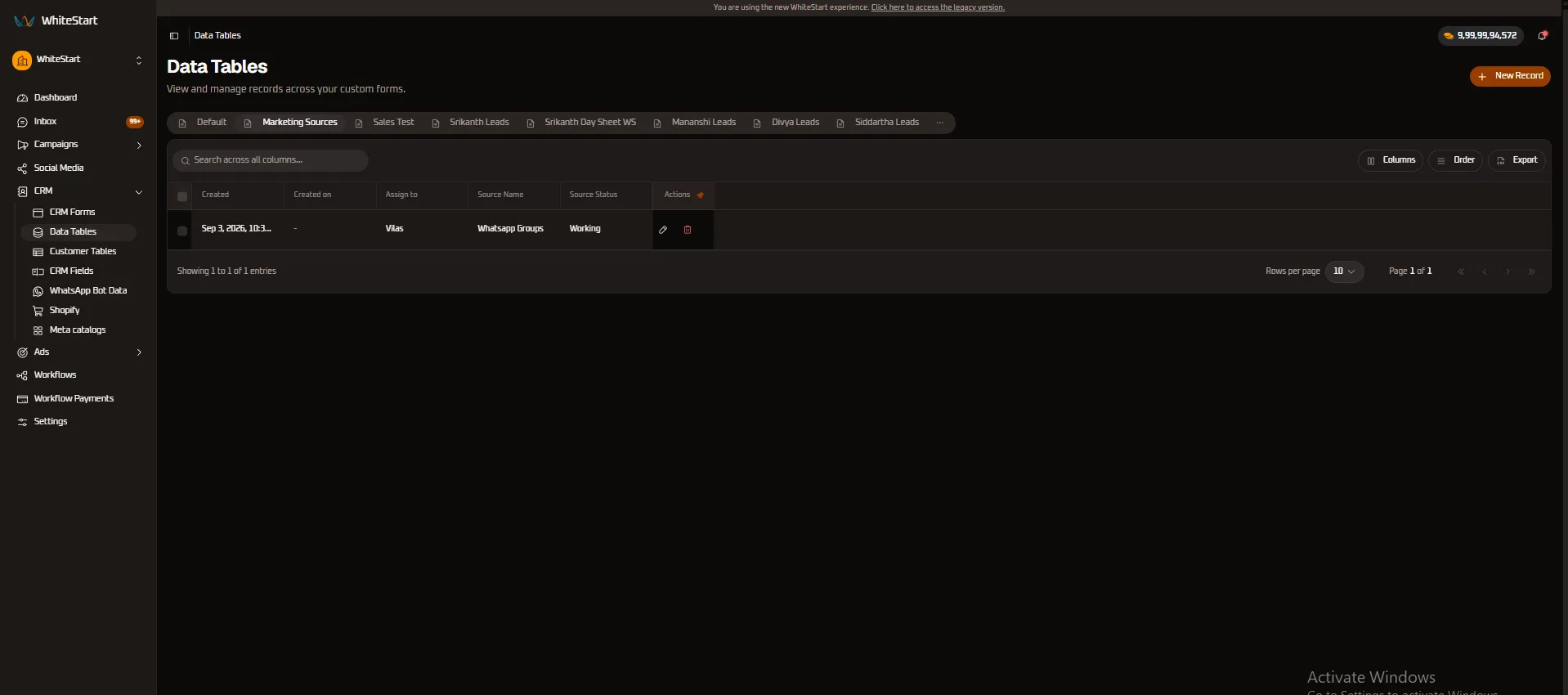
1. Marketing Sources Tab
Section titled “1. Marketing Sources Tab”Tailored for tracking lead acquisition channels, agent assignments, and workflow statuses.
- Columns:
Created,Created on,Assign to,Source Name,Source Status,Actions.
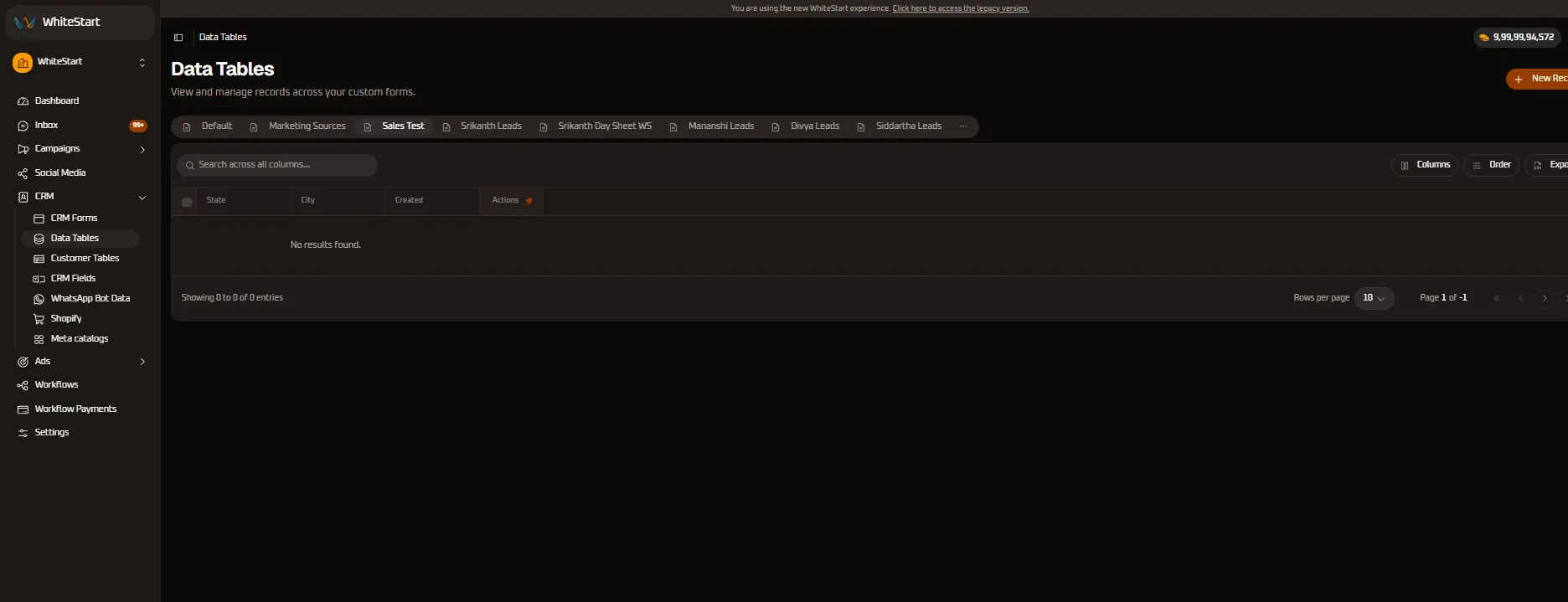
2. Sales Test Tab
Section titled “2. Sales Test Tab”A streamlined verification schema designed for quick demographic validation with minimal required inputs.
- Columns:
State,City,Created,Actions.
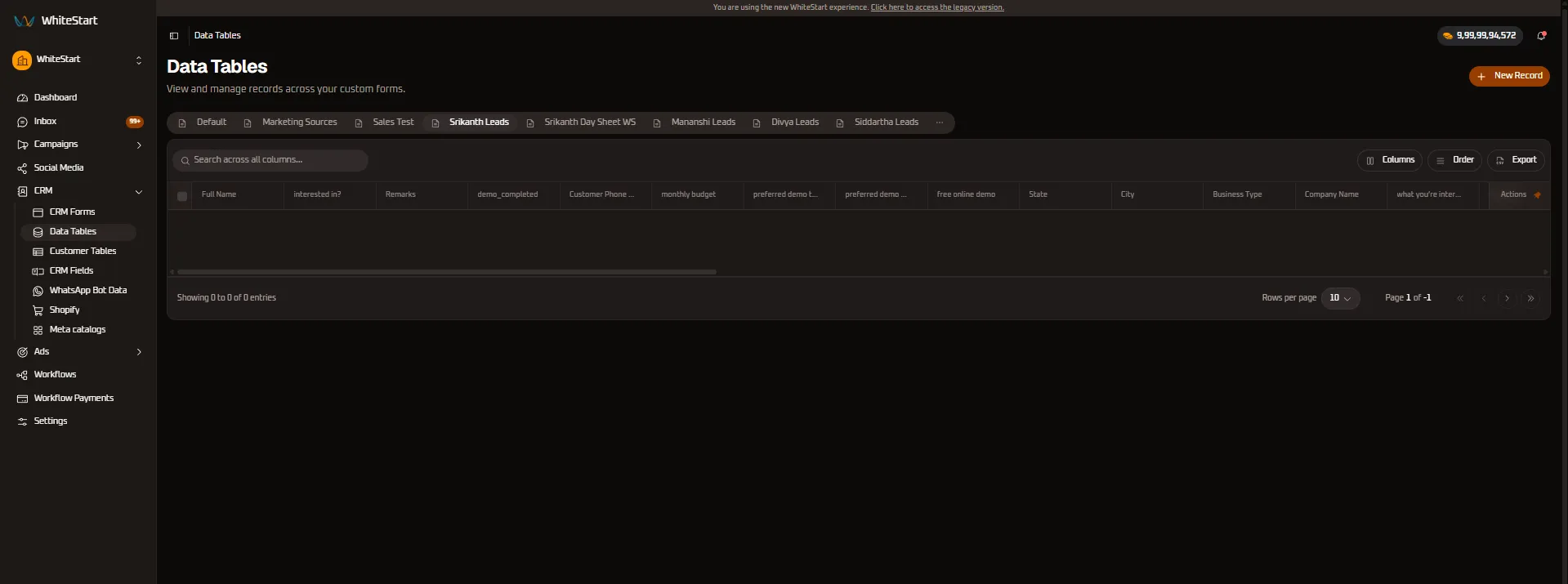
3. Srikanth Leads Tab
Section titled “3. Srikanth Leads Tab”High-touch consultation pipeline tracking prospective client budgets and appointment completion statuses.
- Columns:
Full Name,interested in?,Remarks,demo_completed,Customer Phone Numbers,monthly budget,preferred demo time,preferred demo date,free online demo,State,City,Business Type,Company Name,what you're interested in?,Actions.
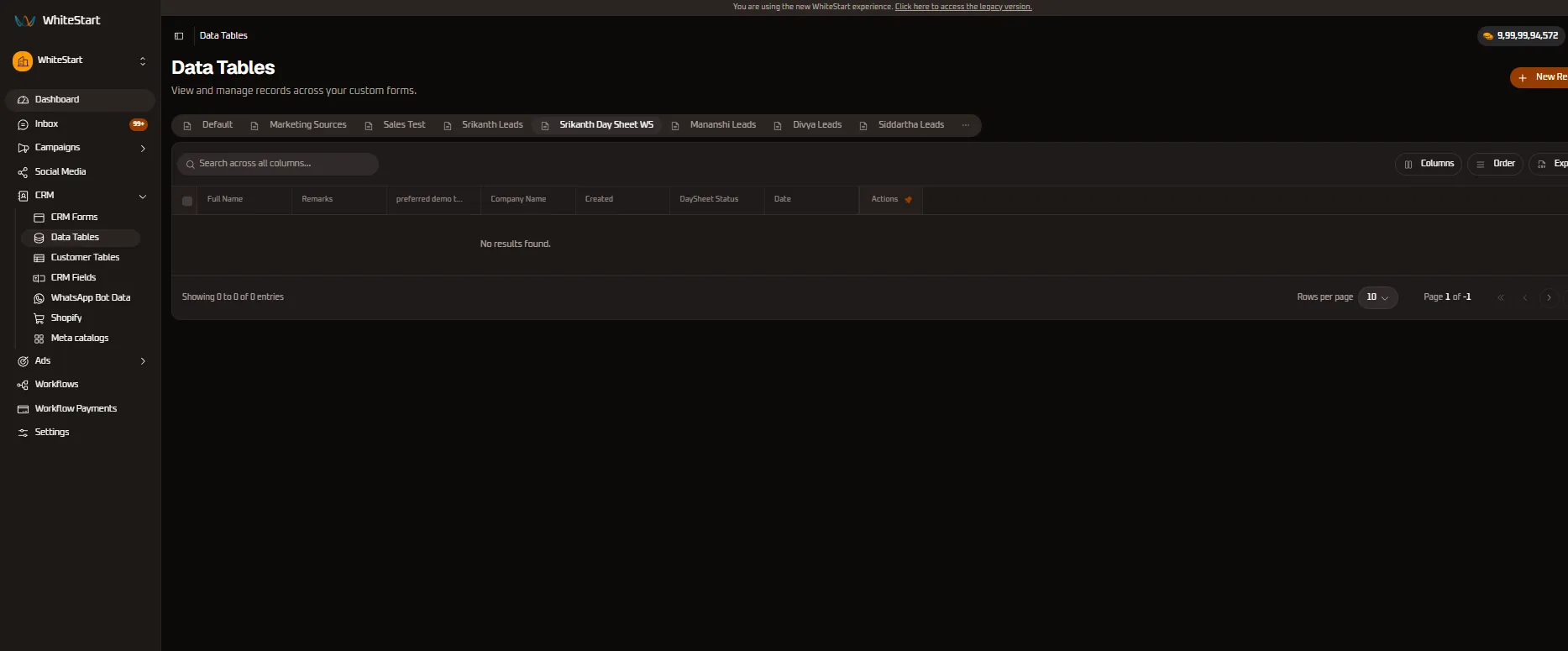
4. Srikanth Day Sheet WS Tab
Section titled “4. Srikanth Day Sheet WS Tab”Operational day-sheet tracking daily field outreach activities, consultation statuses, and appointment dates.
- Columns:
Full Name,Remarks,preferred demo time,Company Name,Created,DaySheet Status,Date,Actions.
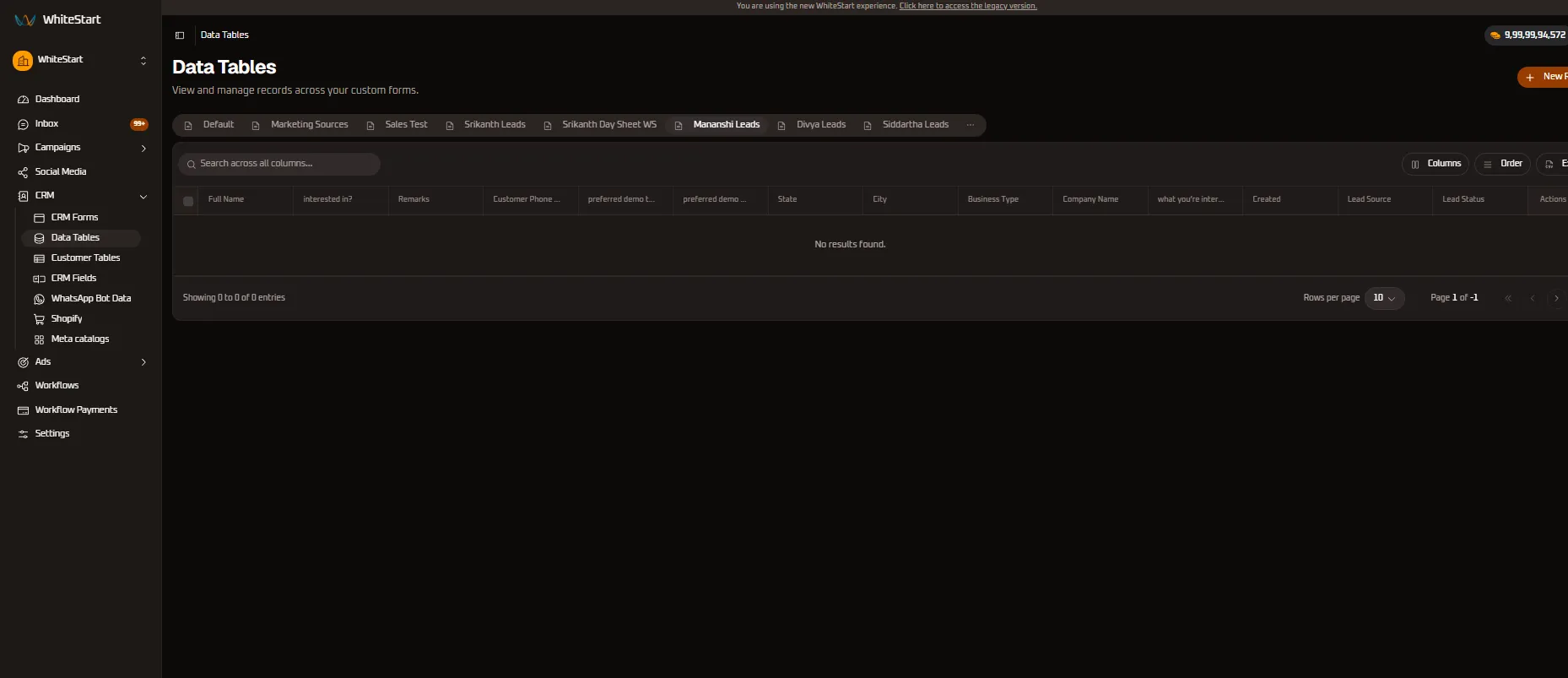
5. Mananshi Leads Tab
Section titled “5. Mananshi Leads Tab”Specialized inbound sales intake queue configured for multi-attribute qualification before account provisioning.
- Columns:
Full Name,interested in?,Remarks,Customer Phone Numbers,preferred demo time,preferred demo date,State,City,Business Type,Company Name,what you're interested in?,Created,Lead Source,Lead Status,Actions.
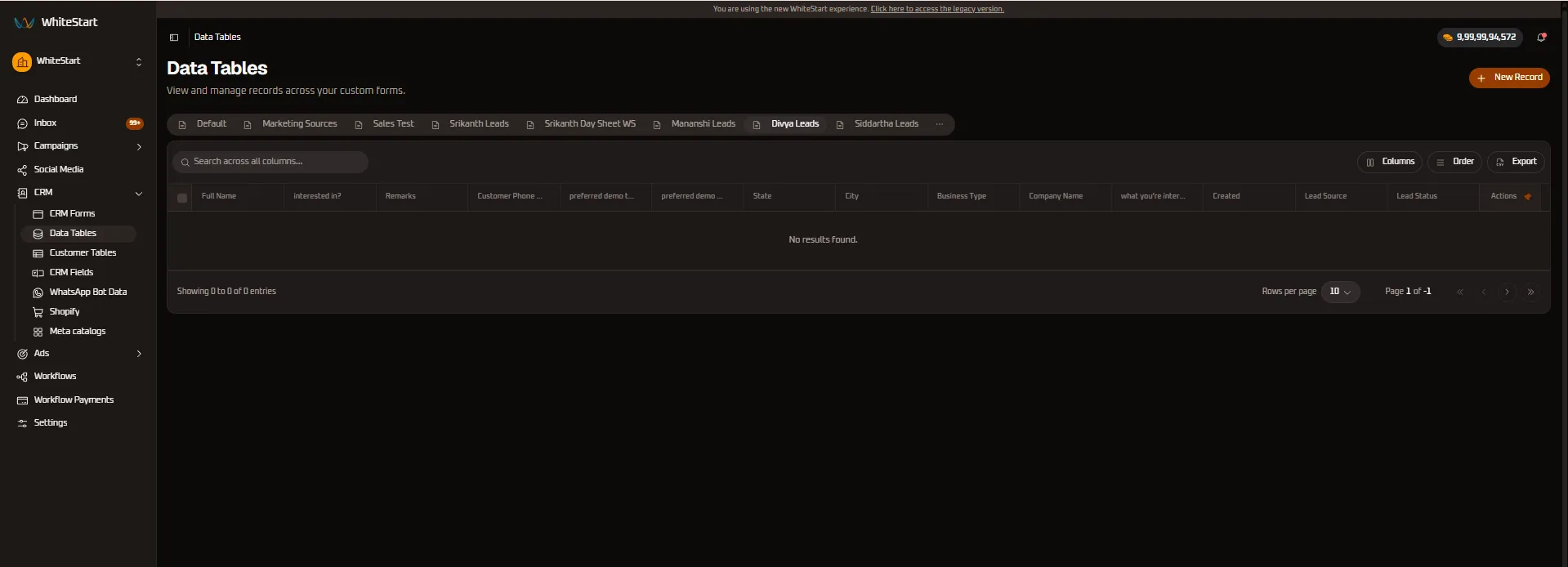
6. Divya Leads Tab
Section titled “6. Divya Leads Tab”Territory-assigned lead queue enabling dedicated account representatives to manage exclusive regional inquiries.
- Columns:
Full Name,interested in?,Remarks,Customer Phone Numbers,preferred demo time,preferred demo date,State,City,Business Type,Company Name,what you're interested in?,Created,Lead Source,Lead Status,Actions.
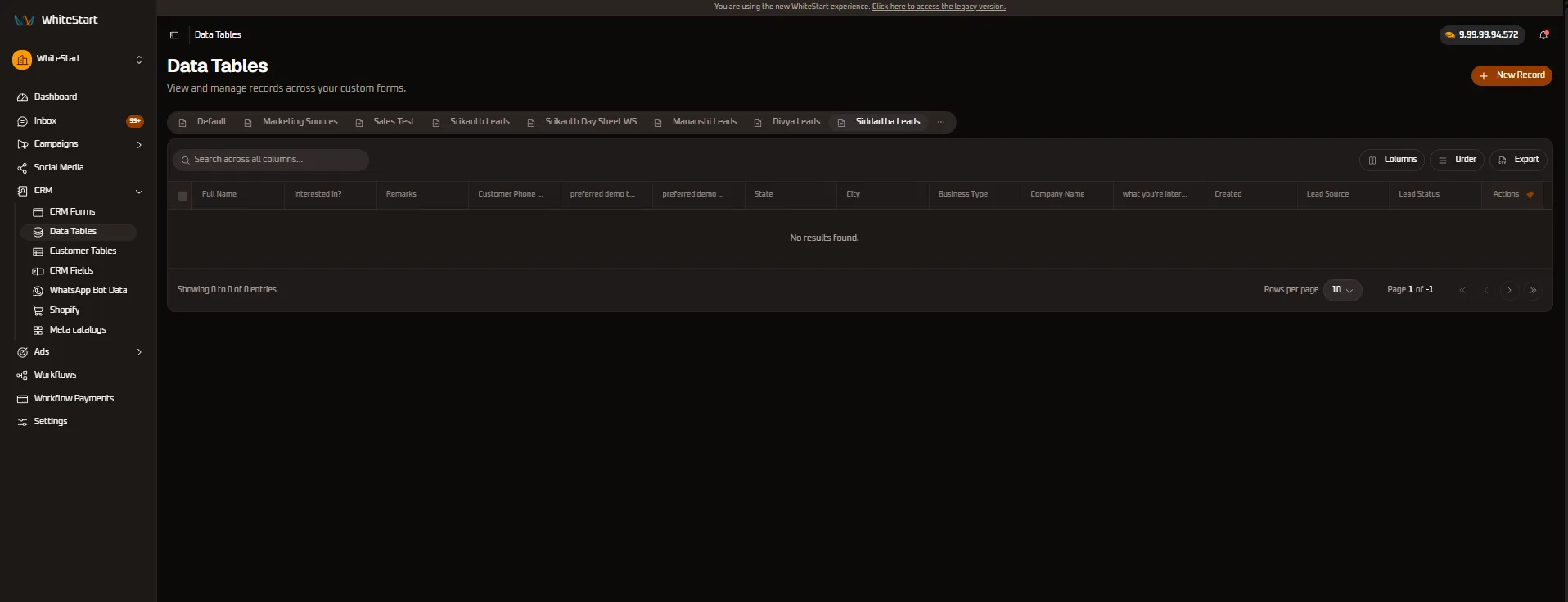
7. Siddartha Leads Tab
Section titled “7. Siddartha Leads Tab”In-depth lead evaluation schema capturing full multi-channel attribution, contact details, and follow-up schedules.
- Columns:
Full Name,interested in?,Remarks,Customer Phone Numbers,preferred demo time,preferred demo date,State,City,Business Type,Company Name,what you're interested in?,Created,Lead Source,Lead Status,Actions.
Adding Records Manually (+ New Record)
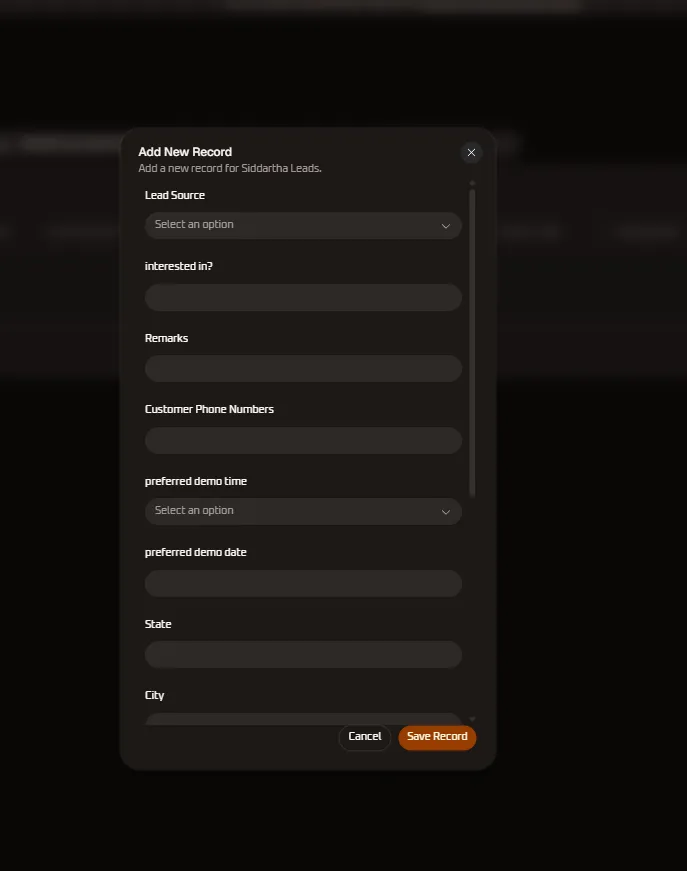
Section titled “Adding Records Manually (+ New Record)”While most customer submissions enter through automated conversational flows (WhatsApp chatbots, web forms, Meta lead ads), team members can also record walk-in customers or phone inquiries manually.
Click the orange + New Record button in the top-right corner to open the dynamic entry modal:
Dynamic Form Adaptation
Section titled “Dynamic Form Adaptation”The modal dynamically adapts its fields to match the active tab’s schema:
- Customer Demographics:
Full Name,Customer Phone Numbers,State,City,Company Name,Business Type. - Lead Ingestion & Attribution:
Lead Source,what you're interested in?,Remarks. - Appointment Scheduling:
preferred demo date,preferred demo time. - Pipeline Status:
Lead Status.
Predefined Dropdown Attributes
Section titled “Predefined Dropdown Attributes”To ensure clean reporting and prevent human data-entry discrepancies, WhiteStart provides structured dropdown selections for critical CRM fields:
1. Lead Source
Section titled “1. Lead Source”Specifies the channel or touchpoint where the customer originated:
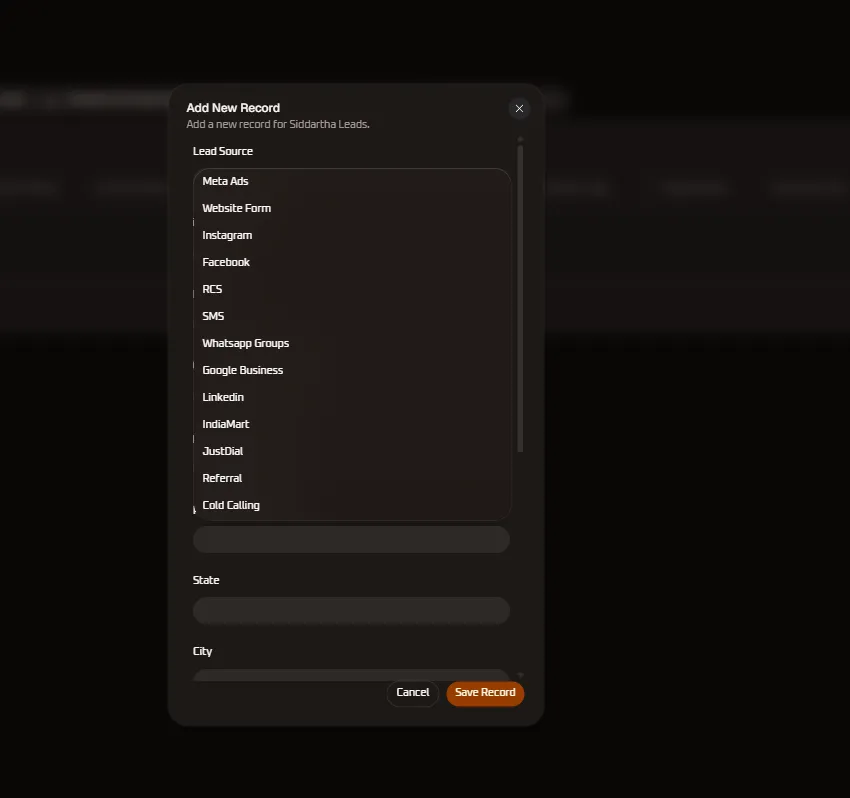
| Lead Source | Channel Type | Description |
|---|---|---|
| Meta Ads | Paid Advertising | Captured directly from Facebook or Instagram Lead Ads. |
| Website Form | Inbound Web | Ingested via website contact or demo request forms. |
| Social Organic | Inbound direct message or comment lead. | |
| Social Organic | Direct page interaction or Messenger lead. | |
| RCS | Rich Messaging | Inbound response to an interactive RCS campaign. |
| SMS | Telephony | Inbound SMS keyword or promotional response. |
| Whatsapp Groups | Community | Customer acquired through WhatsApp community outreach. |
| Google Business | Local SEO | Call or message initiated from Google Business Profile. |
| B2B Social | B2B lead acquired through LinkedIn Outreach or InMail. | |
| IndiaMart | B2B Marketplace | Ingested inquiry from IndiaMart directory. |
| JustDial | Local Directory | Ingested lead from JustDial local search platform. |
| Referral | Word of Mouth | Existing client or partner referral. |
| Cold Calling | Outbound Sales | Direct telemarketing or outbound sales qualification. |
2. Service Interest (what you're interested in?)
Section titled “2. Service Interest (what you're interested in?)”Categorizes customer product interests to route inquiries to specialized sales units:
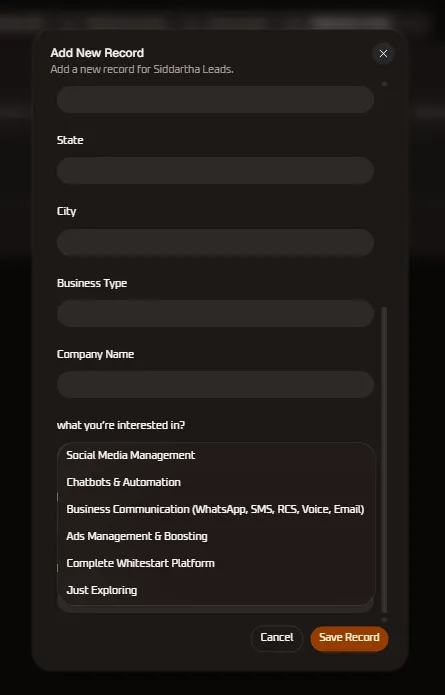
| Selection | Target Solution Area |
|---|---|
| Social Media Management | Multi-channel social scheduling, content posting, and analytics. |
| Chatbots & Automation | Interactive AI WhatsApp and conversational bots. |
| Business Communication | Omnichannel gateways (WhatsApp, SMS, RCS, Voice/IVR, Email). |
| Ads Management & Boosting | Meta and Google Ads campaign creation and budget optimization. |
| Complete Whitestart Platform | Enterprise full-stack digital marketing and CRM suite. |
| Just Exploring | Early-stage exploratory leads requiring educational nurturing. |
3. Lead Status
Section titled “3. Lead Status”Tracks progression through your sales pipeline:
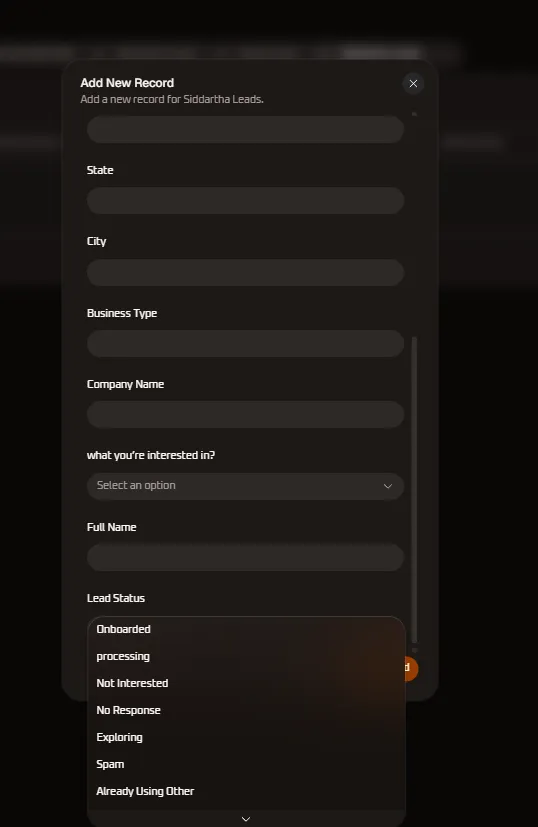
| Status | Stage Meaning | Next Action |
|---|---|---|
| Exploring | Early discovery | Send platform overview and case studies. |
| processing | Active conversation | Schedule demo or follow-up call. |
| Onboarded | Successfully converted | Transition to customer success and onboarding. |
| No Response | Contact attempted without reply | Trigger automated re-engagement workflow. |
| Not Interested | Lead declined offer | Archive record and pause active campaigns. |
| Already Using Other | Competitor product active | Tag competitor and schedule long-term check-in. |
| Spam | Invalid contact / junk | Exclude from future messaging to protect credits. |
Managing Existing Records & Pagination
Section titled “Managing Existing Records & Pagination”Inline Row Actions
Section titled “Inline Row Actions”- Edit (
✏️Pencil Icon): Opens the record editor pre-filled with current lead details. Update phone numbers, stage notes, or demo schedules, then save. - Delete (
🗑️Trash Icon): Prompts for confirmation before permanently purging the individual lead record. - Row Checkbox (
[ ]): Select records across the table for batch review or bulk operations.
Pagination Controls
Section titled “Pagination Controls”- Record Counter: Displays the exact index range and total count (e.g.,
Showing 1 to 2 of 2 entries). - Rows per page: Toggle between
10,25,50, or100rows per page. - Page Controls: Navigate across pages using
«,‹,›, and».
Transitioning to Customer Tables
Section titled “Transitioning to Customer Tables”Once raw leads captured within Data Tables are qualified and verified, they transition into WhiteStart’s master directory under Customer Tables:
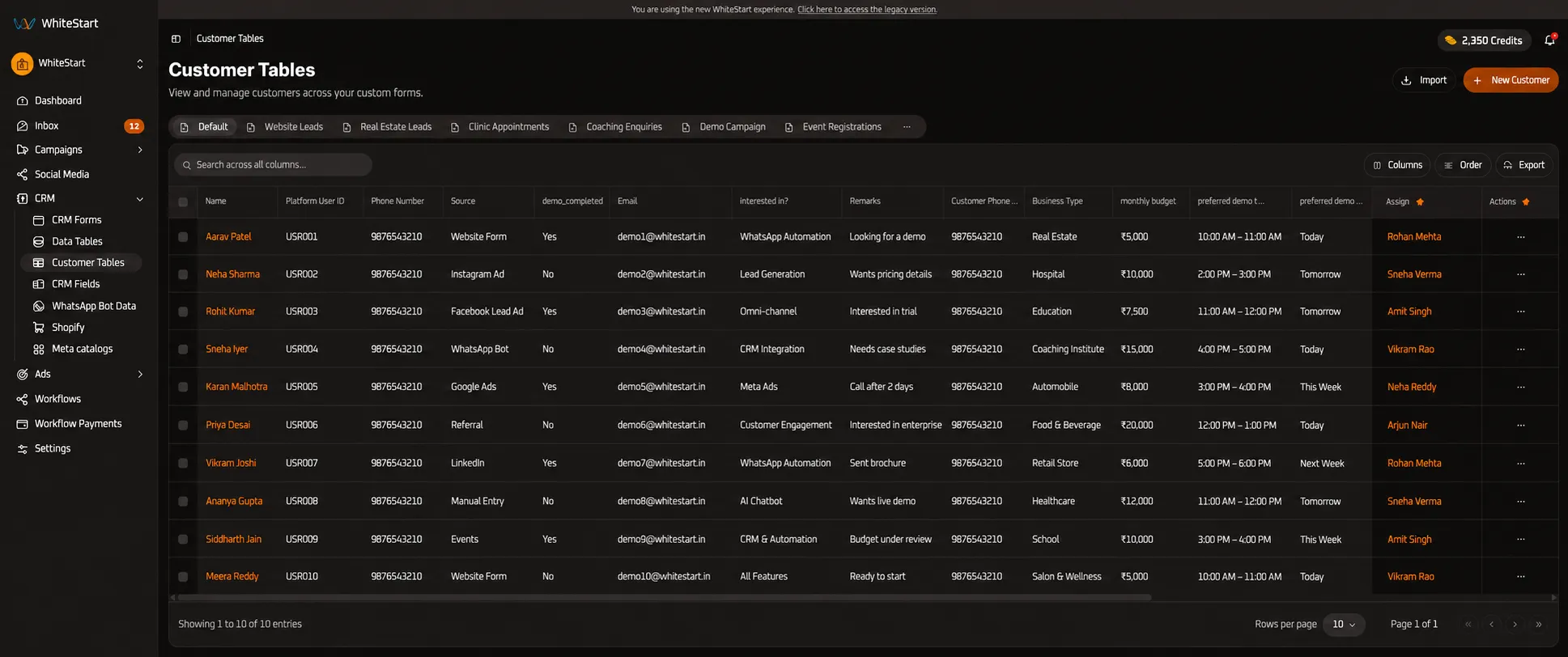
Key Distinctions Between Data Tables & Customer Tables
Section titled “Key Distinctions Between Data Tables & Customer Tables”| Feature | Data Tables | Customer Tables |
|---|---|---|
| Focus | Raw form submissions & campaign intake entries. | Verified customer master directory & client accounts. |
| Identity Model | Individual form submission rows. | Persistent Platform User ID (USR001, USR002). |
| Team Assignment | Permitted members assigned at form level. | Individual account executive assigned per customer (Assign). |
| Ingestion Paths | Chatbots, webforms, and + New Record. |
Inbound conversion, CSV/Excel 📥 Import, and + New Customer. |
| Detailed Guide | Current Page | Customer Tables Documentation |