
Social Media Accounts
Connecting and Managing Social Media Accounts
Section titled “Connecting and Managing Social Media Accounts”The Social Media Accounts dashboard is the centralized integration hub in WhiteStart where organizations authenticate, monitor, and manage brand profiles across all major social networks. Once connected, your social profiles seamlessly power WhiteStart’s unified content calendar, multi-platform post scheduler, automated ad boosting engines, and Live Inbox customer direct messaging streams.
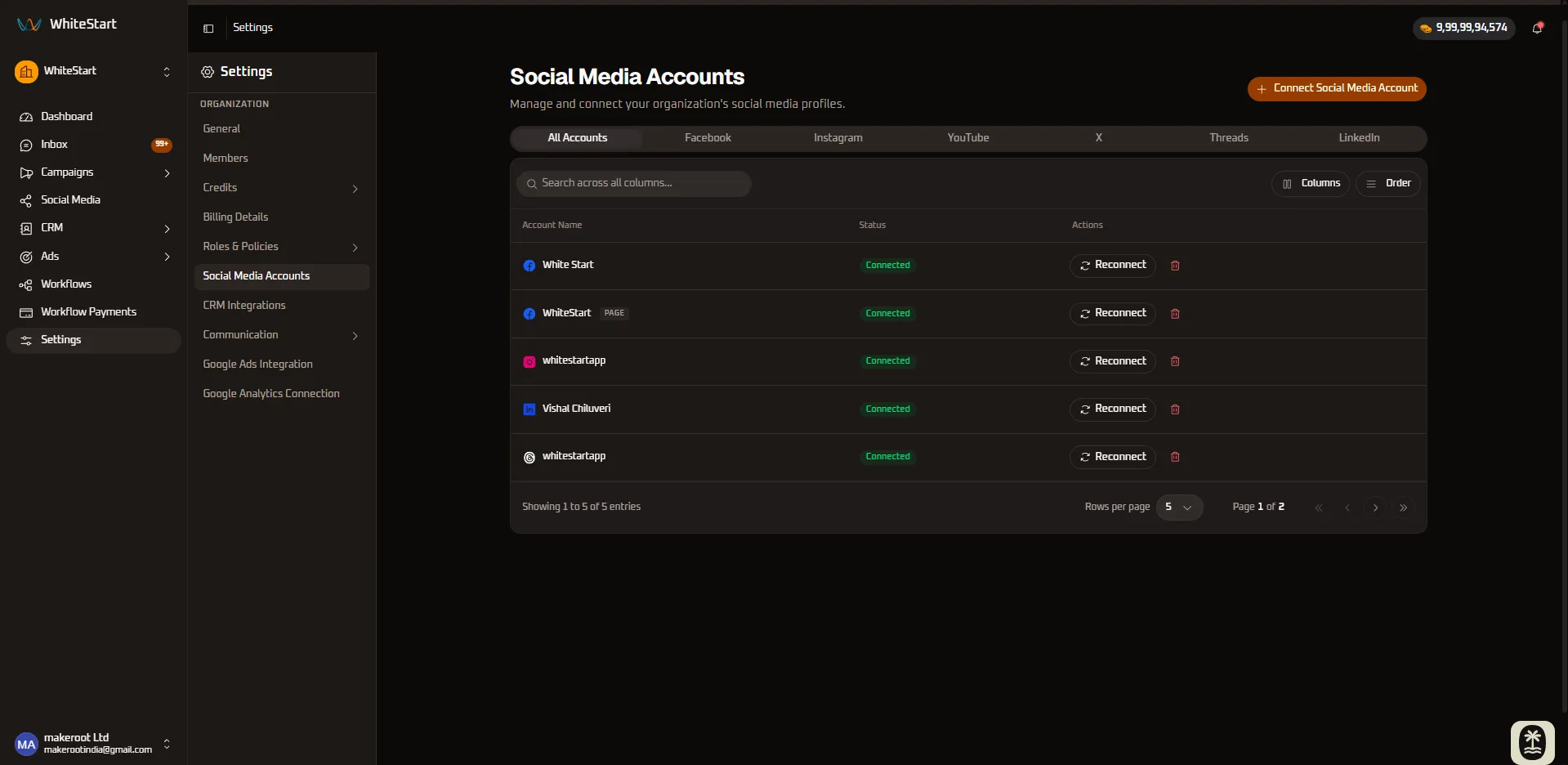
1. Accessing Social Media Accounts
Section titled “1. Accessing Social Media Accounts”Main Sidebar ➔ Settings (⚙️) ➔ ORGANIZATION ➔ Social Media Accounts- In the primary left-hand navigation sidebar, click on Settings (
⚙️) located near the bottom. - In the secondary settings navigation menu under the ORGANIZATION section, click Social Media Accounts.
- The dashboard will load the master Social Media Accounts management interface.
2. Platform Connection Workflow Overview
Section titled “2. Platform Connection Workflow Overview”WhiteStart connects to social networks using secure OAuth 2.0 standards. Click the orange + Connect Social Media Account button at the top right of the dashboard to open the platform selection modal:
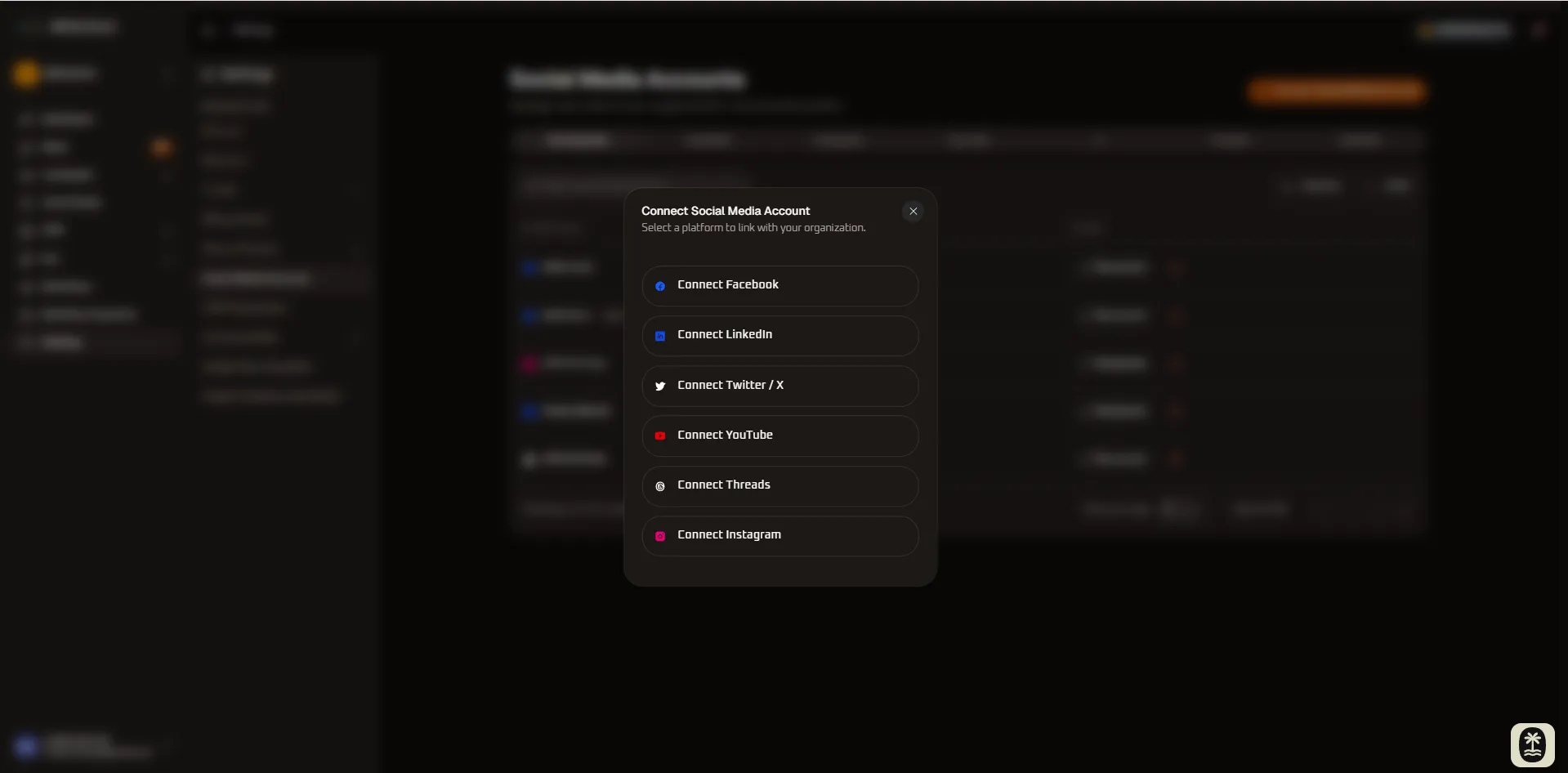
+─────────────────────────────────────────────────────+| Connect Social Media Account (X) || Select a platform to link with your organization. |+─────────────────────────────────────────────────────+| (f) Connect Facebook |+─────────────────────────────────────────────────────+| (in) Connect LinkedIn |+─────────────────────────────────────────────────────+| (X) Connect Twitter / X |+─────────────────────────────────────────────────────+| (yt) Connect YouTube |+─────────────────────────────────────────────────────+| (@) Connect Threads |+─────────────────────────────────────────────────────+| (ig) Connect Instagram |+─────────────────────────────────────────────────────+Selecting a platform initiates the provider’s official authorization handshake. Once approved, the account appears in the corresponding platform tab and in the All Accounts master view.
3. Platform Connection & Account Management
Section titled “3. Platform Connection & Account Management”For each supported platform, the workflow follows two primary phases:
- How to Connect: Authenticating via the platform’s OAuth screen and granting necessary API scopes.
- Connected Accounts View: Managing the authenticated profile, verifying the connection status badge, and using administrative actions.
3.1. Facebook
Section titled “3.1. Facebook”How to Connect Facebook
Section titled “How to Connect Facebook”- In the Connect Social Media Account modal, select Connect Facebook.
- A Meta OAuth window opens prompting you to authenticate with your Facebook account:
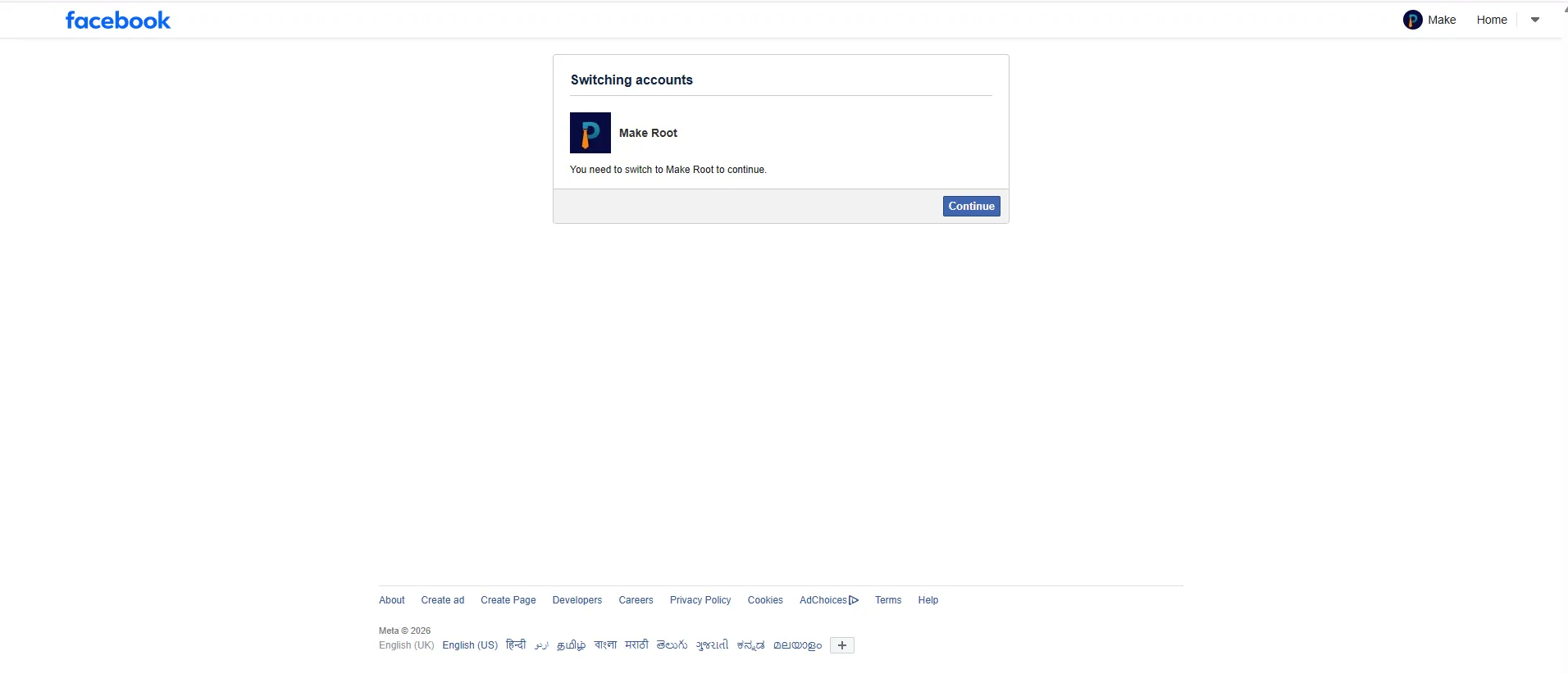
- If your personal account manages business assets, Facebook will prompt you to switch to the relevant business identity (e.g., Make Root). Click Continue.
- Select the specific Facebook Pages you want to make available in WhiteStart.
- Grant WhiteStart permission to manage page content, publish posts, read engagement insights, and access Messenger customer conversations.
- Click Done / Confirm to finalize the authorization.
Connected Facebook Accounts View
Section titled “Connected Facebook Accounts View”Once authenticated, navigate to the Facebook tab to view your connected profiles and pages:
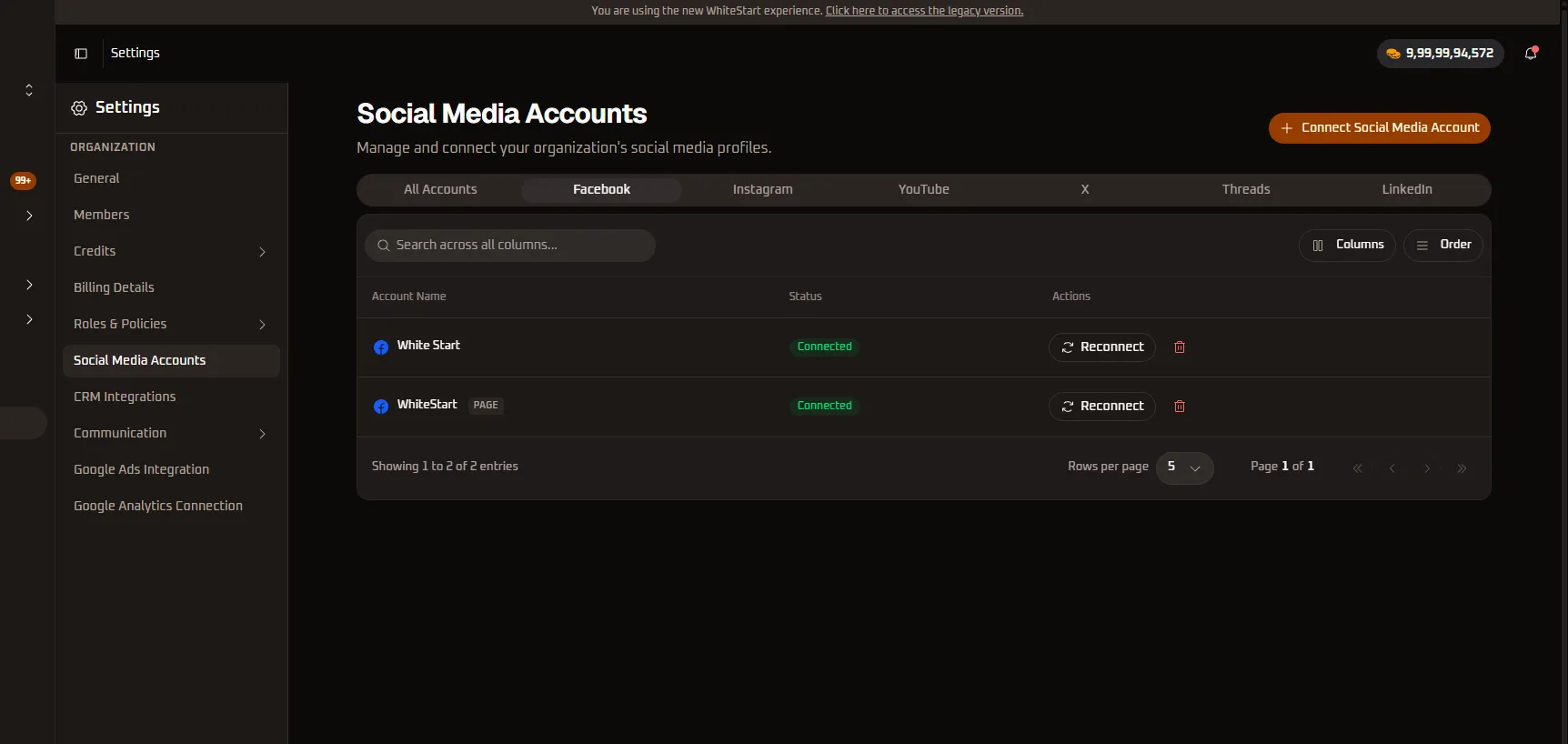
- Entity Differentiation (
PAGEBadge): WhiteStart clearly identifies dedicated corporate pages with a distinctPAGEbadge (e.g.,WhiteStart PAGE), distinguishing them from individual user accounts. - Status Badge: Confirms the channel is actively
Connected(green indicator). - Enabled Capabilities:
- Direct publishing and automated scheduling of single image, multi-image, and video posts to Facebook Pages.
- Bidirectional synchronization with Facebook Messenger inside Live Inbox for real-time customer support.
- Real-time ingestion of Meta Lead Ads form submissions directly into WhiteStart CRM.
- Actions: Click
🔄 Reconnectto refresh rolling 60-day Meta tokens, or click the🗑️ Deleteicon to unlink the page.
3.2. Instagram
Section titled “3.2. Instagram”How to Connect Instagram
Section titled “How to Connect Instagram”- In the Connect Social Media Account modal, select Connect Instagram.
- Meta requires that your Instagram account be a Professional account (Business or Creator) to enable third-party publishing and API tools:
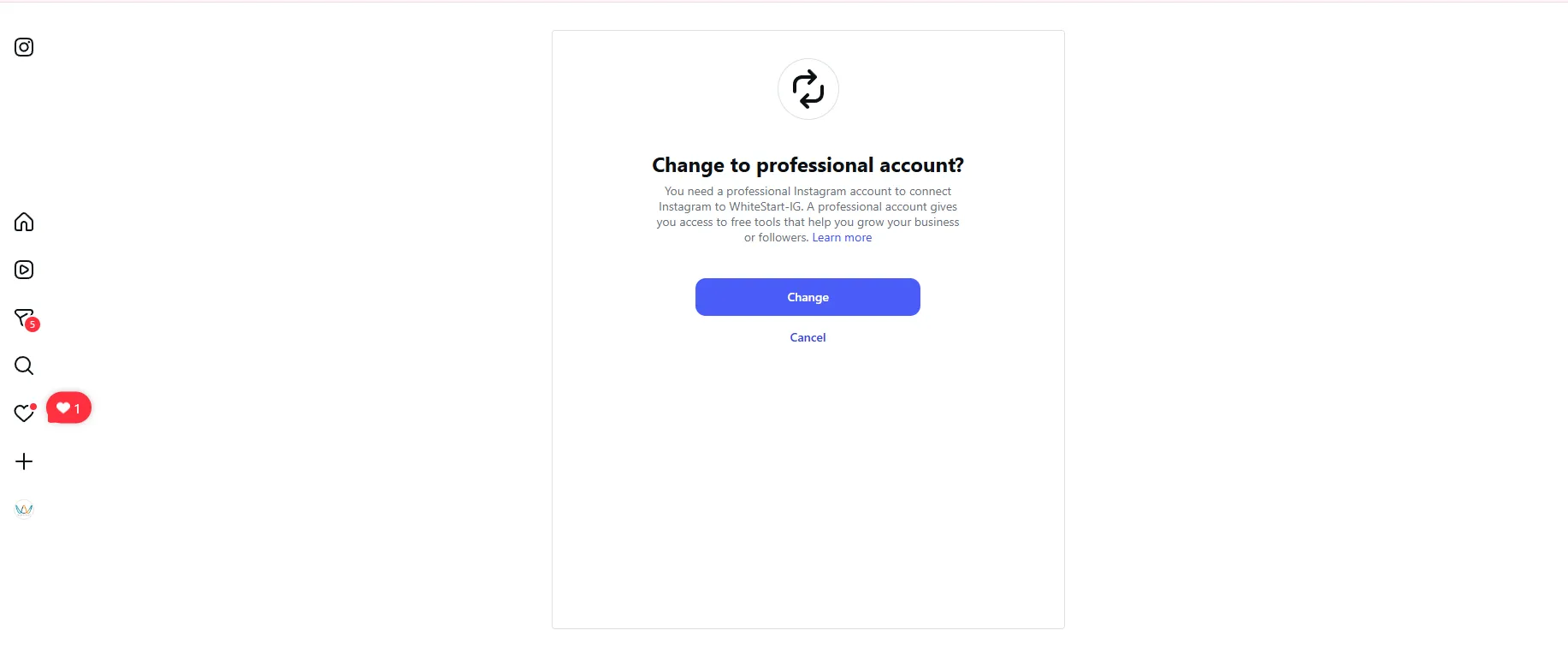
- If your account is currently set as personal, click Change to convert it to a Professional account.
- Ensure the Instagram Professional account is linked to your authenticated Facebook Business Page.
- Grant WhiteStart permissions for media upload, post publishing, Story/Reel analytics, and Direct Message (DM) access.
- Click Authorize to complete the connection.
Connected Instagram Accounts View
Section titled “Connected Instagram Accounts View”Once connected, open the Instagram tab to monitor your account status:
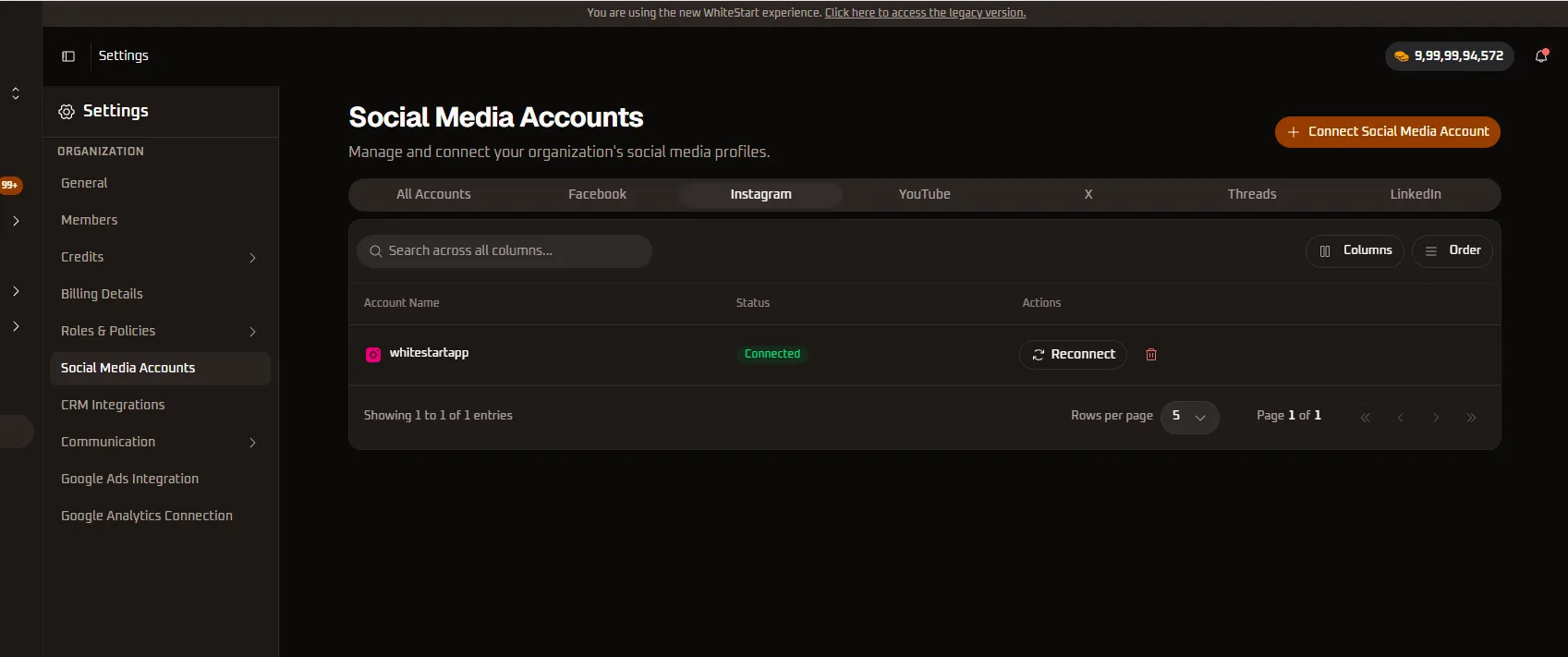
- Account Identifier: Displays the official Instagram handle (e.g.,
@whitestartapp) alongside the Instagram brand glyph. - Status Badge: Displays
Connectedin vibrant green. - Enabled Capabilities:
- Scheduling and auto-publishing Instagram Feed photos, multi-slide carousels, and Reels.
- Automated first-comment insertion for campaign hashtags.
- Managing 1-on-1 Instagram Direct Messages (DMs) in Live Inbox.
- Tracking Story engagement, impressions, follower reach, and video completion rates.
- Actions: Use
🔄 Reconnectto refresh access credentials, or🗑️ Deleteto revoke integration access.
3.3. YouTube
Section titled “3.3. YouTube”How to Connect YouTube
Section titled “How to Connect YouTube”- In the Connect Social Media Account modal, select Connect YouTube.
- A secure Google Identity authentication window opens:
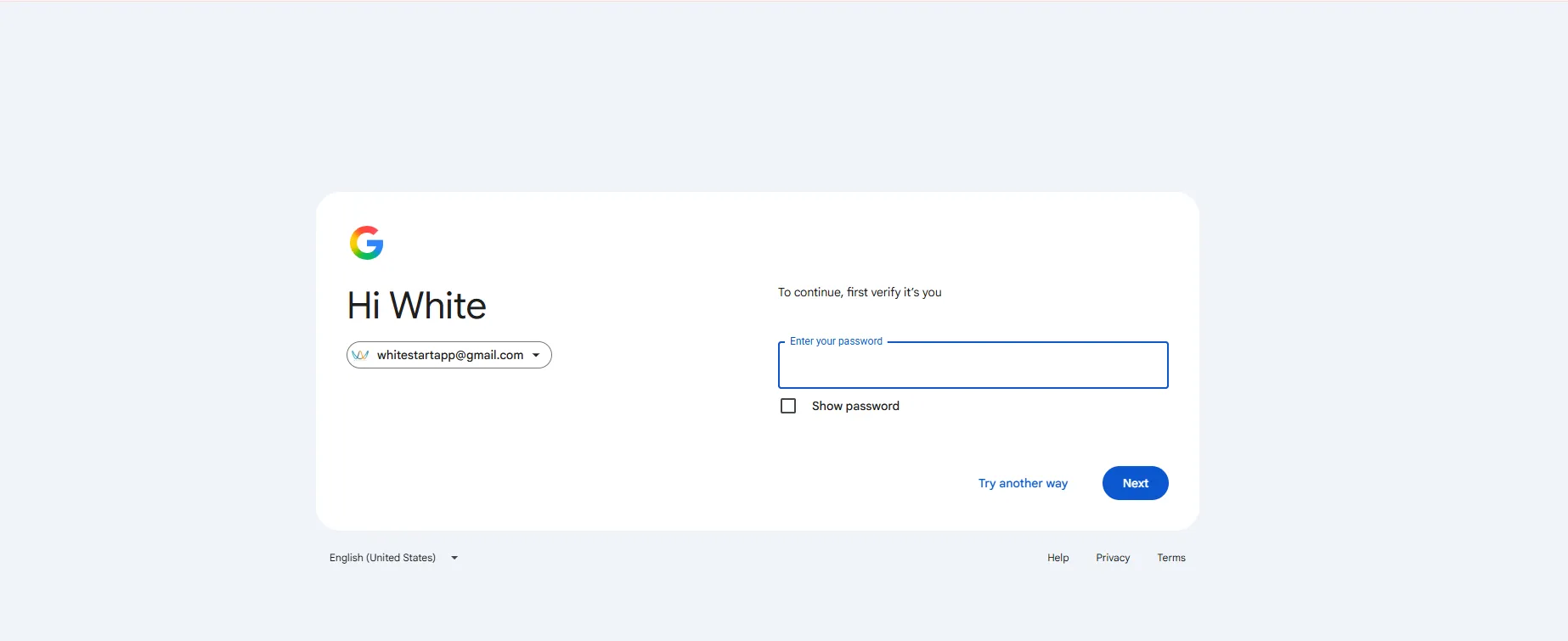
- Sign in with the corporate Google Account associated with your brand channel (e.g.,
[email protected]). - Enter your password and complete two-factor verification if prompted.
- Select the specific YouTube Brand Channel you wish to integrate.
- Grant WhiteStart permission to upload videos, create Community posts, and view channel performance metrics.
- Click Allow to finalize authorization.
Connected YouTube Accounts View
Section titled “Connected YouTube Accounts View”Navigate to the YouTube tab to inspect your connected channels:
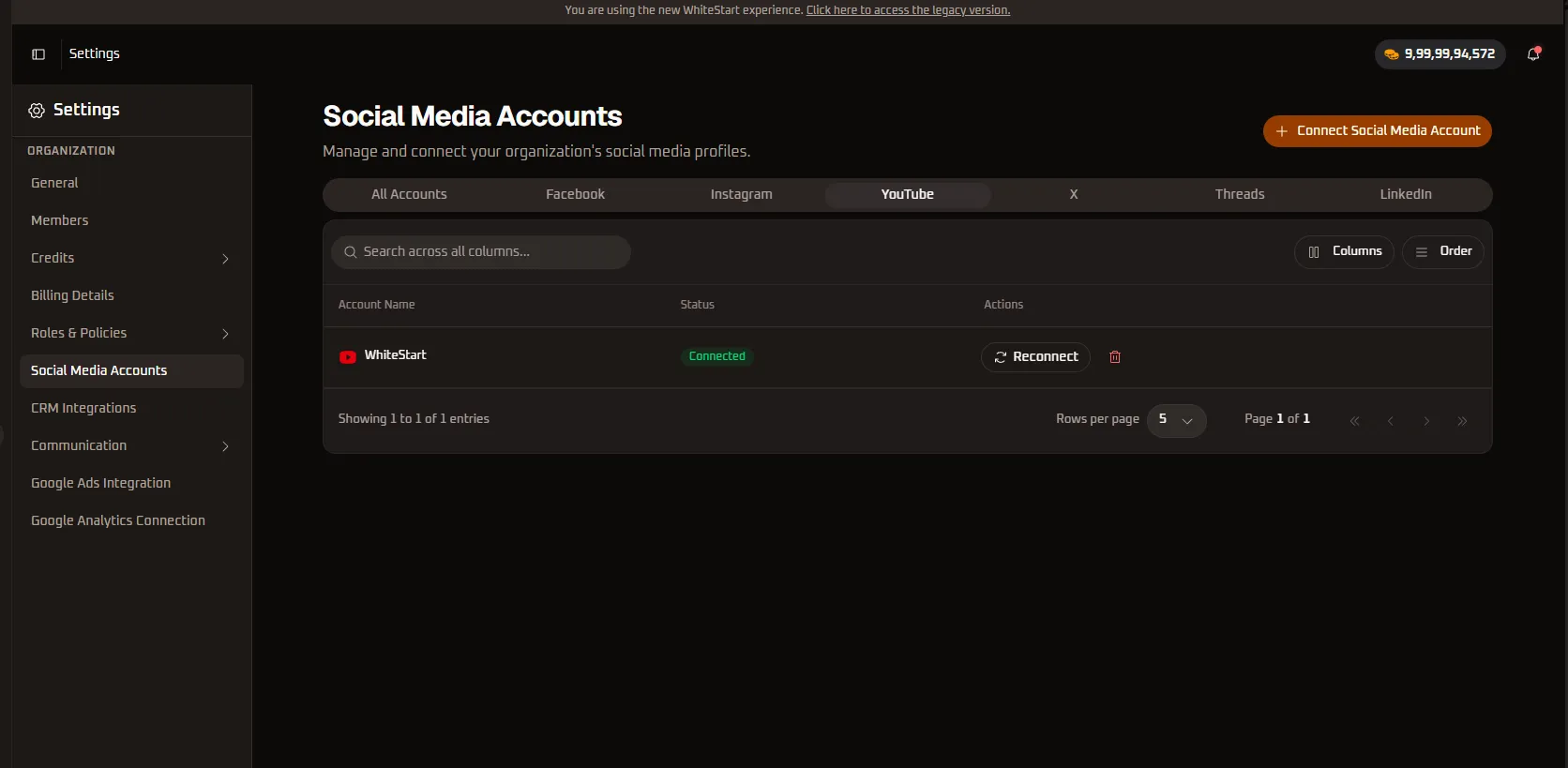
- Channel Identifier: Displays the authenticated YouTube channel title (e.g.,
WhiteStart) with the YouTube icon. - Status Badge: Marked as
Connected. - Enabled Capabilities:
- Composing, scheduling, and publishing YouTube Shorts and long-form video broadcasts.
- Publishing rich text, polls, and image updates to the YouTube Community tab.
- Configuring default video privacy statuses (
Public,Unlisted, orPrivate). - Monitoring video views, watch time, and subscriber conversions in WhiteStart analytics.
- Actions: Use
🔄 Reconnectto update Google API credentials, or🗑️ Deleteto disconnect the channel.
3.4. X (formerly Twitter)
Section titled “3.4. X (formerly Twitter)”How to Connect X (Twitter)
Section titled “How to Connect X (Twitter)”- In the Connect Social Media Account modal, select Connect Twitter / X.
- The official X OAuth 2.0 authorization screen will appear:
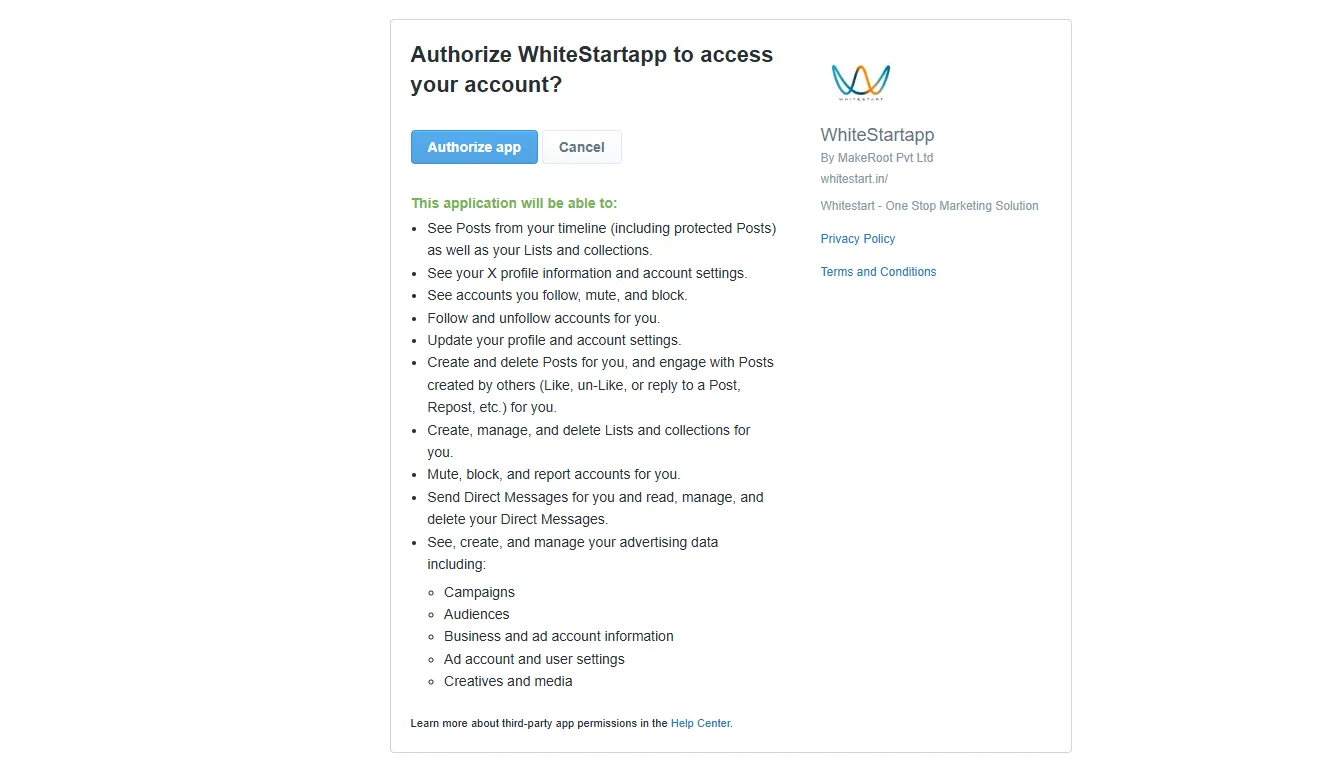
- Review the application identity (WhiteStartapp by MakeRoot Pvt Ltd,
whitestart.in). - Review the explicit permissions requested by WhiteStart:
- Timeline Access: Read and see posts from your timeline (including protected posts), lists, and collections.
- Profile & Settings: Read profile info, account settings, and follower relationships.
- Post Management: Create and delete posts, and engage with content (likes, retweets, replies).
- Direct Messages: Send, read, and manage Direct Messages in Live Inbox.
- Advertising Governance: Access and manage campaigns, audience segments, and ad account creatives.
- Click Authorize app.
Connected X (Twitter) Accounts View
Section titled “Connected X (Twitter) Accounts View”After authorization, click the X tab to view your connected handle:
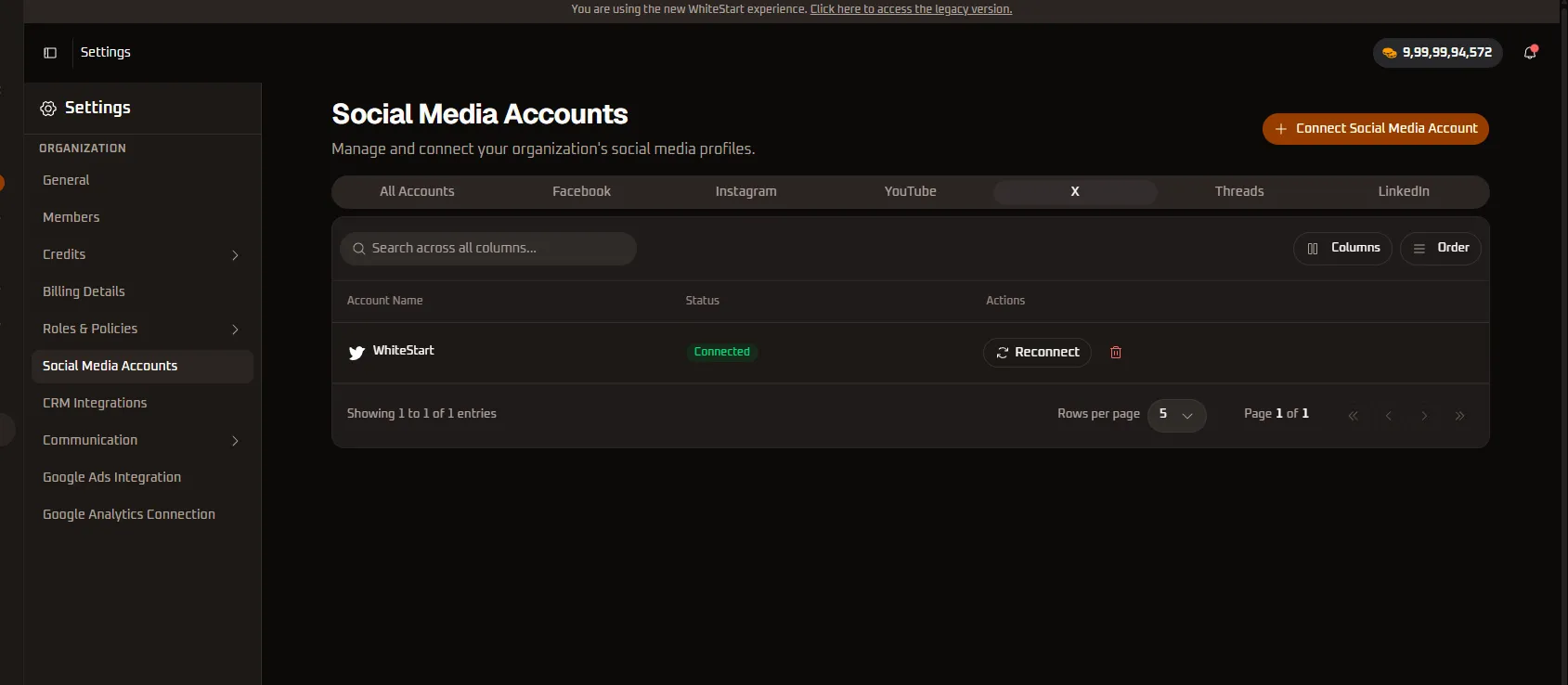
- Handle Identifier: Displays the linked corporate X handle (e.g.,
WhiteStart) with the Twitter bird glyph. - Status Badge: Confirms an active
Connectedstatus. - Enabled Capabilities:
- Drafting and scheduling real-time text tweets, rich media attachments, and image cards.
- Automated multi-tweet thread sequencing and scheduled publishing.
- Configuring automated post boost rules and sponsored tweet campaign budgets.
- Receiving brand mentions and handling customer support replies in Live Inbox.
- Actions: Click
🔄 Reconnectto refresh OAuth 2.0 bearer tokens, or🗑️ Deleteto unlink the handle.
3.5. Threads
Section titled “3.5. Threads”How to Connect Threads
Section titled “How to Connect Threads”- In the Connect Social Media Account modal, select Connect Threads.
- A Meta Threads authentication screen will open:
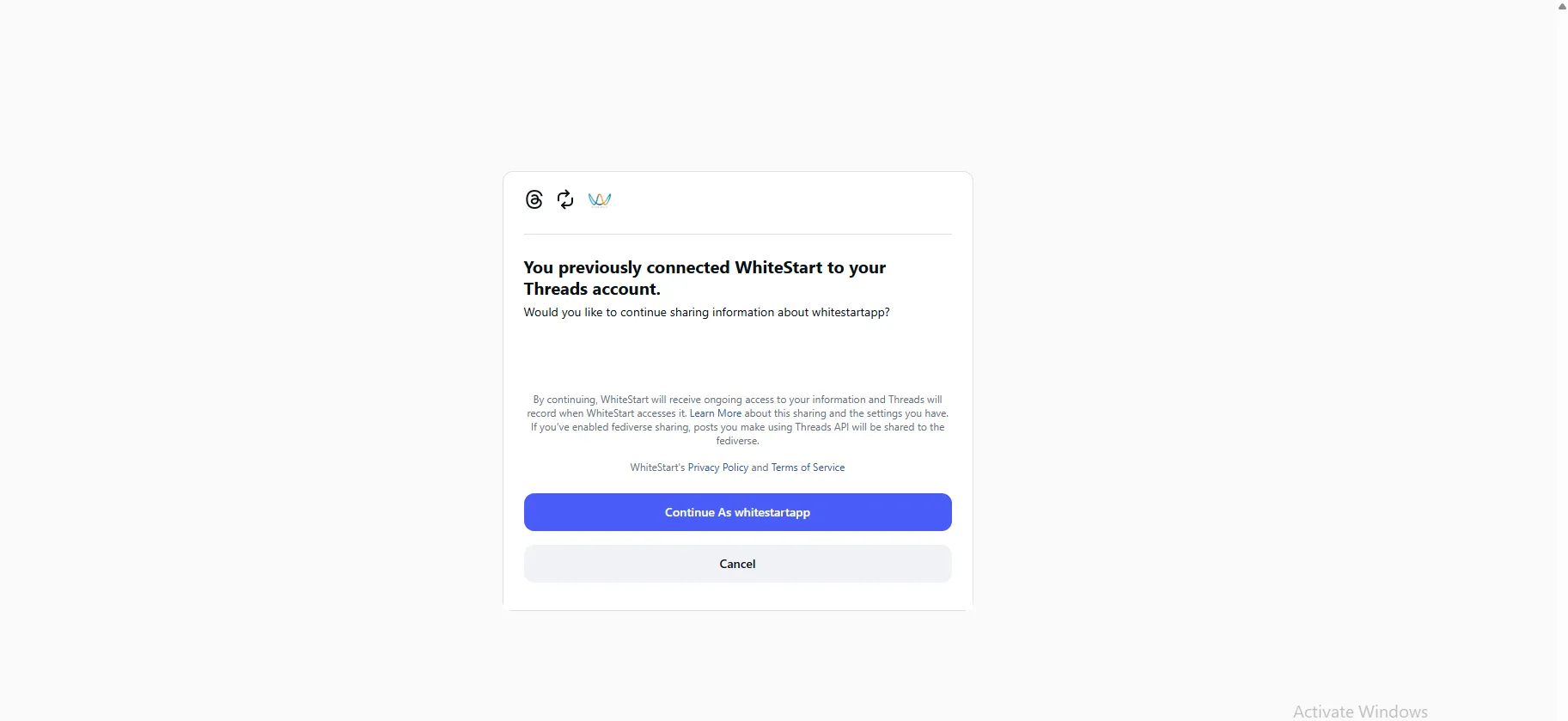
- Confirm your authenticated Threads account identity (e.g.,
whitestartapp). - If previously linked, Threads will confirm ongoing data sharing between WhiteStart and your Threads profile.
- Note that if fediverse sharing is enabled on your Threads account, posts dispatched via WhiteStart’s API will automatically federate to compatible fediverse networks.
- Click Continue As [handle] to approve ongoing access.
Connected Threads Accounts View
Section titled “Connected Threads Accounts View”Open the Threads tab to verify your connected profile:
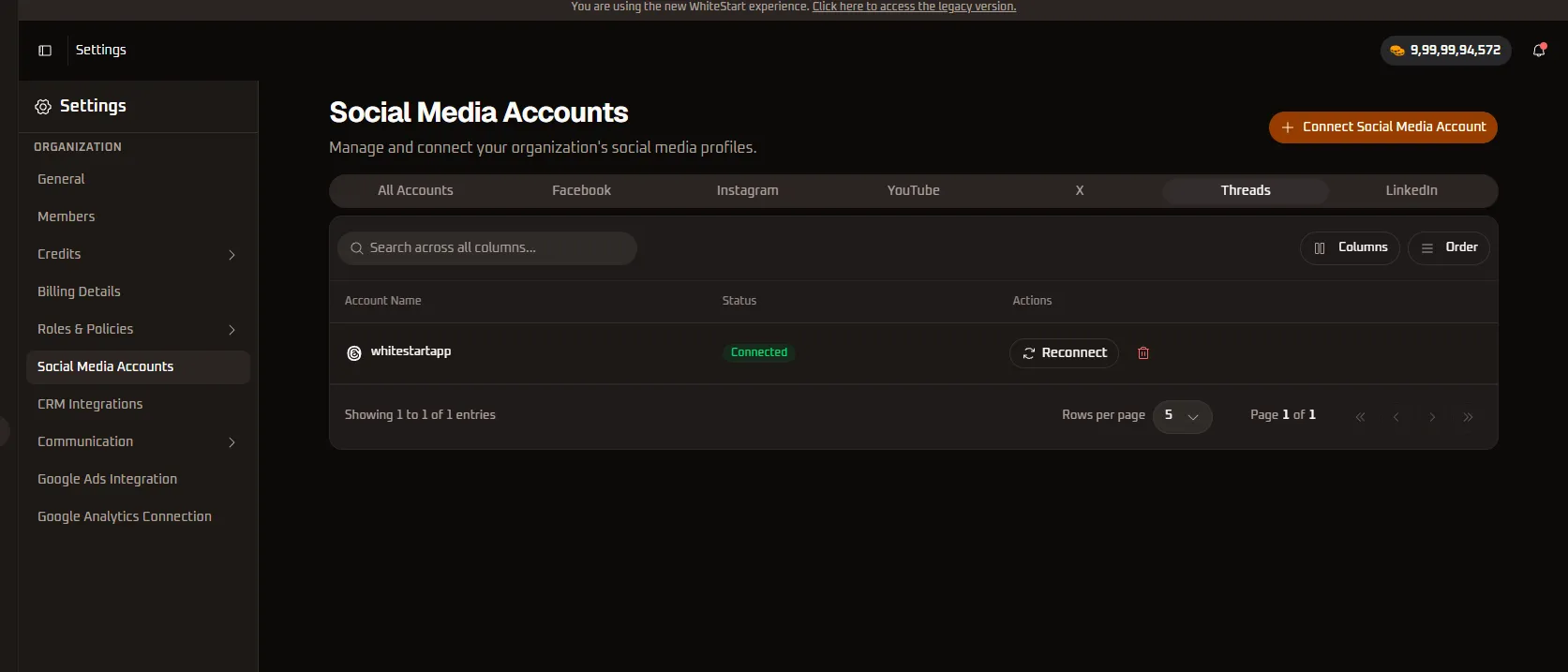
- Account Identifier: Shows the linked Threads handle (e.g.,
@whitestartapp) with the Threads@icon. - Status Badge: Indicates
Connectedstatus. - Enabled Capabilities:
- Composing and scheduling microblog text discussions, links, and visual media posts.
- Configuring reply accessibility parameters (
Anyone,Profiles you follow, orMentioned only). - Cross-promoting visual campaigns simultaneously across Instagram and Threads.
- Tracking likes, replies, re-threads, and engagement velocity.
- Actions: Use
🔄 Reconnectto maintain token health, or🗑️ Deleteto remove the connection.
3.6. LinkedIn
Section titled “3.6. LinkedIn”How to Connect LinkedIn
Section titled “How to Connect LinkedIn”- In the Connect Social Media Account modal, select Connect LinkedIn.
- The official LinkedIn sign-in screen will appear:
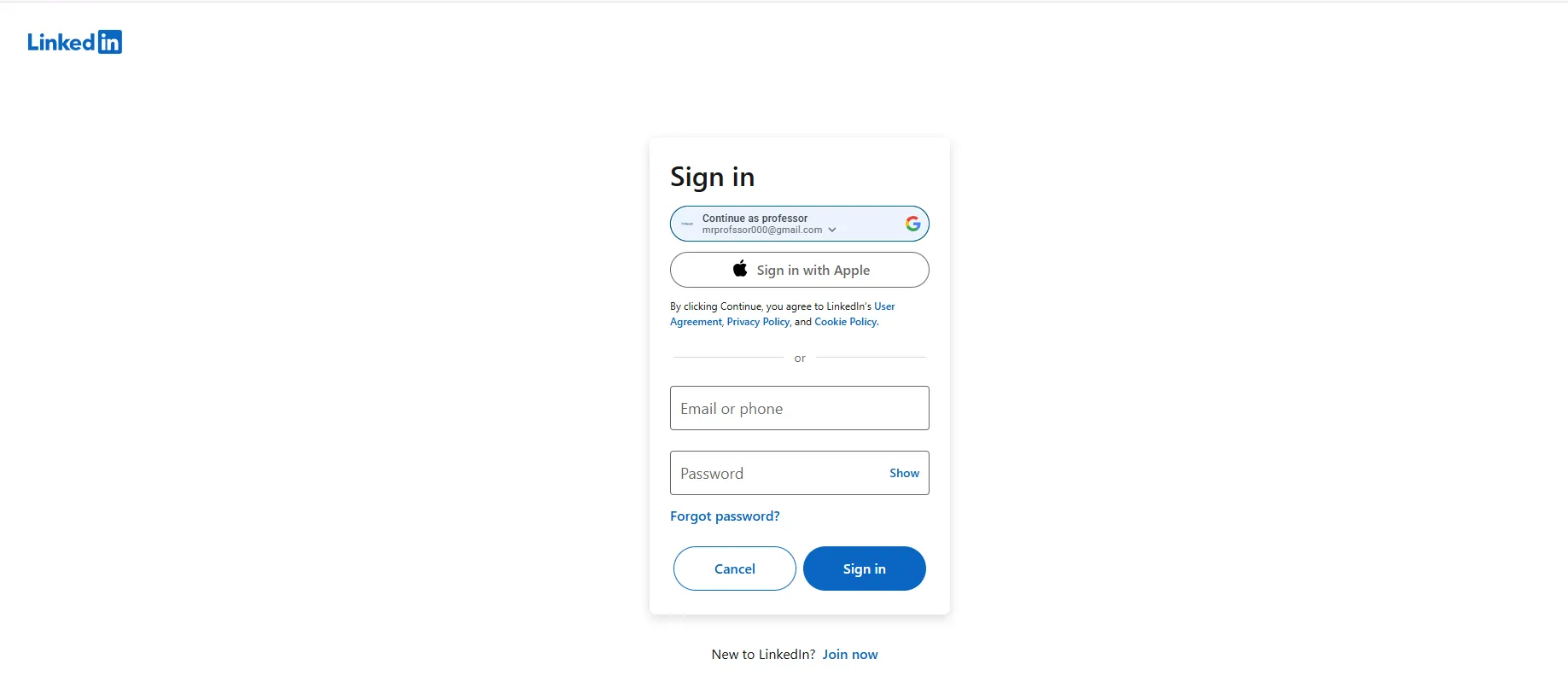
- Sign in using your LinkedIn corporate email and password, or choose Continue with Google / Apple.
- Review the requested permissions granting WhiteStart authorization to:
- Publish company updates, articles, and media on behalf of your organization.
- Manage and post to LinkedIn Company Pages where you hold administrator privileges.
- Access LinkedIn Campaign Manager advertising and sponsored content metrics.
- Click Sign In / Allow to finalize the integration.
Connected LinkedIn Accounts View
Section titled “Connected LinkedIn Accounts View”Navigate to the LinkedIn tab to view your connected corporate pages and personal profiles:
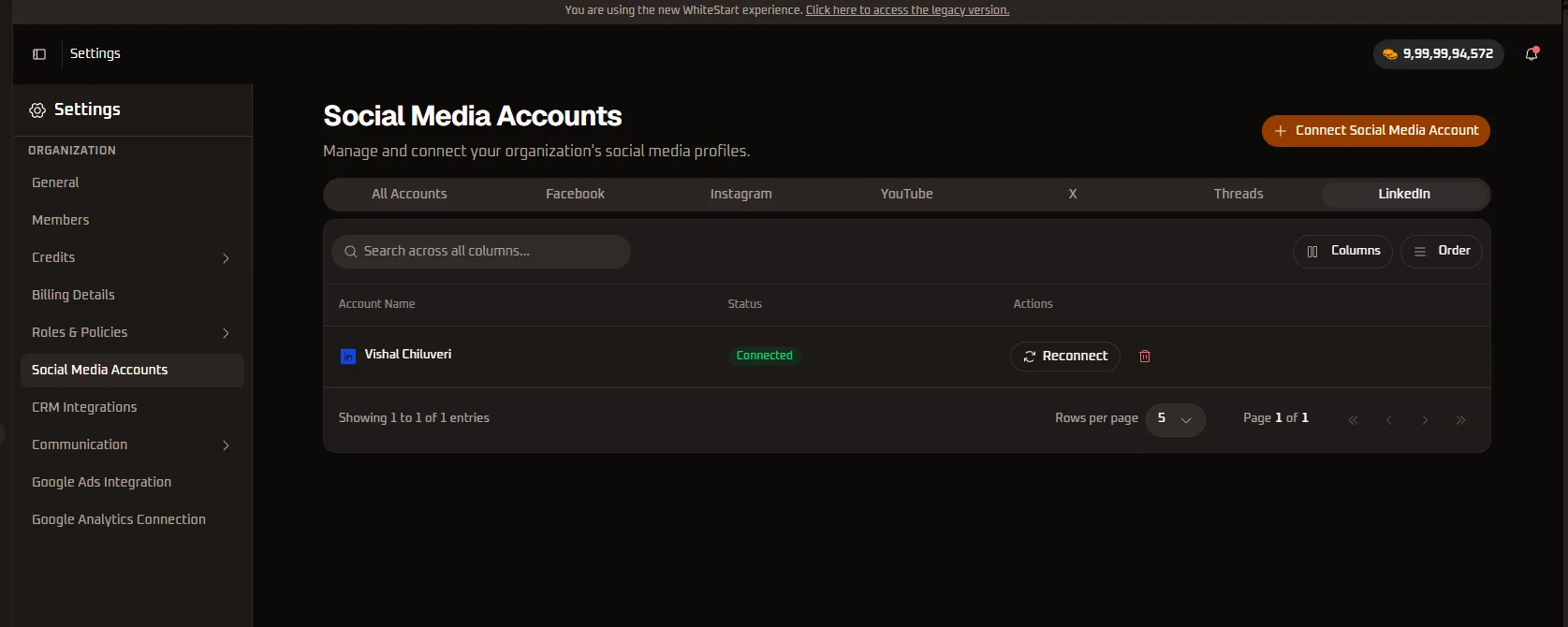
- Profile & Page Identifier: Displays authenticated member profiles (e.g.,
Vishal Chiluveri) as well as connected Company Pages with the LinkedIn badge. - Status Badge: Confirms an active
Connectedstate. - Enabled Capabilities:
- Scheduling corporate announcements, B2B articles, and multi-page PDF document carousels.
- Setting automated LinkedIn post boost rules filtered by B2B demographics (job titles, industries, company size).
- Ingesting LinkedIn Lead Gen Form responses directly into WhiteStart CRM.
- Reviewing Campaign Manager analytics, click-through rates (CTR), and cost-per-click (CPC).
- Actions: Click
🔄 Reconnectbefore the 60-day token window expires, or click🗑️ Deleteto unlink the profile.
4. Master Directory: All Accounts View
Section titled “4. Master Directory: All Accounts View”The All Accounts tab provides a consolidated view of every connected social profile across all networks:
+─────────────────────────────────────────────────────────────────────────────+| Social Media Accounts [ + Connect Social Media Account ]|| Manage and connect your organization's social media profiles. |+─────────────────────────────────────────────────────────────────────────────+| [ All Accounts ] [ Facebook ] [ Instagram ] [ YouTube ] [ X ] [ Threads ] [ LinkedIn ] |+─────────────────────────────────────────────────────────────────────────────+| [Q Search across all columns... ] [ Columns ] [ Order ] |+─────────────────────────────────────────────────────────────────────────────+| Account Name Status Actions |+────────────────────────────────────┬────────────────────┬───────────────────+| (f) White Start [ Connected ] [ Reconnect ] [D] || (f) WhiteStart [PAGE] [ Connected ] [ Reconnect ] [D] || (ig) whitestartapp [ Connected ] [ Reconnect ] [D] || (in) Vishal Chiluveri [ Connected ] [ Reconnect ] [D] || (@) whitestartapp [ Connected ] [ Reconnect ] [D] |+────────────────────────────────────┴────────────────────┴───────────────────+| Showing 1 to 5 of 5 entries Rows per page: [ 5 v ] Page 1 of 2|+─────────────────────────────────────────────────────────────────────────────+Table Management Tools:
Section titled “Table Management Tools:”- Global Search (
Search across all columns...): Instant search filter that matches against profile names, handles, and connection statuses across all platforms simultaneously. - Columns Selector: Toggle visibility of specific table attributes (e.g., hiding or showing action buttons or account identifiers).
- Order Selector: Sort table entries alphabetically, by connection date, or by channel type.
- Pagination & Row Sizing: Select default row view limits (5, 10, 25, 50 rows per page) and navigate across multi-page inventories using page arrow buttons (
<<,<,>,>>).
5. Account Lifecycle Operations
Section titled “5. Account Lifecycle Operations”Reconnecting & Refreshing Expired Tokens (🔄 Reconnect)
Section titled “Reconnecting & Refreshing Expired Tokens (🔄 Reconnect)”Social networks (Meta, LinkedIn, Google, X) enforce token security lifetimes (typically 60–90 days). Tokens may also be revoked immediately if an administrator changes their platform account password.
- When to Reconnect: Click
🔄 Reconnectwhenever a warning notice is displayed or proactively before major marketing campaigns. - Zero Disruption Guarantee: Reconnecting updates the underlying OAuth token in seconds. All scheduled posts, draft campaigns, and historical analytics remain completely intact.
Disconnecting & Unlinking an Account (🗑️ Delete)
Section titled “Disconnecting & Unlinking an Account (🗑️ Delete)”When an agency client offboards, a brand handle is decommissioned, or you wish to revoke WhiteStart’s publishing authority:
- Locate the account row in the table.
- Click the red Delete (trash can
🗑️) icon in the Actions column. - A confirmation modal will appear asking you to confirm the disconnection.
- Click Confirm Disconnect.
- The account is immediately removed from WhiteStart and background synchronization stops.
6. Quick Reference Summary
Section titled “6. Quick Reference Summary”| Platform | Supported Entity Types | OAuth Protocol | Primary Capabilities Unlocked | Token Lifespan |
|---|---|---|---|---|
Business Pages (PAGE) & Profiles |
Meta OAuth 2.0 | Feed posts, video scheduling, Messenger Live Inbox, Lead Ads sync | ~60 Days (Rolling) | |
| Professional (Business/Creator) | Meta Graph API | Photos, carousels, Reels, Instagram DM Live Inbox, Story tracking | ~60 Days (Rolling) | |
| YouTube | Brand & Creator Channels | Google Identity OAuth 2.0 | Shorts scheduling, video uploads, Community tab posts, retention analytics | 6 Months / Offline Refresh |
| X (Twitter) | Verified Corporate Handles | X API v2 OAuth 2.0 | Real-time tweets, thread sequencing, media posts, promoted tweet boosts | Periodic / OAuth Refresh |
| Threads | Meta Threads Profiles | Meta Threads API | Text microblogging, visual media posts, discussion threads, fediverse sharing | ~60 Days (Rolling) |
| Company Pages & Member Profiles | LinkedIn OAuth 2.0 | B2B updates, article distribution, document carousels, sponsored boost | 60 Days (Explicit) |
7. Role-Based Access Control (RBAC) Permissions
Section titled “7. Role-Based Access Control (RBAC) Permissions”User capabilities in the Social Media Accounts module are governed by WhiteStart’s Roles & Policies:
| Desired Operation | Required Permission | Relevant Entity Group |
|---|---|---|
| View Connected Channels | Can view connected account |
Social: General |
| Connect New Accounts | Can add connected account |
Social: General |
| Reconnect / Refresh Tokens | Can change connected account |
Social: General |
| Disconnect Accounts | Can delete connected account |
Social: General |
| Connect Ad Accounts | Can add ads account |
Social: General |
| Schedule Channel Content | Can add [platform] post setting |
Social: [Platform] |
| Promote & Boost Posts | Can add [platform] boost setting |
Social: [Platform] |
Ensure that team members managing brand social connections have an appropriate policy assigned in Roles & Policies.