
Organization Workspaces & Context Switching
WhiteStart is built on a multi-tenant enterprise architecture. A single authenticated user can belong to multiple organizations, hold different administrative roles across accounts, and seamlessly transition between workspaces without signing out.
Overview
Section titled “Overview”In WhiteStart, an Organization represents an isolated workspace tenant housing its own customer databases, communication integrations, messaging credit wallets, campaign histories, and team member directories.
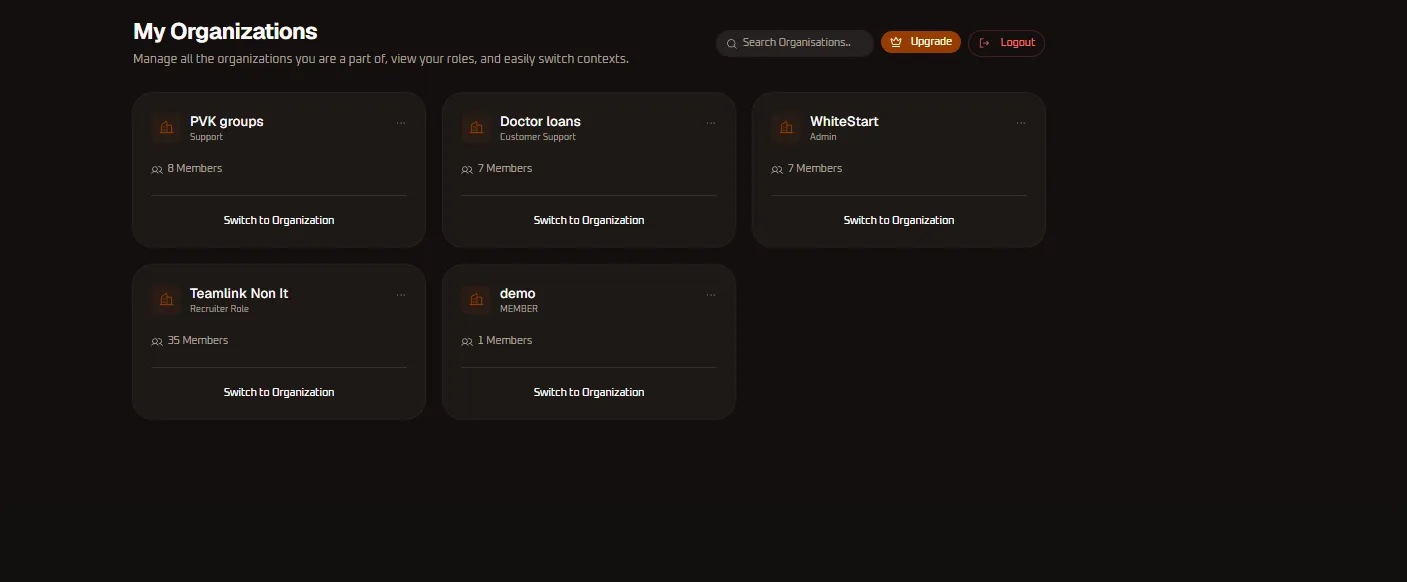
The My Organizations dashboard acts as the central command center where users select which workspace to enter, inspect their active membership roles, or provision brand-new organization tenants.
Key Capabilities
Section titled “Key Capabilities”- Multi-Tenant Partitioning: Data, API keys, and customer contacts remain strictly isolated within individual organization boundaries.
- Granular Role Attribution: A user can operate with
Adminprivileges in one organization while acting asCustomer Supportor a generalMemberin another. - Instant Context Switching: Jump between client agency accounts, sister branches, or test sandboxes with one click.
- Fast Organization Search: Filter through dozens of tenant memberships using the real-time search bar.
My Organizations Dashboard Reference
Section titled “My Organizations Dashboard Reference”The dashboard provides an intuitive grid of all organizations associated with your authenticated credentials:
Toolbar Controls
Section titled “Toolbar Controls”- Search Organisations: Input field allowing users to filter organization cards in real time by company or brand name.
- Credit Balances: Global numeric badge displaying total wallet credits and opening the Credit Balances & Quotas breakdown.
- Notification Bell: Live notification bell with dynamic badge counters opening the Notification Center.
- Upgrade Button: Direct shortcut to review workspace subscription tiers and expand operational limits.
- Logout Button: Secure action highlighted in red text to terminate your user session.
Organization Card Anatomy
Section titled “Organization Card Anatomy”Each card in the directory reflects an independent tenant workspace:
| Element | Example from Interface | Functional Purpose |
|---|---|---|
| Organization Name | WhiteStart, PVK groups, Doctor loans |
Primary legal or operational business identity. |
| Assigned Role | Admin, Support, Customer Support, Recruiter Role, MEMBER |
Indicates your permission tier and operational authority within the selected workspace. |
| Member Count | 7 Members, 8 Members, 35 Members, 1 Members |
Total number of registered team members provisioned in the workspace. |
| Switch to Organization | Action Button | Instantly loads the organization environment, routing to its active Dashboard. |
Creating a New Organization
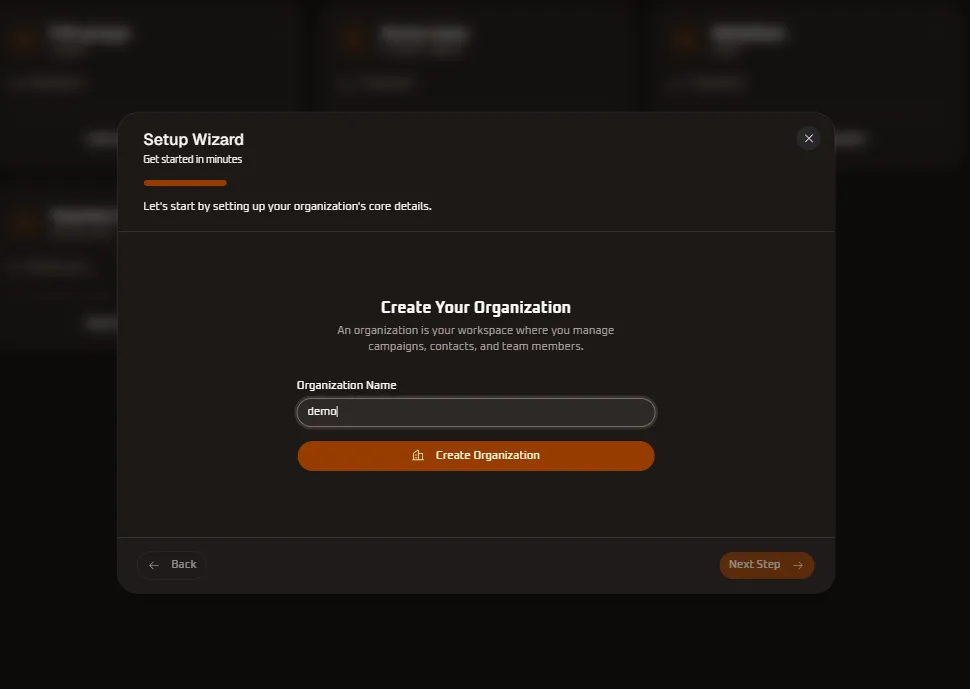
Section titled “Creating a New Organization”Users provisioning a new workspace or establishing an additional brand tenant can launch the Setup Wizard:
Step-by-Step Organization Provisioning
Section titled “Step-by-Step Organization Provisioning”- From the organizations console or initial post-signup prompt, open the Setup Wizard.
- Review the setup progress bar at the top of the modal (
Let's start by setting up your organization's core details.). - In the Organization Name field, enter your company, agency, or client workspace title (e.g.,
demo). - Click the orange Create Organization button.
- The system initializes the tenant partition, assigns your account as the root Owner / Super Admin, and advances the wizard to channel integration steps.
- Click Next Step to proceed to channel configurations, or click Back to adjust workspace parameters.
In-App Workspace Context Switching
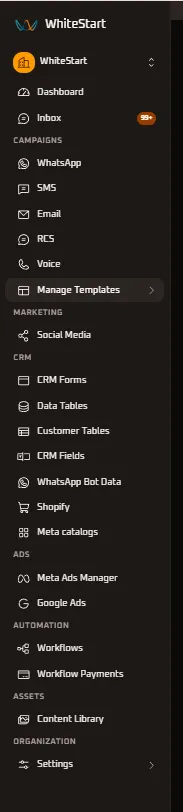
Section titled “In-App Workspace Context Switching”Once inside an active workspace, users do not need to return to the centralized My Organizations dashboard to switch accounts. The persistent sidebar header features a rapid Organization Switcher dropdown with hardware keyboard shortcuts.
Sidebar Switcher Highlights
Section titled “Sidebar Switcher Highlights”- Active Workspace Selector: Click the organization name in the upper-left sidebar navigation rail to reveal all associated tenant memberships.
- Keyboard Accelerators: Switch between your top 8 workspaces instantaneously using
⌘1to⌘8on Mac orCtrl+1toCtrl+8on Windows. - Add Organization: Click the + Add Organization button at the base of the menu to launch the Setup Wizard directly from any page.
- View All Organizations: Returns to the full-screen My Organizations Directory.
- Dedicated Guide: Read complete shortcut mechanics and session lifecycle details in Organization Switcher & Shortcuts.
Multi-Tenancy Security & Governance
Section titled “Multi-Tenancy Security & Governance”Strict Data Partitioning
Section titled “Strict Data Partitioning”WhiteStart enforces database-level tenant isolation. CRM contacts, message templates, WhatsApp numbers, credit balances, and campaign logs generated in Organization A are completely inaccessible from Organization B, even if users belong to both workspaces.
Role Independence
Section titled “Role Independence”Permissions do not transfer across organizations:
- Admin / Owner: Full administrative authority over billing, team invitations, policy creation, and API credentials.
- Customer Support: Access to Inbox conversations, contact drawers, and customer messaging.
- Recruiter / Custom Roles: Granular permissions restricted to defined pipelines or forms.
- Member: Standard user access without administrative configuration rights.
Next Onboarding Steps
Section titled “Next Onboarding Steps”Once your organization workspace is created or selected, configure communication channels and inspect operational dashboards:
- Organization Switcher & Shortcuts: Master rapid context switching, keyboard shortcuts, and multi-account navigation.
- Setup Wizard & Integrations: Step-by-step guide to connecting WhatsApp, Social Media, CRM tools, Email, SMS, and RCS providers.
- Credit Balances & Rates: Inspect multi-channel credit quotas, unit rates, and top-up procedures.
- Notification Center: Monitor real-time inbound customer messages and system event streams.