
Voice Campaigns
The Voice Campaigns module allows businesses to execute automated Outbound Dialing (OBD), interactive voice broadcasts, audio alerts, and customer notifications at scale. Manage connected telephony providers (Jio, Smartping, Sparc), configure audio templates and text-to-speech scripts, upload recipient phone lists via CSV, segment audiences from CRM data, schedule calling windows, and monitor real-time call answer rates, delivery metrics, and detailed diagnostic logs from one unified dashboard.
1. Navigating to Voice Campaigns
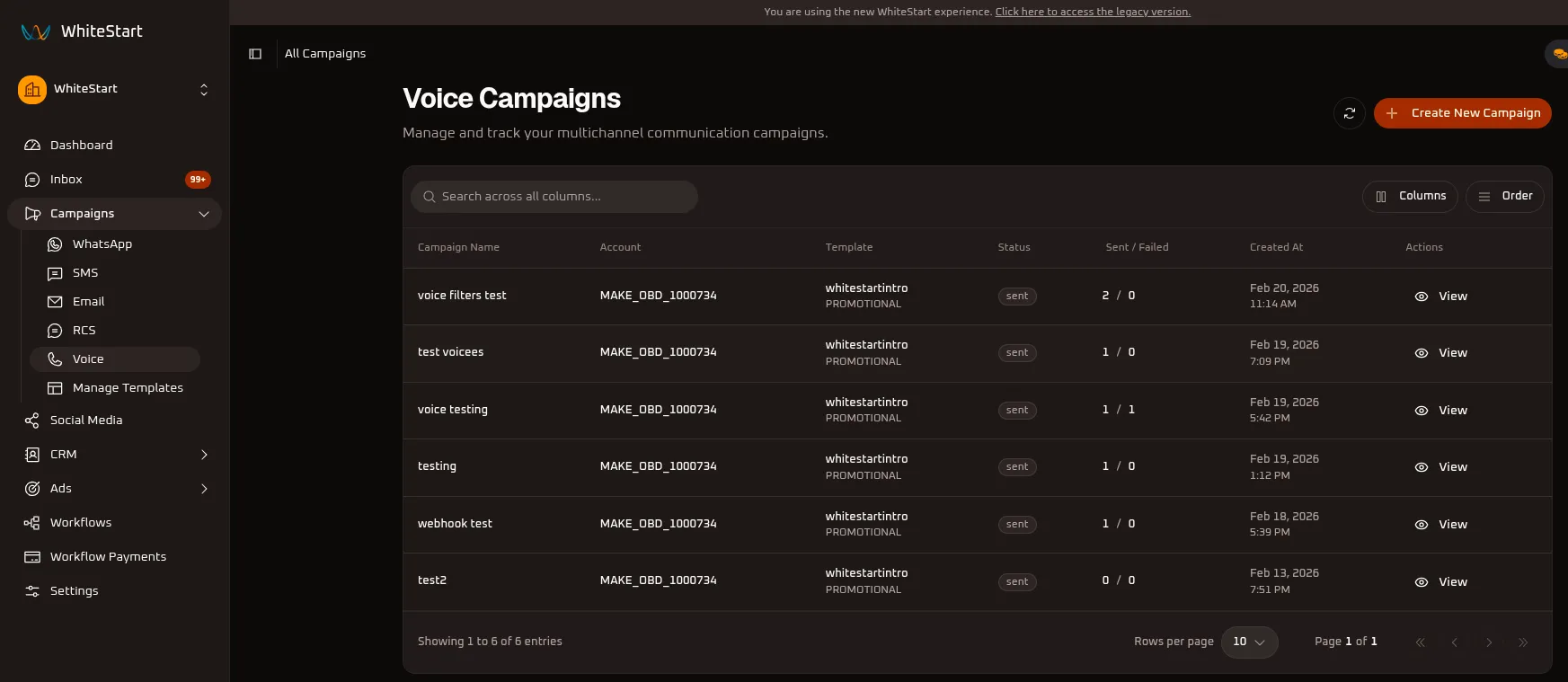
Section titled “1. Navigating to Voice Campaigns”Main Sidebar ➔ Campaigns ➔ Voice- In the main navigation sidebar on the left, click Campaigns to expand the channel menu.
- Select Voice from the submenu.
- The Voice Campaigns dashboard opens, listing all existing outbound voice broadcasts, connected telephony trunk accounts, template categories, execution status, and call delivery ratios.
2. Managing the Voice Campaigns Table
Section titled “2. Managing the Voice Campaigns Table”The main campaigns dashboard provides complete visibility over past and active outbound calling campaigns.
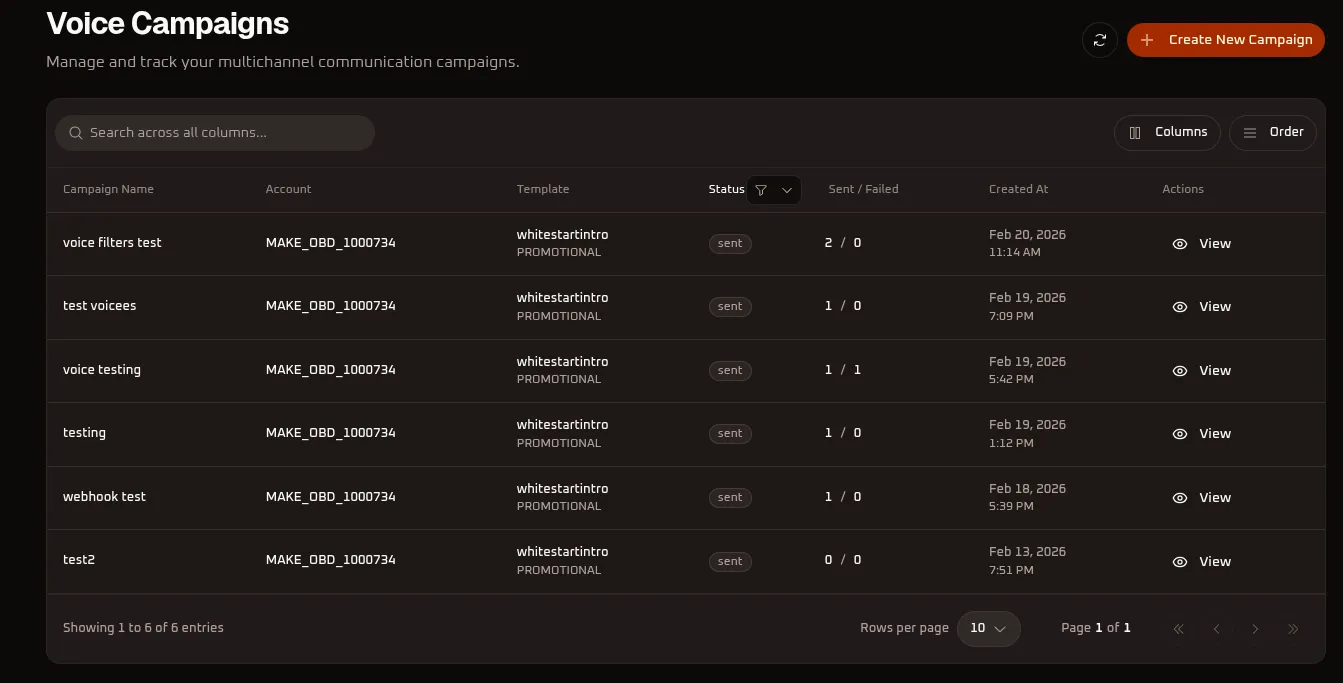
Table Controls & Customization Options
Section titled “Table Controls & Customization Options”- Search Input (
Search across all columns...): Search any campaign by title, caller trunk ID, template name, or creation timestamp. - Refresh Button (
🔄): Reloads the campaign list and updates live call answer rates without refreshing your browser. - Status Filter (
Status ⚲ ▾): Filter the table records by campaign state (e.g.,sent,failed,queued). - Columns Menu (
Columns): Toggle the visibility of specific data columns in the table (Campaign Name,Account,Template,Status,Sent / Failed,Created At,Actions). - Order Menu (
Order): Reorder table columns or configure sorting priority using drag-and-drop handles. - Create New Campaign (
+ Create New Campaign): Opens the voice campaign builder wizard.
Table Columns Reference
Section titled “Table Columns Reference”| Column Header | Description | Example / Values |
|---|---|---|
| Campaign Name | Internal title assigned to the outbound voice broadcast. | voice filters test, test voicees, voice testing, testing |
| Account | The connected telecom voice account / OBD trunk used to dial calls. | MAKE_OBD_1000734 |
| Template | Pre-recorded audio template or TTS script and its classification. | whitestartintro [PROMOTIONAL] |
| Status | Current operational status of the voice campaign batch. | sent |
| Sent / Failed | Ratio showing answered/dispatched calls versus failed attempts. | 2 / 0, 1 / 0, 1 / 1, 0 / 0 |
| Created At | Timestamp when the voice campaign was triggered. | Feb 20, 2026 11:14 AM, Feb 19, 2026 7:09 PM |
| Actions | Action triggers to inspect detailed call analytics. | Click 👁 View to open detailed campaign analytics. |
3. Creating a Voice Campaign
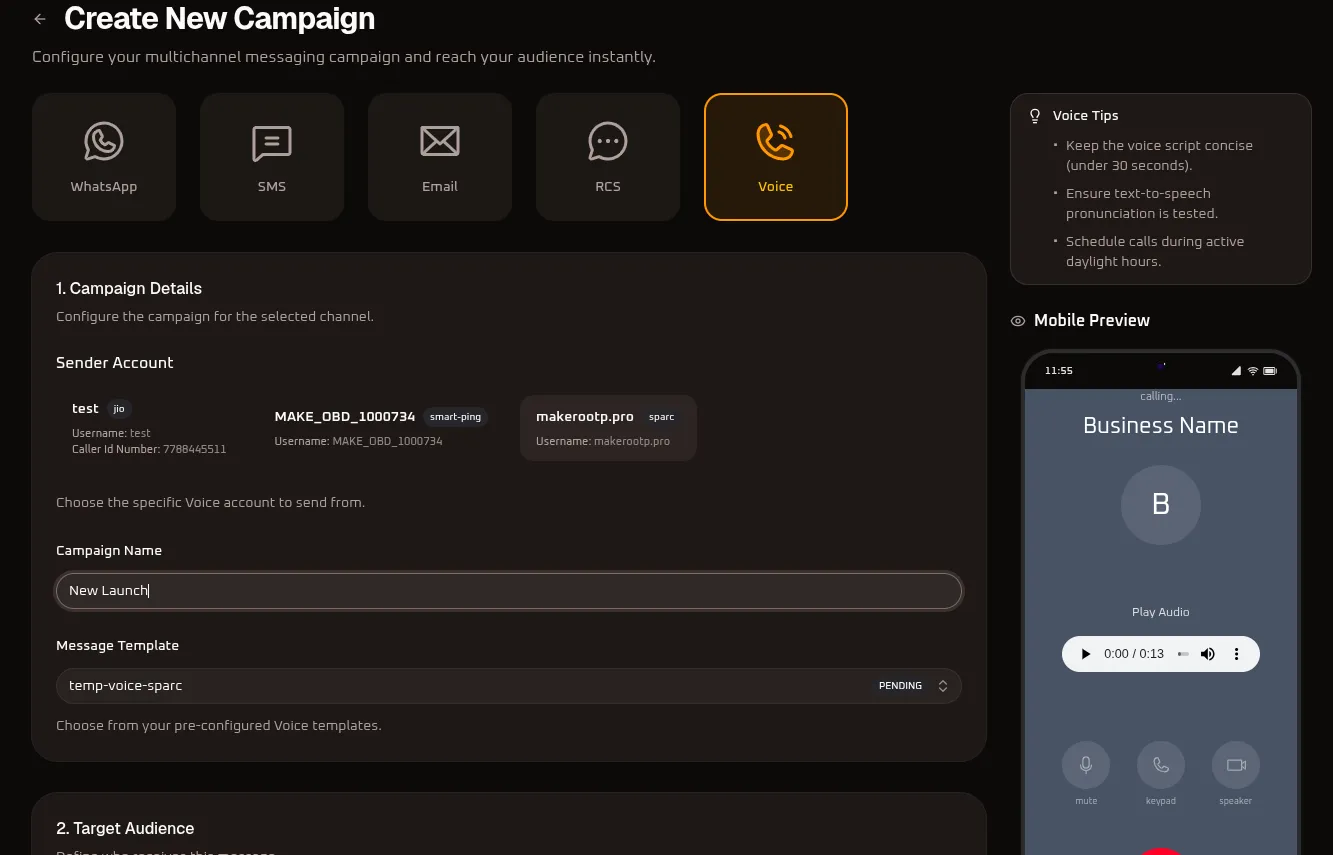
Section titled “3. Creating a Voice Campaign”Click the orange + Create New Campaign button at the top right of the campaigns page to open the voice campaign builder.
Step 1: Channel & Sender Account Selection
Section titled “Step 1: Channel & Sender Account Selection”- Under the top channel bar, select Voice (highlighted with an orange boundary, alongside WhatsApp, SMS, Email, and RCS).
- Review the Sender Account cards:
- test (jio): Displays your Jio OBD account and verified caller ID (e.g.,
Caller Id Number: 7788445511). - MAKE_OBD_1000734 (smart-ping): Displays your Smartping trunk username (e.g.,
Username: MAKE_OBD_1000734). - makerootp.pro (sparc): Displays your Sparc voice gateway credentials (e.g.,
Username: makerootp.pro). - Click to select the sender account you want to use for this voice broadcast.
- test (jio): Displays your Jio OBD account and verified caller ID (e.g.,
- Enter a descriptive Campaign Name (e.g.,
New Launch,voice filters test).
Step 2: Message Template Selection
Section titled “Step 2: Message Template Selection”- Click on the Message Template dropdown to choose a pre-configured voice audio template.
- Select your approved voice template (e.g.,
whitestartintroortemp-voice-sparc).- Note: If a template shows a
PENDINGbadge, carrier audio verification is still in progress.
- Note: If a template shows a
- Once selected, test the pre-recorded audio file directly inside the Mobile Preview pane on the right side using the built-in media player (
Play Audio 0:00 / 0:13).
Step 3: Selecting Target Audience
Section titled “Step 3: Selecting Target Audience”WhiteStart provides two distinct audience targeting modes:
Option A: CSV Upload
Section titled “Option A: CSV Upload”Broadcast voice calls to imported customer contact lists.
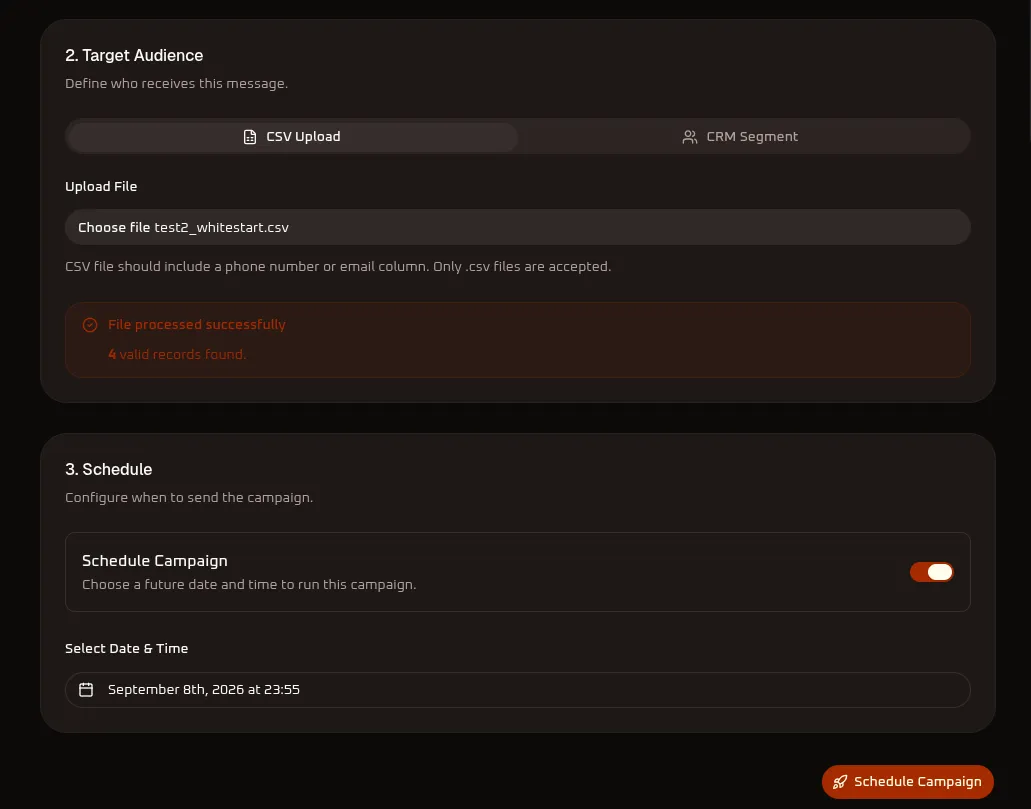
- Under 2. Target Audience, select the CSV Upload tab.
- Click Choose file and select your contact list (e.g.,
test2_whitestart.csv). - Ensure the CSV contains a valid phone number column with country code prefixes. Only
.csvfiles are accepted. - Once processed, the validation card confirms:
- File processed successfully
- Total count of valid recipient numbers (e.g.,
4 valid records found.).
Option B: CRM Segment
Section titled “Option B: CRM Segment”Broadcast voice calls to dynamically filtered customer groups directly from your built-in CRM database.
- Under 2. Target Audience, select the CRM Segment tab.
- Click the Select Segment dropdown:
- All Active Users: Broadcasts to all active registered CRM contacts.
- VIP Customers: Targets top-tier accounts and high-priority leads.
- Inactive > 30 Days: Re-engages dormant customers with automated voice reminders.
Step 4: Scheduling & Campaign Launch
Section titled “Step 4: Scheduling & Campaign Launch”Under 3. Schedule, configure when the automated calls should begin dialing.
- Immediate Launch: Leave the Schedule Campaign toggle switched OFF and click the orange
🚀 Launch Campaign Nowbutton to initiate calls immediately. - Scheduled Launch:
- Toggle the Schedule Campaign switch to ON.
- In the Select Date & Time picker, set your target date and exact calling time (e.g.,
September 8th, 2026 at 23:55). - Click the orange
🚀 Schedule Campaignbutton to queue the batch.
4. Viewing Voice Campaign Analytics & Performance
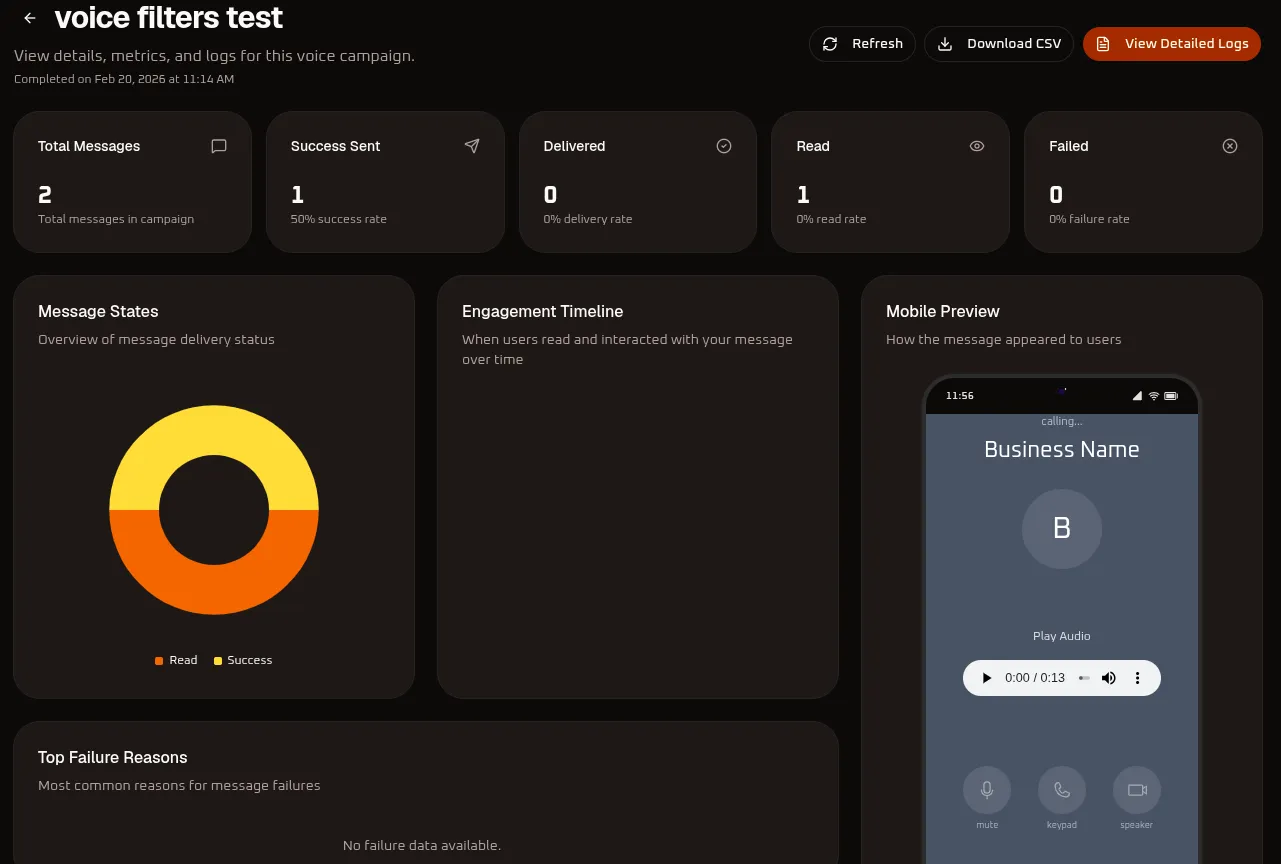
Section titled “4. Viewing Voice Campaign Analytics & Performance”From the main campaigns table, click 👁 View in the Actions column next to any campaign to open its dedicated analytics dashboard.
Top Metric Summary Cards
Section titled “Top Metric Summary Cards”- Total Messages: Total call attempts queued in the campaign (e.g.,
2). - Success Sent: Total calls connected and placed through the telephony provider (e.g.,
1|50% success rate). - Delivered: Total calls acknowledged by telecom carrier switching networks (e.g.,
0|0% delivery rate). - Read (Answered): Total calls successfully answered and listened to by recipients (e.g.,
1|0% read rate/Answered). - Failed: Total calls that were unanswered, busy, rejected, or invalid (e.g.,
0|0% failure rate).
Visual Analytics & Engagement
Section titled “Visual Analytics & Engagement”- Message States Donut Chart: Visual breakdown displaying the proportion of Answered (
Read), Connected (Success), and Unanswered calls. - Engagement Timeline Graph: Real-time chronological tracking showing recipient call pickups and duration patterns over time.
- Mobile Preview: Exact simulation showing caller screen appearance (
Business Name) and audio playback controls. - Top Failure Reasons: Itemized breakdown of telephony disconnect causes (displays “No failure data available.” when calls complete without trunk errors).
5. Inspecting Detailed Live Call Logs
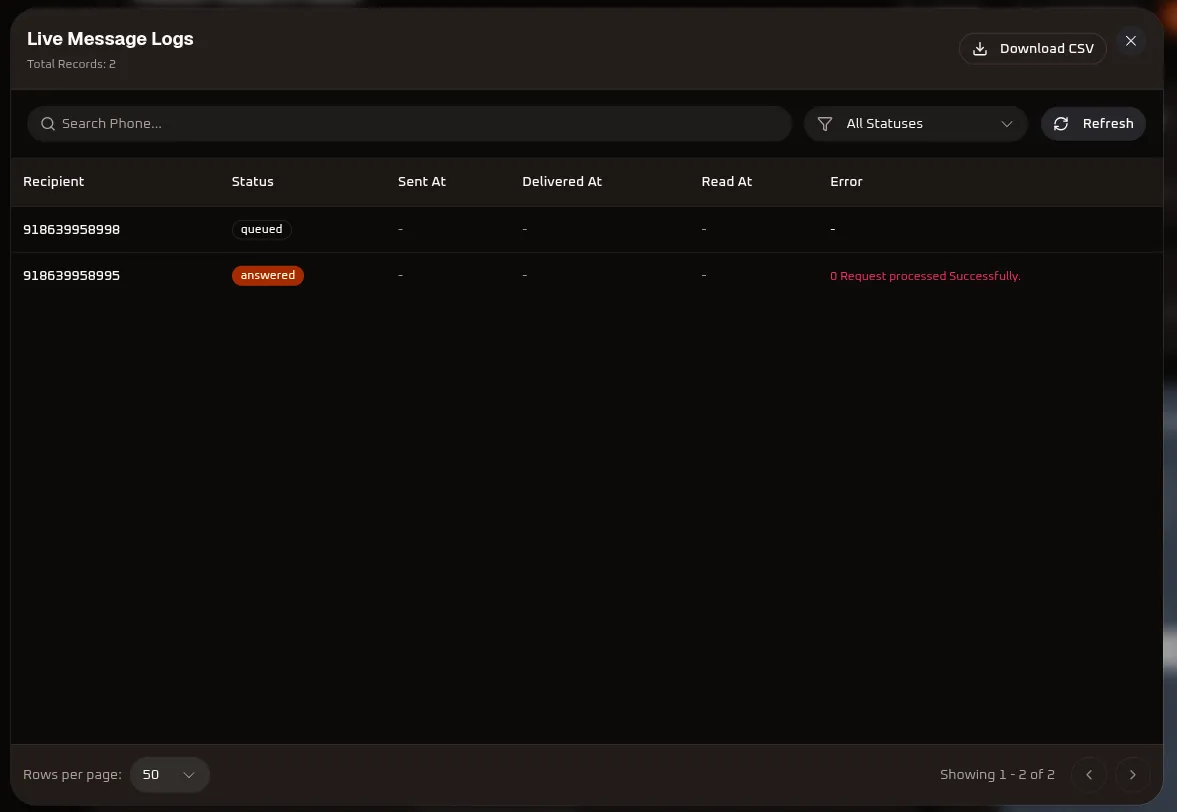
Section titled “5. Inspecting Detailed Live Call Logs”To audit individual call attempts, duration, timestamps, and telephony status responses, click the orange View Detailed Logs button in the top right of the campaign analytics view.
Live Call Logs Modal Controls
Section titled “Live Call Logs Modal Controls”- Search Input (
Search Phone...): Quickly filter call logs by typing a specific recipient phone number. - Status Filter (
All Statuses ▾): Filter the log modal by specific call progress:- All Statuses: Shows all records.
- queued: Call scheduled in the dialing queue.
- answered: Recipient picked up and audio stream played.
- Failed / No Answer: Recipient busy, disconnected, or no answer.
- Refresh (
🔄 Refresh): Fetch live telephony receipts and call progress updates in real time. - Download CSV (
⬇ Download CSV): Export the complete call log report with all recipient numbers, timestamps, and gateway response codes into a spreadsheet.
Message Logs Data Schema
Section titled “Message Logs Data Schema”| Field Name | Description | Example / Values |
|---|---|---|
| Recipient | The recipient’s normalized phone number with country code. | 918639958998, 918639958995 |
| Status | Terminal call status badge. | queued (grey), answered (orange), failed (red) |
| Sent At | Timestamp when the telephony trunk initiated dialing. | - (or timestamp) |
| Delivered At | Timestamp when handset ringing started. | - |
| Read At | Timestamp when the recipient answered the call. | - |
| Error | Gateway response or disconnect code. | 0 Request processed Successfully. |