
Dashboard Overview
WhiteStart User Guide: Understanding the Analytics Dashboard
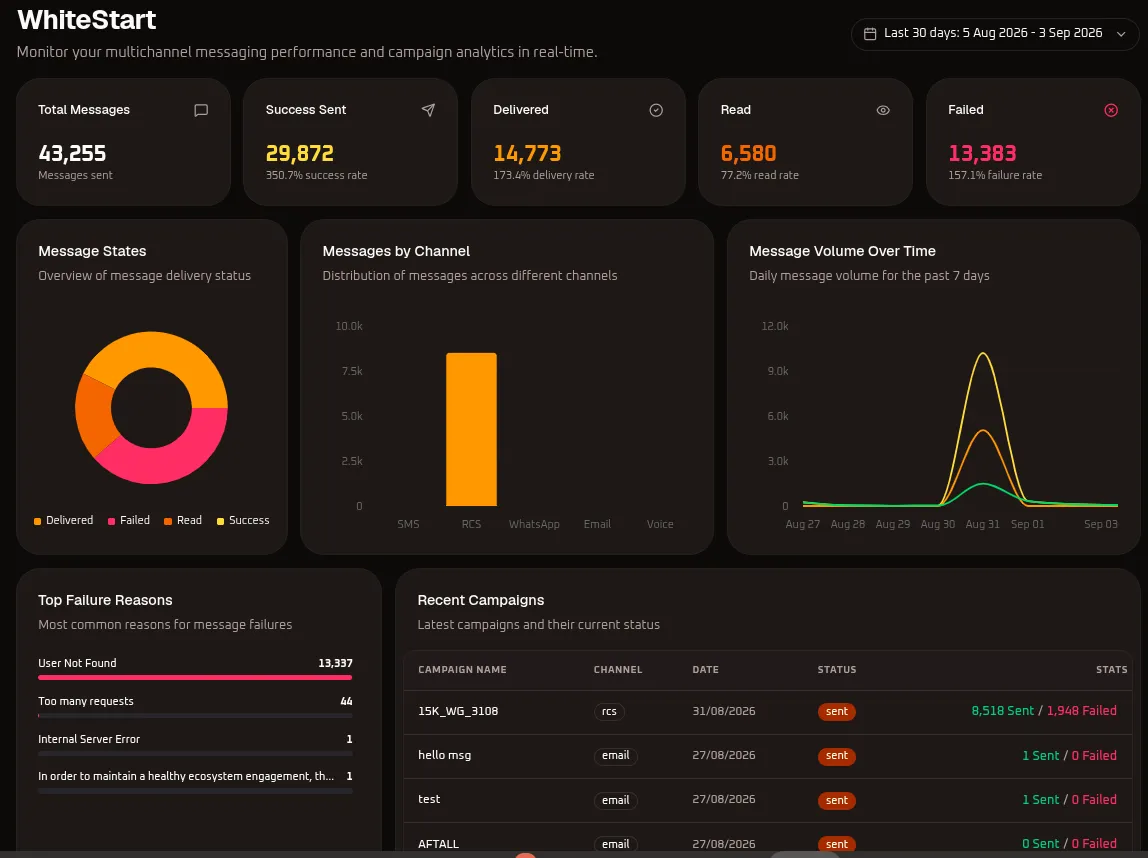
Section titled “WhiteStart User Guide: Understanding the Analytics Dashboard”The WhiteStart Dashboard serves as your centralized command center for real-time monitoring of multichannel communications, broadcast performance, and gateway delivery health. This guide provides a comprehensive breakdown of every metric, chart, filter, and reporting panel available within the dashboard interface.
1. Global Controls & Timeframe Selection
Section titled “1. Global Controls & Timeframe Selection”Located in the top right corner of the dashboard, the Date Range Selector governs the scope of all metrics, distribution charts, and audit records displayed on this page.
+-----------------------------------------------------------------------------------+| WhiteStart001 || Monitor your multichannel messaging performance and campaign analytics in || real-time. [ 📅 Last 30 days: 5 Aug 2026 - 3 Sep 2026 ▼ ]|+-----------------------------------------------------------------------------------+How Timeframe Filtering Works
Section titled “How Timeframe Filtering Works”When you adjust the date range filter, WhiteStart dynamically recalculates all Key Performance Indicators (KPIs) based on the timestamp when messages were initially submitted to the processing queue.
- Default Range: Displays the rolling Last 30 days (e.g.,
5 Aug 2026 – 3 Sep 2026). - Available Presets & Selection Guidelines:
- Today: Tracks real-time traffic from
00:00:00of the current calendar day to the current minute. Ideal for monitoring live broadcast dispatches and spotting instant queue drops. - Yesterday: Useful for day-end reconciliation and delivery receipt (DLR) completion audits once telecom carrier queues settle.
- Last 7 Days: Optimal for analyzing weekly send patterns, day-of-week engagement variances, and delivery velocity across active campaigns.
- Last 30 Days: Evaluates monthly quota usage, delivery ratios, platform credit consumption, and broad recipient engagement trends.
- Custom Range: Allows you to define an explicit starting and ending date to audit specific historical campaigns, quarter-end blasts, or billing cycles.
- Today: Tracks real-time traffic from
2. Key Performance Indicators (KPI Metric Cards)
Section titled “2. Key Performance Indicators (KPI Metric Cards)”The top row of cards displays quantitative aggregates across all communication channels within the active timeframe.
| Metric Field | Visual Value | Icon / Indicator | Purpose & Functional Definition | Calculation & Operational Meaning |
|---|---|---|---|---|
| Total Messages | 43,255 |
💬 Chat Bubble | The cumulative count of all message dispatch attempts initiated by campaigns, automation workflows, and live chat sessions. | $\text{Total Messages} = \text{Sent} + \text{Queued} + \text{Failed Attempts}$ |
| Success Sent | 29,872 |
✈️ Paper Plane | Messages successfully processed through the WhiteStart engine and accepted downstream by telecom carriers or upstream APIs. | Number of dispatches that cleared queue buffers and received an initial telecom/gateway acknowledgement (SENT). |
| Delivered | 14,774 |
🗹 Check Circle | Handset-level and inbox placement confirmations acknowledged by recipient carriers or email service providers. | Number of dispatches with confirmed delivery receipts (DELIVERED status) returned by the destination device or mail server. |
| Read | 6,579 |
👁️ Eye | The number of messages confirmed as viewed or opened by target recipients. | Captured via recipient read receipts (e.g., WhatsApp blue ticks, RCS read status, or Email HTML tracking pixels). |
| Failed | 13,383 |
🗴 Cancel Circle | Messages that reached a terminal rejection state and could not be delivered to the recipient. | Count of messages blocked by carrier gateways, invalid destination addresses, or channel policy violations. |
ℹ️ Understanding Calculated Rates & Percentages:
Delivery, read, and failure percentages are evaluated relative to completed baseline dispatches within the filtered scope. Ratios exceeding 100% can occur when aggregating across multi-step retry sequences or when receiving delayed handset delivery receipts (DLRs) for dispatches initiated in a preceding timeframe.
3. Data Visualizations & Trend Analysis
Section titled “3. Data Visualizations & Trend Analysis”The middle dashboard tier breaks down delivery performance across statuses, channels, and timeline sequences.
+---------------------------------------------------------------------------------------+| VISUAL ANALYTICS || || [ Message States ] [ Messages by Channel ] [ Message Volume / Time ] || - Delivered: Orange - RCS: Dominant (~7.5k+) - Rolling 7-Day Trend || - Failed: Pink/Red - SMS, WhatsApp, - Peak Spikes Auditing || - Read: Yellow Email, Voice |+---------------------------------------------------------------------------------------+A. Message States (Donut Chart)
Section titled “A. Message States (Donut Chart)”Provides a visual breakdown of end-state delivery ratios across all attempts:
- Delivered (Orange): Confirmed placements in recipient messaging applications or inboxes.
- Failed (Pink/Red): Rejections requiring review (e.g., unreachable handset, carrier blacklist, invalid MSISDN).
- Read (Yellow): Confirmed opens and reads.
- Success (Yellow/Green Segment): Dispatches accepted by the network that are currently awaiting final delivery receipts.
B. Messages by Channel (Bar Chart)
Section titled “B. Messages by Channel (Bar Chart)”A cross-channel comparison showing message distribution across supported pathways:
- SMS: Traditional GSM and DLT-registered telecom messages.
- RCS: Rich Communication Services messaging (displayed as the primary volume driver in this view).
- WhatsApp: Official Meta WhatsApp Business API dispatches.
- Email: Outbound transactional and marketing emails.
- Voice: Outbound Dialing (OBD) and automated Interactive Voice Response (IVR) calls.
C. Message Volume Over Time (7-Day Trend Chart)
Section titled “C. Message Volume Over Time (7-Day Trend Chart)”A multi-line area chart tracking daily message dispatches over a rolling 7-day period (e.g., Aug 27 to Sep 03).
- Spike Detection: Sharp peaks (such as the surge on August 31st) represent high-volume broadcast operations.
- Baseline Activity: Flat horizontal distributions indicate steady transactional triggers and conversational customer replies.
4. Diagnostics: Top Failure Reasons
Section titled “4. Diagnostics: Top Failure Reasons”This panel identifies the primary reasons for undelivered messages, ranked by volume. Use this section to troubleshoot and improve list hygiene.
| Error Code / Message | Occurrences | Root Cause Analysis | Recommended Corrective Action |
|---|---|---|---|
| User Not Found | 13,337 |
The target phone number does not exist on the destination carrier or is not registered for that specific channel (e.g., attempting RCS delivery to an iOS device or non-RCS Android client). | Run phone number validation/HLR lookup before broadcasting; configure automated channel fallback (e.g., RCS $\rightarrow$ SMS) in campaign settings. |
| Too many requests | 44 |
Outbound volume exceeded upstream API rate limits or concurrent throughput limits. | Enable rate-limiting/throttling in campaign settings to pace message dispatches within gateway parameters. |
| Internal Server Error | 1 |
Upstream telecom gateway or third-party service experienced temporary downtime. | No action required; the WhiteStart queuing engine automatically retries transient gateway errors. |
| In order to maintain a healthy ecosystem engagement… | 1 |
Upstream provider compliance intervention (e.g., Meta WhatsApp Tier limits or carrier anti-spam algorithms). | Audit your opt-in consent records; avoid blast messaging cold contacts to protect your sender reputation. |
5. Execution Log: Recent Campaigns
Section titled “5. Execution Log: Recent Campaigns”The Recent Campaigns table logs recent broadcast operations and their real-time delivery performance.
| Column Header | Field Meaning | Interpretation of Displayed Values |
|---|---|---|
| CAMPAIGN NAME | The user-defined identifier assigned during broadcast creation. | 15K_WG_3108, hello msg, test, AFTALL, code email testing |
| CHANNEL | The protocol and medium used for message transmission. | Tagged badges: rcs (Rich Communication Services) or email. |
| DATE | The date the broadcast batch was initiated. | Displayed in DD/MM/YYYY format (e.g., 31/08/2026). |
| STATUS | Current processing state of the campaign. | sent badge confirms all messages in the batch have cleared the dispatch queue. |
| STATS | The final delivery outcome across targeted contacts. | Green indicates successful dispatches; red highlights failed deliveries (e.g., 8,518 Sent / 1,948 Failed). |
6. System Notes, Limits & Best Practices
Section titled “6. System Notes, Limits & Best Practices”⚠️ System Parameters & Architecture Notes
Section titled “⚠️ System Parameters & Architecture Notes”
- Handset Receipt Delays: Delivery reports (DLRs) depend on carrier networks and device connectivity. Handsets that are powered off, out of coverage, or roaming may take up to 72 hours to return a final
DeliveredorFailedstatus.- Channel Read Tracking:
- WhatsApp & RCS: Read tracking requires the recipient to have read receipts enabled on their device.
- SMS: The standard GSM protocol does not support read receipts; SMS messages will advance to
Deliveredbut will not register underRead.- Email: Open rates rely on an invisible tracking pixel and may be influenced by privacy features such as Apple Mail Privacy Protection (MPP).
- Exporting Diagnostic Data: To export recipient-level delivery logs, navigate to Campaigns $\rightarrow$ Campaign History, select the campaign, and choose Export Delivery Audit CSV.
Next Steps & Related Documentation
Section titled “Next Steps & Related Documentation”- Connecting Channels & Integrations: Connect the communication channels and CRMs powering your dashboard.
- How WhiteStart Works: Understand the end-to-end data pipeline feeding dashboard metrics.
- Account Details & Profile Settings: Manage your personal profile, credentials, and notification settings.
- Setup Wizard & Channel Configuration: Revisit workspace onboarding and setup wizard configuration guides.
- WhiteStart Introduction: Return to the Get Started index.