
Account Setup of Organization
The Organization Profile card allows account administrators to view core workspace details and update the display name of their organization.
Interface Overview
Section titled “Interface Overview”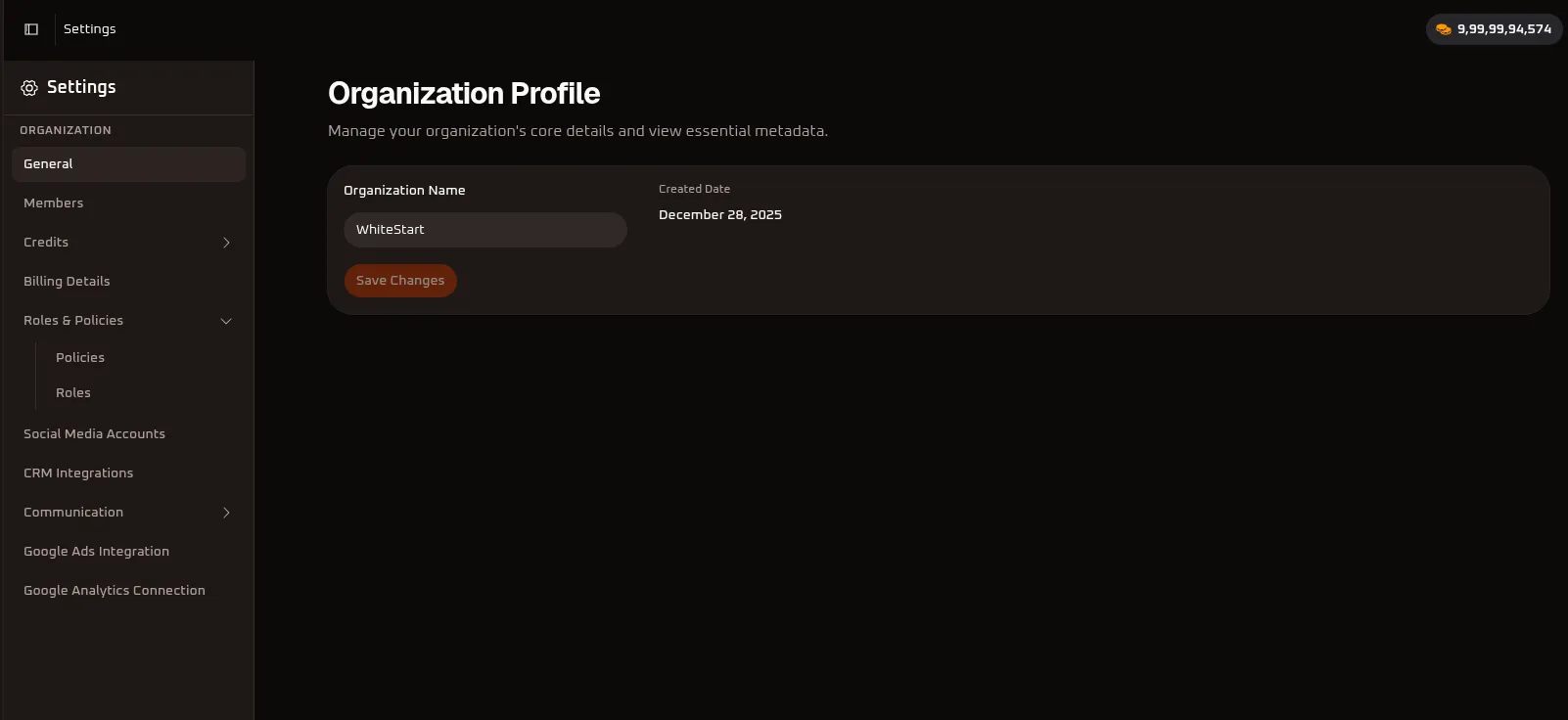
How to Navigate to the Organization Profile Page
Section titled “How to Navigate to the Organization Profile Page”To access your Organization Profile and manage general organization settings, follow this step-by-step navigation path:
- Open Settings: In the primary left-hand navigation sidebar, click on the Settings (
⚙️) option located toward the bottom. - Select General: In the secondary side menu that appears under the ORGANIZATION section, click on General.
- Access Organization Profile: The Organization Profile configuration page will open in the main view, allowing you to view metadata and edit your organization name.
On-Screen Fields & Elements
Section titled “On-Screen Fields & Elements”| Field / Element | Type | Status | Description |
|---|---|---|---|
| Organization Name | Text Input | Editable | The current display name of your WhiteStart organization workspace. |
| Created Date | Text Label | Read-Only | The date this organization account was officially created (December 28, 2025). |
| Save Changes | Button | Action | Submits and applies updates made to the Organization Name. |
Step-by-Step Instructions
Section titled “Step-by-Step Instructions”1. View Current Organization Information
Section titled “1. View Current Organization Information”- Look at the Organization Name field to see the current active name of your workspace.
- Check the Created Date field directly to the right to view when the account was provisioned.
2. Change the Organization Name
Section titled “2. Change the Organization Name”- Click inside the Organization Name input box.
- Delete the existing name (e.g.,
WhiteStart). - Type the new name for your organization or business.
- Click the Save Changes button.
- A confirmation message will appear confirming the new name has been saved.
Notes & Input Rules
Section titled “Notes & Input Rules”- Character Limit: The organization name must be between 2 and 50 characters.
- Allowed Characters: Letters, numbers, spaces, and standard punctuation (hyphens, periods, ampersands).
- Mandatory Field: The organization name cannot be left empty.
- Workspace Display: Once saved, the updated name will reflect across your workspace navigation and user invites.
Next Steps & Related Documentation
Section titled “Next Steps & Related Documentation”- Organization Billing & Tax Information: Configure corporate billing address, GSTIN/Tax ID, and invoice preferences.
- Account Details & Profile Settings: Manage individual team member profiles, passwords, and two-factor authentication.
- Connecting Channels & Integrations: Connect WhatsApp, social channels, telecom gateways, and CRM systems.
- Dashboard Overview: Return to the organization overview and metrics dashboard.
- WhiteStart Introduction: Return to the Get Started index.