
Social Media Management & Post Scheduling
The Social Media Management module allows businesses to compose, cross-publish, preview, schedule, and track content performance across six major social networks simultaneously: Facebook Pages, Instagram Business, LinkedIn Profiles & Pages, X (Twitter), Threads, and YouTube Channels.
Plan omni-channel campaigns, attach high-resolution graphics and 4K videos, review live previews on simulated smartphone interfaces, verify asset specifications, and monitor real-time engagement metrics from a single dashboard.
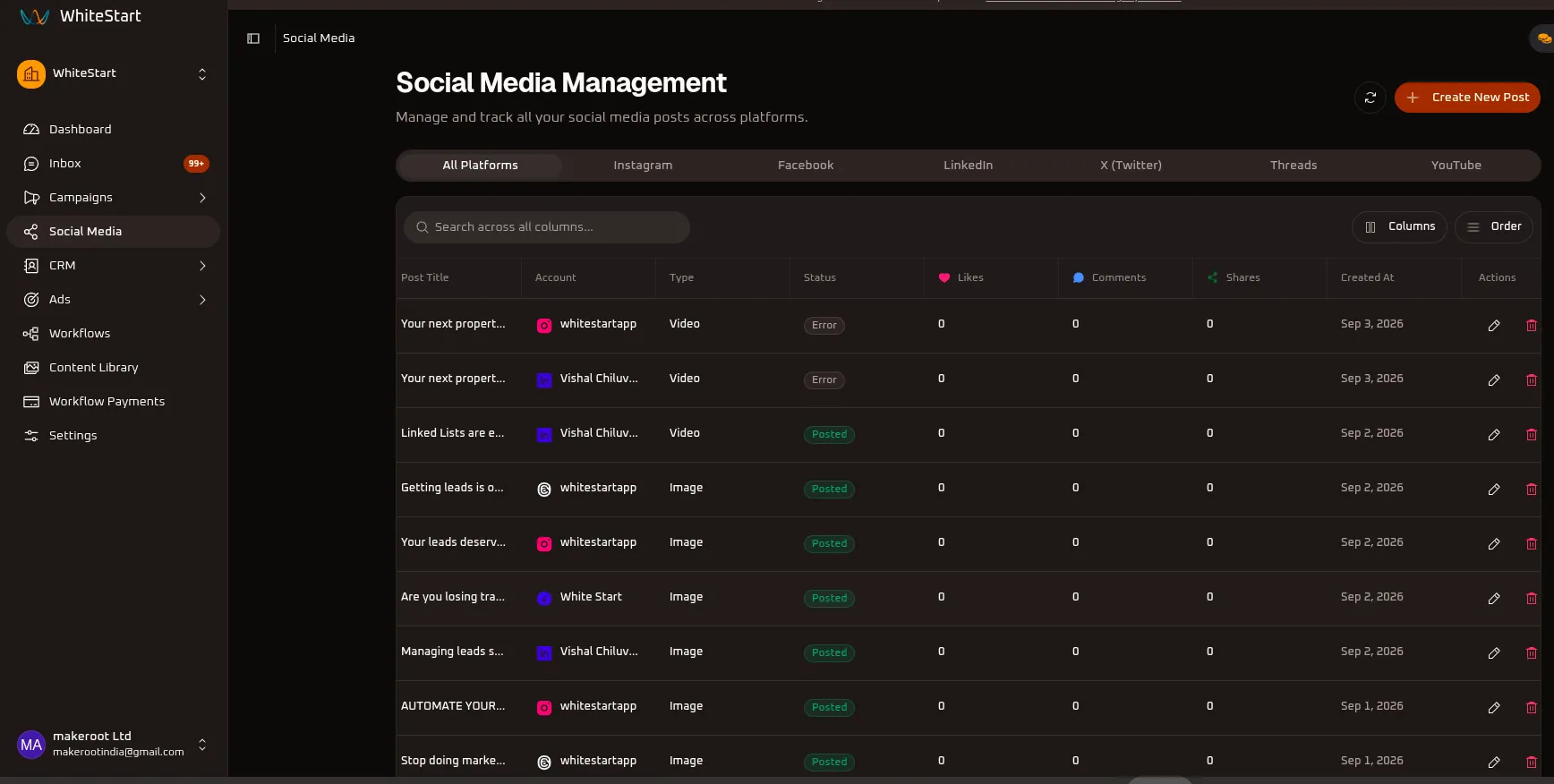
1. Navigating to Social Media Management
Section titled “1. Navigating to Social Media Management”Main Sidebar ➔ Social Media- In the main navigation sidebar on the left, click Social Media.
- The Social Media Management dashboard opens, displaying all published and scheduled posts, social network badges, engagement indicators (Likes, Comments, Shares), and creation timestamps.
2. Managing Multi-Platform Post Streams
Section titled “2. Managing Multi-Platform Post Streams”The centralized dashboard table tracks every piece of content published or queued across all connected networks.
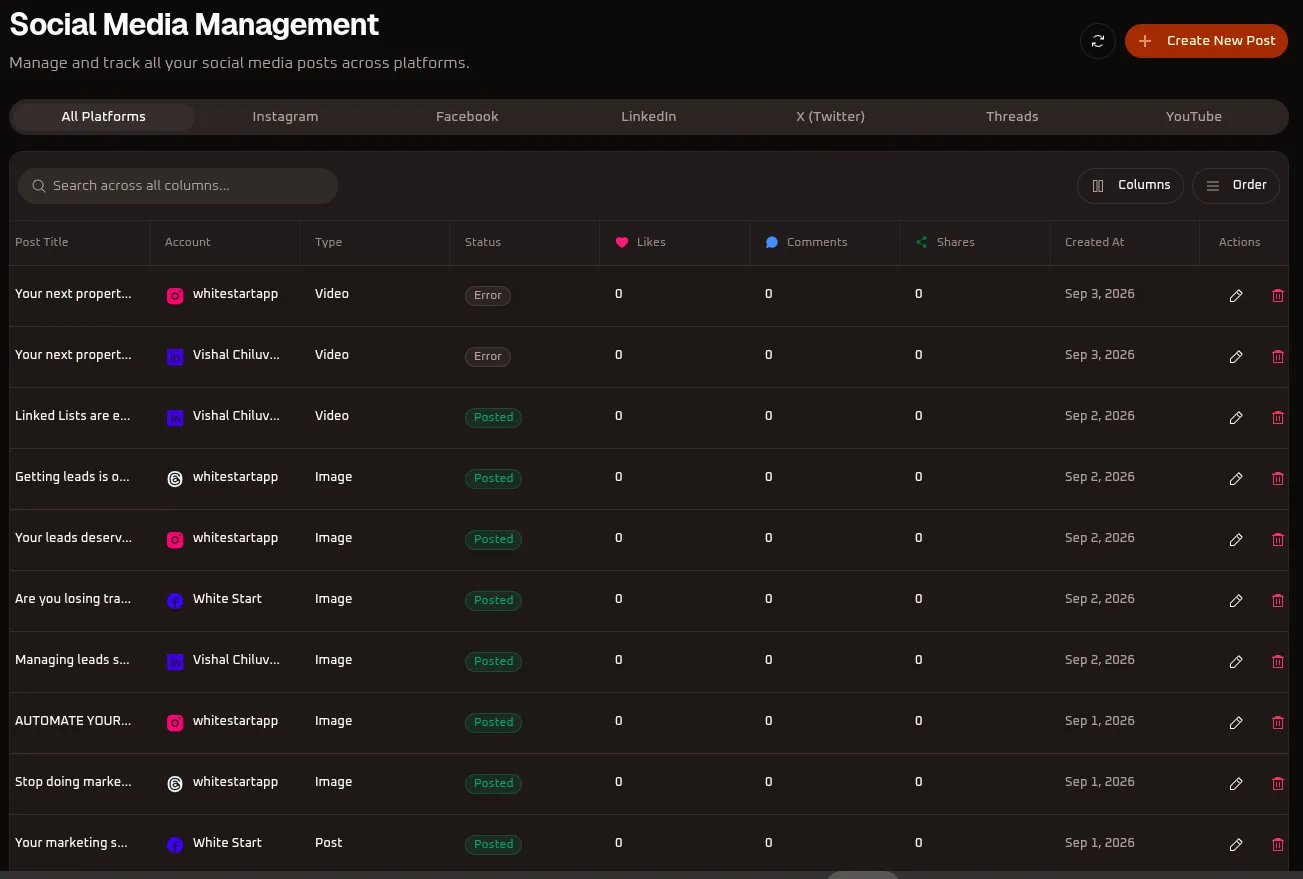
Platform Filter Tabs
Section titled “Platform Filter Tabs”Filter your publication history and scheduled pipeline by clicking the channel tabs along the top bar:
- All Platforms: Aggregated overview of all published and scheduled content across all six channels.
- Instagram: Review image carousels, single-image posts, and Reels published to connected Instagram Business accounts (e.g.,
whitestartapp). - Facebook: Review posts, status announcements, and visual media published to managed Facebook Pages (e.g.,
White Start). - LinkedIn: Monitor professional thought leadership articles, documents, and updates across personal profiles and corporate pages (e.g.,
Vishal Chiluv...). - X (Twitter): Track tweets, threads, and media announcements published to X handles (e.g.,
WhiteStart). - Threads: View microblogging posts and visual updates published to Meta Threads accounts (e.g.,
whitestartapp). - YouTube: Inspect video uploads, Shorts, and video publishing statuses across linked YouTube brand channels (e.g.,
WhiteStart).
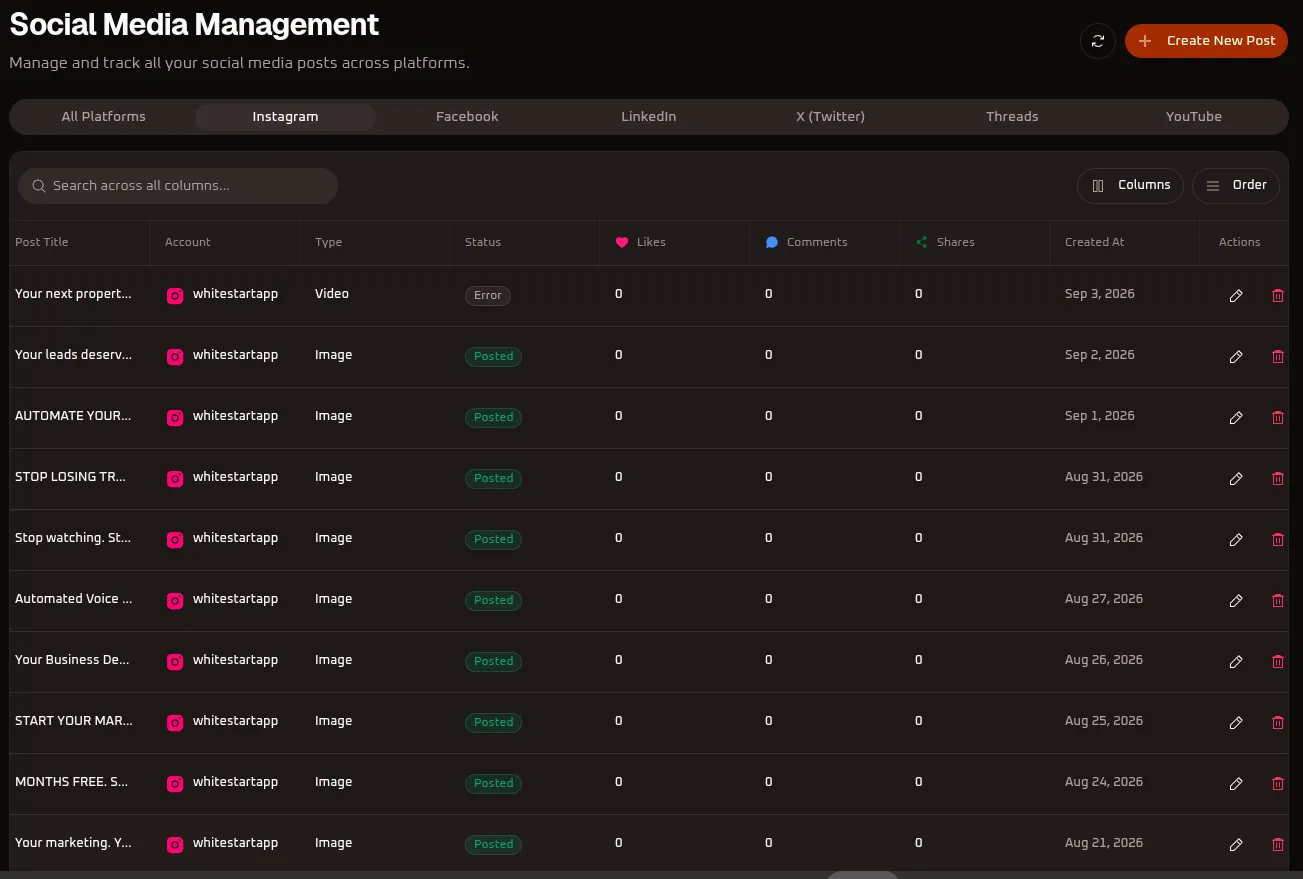
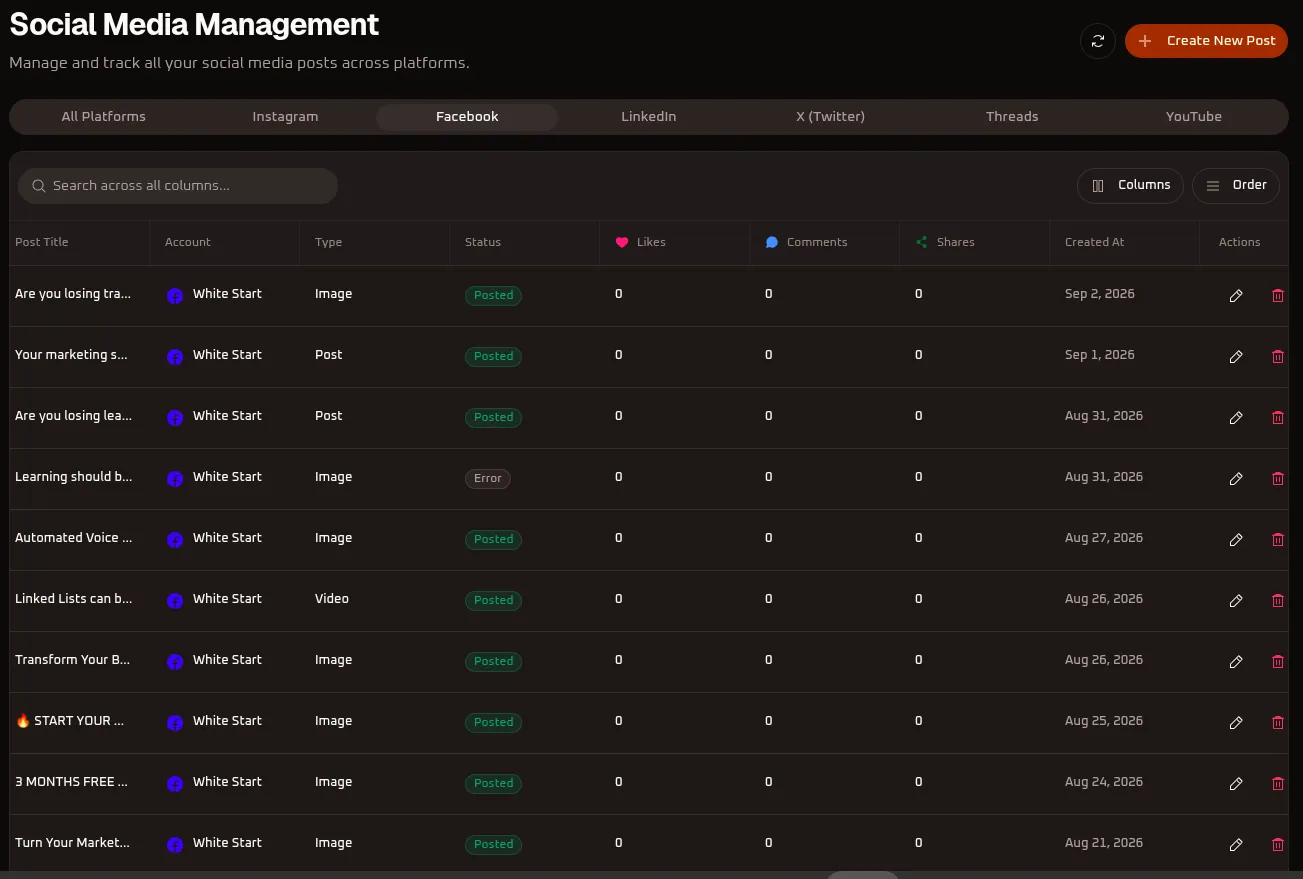
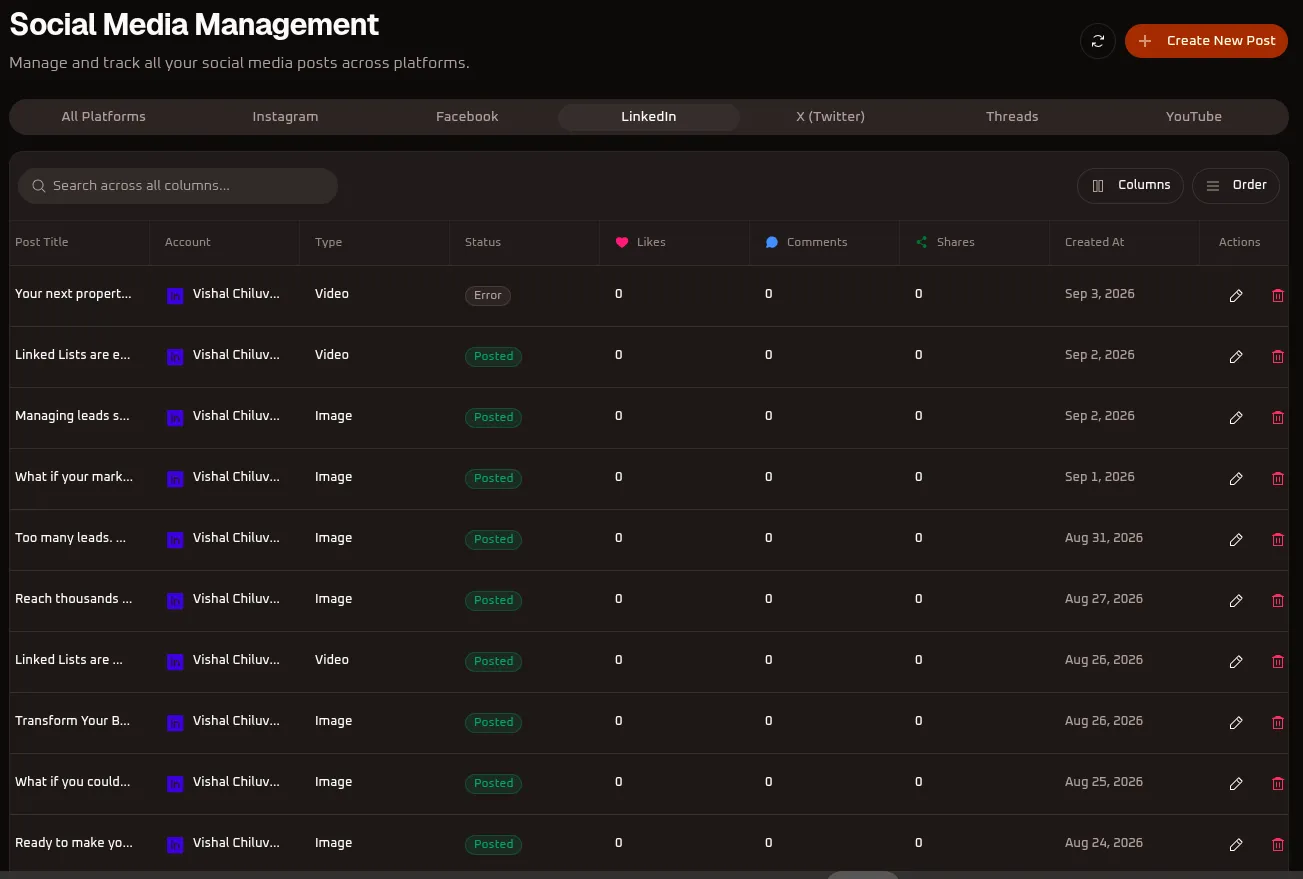
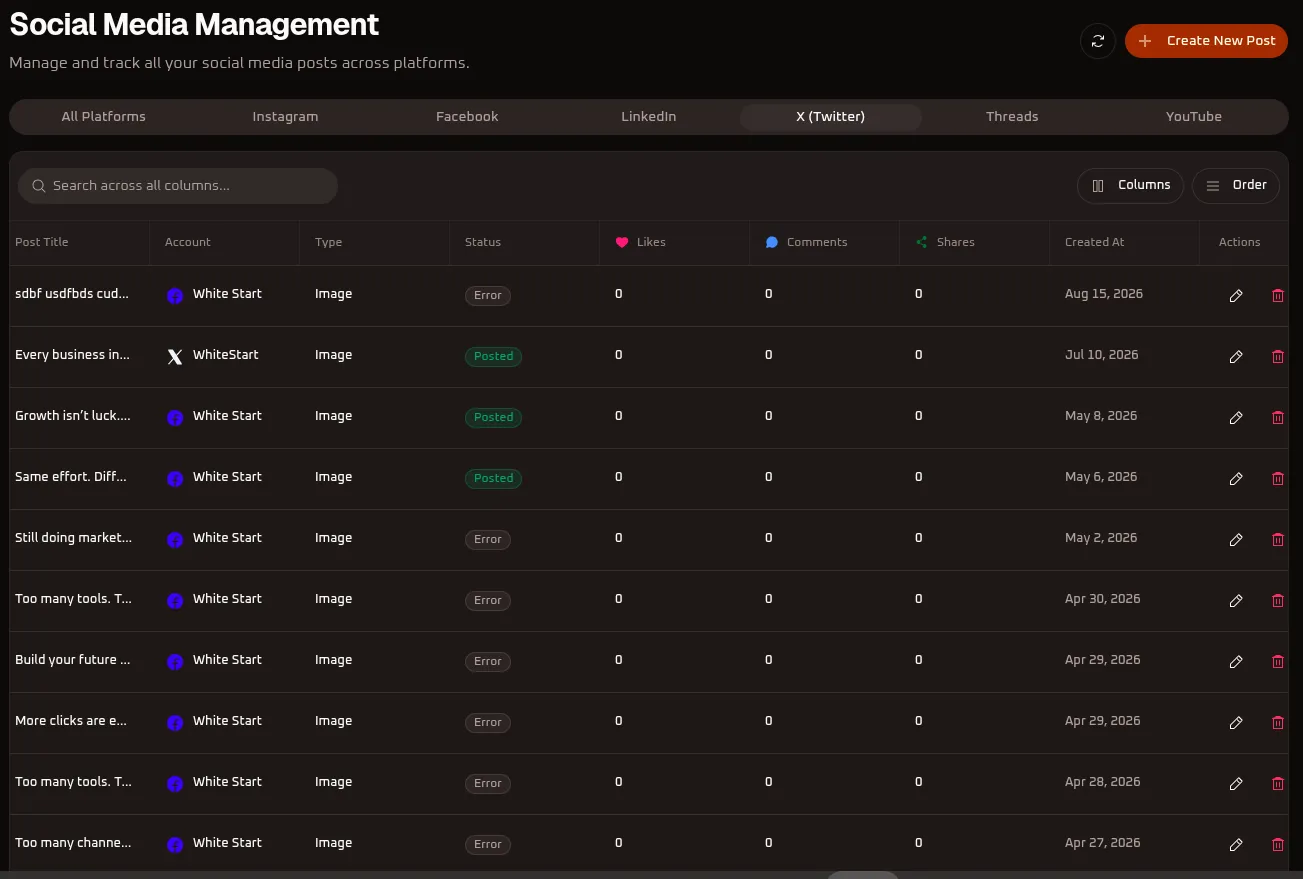
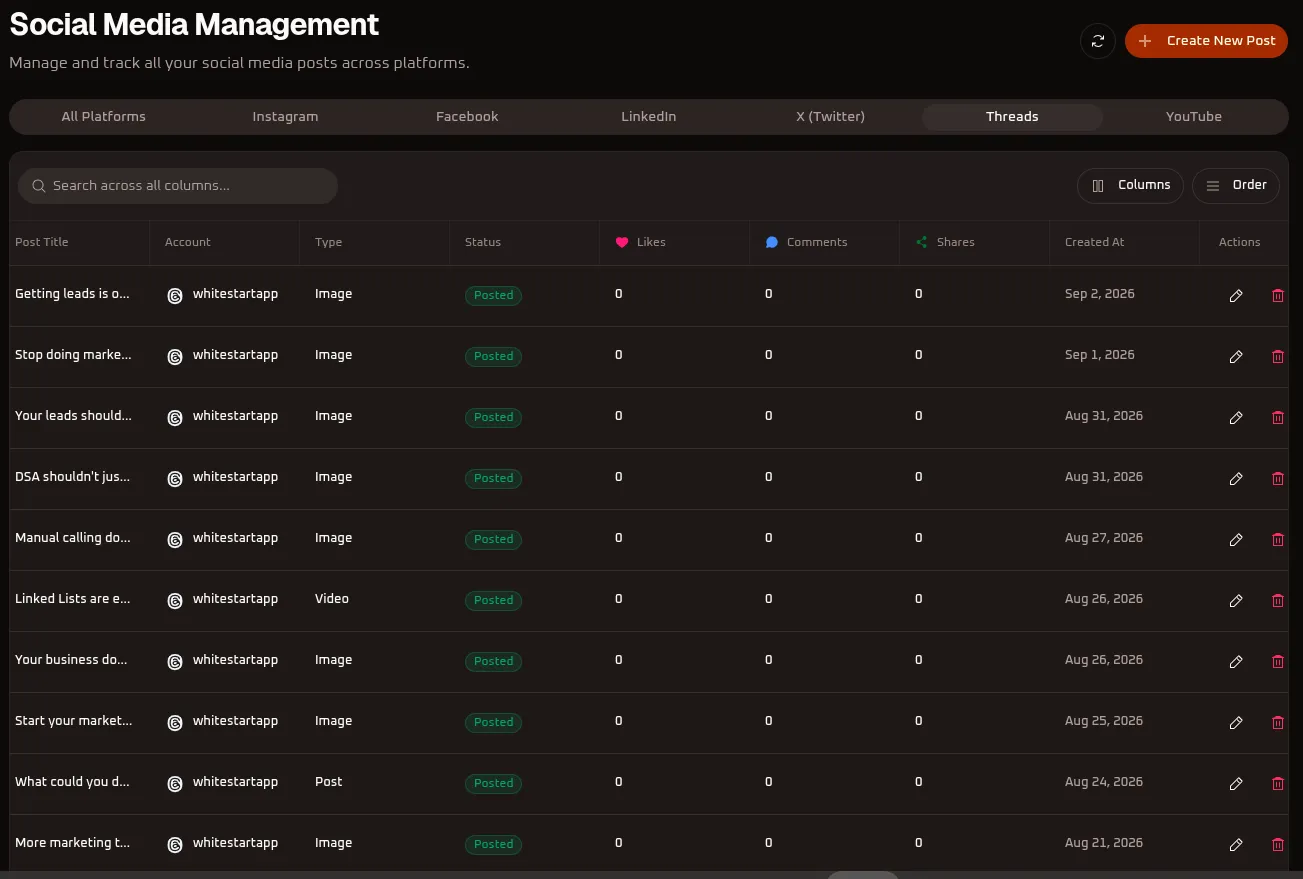
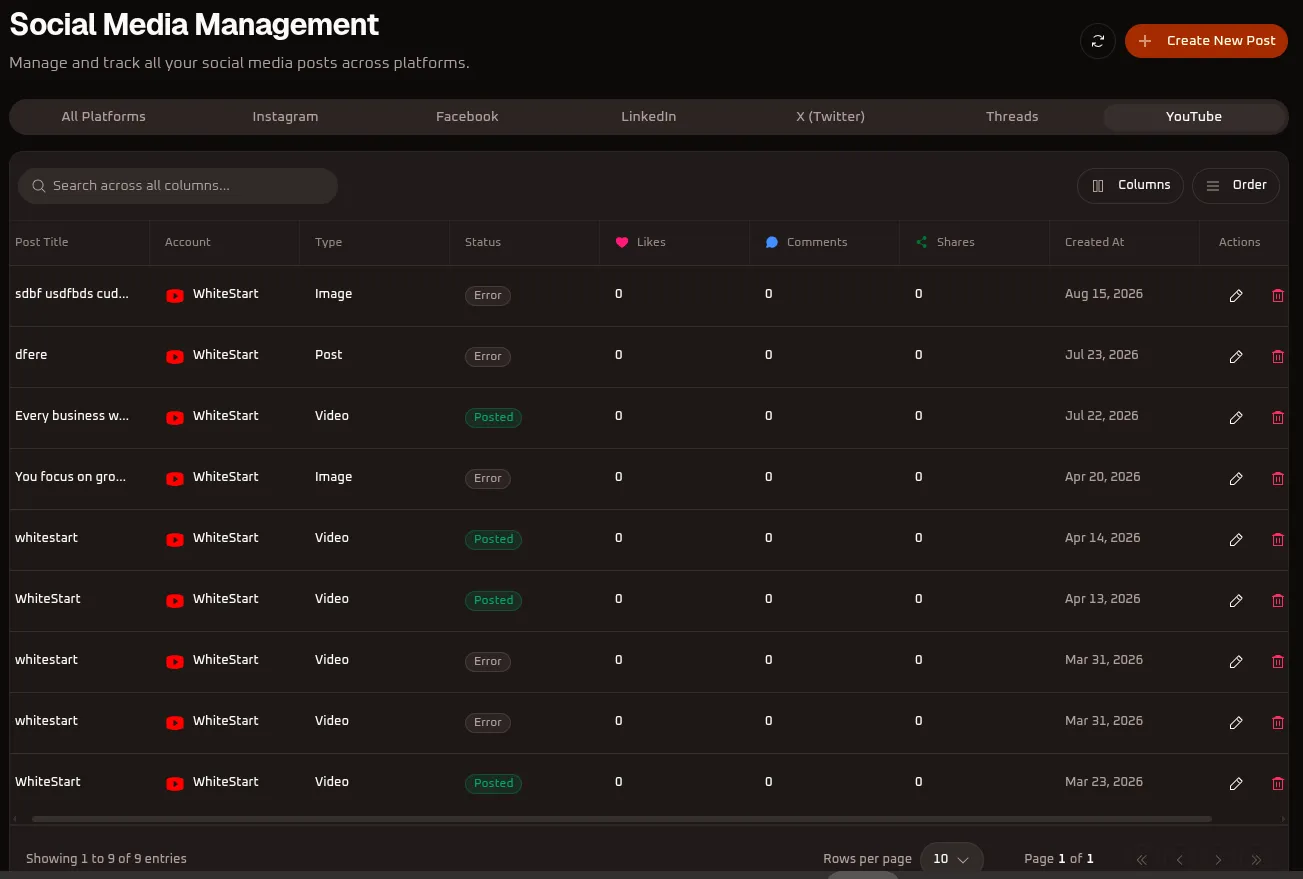
Table Controls & Toolbar Options
Section titled “Table Controls & Toolbar Options”- Search Input (
Search across all columns...): Search any post by caption text snippet, account handle, format type, or date. - Refresh Button (
🔄): Fetches real-time social metrics (likes, comments, reposts/shares) and status updates from network APIs. - Columns Menu (
Columns): Toggle the visibility of specific table columns (Post Title,Account,Type,Status,Likes,Comments,Shares,Created At,Actions). - Order Menu (
Order): Rearrange the sequence of table columns or adjust sorting priority using drag-and-drop handles. - Create New Post (
+ Create New Post): Launches the multi-channel post composer and scheduler wizard.
Table Columns Reference
Section titled “Table Columns Reference”| Column Header | Description | Example / Values |
|---|---|---|
| Post Title | The text snippet, headline, or opening caption of the social post. | Your next property..., Are you losing tra..., Getting leads is o... |
| Account | Social platform icon and connected profile/page identity. | whitestartapp (Instagram/Threads), White Start (Facebook/X/YouTube), Vishal Chiluv... (LinkedIn) |
| Type | Content format published to the network. | Image, Video, Post (Text-only) |
| Status | Publication outcome and network response state. | Posted (green badge), Error (grey/red badge) |
| Likes (❤️) | Total engagement likes registered on the native network. | 0 |
| Comments (💬) | Total comments or replies submitted by users. | 0 |
| Shares (🔗) | Total shares, retweets, or reposts. | 0 |
| Created At | Timestamp when the post was created, published, or scheduled. | Sep 3, 2026, Sep 2, 2026, Aug 15, 2026 |
| Actions | Record management triggers to edit (✏️) or delete (🗑️) the post entry. |
Click ✏️ to edit or 🗑️ to delete a post entry. |
3. Creating & Composing Multi-Channel Posts
Section titled “3. Creating & Composing Multi-Channel Posts”Click the orange + Create New Post button at the top right of the dashboard to open the Create New Posts builder.
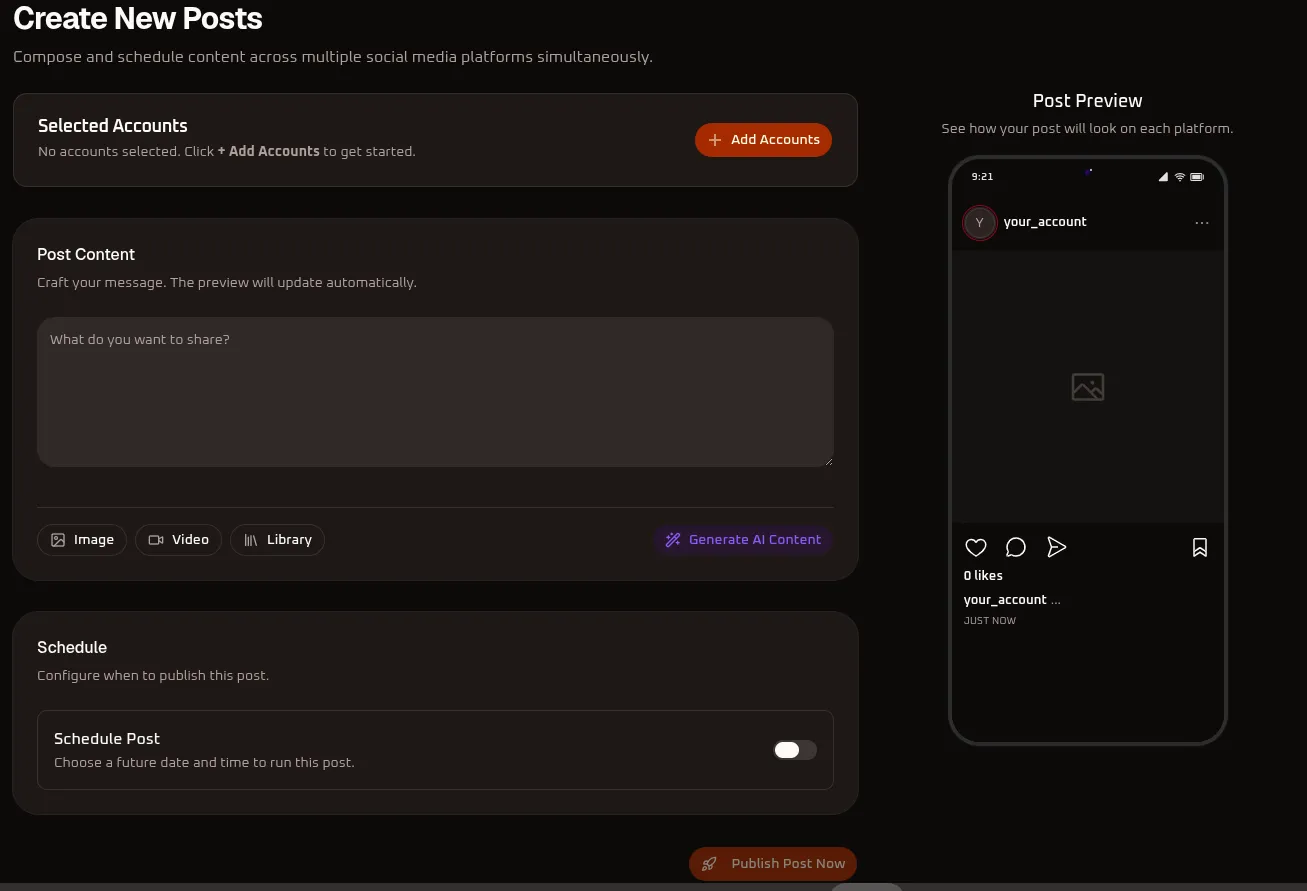
Step 1: Selecting Target Accounts Across Networks
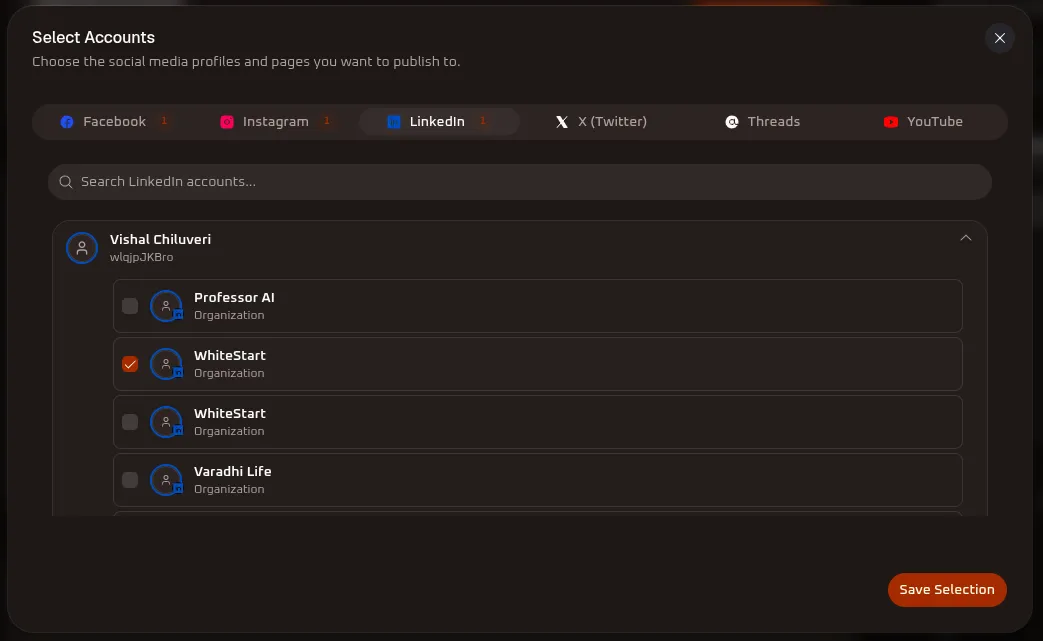
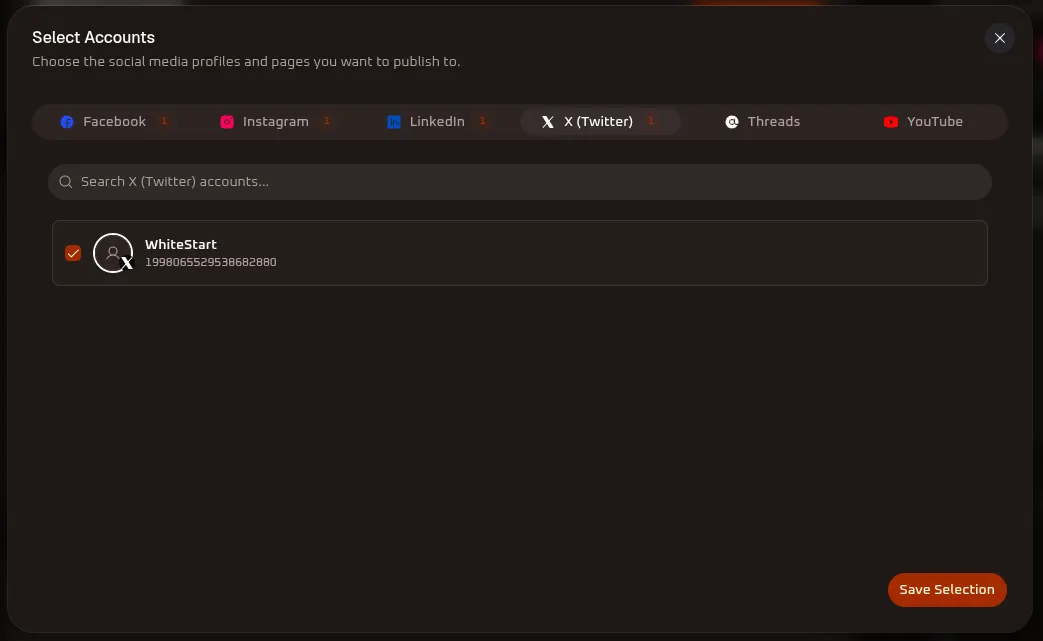
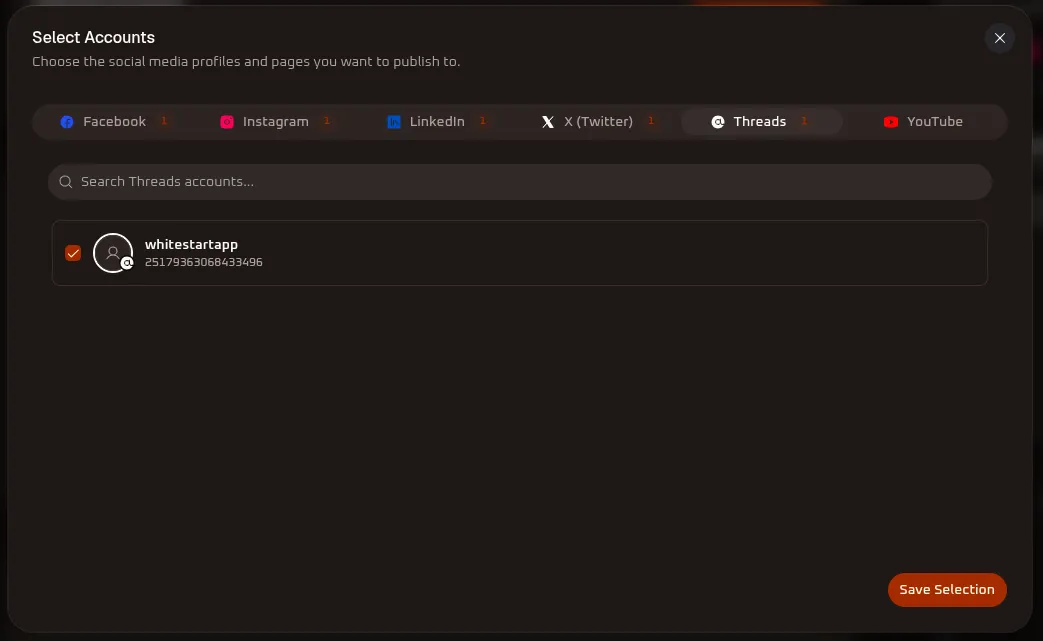
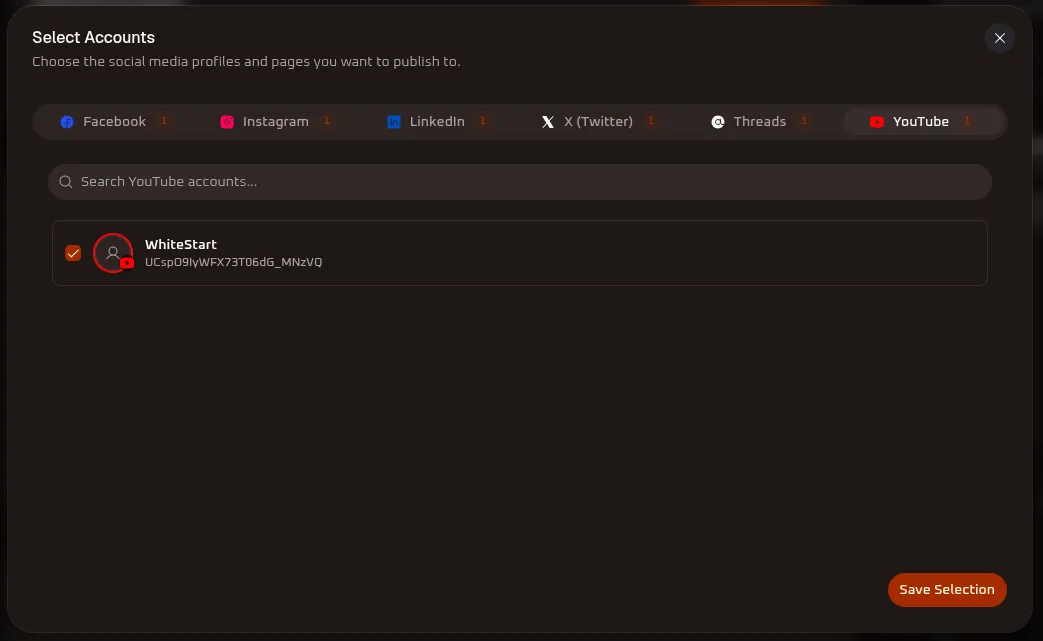
Section titled “Step 1: Selecting Target Accounts Across Networks”Under the Selected Accounts card, click the orange + Add Accounts button. The Select Accounts modal opens, allowing you to choose one or multiple destinations:
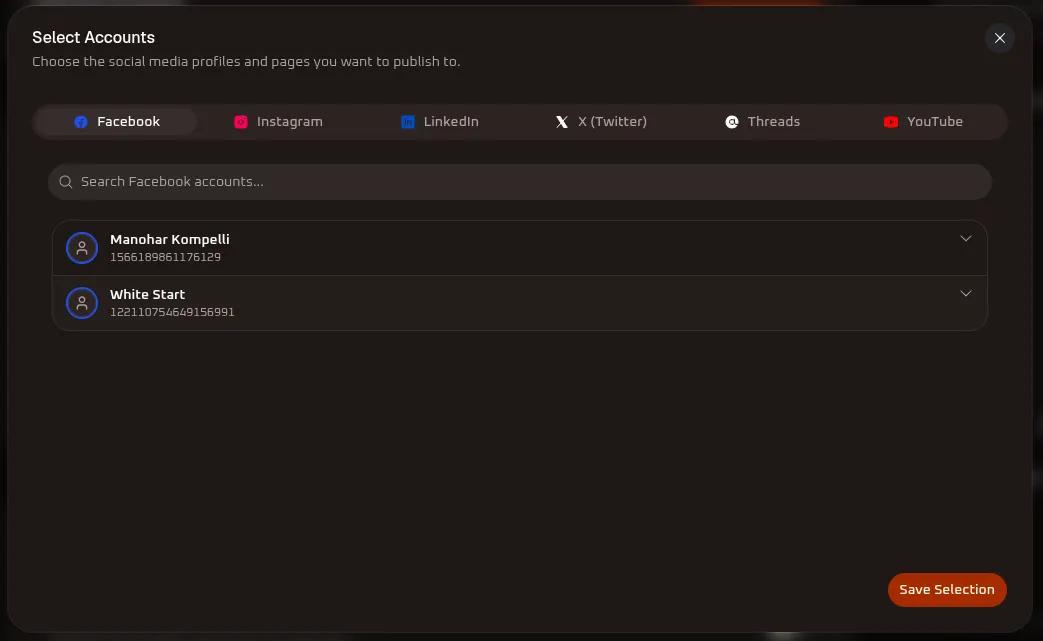
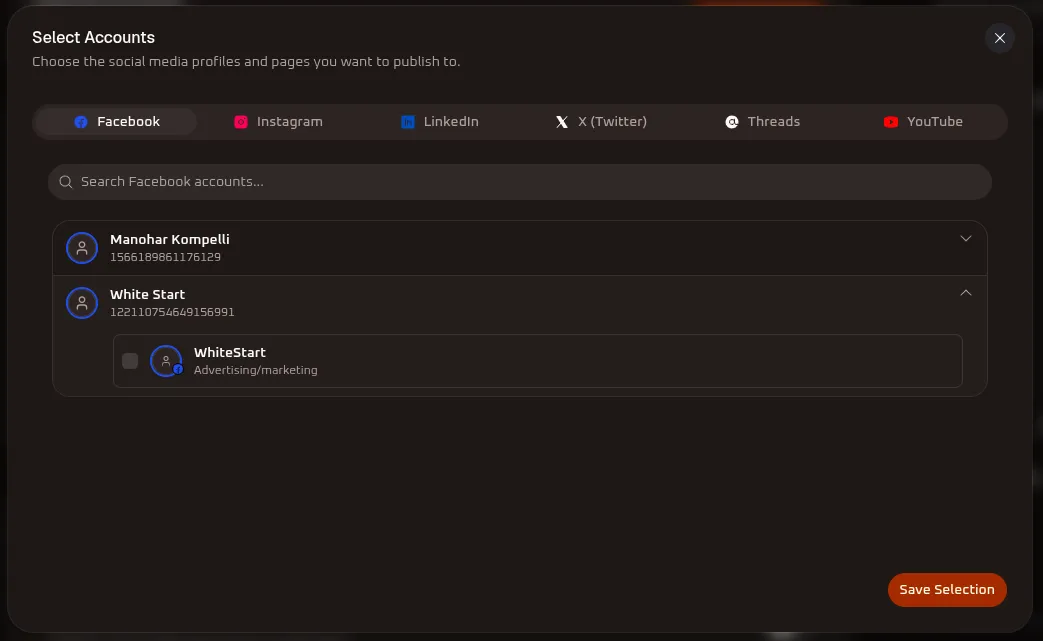
- Facebook: Expand your managed account (e.g.,
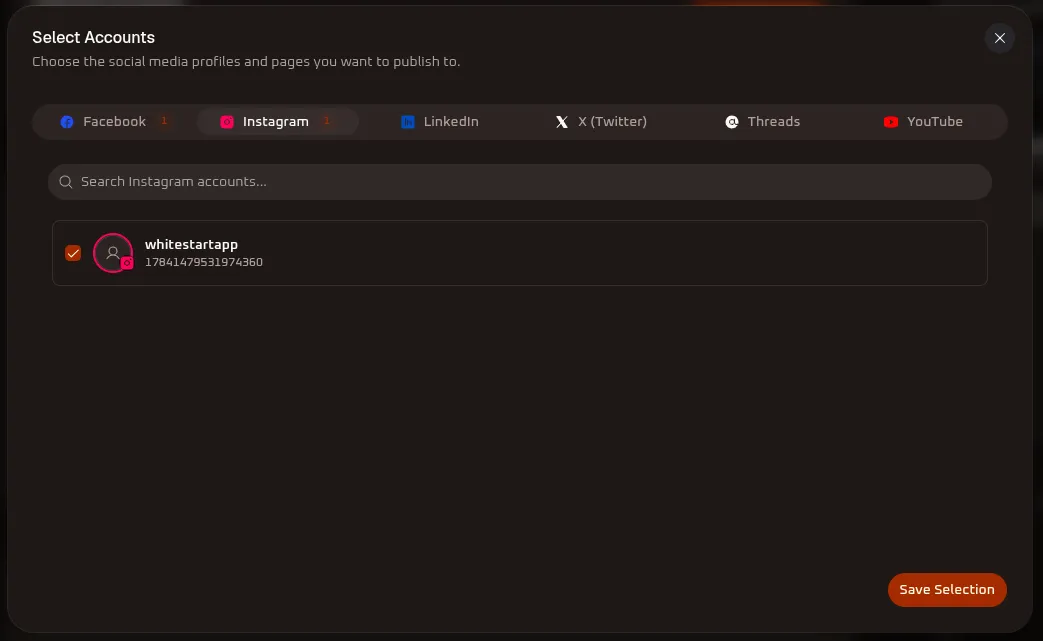
Manohar KompelliorWhite Start) and check the specific Page box (e.g.,WhiteStart - Advertising/marketing). - Instagram: Select the connected Instagram professional/business profile (e.g.,
whitestartapp - 17841479531974360). - LinkedIn: Expand your personal identity (e.g.,
Vishal Chiluveri) and check either your personal profile or managed Organization Pages (e.g.,WhiteStart Organization,Professor AI,Varadhi Life). - X (Twitter): Check your connected X account handle (e.g.,
WhiteStart - 1998065529538682880). - Threads: Select your Meta Threads profile (e.g.,
whitestartapp - 25179363068433496). - YouTube: Select your verified YouTube brand channel (e.g.,
WhiteStart - UCsp09lyWFX73T06dG_MNzVQ). - Click the orange
Save Selectionbutton at the bottom right. The selected platforms will appear as active icons under the Selected Accounts bar (e.g., “You are posting to 6 accounts.”).
Step 2: Crafting Content & Attaching Media
Section titled “Step 2: Crafting Content & Attaching Media”Under the Post Content card, enter your message copy and attach creative assets:
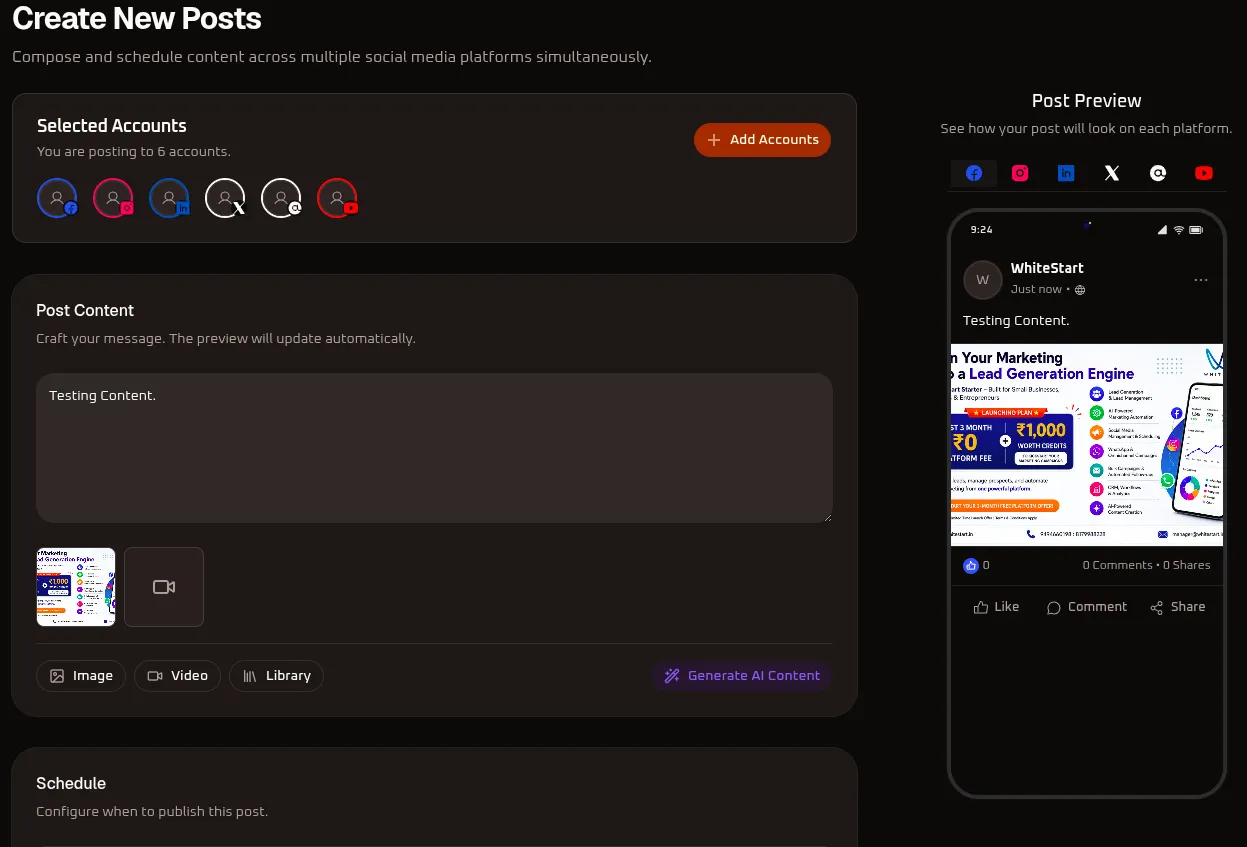
- Text Area (
What do you want to share?): Type your post caption, body copy, hashtags, and call-to-action links (e.g., “Testing Content.”). - Media Attachment Controls:
- Image (
🖼 Image): Upload high-resolution graphics (.png,.jpg,.jpeg,.webp). - Video (
🎥 Video): Attach high-definition or 4K video clips (.mp4,.mov). - Library (
📚 Library): Insert pre-approved creative assets directly from your WhiteStart Content Library.
- Image (
- AI Copywriting (
✨ Generate AI Content): Click the purple button to generate compelling captions, hashtags, and engagement hooks automatically.
Step 3: Inspecting & Verifying Media Previews
Section titled “Step 3: Inspecting & Verifying Media Previews”WhiteStart provides dedicated modal inspectors to preview creative assets at full resolution before publishing:
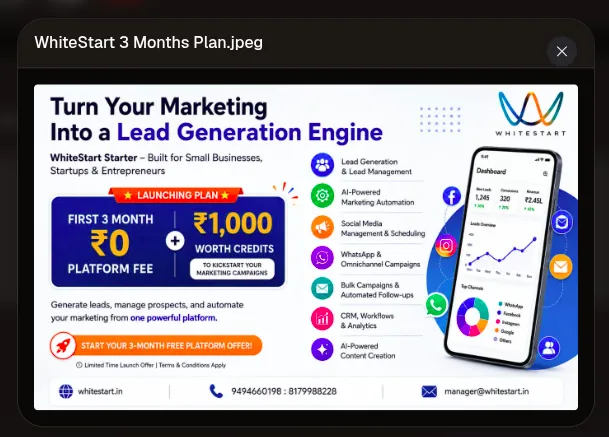
A. Full-Resolution Image Preview Modal
Section titled “A. Full-Resolution Image Preview Modal”Click on any uploaded image thumbnail in the composer to open the full-resolution preview lightbox. Verify image sharpness, typography contrast, brand disclaimers, contact numbers, and promotional badges (e.g., WhiteStart 3 Months Plan.jpeg). Click the close icon (✕) to return to editing.
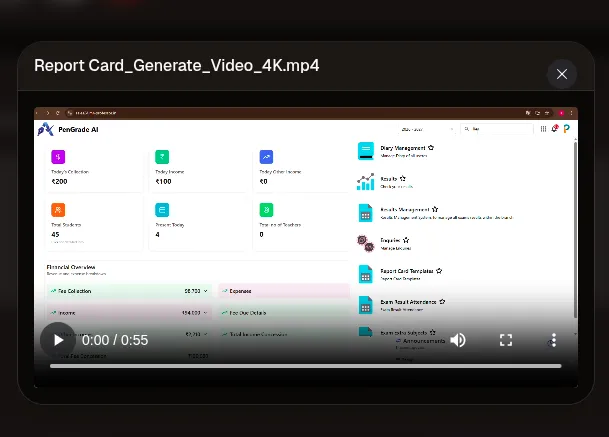
B. High-Definition Video Player Modal
Section titled “B. High-Definition Video Player Modal”Click on any uploaded video thumbnail in the composer to launch the native media playback modal (e.g., Report Card_Generate_Video_4K.mp4). Test audio track synchronization, video pacing, resolution scaling, and scrub through the timeline (0:00 / 0:55) with full player controls. Click ✕ to close.
Step 4: Real-Time Mobile Simulation
Section titled “Step 4: Real-Time Mobile Simulation”As you draft captions and attach media, the Post Preview simulator on the right side of the screen renders an exact visual preview of your post:
- Channel Switcher Pills: Toggle between platform icons (
Facebook,Instagram,LinkedIn,X,Threads,YouTube) at the top of the preview pane to inspect how the layout adapts to each network’s native UI. - Feed Representation: Displays profile avatars, verified brand badges (
WhiteStart Verified Business), timestamps (Just now), and caption text. - Interactive Elements: Previews like buttons, comment fields, repost/retweet counters, and share actions.
4. Scheduling & Automated Publishing
Section titled “4. Scheduling & Automated Publishing”Configure when your post goes live under the Schedule section:
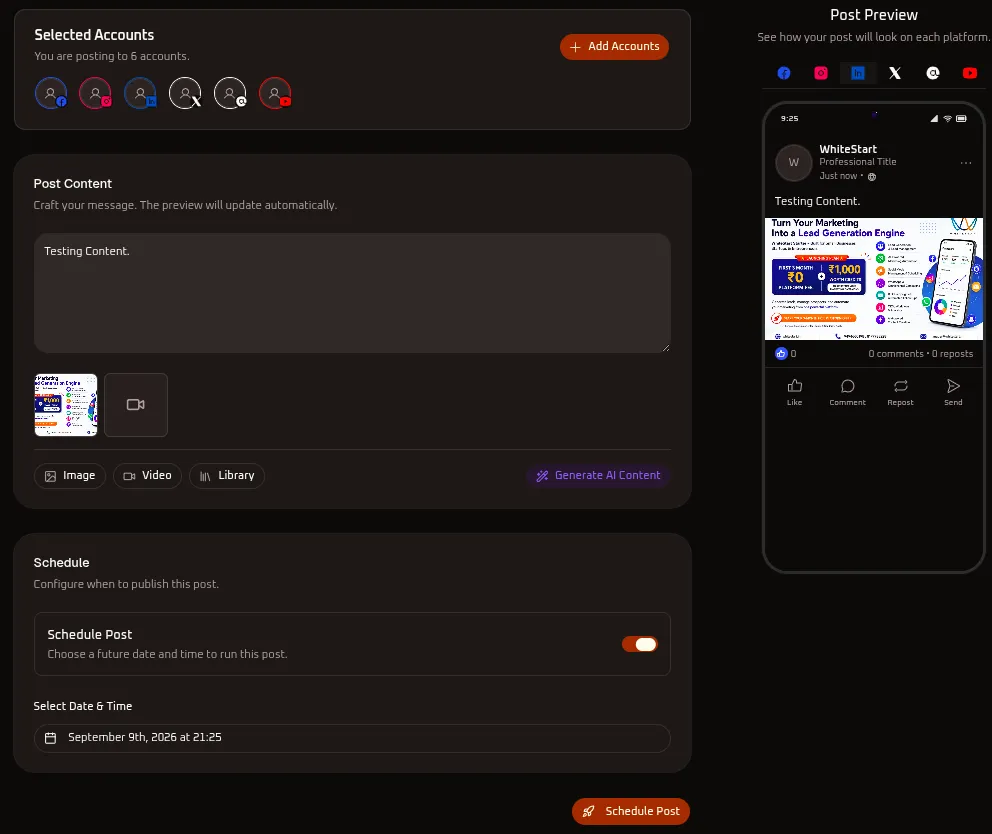
Option A: Publish Immediately
Section titled “Option A: Publish Immediately”- Keep the Schedule Post toggle switched OFF.
- Click the orange
🚀 Publish Post Nowbutton at the bottom of the composer. - WhiteStart dispatches the post payload across all selected social platforms simultaneously.
Option B: Schedule for Later
Section titled “Option B: Schedule for Later”- Toggle the Schedule Post switch to ON.
- Click into the Select Date & Time picker field.
- Configure your desired future date and exact posting time (e.g.,
September 9th, 2026 at 21:25). - Click the orange
🚀 Schedule Postbutton. - The post is added to your automated publishing queue and will dispatch automatically at the designated time.
5. Social Media Platform Technical Specifications & Validations
Section titled “5. Social Media Platform Technical Specifications & Validations”To prevent publishing errors and ensure optimal rendering, adhere to the following network-specific limits and format rules:
| Social Platform | Recommended Image Ratios | Video Length & Size Limits | Text & Character Limits | Network-Specific Rules & Restrictions |
|---|---|---|---|---|
• 1:1 Square (1080×1080px)• 4:5 Portrait (1080×1350px)• 9:16 Reels (1080×1920px) |
• Feed Videos: Up to 60 mins • Reels: 3 secs to 90 secs • Max file size: 4GB ( .mp4, .mov) |
• Caption: Up to 2,200 characters • Recommended: Under 125 chars • Max 30 hashtags |
An attached image or video is mandatory; Instagram does not support text-only posts. Must be an Instagram Business or Creator account connected via Meta Business Suite. | |
• 1:1 Square (1200×1200px)• 16:9 Landscape (1200×630px)• 9:16 Stories/Reels |
• Max length: Up to 240 mins • Max file size: 10GB ( .mp4, .mov) |
• Post Body: Up to 63,206 characters • Recommended: 40–80 characters |
Supports text-only posts, single media, and multi-image albums. Publishing requires Admin or Editor permissions on the target Facebook Page. | |
• 1:1 Square (1200×1200px)• 1.91:1 Landscape (1200×627px)• 4:5 Mobile Feed |
• Min length: 3 secs • Max length: 10 mins (Feed), 15 mins (Desktop) • Max file size: 5GB |
• Personal Post: 3,000 characters • Company Page Post: 3,000 characters |
Supports text-only posts, images, and videos. Content should maintain professional context. URLs automatically generate rich link cards. | |
| X (Twitter) | • 16:9 Landscape (1200×675px)• 1:1 Square (1200×1200px) |
• Free Accounts: Up to 2 mins 20 secs (140s) • Premium Accounts: Up to 2 hours (1080p, max 8GB) • Free Max File Size: 512MB |
• Free Account: Strictly 280 characters • Premium Account: Up to 25,000 characters |
If character count exceeds 280 characters on a free account, the API will reject the post with a validation error. |
| Threads | • 1:1 Square (1080×1080px)• 4:5 Portrait (1080×1350px)• 9:16 Vertical |
• Max length: Up to 5 mins • Max file size: 1GB ( .mp4, .mov) |
• Post Body: Strictly up to 500 characters | Supports text-only posts, single images, carousels (up to 10 photos), and video clips up to 5 minutes. |
| YouTube | • Video: 16:9 (1920×1080px)• Shorts: 9:16 (1080×1920px)• Community Post Image: 1:1 |
• Shorts: Up to 60 seconds • Standard Videos: Up to 15 mins (unverified accounts) or up to 12 hours / 256GB (phone-verified accounts) |
• Video Title: Up to 100 characters • Description: Up to 5,000 characters • Tags: Up to 500 characters |
Strict Restriction: Standard posts dispatched to YouTube channels must contain a video file. Text-only posts without media will fail unless targeting Community Tabs on eligible channels. |