
WhatsApp Message Templates
The WhatsApp Message Templates module allows businesses to build, test, and submit official message templates to Meta for approval via the WhatsApp Business API. Pre-approved templates are mandatory for initiating outbound bulk campaigns, re-engaging customers outside the 24-hour customer care window, and automating transactional notifications.
1. Navigating to WhatsApp Message Templates
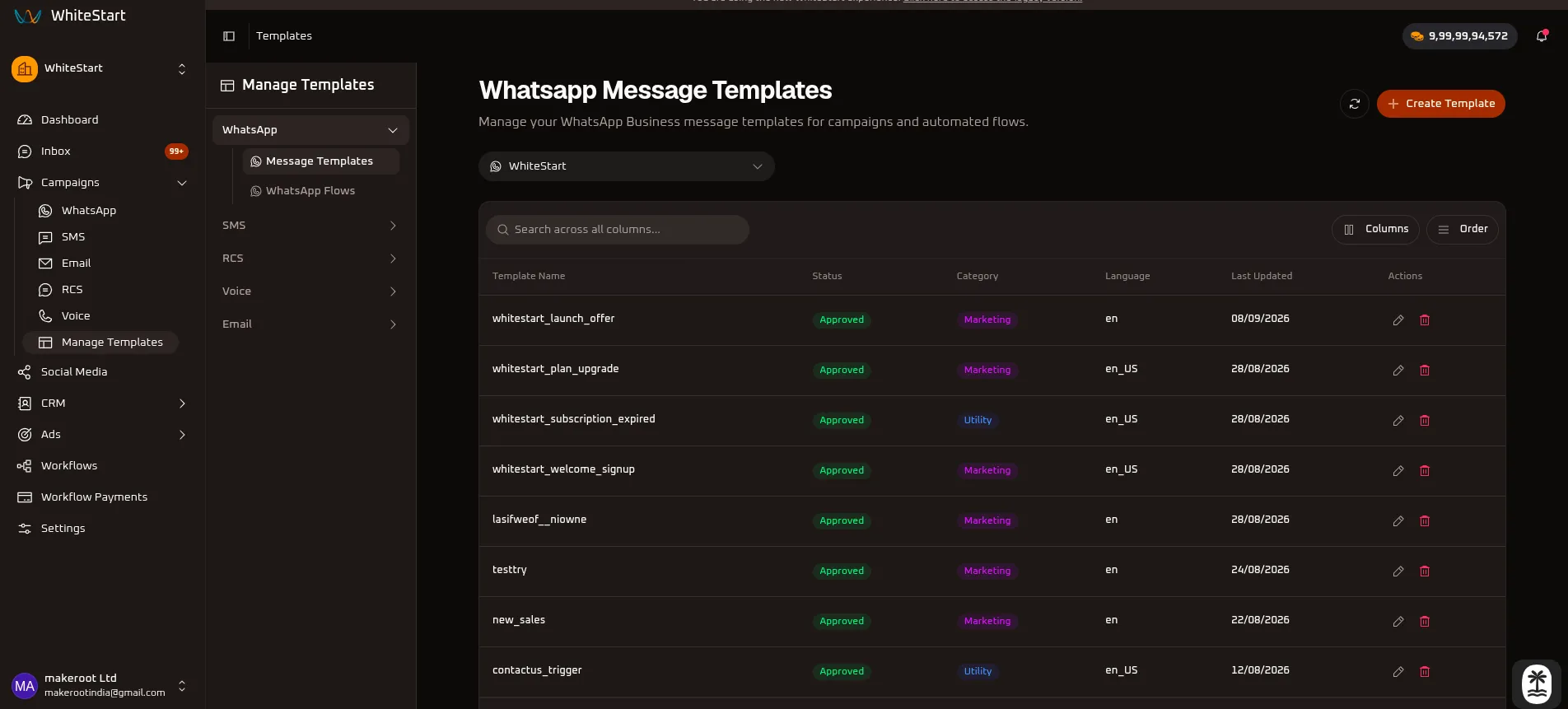
Section titled “1. Navigating to WhatsApp Message Templates”Main Sidebar ➔ Campaigns ➔ Manage Templates ➔ WhatsApp ➔ Message Templates- In the main navigation sidebar on the left, click Campaigns to expand the submenu.
- Select Manage Templates.
- In the sub-navigation drawer, expand the WhatsApp accordion and click Message Templates.
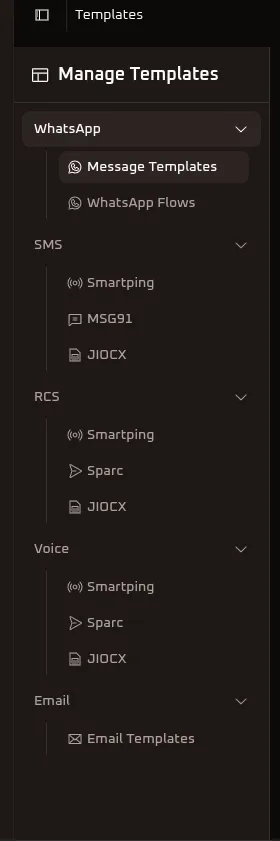
- The WhatsApp Message Templates table opens, displaying all synced templates, their approval statuses, categories, language codes, and update timestamps.
2. Managing the Message Templates Table
Section titled “2. Managing the Message Templates Table”The templates dashboard lists all templates configured under your WhatsApp Business Account (WABA).
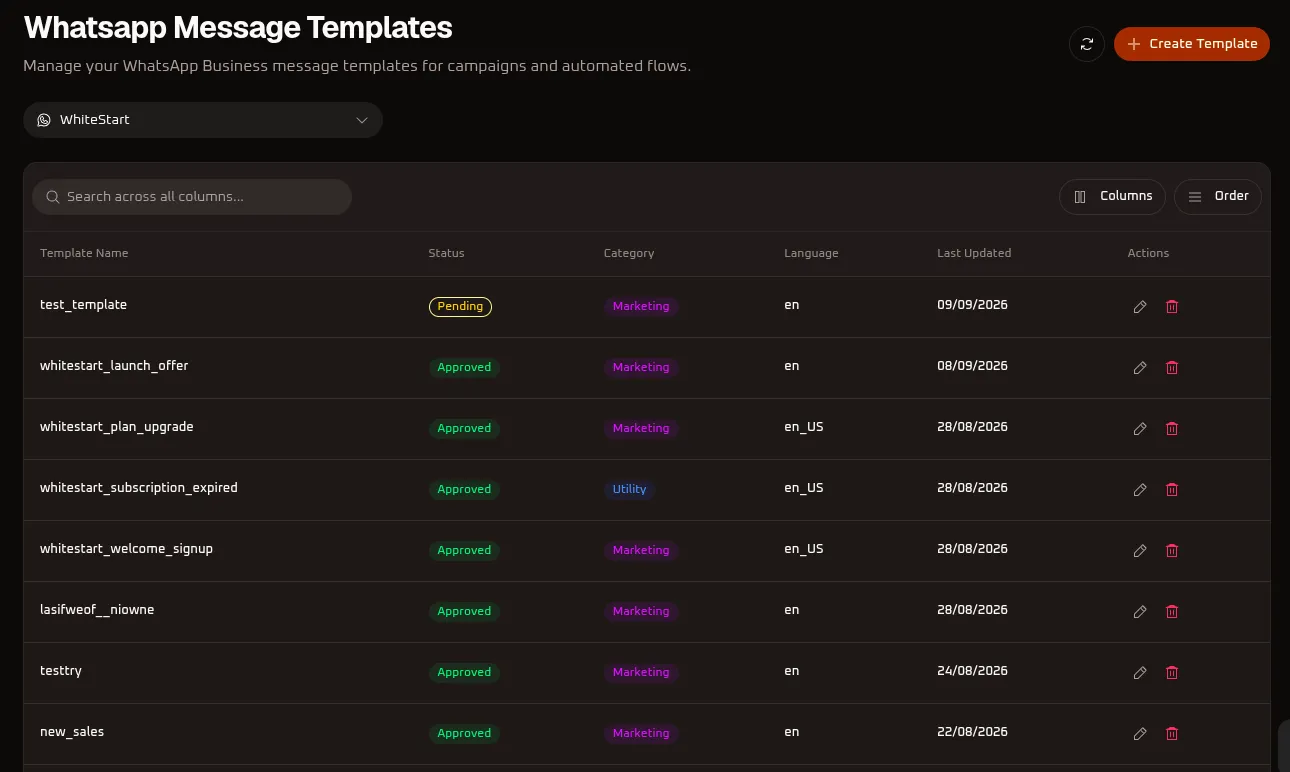
Table Controls & Toolbar Options
Section titled “Table Controls & Toolbar Options”- WhatsApp Account Selector: Choose which verified WhatsApp Business Account you want to manage (e.g.,
WhiteStart). - Search Input (
Search across all columns...): Quickly find templates by typing a template name, category, or language code. - Refresh Button (
🔄): Synchronizes template approval statuses directly with Meta’s Graph API in real time. - Columns Tool (
Columns): Toggle the visibility of table columns to customize your view. - Order Tool (
Order): Reorder and prioritize table columns. - Create Template (
+ Create Template): Opens the template builder wizard.
Table Columns Reference
Section titled “Table Columns Reference”| Column Header | Description | Example / Values |
|---|---|---|
| Template Name | The internal lowercase identifier registered with Meta. | whitestart_launch_offer, whitestart_subscription_expired |
| Status | Meta’s review and operational state badge. | Approved (green), Pending (yellow), Rejected (red) |
| Category | Official classification determining billing and message policy. | Marketing (magenta), Utility (blue), Authentication |
| Language | The registered language locale code. | en (English), en_US (English US) |
| Last Updated | Timestamp of the most recent modification or status sync. | 09/09/2026, 08/09/2026, 28/08/2026 |
| Actions | Management triggers for editing (✏️) or deleting (🗑️) templates. |
Click ✏️ to edit or 🗑️ to delete a template. |
3. Creating a WhatsApp Message Template
Section titled “3. Creating a WhatsApp Message Template”Click the orange + Create Template button at the top right of the page to launch the template creation wizard.
Step 1: Basic Information
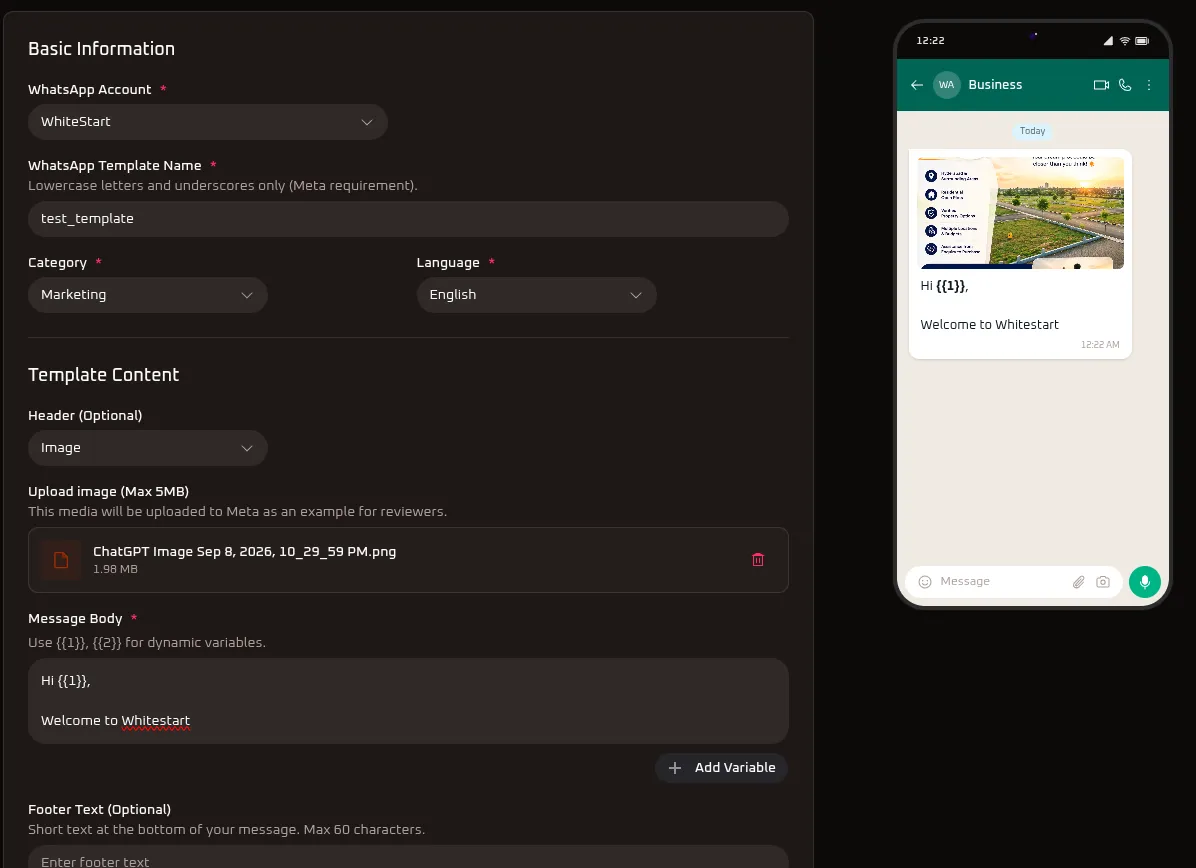
Section titled “Step 1: Basic Information”- WhatsApp Account: Select the WABA account under which the template will be registered (e.g.,
WhiteStart). - WhatsApp Template Name: Enter a unique identifier.
- Meta Rule: Must contain only lowercase letters, numbers, and underscores (e.g.,
test_template,whitestart_launch_offer). Spaces and special symbols are not allowed.
- Meta Rule: Must contain only lowercase letters, numbers, and underscores (e.g.,
- Category: Choose the message classification that matches your campaign intent.
- Language: Select the template language locale (e.g.,
English/en,en_US).
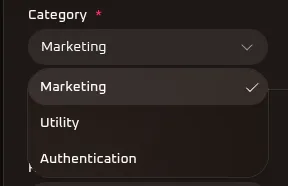
4. Understanding Template Categories: Marketing vs. Utility
Section titled “4. Understanding Template Categories: Marketing vs. Utility”Meta enforces strict category definitions for message templates. Selecting the wrong category can lead to rejection or unexpected billing tiers:
| Category | Primary Purpose | When & Where to Use | Meta Review Notes |
|---|---|---|---|
| Marketing | Promotions, product launches, offers, newsletters, and lead generation. | Outbound bulk campaigns, seasonal discounts, re-engagement offers, abandoned cart reminders, and feature announcements. | Flexible content rules. Can include promotional media, discount codes, and custom replies. |
| Utility | Critical operational updates, order confirmations, receipts, and appointment alerts. | Order status updates, booking confirmations, payment reminders, subscription expiry alerts (whitestart_subscription_expired), and support follow-ups. |
Content must be strictly transactional and directly tied to an existing customer action. Any marketing wording will trigger rejection. |
| Authentication | Secure one-time passcodes (OTPs) and account verification. | Multi-factor authentication (MFA), login verification codes, and password resets. | Strict structure containing copy-code or autofill buttons with minimal custom text. |
5. Configuring Template Content
Section titled “5. Configuring Template Content”The Template Content panel defines the structure, media headers, text variables, and footers of your message.
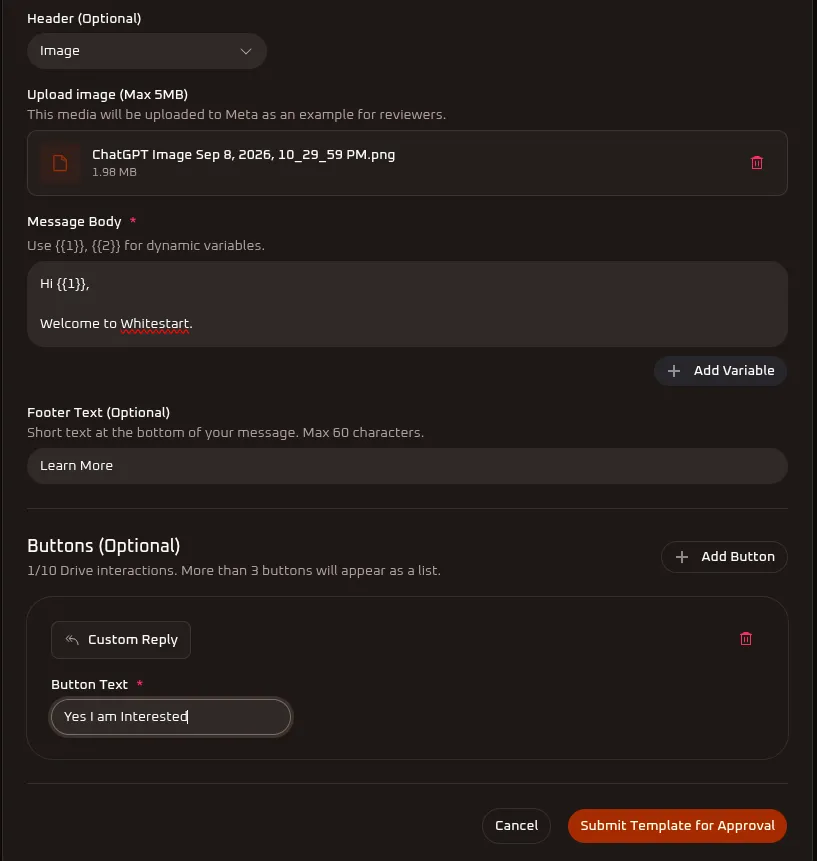
A. Header Options (Optional)
Section titled “A. Header Options (Optional)”The header appears at the very top of your WhatsApp message:
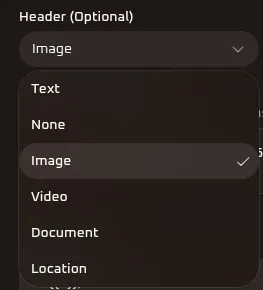
- None: No header; message starts directly with the message body.
- Text: A bold headline text up to 60 characters (supports personalization variables like
{{1}}). - Image: Displays a high-resolution promotional image or banner (e.g.,
ChatGPT Image Sep 8, 2026.png, max 5MB). You must upload a sample image for Meta reviewers. - Video: Embeds an MP4 video (max 16MB) showcasing product demos or announcements.
- Document: Delivers PDF brochures, invoices, catalogs, or onboarding files.
- Location: Shares specific map coordinates (useful for store locators or event venues).
B. Message Body
Section titled “B. Message Body”- The main text of your message (up to 1,024 characters).
- Dynamic Variables: Click
+ Add Variableto insert placeholders ({{1}},{{2}},{{3}}). These placeholders automatically map to customer names, order numbers, pricing, or custom CRM fields during campaign dispatches (e.g.,Hi {{1}}, Welcome to Whitestart.). - Text formatting is supported:
*bold*,_italics_,~strikethrough~, and monospace code blocks.
C. Footer Text (Optional)
Section titled “C. Footer Text (Optional)”- Subtle, muted text displayed at the bottom of the message below the body (max 60 characters).
- Frequently used for brand taglines, support hints, or compliance disclaimers (e.g.,
Learn More,Reply STOP to unsubscribe).
6. Action Buttons & Quick Replies
Section titled “6. Action Buttons & Quick Replies”Buttons allow recipients to take immediate action with a single tap, significantly boosting engagement and conversion rates.
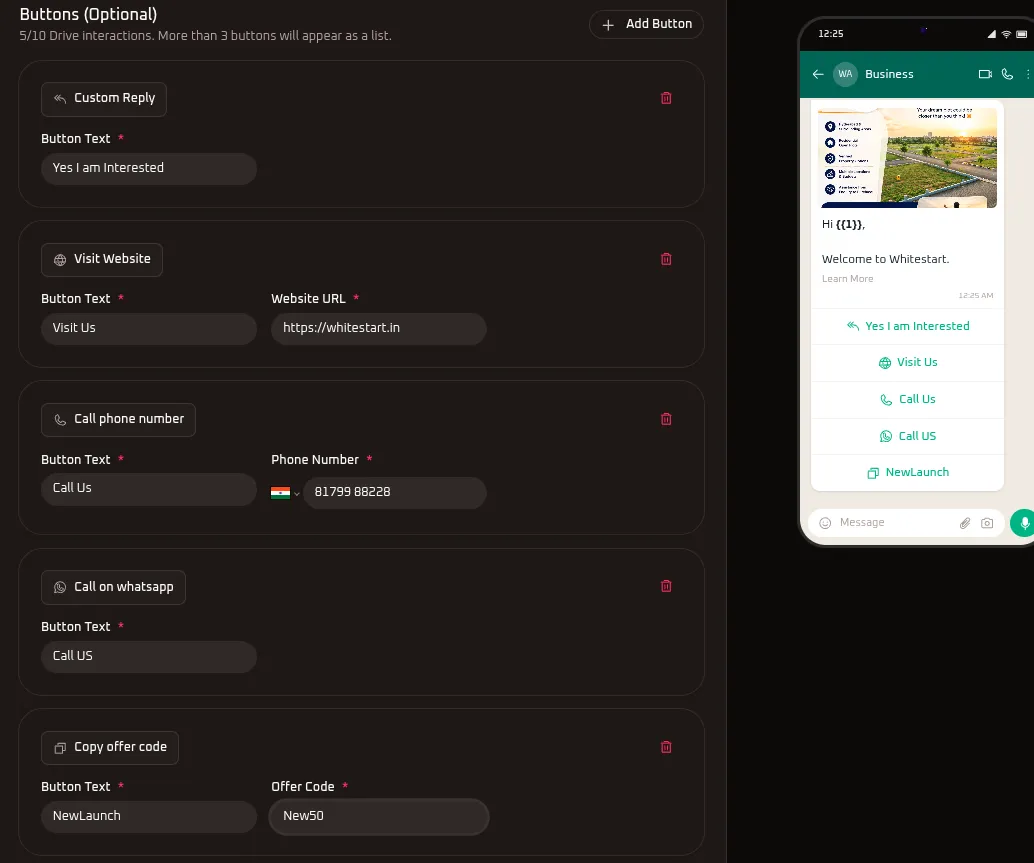
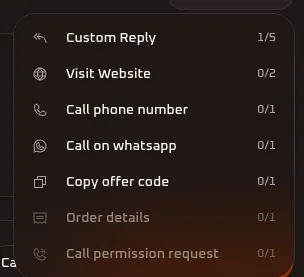
You can add up to 10 buttons. If you add more than 3 buttons, WhatsApp automatically packages them into a clean interactive list menu on mobile devices.
Click + Add Button to open the interactive action menu:
Button Types Reference
Section titled “Button Types Reference”| Button Type | Limit | Configuration Fields | Where and How to Use |
|---|---|---|---|
| Custom Reply (Quick Reply) | Up to 5 | Button Text (e.g., Yes I am Interested) |
Triggers an immediate customer text response back to the Message Center in your Live Inbox. Used for sentiment capture, survey answers, or scheduling requests. |
| Visit Website (URL) | Up to 2 | Button Text (e.g., Visit Us) & Website URL (e.g., https://whitestart.in) |
Directs users to external landing pages, pricing sheets, checkout pages, or documentation. Supports static URLs or dynamic paths with variables. |
| Call phone number | Up to 1 | Button Text (e.g., Call Us) & Phone Number (e.g., +91 81799 88228) |
Launches the recipient’s native phone dialer with your support or sales number pre-filled for one-tap calling. |
| Call on WhatsApp | Up to 1 | Button Text (e.g., Call US) |
Initiates a direct WhatsApp voice call to your verified business phone number without using cellular airtime. |
| Copy offer code | Up to 1 | Button Text (e.g., NewLaunch) & Offer Code (e.g., New50) |
Copies a promotional discount coupon directly to the recipient’s device clipboard with a single tap for easy checkout redemption. |
| Order details | Up to 1 | Order ID / Payload | Links directly to an in-chat catalog or order summary view in WhatsApp Commerce setups. |
| Call permission request | Up to 1 | Permission Payload | Requests customer consent before initiating an outbound voice call, adhering to regional privacy policies. |
7. Submission, Meta Review & Status Lifecycle
Section titled “7. Submission, Meta Review & Status Lifecycle”- Once all basic information, headers, message body, and buttons are configured, inspect the live Mobile Preview on the right side of the screen.
- Click the orange
Submit Template for Approvalbutton. - WhiteStart dispatches the template payload to Meta’s review engine via the WhatsApp Business API.
Template Approval Lifecycle
Section titled “Template Approval Lifecycle”- Pending (
Pending- Yellow Badge): The template has been submitted and is currently being evaluated by Meta’s automated AI and manual review systems. Reviews typically take between 2 minutes and 24 hours. - Approved (
Approved- Green Badge): The template has met Meta guidelines and is immediately available in the WhatsApp Campaigns module for bulk sending and automated triggers. - Rejected (
Rejected- Red Badge): The template violated Meta’s Business Messaging Policies (e.g., promotional wording inside a Utility template, variable formatting issues, or missing sample media). Click✏️ Editto correct the flagged items and re-submit.