
Customer Tables
The Customer Tables module in WhiteStart serves as your organization’s centralized customer directory and master contact database. While Data Tables captures raw incoming submissions across custom forms, Customer Tables consolidates individual customer profiles into unified identity records linked to permanent Platform User IDs, assigned sales representatives, complete communication histories, and interactive 360-degree customer profile drawers.
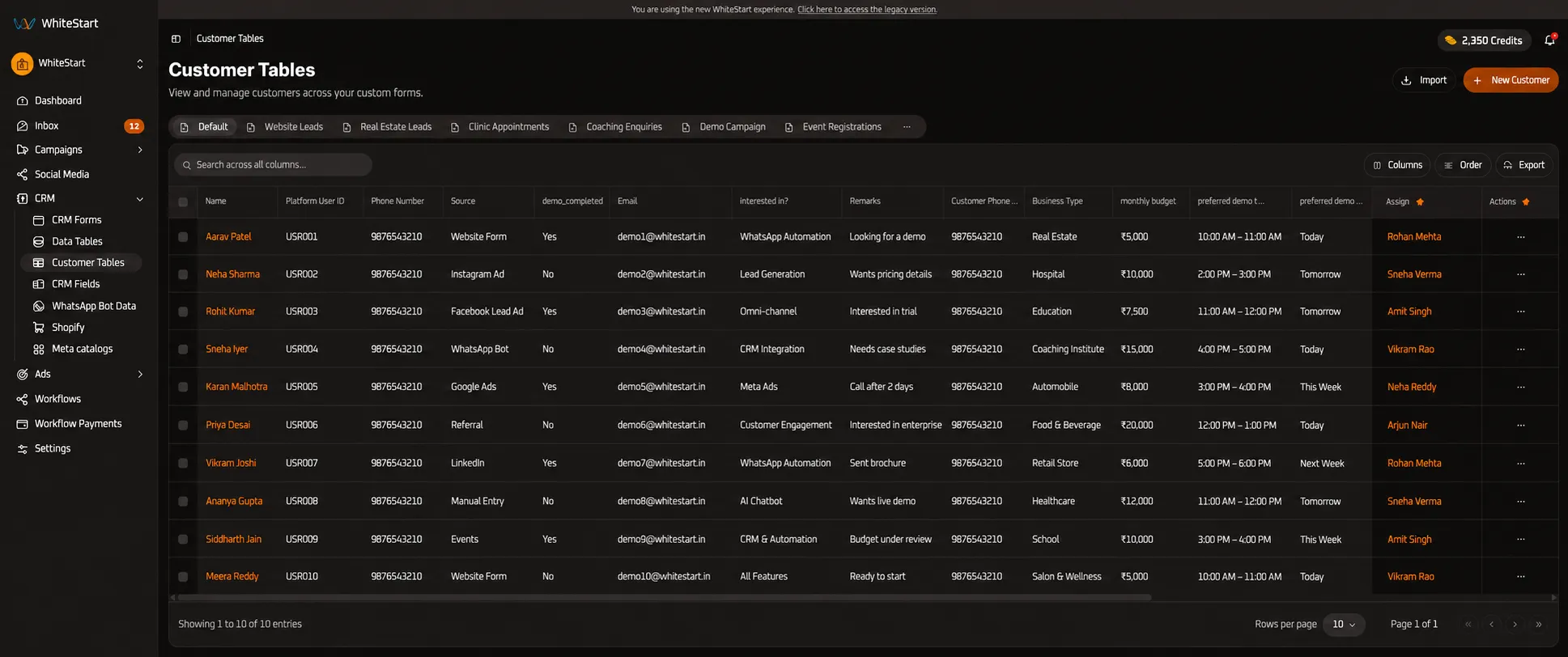
Overview
Section titled “Overview”Customer Tables provides relationship managers, sales executives, and support leads with an all-in-one cockpit to manage customer lifecycle stages, track consultation appointments, monitor budget parameters, and assign dedicated agents. Every customer record maintains continuous synchronization across WhatsApp, SMS, Meta Ads, web forms, and voice channels.
Key Capabilities
Section titled “Key Capabilities”- Unified Customer Identity (
Platform User ID): Every contact is assigned a persistent workspace identifier (e.g.,USR001,USR002) that ties together historical orders, conversation threads, and campaign clicks. - Interactive 360° Customer Profile Drawer: Click any customer name to access full contact info, editable form attributes, collaborative internal notes, and a live audit timeline with instant auto-save.
- Multi-Agent Assignment (
Manage Agents): Assign one or multiple team members to a customer profile for synchronized notification delivery and collaborative live response. - Segmented Pipeline Tabs: Partition customer records across operational categories such as Clients Info, Organization Details, Team member 1 Leads, and Team member 2 Leads.
- Comprehensive Column Controls: Fine-tune the grid with column pinning (
Pin Left/Pin Right/Unpin), column hiding, dynamic ordering ([ Order ]), and visibility toggles ([ Columns ]). - Direct Customer Ingestion (
Import&+ New Customer): Bulk import contact spreadsheets or manually provision new profiles with pipeline-specific attributes.
Accessing Customer Tables
Section titled “Accessing Customer Tables”Navigate to Customer Tables using the primary navigation sidebar:
Main Sidebar ➔ CRM ➔ Customer Tables- In the left navigation menu, click on CRM to expand the module group.
- Select Customer Tables.
- The dashboard loads the Default customer directory with real-time contact listings, agent ownership, and scheduling data.
Dashboard Architecture & Layout
Section titled “Dashboard Architecture & Layout”The Customer Tables interface features category tabs, search filtering, column toggles, and direct customer management actions:
+─────────────────────────────────────────────────────────────────────────────────────────────+| Customer Tables [ 📥 Import ] [ + New Customer ]|| View and manage customers across your custom forms. |+─────────────────────────────────────────────────────────────────────────────────────────────+| [ Default ] [ Clients Info ] [ Neha Leads ] [ Organization Details ] [ Sales Test ] ... |+─────────────────────────────────────────────────────────────────────────────────────────────+| [Q Search across all columns... ] [ Columns ] [ Order ] [ Export] |+─────────────────────────────────────────────────────────────────────────────────────────────+| Name Platform User ID Phone Number Source demo_completed Assign Actions |+───────────┼─────────────────┼─────────────┼────────────┼───────────────┼────────────┼───────+| Abba kyari| - | 234916674450| WhatsApp Bot| - | Assign Agent| ... || Kranthi K.| - | 919392666143| WhatsApp Bot| - | Assign Agent| ... || Siddartha | 38058407807140..| - | Facebook | - | Assign Agent| ... || Property | - | 917666844296| WhatsApp Bot| No | Assign Agent| ... |+───────────┴─────────────────┴─────────────┴────────────┴───────────────┴────────────┴───────+| Showing 1 to 10 of 794 entries Rows per page: [ 10 v ] Page 1 of 80 |+─────────────────────────────────────────────────────────────────────────────────────────────+360-Degree Customer Profile Drawer
Section titled “360-Degree Customer Profile Drawer”Clicking on any customer’s name in the table opens the slide-over Customer Profile Drawer, providing complete context and live editing capabilities:
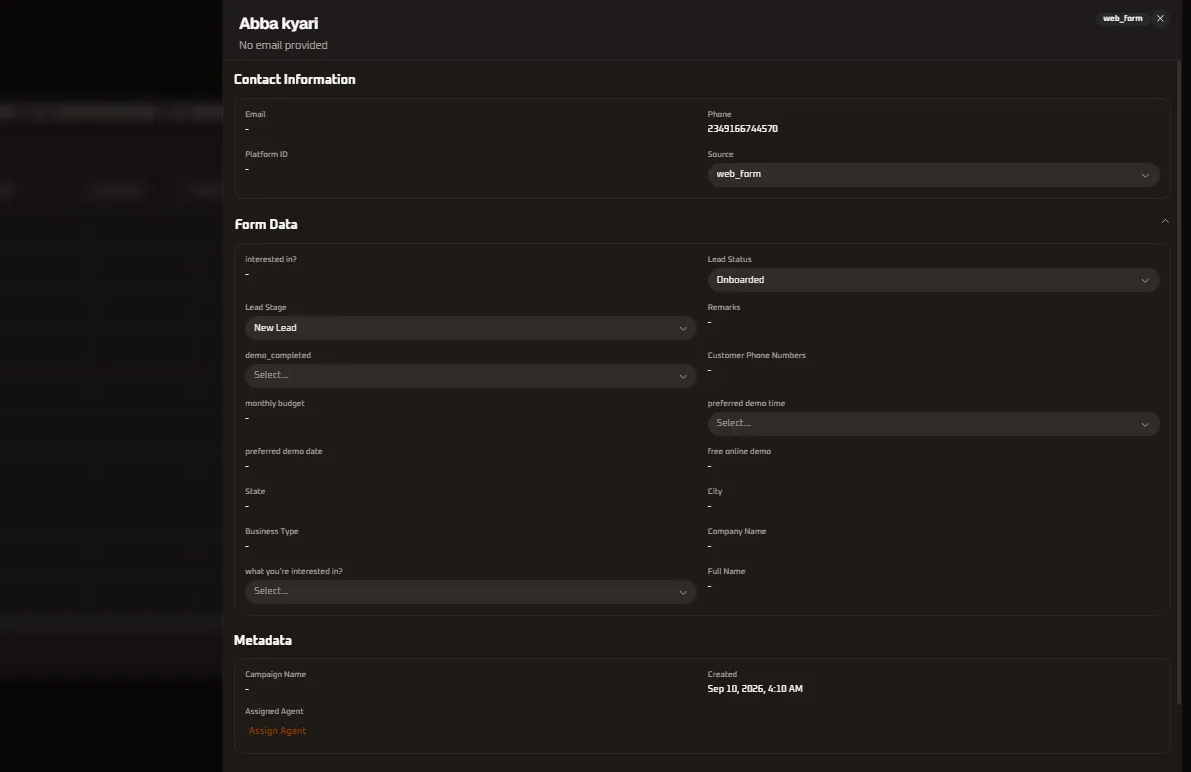
The profile drawer is divided into three primary functional areas:
- Contact Information: Displays primary email, phone number, Platform User ID, and the originating inbound source channel.
- Form Data: Dynamic attributes collected from forms or bots (including pipeline stages, demo times, and solution preferences).
- Metadata: Acquisition campaign attribution, creation timestamps, and assigned agent ownership.
Real-Time Auto-Save & Notifications
Section titled “Real-Time Auto-Save & Notifications”Every edit made inside the Customer Profile Drawer is saved instantaneously without requiring a separate “Save” button:
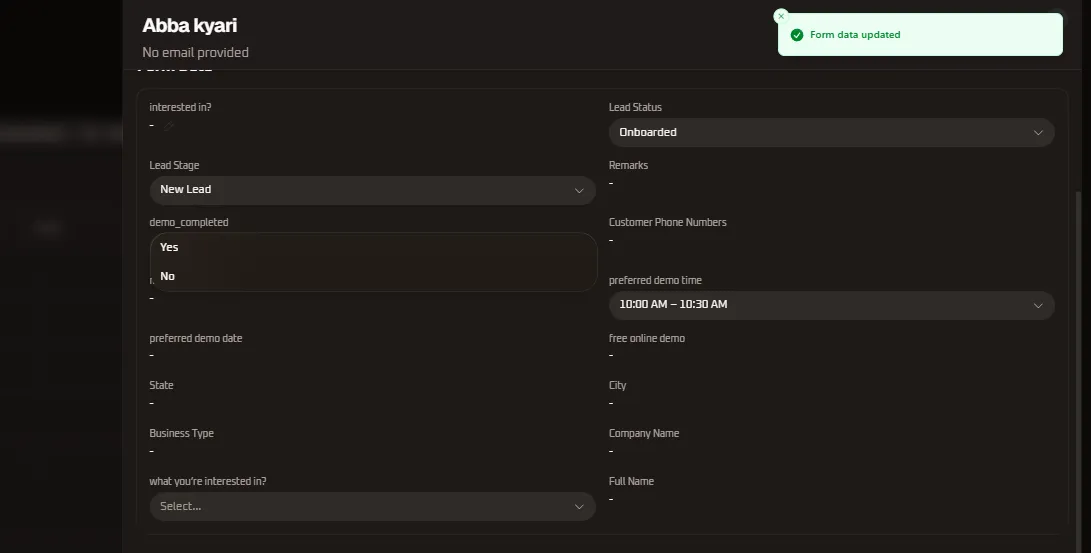
When you adjust any dropdown or text field (such as setting demo_completed to Yes or No), WhiteStart automatically saves the record to the database and displays a confirmation toast: Form data updated.
Profile Drawer Attribute Selectors
Section titled “Profile Drawer Attribute Selectors”The drawer provides specialized, validated selection menus to update customer lifecycle stages and requirements:
1. Inbound Source Channel Selector
Section titled “1. Inbound Source Channel Selector”Update or reassign the inbound acquisition channel driving the customer record:
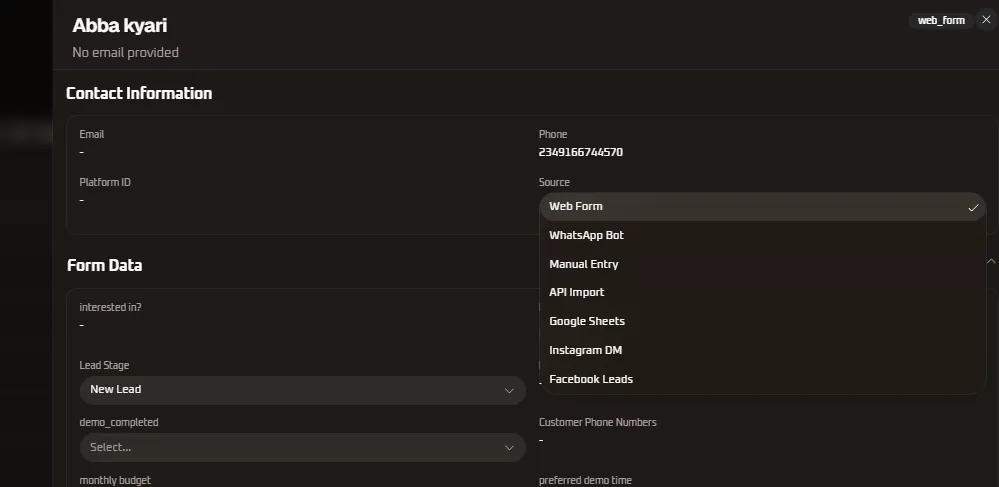
- Available Channels:
Web Form,WhatsApp Bot,Manual Entry,API Import,Google Sheets,Instagram DM, andFacebook Leads.
2. Sales Pipeline Stages (Lead Stage)
Section titled “2. Sales Pipeline Stages (Lead Stage)”Track the prospect through the 13 official sales qualification milestones:
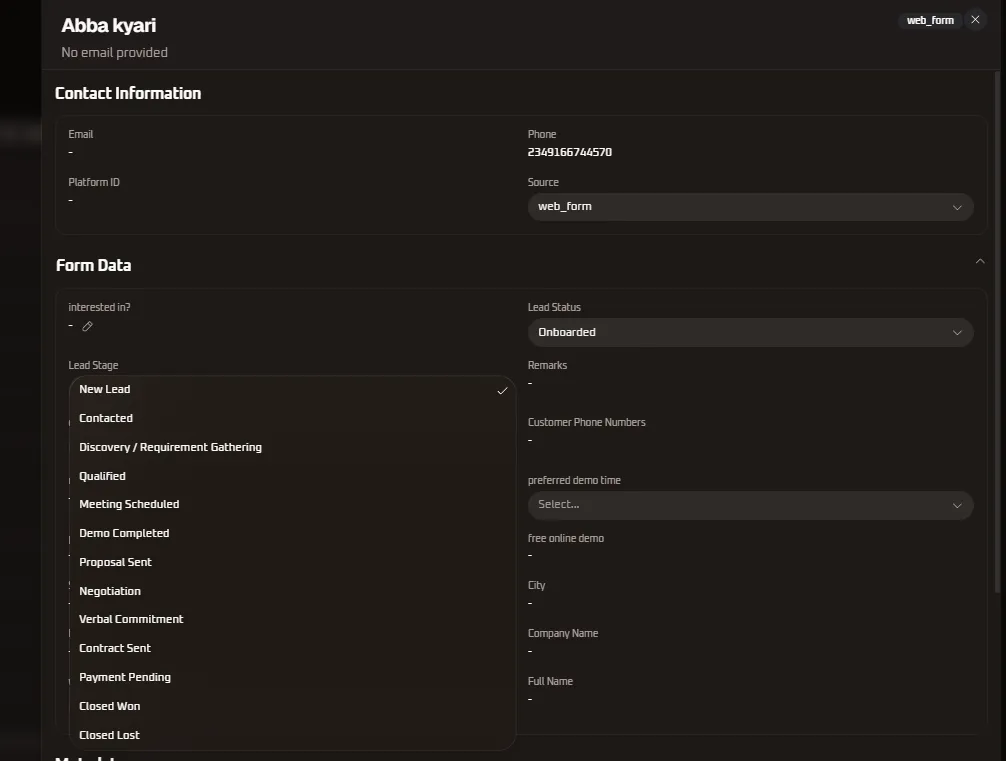
New Lead ➔ Contacted ➔ Discovery / Requirement Gathering ➔ Qualified ➔Meeting Scheduled ➔ Demo Completed ➔ Proposal Sent ➔ Negotiation ➔Verbal Commitment ➔ Contract Sent ➔ Payment Pending ➔ Closed Won / Closed Lost3. Operational Lifecycle Status (Lead Status)
Section titled “3. Operational Lifecycle Status (Lead Status)”Categorize the lead’s immediate operational status across 20 standardized tags:
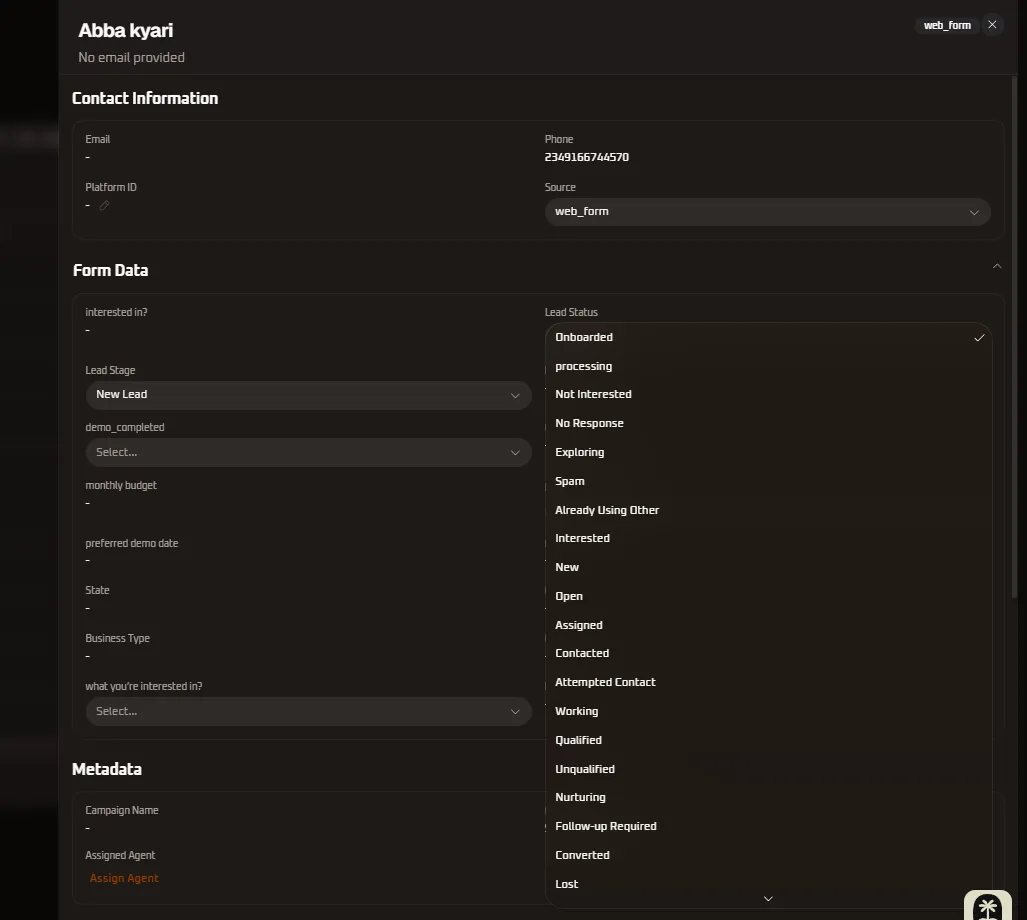
- Statuses:
Onboarded,processing,Not Interested,No Response,Exploring,Spam,Already Using Other,Interested,New,Open,Assigned,Contacted,Attempted Contact,Working,Qualified,Unqualified,Nurturing,Follow-up Required,Converted, andLost.
4. Consultation Booking Windows (preferred demo time)
Section titled “4. Consultation Booking Windows (preferred demo time)”Select customer-requested demo consultation slots in standardized 30-minute intervals:
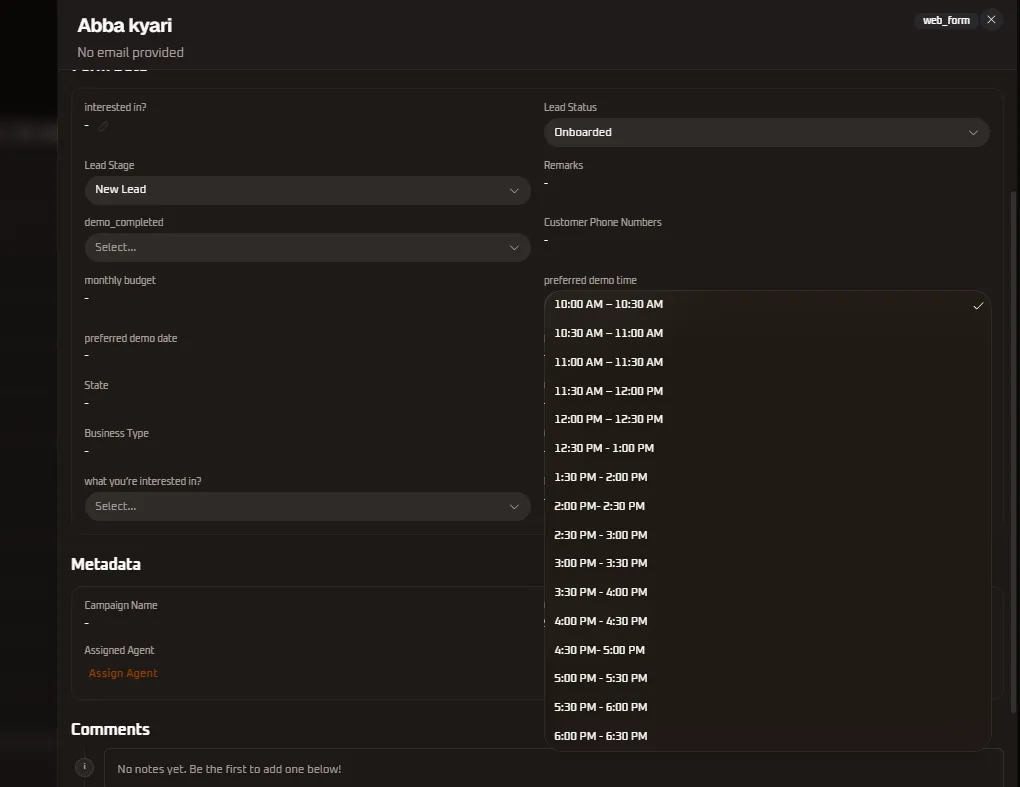
- Timeslot Schedule: Supports 17 booking windows spanning
10:00 AM – 10:30 AMthrough6:00 PM – 6:30 PM.
5. Platform Solution Interest (what you're interested in?)
Section titled “5. Platform Solution Interest (what you're interested in?)”Capture product requirements to route prospects to specialized solution architects:
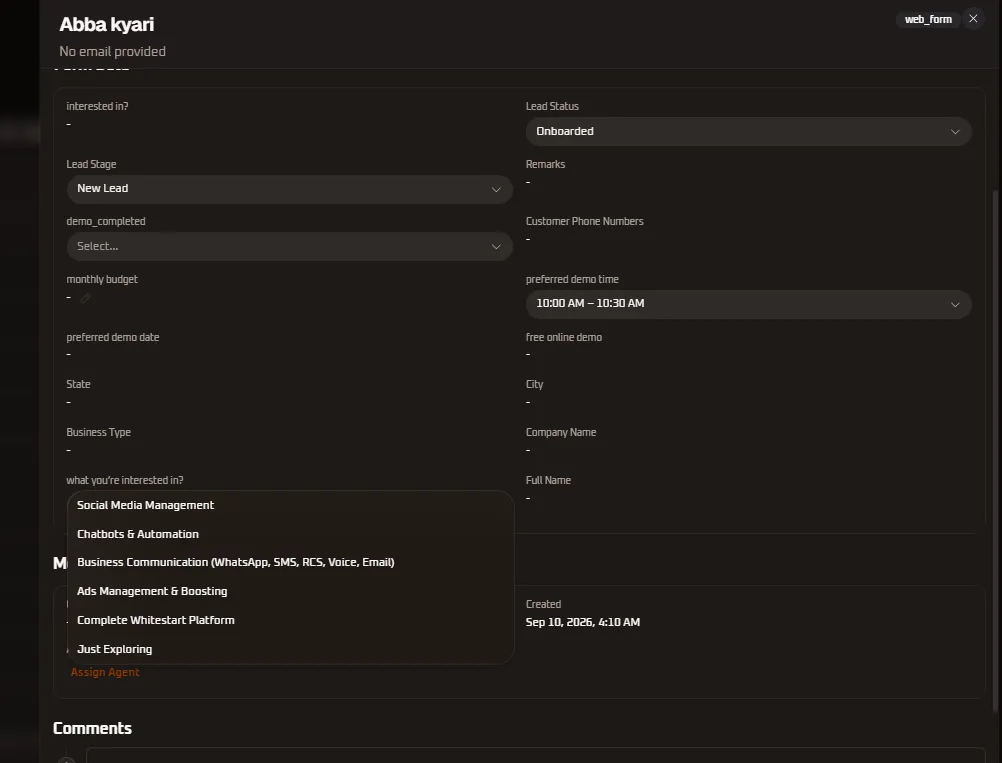
- Categories:
Social Media Management,Chatbots & Automation,Business Communication (WhatsApp, SMS, RCS, Voice, Email),Ads Management & Boosting,Complete Whitestart Platform, andJust Exploring.
Collaborative Notes & Full Audit Timeline
Section titled “Collaborative Notes & Full Audit Timeline”The bottom section of the Customer Profile Drawer acts as a collaborative operational workspace:
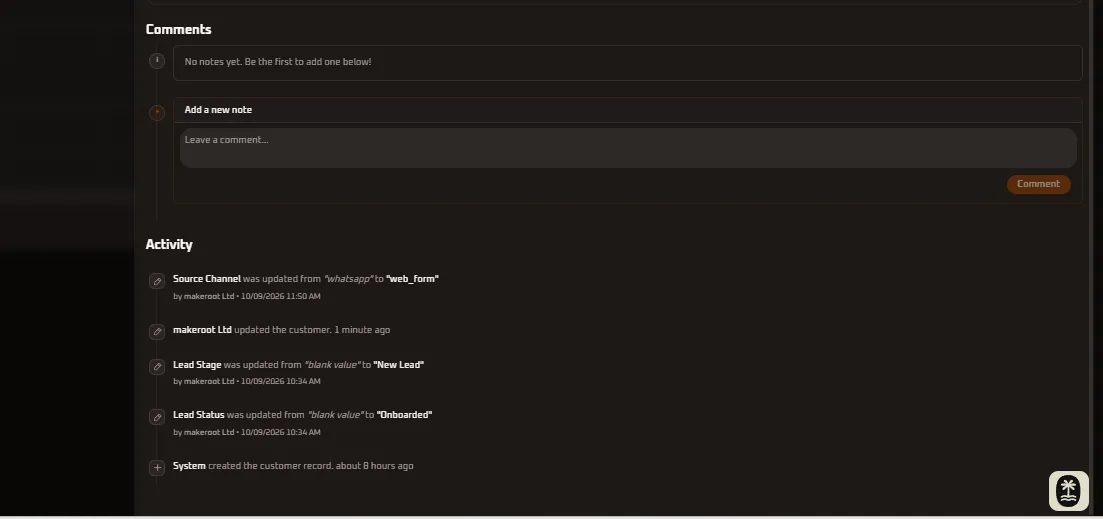
1. Internal Team Comments (Add a new note)
Section titled “1. Internal Team Comments (Add a new note)”Sales representatives and relationship managers can leave internal notes regarding client discussions, objections, budget updates, or next steps:
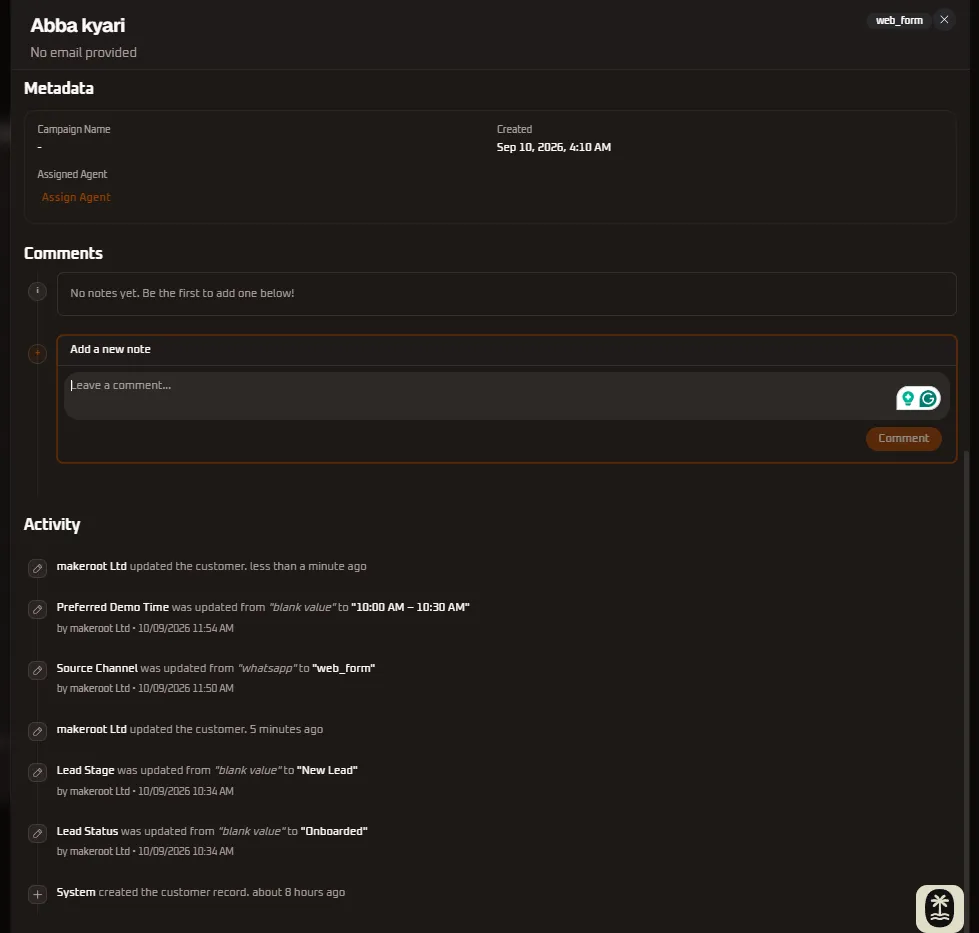
- Type notes directly into the
Add a new notefield. - Click the orange
Commentbutton to persist the note to the customer’s permanent file. - Notes are visible to all authorized agents assigned to the account.
2. Comprehensive Activity Stream & Audit Log
Section titled “2. Comprehensive Activity Stream & Audit Log”WhiteStart records every modification made to the customer profile with second-level accuracy:
- Attributed Changes: Logs the exact user who modified the record (e.g.,
makeroot Ltd updated the customer 5 minutes ago). - Before & After Values: Clearly shows previous versus updated field values (e.g.,
Preferred Demo Time was updated from "blank value" to "10:00 AM – 10:30 AM"orLead Stage was updated from "blank value" to "New Lead"). - System Event Logging: Automatically tracks account genesis (e.g.,
System created the customer record about 8 hours ago).
Agent Assignment Governance (Manage Agents Modal)
Section titled “Agent Assignment Governance (Manage Agents Modal)”Routing customer relationships to dedicated team members is handled via the interactive Assign Agent action:
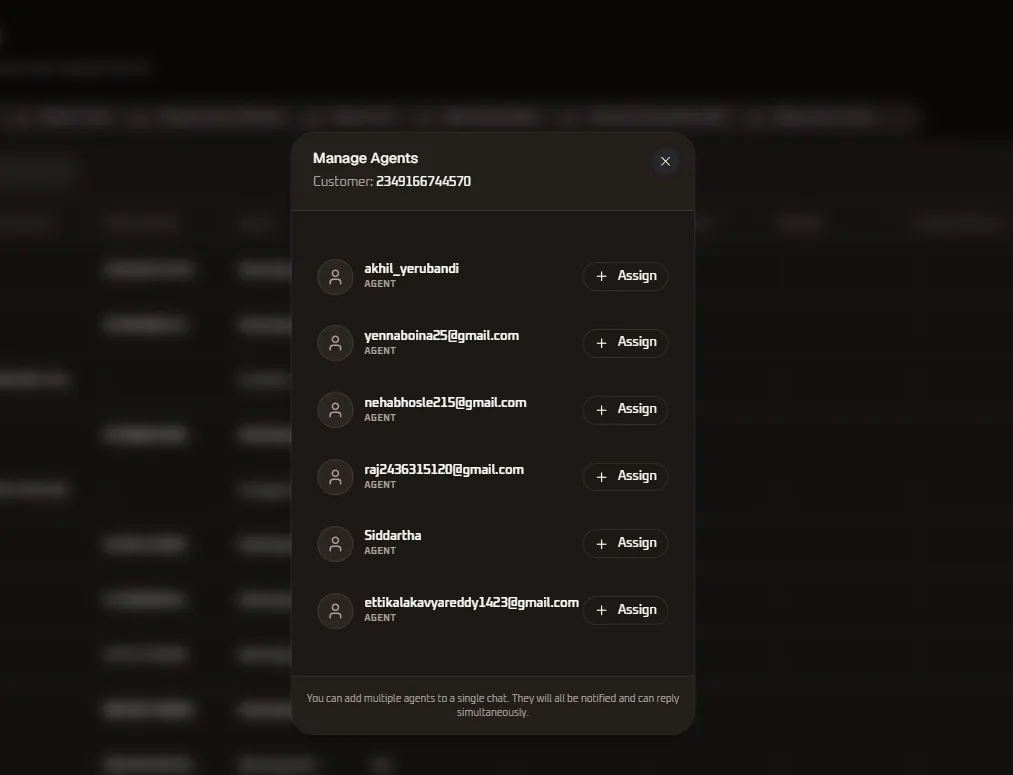
Multi-Agent Collaboration Model
Section titled “Multi-Agent Collaboration Model”- Click the orange
Assign Agentbutton in any customer row (or within the drawer under Metadata). - The Manage Agents modal opens, displaying all verified workspace team members (
AGENT). - Click
+ Assignnext to any team member (e.g., akhil_yerubandi, Siddartha, etc.) to grant them ownership.
Column-Level Operations (Sorting, Pinning & Hiding)
Section titled “Column-Level Operations (Sorting, Pinning & Hiding)”Every column header in Customer Tables features an integrated action menu (accessible via the ≡ or filter trigger).
1. Customer Identity Columns
Section titled “1. Customer Identity Columns”Freeze primary contact attributes to maintain context while scrolling through wide tables:
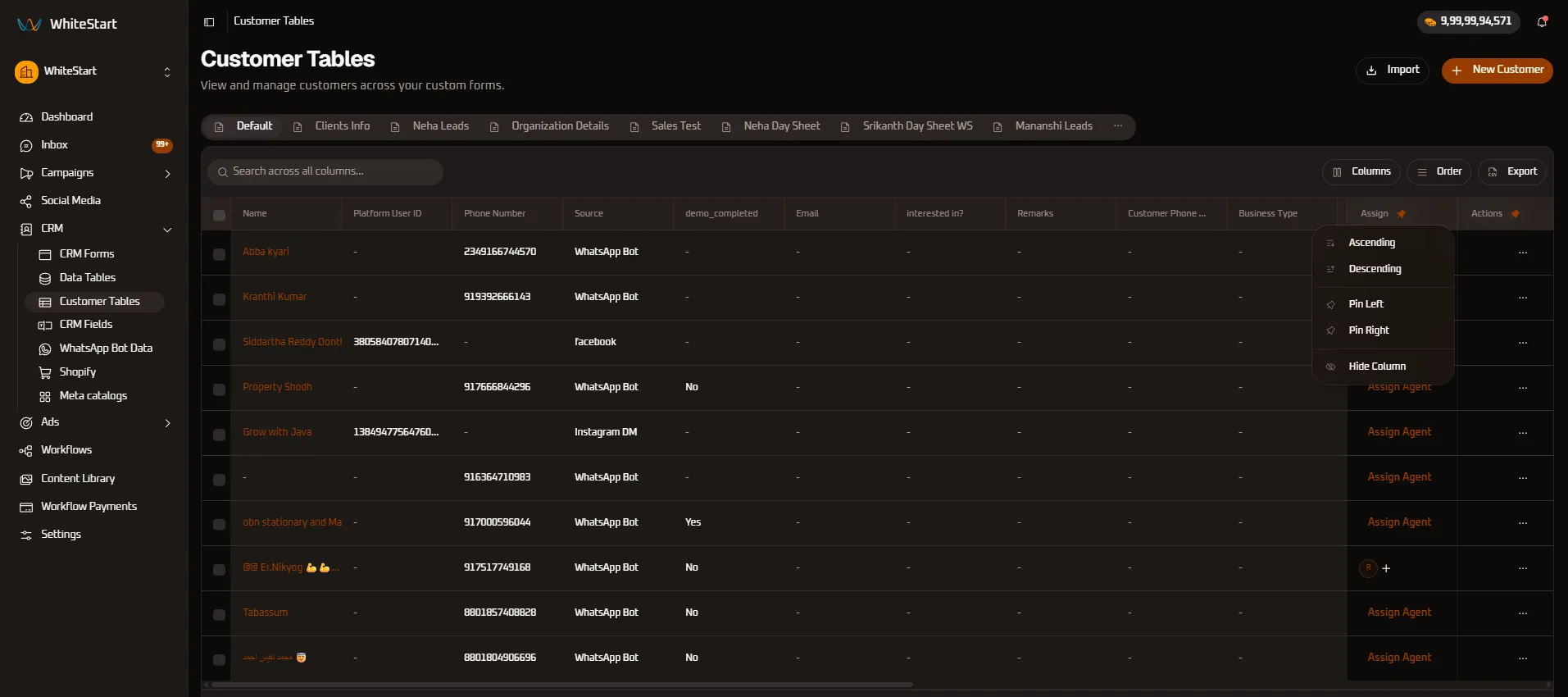
- Name Column Controls: Alphabetical sorting (
Ascending/Descending), boundary pinning (Pin Left/Pin Right), and column visibility toggle.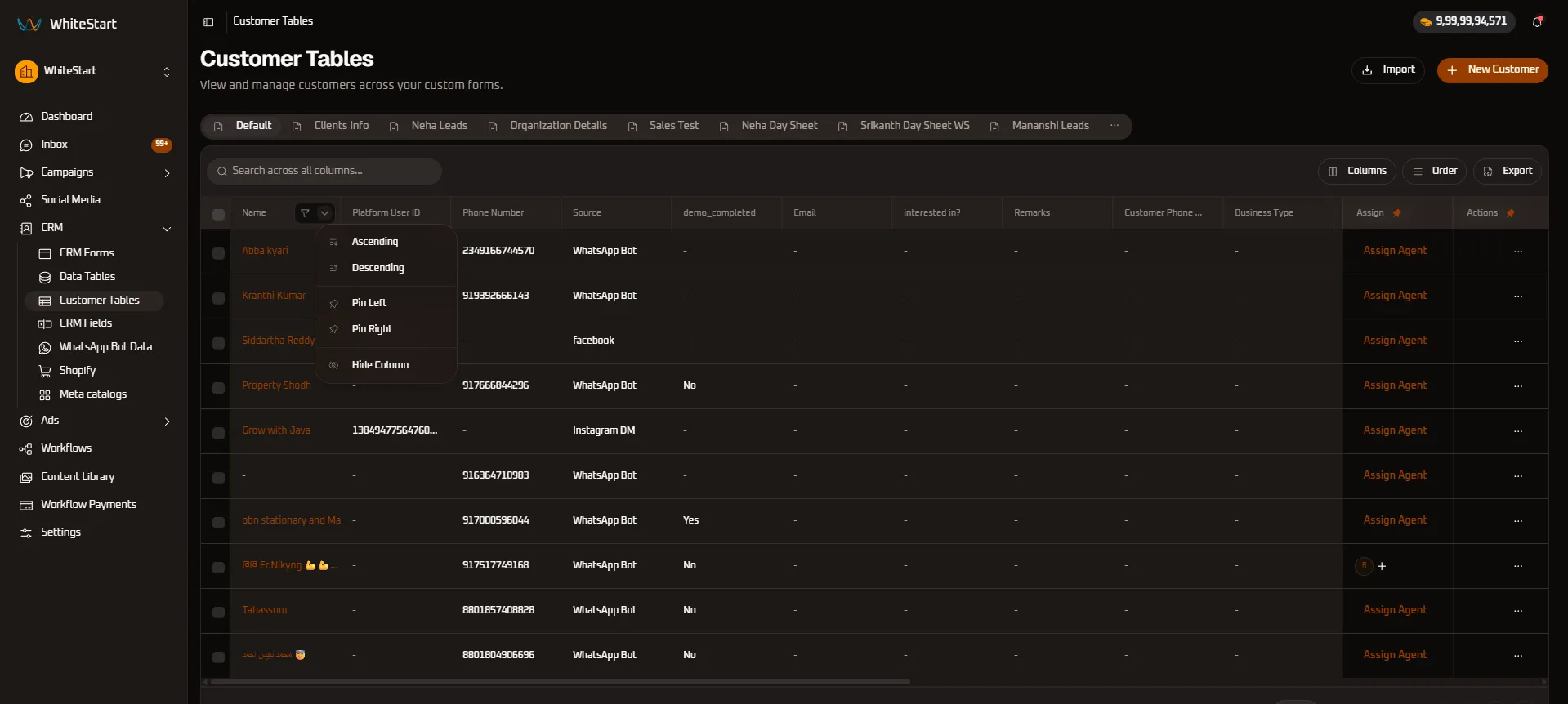
- Platform User ID Column Controls: Organize records by persistent developer IDs or pin for cross-system database audits.
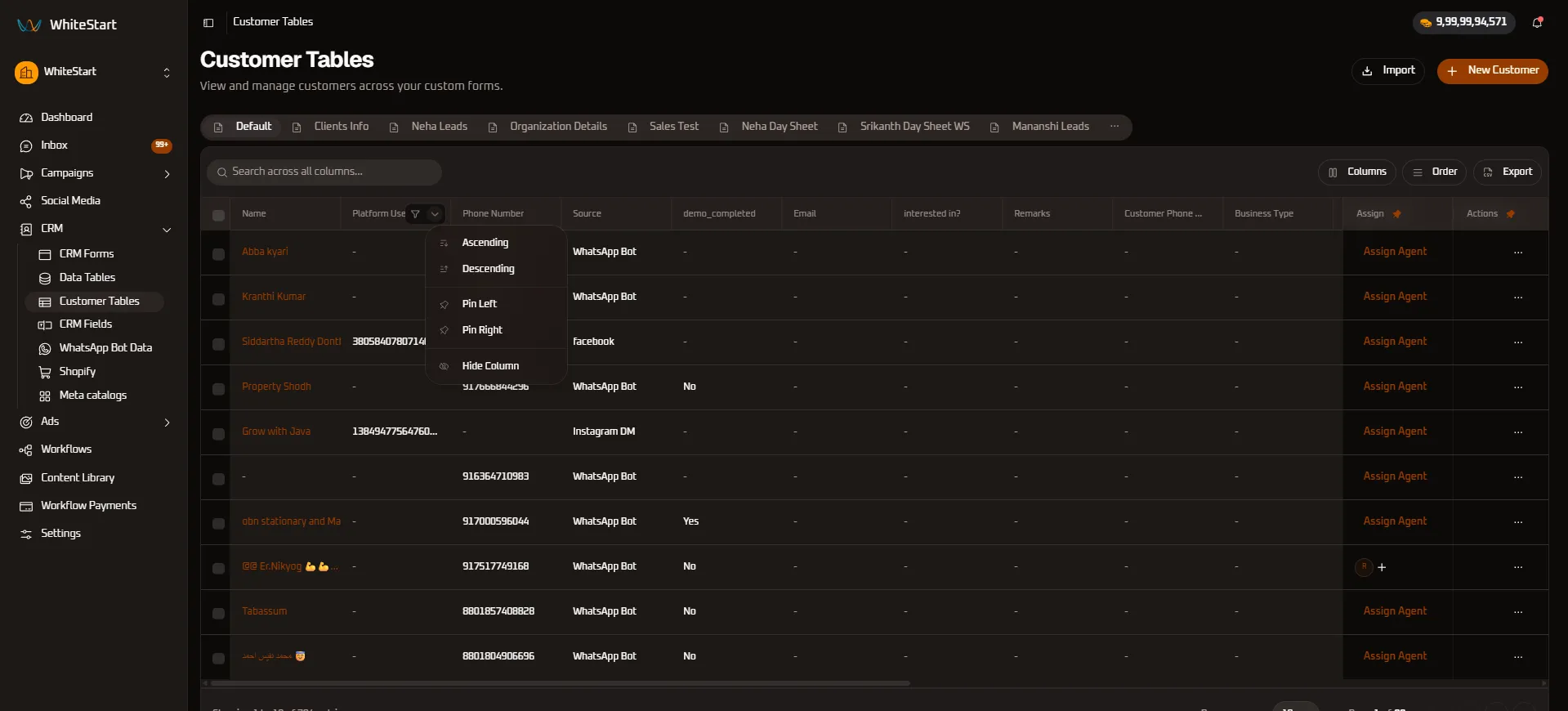
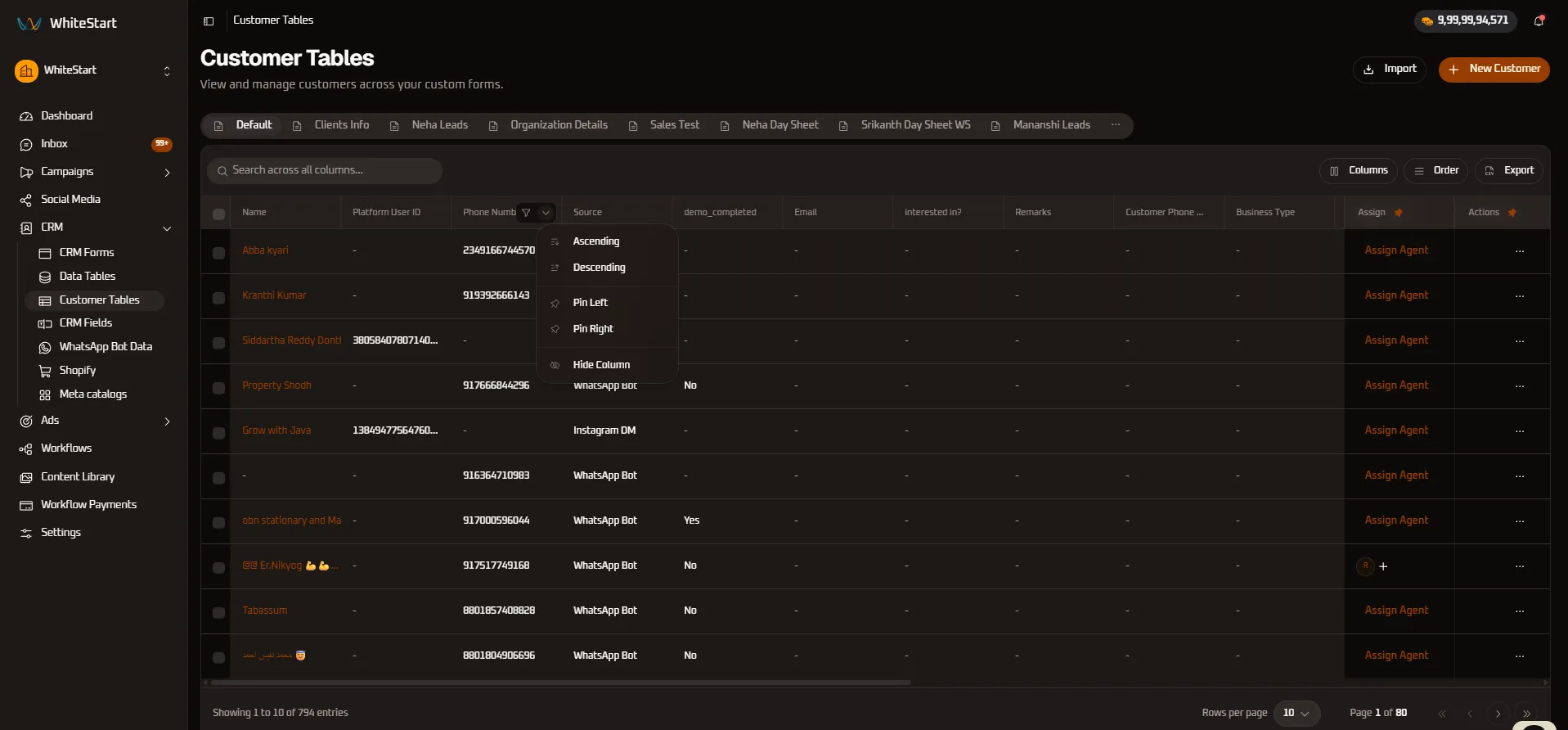
- Phone Number Column Controls: Sort by country codes or pin contact numbers adjacent to lead names.
2. Acquisition & Qualification Columns
Section titled “2. Acquisition & Qualification Columns”Filter and segment leads based on campaign performance and operational requirements:
- Source Column Controls: Group leads by inbound capture mechanisms (
WhatsApp Bot,Facebook,Instagram DM,Web Form).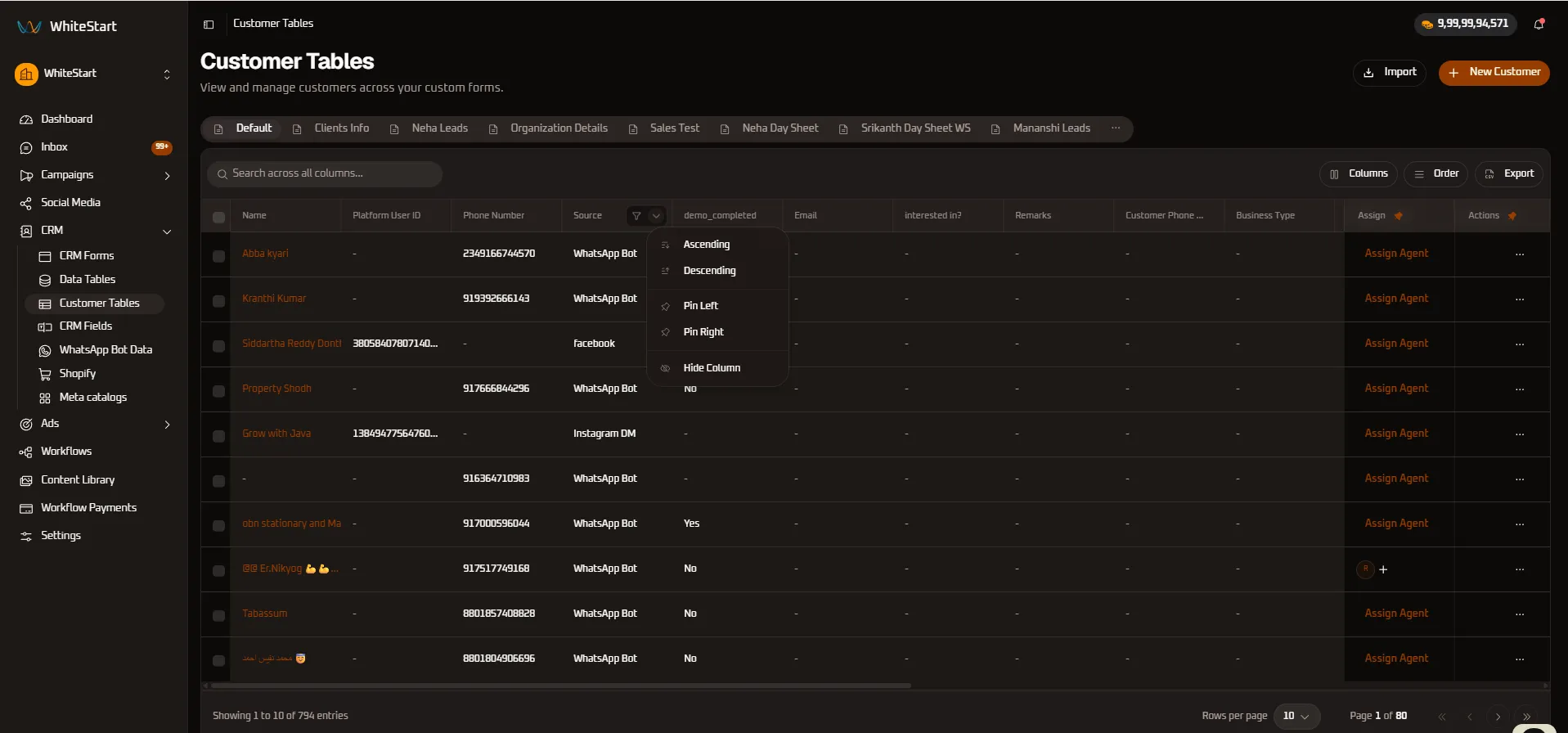
- Demo Completed Column Controls: Isolate leads who have completed product demonstrations (
Yes) versus those pending (No).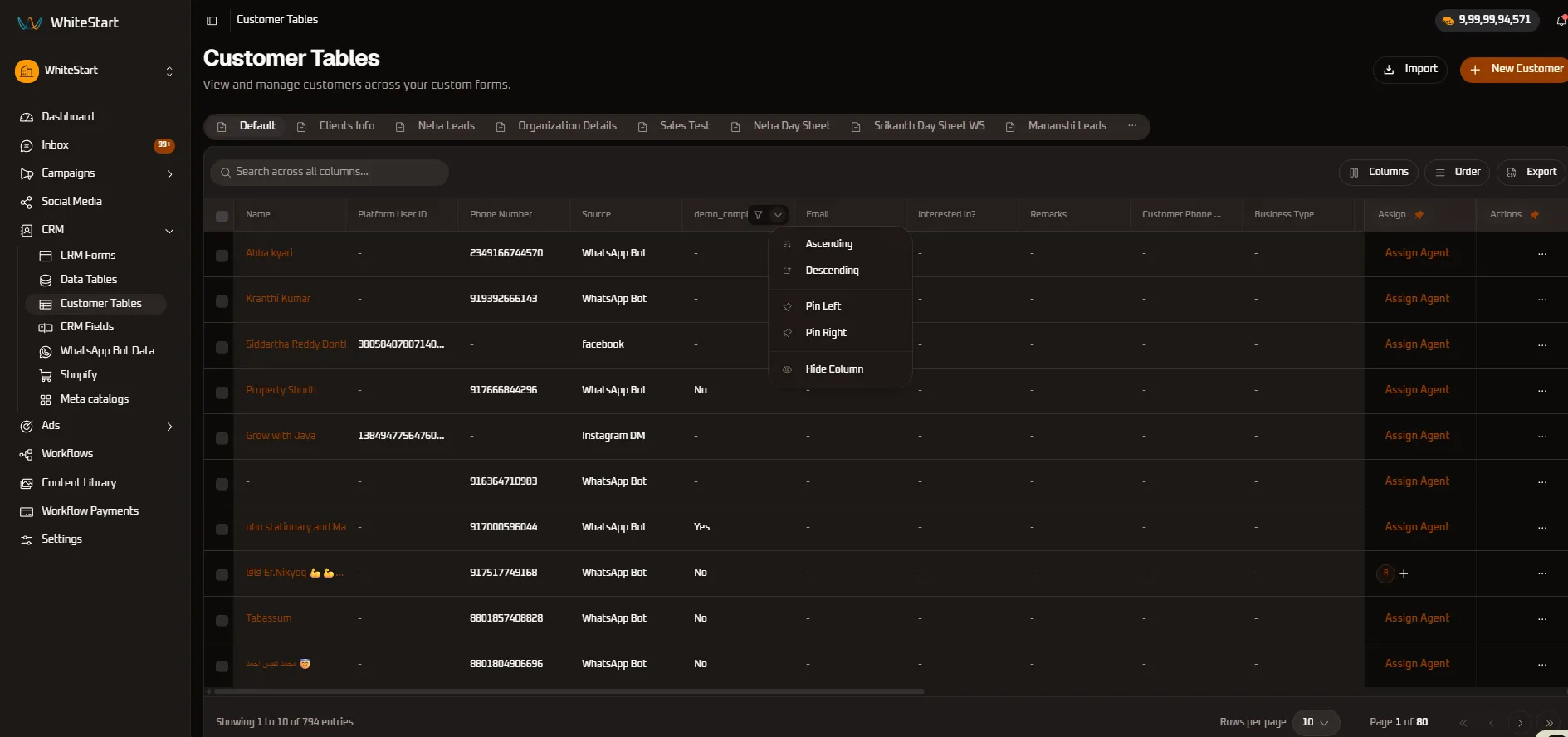
- Email Column Controls: Organize records by corporate email domains.
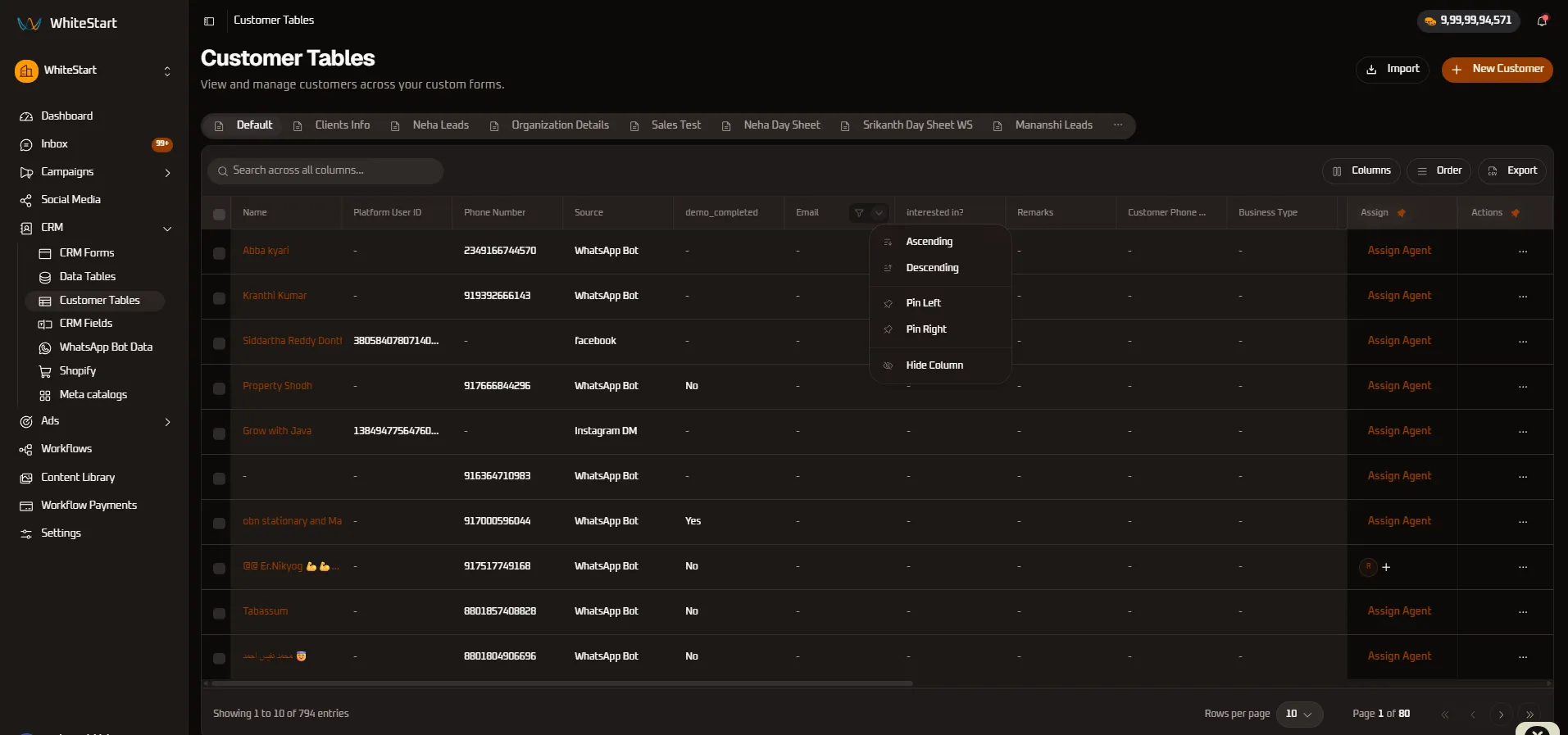
- Interested In Column Controls: Cluster prospects by product interests.
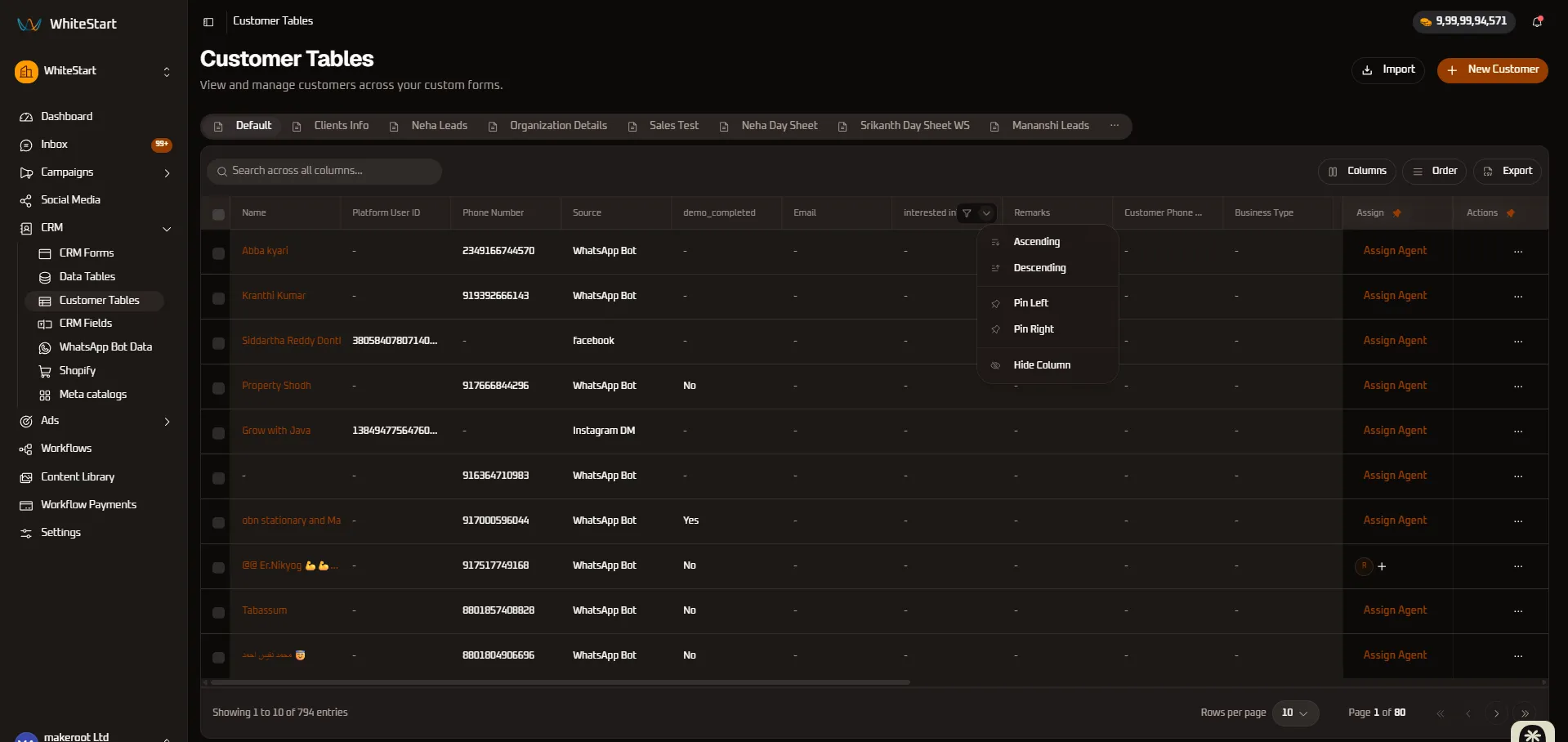
- Remarks Column Controls: Review notes logged during qualification.
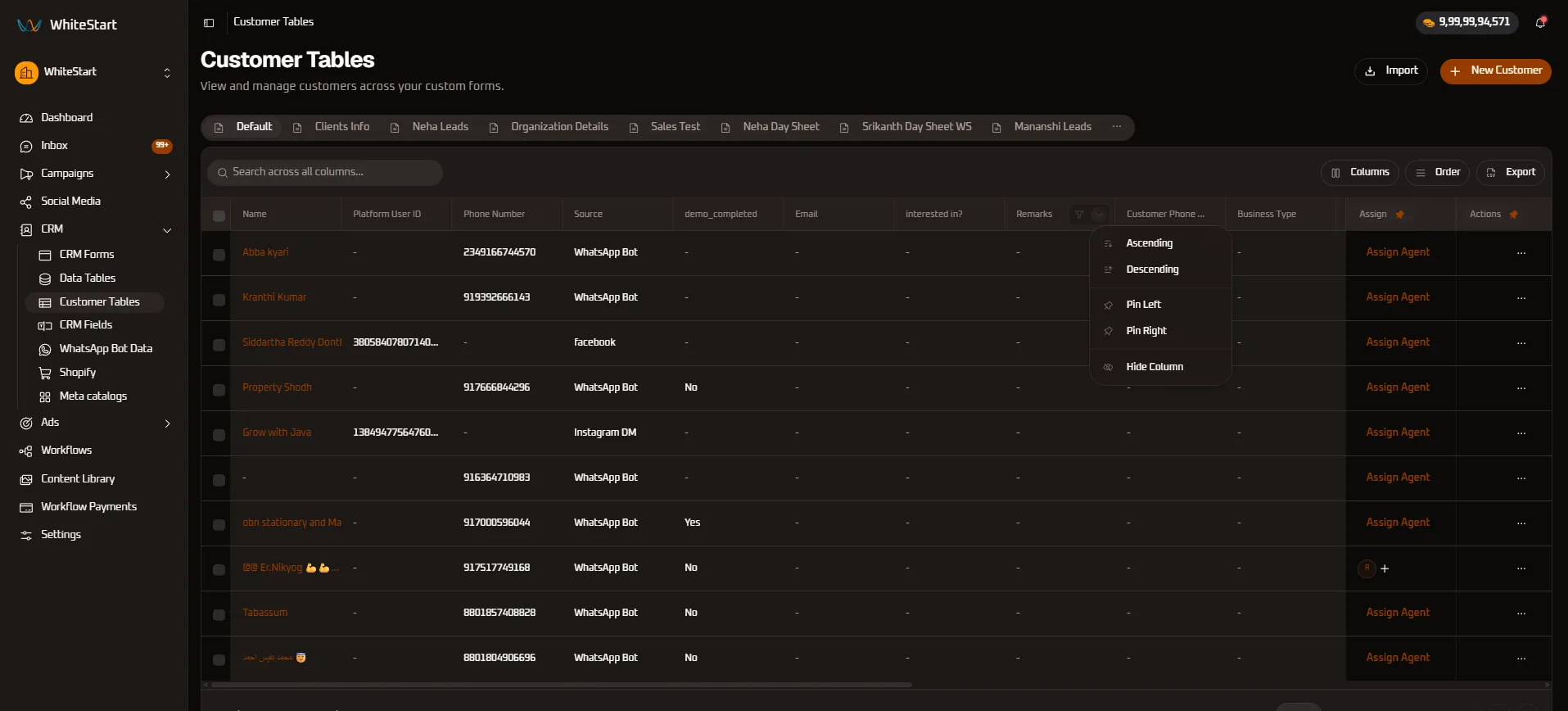
- Customer Phone Numbers Column Controls: Sort secondary or alternate mobile numbers.
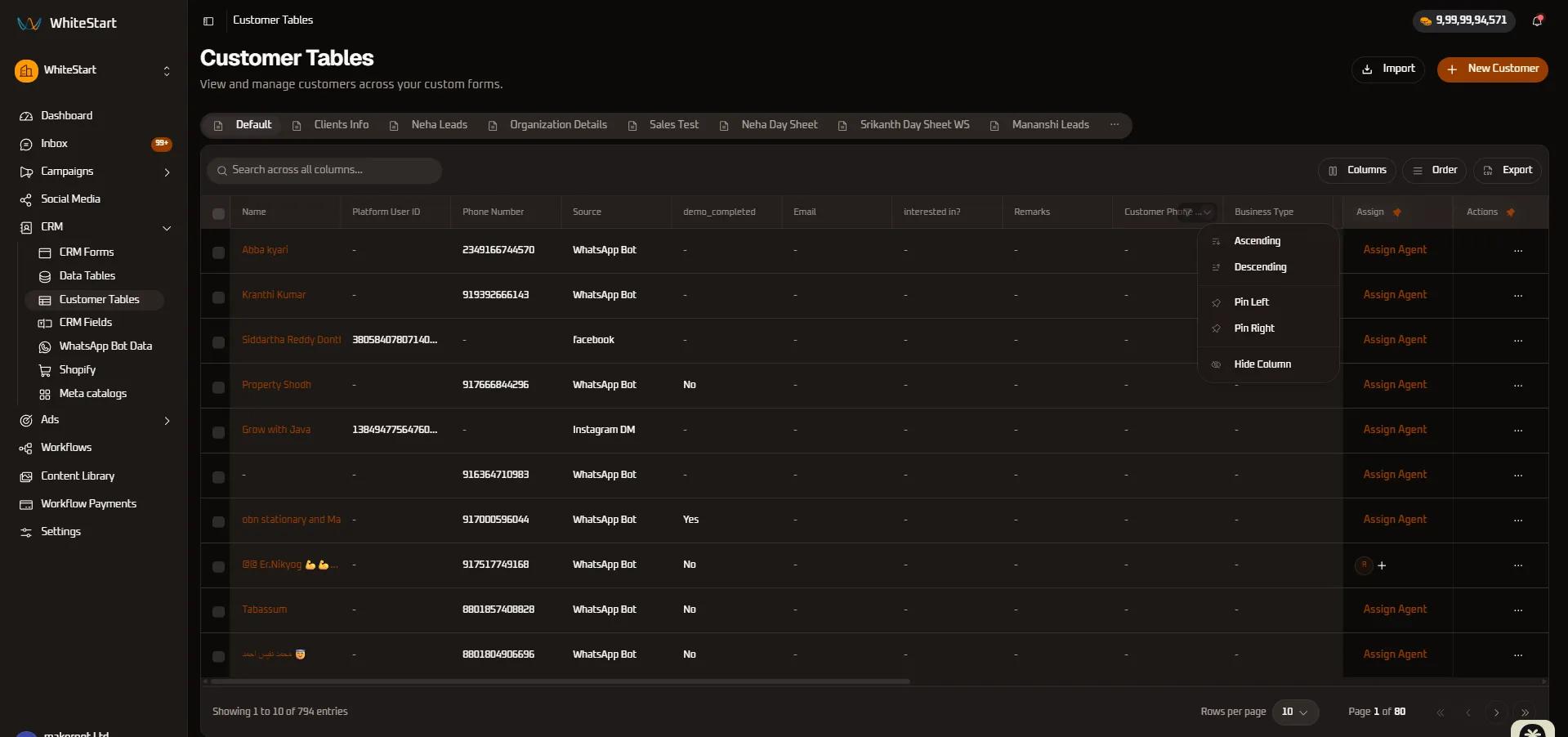
- Business Type Column Controls: Segment leads across commercial verticals (Real Estate, Healthcare, Education, Financial).
3. Pinned Action Columns (Assign & Actions)
Section titled “3. Pinned Action Columns (Assign & Actions)”The Assign and Actions columns feature orange pin icons (📌) indicating active boundary anchoring:
- Assign Agent Column Menu: Freezes agent routing triggers to the table edge. The context menu dynamically provides
Unpinto restore standard scrolling.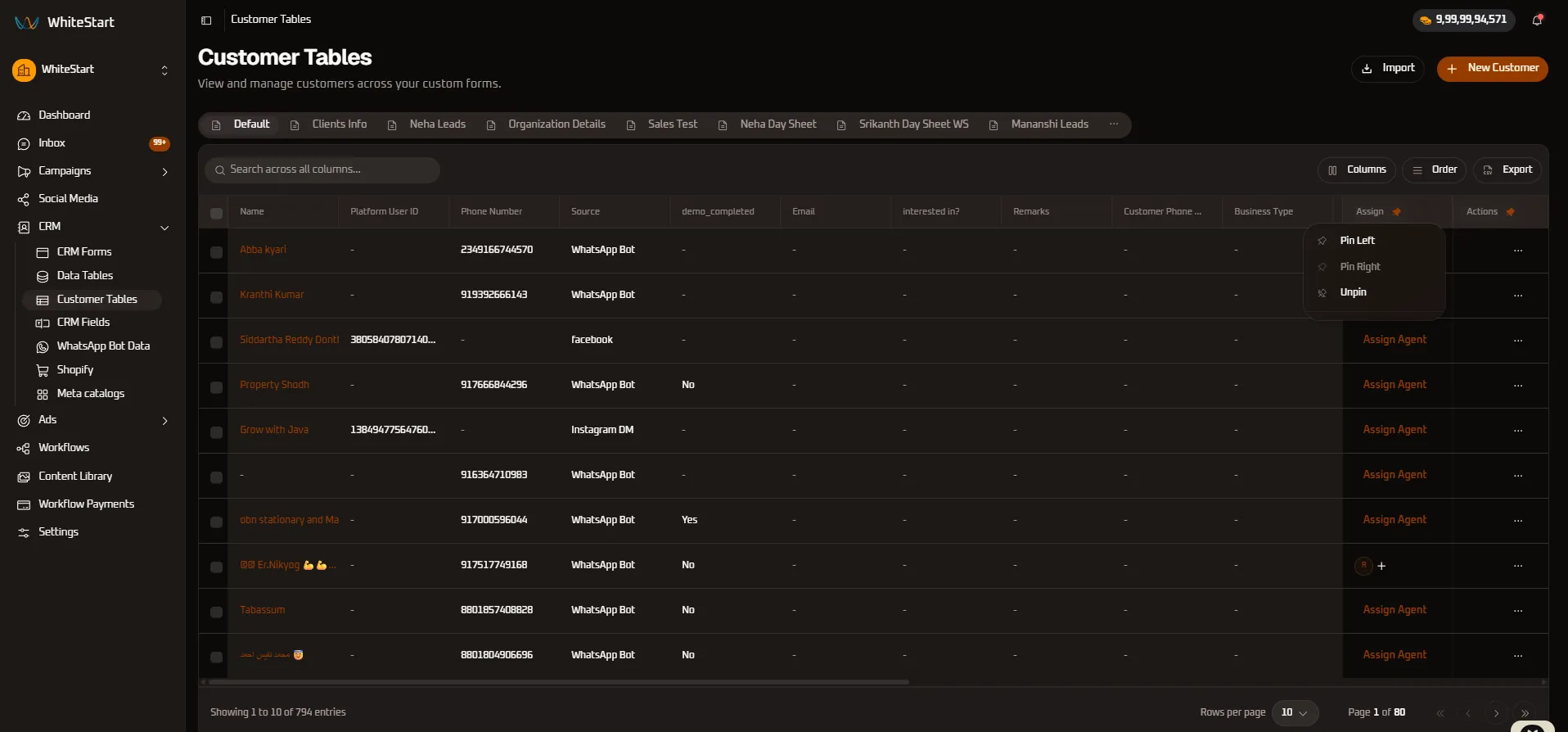
- Actions Column Menu: Anchors the quick-action menu (
...) so row-level options are always immediately accessible.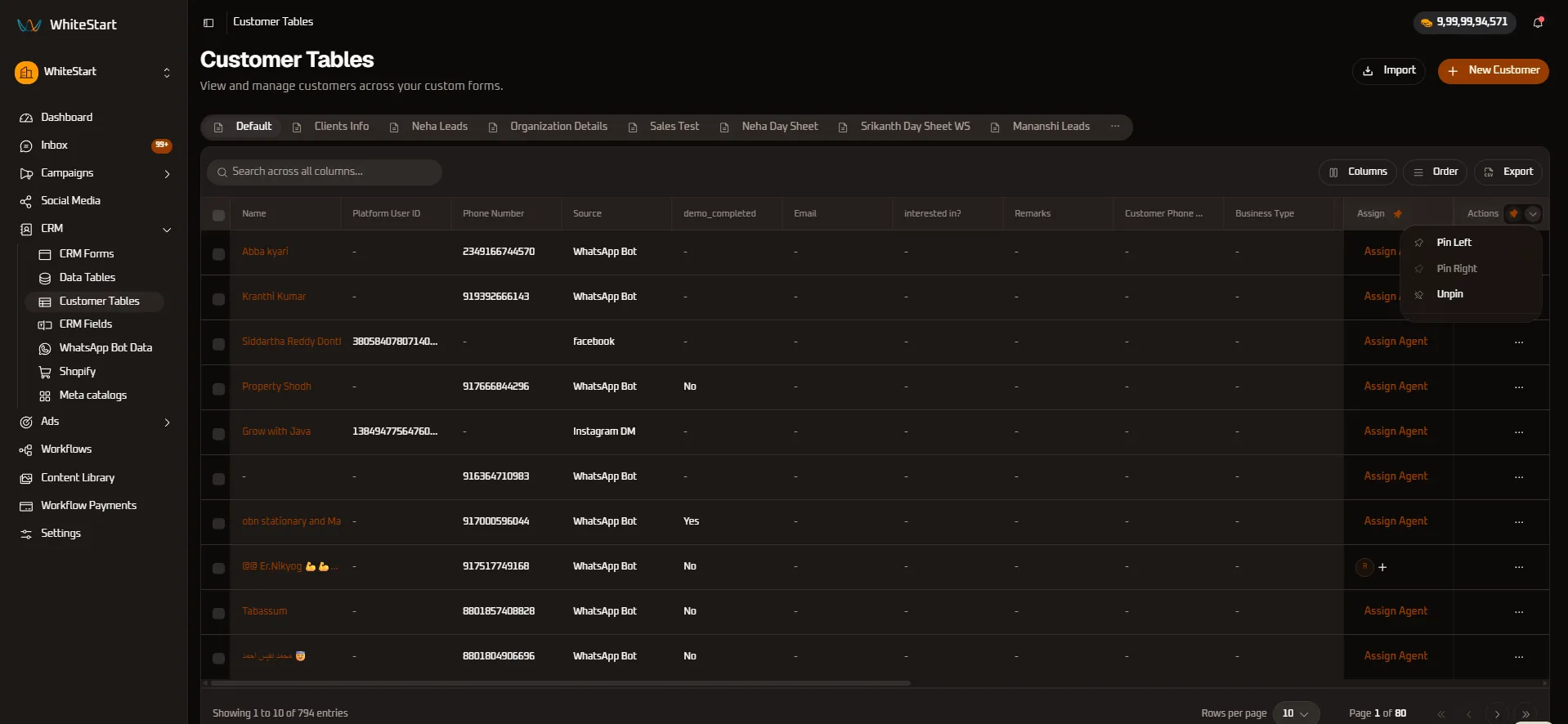
Customer Segmentation Tabs
Section titled “Customer Segmentation Tabs”Tabs across the top partition your customer database into focused pipeline views:
Default: The global master directory showing all verified customer records across all forms and channels.Clients Info: B2B enterprise view tracking corporate organizations, founder emails, and direct account representatives.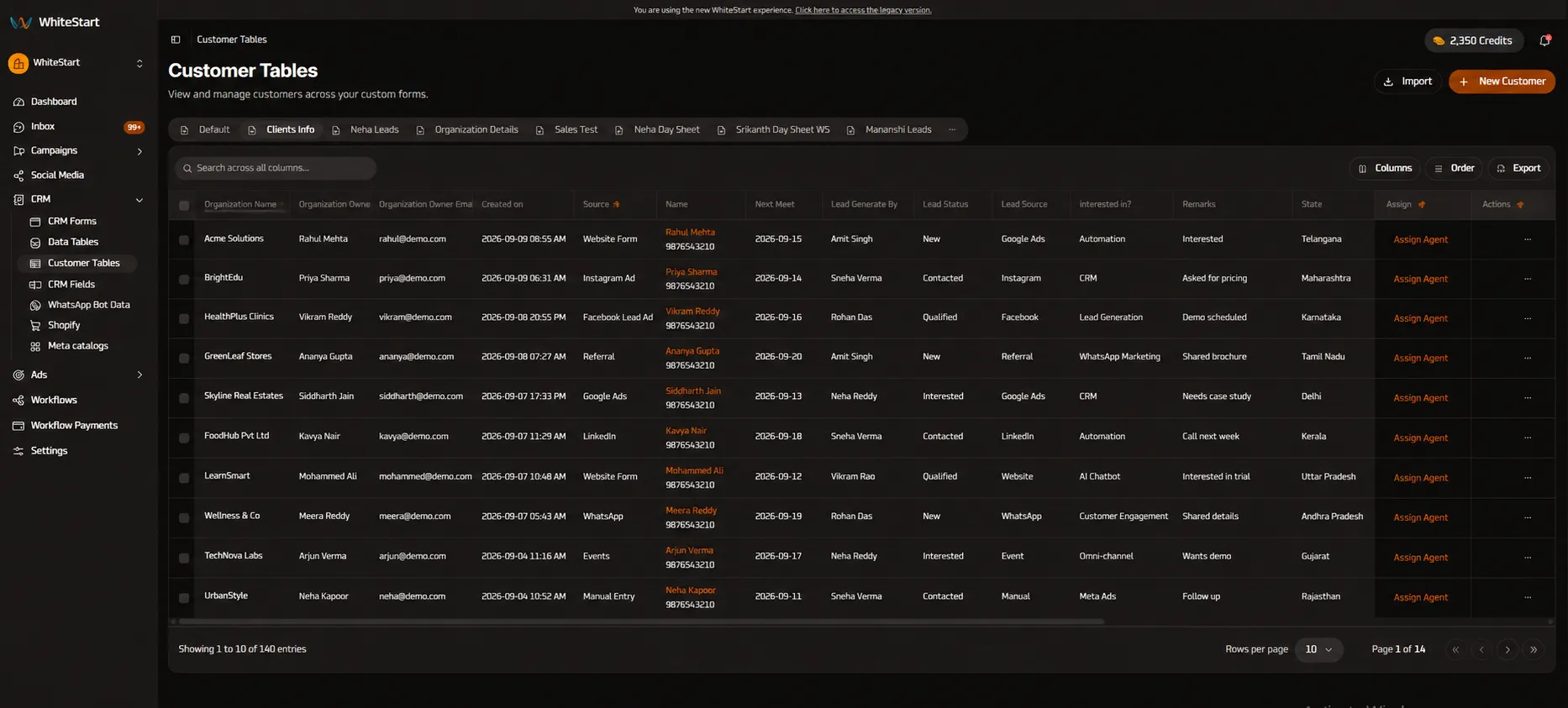
Organization Details: Corporate directory dedicated strictly to enterprise business accounts and founders.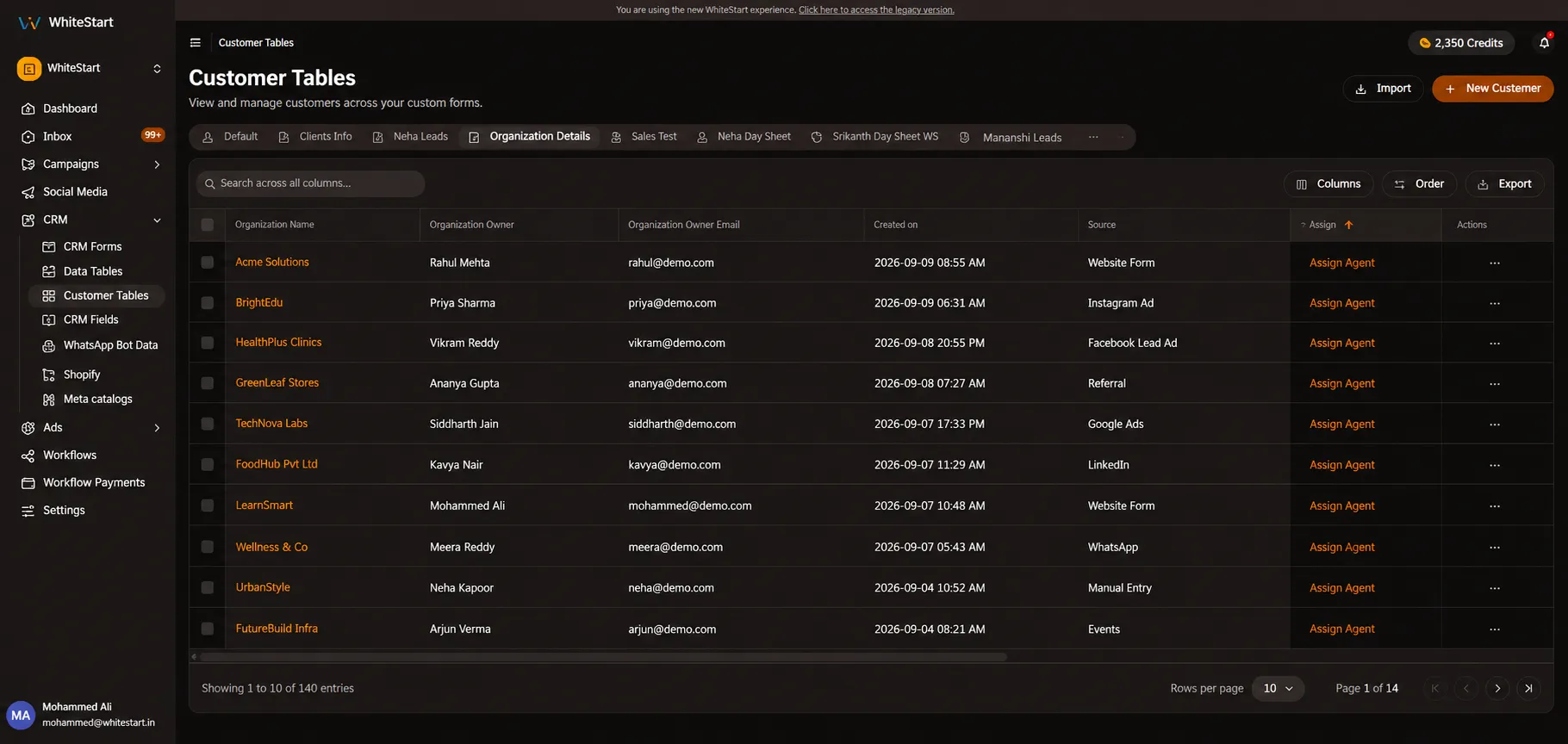
Neha Leads: Dedicated pipeline tab for individual team members, tracking campaign attribution and preferred appointment windows.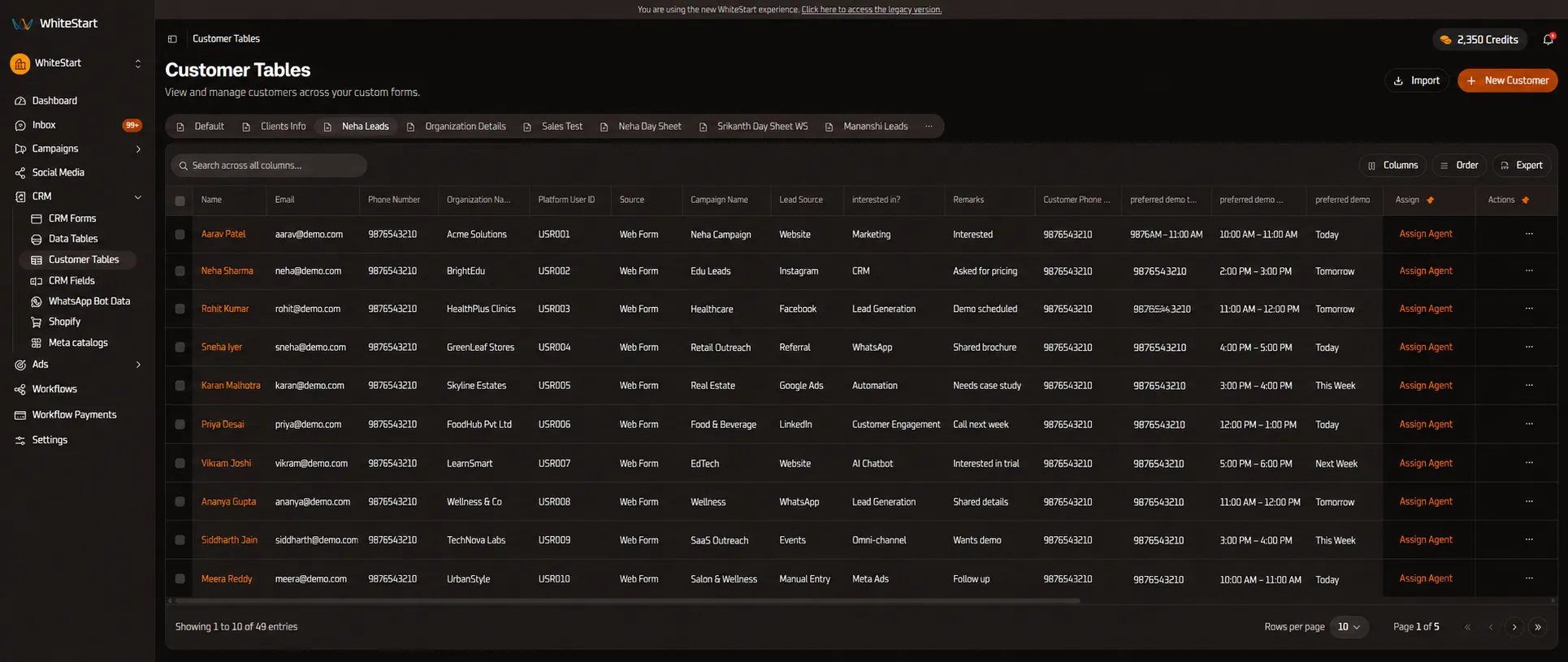
Sales Test / Mananshi Leads: Activity-monitored view tracking real-time engagement flags (Active: Yes/No) andLast seenrecency timestamps.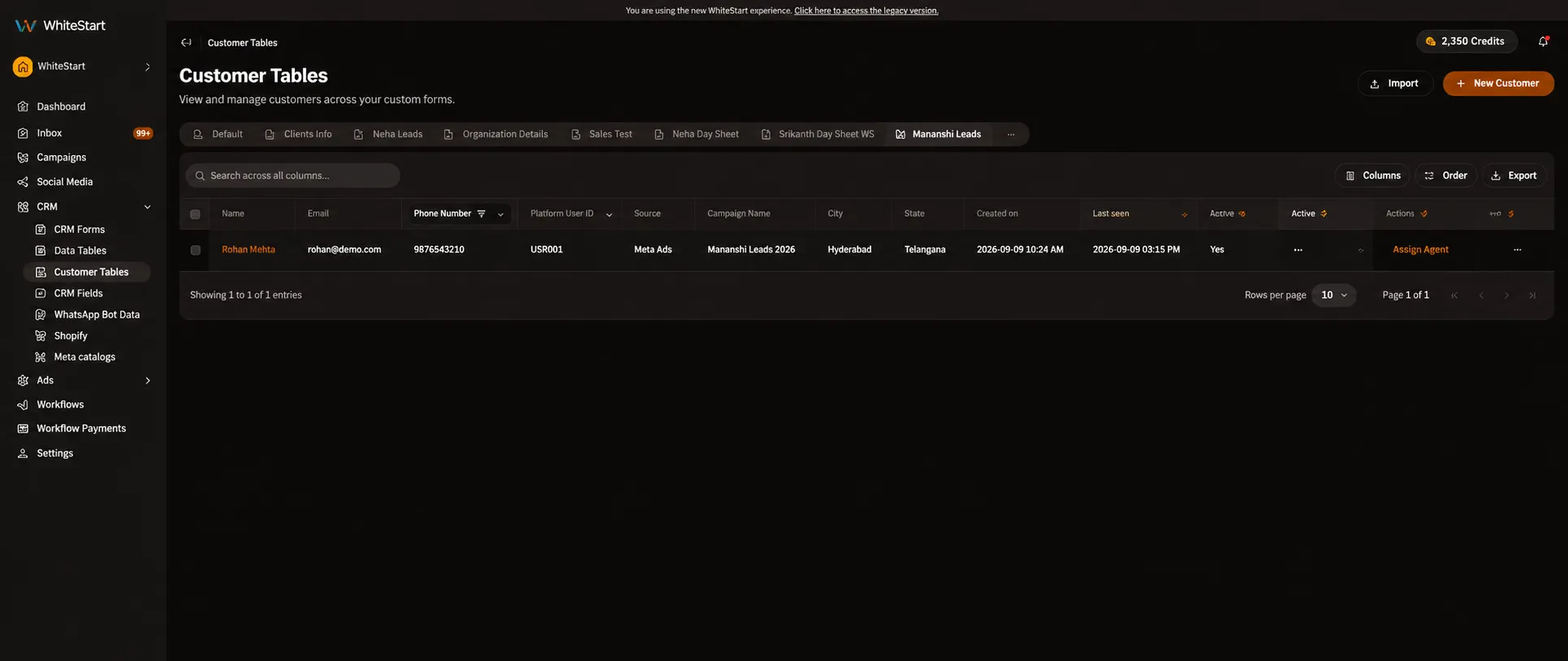
Ingesting & Creating Customers
Section titled “Ingesting & Creating Customers”WhiteStart provides flexible mechanisms to bring customer data into the workspace:
1. Bulk Ingestion via Import (📥 Import)
Section titled “1. Bulk Ingestion via Import (📥 Import)”To ingest existing customer spreadsheets from external CRMs or marketing lists:
- Click the
📥 Importbutton in the top-right toolbar. - Select your
.csvor.xlsxspreadsheet file. - Map source spreadsheet headers to WhiteStart customer fields (
Name,Phone,Email,Business Type,Monthly Budget). - Click Run Import. New contacts appear in the table with system-assigned
Platform User IDkeys.
2. Manual Provisioning (+ New Customer)
Section titled “2. Manual Provisioning (+ New Customer)”To record walk-in leads, direct phone consultations, or offline inquiries, click the orange + New Customer button:
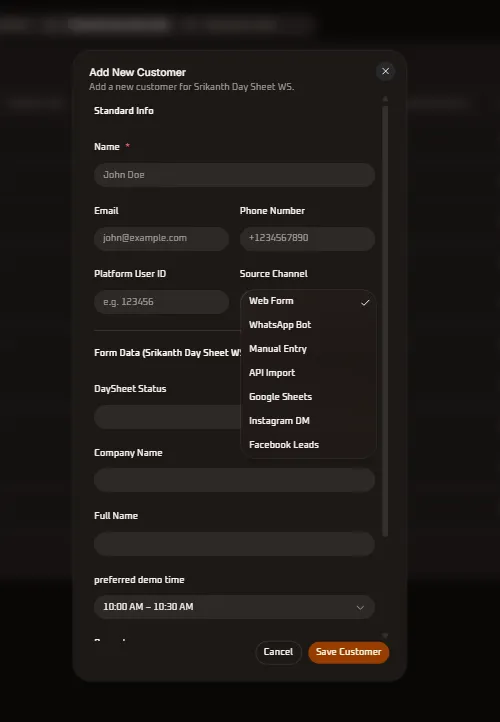
- Standard Info: Provide primary contact name, email address, phone number, optional user ID, and select the Source Channel.
- Form Data: Fill in pipeline-specific attributes matching the active tab’s schema (e.g.,
DaySheet Status,Company Name, andFull Name). - Preferred Demo Timeslot: Select an initial consultation slot from the standardized booking schedule:
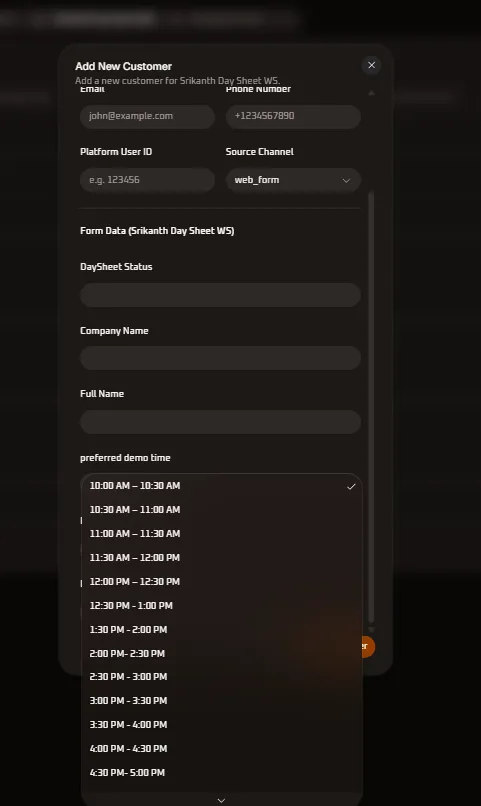
- Click
Save Customerto insert the record into the active directory.
Table Controls & Volume Data Export
Section titled “Table Controls & Volume Data Export”- Global Search Bar (
Search across all columns...): Instant omni-column search matching names, numbers, email domains, and agent handles with live real-time filtering. - Column Visibility (
[ Columns ]): Toggle checkboxes to hide non-essential columns and optimize table density. - Column Reordering (
[ Order ]): Drag-and-drop column handles to adjust the display sequence according to operational needs. - Volume CSV Export (
[ Export ]): Download filtered or full-volume customer datasets for reporting, dialer uploads, or external CRM backup.