
CRM Forms
The CRM Forms module in WhiteStart serves as the core customer data collection and template management engine. It allows teams to design standardized data schemas, capture customer inquiries across communication channels (such as WhatsApp bots, web chat, and direct agent interactions), and govern team member access to lead pipelines.
Overview
Section titled “Overview”CRM Forms allow organizations to structure how customer records, lead attributes, and conversational submissions are captured and categorized. Whether you need a simple lead inquiry form or an extensive customer onboarding sheet with dozens of custom attributes, CRM Forms provide dynamic field configuration and role-based access.
Key Capabilities
Section titled “Key Capabilities”- Dynamic Schema Configuration: Define custom field sets (text inputs, numbers, dropdowns, dates, and attachments) tailored to your specific sales processes.
- Granular Member Permissions: Assign permitted team members to specific forms to restrict sensitive customer information and route leads to dedicated sales reps.
- Instant Submission Inspection: Seamlessly inspect captured records directly from the forms dashboard using the integrated Data View interface.
- Omnichannel Data Ingestion: Collect responses through WhiteStart WhatsApp bots, automated workflow actions, webhooks, or manual agent entry.
Accessing CRM Forms
Section titled “Accessing CRM Forms”Navigate to the CRM Forms dashboard using the primary left-hand navigation menu:
Main Sidebar ➔ CRM ➔ CRM Forms- Click on CRM in the left sidebar to expand the CRM navigation group.
- Select CRM Forms.
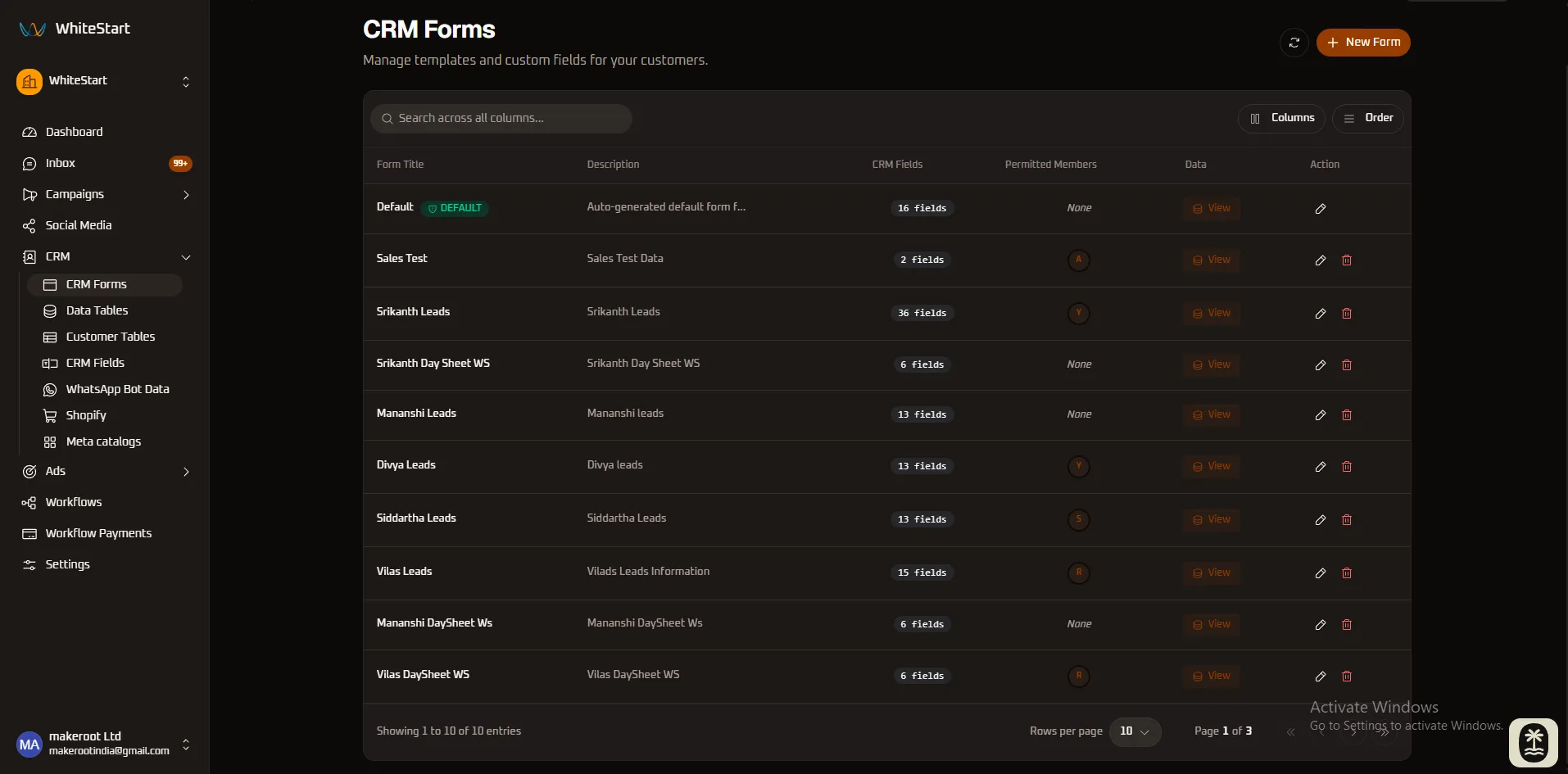
- The master directory of all available form templates, field counts, and permission assignments will be displayed.
Dashboard Layout & Controls
Section titled “Dashboard Layout & Controls”The CRM Forms dashboard provides a centralized management console to search, sort, configure, and inspect all form definitions:
+─────────────────────────────────────────────────────────────────────────────+| CRM Forms [ ⟳ ] [ + New Form]|| Manage templates and custom fields for your customers. |+─────────────────────────────────────────────────────────────────────────────+| [Q Search across all columns... ] [ Columns ] [ Order ] |+─────────────────────────────────────────────────────────────────────────────+| Form Title Description CRM Fields Permitted Data Action |+─────────────────────┬─────────────────────┬───────────┬──────────┬─────┬──────+| Default [DEFAULT] | Auto-generated... | 16 fields | None | View| ✏️ || Sales Test | Sales Test Data | 2 fields | (A) | View| ✏️ 🗑️ || Srikanth Leads | Srikanth Leads | 36 fields | (Y) | View| ✏️ 🗑️ || Srikanth Day Sheet | Srikanth Day Sheet | 6 fields | None | View| ✏️ 🗑️ || Mananshi Leads | Mananshi leads | 13 fields | None | View| ✏️ 🗑️ || Divya Leads | Divya leads | 13 fields | (Y) | View| ✏️ 🗑️ || Siddartha Leads | Siddartha Leads | 13 fields | (S) | View| ✏️ 🗑️ || Vilas Leads | Vilas Leads Info... | 15 fields | (R) | View| ✏️ 🗑️ |+─────────────────────┴─────────────────────┴───────────┴──────────┴─────┴──────+| Showing 1 to 10 of 10 entries Rows per page: [ 10 v ] Page 1 of 3|+─────────────────────────────────────────────────────────────────────────────+Header Actions
Section titled “Header Actions”- Refresh (
⟳): Re-fetches the latest form metadata, field counts, and submission statistics without reloading the entire page. + New Form(Orange Button): Opens the form creation modal to define a new template name, description, and custom fields.
Search and Table Controls
Section titled “Search and Table Controls”- Global Search (
Search across all columns...): Real-time filtering across form titles, descriptions, and field criteria. - Columns Dropdown (
[ Columns ]): Customize visible table headers to adapt the display to your preferences. - Order Dropdown (
[ Order ]): Arrange table column sequence via intuitive drag-and-drop handles.
Dynamic Column Visibility & Sequence Ordering
Section titled “Dynamic Column Visibility & Sequence Ordering”The CRM Forms console provides dedicated toolbar utilities to customize visible table columns and reorder column layout:
1. Column Visibility Management ([ Columns ])
Section titled “1. Column Visibility Management ([ Columns ])”Clicking the [ Columns ] button in the top toolbar opens the column visibility selector:
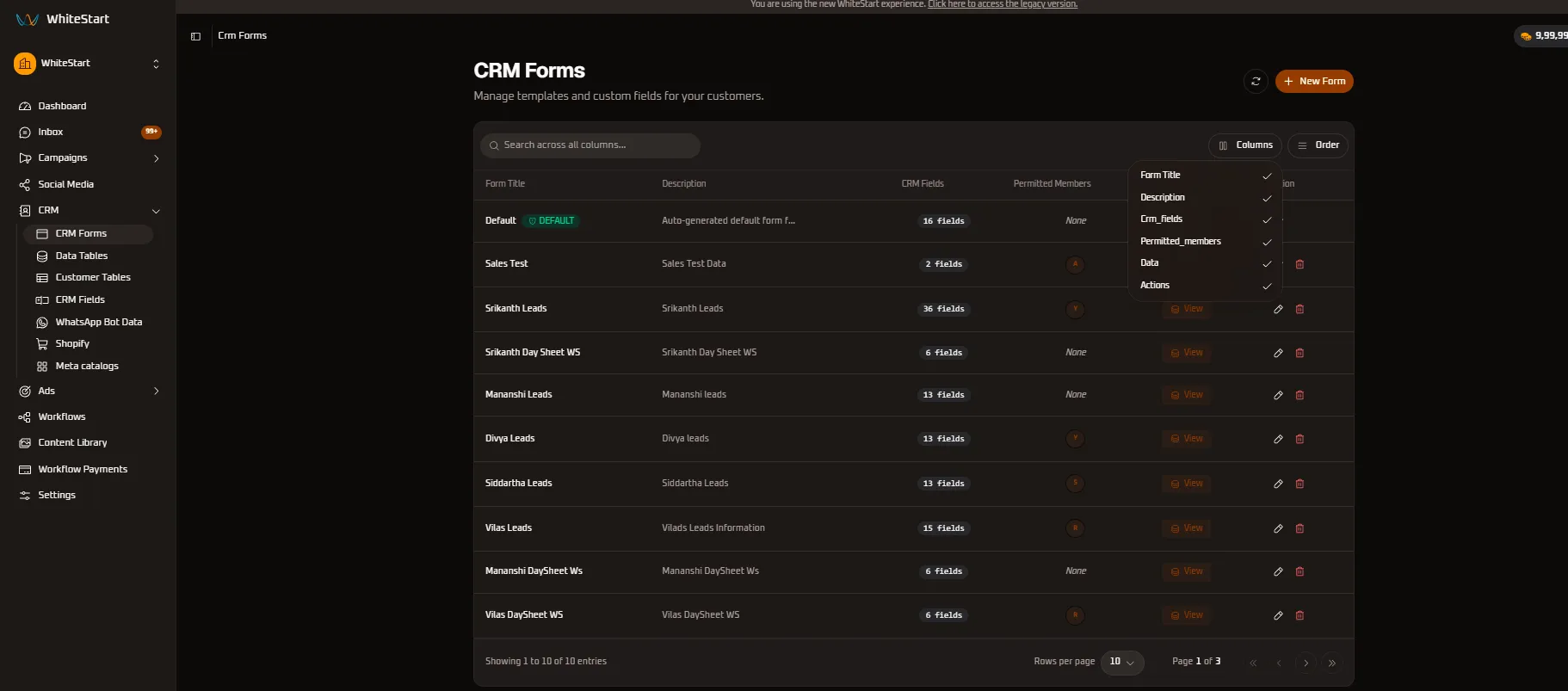
- Attribute Toggles: Select or clear checkboxes for
Form Title,Description,Crm_fields,Permitted_members,Data, andActionsto customize your view. - Workspace Optimization: Hide secondary metadata columns (such as
DescriptionorPermitted_members) when conducting high-speed template reviews or auditing total field counts.
2. Dynamic Column Sequence Ordering ([ Order ])
Section titled “2. Dynamic Column Sequence Ordering ([ Order ])”Clicking the [ Order ] button launches the drag-and-drop column sequence organizer:
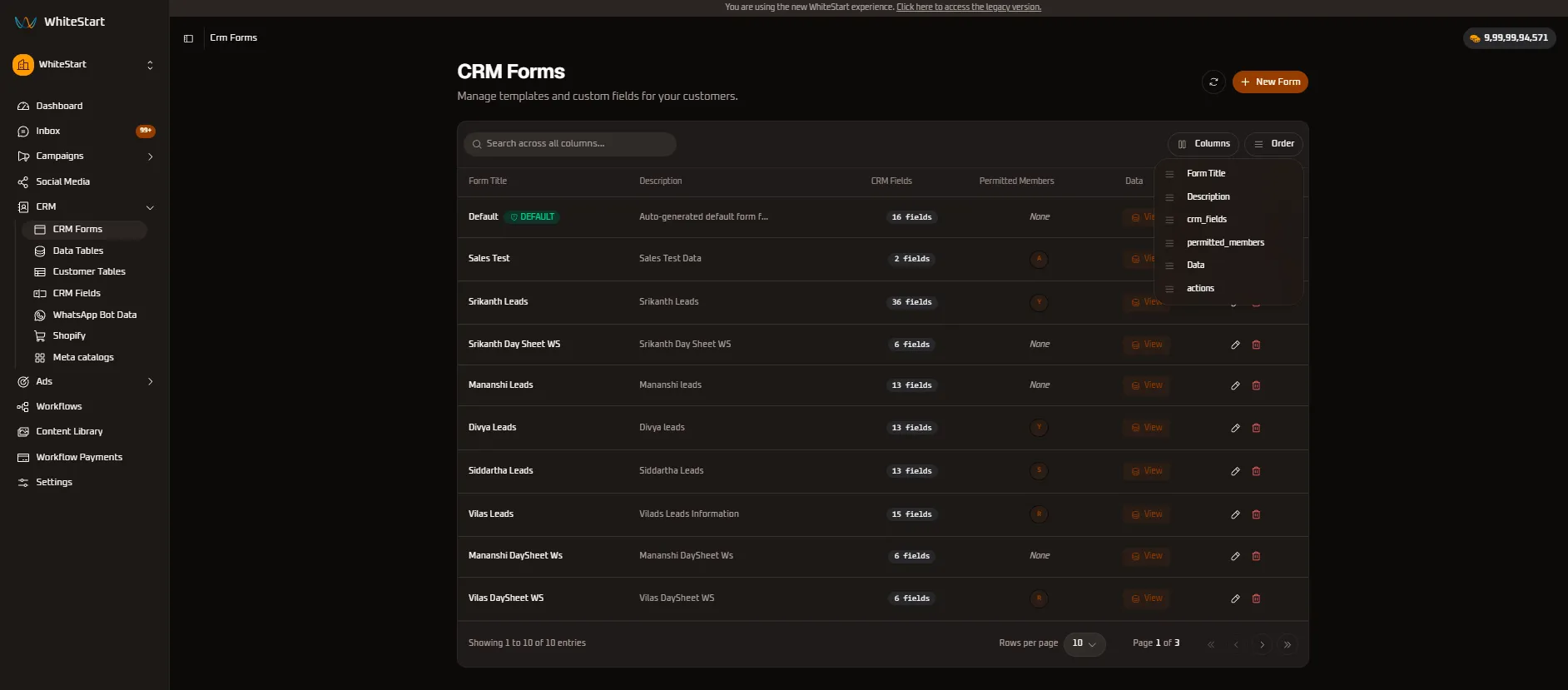
- Drag-and-Drop Sequencing (
≡): Click and drag the handle next to any column name (≡ Form Title,≡ Description,≡ crm_fields,≡ permitted_members,≡ Data,≡ actions) up or down to adjust its display position across the grid. - Workflow Alignment: Position the
Dataorcrm_fieldscolumn immediately adjacent toForm Titlefor fast, 1-click inspection of incoming customer submissions without excessive horizontal eye movement.
Directory Columns & Field Reference
Section titled “Directory Columns & Field Reference”The table contains the following key columns:
| Column | Type | Description |
|---|---|---|
| Form Title | Text & Badge | The unique identifying title of the form template. The system base form carries a green DEFAULT badge. |
| Description | Text | A brief explanation outlining the purpose of the form and its target lead pipeline. |
| CRM Fields | Counter Badge | Indicates the total number of structured custom attributes configured for this form (e.g., 16 fields, 36 fields). |
| Permitted Members | Avatar / Badge | Displays user avatars representing team members authorized to access this form. Displays None if open to all authorized workspace users. |
| Data | Action Button | Orange database button (View) that navigates directly to the records collected through this form. |
| Action | Icons | Quick management buttons: Edit (✏️) to modify form properties, and Delete (🗑️) to remove custom forms. |
Default Form vs. Custom Forms
Section titled “Default Form vs. Custom Forms”WhiteStart provides two tiers of form templates:
1. The System Default Form
Section titled “1. The System Default Form”- Identifier: Marked with the green
DEFAULTbadge. - Purpose: Acts as the foundation schema for all standard customer profiles, contact synchronizations, and basic lead intake.
- Protection: The system
Defaultform cannot be deleted (the trash can icon is disabled) to safeguard workspace database continuity. - Customization: You can add or modify custom CRM fields within the default schema to fit your standard contact model.
2. Custom Forms
Section titled “2. Custom Forms”- Identifier: Custom-named forms created by team admins (e.g.,
Sales Test,Srikanth Leads,Vilas DaySheet WS). - Purpose: Tailored for specific campaigns, product launches, regional branches, or individual sales representatives.
- Lifecycle: Fully customizable, reconfigurable, and deletable when campaigns conclude.
Managing CRM Forms
Section titled “Managing CRM Forms”Creating a New Form
Section titled “Creating a New Form”Click the orange + New Form button in the top-right corner of the CRM Forms directory to launch the interactive form builder modal.
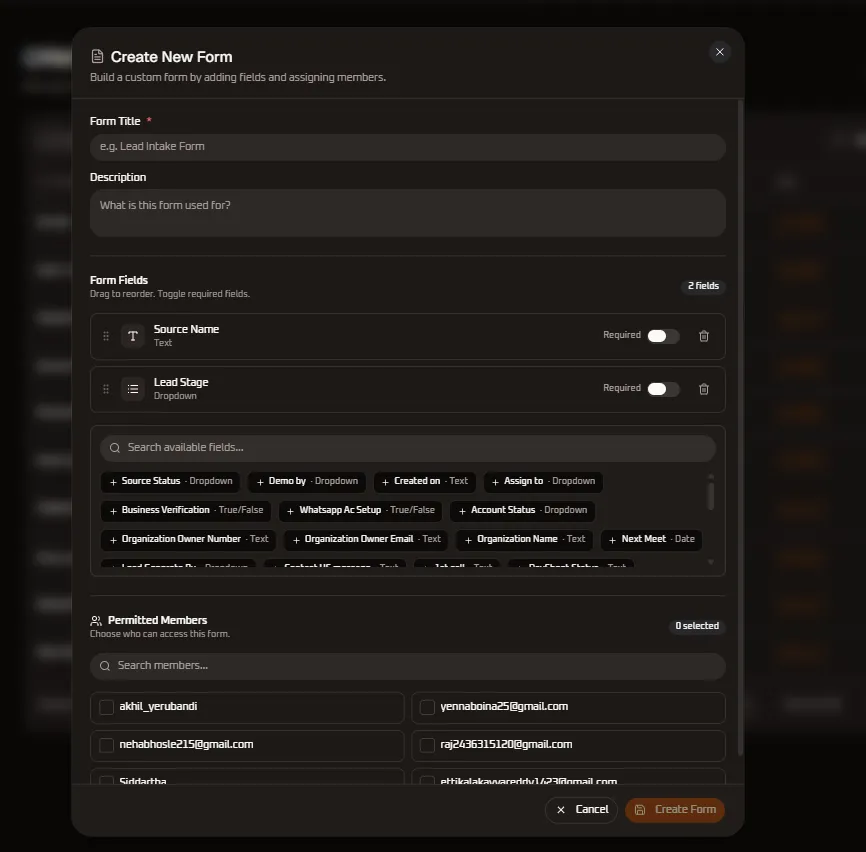
Form Builder Interface Architecture
Section titled “Form Builder Interface Architecture”+─────────────────────────────────────────────────────────────────────────────+| [📄] Create New Form [✕] || Build a custom form by adding fields and assigning members. |+─────────────────────────────────────────────────────────────────────────────+| Form Title * || [ e.g. Lead Intake Form ] || || Description || [ What is this form used for? ] || || Form Fields [ 2 fields ] || Drag to reorder. Toggle required fields. || +─────────────────────────────────────────────────────────────────────────+ || | [⠿] [T] Source Name Text Required: [ O ] [🗑️]| || | [⠿] [≡] Lead Stage Dropdown Required: [ O ] [🗑️]| || +─────────────────────────────────────────────────────────────────────────+ || || [Q Search available fields... ] || [ + Source Status · Dropdown ] [ + Demo by · Dropdown ] [ + Created on · Text ] || [ + Assign to · Dropdown ] [ + Business Verification · True/False ] || [ + Whatsapp Ac Setup · True/False ] [ + Account Status · Dropdown ] || [ + Organization Owner Number · Text ] [ + Organization Name · Text ] || [ + Organization Owner Email · Text ] [ + Next Meet · Date ] || || Permitted Members [ 0 selected ] || Choose who can access this form. || [Q Search members... ] || [ ] akhil_yerubandi [ ] [email protected] || [ ] [email protected] [ ] [email protected] || [ ] Siddartha [ ] [email protected] |+─────────────────────────────────────────────────────────────────────────────+| [ Cancel ] [ Create Form ]|+─────────────────────────────────────────────────────────────────────────────+1. Form Identification
Section titled “1. Form Identification”- Form Title (
*Required): A distinct, human-readable name identifying the form across campaigns, bots, and reporting views (e.g.,Enterprise Inbound Leads,Webinar Registrations). - Description (Optional): Contextual notes explaining the purpose of the template, target lead segment, or operational workflow instructions for agents.
2. Form Fields Configuration
Section titled “2. Form Fields Configuration”The form builder gives you complete control over which attributes your team captures:
- Field Count Badge: A real-time counter (e.g.,
2 fields) showing the number of schema attributes currently attached to the form. - Drag-and-Drop Reordering (
⠿): Click and drag the handle icon on the left of each field row to arrange the display order presented to agents and conversational bots. - Field Type Icon & Label: Visual markers distinguishing text inputs (
[T]), dropdown menus ([≡]), boolean flags, and date pickers. - Required Switch (
RequiredToggle): Enable this toggle to mark an attribute as mandatory. Submissions without required fields will be blocked by validation. - Remove Field (
🗑️Trash Icon): Instantly detaches an attribute from the active form schema.
Supported Field Types in WhiteStart
Section titled “Supported Field Types in WhiteStart”| Field Type | UI Badge | Description | Example Usage |
|---|---|---|---|
| Text | Text |
Single-line or multi-line alphanumeric input. | Contact Name, Organization Name, Notes |
| Dropdown | Dropdown |
Predefined list of selectable choices for standardized reporting. | Lead Stage, Source Status, Assign to |
| True / False | True/False |
Boolean toggle or checkbox indicating binary status. | Business Verification, Whatsapp Ac Setup |
| Date | Date |
Date picker allowing selection of specific calendar dates. | Next Meet, Follow-up Date, Onboarding Date |
3. Available Fields Ingestion Library
Section titled “3. Available Fields Ingestion Library”Below the active form fields, the modal provides an expandable repository of all organizational CRM fields:
- Search Available Fields (
🔍): Type in the search box to quickly filter down dozens of predefined company attributes. - One-Click Add (
+Chips): Click any field chip (e.g.,+ Business Verification,+ Next Meet,+ Organization Name) to immediately append it to your active form fields list above. - Custom Field Synchronization: If an attribute does not yet exist in your available fields list, create it in CRM > CRM Fields to make it instantly available across all forms.
4. Permitted Members & Access Governance
Section titled “4. Permitted Members & Access Governance”Safeguard sensitive lead pipelines by restricting access to authorized personnel:
- Selection Counter: Displays how many team members currently hold access (e.g.,
0 selected). Leaving all checkboxes unchecked grants general access to all workspace team members with CRM permissions. - Search Members Bar (
🔍): Filter by user name or corporate email to locate team members across large organizations. - Member Checkboxes: Check the box next to specific teammates (e.g.,
akhil_yerubandi,[email protected]) to assign them exclusive visibility into submissions collected through this form.
5. Saving and Deploying the Form
Section titled “5. Saving and Deploying the Form”- Click
Create Form(orange button) in the bottom-right corner to save and deploy the template. - Click
Cancelor the top-right close icon (✕) to discard changes without saving.
Viewing Form Submissions
Section titled “Viewing Form Submissions”To inspect customer responses and leads captured by any form:
- Locate the target form row in the CRM Forms directory.
- Click the orange View button in the Data column.
- You will be routed directly to the Data Tables console with that form’s tab actively selected, displaying all captured field values, timestamps, and customer contact records.
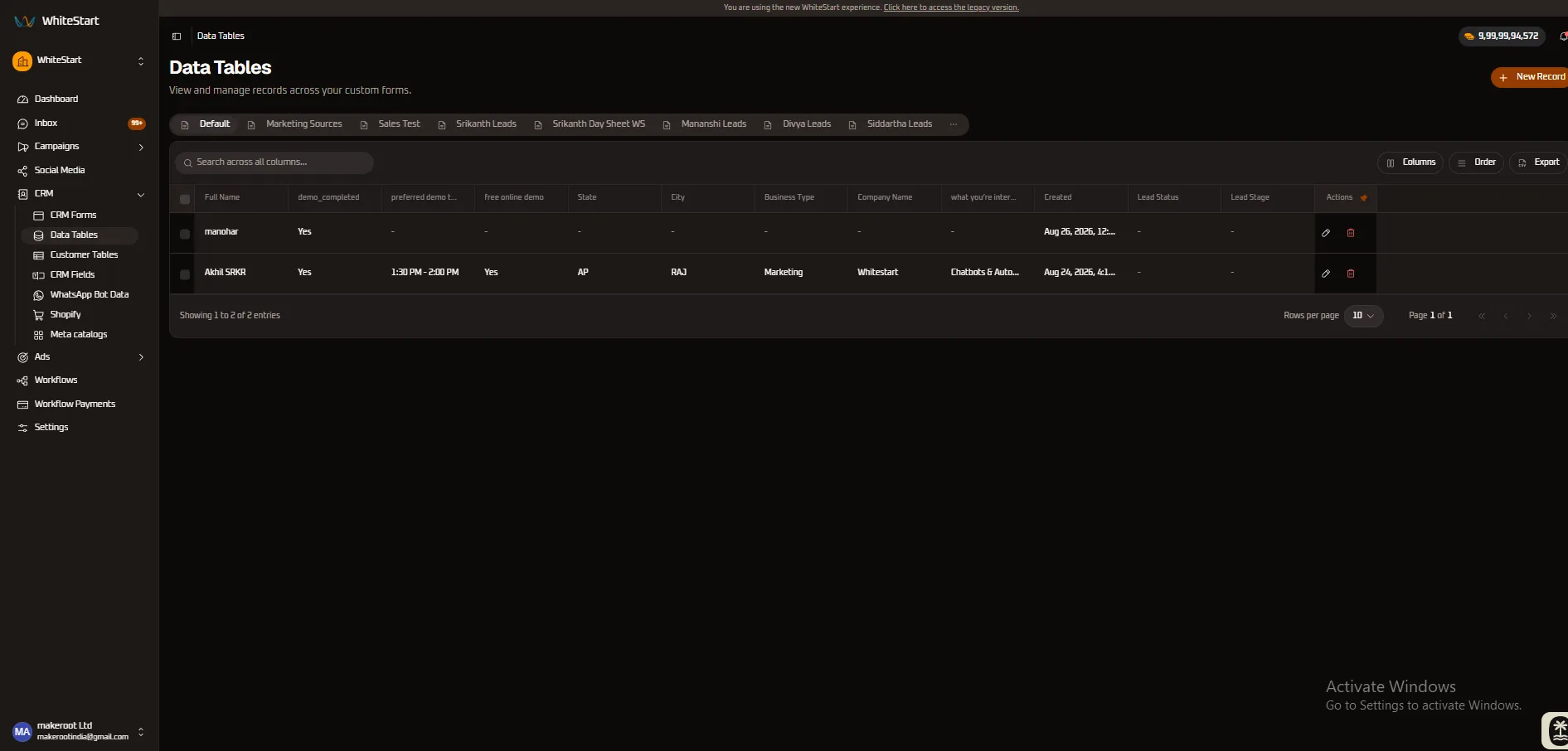
For complete instructions on inspecting, searching, exporting, and manually creating records within these tables, refer to the Data Tables Documentation.
Editing a Form
Section titled “Editing a Form”- Click the Edit (pencil icon) button under the Action column.
- The form builder modal will open pre-populated with current settings.
- Update the form title, description, reorder fields, toggle requirement switches, add new attributes, or adjust member permissions.
- Click Update Form to apply changes. Existing submissions remain intact and adapt to the updated schema.
Deleting a Form
Section titled “Deleting a Form”- Click the Delete (trash icon) button next to the custom form you want to remove.
- Confirm the deletion prompt.
- The form will be permanently removed from the directory. Note that the system
Defaultform cannot be deleted.
Team Permissions & Member Assignment
Section titled “Team Permissions & Member Assignment”The Permitted Members column controls data governance:
- Unrestricted (
None): Any team member with CRM read access can view and work with submissions from this form. - Assigned Members (Avatar Badges
A,Y,S,R): Limits access strictly to assigned agents and workspace administrators. This is ideal for:- Distributing dedicated lead sheets to specific sales representatives.
- Isolating regional customer inquiries (e.g., North vs. South territory teams).
- Safeguarding high-value VIP or enterprise client records.
Pagination & Display Settings
Section titled “Pagination & Display Settings”At the bottom of the CRM Forms directory:
- Entries Counter: Indicates the total number of listed records (e.g.,
Showing 1 to 10 of 10 entries). - Rows per page: Toggle between
10,25,50, or100rows per page to suit your screen size. - Page Controls: Use the first (
«), previous (‹), next (›), and last (») arrows to navigate across multiple pages of templates.