
Account Details
The Account Details page provides a dedicated console for users to manage their personal profile identity, contact credentials, organizational role designations, and account security protocols.
Overview
Section titled “Overview”Account administrators and team members can configure individual account settings independently of organization-wide settings. Maintaining accurate personal details ensures that audit trails, CRM assignment tags, automated email signatures, and security notifications remain properly attributed to the authenticated user.
Accessing Account Details
Section titled “Accessing Account Details”Main Sidebar -> Bottom-Left Profile Badge -> Account- Click on the User Profile Badge in the lower-left corner of the primary navigation sidebar.
- In the context popover, click Account.
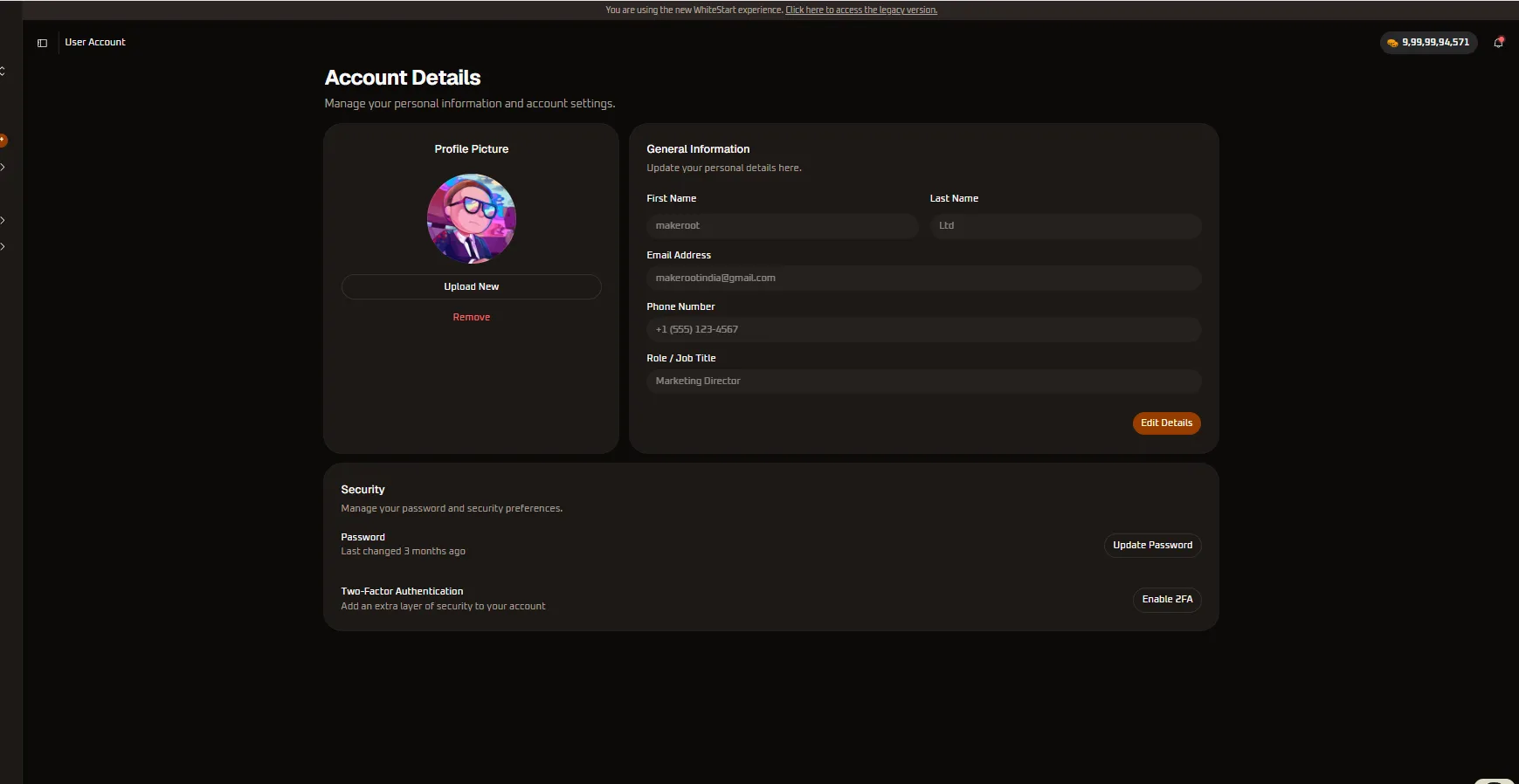
- The User Account screen opens, displaying the Account Details panel divided into three configuration cards: Profile Picture, General Information, and Security.
Workspace Top Bar & Context Indicators
Section titled “Workspace Top Bar & Context Indicators”When accessing the User Account console, the global top bar displays essential contextual indicators:
- Platform Version Banner: Displays system version notifications (e.g.,
"You are using the new WhiteStart experience. Click here to access the legacy version."), allowing users to toggle between interface versions when needed. - Breadcrumb Navigation: Shows
User Accountindicating the current active sub-module. - Credit Wallet Indicator: Positioned in the top-right corner, displaying live messaging and AI credit reserves (e.g.,
9,99,99,94,571) available across channels. - Notifications Bell: Quick access to real-time system alerts, campaign completion notices, and incoming message pings.
Configuration Cards Reference
Section titled “Configuration Cards Reference”1. Profile Picture Card
Section titled “1. Profile Picture Card”The Profile Picture card governs your visual avatar displayed throughout WhiteStart:
- Avatar Preview: Renders the currently active circular profile photo. In collaborative views—such as Inbox conversation assignments, CRM record comments, and campaign approval logs—this image helps teammates identify your activity.
- Upload New: Opens the client file browser to select a replacement photo.
- Supported Formats: JPG, JPEG, PNG, and WEBP.
- Recommended Dimensions: Minimum 500x500 pixels (1:1 square aspect ratio).
- Maximum File Size: 5 MB.
- Processing: Images are automatically centered and cropped into a high-resolution circle, with EXIF location metadata stripped for privacy.
- Remove: Formatted in red text beneath the upload button. Clicking Remove deletes the custom uploaded image and restores the platform’s default colored avatar with your name initials (e.g.,
MA).
2. General Information Card
Section titled “2. General Information Card”The General Information card maintains identity and workplace contact information:
| Field Name | Example Value | Validation Rules & Constraints | Description |
|---|---|---|---|
| First Name | makeroot |
1 to 50 characters, letters and standard punctuation | User given name rendered in greetings and assignment notices. |
| Last Name | Ltd |
1 to 50 characters, letters and standard punctuation | User family or business entity surname. |
| Email Address | [email protected] |
Valid RFC 5322 email syntax, unique across system | Primary authenticated login address and destination for security notices. |
| Phone Number | +1 (555) 123-4567 |
E.164 international standard format | Verified telephone number used for account recovery and direct alerts. |
| Role / Job Title | Marketing Director |
1 to 100 characters free-form text | Professional designation reflecting functional responsibilities. |
Editing Personal Details Workflow
Section titled “Editing Personal Details Workflow”- Click the Edit Details orange button in the bottom-right corner of the card.
- The read-only text fields transform into editable input boxes with active cursor focus.
- Modify the desired parameters (such as updating a contact phone number or refining a job title).
- Click Save Changes to commit updates. A green toast notification confirms successful database persistence.
- To discard edits without saving, click Cancel to revert all inputs to their previous values.
3. Security Card
Section titled “3. Security Card”The Security card enforces authentication safeguards and access control policies:
Password Management
Section titled “Password Management”- Status Timestamp: Displays when your current credential was last refreshed (e.g.,
Last changed 3 months ago). - Update Password Workflow:
- Click the Update Password button to open the credential update modal.
- Enter your current active password to verify identity.
- Enter the new password. Passwords must satisfy WhiteStart complexity requirements:
- Minimum 8 characters in length (12+ recommended).
- At least one uppercase alphabetical character (
A-Z). - At least one lowercase alphabetical character (
a-z). - At least one numerical digit (
0-9). - At least one special symbol (e.g.,
!@#$%^&*).
- Confirm the new password in the verification input.
- Select whether to terminate other active browser sessions on other devices.
- Click Save Password to commit the change.
Two-Factor Authentication (2FA)
Section titled “Two-Factor Authentication (2FA)”- Status Indicator: Displays whether Multi-Factor Authentication is currently active or disabled.
- Enable 2FA Setup Workflow:
- Click Enable 2FA to initiate the Time-based One-Time Password (TOTP) setup wizard.
- A modal displays a secure QR code along with an alphanumeric Base32 secret key.
- Scan the QR code using any RFC 6238 compliant authenticator application (such as Google Authenticator, Microsoft Authenticator, Authy, 1Password, or Bitwarden).
- Enter the 6-digit verification code currently displayed in your authenticator app.
- Click Verify & Enable.
- The system generates a set of 10 single-use emergency backup recovery codes. Download or print these codes and store them in a secure password manager.
- Disabling 2FA: Disabling 2FA requires entering your account password followed by a valid 6-digit TOTP code to prevent unauthorized security downgrades.
Operational and Security Guidelines
Section titled “Operational and Security Guidelines”Accurate Contact Phone Numbers
Section titled “Accurate Contact Phone Numbers”Ensure your registered phone number includes the appropriate international country code. This number is used for urgent out-of-band operational notifications, such as unexpected API disconnects, security threshold alerts, or critical billing notices.
Periodic Credential Rotation
Section titled “Periodic Credential Rotation”WhiteStart recommends rotating passwords at least once every 90 days. Avoid reusing passwords from other business applications or personal services.
Enforcing Two-Factor Authentication
Section titled “Enforcing Two-Factor Authentication”Account administrators should mandate 2FA across all team members who possess access to CRM customer data, financial billing dashboards, or messaging campaign dispatchers. 2FA blocks 99.9% of automated credential stuffing attacks.
Audit Logging & Activity Attribution
Section titled “Audit Logging & Activity Attribution”All modifications executed on the Account Details page—including password updates, 2FA status toggles, avatar changes, and contact modifications—are permanently logged in the organization audit trail with timestamps, IP addresses, and acting user identifiers.
Frequently Asked Questions
Section titled “Frequently Asked Questions”Can I change my primary login email address?
Section titled “Can I change my primary login email address?”Yes. When modifying your registered email address under General Information, the system dispatches verification links to both the existing and new email addresses. The change takes effect only after both confirmation links are clicked, protecting accounts against unauthorized hijacking.
What should I do if I lose access to my 2FA authenticator app?
Section titled “What should I do if I lose access to my 2FA authenticator app?”Use one of your 10 emergency single-use backup recovery codes generated during initial 2FA setup. If you do not have access to backup codes, an organization Owner or Super Administrator can temporarily reset your 2FA status from the Settings -> Members panel after verifying your identity.
Why is my job title different from my system role?
Section titled “Why is my job title different from my system role?”The Role / Job Title field in Account Details is a descriptive workplace title (e.g., Marketing Director, Senior Sales Executive) visible to teammates. System access permissions (such as access to billing, CRM exports, and API keys) are governed separately by the organization’s Roles & Policies configuration.