Google Analytics Connection
Link your Google Analytics 4 (GA4) properties to WhiteStart to pull unified website traffic metrics, analyze cross-channel user journeys, and evaluate the performance of your marketing campaigns directly within your dashboard.
Overview
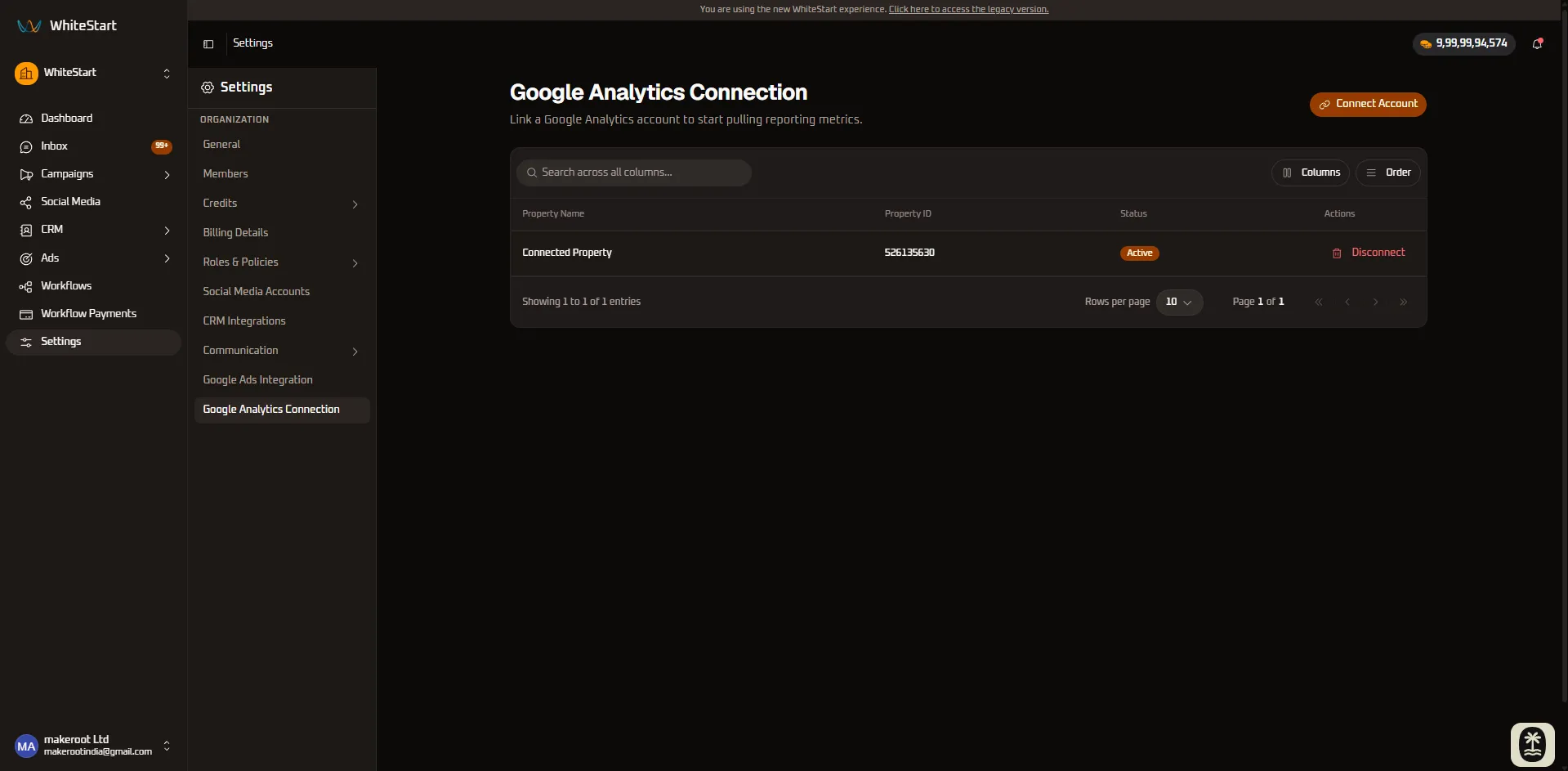
Section titled “Overview”The Google Analytics Connection interface in Settings > Google Analytics Connection allows your organization to establish a secure link with Google Analytics. By linking your GA4 account, WhiteStart can retrieve reporting data and correlate messaging campaigns, ads, and workflow triggers with your web conversion goals.
Key Capabilities
Section titled “Key Capabilities”- Integrated Performance Dashboards: View website sessions, engagement rates, and goal conversions alongside your WhatsApp and social campaign metrics.
- Full-Funnel Attribution: Track how traffic driven by conversational campaigns and ads translates into web engagement and completed transactions.
- Zero-Code Authorization: Connect directly via Google OAuth without manually managing API secrets or editing website tracking scripts.
Connecting Your Google Analytics Account
Section titled “Connecting Your Google Analytics Account”Connecting a GA4 property to WhiteStart takes just a few clicks:
Step-by-Step Connection Guide
Section titled “Step-by-Step Connection Guide”- Navigate to Settings from the left navigation bar and click on Google Analytics Connection.
- Click the orange Connect Account button located in the top-right corner.
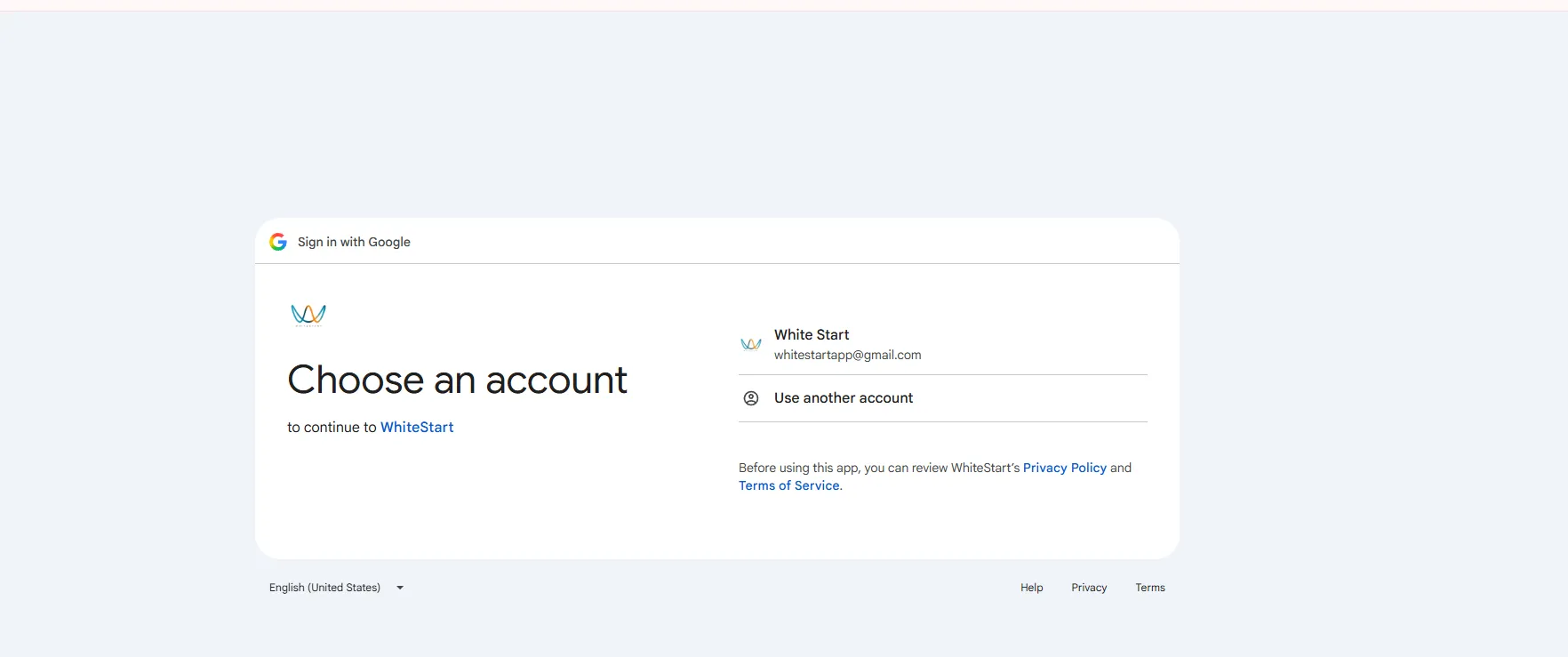
- In the secure Google authorization window:
- Sign in using the Google account that has administrative or analyst access to your Google Analytics properties.
- Review and grant WhiteStart read permissions to retrieve your analytics reporting data.
- Select the target GA4 Property from your available account list.
- Once confirmed, the property will appear in the Connected Properties table with an Active status.
Managing Connected Properties
Section titled “Managing Connected Properties”The connection directory provides a centralized table of all active Google Analytics properties integrated with your organization.
Table Columns & Details
Section titled “Table Columns & Details”| Column | Description |
|---|---|
| Property Name | The official display name of your GA4 property (e.g., Connected Property or Main Website Property). |
| Property ID | The unique 9-digit numeric identifier assigned to your property in GA4 (e.g., 123456789). |
| Status | A visual indicator (Active) confirming that the analytics data pipeline is operational. |
| Actions | Click Disconnect (trash icon) to revoke access and remove the property from WhiteStart. |
Table Navigation & Search
Section titled “Table Navigation & Search”- Global Search: Use the
Search across all columns...search box to quickly locate properties by name or ID. - Columns Toggle: Customize visible table headers using the Columns dropdown.
- Order & Sort: Adjust the sorting sequence of listed properties with the Order control.
Best Practices & Notes
Section titled “Best Practices & Notes”- Property ID vs. Measurement ID: This connection uses your numeric GA4 Property ID to pull reporting metrics and session analytics. It is separate from the
G-XXXXXXXXXXMeasurement ID used for client-side tag placement. - Data Refresh Cadence: Google Analytics typically processes and aggregates reporting metrics within standard 24–48 hour windows. Recent website events may take a short time to appear in consolidated WhiteStart performance reports.
- Reconnection: If your Google Workspace account password changes or API access is revoked, click Connect Account again to refresh the OAuth authorization token.
Google Account Authorization
Section titled “Google Account Authorization”When clicking Connect Account, Google will prompt you with the secure OAuth consent dialog to select the Google account associated with your GA4 properties: