
Google Ads Integration
Connecting Google Ads & YouTube Attribution
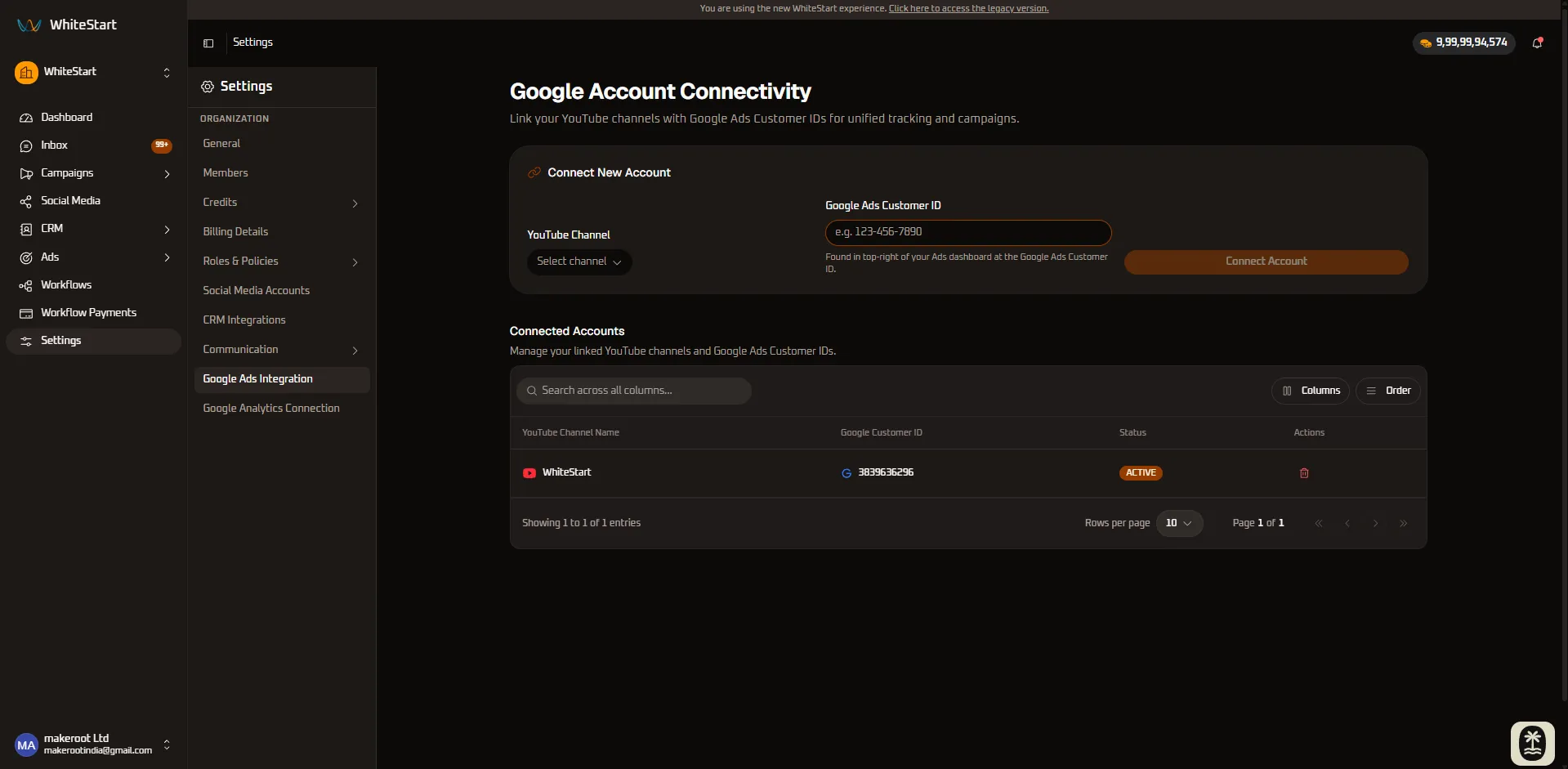
Section titled “Connecting Google Ads & YouTube Attribution”The Google Ads Integration console within Settings allows organizations to bridge verified YouTube channels directly with Google Ads Customer IDs, enabling cross-channel video campaign tracking, audience remarketing list synchronization, and automated offline conversion attribution.
1. Accessing Google Ads Integration
Section titled “1. Accessing Google Ads Integration”Main Sidebar ➔ Settings (⚙️) ➔ INTEGRATIONS ➔ Google Ads- In the primary left-hand navigation sidebar, click on Settings (
⚙️) located near the bottom. - In the secondary settings navigation menu under the INTEGRATIONS section, click Google Ads.
- The Google Account Connectivity dashboard will load with connection controls and the directory of linked accounts.
2. Layout Structure & Workspace Architecture
Section titled “2. Layout Structure & Workspace Architecture”The Google Ads settings page is structured into a connection configuration card and an active pairings table:
+─────────────────────────────────────────────────────────────────────────────+| Google Account Connectivity || Link your YouTube channel and Google Ads account. || || [ Connect New Account Card ] || YouTube Channel: [ Select Channel ▾ ] Google Ads ID: [ 123-456-7890 ] || [ Connect Account ] (Orange Button) || || [ Connected Accounts Directory ] || CHANNEL NAME GOOGLE CUSTOMER ID STATUS ACTIONS || WhiteStart Official 123-456-7890 ACTIVE [ 🗑️ Delete ] |+─────────────────────────────────────────────────────────────────────────────+3. Controls & Fields Reference
Section titled “3. Controls & Fields Reference”1. YouTube Channel Selector
Section titled “1. YouTube Channel Selector”- What it does: Populates a dropdown list of all authenticated YouTube channels currently connected to your WhiteStart organization.
- How to use it: Click the dropdown menu and select the brand channel you want to associate with your advertising campaigns. Channels must first be authenticated under Social Accounts.
2. Google Ads Customer ID Input
Section titled “2. Google Ads Customer ID Input”- What it does: Captures the unique 10-digit identifier that distinguishes your Google Ads advertising account.
- How to use it: Enter your 10-digit ID (format:
123-456-7890or1234567890). This ID is located in the top-right corner of your Google Ads dashboard.
3. Connect Account Button
Section titled “3. Connect Account Button”- What it does: Submits and binds the YouTube channel to the specified Google Ads Customer ID, establishing the data synchronization link.
- How to use it: Click the orange Connect Account button once both fields are entered.
4. Quick Reference Summary
Section titled “4. Quick Reference Summary”| Control / Element | UI Component Type | Operational Status | Primary Purpose |
|---|---|---|---|
| YouTube Channel | Dropdown Selector | Interactive | Selects the verified YouTube channel for ad pairing. |
| Google Customer ID | Numeric Text Input | Editable | Enters the target 10-digit Google Ads account ID. |
| Connect Account | Primary Button | Action Trigger | Initiates the data pipeline connection between services. |
| Status Badge | Status Indicator | Dynamic Indicator | Confirms active data transmission (ACTIVE). |
| Delete Action | Trash Icon Button | Destructive Action | Unlinks and removes the account pairing from WhiteStart. |
5. Step-by-Step Instructions: Linking an Account
Section titled “5. Step-by-Step Instructions: Linking an Account”To link your YouTube channel with Google Ads:
Step 1: Open Google Ads Settings
Section titled “Step 1: Open Google Ads Settings”- Navigate to Settings ➔ Google Ads.
- Locate the Connect New Account card at the top of the view.
Step 2: Select the Authenticated YouTube Channel
Section titled “Step 2: Select the Authenticated YouTube Channel”- Click the YouTube Channel dropdown menu.
- Select your brand channel. (Note: If your channel does not appear, ensure it is linked in Social Accounts first).
Step 3: Enter Google Ads Customer ID
Section titled “Step 3: Enter Google Ads Customer ID”- Click into the Google Ads Customer ID field.
- Enter your 10-digit Google Ads ID (e.g.,
123-456-7890or555-019-2834).
Step 4: Establish the Connection
Section titled “Step 4: Establish the Connection”- Click the orange Connect Account button.
- The pairing will appear in the Connected Accounts table below with an ACTIVE status badge.
6. Managing Connected Account Pairings
Section titled “6. Managing Connected Account Pairings”- Monitoring Data Flow: Review the Status column in the Connected Accounts directory. An ACTIVE badge confirms audience sharing and conversion data pipelines are operational.
- Filtering and Search: Use the
Search across all columns...bar to quickly locate specific Customer IDs or channel names across large account directories. - Table Display Customization: Click Columns to show or hide specific data points, or use Order to adjust list sorting.
- Unlinking Accounts: To disconnect a pairing, click the red Delete (trash icon) in the Actions column and confirm the prompt.