
Credits & Billing
How to Manage and Buy Credits
Section titled “How to Manage and Buy Credits”The Credits module under Settings allows organization administrators to maintain an active credit balance, top up via standard plans or custom volume calculators, track channel consumption, and download GST-compliant tax invoices.
1. Accessing Credits Management
Section titled “1. Accessing Credits Management”Main Sidebar ➔ Settings (⚙️) ➔ ORGANIZATION ➔ Credits- In the primary left-hand navigation sidebar, click on Settings (
⚙️) located near the bottom. - In the secondary settings navigation menu under the ORGANIZATION section, click Credits.
- The Credits workspace will open, defaulting to the Buy Credits tab.
2. Layout Structure & Core Tabs
Section titled “2. Layout Structure & Core Tabs”The Credits module is organized into three operational sections:
+─────────────────────────────────────────────────────────────────────────────+| Credits || [ Buy Credits ] [ Credits Usage ] [ History ] || || • Starter Plan (150 Credits) • Filter by Channel (Campaigns) • Past Payments|| • Custom Top-Up Calculator • Date Range Selector (30 Days) • Paid Status || • UPI / Cards / Netbanking • Deducted / Refunded / Net Cost • PDF Invoice |+─────────────────────────────────────────────────────────────────────────────+3. Tab 1: Buy Credits
Section titled “3. Tab 1: Buy Credits”The Buy Credits tab provides two purchase pathways depending on whether your team needs a quick refill or a custom broadcast volume:
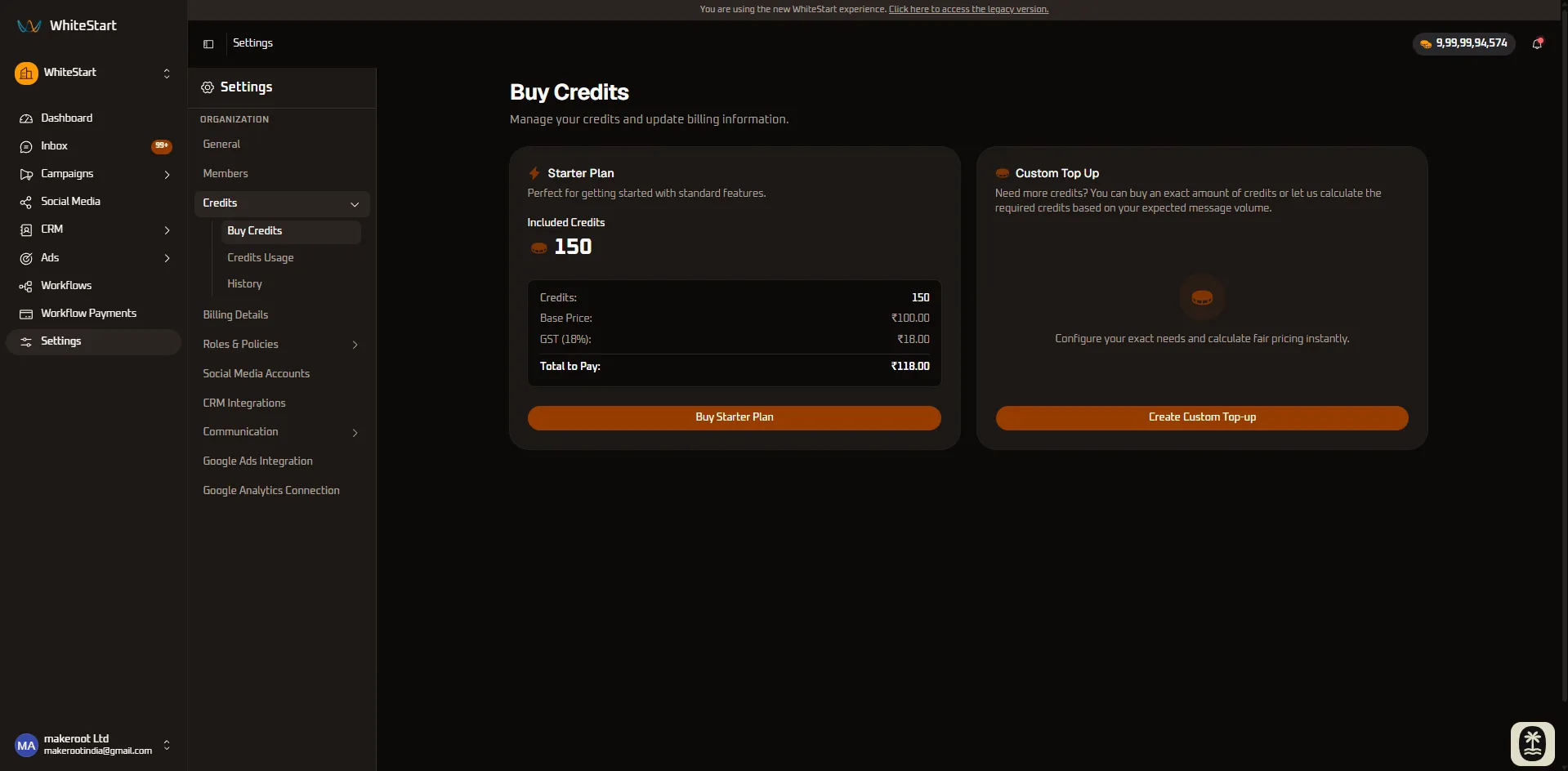
Option A: Starter Plan
Section titled “Option A: Starter Plan”The Starter Plan provides an instant, pre-packaged credit bundle suited for standard workflows and testing:
- Included Credits: 150 Credits.
- Pricing Breakdown: Base Price (₹100.00) + 18% GST (₹18.00) = ₹118.00 Total.
- Action: Click the orange Buy Starter Plan button to launch the checkout gateway modal.
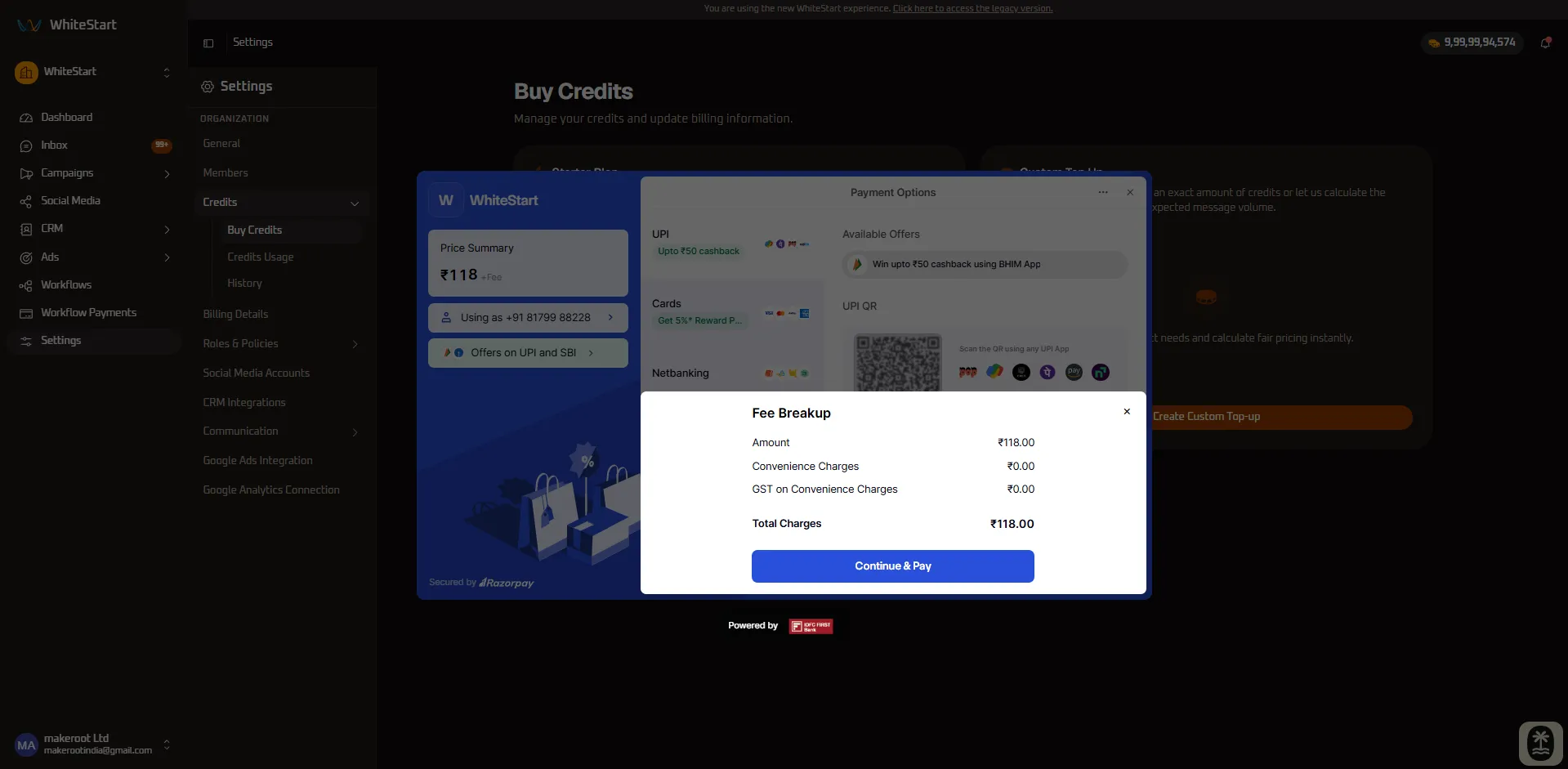
- Supported Payment Methods: Complete checkout securely via UPI (QR code, Google Pay, PhonePe, Paytm), credit/debit cards, or netbanking with zero extra convenience fees.
Option B: Custom Top-Up Calculator
Section titled “Option B: Custom Top-Up Calculator”For high-volume campaigns or exact budget allocation, use the Custom Top Up option:
- Click the Create Custom Top-up button to launch the dynamic calculation modal.
- Choose between two calculation modes:
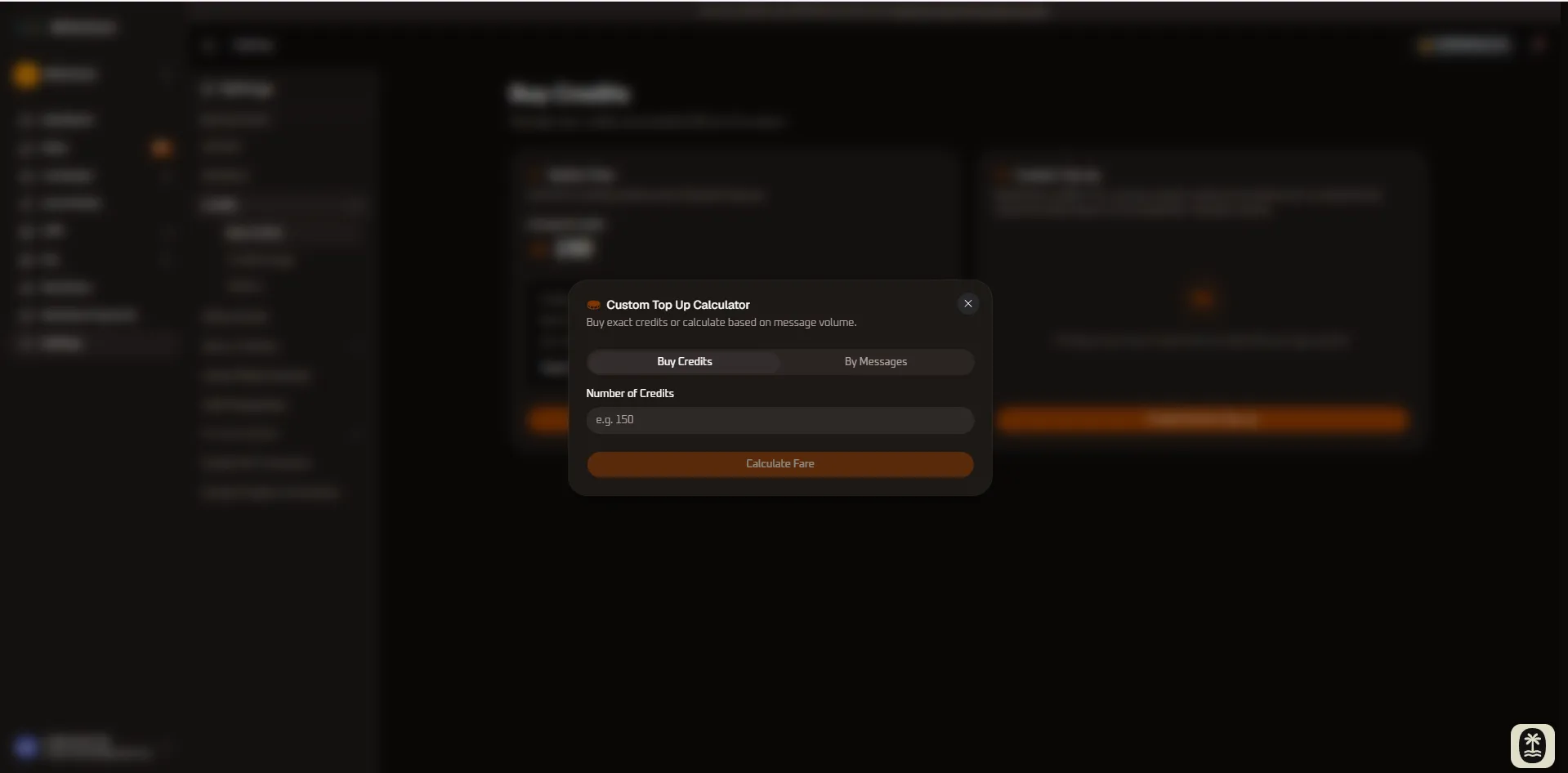
- Buy Credits Tab: Enter the exact number of credits you want to purchase. The system immediately calculates the base fare, applicable 18% GST, and total payable amount.
- By Messages Tab: If you know your target contact list size, enter the planned message count. WhiteStart automatically converts message volume into the required credit package with applicable tier pricing.
- Action: Click Calculate Fare to review itemized totals and proceed directly to payment checkout.
4. Tab 2: Credits Usage
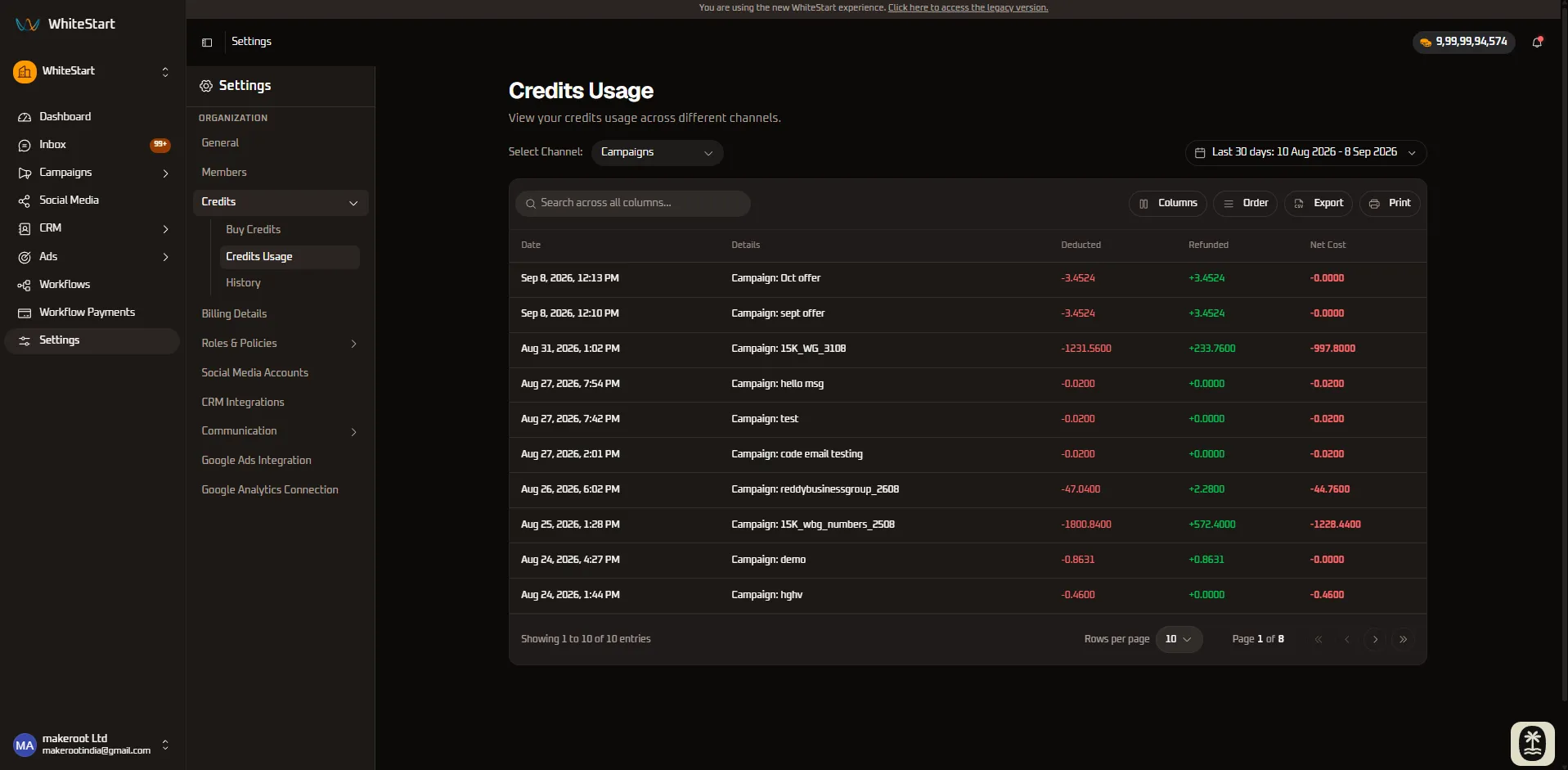
Section titled “4. Tab 2: Credits Usage”Navigate to Settings ➔ Credits ➔ Credits Usage to audit real-time credit deductions and refunds across your organization:
Controls & Audit Filters:
Section titled “Controls & Audit Filters:”- Select Channel Filter: Filter deduction records by specific module (e.g., Campaigns, Workflows, APIs, or Live Inbox).
- Date Range Selector: Scope consumption logs to predefined intervals (e.g., Last 30 days) or custom calendar date ranges.
- Usage Breakdown Table: Tracks every transaction with:
- Date: Timestamp of transaction.
- Details: Specific campaign name, workflow trigger, or automated dispatch ID.
- Deducted: Credits consumed (highlighted in red).
- Refunded: Credits returned for undelivered messages or carrier rejections (highlighted in green).
- Net Cost: Final balance impact of the transaction.
- Export & Print: Click Export to download full CSV audit records or Print for hard-copy accounting reconciliations.
5. Tab 3: Credits History & Invoices
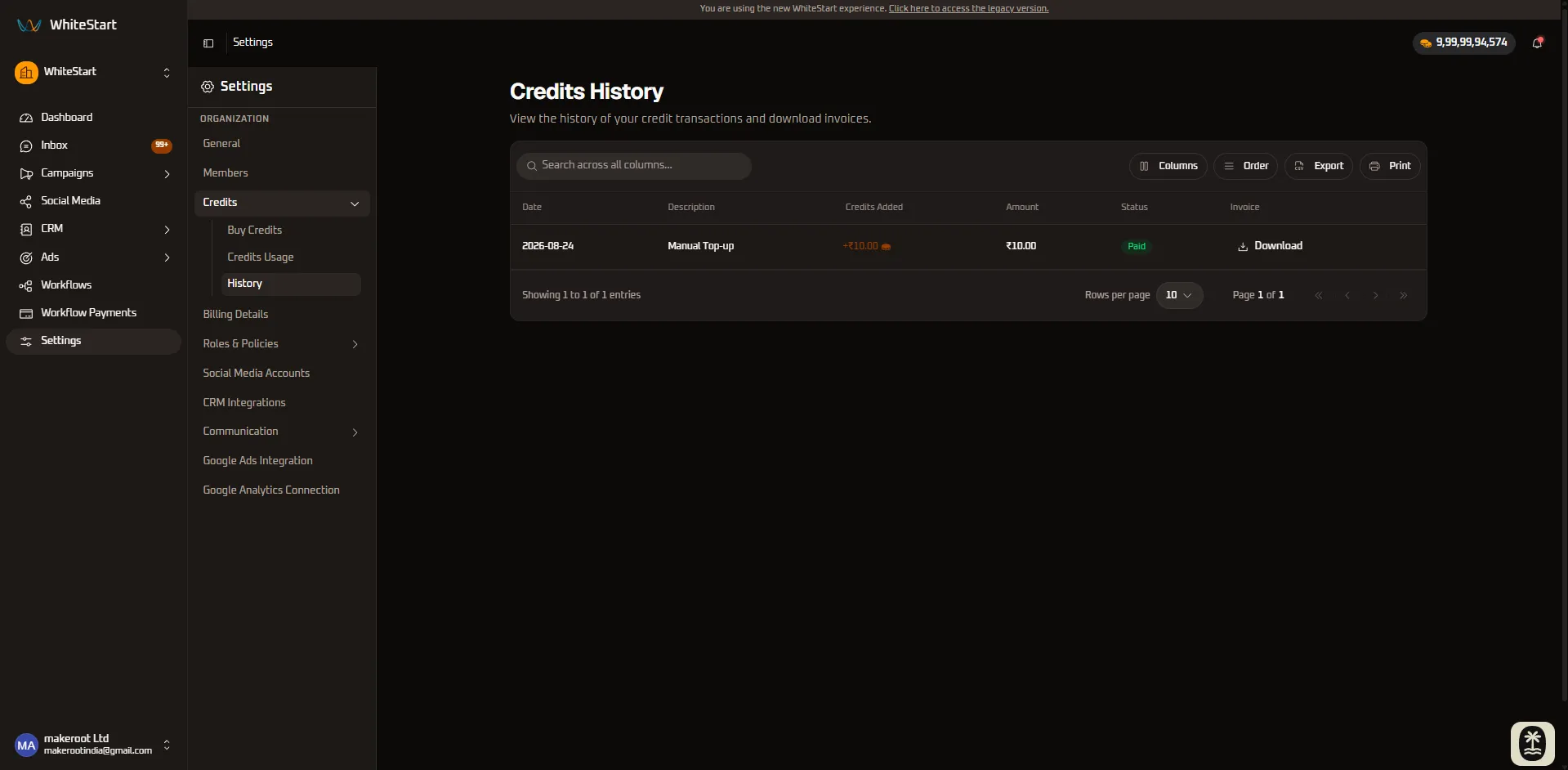
Section titled “5. Tab 3: Credits History & Invoices”Navigate to Settings ➔ Credits ➔ History to review all historical payment records and retrieve tax invoices:
Transaction Ledger Features:
Section titled “Transaction Ledger Features:”- Historical Ledger: Displays the payment Date, Description (e.g., Manual Top-up), Credits Added, Amount Paid, and payment Status (
Paid). - Tax Invoices: Click the Download button in the Invoice column on any row to instantly download the official GST-compliant PDF invoice.
- Search & Table Filters: Search past records by transaction ID or amount, sort entries by date, and toggle table column visibility.
6. Quick Reference Summary
Section titled “6. Quick Reference Summary”| Tab / Control | UI Component Type | Operational Status | Primary Purpose |
|---|---|---|---|
| Starter Plan | Pre-Set Card | Action Button | Quick purchase of 150 credits at ₹118 (₹100 + ₹18 GST). |
| Custom Top-up | Dynamic Modal | Interactive Calculator | Calculate and buy credits by exact credit quantity or message volume. |
| Channel Filter | Dropdown Selector | Filter | Isolates credit deductions by Campaigns, Workflows, or APIs. |
| Date Range | Calendar Picker | Filter | Filters usage records across specific timeframes. |
| Export / Print | Action Buttons | Data Export | Downloads CSV usage logs or prints transaction audits. |
| Download Invoice | Action Link | Document Download | Downloads official GST-compliant tax invoices in PDF format. |
7. Step-by-Step Instructions
Section titled “7. Step-by-Step Instructions”How to Purchase the Starter Plan
Section titled “How to Purchase the Starter Plan”- Go to Settings ➔ Credits.
- On the Buy Credits tab, locate the Starter Plan card.
- Click the orange Buy Starter Plan button.
- Select your preferred payment method (UPI, Card, or Netbanking) in the checkout modal and complete the transaction.
- Credits are instantly credited to your organization wallet upon payment confirmation.
How to Calculate and Buy a Custom Top-Up
Section titled “How to Calculate and Buy a Custom Top-Up”- On the Buy Credits tab, click Create Custom Top-up.
- Select Buy Credits (to enter credit count) or By Messages (to enter audience size).
- Enter your desired quantity and click Calculate Fare.
- Verify the itemized breakdown (Base Price, 18% GST, and Total Amount).
- Click Proceed to Pay to complete payment.
How to Download Tax Invoices
Section titled “How to Download Tax Invoices”- Click the History tab under Settings ➔ Credits.
- Locate the completed transaction in the ledger.
- Click the Download button under the Invoice column to save the PDF invoice.