
Team Members
How to Add New Members
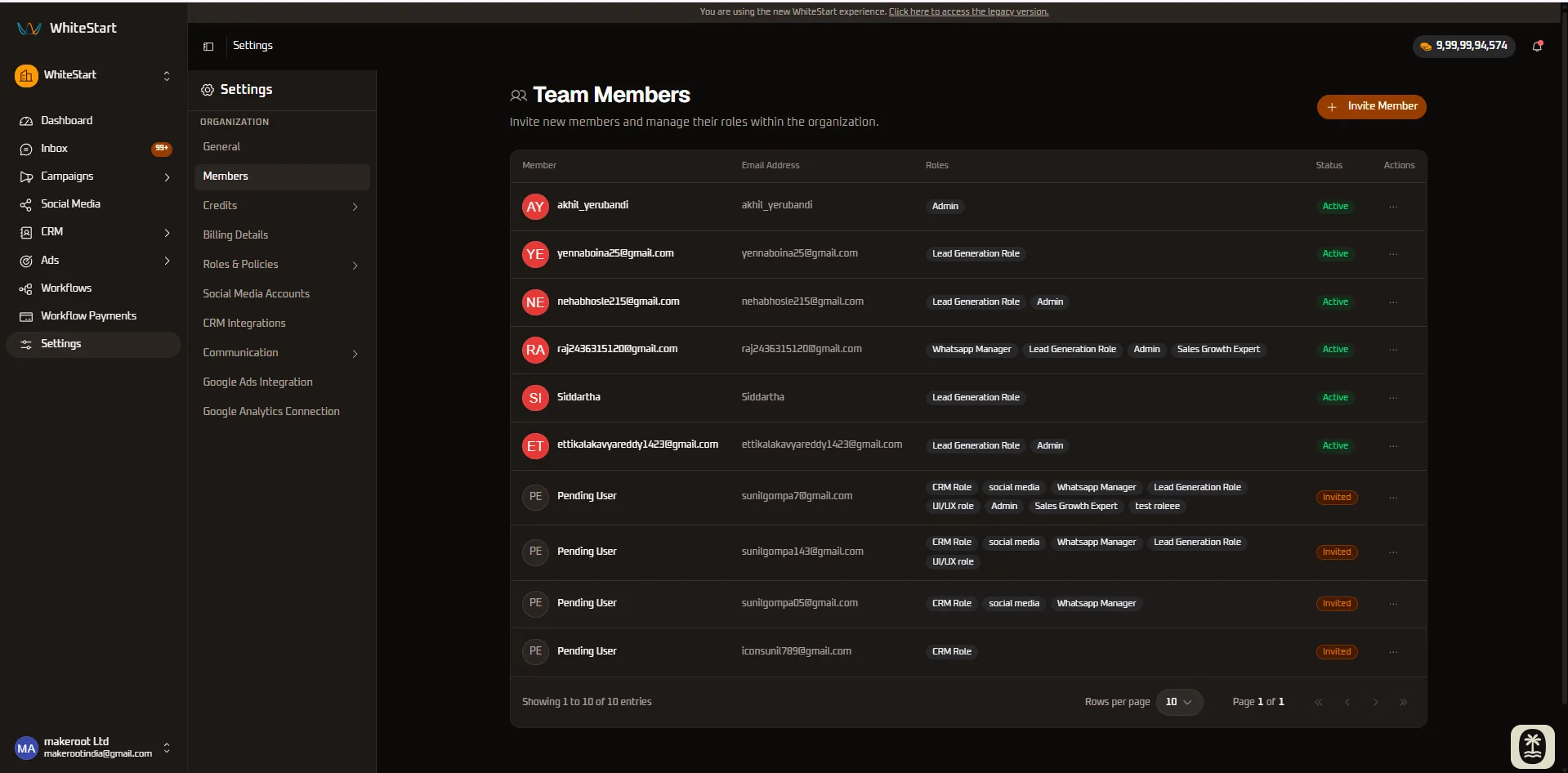
Section titled “How to Add New Members”The Team Members directory under Settings allows workspace administrators to oversee all users within the organization, send new team invitations with assigned roles, and manage user permissions.
1. Accessing the Members Directory
Section titled “1. Accessing the Members Directory”Main Sidebar ➔ Settings (⚙️) ➔ ORGANIZATION ➔ Members- In the primary left-hand navigation sidebar, click on Settings (
⚙️) located near the bottom. - In the secondary settings navigation menu under the ORGANIZATION section, click Members.
- The Team Members directory will open in the main workspace view.
2. Layout Structure & Directory Anatomy
Section titled “2. Layout Structure & Directory Anatomy”The Members page is structured into a directory header with invitation controls and a tabular user list:
+─────────────────────────────────────────────────────────────────────────────+| Team Members [ + Invite Member]|| Manage members and their roles. || || MEMBER EMAIL ROLES STATUS ACTIONS || Alex Morgan [email protected] Admin, CRM Role Active ( ••• ) || Priya Patel [email protected] Whatsapp Manager Invited ( ••• ) |+─────────────────────────────────────────────────────────────────────────────+3. Columns & Controls Reference
Section titled “3. Columns & Controls Reference”1. Member Column
Section titled “1. Member Column”- What it does: Displays the user’s avatar icon and full display name (or email if a profile name has not yet been set).
- How to use it: Use this column to identify team members collaborating across your workspace.
2. Email Address Column
Section titled “2. Email Address Column”- What it does: Shows the primary work email address linked to the user’s account.
- How to use it: Used for user login, receiving system invitations, and receiving automated alert notifications.
3. Roles Column
Section titled “3. Roles Column”- What it does: Lists all access roles currently assigned to the team member (e.g., Admin, CRM Role, Whatsapp Manager, Lead Generation Role, UI/UX role, Sales Growth Expert).
- How to use it: Team members can hold multiple roles simultaneously. Their combined permissions determine their operational access across the platform.
4. Status Badge Column
Section titled “4. Status Badge Column”- What it does: Indicates the current onboarding and authentication state of the user account.
- How to use it:
- Active: The user has accepted the email invitation and successfully onboarded into the workspace.
- Invited: An invitation email has been dispatched, but the user has not yet completed signup.
5. Actions Menu (•••)
Section titled “5. Actions Menu (•••)”- What it does: Opens a contextual dropdown menu to manage individual member settings.
- How to use it: Click the three dots (
•••) on any member row to edit assigned roles, resend pending invitation links, or remove the member from the organization.
6. + Invite Member Button
Section titled “6. + Invite Member Button”- What it does: Launches the invitation modal to provision access for new colleagues.
- How to use it: Click the orange + Invite Member button at the top right of the directory to add new users.
4. Quick Reference Summary
Section titled “4. Quick Reference Summary”| Control / Column | UI Component Type | Operational Status | Primary Purpose |
|---|---|---|---|
| Member | User Avatar & Text | Read-Only | Identifies the team member by name and visual avatar. |
| Email Address | Text Link | Read-Only | Displays the user’s registered login and contact email. |
| Roles | Tag Badges | Dynamic List | Displays all active functional roles assigned to the user. |
| Status | Status Badge | Dynamic Indicator | Indicates account status (Active vs. Invited). |
Actions (•••) |
Dropdown Menu | Interactive Action | Edit assigned roles, resend invite emails, or remove users. |
| + Invite Member | Primary Action Button | Interactive Modal | Opens the modal to invite new users with specific roles. |
5. Step-by-Step Instructions: Inviting New Members
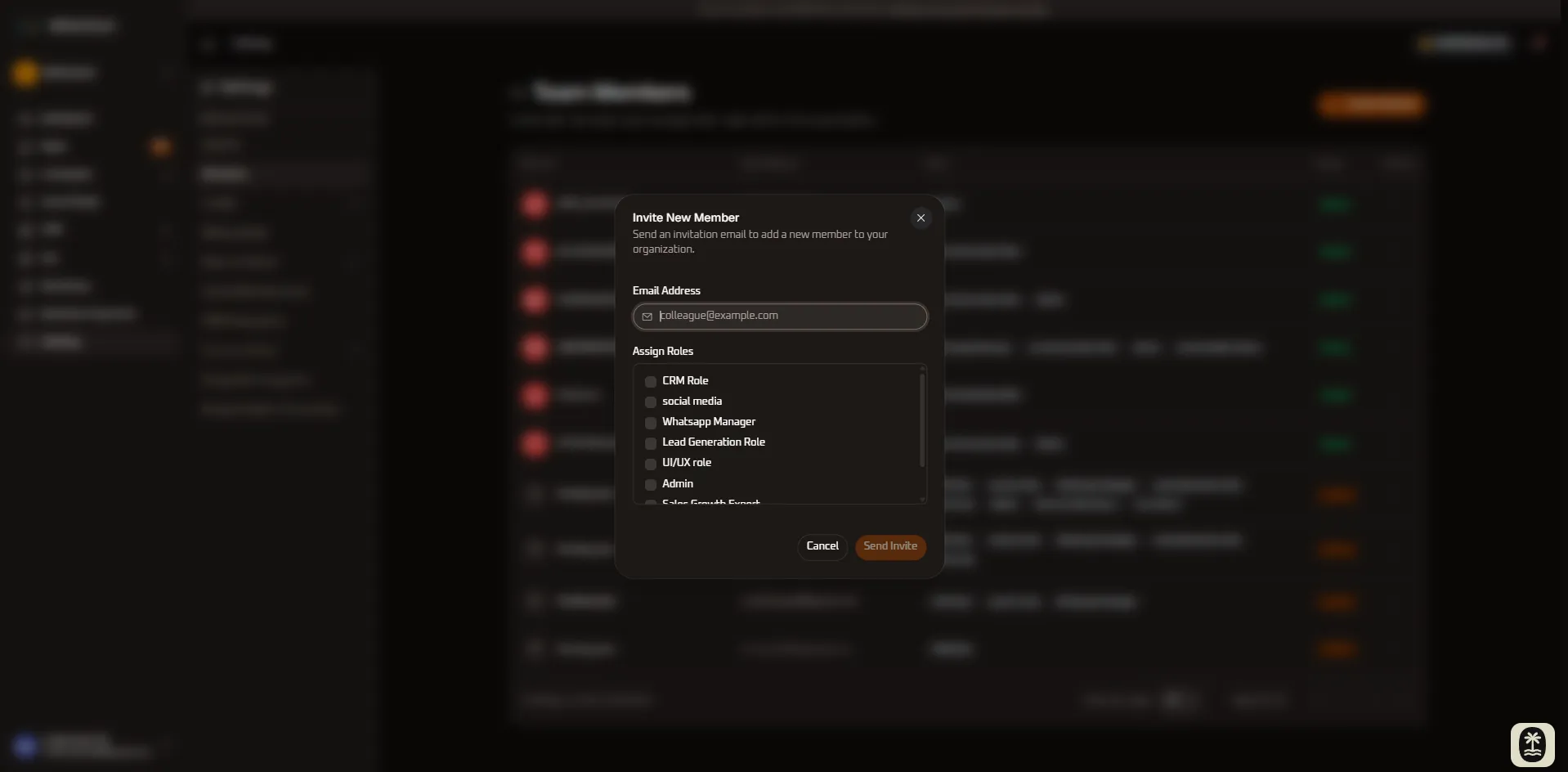
Section titled “5. Step-by-Step Instructions: Inviting New Members”To onboard new team members, administrators can dispatch email invitations with customized role permissions:
Step 1: Open the Invitation Modal
Section titled “Step 1: Open the Invitation Modal”- Navigate to Settings ➔ Members.
- Click the orange + Invite Member button in the top right corner.
Step 2: Enter Member Email Address
Section titled “Step 2: Enter Member Email Address”- In the Email Address field, enter the colleague’s business email address (e.g.,
[email protected]).
Step 3: Select and Assign Roles
Section titled “Step 3: Select and Assign Roles”- Under Assign Roles, review the available role checkboxes.
- Select one or more roles that match the user’s responsibilities:
- Admin: Full administrative and configuration privileges.
- CRM Role: Access to contacts, lead pipelines, and customer records.
- Whatsapp Manager: Access to live WhatsApp chats, inbox management, and templates.
- Lead Generation Role: Access to ad capture forms and lead pipelines.
- Custom Roles: Any specialized roles created by your organization.
Step 4: Send the Invitation
Section titled “Step 4: Send the Invitation”- Click the orange Send Invite button.
- The user will immediately appear in the directory with the Invited status badge.
- WhiteStart sends an automated invitation email containing a secure link for the user to complete their profile setup.
- Once accepted, their status badge automatically transitions from Invited to Active.
6. Managing Existing Members
Section titled “6. Managing Existing Members”Administrators can update or revoke user access at any time directly from the directory:
Modifying Member Roles
Section titled “Modifying Member Roles”- In the member directory, locate the user you want to update.
- Click the three dots (
•••) in the Actions column and select Edit Roles. - Adjust the assigned role checkboxes in the modal.
- Click Save Changes to apply the updated permissions immediately.
Removing a Member from the Organization
Section titled “Removing a Member from the Organization”- Click the three dots (
•••) next to the member you wish to remove. - Select Remove Member.
- Confirm the removal in the prompt dialog.
- The user’s active session will be invalidated immediately, revoking access to all workspace assets and customer data.
7. Role-Based Access Control (RBAC)
Section titled “7. Role-Based Access Control (RBAC)”Management of team members and invitations is restricted based on workspace roles:
| Workspace Role | View Member Directory | Invite New Members | Edit Member Roles | Remove Members |
|---|---|---|---|---|
| Owner / Super Admin | Granted | Allowed | Allowed | Allowed |
| Admin | Granted | Allowed | Allowed | Allowed |
| Manager / Team Lead | Granted | Restricted | Restricted | Restricted |
| Agent / Operator | Granted | Restricted | Restricted | Restricted |
| Viewer / Read-Only | Granted | Restricted | Restricted | Restricted |