
General Settings
Organization Profile
Section titled “Organization Profile”The Organization Profile under General Settings serves as the root workspace identity in WhiteStart, allowing account administrators to monitor account provisioning dates and update the official organization display name across the platform.
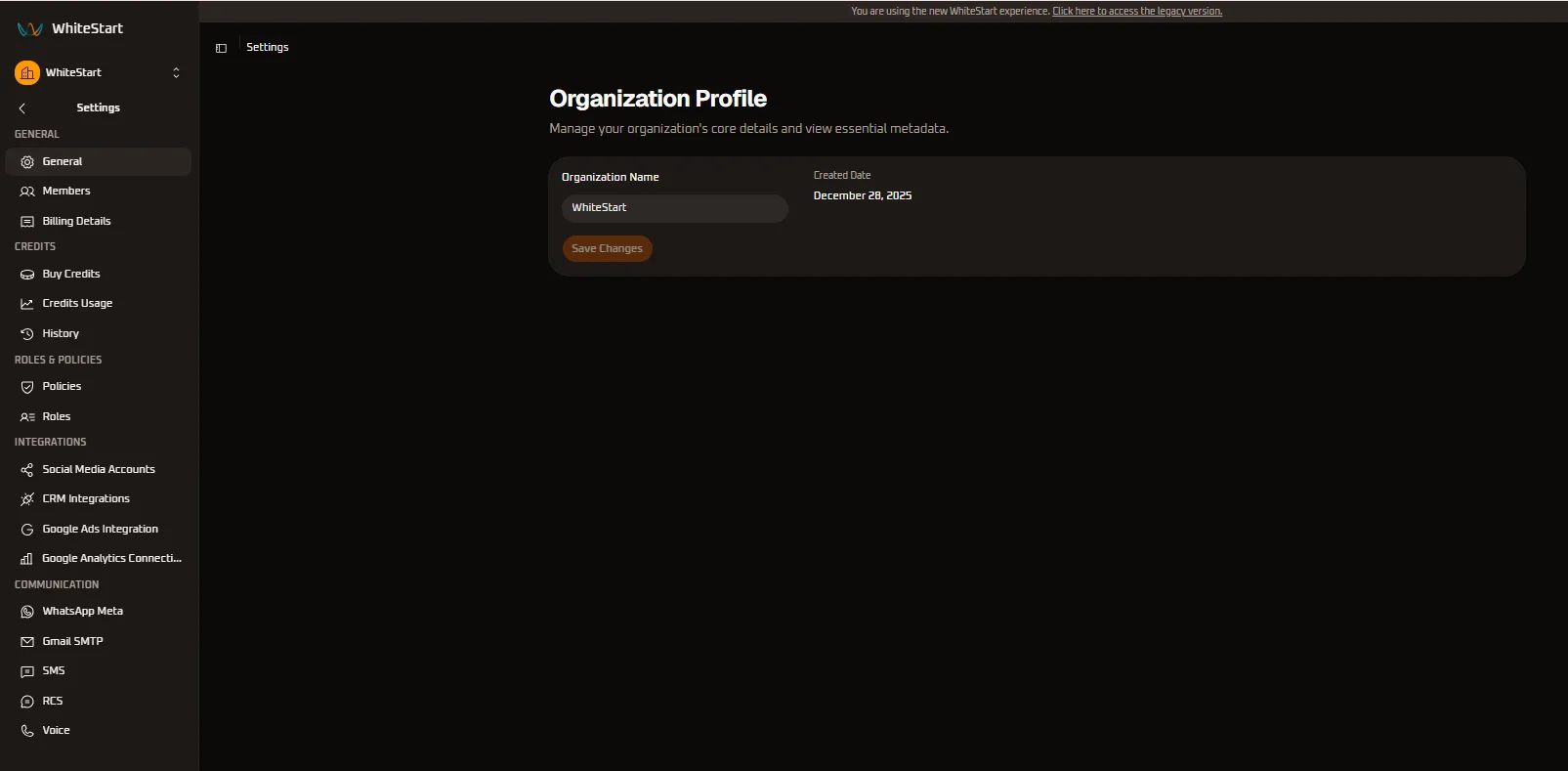
1. Accessing Organization Profile
Section titled “1. Accessing Organization Profile”Main Sidebar ➔ Settings (⚙️) ➔ ORGANIZATION ➔ General- In the primary left-hand navigation sidebar, click on Settings (
⚙️) located near the bottom. - In the secondary settings navigation menu under the ORGANIZATION section, click General.
- The Organization Profile configuration card will load in the main workspace view.
2. Layout Structure & Card Anatomy
Section titled “2. Layout Structure & Card Anatomy”The Organization Profile card is organized into three primary interface elements:
+─────────────────────────────────────────────────────────────────────────────+| ORGANIZATION PROFILE || Update your organization name and view details. || || [ Organization Name ] [ Created Date ] || [ WhiteStart ] December 28, 2025 || (Editable Text Input Box) (Immutable Read-Only Timestamp) || || [ Save Changes ] || (Orange Action Button) |+─────────────────────────────────────────────────────────────────────────────+3. Controls & Fields Reference
Section titled “3. Controls & Fields Reference”1. Organization Name Input
Section titled “1. Organization Name Input”- What it does: Displays and allows administrators to edit the official public display name of your WhiteStart organization.
- How to use it: Click into the text field, delete or modify the existing name, and enter your company’s desired workspace name.
2. Created Date Label
Section titled “2. Created Date Label”- What it does: Displays the permanent registration timestamp when your WhiteStart organization account was first provisioned.
- How to use it: This is a read-only reference field. Use this date for subscription tracking, account age verification, and billing audits.
3. Save Changes Button
Section titled “3. Save Changes Button”- What it does: Commits and applies any textual changes made to the Organization Name.
- How to use it: Click the orange Save Changes button after editing the organization name to apply the update across the workspace.
4. Quick Reference Summary
Section titled “4. Quick Reference Summary”| Control / Element | UI Component Type | Operational Status | Primary Purpose |
|---|---|---|---|
| Organization Name | Text Input | Editable (Admin only) | Defines the active display name of your organization workspace. |
| Created Date | Static Text Label | Read-Only | Records the permanent registration date of the workspace account. |
| Save Changes | Primary Action Button | Interactive | Submits and saves modified organization name changes. |
5. Step-by-Step Instructions
Section titled “5. Step-by-Step Instructions”Step 1: Check Account Provisioning Date
Section titled “Step 1: Check Account Provisioning Date”- Navigate to Settings ➔ General.
- Locate the Created Date display to the right of the input box.
- Review the registration timestamp (
e.g., December 28, 2025) for your operational or audit records.
Step 2: Update the Organization Name
Section titled “Step 2: Update the Organization Name”- Click directly inside the Organization Name input field.
- Clear the existing text (e.g.,
WhiteStart). - Type in your new organization or brand name.
- Click the orange Save Changes button.
- A confirmation message will appear confirming that the new name has been saved successfully.
6. Input Rules & Formatting Guidelines
Section titled “6. Input Rules & Formatting Guidelines”When entering a new Organization Name, ensure your submission complies with the following validation rules:
- Character Length: Must contain between 2 and 50 characters.
- Supported Characters: Letters (
A–Z,a–z), numbers (0–9), standard spaces, and punctuation symbols (hyphens-, periods., and ampersands&). - Mandatory Field: Cannot be left blank or contain only empty whitespace.
- Whitespace Trimming: Any leading or trailing spaces are automatically trimmed upon saving.