
User Profile Menu
The User Profile Menu in WhiteStart provides centralized access to personal account settings, subscription tier upgrades, billing and credit management, interface theme preferences, and session controls.
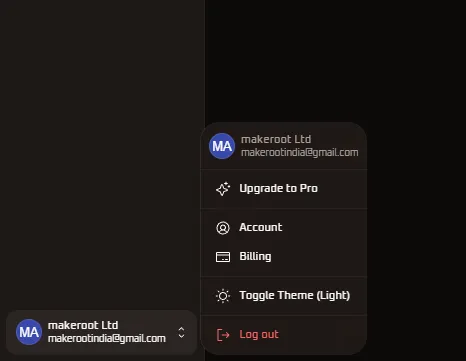
Located persistently at the bottom-left corner of the primary navigation sidebar, this menu serves as an administrative and personal shortcut accessible from any section within the workspace.
Overview
Section titled “Overview”The User Profile Menu acts as the principal interface for tenant verification and user-level operations. Because it is permanently docked to the navigation bar, users can check account balances, toggle interface lighting, or access security settings without leaving their active task in CRM, Inbox, Campaigns, or Automations.
Key Capabilities
Section titled “Key Capabilities”- Tenant & Identity Verification: Confirms active organization tenancy, account administrator name, and logged-in email address at a glance.
- Subscription Scaling: Provides a direct pathway to review tier limits, messaging credit pools, and advanced feature unlocks.
- Account Administration: Connects directly to personal profile management, security credentials, two-factor authentication (2FA), and notifications.
- Financial Oversight: Links directly to messaging credit wallets, auto-recharge rules, payment methods, and GST tax invoices.
- Appearance Customization: Switches the workspace theme instantly between Light and Dark modes.
- Secure Session Termination: Safely clears local tokens, invalidates session cookies, and exits the application.
Accessing the Profile Menu
Section titled “Accessing the Profile Menu”Navigate to the profile menu from anywhere in the application:
Main Sidebar -> Bottom-Left Profile Badge- Locate the User Profile Badge in the lower-left corner of the primary navigation sidebar.
- The badge displays the user avatar initials (such as
MA), active organization name (such asmakeroot Ltd), authenticated email address ([email protected]), and an expand/collapse chevron indicator. - Click the badge to open the floating context popover.
- Select any option to navigate to its respective screen, or click anywhere outside the popup to close it.
Layout & Menu Anatomy
Section titled “Layout & Menu Anatomy”The User Profile popover is divided into five logical sections:
+--------------------------------------------------------+| [MA] makeroot Ltd |+--------------------------------------------------------+| Upgrade to Pro |+--------------------------------------------------------+| Account || Billing |+--------------------------------------------------------+| Toggle Theme (Light / Dark) |+--------------------------------------------------------+| Log out |+--------------------------------------------------------+- Identity Header: Permanent display of active organization, user email, and initial-based avatar.
- Subscription Tier Zone: Action button to scale workspace plan to Pro.
- Administration Zone: Direct links to personal account settings and workspace billing.
- Interface Preferences Zone: Instant theme switcher between Light and Dark modes.
- Session Control Zone: Explicit session logout with immediate token revocation.
Menu Modules Directory
Section titled “Menu Modules Directory”The User Profile Menu branches into dedicated functional areas:
1. Upgrade to Pro
Section titled “1. Upgrade to Pro”Access the subscription tier portal to compare Starter and Premium plans, evaluate messaging credit quotas, unlock AI automation tools, and view billing FAQs.
- See the full guide: Upgrade to Pro Documentation.
2. Account Details
Section titled “2. Account Details”Manage your personal identity, upload or remove profile pictures, update contact phone numbers, and configure password and Two-Factor Authentication (2FA) security settings.
- See the full guide: Account Details Documentation.
3. Billing & Subscription
Section titled “3. Billing & Subscription”Review active subscription terms, edit legal billing addresses and tax information (PAN, GSTIN), and inspect searchable payment history with downloadable tax invoices.
- See the full guide: Billing & Subscription Documentation.
4. Toggle Theme
Section titled “4. Toggle Theme”Switch dynamically between Dark Mode and Light Mode with instant client-side rendering and automatic local storage persistence across sessions.
- See the full guide: Toggle Theme Documentation.
Log Out & Session Security
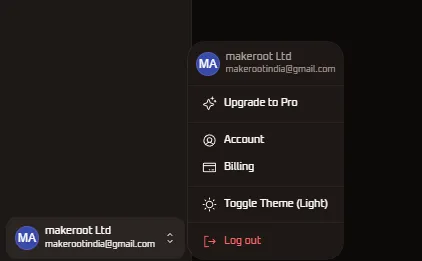
Section titled “Log Out & Session Security”The Log out action securely terminates the current authenticated session across the client browser and application server.
Logout Execution Workflow
Section titled “Logout Execution Workflow”- Visual Distinction: Highlighted in red font at the base of the context popover to separate destructive session termination from administrative navigation items.
- Server-Side Token Revocation: Communicates with the WhiteStart authentication service to invalidate active JSON Web Tokens (JWT) and clear server-side session cookies.
- Local Storage Clearance: Purges cached user metadata, tenant keys, and temporary CRM draft inputs from browser storage.
- Authentication Safeguard: Redirects the browser directly to the WhiteStart login portal, ensuring unauthorized users cannot access workspace data by clicking browser back buttons.
Menu Navigation Reference
Section titled “Menu Navigation Reference”| Menu Item | Scope | Primary Purpose | Destination |
|---|---|---|---|
| Identity Header | Workspace & User | Displays current active tenant, user email, and avatar badge | Static Header |
| Upgrade to Pro | Subscription Tier | Opens pricing tiers, quota expansions, and feature unlock modals | /userprofilemenu/upgardetopro/ |
| Account | Personal Security | Manages credentials, 2FA, contact details, and notification rules | /userprofilemenu/account/ |
| Billing | Finance & Credits | Monitors messaging credits, payment methods, and tax invoices | /userprofilemenu/billing/ |
| Toggle Theme | Interface Client | Switches UI appearance dynamically between Dark and Light modes | Client-side Toggle |
| Log out | Session Security | Invalidates authentication tokens and returns to the login screen | /login |
Operational and Security Guidelines
Section titled “Operational and Security Guidelines”Workspace Tenant Verification
Section titled “Workspace Tenant Verification”In organizations managing multiple sub-accounts or agency client spaces, always check the Identity Header to confirm you are operating within the correct workspace before executing bulk campaigns or modifying CRM schemas.
Shared Terminal Session Security
Section titled “Shared Terminal Session Security”Always use the Log out action when completing work on public, shared, or co-working workstations. Closing the browser window alone does not invalidate authentication tokens, which may remain active until session expiration.
Low-Balance Safeguards
Section titled “Low-Balance Safeguards”Pair your Billing monitoring with automated low-balance thresholds. If messaging credits drop below minimum thresholds, automated bot flows and transactional notifications will pause until a top-up is processed.