
Smartping Voice Templates
The Voice Smartping Templates module allows businesses utilizing Smartping’s Outbound Dialing (OBD) telephony infrastructure to create, configure, and manage voice campaign templates. Register pre-recorded audio files (.mp3 or .wav), define call scripts, select regulatory call types and industry categories, and test audio playback directly through the built-in mobile call simulator before launching bulk voice campaigns.
1. Navigating to Smartping Voice Templates
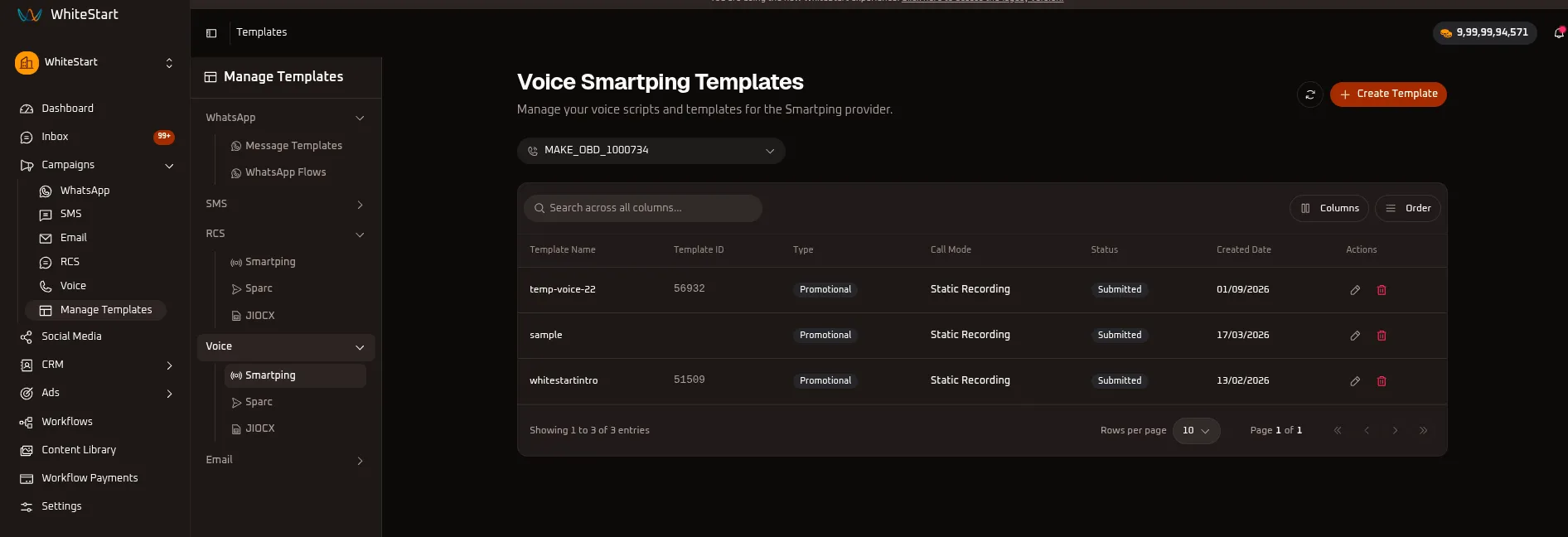
Section titled “1. Navigating to Smartping Voice Templates”Main Sidebar ➔ Campaigns ➔ Manage Templates ➔ Voice ➔ Smartping- In the main navigation sidebar on the left, click Campaigns to expand the menu options.
- Select Manage Templates.
- In the sub-navigation drawer, expand the Voice accordion and select Smartping.
- The Voice Smartping Templates dashboard opens, listing all registered voice templates, Template IDs, call types, call modes, and submission statuses.
2. Managing the Smartping Voice Templates Table
Section titled “2. Managing the Smartping Voice Templates Table”The main templates table provides complete visibility over all voice templates mapped to your Smartping OBD trunk.
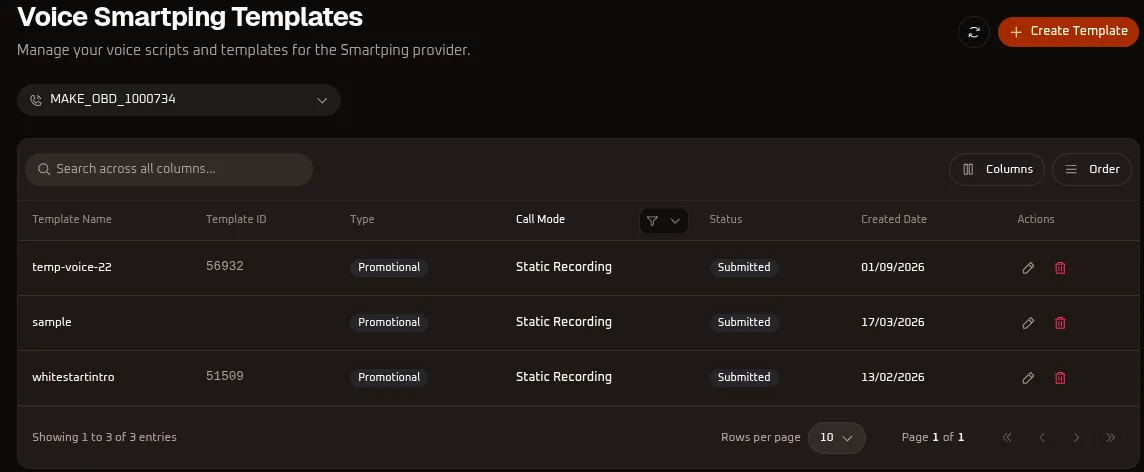
Table Controls & Toolbar Options
Section titled “Table Controls & Toolbar Options”- Voice Account (CLI) Selector: Switch between connected Smartping outbound dialing accounts or trunk lines (e.g.,
MAKE_OBD_1000734). - Search Input (
Search across all columns...): Search any template by name, Template ID, call type, or creation date. - Refresh Button (
🔄): Synchronizes and reloads the template status list in real time without refreshing your browser. - Call Mode Filter (
Call Mode ⚲ ▾): Filter templates by calling mode (e.g.,Static Recording). - Columns Menu (
Columns): Toggle the visibility of specific data columns in the table (Template Name,Template ID,Type,Call Mode,Status,Created Date,Actions). - Order Menu (
Order): Rearrange the sequence of table columns or adjust sorting priority using drag-and-drop handles. - Create Template (
+ Create Template): Opens the voice template creation wizard.
Table Columns Reference
Section titled “Table Columns Reference”| Column Header | Description | Example / Values |
|---|---|---|
| Template Name | The internal identifier assigned to this template in WhiteStart. | temp-voice-22, sample, whitestartintro |
| Template ID | The unique numerical identifier generated by the Smartping OBD API. | 56932, 51509 |
| Type | Regulatory classification assigned to the voice broadcast. | Promotional, Service & Transactional |
| Call Mode | Audio playback method configured for the template. | Static Recording |
| Status | WhiteStart synchronization and carrier submission status. | Submitted (grey badge), Approved (green badge) |
| Created Date | Timestamp when the voice template was created or submitted. | 01/09/2026, 17/03/2026, 13/02/2026 |
| Actions | Record management triggers to edit (✏️) or delete (🗑️) the template. |
Click ✏️ to edit or 🗑️ to delete a template record. |
3. Creating a Smartping Voice Template
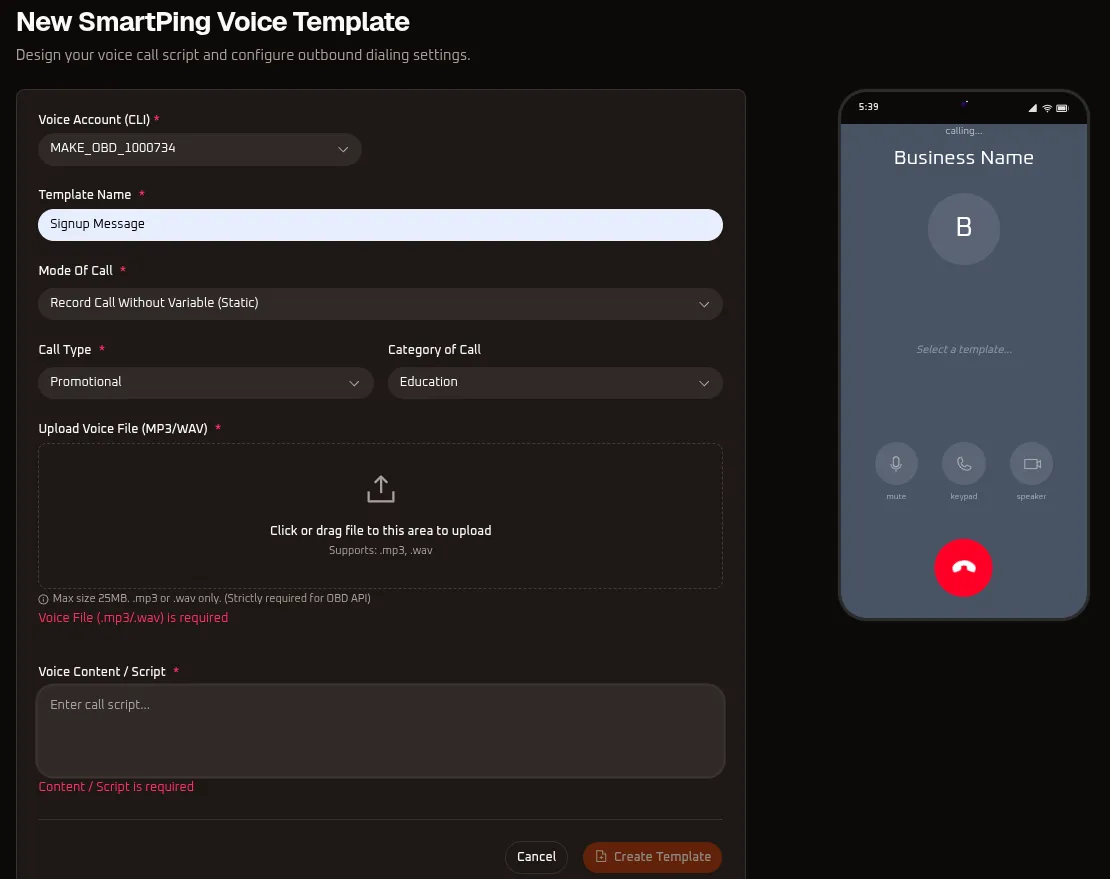
Section titled “3. Creating a Smartping Voice Template”Click the orange + Create Template button at the top right of the dashboard to open the New SmartPing Voice Template designer.
Step-by-Step Configuration
Section titled “Step-by-Step Configuration”- Voice Account (CLI) (*): Select your connected Smartping calling line trunk (e.g.,
MAKE_OBD_1000734). - Template Name (*): Enter a clear, descriptive internal name for your template (e.g.,
Signup Message,temp-voice-22). - Mode Of Call (*): Select the audio transmission mode:
- Record Call Without Variable (Static): Plays a pre-recorded audio file uniformly to all recipients without dynamic inserts.
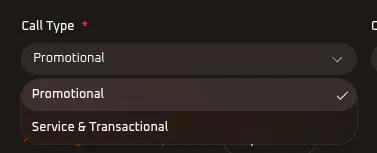
- Call Type (*): Select the regulatory classification (Promotional vs. Service & Transactional).
- Category of Call: Choose the industry sector matching your call content.
- Upload Voice File (MP3/WAV) (*): Upload your pre-recorded voice audio file:
- Supported formats:
.mp3or.wavstrictly required for the OBD API. - Maximum file size: 25MB.
- Supported formats:
- Voice Content / Script (*): Enter the complete textual transcript or script of the audio (e.g., “Hello..this is business”).
- Note: Providing the script is mandatory for carrier compliance and quality auditing.
- Live Mobile Preview: Once an audio file is uploaded, use the built-in media player in the smartphone preview pane to test audio levels, pacing, and playback.
- Click the orange
Create Templatebutton to submit the template.
4. Call Types: Promotional vs. Service & Transactional
Section titled “4. Call Types: Promotional vs. Service & Transactional”Smartping enforces strict regulatory separation between promotional outreach and transactional service alerts:
| Call Type | Purpose & Description | Calling Window & DND Rules |
|---|---|---|
| Promotional | Commercial offers, sales discounts, marketing announcements, and event invitations. | Strictly restricted to daytime hours (10:00 AM to 9:00 PM). Automatically scrubbed and blocked on numbers registered with the National Do Not Disturb (DND) registry. |
| Service & Transactional | Critical updates, account verification alerts, appointment reminders, payment receipts, and emergency notices to existing users. | Permitted 24/7. Delivered to all valid mobile numbers regardless of DND registry status. |
5. Category of Call (Industry Classifications)
Section titled “5. Category of Call (Industry Classifications)”Selecting the appropriate industry sector ensures proper carrier routing and telecommunication regulatory reporting:
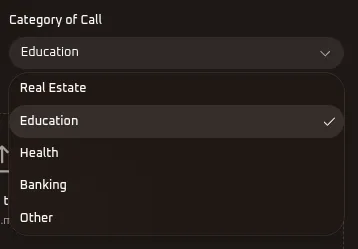
- Education: School/college notifications, admissions updates, exam results, and course enrollment announcements.
- Real Estate: Property launch updates, site visit reminders, project milestones, and booking updates.
- Health: Appointment confirmations, prescription alerts, medical center updates, and lab reports.
- Banking: Transaction notifications, EMI due reminders, account security alerts, and payment receipts.
- Other: General business announcements, customer service follow-ups, and corporate notifications.
6. Editing & Testing Existing Voice Templates
Section titled “6. Editing & Testing Existing Voice Templates”You can edit any existing template to update its classification, change the transcript, or replace the attached audio recording.
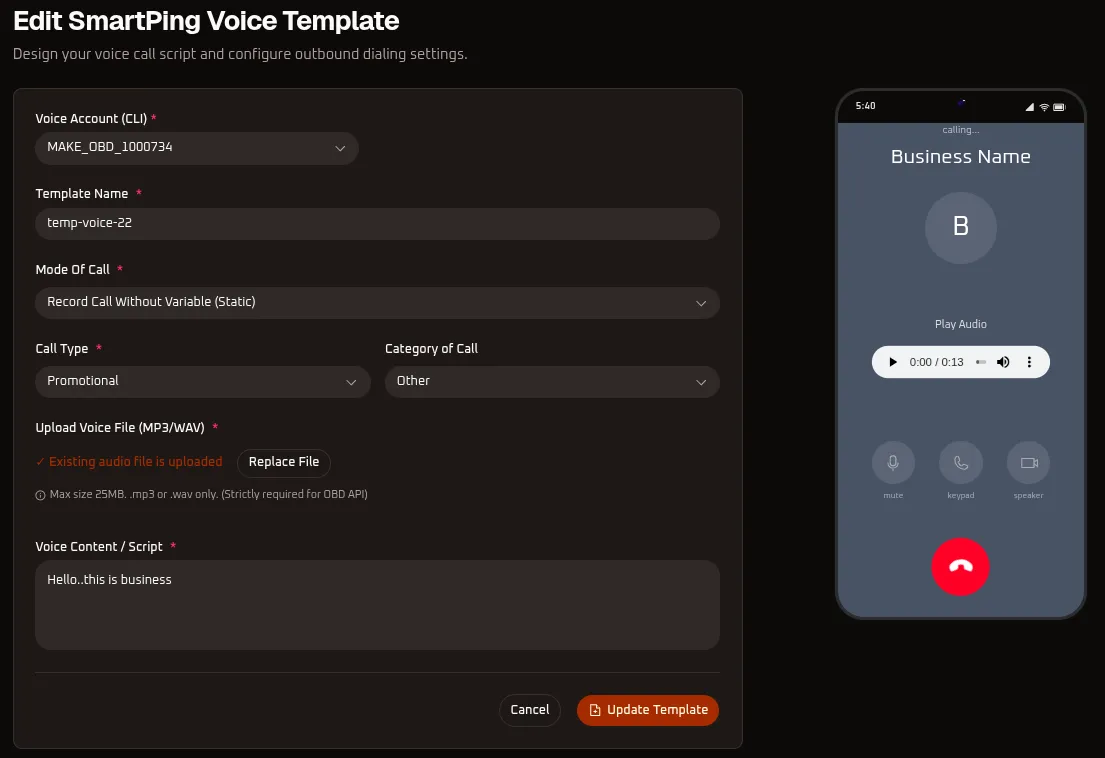
- Replace Audio: Under Upload Voice File (MP3/WAV), click the Replace File button to upload a revised recording (the indicator confirms
✓ Existing audio file is uploaded). - Update Script: Adjust the text in the Voice Content / Script text area.
- Audio Playback Test: Click the play button (
▶) on the mobile preview player (0:00 / 0:13) to listen to the recording before updating. - Click
Update Templateto save changes and push the revision for carrier review.
7. Using Voice Templates in Bulk Campaigns
Section titled “7. Using Voice Templates in Bulk Campaigns”Once registered and approved under Smartping, your voice templates become immediately selectable for outbound voice broadcasting:
- Navigate to Campaigns ➔ Voice.
- Click
+ Create New Campaign. - Under Sender Account, select your Smartping OBD trunk account (e.g.,
MAKE_OBD_1000734 (smart-ping)). - Under the Message Template dropdown, choose your configured voice template (e.g.,
whitestartintro). - Choose your target audience (CSV Upload or CRM Segment) and launch immediately or schedule your calling window.