
Toggle Theme
The Toggle Theme action in the User Profile Menu enables team members to switch dynamically between WhiteStart Dark Mode and Light Mode across the entire workspace interface.
Overview
Section titled “Overview”WhiteStart is designed with a responsive design system that supports both dark and light visual presentations. Appearance preferences can be customized on a per-device basis, ensuring users maintain visual comfort across varying lighting conditions and workstation environments.
Accessing the Theme Toggle
Section titled “Accessing the Theme Toggle”Main Sidebar -> Bottom-Left Profile Badge -> Toggle Theme- Locate the User Profile Badge in the lower-left corner of the primary navigation sidebar.
- Click the badge to open the floating context popover.
- Locate the Toggle Theme action:
- If currently viewing the application in Dark Mode, the menu displays Toggle Theme (Light).
- If currently viewing the application in Light Mode, the menu displays Toggle Theme (Dark).
- Click the action to apply the color theme change instantly.
Technical Mechanics & Persistence
Section titled “Technical Mechanics & Persistence”1. Zero-Reload Transformation
Section titled “1. Zero-Reload Transformation”Theme switching operates entirely on the client side using optimized CSS variables. Clicking the toggle alters root design tokens in real time, transforming backgrounds, borders, typography colors, button states, and data tables without triggering a browser refresh or interrupting in-flight form edits.
2. Local Storage Persistence
Section titled “2. Local Storage Persistence”Your active visual preference is stored in the browser client’s local storage:
- Storage Key:
whitestart-theme - Stored Values:
lightordark - Behavior: When you reopen the browser, refresh an active tab, or log in during subsequent work sessions on the same computer, WhiteStart reads the stored preference and renders the workspace in your chosen theme automatically.
3. Multi-Tab Synchronization
Section titled “3. Multi-Tab Synchronization”Adjusting the theme in one browser tab automatically synchronizes across all other open WhiteStart tabs in the same browser session through client storage event listeners.
Workspace Appearance Modes Compared
Section titled “Workspace Appearance Modes Compared”Light Mode Architecture
Section titled “Light Mode Architecture”Light Mode is optimized for daytime operations and brightly illuminated office environments:
- Canvas & Panels: Employs a crisp white background with subtle border definitions, maximizing contrast and visual separation between interface modules.
- Typography: Renders primary headings and body copy in deep charcoal and black shades, ensuring maximum legibility during data-heavy CRM and analytics workflows.
- Brand Accents: Emphasizes interactive buttons, active menu states, and priority notifications using WhiteStart’s signature orange accents.
- Data Grids & Forms: High contrast improves visual tracking across dense tabular grids, such as Payment History, Customer Tables, and Campaign metrics.
Dark Mode Architecture
Section titled “Dark Mode Architecture”Dark Mode is engineered for extended operational sessions and low-light environments:
- Reduced Eye Strain: Lowers overall screen luminance, mitigating visual fatigue during evening shifts or extended campaign monitoring.
- Energy Efficiency: Decreases power consumption on OLED and modern high-efficiency displays.
- Focused Data Visualization: Muted backgrounds draw natural focus to colored status indicators (such as green
Paidtags and active bot conversation flags).
Interface Layout in Light Mode
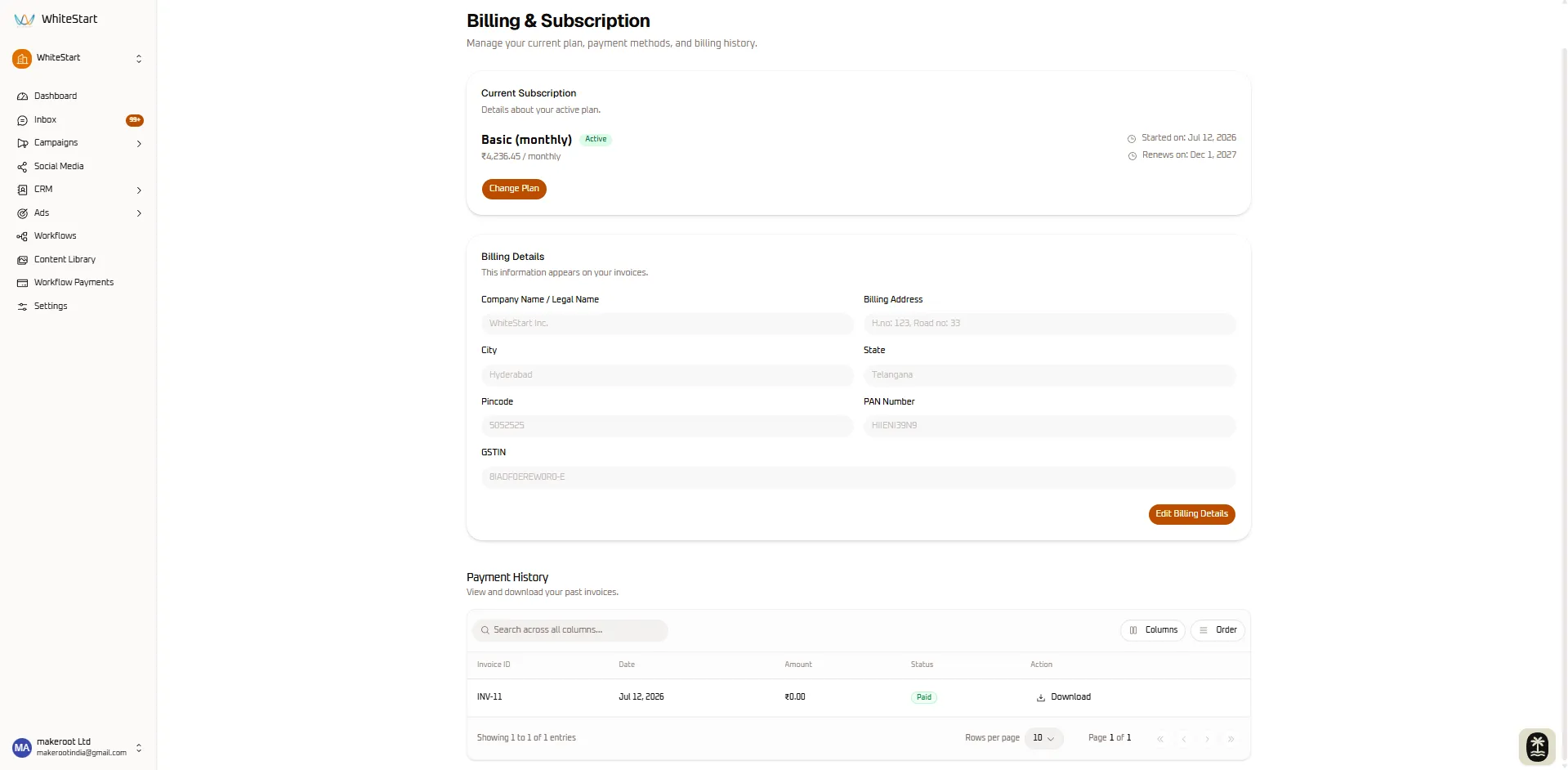
Section titled “Interface Layout in Light Mode”As illustrated in the workspace screenshot, enabling Light Mode applies consistent styling across the platform:
- Primary Sidebar: Retains full navigation hierarchy (Dashboard, Inbox with unread message badges, Campaigns, Social Media, CRM, Ads, Workflows, Content Library, Settings) on a clean light panel.
- User Profile Badge: Anchored at the base of the sidebar, displaying user initials (
MA), company name (makeroot Ltd), and registered email. - Configuration Cards: Renders content panels (such as Current Subscription, Billing Details, and Payment History) within defined bordered containers that maintain clean visual spacing.