
Meta Ads Overview & Console Architecture
Meta Ads Manager: Command Center & Architecture
Section titled “Meta Ads Manager: Command Center & Architecture”The Meta Ads Manager in WhiteStart delivers a unified, enterprise-grade command center that enables marketing teams, media buyers, and agency operators to configure, launch, monitor, and optimize Meta advertising campaigns (Facebook & Instagram) directly alongside their customer CRM pipelines and omnichannel communication tools.
Overview
Section titled “Overview”Running multi-channel ad campaigns across Facebook and Instagram often forces teams to jump between Meta Ads Manager, separate analytics tabs, and internal customer databases. WhiteStart removes this friction by embedding native Meta Ads governance directly inside your workspace.
From setting up top-level campaigns with Advantage+ budgeting to fine-tuning geographic radius targeting on an interactive map, uploading dynamic creative assets, and reviewing live platform previews across Feeds, Stories, and Reels, WhiteStart streamlines the entire advertising lifecycle into a cohesive, sequential workflow.
Key Capabilities
Section titled “Key Capabilities”- Full-Funnel Campaign Creation: Launch top-level Campaigns, targeted Ad Sets, and multivariate Ads in a seamless three-stage guided sequence.
- Intelligent Campaign & Ad Set Scoring: Real-time optimization algorithms evaluate your campaign and ad set parameters, providing dynamic score feedback (
Score: 79/100) and point-boosting recommendations (+21 points) to reduce customer acquisition costs. - Flexible Budget Architecture: Switch between Campaign Budget (Advantage+ Campaign Budget) for automated spend distribution and Ad Set Budget for granular cohort control.
- Interactive Geo-Radius Targeting: Target prospects precisely using an interactive geographical map with adjustable kilometer sliders (
59 km,80 km) centered around target cities. - Dynamic Multi-Asset Creatives: Upload up to 10 visual media assets and configure up to 5 copy variations for primary text, headlines, and descriptions for automated algorithmic permutation.
- Cross-Placement Live Previews: Inspect your live ad rendering across Facebook Feed, Instagram Feed, Facebook Reels, Instagram Reels, and Facebook & Instagram Stories before spending a single rupee.
- Single-Click Live Controls: Toggle campaign, ad set, or creative delivery on and off instantaneously using real-time status switches (
ACTIVE/PAUSED). - Omni-Column Search & High-Density Reporting: Filter records by any metric, rearrange table columns, and export custom audit logs to CSV or printable formats.
1. Accessing Meta Ads Manager
Section titled “1. Accessing Meta Ads Manager”To access the Meta Ads Manager console, use the left-hand navigation sidebar:
Main Sidebar ➔ ADS ➔ Meta Ads Manager- In the main navigation sidebar, scroll down to the ADS section.
- Click Meta Ads Manager.
- The dashboard opens with the Campaigns view active by default.
- Account Switcher: If your organization operates multiple Meta Ad Accounts, click the account dropdown in the top-right corner (e.g.,
White Start) to select your target ad account. All metrics and currency figures (₹ INR) will adapt immediately.
2. Interface Hierarchy & Navigation Tabs
Section titled “2. Interface Hierarchy & Navigation Tabs”WhiteStart structures Meta advertising according to Meta’s standard three-tier architecture:
+─────────────────────────────────────────────────────────────────────────────+| CAMPAIGN LEVEL || High-level objective, buying type (Auction), and budget strategy |+──────────────────────────────────────┬──────────────────────────────────────+ │ ▼+─────────────────────────────────────────────────────────────────────────────+| AD SET LEVEL || Audience targeting, geo-map radius, placements, schedules, and conversion |+──────────────────────────────────────┬──────────────────────────────────────+ │ ▼+─────────────────────────────────────────────────────────────────────────────+| AD LEVEL || Media assets (images/videos), copy variations, CTA buttons, and previews |+─────────────────────────────────────────────────────────────────────────────+Tab 1: Campaigns View
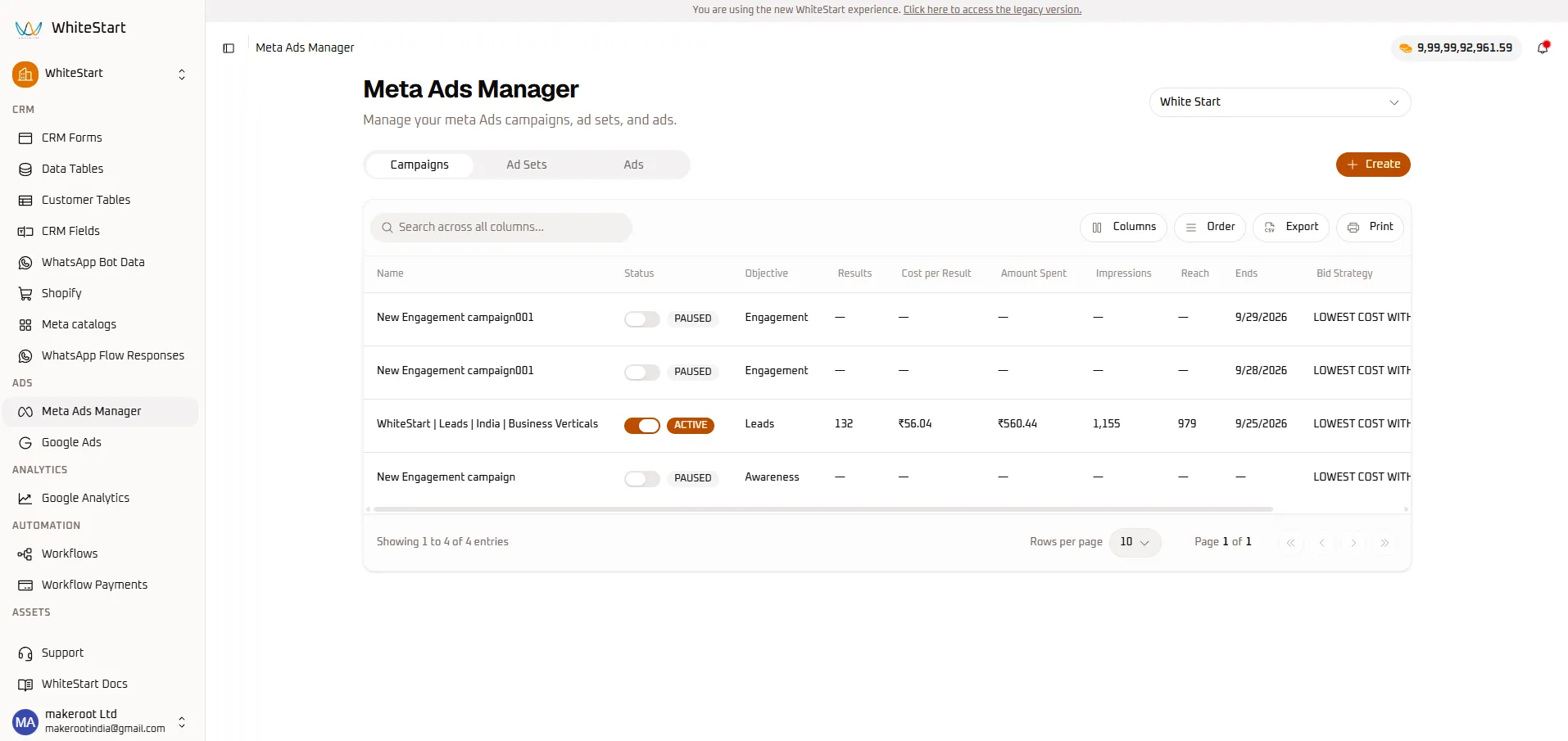
Section titled “Tab 1: Campaigns View”The Campaigns tab provides macro-level governance over all your active and scheduled advertising initiatives.
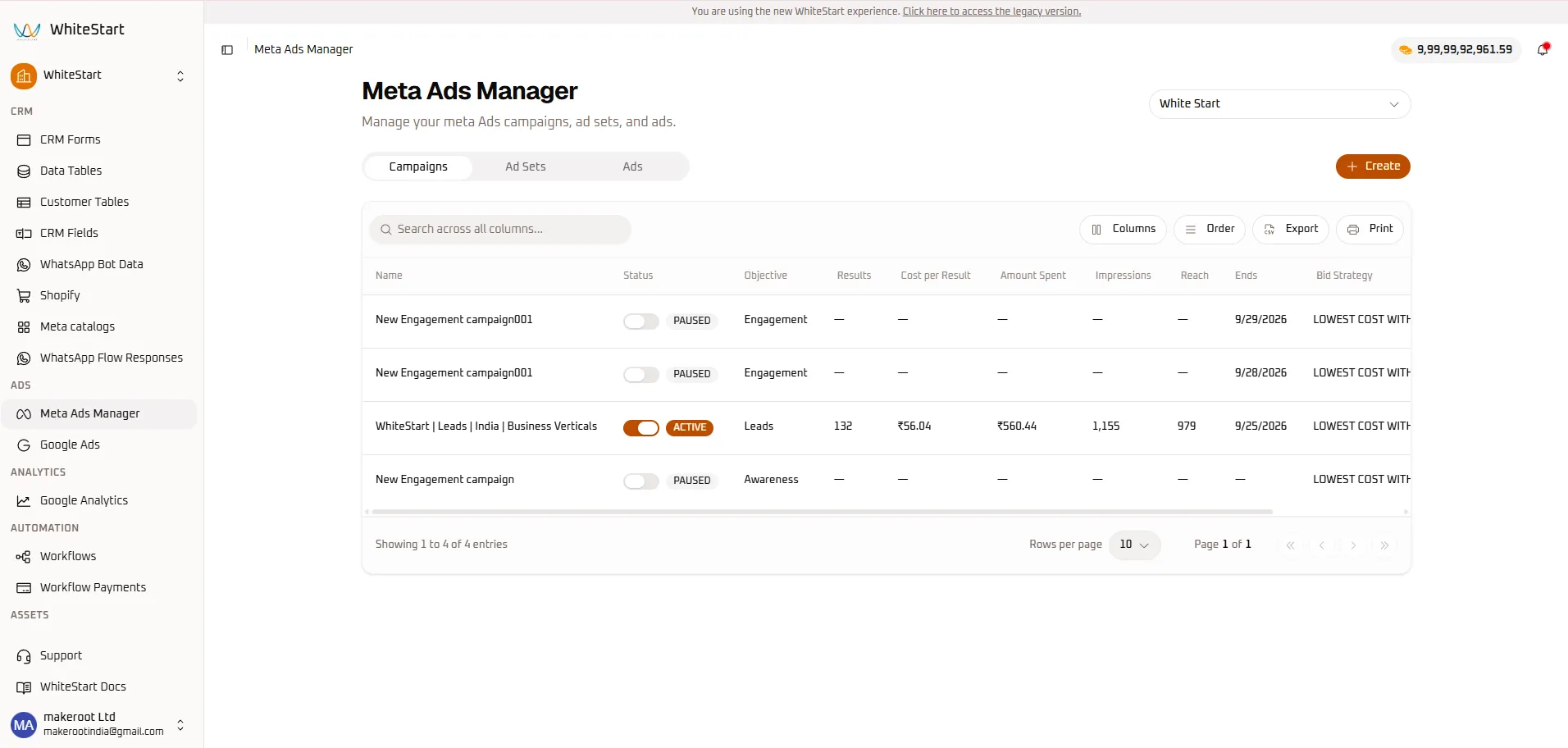
Campaigns Table Field Reference
Section titled “Campaigns Table Field Reference”| Column Header | Type | Description | Operational Purpose |
|---|---|---|---|
| Name | Text Link | Title of the campaign (e.g., WhiteStart | Leads | India | Business Verticals). |
Primary campaign identifier. |
| Status | Toggle Switch | Delivery state: ACTIVE (orange) or PAUSED (gray). |
Instantly halts or resumes ad spend. |
| Objective | Badge | Goal: Engagement, Leads, or Awareness. |
Determines Meta algorithm optimization. |
| Results | Numeric | Total conversions achieved (e.g., 132 leads). |
Primary volume KPI. |
| Cost per Result | Currency | Average cost per conversion (e.g., ₹56.04). |
Primary acquisition efficiency KPI. |
| Amount Spent | Currency | Total budget consumed to date (e.g., ₹560.44). |
Spend pacing monitor. |
| Impressions | Numeric | Total ad views delivered (e.g., 1,155). |
Exposure volume. |
| Reach | Numeric | Unique individual user accounts exposed (e.g., 979). |
Unique audience saturation. |
| Ends | Date | Scheduled end date (e.g., 9/25/2026) or — for ongoing. |
Pacing control. |
| Bid Strategy | Label | Bidding model (e.g., LOWEST COST WITHOUT CAP). |
Auction cost control. |
Tab 2: Ad Sets View
Section titled “Tab 2: Ad Sets View”Clicking the Ad Sets tab switches into audience and delivery governance, where budgets are distributed across demographic cohorts.
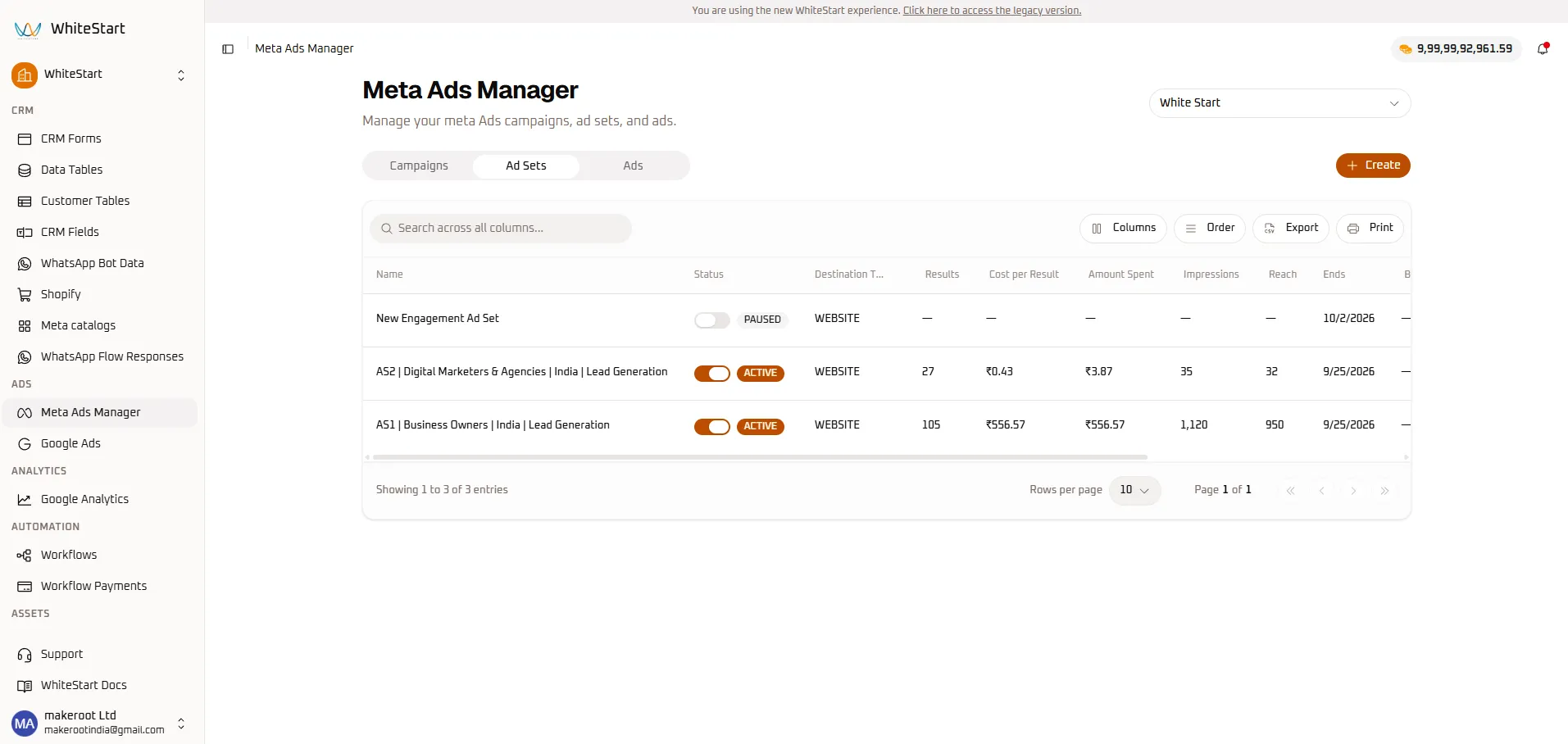
Ad Sets Table Field Reference
Section titled “Ad Sets Table Field Reference”| Column Header | Type | Description | Operational Purpose |
|---|---|---|---|
| Name | Text | Ad Set title (e.g., AS2 | Digital Marketers & Agencies | India). |
Distinguishes target segments. |
| Status | Toggle Switch | Delivery state (ACTIVE / PAUSED). |
Pause weak segments without killing the campaign. |
| Destination Type | Badge | Conversion target (e.g., WEBSITE, Instant Form, WhatsApp). |
Directs click destination. |
| Results | Numeric | Conversions generated by this specific audience segment. | Isolates high-performing audiences. |
| Cost per Result | Currency | Segment acquisition cost (e.g., ₹0.43 vs ₹556.57). |
Spot winning targeting criteria. |
| Amount Spent | Currency | Budget consumed specifically by this audience. | Audience budget allocation. |
| Impressions | Numeric | Total impressions within this audience. | Frequency evaluation. |
| Reach | Numeric | Unique individuals reached within the demographic. | Audience size exhaustion tracking. |
| Ends | Date | Scheduled completion timestamp. | Offer expiration control. |
Tab 3: Ads View
Section titled “Tab 3: Ads View”The Ads tab provides granular creative inspection, displaying individual ad variants and asset performance.
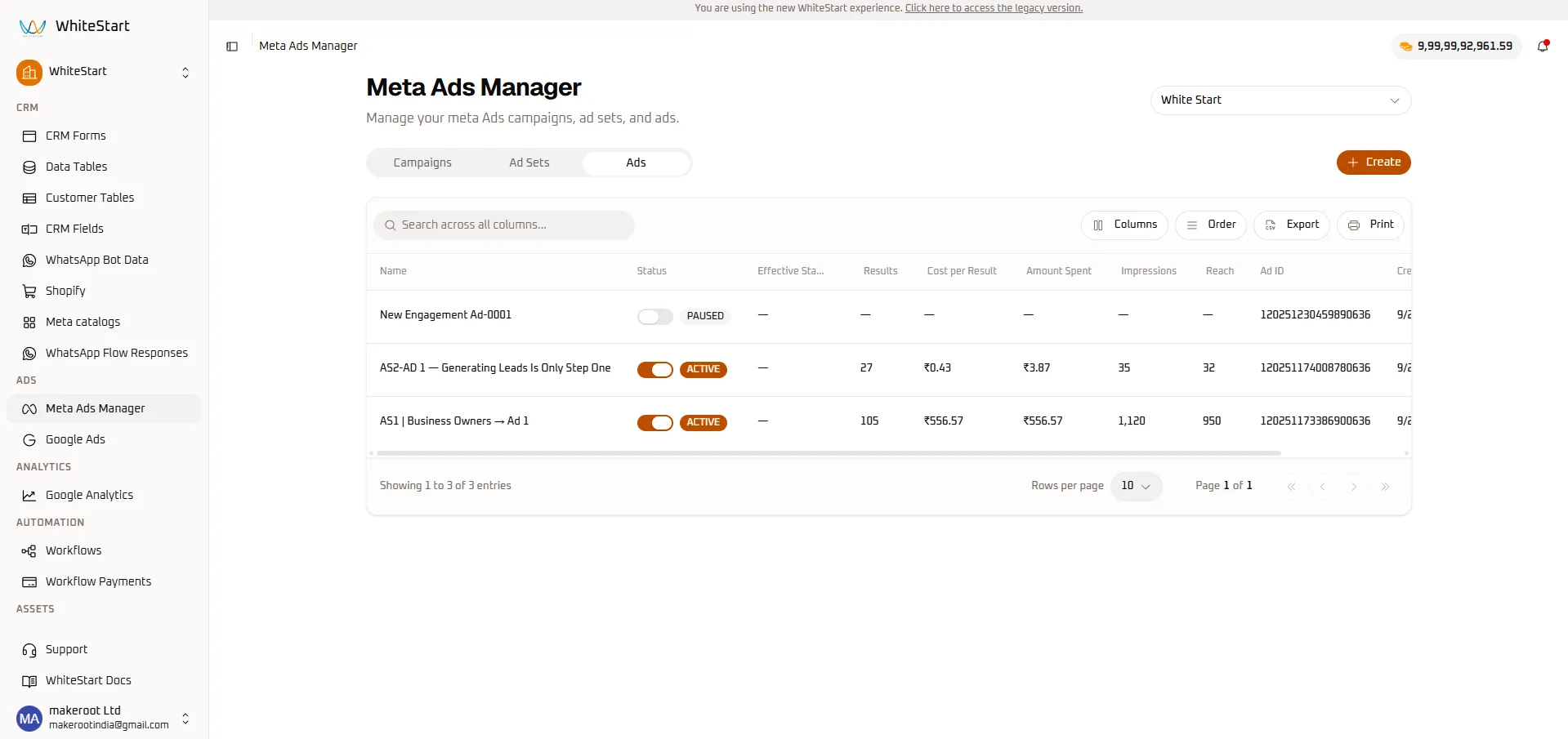
Ads Table Field Reference
Section titled “Ads Table Field Reference”| Column Header | Type | Description | Operational Purpose |
|---|---|---|---|
| Name | Text | Ad creative name (e.g., AS2-AD 1 — Generating Leads Is Only Step One). |
Distinguishes visual and copy variants. |
| Status | Toggle Switch | Delivery state (ACTIVE / PAUSED). |
Stop fatigued creatives immediately. |
| Effective Status | Label | Real-time Meta Graph API status. | Validates ad approval and policy health. |
| Results | Numeric | Conversions attributed directly to this visual asset. | Creative ROI tracking. |
| Cost per Result | Currency | Unit acquisition cost per creative. | Identifies winning ad designs. |
| Amount Spent | Currency | Media spend consumed by this single creative. | Prevents overspending on weak copy. |
| Ad ID | 18-digit ID | Unique Meta identifier (e.g., 120251174008780636). |
API cross-referencing and auditing. |
3. Creating a Meta Campaign (Step-by-Step)
Section titled “3. Creating a Meta Campaign (Step-by-Step)”To initialize a new top-level campaign, navigate to Meta Ads Manager ➔ Campaigns and click the orange + Create button.
Meta Ads Manager ➔ Campaigns Tab ➔ [+ Create] ➔ Create Meta Campaign ConsoleStep 1: Account Selection & Campaign Score
Section titled “Step 1: Account Selection & Campaign Score”Connect your campaign to the authenticated Meta assets and review your setup health score.
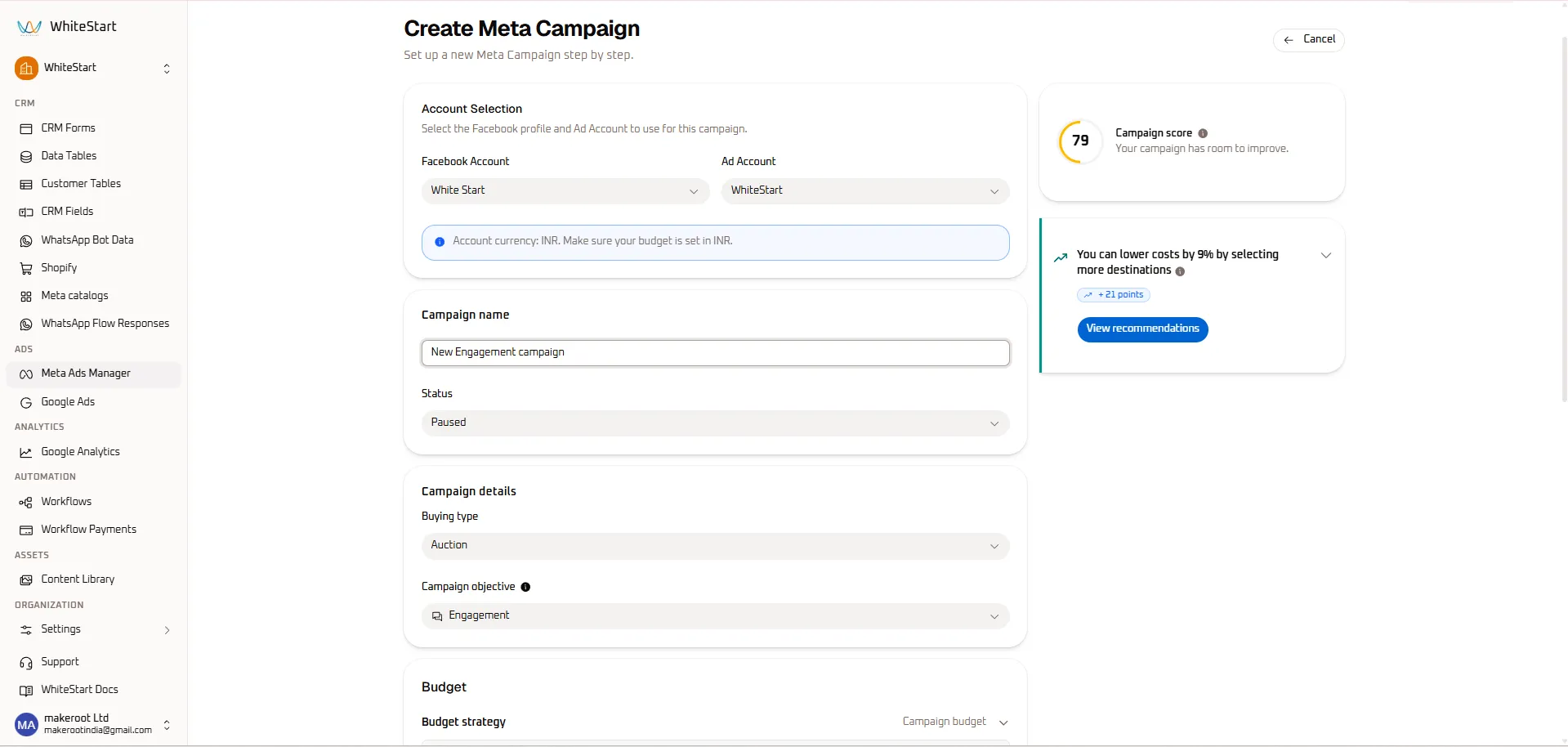
- Facebook Account & Ad Account Selection:
- Facebook Account: Select the linked Facebook Profile or Business Portfolio (e.g.,
White Start). - Ad Account: Select the destination ad account (e.g.,
WhiteStart). - Currency Notice: Verify that your account currency is properly detected (e.g., “Account currency: INR. Make sure your budget is set in INR.”).
- Facebook Account: Select the linked Facebook Profile or Business Portfolio (e.g.,
- Campaign Naming & Status:
- Enter a descriptive name in the Campaign name text box (e.g.,
New Engagement campaign). - Set initial delivery Status (
Pausedis recommended during setup).
- Enter a descriptive name in the Campaign name text box (e.g.,
- Campaign Score Inspection:
- The circular gauge on the right monitors initial campaign configuration health (79 / 100).
- Review recommendation prompts (e.g., “You can lower costs by 9% by selecting more destinations (+21 points)”). Click View recommendations to apply best practices.
Step 2: Buying Type, Objectives & Budget Strategy
Section titled “Step 2: Buying Type, Objectives & Budget Strategy”Configure how Meta’s auction bids for impressions and distribute funds across your ads.
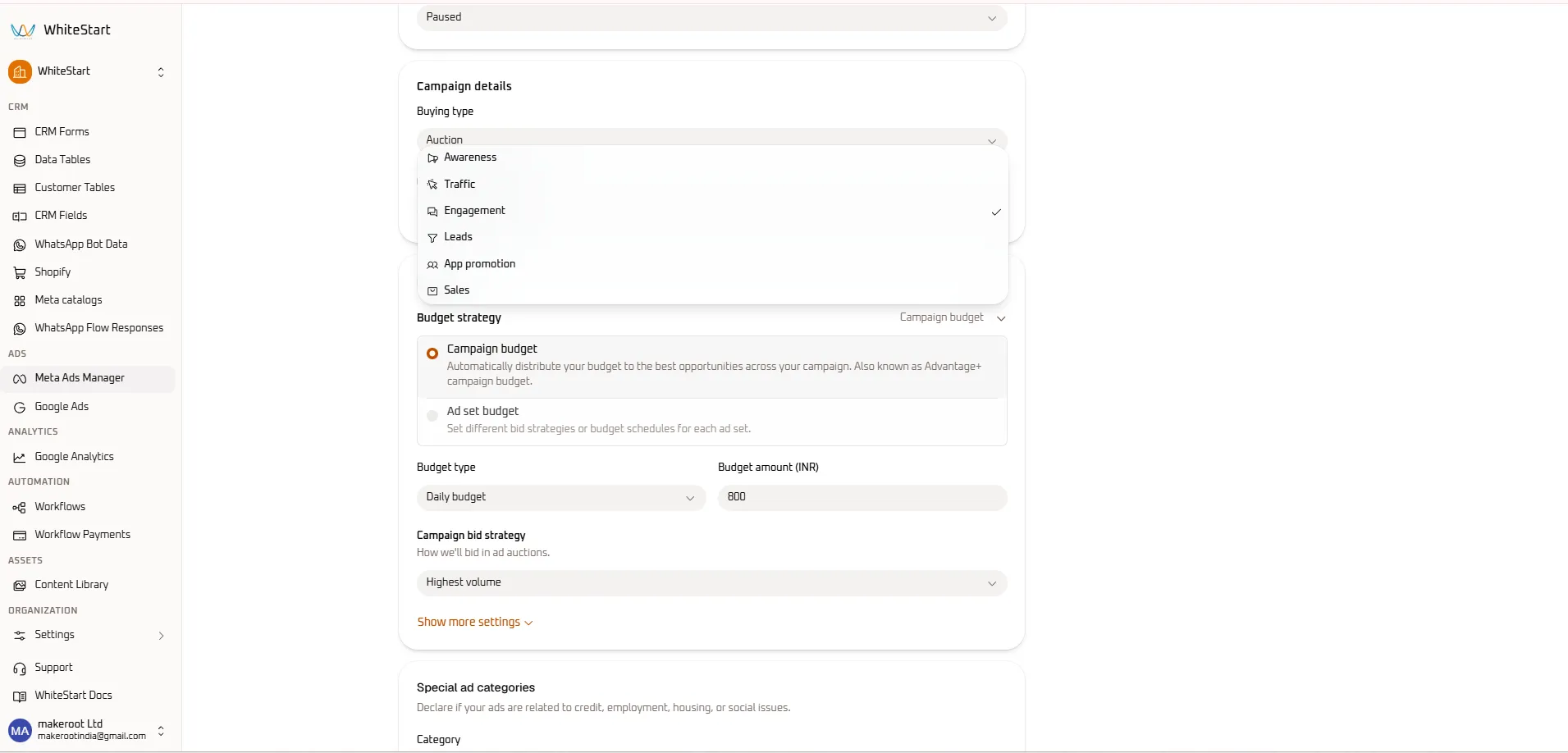
- Buying Type: Defaults to
Auction, utilizing Meta’s real-time ad bidding engine. - Campaign Objective Selection: Choose from the 6 standardized Meta advertising objectives:
- Awareness (
📣): Maximize reach and brand recall. - Traffic (
🖱️): Drive link clicks to landing pages or blog posts. - Engagement (
💬): Generate post likes, video views, event responses, or chat messages. - Leads (
🎯): Acquire customer contact details via Instant Forms, Messenger, or WhatsApp. - App promotion (
📱): Drive mobile app installations and in-app purchases. - Sales (
🛍️): Catalyze e-commerce checkout conversions and catalog purchases.
- Awareness (
- Budget Strategy:
- Campaign budget (Advantage+ Campaign Budget): Meta automatically distributes the daily or lifetime budget to the highest-performing ad sets in real time.
- Ad set budget: Allows manual budget allocation and individual pacing schedules per ad set.
- Budget Amount & Type: Select
Daily budgetand enter your allocation (e.g.,800INR). - Campaign Bid Strategy: Set the auction optimization model (e.g.,
Highest volume).
Step 3: Special Ad Categories & Campaign Schedule
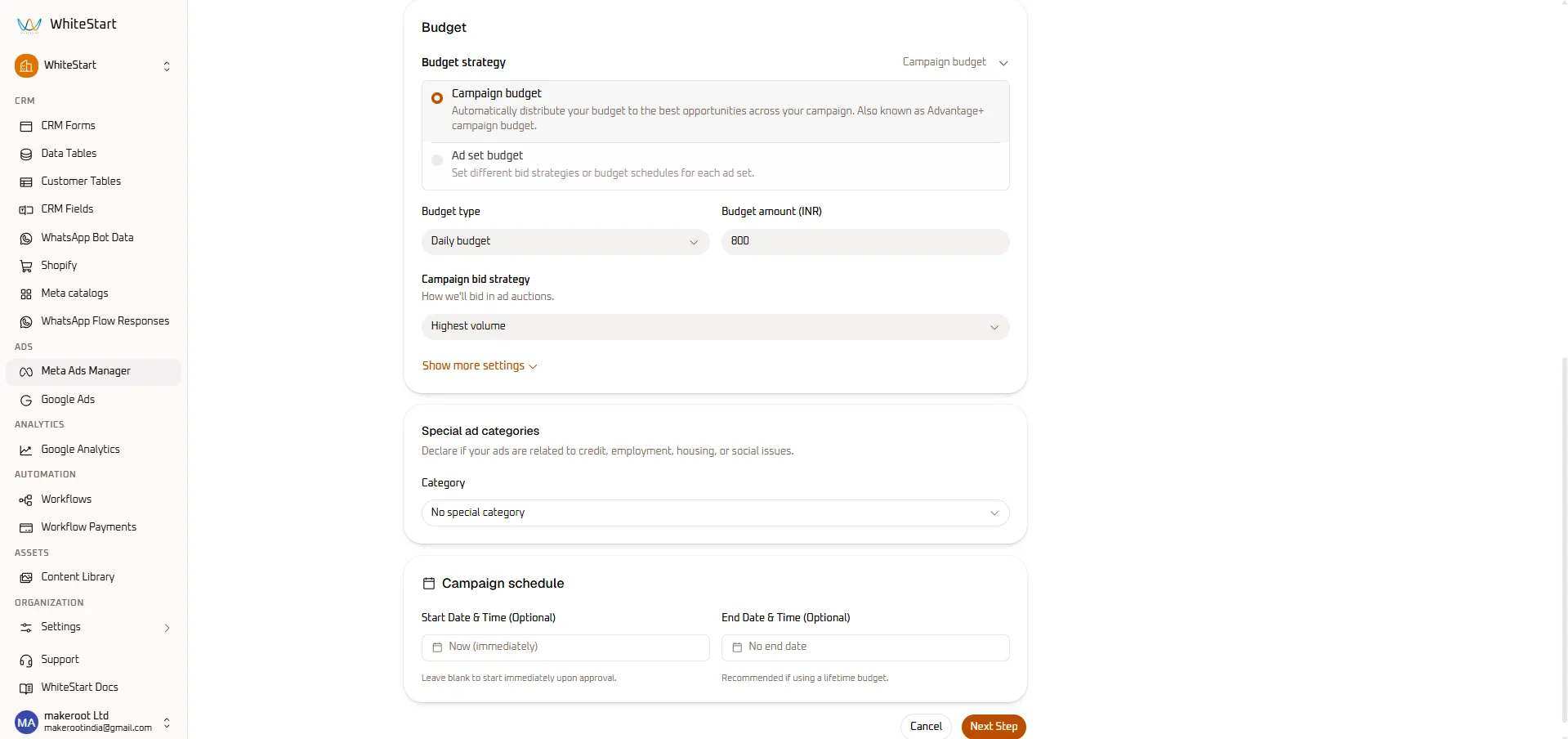
Section titled “Step 3: Special Ad Categories & Campaign Schedule”Declare regulated advertising categories and define operational date ranges before proceeding.
- Special Ad Categories:
- If your ad promotes Credit / Financial services, Employment, Housing / Real Estate, or Social Issues / Elections, declare the category to ensure compliance with Meta advertising policies.
- For general commercial products, keep Category set to
No special category.
- Campaign Schedule (Optional):
- Start Date & Time: Select
Now (immediately)or specify a future launch date. - End Date & Time: Keep as
No end datefor evergreen campaigns, or enter an end timestamp when utilizing a lifetime budget.
- Start Date & Time: Select
- Proceed to Ad Set: Click the orange
Next Stepbutton in the lower-right corner to proceed directly into the Create Meta Ad Set configuration console.
4. Creating a Meta Ad Set (Step-by-Step)
Section titled “4. Creating a Meta Ad Set (Step-by-Step)”Ad Sets govern audience demographic targeting, geographical reach, placement destinations, and delivery schedules.
Create Meta Campaign ➔ [Next Step] (or Ad Sets Tab ➔ [+ Create]) ➔ Create Meta Ad Set ConsoleStep 1: Parent Campaign Verification & Ad Set Score
Section titled “Step 1: Parent Campaign Verification & Ad Set Score”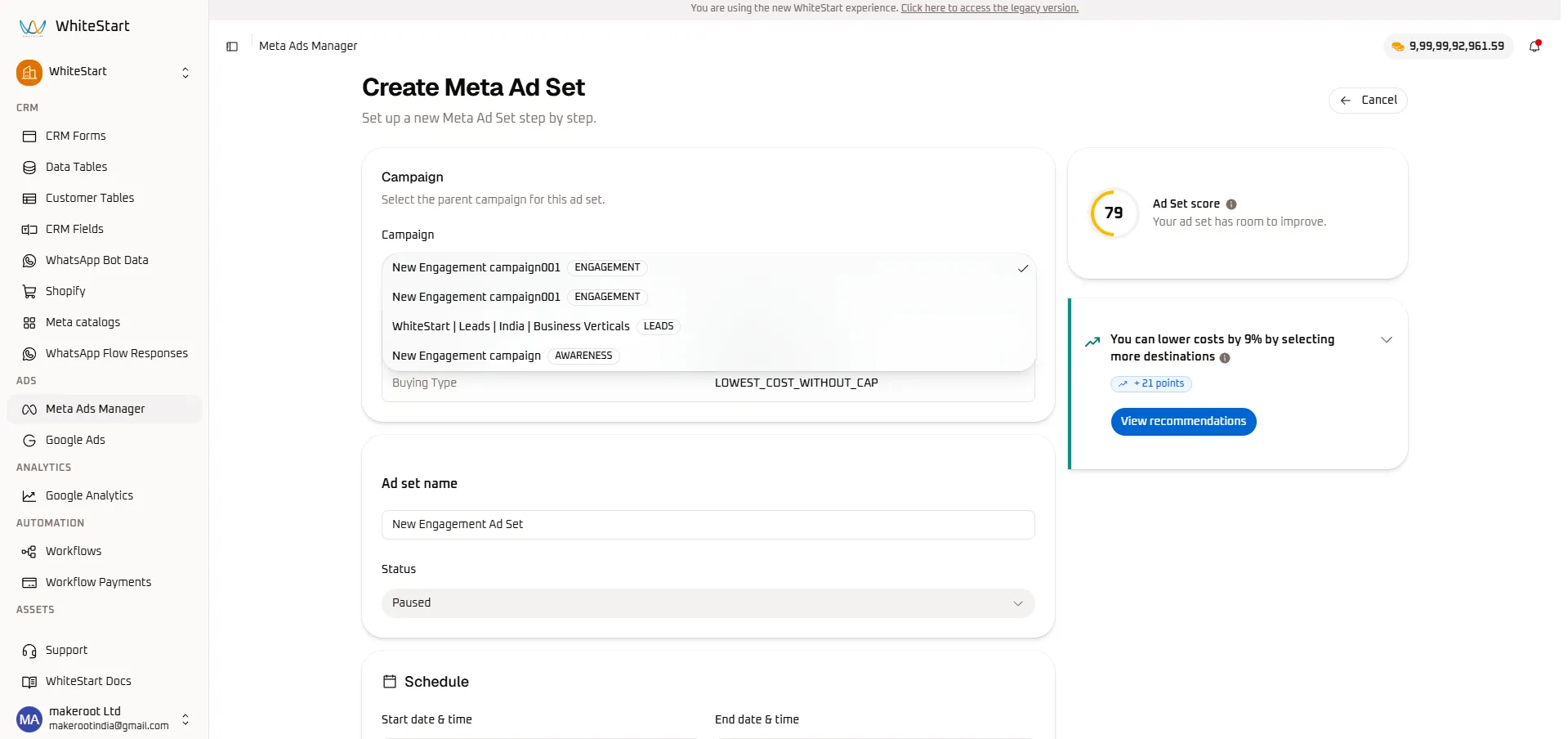
- Parent Campaign: Confirm or select the parent campaign from the dropdown (e.g.,
New Engagement campaign001 [ENGAGEMENT]). - Buying Type: Confirms
LOWEST_COST_WITHOUT_CAPauction behavior. - Ad Set Score: Review the live circular gauge (79 / 100) to ensure audience and placement settings follow algorithmic optimization recommendations.
Step 2: Naming, Schedule & Value Rules
Section titled “Step 2: Naming, Schedule & Value Rules”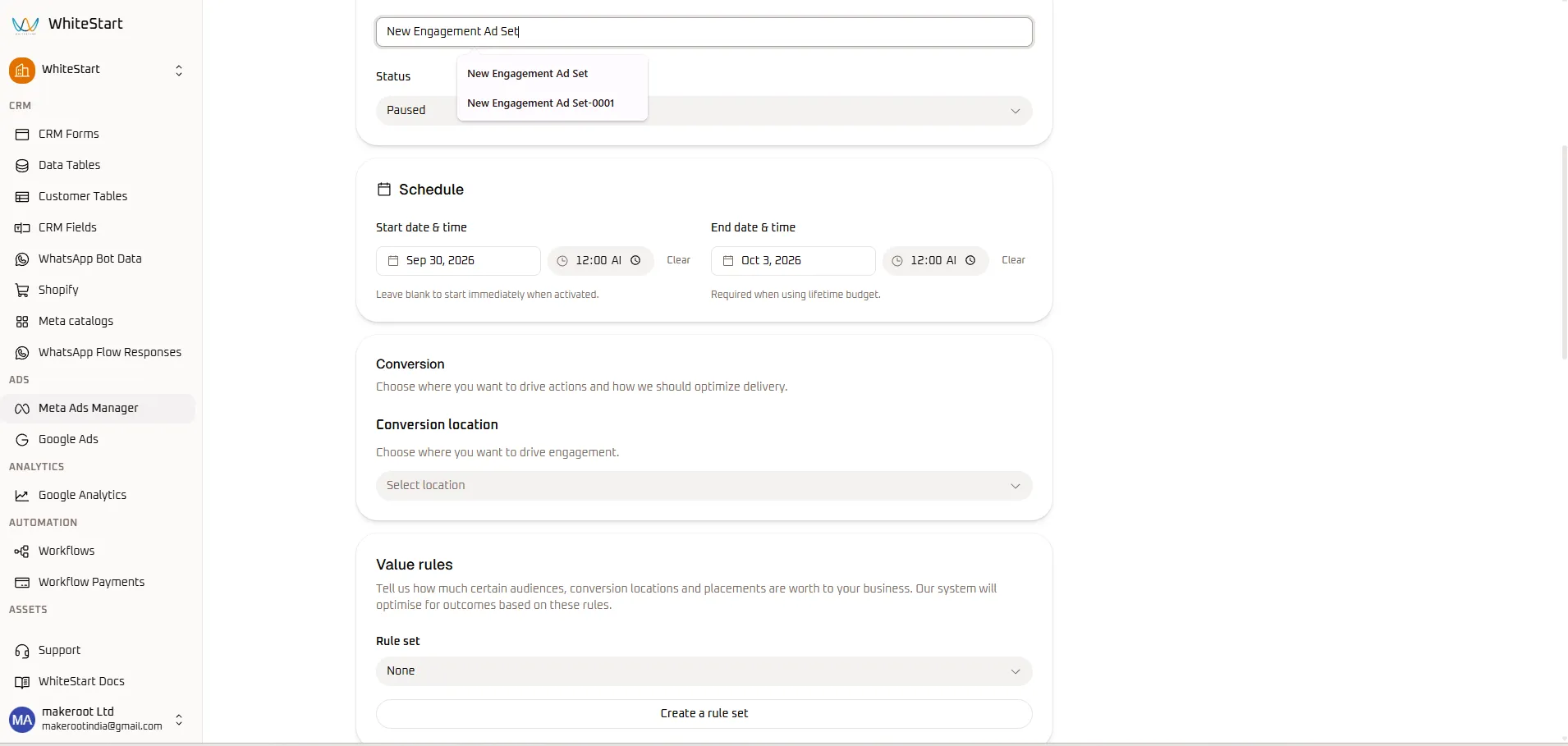
- Ad Set Name: Enter an audience title (e.g.,
New Engagement Ad Set). Auto-complete suggestions appear to assist with standard organizational naming conventions. - Delivery Status: Set initial state to
Paused. - Schedule Configuration:
- Start date & time: Select start date (
Sep 30, 2026) and time (12:00 AM). - End date & time: Set end date (
Oct 3, 2026) and time (12:00 AM). Mandatory when using a lifetime budget.
- Start date & time: Select start date (
- Value Rules: Optionally attach a valuation rule set to assign higher bids to specific demographics or placements by clicking Create a rule set.
Step 3: Conversion Location & Demographic Age/Gender
Section titled “Step 3: Conversion Location & Demographic Age/Gender”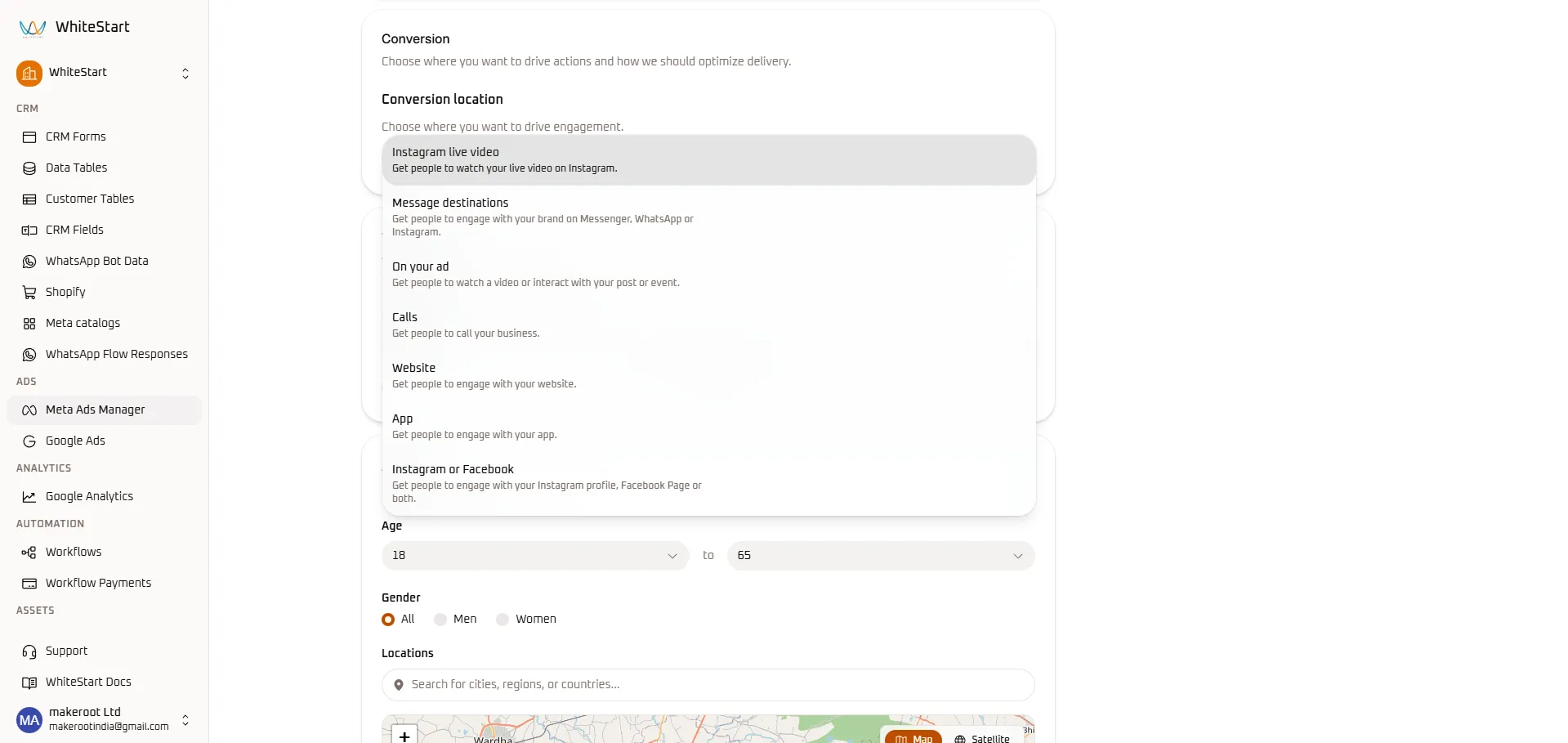
- Conversion Location Selection: Choose the destination where actions occur:
- Message destinations: Direct users into Messenger, WhatsApp, or Instagram DM (ideal for conversational lead qualification in WhiteStart Inbox).
- Website: Direct visitors to external landing pages or online checkout funnels.
- Calls: Prompt mobile users to place immediate phone calls to your sales team.
- On your ad: Optimize for on-platform engagement, video views, or event responses.
- App: Drive mobile application installs and in-app actions.
- Instagram or Facebook: Grow social followers and profile engagement.
- Instagram live video: Maximize live stream viewership.
- Age Thresholds: Set minimum and maximum age brackets (e.g.,
18to65). - Gender: Select All, Men, or Women.
Step 4: Geographic Map Targeting & Detailed Interests
Section titled “Step 4: Geographic Map Targeting & Detailed Interests”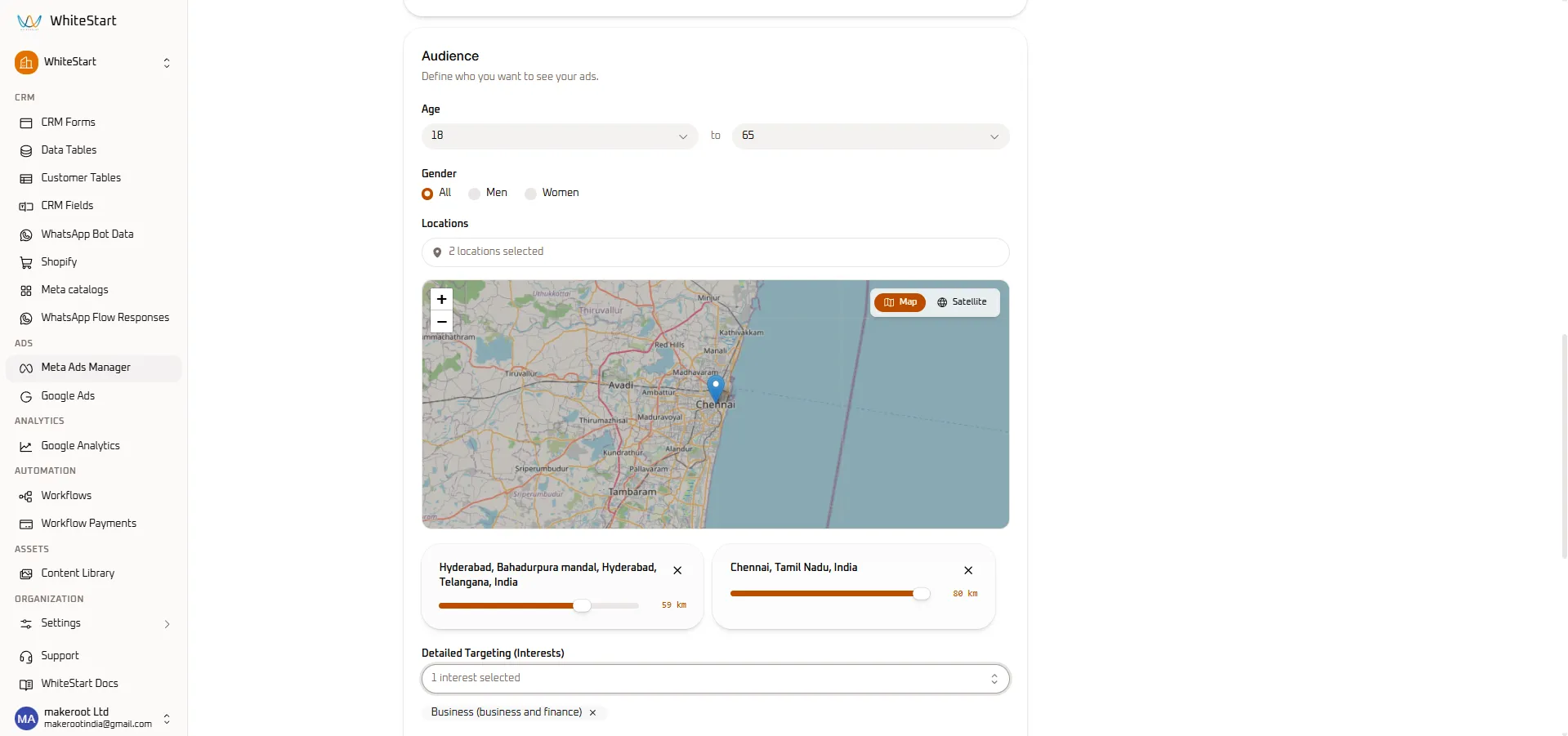
- Interactive Geographic Map & Radius Sliders:
- Search for target cities or regions in the Locations search bar.
- WhiteStart renders an interactive visual map with location pins.
- Adjust the kilometer slider on each location card to fine-tune the broadcast radius:
- Location 1:
Hyderabad, Telangana, India➔ Slider set to 59 km. - Location 2:
Chennai, Tamil Nadu, India➔ Slider set to 80 km.
- Location 1:
- Detailed Targeting (Interests):
- Search for customer affinities, job titles, or industries.
- Selected tags appear as removable chips (e.g.,
Business (business and finance) [x]).
Step 5: Placements & Dynamic Creative Optimization
Section titled “Step 5: Placements & Dynamic Creative Optimization”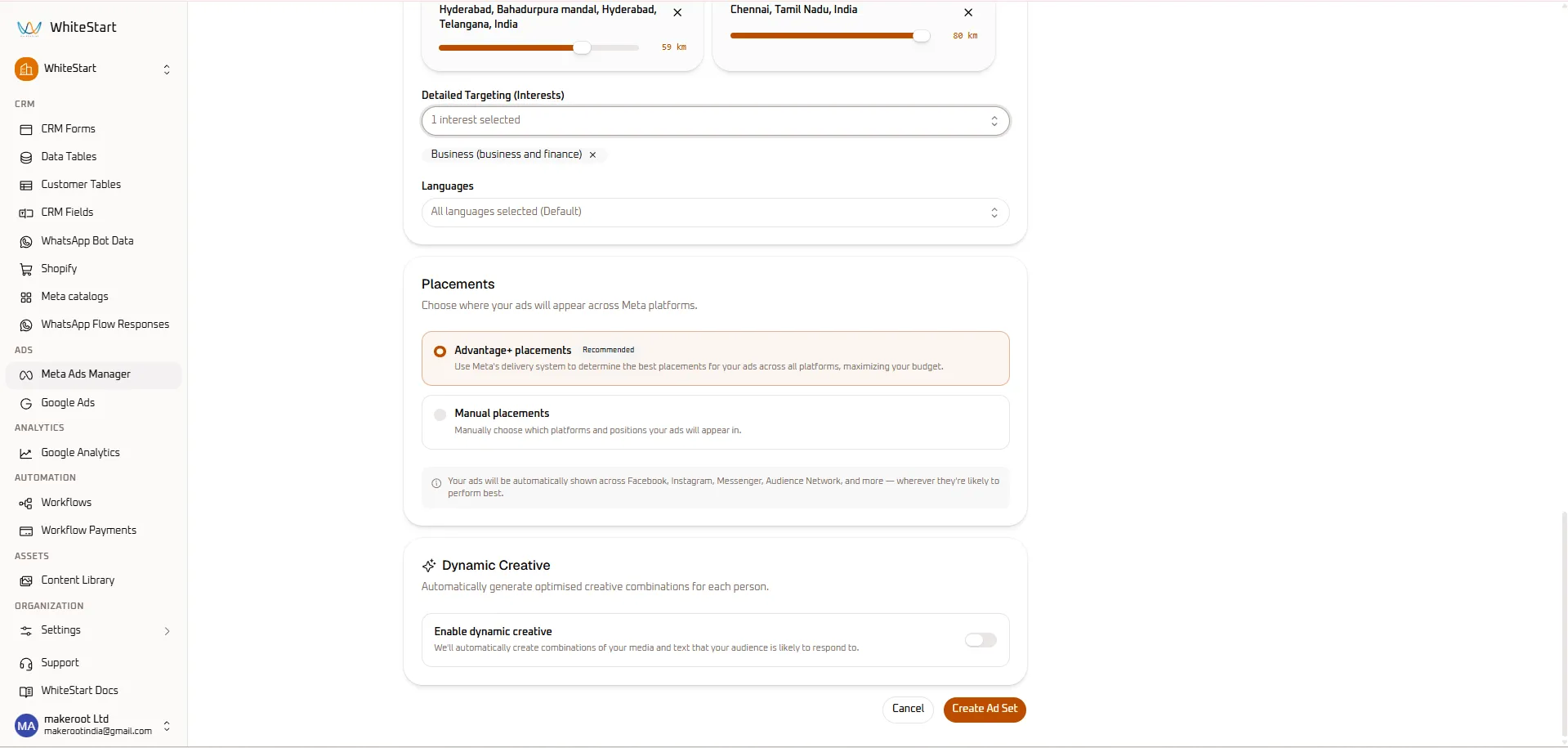
- Languages: Keep
All languages selected (Default)or specify localized dialects. - Placements Selection:
- Advantage+ placements (Recommended): Meta automatically optimizes delivery across Facebook, Instagram, Messenger, and Audience Network based on conversion likelihood.
- Manual placements: Hand-pick specific platforms, feeds, stories, or reels.
- Dynamic Creative:
- Toggle Enable dynamic creative on to let Meta automatically test and combine different headlines, copy, and media assets for each unique user.
- Finalizing Ad Set: Click the orange
Create Ad Setbutton.
5. Creating a Meta Ad Creative (Step-by-Step)
Section titled “5. Creating a Meta Ad Creative (Step-by-Step)”Once your Ad Set is provisioned, create your visual advertisements by navigating to Meta Ads Manager ➔ Ads and clicking + Create.
Meta Ads Manager ➔ Ads Tab ➔ [+ Create] ➔ Create Meta Ad ConsoleStep 1: Parent Ad Set Linking & Feed Previews
Section titled “Step 1: Parent Ad Set Linking & Feed Previews”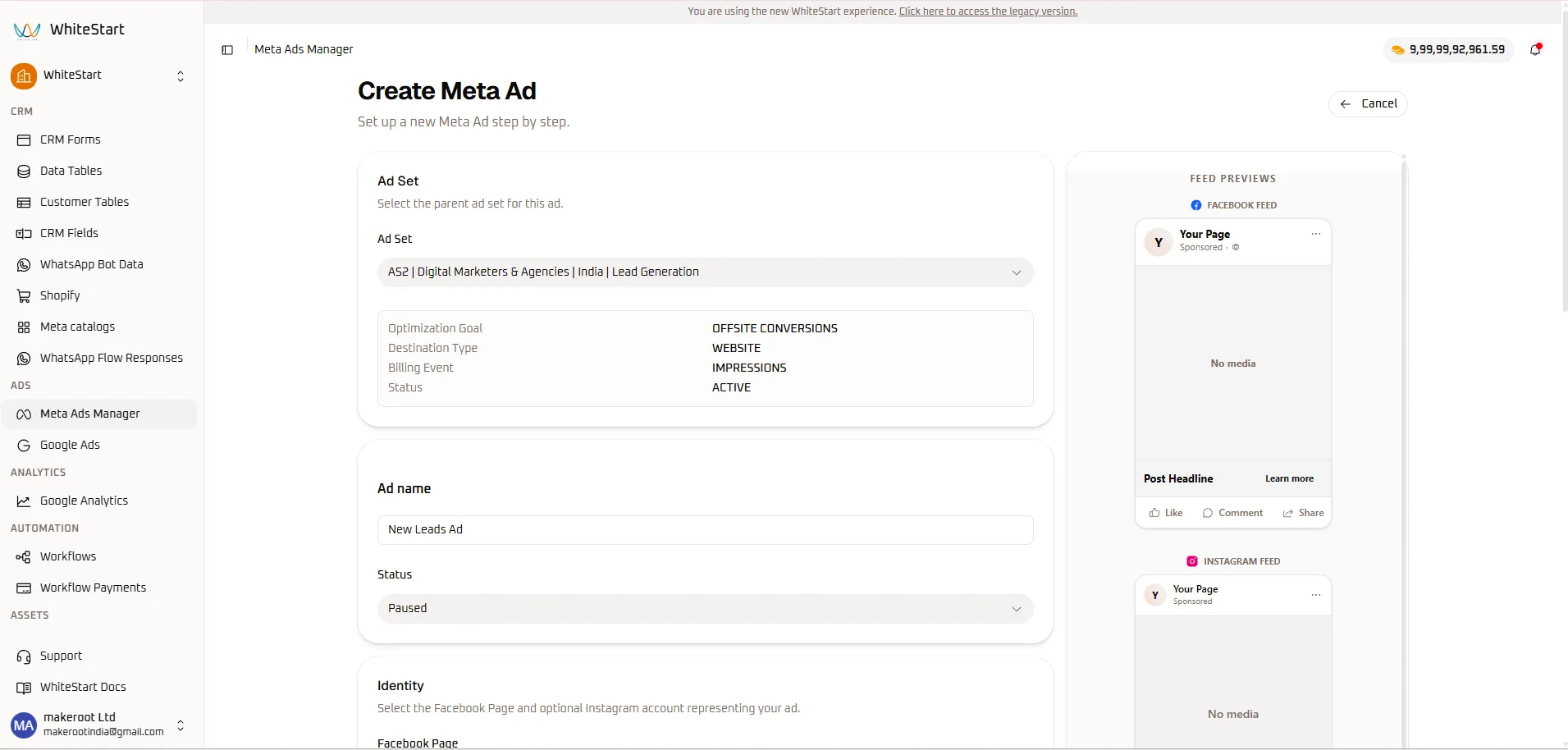
- Select Parent Ad Set: Choose the target ad set (e.g.,
AS2 | Digital Marketers & Agencies | India | Lead Generation). - Review Ad Set Metadata: WhiteStart automatically displays the parent configuration:
- Optimization Goal:
OFFSITE CONVERSIONS - Destination Type:
WEBSITE - Billing Event:
IMPRESSIONS - Status:
ACTIVE
- Optimization Goal:
- Ad Name: Enter an identifier for the creative (e.g.,
New Leads Ad 001). - Status: Select initial status (
Paused). - Feed Previews Panel: The right-hand column initializes live mockup previews for Facebook Feed and Instagram Feed.
Step 2: Social Identity & Ad Format Setup
Section titled “Step 2: Social Identity & Ad Format Setup”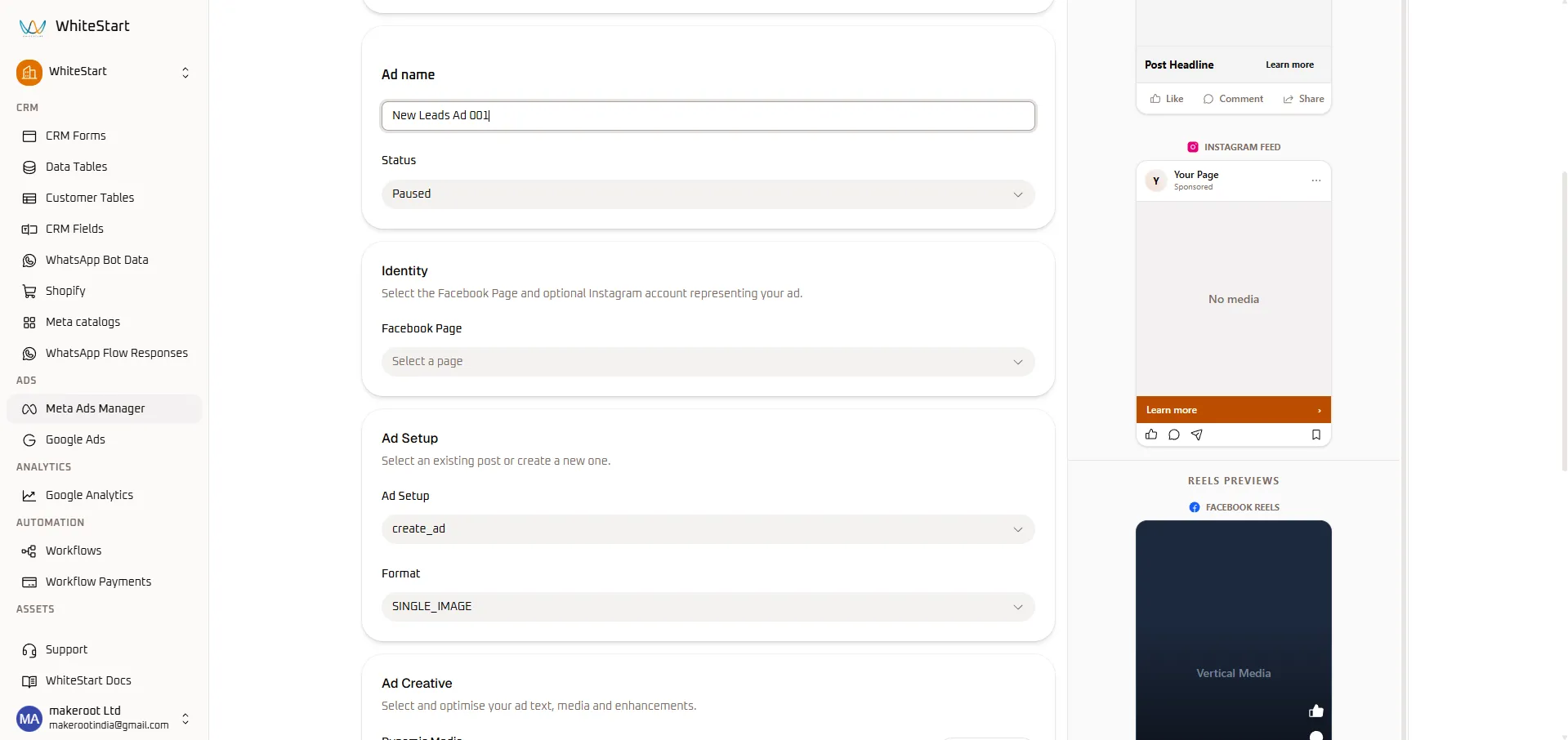
- Identity Selection:
- Click Facebook Page and select your authenticated company page (e.g.,
Your Page). - Linked Instagram accounts are paired automatically.
- Click Facebook Page and select your authenticated company page (e.g.,
- Ad Setup Mode: Choose
create_adto build a new ad from scratch. - Format Selection: Select your creative format from the dropdown:
SINGLE_IMAGE/ Video- Carousel (multi-card scroll)
- Reels Previews Initialized: The right-hand preview panel automatically expands to display a vertical container for Facebook Reels.
Step 3: Media Upload, Multivariate Copy & CTA
Section titled “Step 3: Media Upload, Multivariate Copy & CTA”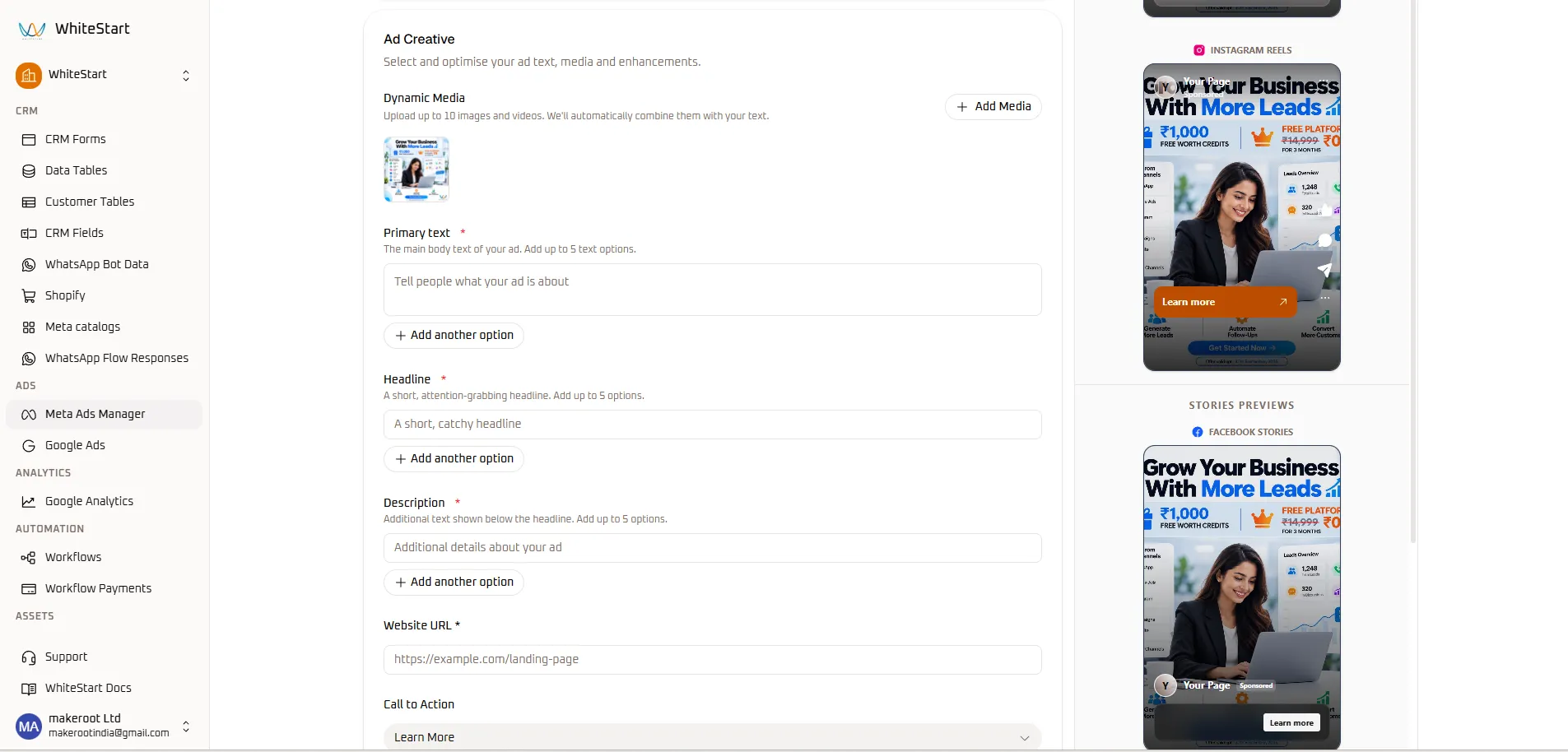
- Dynamic Media Upload:
- Click
+ Add Media. - Upload up to 10 images or videos from your device or WhiteStart Content Library.
- Active media thumbnails appear in the gallery (e.g., “Grow Your Business With More Leads”).
- Click
- Primary Text (Up to 5 options):
- Enter your primary promotional body copy.
- Click
+ Add another optionto supply up to 5 alternative copy hooks for automated A/B testing.
- Headline (Up to 5 options):
- Enter a punchy headline (e.g., “Generate More Qualified Leads”).
- Click
+ Add another optionto provide headline variations.
- Description (Up to 5 options):
- Add supporting secondary text displayed beneath the headline.
- Website URL: Enter your secure landing page destination (e.g.,
https://example.com/landing-page). - Call to Action (CTA): Select the action button prompt from the dropdown (e.g.,
Learn More,Sign Up,Get Quote,Contact Us). - Live Preview Inspection: The right column renders your uploaded image and primary copy across Instagram Reels and Facebook Stories in real time.
Step 4: Multi-Channel Story Previews & Publishing
Section titled “Step 4: Multi-Channel Story Previews & Publishing”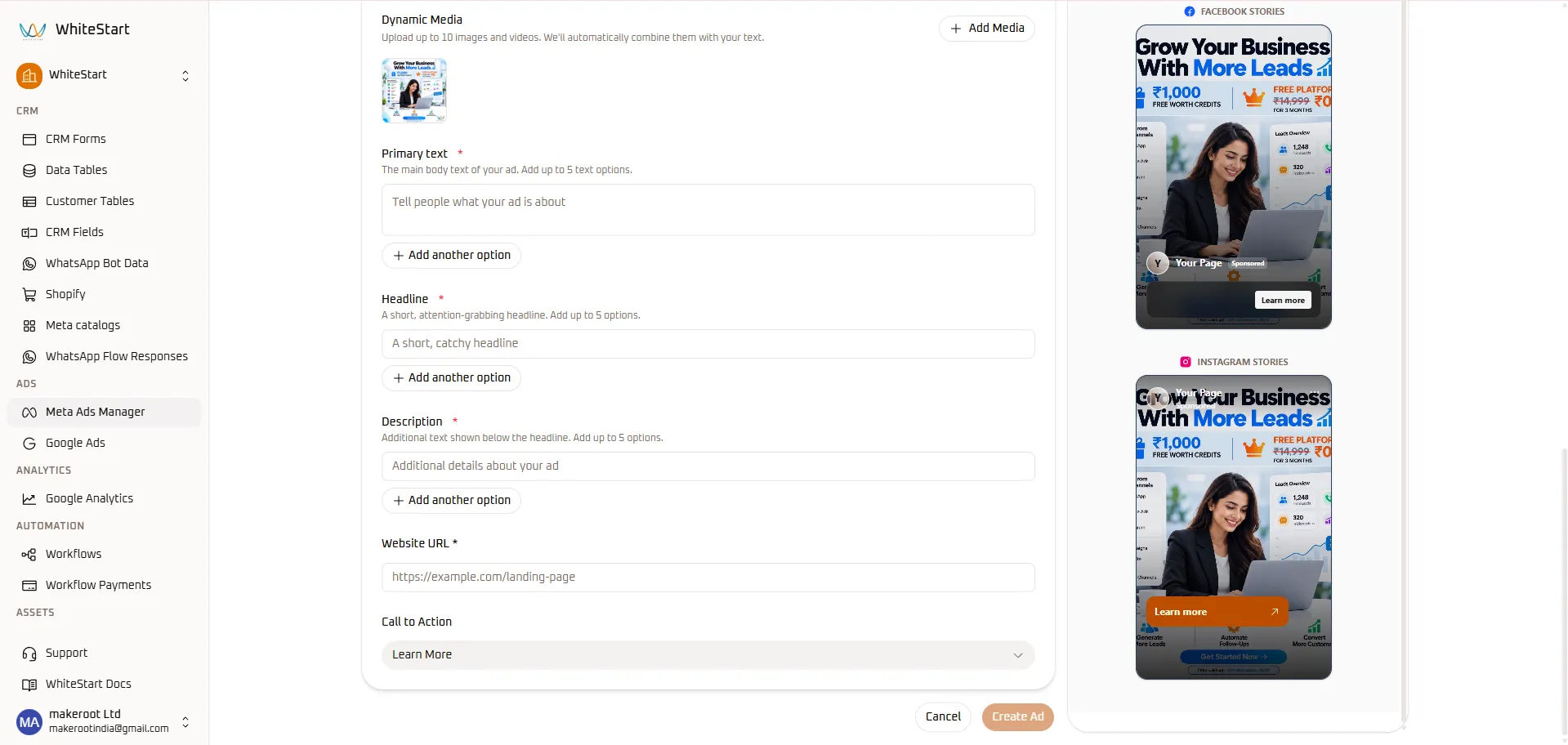
- Inspect Instagram Stories & Facebook Stories:
- Verify that primary text, branding logos, and CTA buttons do not overlap with platform navigation or profile headers.
- Confirm that the orange Learn more > action bar displays prominently.
- Final Submission:
- Review all fields for grammatical precision and policy compliance.
- Click the orange
Create Adbutton in the bottom right corner.
- Meta Policy Review: The new creative is dispatched to Meta’s Graph API. Its initial status will display in the Ads table as
PENDING REVIEWbefore switching toACTIVE.
6. Toolbar & Data Grid Productivity Features
Section titled “6. Toolbar & Data Grid Productivity Features”The Meta Ads Manager table toolbar includes powerful productivity features designed for rapid search, view customization, and data export.
+─────────────────────────────────────────────────────────────────────────────+| [Q Search across all columns... ] [Columns] [Order] [Export] [Print]+─────────────────────────────────────────────────────────────────────────────+1. Live Omni-Search (Search across all columns...)
Section titled “1. Live Omni-Search (Search across all columns...)”Type any keyword, campaign name, objective, date, or 18-digit Ad ID. Filtering executes instantaneously across all visible columns without page refreshes.
2. Column Visibility Manager ([ Columns ])
Section titled “2. Column Visibility Manager ([ Columns ])”Click Columns to open the column selection drawer. Toggle checkboxes to hide technical details or reveal advanced metrics like Effective Status and Ad ID.
3. Column Order Sequencer ([ Order ])
Section titled “3. Column Order Sequencer ([ Order ])”Click Order to drag and drop column headers. Position high-priority financial metrics (Cost per Result, Amount Spent) adjacent to the campaign name for faster auditing.
4. Formatted CSV Data Export ([ Export ])
Section titled “4. Formatted CSV Data Export ([ Export ])”Click Export to generate a clean .csv file containing the currently filtered dataset. Ideal for sharing performance data with clients, executive stakeholders, or external accounting teams.
5. Print Summary Generator ([ Print ])
Section titled “5. Print Summary Generator ([ Print ])”Click Print to produce an executive-ready PDF or printed handout stripped of navigation bars.
7. Key Performance Metrics Matrix
Section titled “7. Key Performance Metrics Matrix”Understanding the core performance metrics reported in WhiteStart’s Meta Ads Manager:
+─────────────────────────────────────────────────────────────────────────────+| METRIC MATRIX || || IMPRESSIONS REACH RESULTS || (Total Times Shown) (Unique Accounts) (Conversions Achieved) || │ │ │ || ▼ ▼ ▼ || 1,155 Views 979 People 132 Leads || || || AMOUNT SPENT COST PER RESULT || (Total Capital Spent) (Acquisition Efficiency) || │ │ || ▼ ▼ || ₹560.44 ₹56.04 |+─────────────────────────────────────────────────────────────────────────────+| Metric | Calculation Formula | Strategic Importance | Recommended Action |
|---|---|---|---|
| Status | Meta Graph API state | Indicates whether ad spend is actively consuming budget. | Toggle to PAUSED when CAC exceeds target profitability. |
| Objective | Campaign Configuration | Informs Meta’s auction machine-learning focus. | Ensure campaign objective matches real business goals (Leads vs Awareness). |
| Results | Total Conversion Events | Cumulative count of desired business outcomes. | Scale budget on ad sets showing consistent volume expansion. |
| Cost per Result | $\frac{\text{Amount Spent}}{\text{Results}}$ | Cost per acquisition (CPA/CAC). Lower is more efficient. | Benchmark ad sets against one another (e.g., ₹0.43 vs ₹556.57). |
| Amount Spent | Cumulative billed spend | Financial expenditure tracked in native account currency (₹ INR). |
Compare daily spend pacing against monthly marketing budget caps. |
| Impressions | Total ad impressions | Gross volume of times creatives appeared on user screens. | Evaluate overall campaign visibility. |
| Reach | Unique user accounts | Count of individual people who saw your advertisement. | Compare against Impressions to calculate frequency. |
| Frequency | $\frac{\text{Impressions}}{\text{Reach}}$ | Average number of times each unique person viewed your ad. | When frequency exceeds 3.5–4.0, refresh creative assets to avoid fatigue. |
8. Best Practices & WhiteStart Ecosystem Integration
Section titled “8. Best Practices & WhiteStart Ecosystem Integration”1. Direct Click-to-WhatsApp Ads to WhiteStart Inbox
Section titled “1. Direct Click-to-WhatsApp Ads to WhiteStart Inbox”When configuring ad sets with a Message destinations conversion location, route inbound chats directly into your WhiteStart WhatsApp Business Account (WABA). Conversations triggered from ads appear instantly in Inbox ➔ WhatsApp, allowing human agents and AI chatbots to qualify leads immediately.
2. Automated Lead Capture in CRM Data Tables
Section titled “2. Automated Lead Capture in CRM Data Tables”Leads captured through Meta Instant Forms or click-to-chat funnels are automatically ingested into CRM ➔ Customer Tables and tagged with the source campaign name (WhiteStart | Leads | India). Sales teams can trigger automated follow-up sequences without manual data export.
3. Maintain High Ad Set Scores Before Launching
Section titled “3. Maintain High Ad Set Scores Before Launching”Always consult the Ad Set score gauge (79/100) before publishing. Applying recommendations such as enabling Advantage+ placements and broadening destination endpoints can reduce overall acquisition costs by up to 15–20%.