
Managing Facebook from Live Inbox
The Live Inbox provides a unified communication and lead management interface for Facebook Messenger. It enables marketing, sales, and customer service teams to chat with Facebook users in real time, manage incoming Page inquiries, collaborate with team notes, qualify leads, and synchronize customer data directly with the CRM.
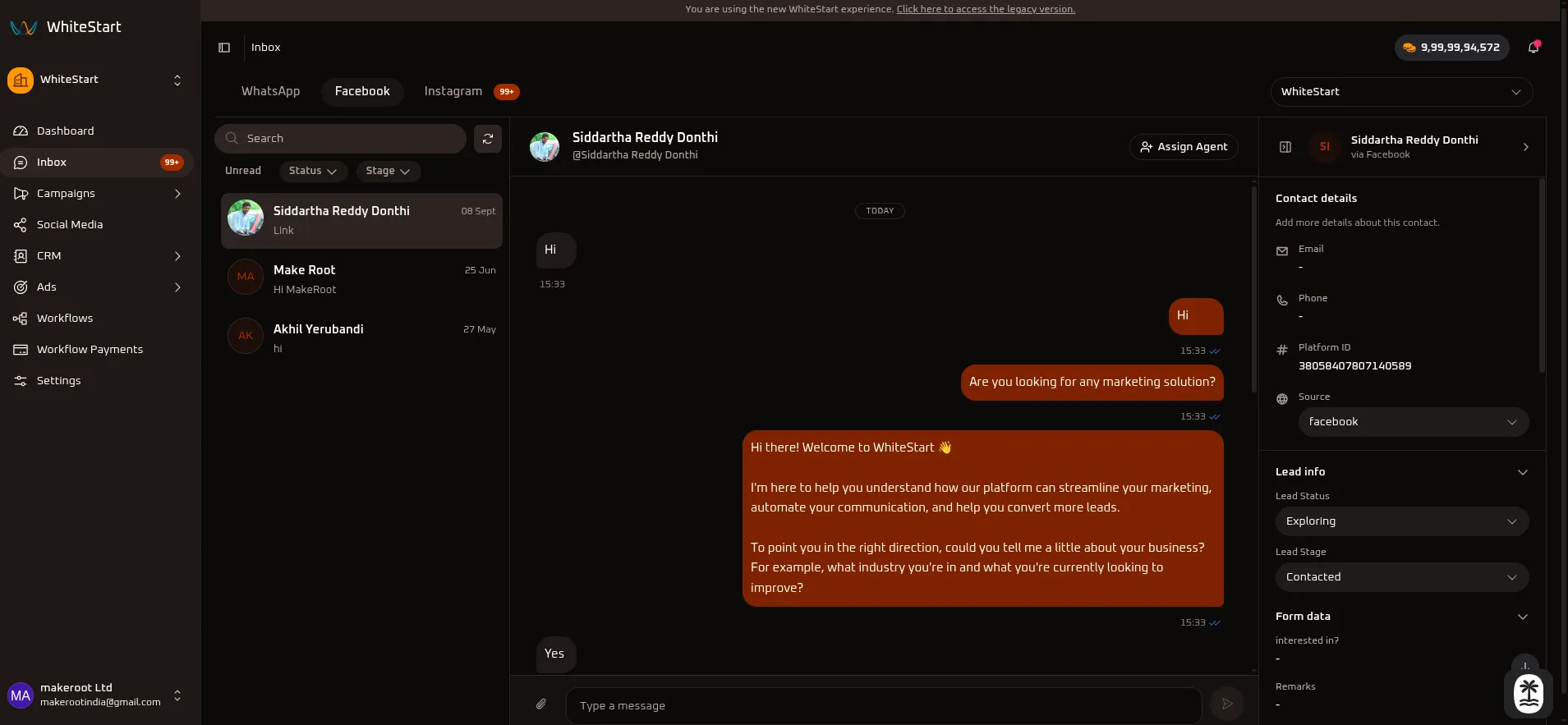
Main Sidebar ➔ Inbox ➔ Channels (Top Bar) ➔ FacebookWorkspace Layout
Section titled “Workspace Layout”The Live Inbox for Facebook Messenger follows the standardized three-panel layout:
┌─────────────────────────┬──────────────────────────────────────────┬─────────────────────────┐│ INBOX FEED │ MESSAGE CENTER │ CRM DETAILS PANEL ││ (Left Panel) │ (Center Panel) │ (Right Panel) │├─────────────────────────┼──────────────────────────────────────────┼─────────────────────────┤│ • Channel Selector │ • Contact Header & Profile Identity │ • Contact Information ││ • Real-time Search │ • Multi-Agent Assignment (👤+ Assign) │ • Lead Status Dropdown ││ • Unread Filter │ • Two-Way Messenger Chat History │ • Lead Stage Pipeline ││ • Status & Stage Filter │ • Message Delivery Indicators (✓✓) │ • Dynamic Form Data ││ • Manual Refresh (🔄) │ • Text Composer & File Upload (📎) │ • Team Internal Notes ││ • Messenger Chat Cards │ • Instant Send Action (➤) │ • Activity Audit Log │└─────────────────────────┴──────────────────────────────────────────┴─────────────────────────┘Accessing Facebook in Live Inbox
Section titled “Accessing Facebook in Live Inbox”- Open the Inbox: In the main navigation sidebar on the left, click Inbox (displays an unread counter badge when new customer inquiries arrive).
- Select Channel: On the top channel selection bar, click the Facebook tab (located between WhatsApp and Instagram).
- Select Workspace/Page (Optional): If you manage multiple connected Facebook Pages or workspaces, select the target account from the top-right profile selector dropdown (e.g.,
WhiteStart). - Select a Conversation: Click any customer thread in the Inbox Feed to open the active conversation in the Message Center and populate lead data in the CRM Details Panel.
1. Left Section: Inbox Feed
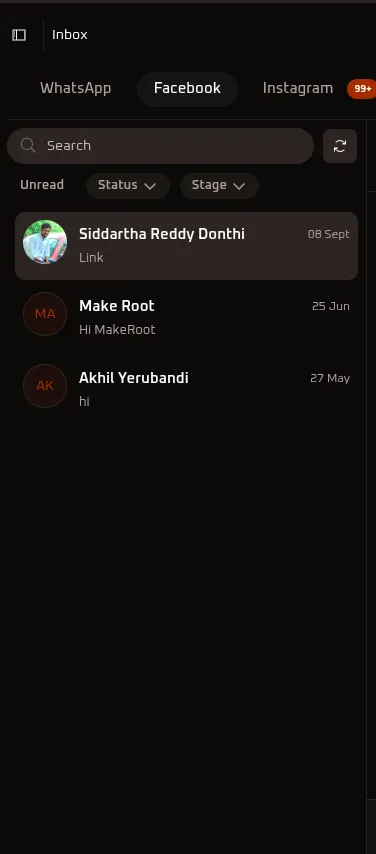
Section titled “1. Left Section: Inbox Feed”The Inbox Feed displays your incoming Facebook Messenger conversation threads, search utilities, and quick filters.
Controls & Options Reference
Section titled “Controls & Options Reference”1. Search Bar (Search)
Section titled “1. Search Bar (Search)”- What it does: Allows you to find specific Facebook Messenger conversations quickly.
- How to use it: Type a contact’s display name (e.g.,
Siddartha Reddy Donthi,Make Root,Akhil Yerubandi). The feed filters dynamically as you type.
2. Refresh Button (🔄)
Section titled “2. Refresh Button (🔄)”- What it does: Manually syncs and reloads the conversation list.
- How to use it: Click the Refresh icon (
🔄) next to the search bar to immediately pull in the latest incoming Facebook messages, newly connected chats, or agent assignment updates without reloading the browser page.
3. Unread Filter (Unread)
Section titled “3. Unread Filter (Unread)”- What it does: Isolates conversations that contain unread customer messages.
- How to use it: Click on Unread to view only those Facebook chats that require prompt agent attention. Click again to return to all messages.
4. Status Filter (Status ▾)
Section titled “4. Status Filter (Status ▾)”- What it does: Filters conversations based on their qualification or engagement status in the CRM.
- How to use it: Click the Status ▾ dropdown to filter conversations by lead sentiment (e.g., New, Interested, Exploring, Not Interested, No Response, processing, Onboarded).
5. Stage Filter (Stage ▾)
Section titled “5. Stage Filter (Stage ▾)”- What it does: Filters contacts according to their milestone in the sales pipeline.
- How to use it: Click the Stage ▾ dropdown to view contacts at specific milestones such as New Lead, Contacted, Discovery / Requirement Gathering, Qualified, Meeting Scheduled, Demo Completed, Proposal Sent, Negotiation, Closed Won, or Closed Lost.
Quick Reference Summary
Section titled “Quick Reference Summary”| Control / Filter | Type | Primary Purpose |
|---|---|---|
| Search | Text Input | Search Facebook conversations by contact name or keyword. |
Refresh (🔄) |
Action Button | Manually sync the latest messages and conversation states. |
| Unread | Quick Filter Pill | View only conversations with pending, unread messages. |
Status (Status ▾) |
Dropdown Filter | Filter contacts by lead qualification status (e.g., Exploring, Interested). |
Stage (Stage ▾) |
Dropdown Filter | Filter contacts by sales pipeline stage (e.g., Contacted, Qualified). |
2. Center Section: Message Center
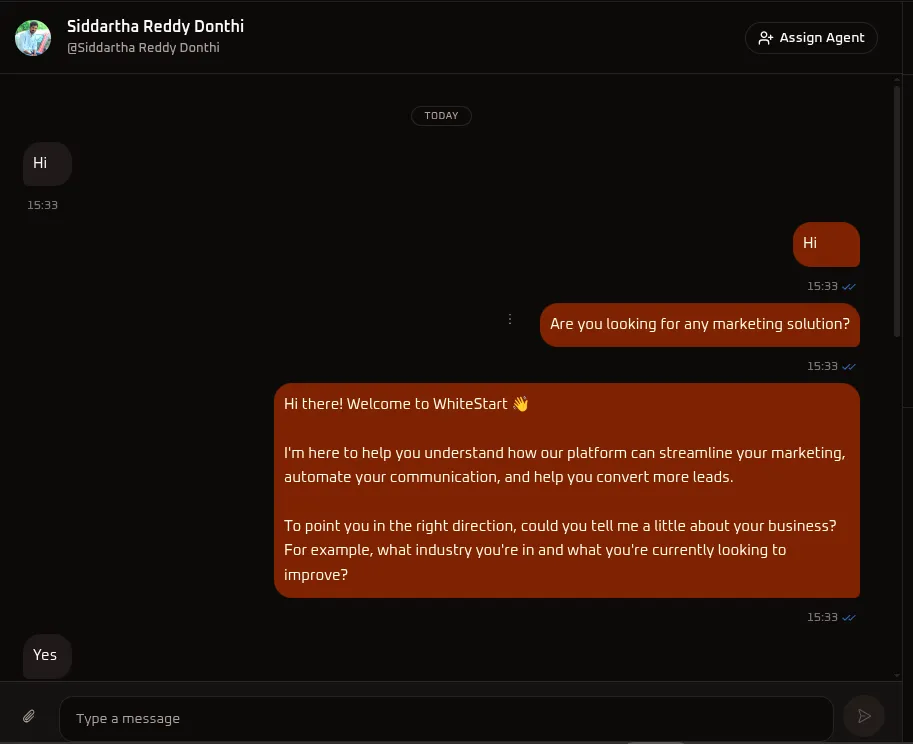
Section titled “2. Center Section: Message Center”The Message Center is your primary active workspace for chatting with Facebook Page visitors and prospects.
A. Contact Header & Action Bar
Section titled “A. Contact Header & Action Bar”- Contact Identity: Displays the customer’s Facebook profile picture, display name (
Siddartha Reddy Donthi), and Facebook username (@Siddartha Reddy Donthi). - Assign Agent (
👤+ Assign Agent): Opens the agent directory modal to delegate or share conversation ownership.
B. Assigning Team Agents
Section titled “B. Assigning Team Agents”Clicking Assign Agent opens the team directory:
- Review the customer profile and display name at the top of the modal.
- Select one or more agents from your team directory.
- Click
+ Assignto link the agent to this Facebook chat.
C. Conversation History & Composer
Section titled “C. Conversation History & Composer”- Message Thread:
- Inbound customer messages appear on the left (grey bubbles) with timestamp details (e.g.,
Hi,Yes). - Outbound messages sent by your agents or automated AI agents appear on the right (orange bubbles) with delivery receipts (
✓✓). - Time dividers (e.g.,
TODAY) clearly segment multi-day conversations.
- Inbound customer messages appear on the left (grey bubbles) with timestamp details (e.g.,
- Message Composer: Type your custom reply in the bottom input field (
Type a message). - Media Attachment (
📎): Attach and send images, brochures, documents, or PDF guides directly through Messenger. - Send Button (
➤): Instantly delivers your message to the user’s Facebook Messenger inbox.
3. Right Section: CRM Details Panel
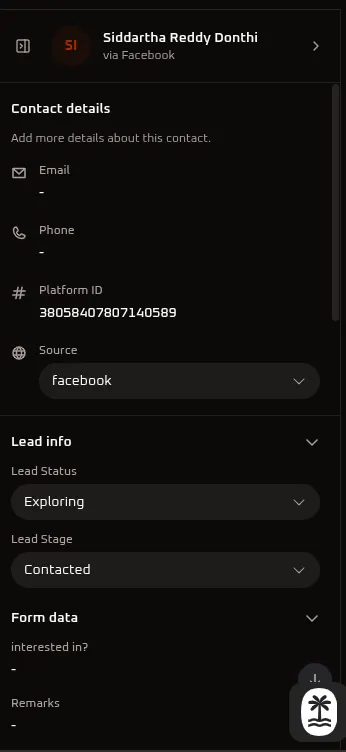
Section titled “3. Right Section: CRM Details Panel”The CRM Details Panel gives you complete customer context, lead qualification controls, and collaboration tools alongside the active conversation. All changes saved here automatically synchronize with your CRM records.
A. Contact Details
Section titled “A. Contact Details”- Profile Header: Displays avatar initials, contact name, and channel origin (
Siddartha Reddy Donthi via Facebook). - Email: Shows the customer’s email address (displays
-if not yet captured). - Phone: The contact’s phone number (displays
-if not yet provided). - Platform ID: The unique Page-Scoped User ID (PSID:
38058407807140589) assigned by Meta for tracking and secure API identification. - Source: Identifies lead acquisition origin (set to
facebook).
B. Lead Qualification: Status
Section titled “B. Lead Qualification: Status”The Lead Status dropdown categorizes the contact’s current interest level and engagement sentiment:
| Status Option | Operational Meaning & When to Use |
|---|---|
| New | Newly captured contact; initial outreach has not yet occurred. |
| Interested | Contact responded positively, asked questions, or expressed interest in platform solutions. |
| Exploring | Prospect is reviewing information, comparing options, or evaluating features (as shown in the screenshot). |
| Not Interested | Contact explicitly stated they do not require your solution or service. |
| No Response | Messages have been sent, but the contact has not replied. |
| Already Using Other | Contact is currently committed to an alternative tool or competitor. |
| Spam | Irrelevant, fraudulent, or unsolicited contact. |
| processing | Contact is currently undergoing qualification, team review, or workflow actions. |
| Onboarded | Deal concluded; customer transitioned into active onboarding. |
C. Lead Qualification: Stage
Section titled “C. Lead Qualification: Stage”The Lead Stage dropdown tracks the contact’s milestone along your sales pipeline:
| Stage Option | Pipeline Milestone |
|---|---|
| New Lead | Fresh contact entry into the CRM. |
| Contacted | Initial outreach completed via Messenger, chat, or email (as shown in the screenshot). |
| Discovery / Requirement Gathering | Identifying customer pain points, business goals, and software needs. |
| Qualified | Prospect meets qualification criteria (BANT). |
| Meeting Scheduled | Consultation, sales call, or demo has been booked. |
| Demo Completed | Platform walkthrough or presentation has concluded. |
| Proposal Sent | Commercial proposal or pricing plan has been delivered. |
| Negotiation | Contract terms, customization, or pricing are actively under discussion. |
| Verbal Commitment | Prospect verbally confirmed agreement; awaiting paperwork. |
| Contract Sent | Formal service contract or agreement dispatched. |
| Payment Pending | Invoice sent; awaiting payment confirmation. |
| Closed Won | Deal completed and revenue secured. |
| Closed Lost | Opportunity closed without conversion. |
D. Dynamic Form Data
Section titled “D. Dynamic Form Data”Displays structured responses submitted by the contact through website forms, Messenger lead forms, or automated chatbot prompts:
- interested in?: Specific product, marketing solution, or feature selected by the user.
- Remarks: Customer notes, special instructions, or requirements.
E. Comments & Activity Audit Trail
Section titled “E. Comments & Activity Audit Trail”Maintain internal communication and an immutable historical log of all actions taken on the contact record.
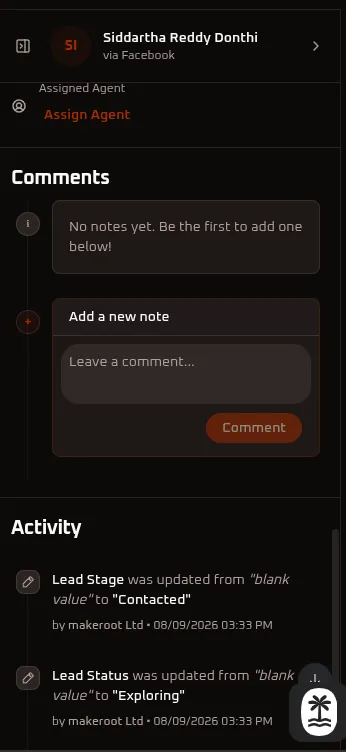
Internal Team Notes (Comments)
Section titled “Internal Team Notes (Comments)”Collaborate internally with teammates directly inside the contact record without sending messages to the customer:
- Empty State: If no notes have been written yet, a prompt appears: “No notes yet. Be the first to add one below!”
- Add a Note: Click into the Leave a comment… text area, write your internal note, and click the orange Comment button.
- Manage Notes: Once added, notes display author details, timestamps, and edit (
✏️) or delete (🗑️) controls.
Activity Audit Trail
Section titled “Activity Audit Trail”Maintains a chronological, tamper-proof audit trail of system and agent actions on the record:
- Field Updates: Automatically logs when fields change (e.g., Lead Stage was updated from “blank value” to “Contacted” by makeroot Ltd • 08/09/2026 03:33 PM and Lead Status was updated from “blank value” to “Exploring” by makeroot Ltd • 08/09/2026 03:33 PM).
- Accountability: Provides complete transparency into which agent updated contact parameters, modified pipeline stages, or reassigned conversations.